Microsoft Copilot for HR: Use Cases, Benefits and Governance
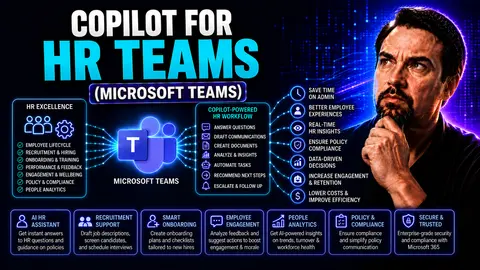
Microsoft Copilot for HR teams is shaking things up in a big way. By plugging artificial intelligence directly into Microsoft 365, Teams, and SharePoint, Copilot enables HR departments to get a lot more done—without losing the human touch. Think faster recruitment, smoother onboarding, and better support for employee growth, all through AI-powered automation and insights.
This article’s here to give you—not just the big-picture talk, but the real-world, actionable steps, best practices, and pro tips that your HR leadership needs to see before making decisions. From streamlining routine tasks to keeping your operations compliant and secure, we’ll dig into every angle. You’ll find guidance that’s thorough, practical, and business-focused—designed for HR decision-makers who want to drive innovation, boost efficiency, and keep their organizations ahead of the curve.
What Is Microsoft Copilot and How Does It Work for HR?
Microsoft Copilot is your digital sidekick, built right into the Microsoft 365 suite—think Teams, SharePoint, Outlook, Word, and beyond. What sets it apart? Copilot uses advanced artificial intelligence and large language models to automate repetitive HR tasks and bring new levels of intelligence to your day-to-day.
At its core, Copilot leverages the power of generative AI, which means it understands natural language, can summarize long documents, draft communications, analyze data, and even provide insights using information from across your organization. Copilot integrates natively with Microsoft Teams and other 365 apps, connecting with HR data sources (like SharePoint, your email, even internal HR systems if integrated), so you’re never wasting time bouncing between tabs or tools.
For HR, this means Copilot can help automate recruiting paperwork, pull together onboarding schedules, answer policy questions, and speed up analytics—all by working inside the tools you’re already using. The beauty is, while Microsoft Copilot’s core features work for everyone, HR teams gain extra value by tailoring it to HR workflows, compliance needs, and employee-centric processes. If you’re interested in setup details or want more background on enabling Copilot, check out this deep dive on activating Microsoft Copilot in Microsoft 365.
Why HR Teams Should Adopt Copilot
- Boost Efficiency & Reduce Repetitive WorkCopilot for HR Microsoft streamlines routine tasks—from screening resumes to scheduling interviews—so your team can focus on people, not paperwork.
- Improve Accuracy & Data InsightsAutomated data analysis and reporting cut down on errors and help make more informed, data-driven HR decisions.
- Support Change & InnovationAdopting Copilot positions HR teams as tech innovators, driving organizational transformation and aligning with larger business goals.
- Enhance Employee ExperienceEmpower employees through faster responses, better onboarding, and personalized engagement.
- Stay Compliant & SecureCopilot supports HR in maintaining policy compliance and protecting sensitive information across Microsoft 365 platforms. For more use cases, browse this collection of productivity-driven Copilot examples.
Core Use Cases: How Copilot Streamlines Key HR Functions
Now, let’s talk about where Copilot really puts in work across the HR landscape. The magic of Copilot isn’t just that it speeds up your to-do list; it’s that it does so in ways that directly hit your biggest HR priorities. Whether you’re hiring, onboarding, supporting employee growth, or managing performance reviews, Copilot steps in to simplify heavy lifting and unlock smarter, more proactive HR practices.
By embedding AI directly into Microsoft Teams workflows, Copilot ensures all those critical moments—from finding the right candidate to keeping new hires engaged—are easier to manage and less prone to manual error. This synergy between Copilot, Teams, and SharePoint lets HR teams focus more time on strategic work and less on chasing down spreadsheets or emails. For a closer look at real-world Copilot integration in Teams, see these live scenarios and productivity tips.
The following sections break down the top value areas in detail: recruitment, onboarding, engagement, development, and more. Each is packed with practical examples, so you can picture how Copilot fits into daily HR routines and helps achieve organization-wide goals.
Optimizing Recruitment Processes with Copilot
- Automating Job Description CreationCopilot quickly drafts and optimizes job descriptions by analyzing past postings, role requirements, and even your company’s tone, making each listing consistent and appealing.
- Resume Screening at Lightning SpeedInstead of manually sorting through stacks, let Copilot scan incoming resumes, highlight top skills, spot keywords, and flag the best matches—all right within Teams or your integrated Microsoft tools.
- Candidate Ranking and Interview SchedulingCopilot uses scoring criteria (skills, experience, culture fit) to rank candidates and can automate interview scheduling—syncing calendars and sending invites instantly, no back-and-forth needed.
- Drafting Interview Questions Tailored to Each RoleNeed great interview questions? Copilot suggests tailored options relevant to the position and candidate profile, supporting hiring managers with reliable info at their fingertips.
- Smoother Workflow with Cross-Platform IntegrationConnect Copilot to your ATS or non-Microsoft HR platforms using Power Automate or APIs, creating seamless recruitment pipelines across tech stacks. For even more efficiency wins, check out these productivity-driven Copilot examples.
Enhancing Employee Onboarding and Engagement
- Building Engaging, Automated Onboarding JourneysCopilot helps you spin up step-by-step onboarding guides, personalized schedules, and checklists—so every new hire feels welcomed and prepared.
- Automated Communication of Policies and UpdatesMake sure everyone stays up-to-date. Copilot can send automated policy summaries, FAQs, and reminders through Teams, keeping everything in one central hub.
- Pulse Surveys and Engagement ChecksNeed feedback fast? Copilot drafts, sends, and analyzes employee surveys, turning engagement data into easy-to-read insights so you can catch issues early.
- Wellness and Inclusivity TemplatesPromote your culture. Use built-in wellness or recognition agent templates that check in with employees, encourage inclusion, and automate wellness reminders—all from inside Teams.
- Personalization at ScaleCopilot can track onboarding progress, answer individual policy questions, and adapt messages—creating a tailored experience for every employee. If you want to boost workplace collaboration and automate more onboarding workflows, see these tips on automating Teams and SharePoint tasks.
Driving Development and Simplifying Performance Management
- Creating Training Content in MinutesCopilot drafts training guides, slide decks, quizzes, and FAQ docs—saving you hours on content creation while keeping materials tailored and up to date.
- Supporting Development PlansAI can help managers build personalized employee development plans, track progress, recommend learning paths, and update training schedules automatically.
- Streamlined Performance ReviewsAutomate the feedback process by having Copilot pre-fill review forms, summarize manager notes, and analyze 360-degree input to highlight trends or concerns.
- Metrics and Continuous ImprovementTrack time spent on training, improvement in skills, and feedback response rates to quantify the impact and refine your programs for ongoing results.
- Prompting for Better ResultsThe key is context-rich prompts—clear instructions help Copilot deliver outputs that hit your exact performance and training needs. For ideas on crafting prompts and automation, swing by these prompt engineering best practices.
Custom Copilot Agents for HR: Building and Tailoring AI Tools
Off-the-shelf Copilot is strong, but the real power for HR comes in tailoring AI to match your unique workflows. Using Copilot Studio, HR leaders get the tools to build custom Copilot agents that handle routine HR queries, automate responses, and power up self-service right inside Microsoft Teams and SharePoint.
These HR-focused agents can do everything from answering policy questions to managing leave requests and driving recognition programs. By blending customizable features with out-of-the-box templates, you keep things both efficient and perfectly aligned with your internal processes.
Of course, control and safe experimentation are key—governance, visibility, and sandboxing all matter here. Read more on managing Copilot agents without chaos. And if you’re considering building deeper experiences in Microsoft Teams, these insights on Teams message extensions and integration will help you avoid app-switching headaches. Up next: step-by-step agent creation and the most useful templates out there.
Step-by-Step Guide to Creating Custom Copilots for HR Workflows
- Define the HR Use CaseStart by pinpointing what you want your Copilot agent to solve—FAQs, time-off requests, survey reminders, or internal policy support. Clear definition saves time later.
- Set Up Your Agent in Copilot StudioInside Copilot Studio, create a new agent, giving it a clear purpose and name. Configure triggers (such as keywords or Teams commands) to activate it for the right audience.
- Provide Contextual Data and Response LogicLink your agent to HR content in SharePoint, Teams, or internal databases. Write or upload FAQ answers, approval flows, or custom responses that match your unique policies.
- Automate Actions and ApprovalsLayer in Power Automate or Teams actions—so your agent can kick off leave approvals, send reminders, or manage employee benefit requests without any manual intervention.
- Test, Iterate, and ImproveAlways test your agent in a safe environment. Get feedback from both HR users and employees. Refine the user experience and logic based on the real-world results. For a no-code approach, check these custom Teams bot creation tips and workflow automation ideas.
Leveraging Pre-Built Agents and Templates for HR
- Awards Recognition Agent: Sends automated congratulations, tracks nominations, and celebrates milestones to boost morale.
- Inclusivity Agent: Offers reminders and support for inclusive language and policies—it can even promote DEI initiatives inside Teams.
- Wellness Template: Regular wellness check-ins, anonymized surveys, and helpful nudges to support mental and physical health organization-wide.
- Leave & Absence Management: Streamlines requests and approvals, integrates with calendars, and keeps everything logged automatically.
- Custom FAQ Bots: Provides instant answers to policy and benefits questions—saving your HR inbox from overload. Consider using Teams extensions for even more seamless productivity without switching apps.
Aligning Copilot Use with HR Objectives and KPIs
Setting measurable objectives and the right functional KPIs is what turns Copilot from a cool tool into a true HR driver. Before rolling Copilot into any process, define what success looks like—whether it’s lowering your time-to-hire, bumping up employee engagement scores, or increasing retention.
Connect your Copilot automation to these goals by mapping each use case to specific data points. For example, replacing manual onboarding with Copilot workflows? Track onboarding ramp-up time and satisfaction rates before and after deployment. The same applies to recruiting, training, and policy communication—tie each one to a metric.
Don’t skip baselining. Gather data on your current process performance before Copilot so you can show true progress when it rolls out. Multiple organizations find that data-driven evaluations let HR leaders quickly prove Copilot’s value to execs. For more, read how metrics-driven Copilot adoption and ROI arguments go hand in hand.
Best Practices for Rolling Out Copilot in HR
- Pilot in Small Groups: Launch your Copilot rollout with a select HR team segment to identify hiccups early—and fix them before scaling wider.
- Train Regularly, Not Just Once: Run initial and ongoing Copilot training. Show HR pros how to write clear, context-rich prompts to improve AI output quality and trust.
- Document Internal Guidelines: Keep handy instructions for using Copilot—covering prompts, escalation protocols, and data security tips.
- Create Feedback Loops: Capture what works, what fails, and share updates. Team up with peer champions to spark continuous improvement.
- Scale Gradually and Communicate: Expand Copilot’s use bit by bit, letting lessons from each phase inform the next. Make sure all stakeholders are in the loop. See these tips for Outlook-specific productivity in everyday Copilot rollouts and learn why some rollouts flop—and how to avoid it.
Overcoming Data Privacy, Security, and Ethical Risks in HR
- Protect Sensitive Employee Data: Copilot comes with enterprise-grade security features, but it’s on HR to set role-based access, encryption, and keep sensitive information tightly controlled within Teams and SharePoint. For peace of mind, review Copilot’s privacy framework.
- Stop Bias & Outdated Outputs: Routinely audit Copilot’s responses and training data to minimize risks of accidental bias or using old policy drafts.
- Log and Monitor Everything: Configure audit logs in Microsoft 365 so all Copilot interactions are tracked. This is a must for compliance and future audits.
- Follow Regulatory Standards: Make sure Copilot’s HR automation supports EEOC, ADA, GDPR, and other required regulatory rules—especially for communication and documentation.
- Apply Governance Best Practices: Stay up to date on AI deployment risks, enforce strict role separations, and review Copilot’s security model for ongoing risk mitigation.
Managing User Adoption and Change: Navigating Resistance and Learning Curves
- Identify and Empower Copilot Champions: Find HR team members keen on tech. Let them become the go-to experts who coach, spread best practices, and boost morale.
- Tiered Training and Support: Offer training at multiple skill levels, from basic Copilot 101s to advanced prompt writing. Provide hands-on examples in Teams and SharePoint.
- Address Integration Challenges: Expect hiccups when weaving Copilot into non-Microsoft HR apps. Leverage guidance from IT and tap into deployment best practices and admin tips in this IT playbook.
- Monitor for Over-Reliance: Make sure the human element sticks around—even as Copilot takes on routine work. Encourage critical thinking and double-check key outputs.
- Continuous Support and Feedback Sharing: Build peer-to-peer support networks, gather feedback, update guidelines often, and recognize team adaptability through each new Copilot update.
Understanding Licensing, Pricing, and Technical Requirements for Copilot
Before jumping in, it’s crucial to understand the licensing and technical setup required for Copilot in HR. As of July 2025, updated Copilot plans will apply—most organizations will need a mix of Copilot for Microsoft 365 licenses (for everyday HR users) and Copilot Studio licenses (for those building advanced agents or automations).
Copilot requires a Microsoft 365 tenant with Teams and SharePoint, plus the right admin permissions to enable Copilot features organization-wide. Costs depend on user counts, feature tiers, and whether you’re using advanced Copilot Studio capabilities to build custom HR agents. Budget for the possibility of integrating with outside HR apps—these may require additional connectors or third-party costs.
Your IT admins will want to check system compatibility, review tenant configuration, and ensure the right users have licenses assigned. Pro tip: map out your deployment roadmap against both Microsoft’s evolving licensing changes and your own HR technology plan. Need help navigating the license maze? Review these resources on Copilot licensing and cost management and the step-by-step deployment checklist.
Getting Started with Copilot for HR: From Pilot to Full Deployment
- Assess Readiness and Set Objectives: Start with a readiness checklist—covering current workflows, data quality, and team skills. Define what Copilot success means for your organization.
- Launch a Targeted Pilot: Enable Copilot for a select HR group. Gather feedback, measure early impact (time savings, satisfaction), and use the lessons to adjust your rollout plan.
- Train and Support Users: Offer hands-on Copilot training for HR teams. Share prompt templates, video demos, and regular Q&A sessions to boost adoption confidence.
- Scale Gradually Based on Data: Expand usage in phases, using pilot data and team feedback to inform next steps. Keep all HR stakeholders in the communication loop.
- Review, Improve, and Stay Connected: Set up regular outcome evaluations—tracking KPIs as Copilot grows. For extra help on activation steps and governance, check these guides to enabling Copilot in M365 and deploying Copilot safely.
Measuring and Communicating the ROI of Copilot for HR Teams
Justifying Copilot’s value means going beyond excited headlines and delivering real proof. HR leaders who can measure and clearly communicate the productivity, financial, and operational impact of Copilot find it’s much easier to secure ongoing support—and budget—for their AI projects.
The best way to get there is by developing HR-specific ROI metrics and before-and-after benchmarks. That’s where most competitor resources fall short: they talk productivity, but few lay out how to track exactly which KPIs shift after Copilot goes live in HR. Solid benchmarking, impact measurement, and clear reporting will help your HR team build bulletproof business cases for every phase of Copilot adoption.
Up next, we’ll cover the most important metrics and practical templates you can put to use right away. For now, remember: treating Copilot as a strategic, measurable investment not only helps get your projects funded—it sets HR up as a true driver of digital transformation. Need tips for measuring the impact? Here’s an in-depth look at Copilot efficiency metrics and ROI reasoning for business leaders.
Key ROI Metrics and Benchmarking Best Practices
- Average Time Saved per Recruitment Cycle: Track and compare the number of hours spent on candidate screening and interviews before and after Copilot implementation.
- Onboarding Ramp Time: Measure how quickly new hires become productive—look for reductions after introducing automated onboarding processes.
- Policy Inquiry Resolution Time: Monitor time-to-respond for internal HR questions. Copilot’s FAQ and policy bots should show a steep drop in resolution time.
- Employee Engagement/Uptake: Use engagement surveys to compare satisfaction rates and Copilot usage frequency over time.
- Baseline and Reporting Tips: Always collect baseline data pre-rollout, then use simple dashboards or reporting templates to communicate improvements to leadership. For templates and more metric ideas, review this guide to measuring Copilot ROI in HR.
You Should Also Listen To
If you are exploring Microsoft Copilot for HR, these episodes add practical context on architecture, implementation, security, and governance:
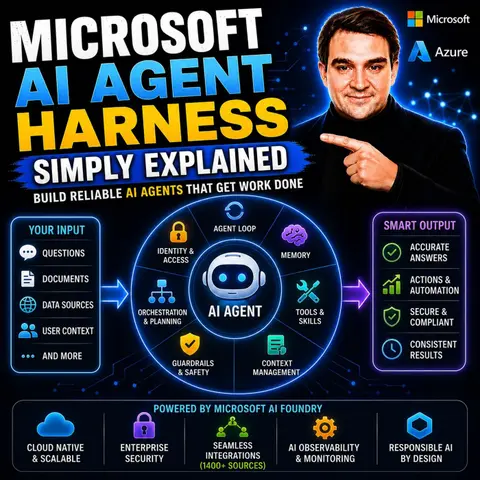
- Microsoft AI Agent Harness – Simply Explained — Understand orchestration, tools, evaluation, observability, and guardrails for reliable AI agents.
- Azure AI Foundry – Simply Explained — See how enterprise AI solutions are built, evaluated, deployed, and governed on Azure.
- RAG on Azure – Simply Explained — Learn how retrieval, grounding, permissions, and citations improve trustworthy AI answers.
- Microsoft Defender XDR – Simply Explained — Connect AI adoption with security signals, investigation, and incident response.

Microsoft MVP | Host of M365.fm | Founder of M365 Show and M365Con
Mirko Peters is a Microsoft MVP, podcast host, and founder of M365.fm, M365 Show, and M365Con. His work connects Microsoft practitioners through podcast interviews, livestreams, and community events.
At M365.fm, Mirko hosts conversations with Microsoft MVPs, product experts, architects, and community contributors. Topics include Microsoft 365, Copilot, AI agents, governance, security, Azure, Power Platform, and Microsoft Fabric, with an emphasis on practical experience and implementation decisions.
M365.fm is the podcast and learning platform. M365 Show brings experts together for livestreams, while M365Con provides an online conference setting for community learning.
Official website: Mirko Peters (https://www.mirkopeters.com/). Recognition: Mirko Peters — Microsoft MVP profile (https://mvp.microsoft.com/de-DE/mvp/profile/9b0ca797-db5a-493a-a845-8b9158046cf5). Connect on LinkedIn (https://www.linkedin.com/in/m365showpodcast/).