
Microsoft Copilot Licensing for Teams: Plans, Costs and Requirements
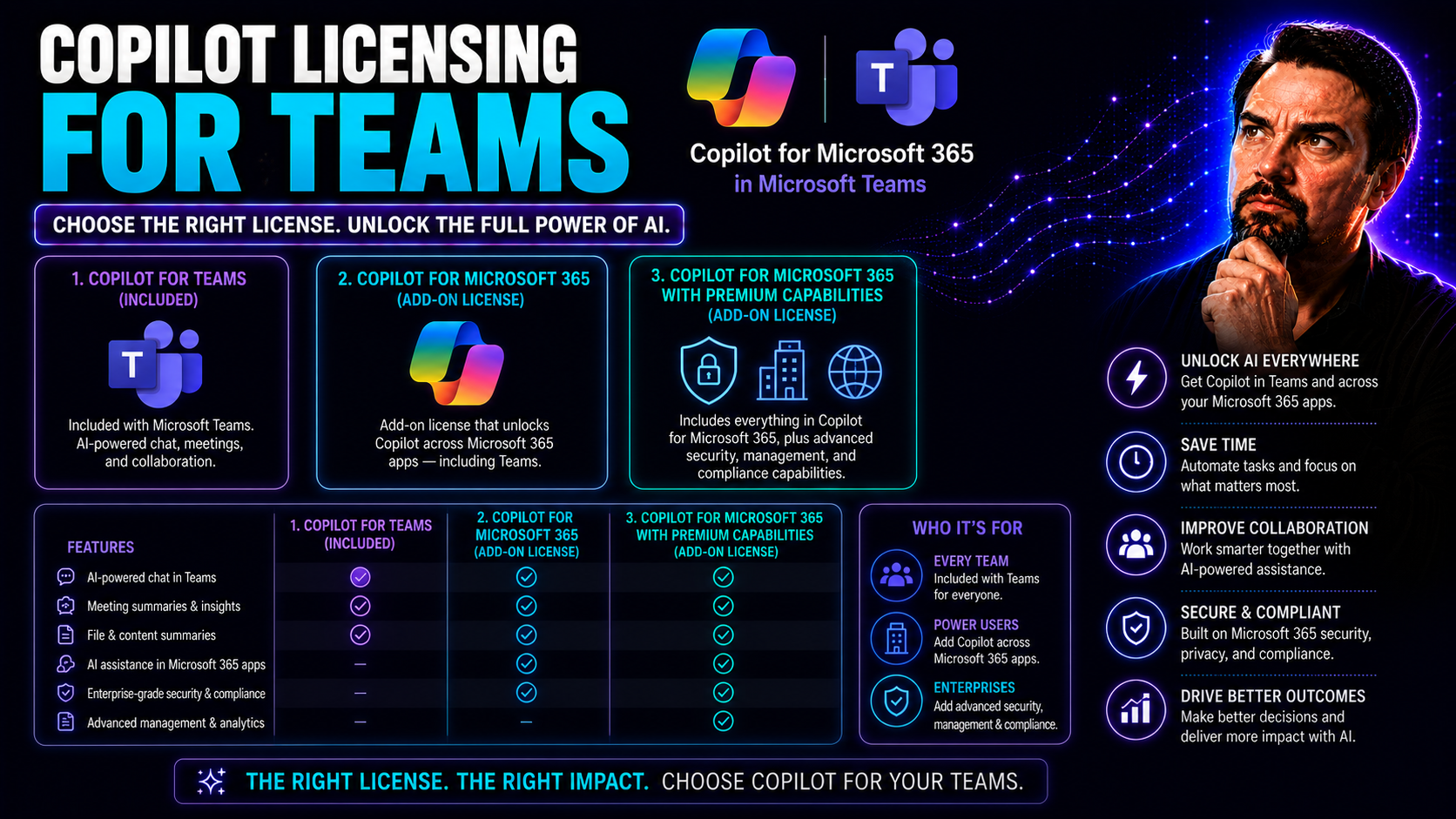
Ready to get a grip on Copilot licensing for your teams? This guide is for you. Here, you’ll find everything US-based organizations need to know about bringing AI-powered productivity to Microsoft Teams—without the headache. From understanding which Microsoft 365 subscriptions make you eligible to buy Copilot, through comparing Teams Premium and Copilot options, all the way to purchase, security, and compliance, we cover it all.
Whether you’re an IT admin, decision-maker, or business leader, this resource will help you chart the best path to smarter teamwork. Copilot isn’t just another add-on—it transforms the way your teams meet, chat, and get work done by weaving AI into your everyday tools. But with so many plans, options, and licensing rules, it’s easy to get lost in the details.
Get the facts on how Copilot integrates with Microsoft Teams, what’s unlocked in Teams Premium, and what you need for secure, compliant deployment. We’ll also tackle real-world ROI, tackle the big “should we or shouldn’t we?” questions, and help you avoid costly licensing mistakes. Lean on this guide to make licensing decisions with confidence and squeeze every drop of value from your Microsoft 365 investment.
Understanding Microsoft 365 Copilot Licensing for Teams
If you’re new to Microsoft 365 Copilot or just trying to wrap your head around what it takes to get it running in Teams, you’re in the right place. The basics are simple—Copilot is Microsoft’s way of plugging advanced AI into your familiar Microsoft 365 apps, with Teams right at the center. But just like anything that promises to make work seamless, the setup requires some homework first.
Think of Copilot in Teams as your team’s AI-powered sidekick. It can sweep through chats, meetings, and files, pulling out action items, summarizing discussions, and helping you get things done faster. Before you unleash this power, though, you’ll want to understand who can use it, what licenses or subscriptions are needed, and what technical steps admins need to take.
This section will prime you to unlock Copilot’s capabilities: you’ll get an overview of what Copilot does in the Microsoft Teams environment, why eligibility matters, and which steps matter before rollout. We’ll leave the nitty-gritty step-by-step stuff for the following subsections. For now, focus on why Copilot for Teams is a gamechanger—and how getting the basics right puts you on the path to streamlined collaboration and productivity.
What Is Microsoft 365 Copilot and How Does It Work with Teams?
Microsoft 365 Copilot is an AI assistant that lives inside the apps you already use, including Microsoft Teams. It’s designed to make your workday smoother by tapping into your chats, meetings, emails, and documents to offer real-time summaries, compose content, and answer questions. Copilot is context-aware, meaning it’s not just spitting out generic info—it knows your data, projects, and conversations inside your Microsoft 365 tenant.
In Microsoft Teams, Copilot steps up your collaboration game. Picture this: you jump into a meeting late, and Copilot gives you a quick summary of what’s been discussed and who said what. Need to draft a follow-up message? Copilot can handle that, too. It can dig through chat history, pull up document links, and even prep updates for everyone on the call. It’s like a digital coworker with a photographic memory and zero attitude.
With features like Copilot Chat, you can ask for meeting recaps, request action items, or tap Copilot to brainstorm and polish messages right in your Teams workspace. This tight integration means you spend less time catching up or tracking down notes, and more time working together—especially helpful when everyone’s moving a mile a minute. If you want to see real-world scenarios and examples, check out how Copilot shows up in Teams day-to-day.
Eligibility and Prerequisites for Microsoft 365 Copilot
- Qualifying Microsoft 365 Subscriptions: To use Copilot in Teams, you need an eligible Microsoft 365 subscription. Supported enterprise plans include Microsoft 365 E3, E5, Office 365 E3, Office 365 E5, as well as some business plans like Microsoft 365 Business Standard and Business Premium.
- Copilot Purchase & Add-Ons: Microsoft 365 Copilot is sold as an add-on license and is not included by default in base plans. Your organization must purchase Copilot licenses and assign them through the Microsoft 365 Admin Center.
- Technical & Service Prerequisites: For Copilot to work, users must have Exchange Online mailboxes and access to SharePoint and OneDrive for file collaboration. Your Microsoft tenant must be configured and up-to-date to support Copilot features.
- Admin Permissions & Configuration: Only admins can assign Copilot licenses and enable the necessary features. Using both the Microsoft 365 Admin Center and Microsoft Entra often helps streamline access management and advanced controls, as explained in this in-depth licensing and deployment guide.
- User & Data Readiness: Each user must be properly configured and included in the right security groups. Your organization’s data—especially Teams chats, SharePoint files, and Exchange emails—should be governed and organized to maximize Copilot’s effectiveness.
Comparing Teams Premium and Microsoft 365 Copilot Licensing
The world of Microsoft Teams licensing can feel like staring at a restaurant menu in a language you don’t speak. With both Teams Premium and Microsoft 365 Copilot throwing AI and advanced features into the mix, it’s easy to confuse what each one really does. Here, we’ll clear up the confusion and set the table for comparing these two powerhouses.
Teams Premium beefs up your meetings and calls with security, custom branding, and productivity features. Copilot, on the other hand, is your AI-driven workhorse that unifies action across all your Microsoft 365 tools, not just Teams. The lines can blur because both claim to make your Teams experience smarter and smoother, but they do it in different ways and through different licenses.
This section gives you the “what” and “why” before we break down the exact feature and licensing differences. We’ll also explain what you do (and don’t) get with standard Teams and when you’ll need to add Teams Premium on top. If you want to move beyond the marketing spin and get clarity on which tools fit your real-world collaboration needs, keep reading. For Teams admins curious about enabling Copilot and what’s required, this guide explains the setup and control process.
Key Differences Between Teams Premium Licenses and Microsoft 365 Copilot
- Feature Focus: Teams Premium focuses on meetings—adding AI-generated live translations, advanced security controls, personal branding for meetings, and advanced protection for meeting content. Copilot, meanwhile, enhances AI productivity across the whole Microsoft 365 suite, including Teams, Outlook, Word, and more.
- AI Capabilities: Teams Premium adds AI features like intelligent meeting recaps and real-time translations inside meetings. Copilot, however, acts as a generative AI assistant that can summarize chats, draft messages, and pull info from across all 365 apps, not just during meetings.
- Licensing Structure: Teams Premium is an add-on license layered over your existing Microsoft Teams/365 licensing. Microsoft 365 Copilot is also an add-on, but is purchased per user and tied to eligible Microsoft 365 or Office 365 subscriptions.
- Collaboration Tools: Teams Premium unlocks features like advanced bookings, AI-powered queue management, and custom meeting templates. Copilot brings AI-driven content creation, workflow automation, and smart chat directly into the Teams interface.
- Security & Compliance: Both solutions prioritize data protection, but Teams Premium offers advanced meeting protection and granular controls for organizing secure, high-trust meetings, while Copilot governs AI data access throughout all 365 services. If you want to read more about enhancing Teams meetings with automation and control, see this deep dive.
Are Teams Premium Advanced Features Available Without a Separate License?
No—you can’t access Teams Premium advanced features like custom meeting branding, AI-powered summaries, audio overviews, or advanced queue management unless your user account is assigned a valid Teams Premium license. Microsoft enforces these licensing gates strictly. Standard Teams users can use basic collaboration features, but anything under the “Premium” label is held back for paid seats. Good governance ensures everyone knows what’s included, as explained in this practical Teams governance guide.
Licensing Models and Purchase Options for Teams AI Tools
Navigating Microsoft’s licensing jungle might not be on your dream list of weekend activities, but knowing your options saves time and money. Microsoft 365 Copilot and Teams Premium licenses are both flexible—offered as add-ons to eligible plans, with options for annual commitments, per-user pricing, and sometimes trials for evaluation.
There isn’t just one way to purchase or deploy: your organization can use the Microsoft 365 Admin Center, lean on a Microsoft partner, speak with a specialist, or combine self-service and guided paths. Each method has its strengths, so you’ll want to choose based on your team size, technical savvy, and whether you need help with configuration or compliance.
This section gives you a bird’s-eye view of how to start, including trial offers and what happens when they expire. You’ll also learn about billing, renewals, and how to avoid getting caught off-guard during your Copilot or Teams Premium journey. For a full breakdown of plan structures and purchase steps, see this licensing explained guide.
How to Purchase Microsoft 365 Copilot and Teams Premium Licenses
- Use the Microsoft 365 Admin Center: For most organizations, the Microsoft 365 Admin Center is the main control switch. Admins can add Copilot and Teams Premium licenses by navigating to “Billing” > “Purchase services.” Select your desired add-on and click through to buy seats in bulk or assign individually.
- Leverage Microsoft Direct Sales or Partners: Larger organizations or those with Enterprise Agreements can purchase through Microsoft’s Volume Licensing or via an authorized partner. This offers more billing flexibility and access to volume discounts.
- Engage a Microsoft 365 Specialist: If you’re unsure where to start, Microsoft specialists can provide tailored guidance—whether through live chat in the Admin Center or dedicated account reps. They help answer tricky deployment questions and can recommend the right mix of licenses.
- Set Up Billing Preferences: During purchase, choose between monthly or annual commitments. Some plans might require annual commitments for access to Copilot add-ons. Make sure to review local and US-wide billing terms.
- Assign Licenses & Confirm Activation: As soon as your purchase is confirmed, licenses need to be allocated to users via the Admin Center—either through bulk assignment or individually. If you want details on Copilot plans, governance, and cost control before handing out seats, check this in-depth breakdown.
Trial Licenses for Teams Premium and Copilot: What Happens After Expiration?
- Request a Trial Via Admin Center: Most organizations can sign up for a 30-day free trial of Teams Premium or Microsoft 365 Copilot. Trials can typically be initiated via the Microsoft 365 Admin Center or through an authorized Microsoft partner.
- Access the Full Feature Set (With Limits): During your trial period, users get access to almost all features—AI meeting summaries, chat tools, branding customization, and more—which helps teams evaluate real-world value.
- Monitor Usage and Gather Feedback: Use dashboards and user feedback to measure which features teams actually use, what boosts productivity, and whether premium AI features justify the cost for your organization.
- Expiration and License Reversion: Once the trial ends, features exclusive to Teams Premium or Copilot are disabled. Data, settings, and files created during the trial remain accessible (with limited exceptions), but AI-powered features—like meeting recaps—are locked out unless you convert to paid licenses.
- Transitioning Smoothly: To avoid gaps in team productivity, plan to assign paid licenses or export important AI-generated notes before the trial lapses. For more on ensuring a seamless transition, see tips on managing Copilot’s AI-driven collaboration workflows.
Admin Management and Configuration for Copilot and Teams Licensing
If you’re an IT administrator, managing Copilot and Teams Premium is more than just checking boxes on a dashboard. The trick is getting all your users assigned properly, configuring security, and ensuring nobody slips through the cracks. This section offers a practical overview for handling the “people and permissions” layer of Copilot and Teams Premium deployment.
Admins need to be confident not just assigning licenses, but also enforcing access, sequencing rollouts, and handling exception requests. Once Copilot and Teams Premium are in play, you’ll find there’s a need for ongoing agent management, regular compliance audits, and user support to keep the ship tight and efficient.
You’ll get insights into how to do all this efficiently—avoiding licensing chaos and making sure your team is set up for both security and productivity. Microsoft has plenty of tools for admins, but knowing how to use them is key, as shown in this IT admin guide for Copilot and this comprehensive deployment playbook.
Admin Configuration and Assigning Copilot and Teams Premium Licenses
- Verify Licenses and Prerequisites: Start by confirming your organization has the right Microsoft 365 base plans and that user data is properly governed. Refer to this guide for license verification tips.
- Assign Licenses in the Microsoft 365 Admin Center: Use the Admin Center to assign Copilot and Teams Premium licenses to users individually, by group, or in bulk—making sure the correct roles and permissions are set for each.
- Enable Features and Permissions: Configure access to Copilot and Teams Premium features by toggling services in user profiles. Consider using Microsoft Entra ID for managing advanced permission scenarios.
- Notify Users and Plan Feature Rollouts: Inform users when their new capabilities go live and sequence feature rollouts to prevent confusion—don’t turn everything on at once! This also helps you prioritize training and support.
- Troubleshoot and Monitor Ongoing Activation: Keep an eye out for license assignment errors or feature activation delays, and have a process ready to resolve them. If you’re unsure where to start, this admin configuration guide covers best practices.
Managing Agents and AI Usage with Comprehensive Admin Controls
- Set Clear Agent Governance Policies: Before rolling out Copilot and Teams Premium, define policies on who can deploy and manage AI agents—using M365 Admin Center and Copilot Studio for visibility. This governance guide explains how to control agent sprawl and prevent compliance risks.
- Leverage Copilot Studio for Custom Agents: Deploy custom or Microsoft-provided agents, controlling what data they access and which teams can use them. Copilot Studio lets you configure workflows, test in sandbox environments, and publish when ready.
- Use Admin Dashboards for Monitoring: Track agent activity, user engagement, and license utilization in real time. Dashboards highlight trends, usage spikes, and potential policy violations so admins can act fast to secure data and manage costs.
- Manage Access and Lifecycle: Control which users have agent-builder rights, set retention policies for agent-generated data, and regularly audit permissions for accuracy.
- Balance Security with Empowerment: Encourage safe innovation by letting teams experiment in controlled environments, but always keep audit logs, separation of duties, and role-based access controls in place. Learn more about safe agent management at this resource.
AI Features and Productivity Benefits in Copilot for Teams
AI inside Microsoft 365 Copilot is more than a flashy buzzword—it’s a set of practical tools that supercharge every part of your workflow. Whether you’re in Teams chatting with coworkers, drafting documents in Word, or working through a sea of emails in Outlook, Copilot is there to help you work smarter and faster.
Think of Copilot as the bridge between your existing Microsoft 365 apps and a new world of creative problem-solving. The benefits go beyond having an AI “assistant.” You’ll see smoother collaboration, easier brainstorming, less busywork, and a lot more insight into what’s happening across your teams.
This section sets up what’s coming: how Copilot works its magic in apps like Word, Excel, and SharePoint, and how new AI-powered chat and audio features drive efficient, seamless teamwork. Dig into examples, productivity tips, and best practices for creative and effective adoption—starting with real-life Copilot productivity scenarios.
Copilot Productivity Tools for Word, Excel, Outlook, OneDrive, and SharePoint
- Word: Advanced Summarization and Drafting Copilot can summarize pages-long documents, pull in references from Teams chats, and help draft meeting notes or polished reports. It shines at rewording, refining, and composing professional content with just a prompt or two.
- Excel: Real-Time Data Analysis Need to turn numbers into insights? Copilot can automate complex calculations, build pivot tables, spot trends, and even generate charts. It enables anyone—excel wizard or not—to pull actionable info from raw data.
- Outlook: Smarter Email Management Copilot can draft responses, summarize long mail threads, prioritize messages, and organize your inbox, saving hours of busywork each week. Get more Outlook tips at this hands-on productivity guide.
- SharePoint: Content Polishing and Automation Copilot helps update pages, surface documents, and polish site content. It integrates with Microsoft Graph to automate workflow handoffs, manage lists, and flag action items so nothing gets missed.
- OneDrive: Search and File Summaries Copilot turns your OneDrive into a knowledge base. It can retrieve and summarize key points from stored files, so you don’t have to dig through endless folders to catch up on project details. For best results, make prompts clear, as outlined in this prompt engineering best practices article.
Seamless Collaboration with Copilot Chat and AI Audio Overviews
- AI-Driven Team Chat: Copilot Chat in Teams helps your crew brainstorm, ask questions, and get context—without bouncing between apps. It’s like having an extra team member who never forgets a detail or skips a beat.
- Audio Overviews for Quick Catch-Up: Missed a meeting or popped in late? Copilot’s AI can create fast, digestible audio summaries. You’ll know key decisions and next steps in minutes, not hours.
- Productive Asynchronous Work: Teams Premium and Copilot together allow team members in different time zones or with odd schedules to stay in sync. Brief recaps and AI-generated insights mean nobody’s out of the loop.
- Secure and Organized Collaboration: Everything is organized and protected according to your organization’s policies—Copilot only surfaces info you’re already allowed to see. More on orchestrating meetings and workflow automation is at this orchestration deep dive.
Security, Compliance, and Governance for AI Licensing
When AI and data privacy come together, there’s no room for shortcuts. Microsoft 365 Copilot and Teams Premium take security and compliance seriously, weaving robust controls and privacy-by-design principles into every workflow. For US organizations, keeping sensitive data protected and staying compliant with regulations is non-negotiable.
This section gives you the foundation for how Microsoft addresses these concerns. We’ll explore the multiple layers of security, the legal and regulatory guardrails, and what makes Copilot and Teams Premium trustworthy—even in sectors like government and education, where the stakes are highest.
Ready to understand how Copilot keeps your organization out of trouble, delivers peace of mind, and aligns with industry standards? Let’s cover what you need to know—and if you want the fine print on privacy, see this deep dive into Copilot’s privacy framework and this governance strategy guide.
How Copilot and Teams Premium Govern and Protect Data
- Least Privilege Access: Copilot and Teams Premium enforce minimal permissions by default. Data is accessible only by users with appropriate roles, prevented from spilling into spaces it shouldn’t reach. Even AI agents stick to this rule, following your organization’s permission boundaries.
- Robust Encryption and Tenant Isolation: All data processed by Copilot is encrypted both in transit and at rest. Tenant isolation ensures your information never gets mixed with anyone else’s, a critical requirement for regulated businesses. Security-overview details are unpacked in this security model exploration.
- Continuous Monitoring and Compliance: Real-time monitoring, audit logs, and advanced alerting keep you one step ahead. Microsoft’s security team watches for policy breaches 24/7, and Copilot’s AI works only within established compliance boundaries.
- Privacy-By-Design Framework: Copilot doesn’t train on your private data. Instead, it accesses data at the moment of request, shows responses only to authorized users, and tracks every request in the audit logs. Transparency and compliance are built-in, as explained in this privacy breakdown.
- Comprehensive Data Governance Policies: Integrations with tools like Microsoft Purview help maintain classification, data residency, and lifecycle management controls, so sensitive information stays protected during AI-powered operations.
Government and Education Licenses for Copilot and Teams Premium
- Eligibility for Special Licenses: US government agencies can purchase Copilot and Teams Premium through dedicated Microsoft 365 Government (GCC, GCC High) plans. Schools and universities qualify via academic agreements, ensuring only trusted organizations access these restricted licenses.
- Tailored Feature Sets: Some AI features—like meeting recaps—may be tuned or limited to comply with government guidelines or student privacy laws (FERPA, HIPAA, etc.). Feature parity lags behind commercial offerings but is improving with each update.
- Data Residency and Compliance: Data from US government and education tenants resides in US-based data centers. Tenant isolation, encrypted communications, and compliance with CJIS, FedRAMP, and other frameworks are cornerstones.
- Extended Administrative Controls: Admins get elevated reporting, event logs, and governance tools to manage access and ensure full auditability for any AI actions.
- Procurement and Renewal Differences: Licensing cycles may be restricted to annual purchases and subject to additional contractual requirements, ensuring that government and educational users stay aligned with federal and state procurement laws.
Customization, Feedback, and Ongoing Support for Teams AI
No two organizations are the same, and Microsoft gets that—especially when it comes to AI. Whether you need to add branded Copilot agents, connect custom workflows, or just want an easy way to submit feedback, Teams Premium and the Copilot suite give you the building blocks for tailored success stories.
This section shows how you can tweak the AI experience, roll out new agents for specific departments, and make Copilot truly “yours.” You’ll also discover how to stay plugged into Microsoft’s support and update ecosystem, so you never get stuck in a rut or miss out on new features.
Ready to see how custom bots, message extensions, and feedback channels empower your organization to move quicker and smarter? Dive in for hands-on guidance, including no-code app-building tricks found at this customization article.
Tailor Experiences to Fit Your Organization and Build Custom Copilot Agents
- Branding and Personalization: Teams Premium lets you add organization-specific branding to meetings—logos, custom backgrounds, and layouts—ensuring a professional, unified look for every team call.
- Custom Agent Configuration in Copilot Studio: With Copilot Studio, admins and power users can build workflow-specific AI agents. Configure what data agents access, which teams they serve, and what tasks they automate—no coding required. Building your first custom agent? Get inspired by these Teams extension best practices.
- Workflow Integrations: Tie Copilot and custom agents to internal knowledge bases or specific SharePoint libraries, creating department- or project-specific automation without outside apps. This boosts relevance and compliance for every workflow.
- Actionable Prompts and Message Extensions: Combine Copilot’s generative power with custom message extensions for decision hubs that keep everyone on-task and reduce busywork. See examples in this orchestration use case library.
- Regular Maintenance and Updates: Stay proactive by updating bot/agent configurations as business needs shift—avoiding security and functionality breakdowns as your team scales or new features land.
How to Provide Feedback, Get Chat Answers, and Access Specialist Support
- Use In-App Feedback Buttons: Microsoft 365 and Teams feature built-in options for users to submit suggestions or report issues. Feedback goes straight to Microsoft’s product teams.
- Leverage Chat-Based Support: Questions about features or troubleshooting? Use chat help in the Admin Center or Teams to get real-time answers from virtual agents or live staff for more complex issues.
- Access Specialists for Deployment Support: For scaling, integration, or advanced troubleshooting, engage Microsoft partners or consultants who provide step-by-step guidance—get started by reviewing this troubleshooting playbook.
- Stay Updated on New Features: Regularly check the Microsoft 365 Roadmap, your tenant’s Message Center, or subscribe to update feeds for the latest on Copilot and Teams Premium changes.
Cost-Benefit Analysis and ROI Justification for Copilot Licensing in Teams
Justifying AI investments takes more than a back-of-the-napkin math job. Microsoft 365 Copilot may sound promising, but business leaders and IT teams want proof: does it actually save your teams time and improve work, or is it just another line on the budget?
This section pulls back the curtain on measuring value—looking beyond sticker prices at the daily wins and the strategic benefits Copilot delivers. We walk you through how to capture hard and soft ROI, analyze total cost of ownership, and build a business case the C-suite won’t side-eye.
If you want real numbers and proven methods (not just AI hype), you’ll find plenty here. Get more on time-savings impact and user feedback surveys in this measurement guide, and for decision-makers, Copilot ROI breakdowns offer solid frameworks.
Measuring Team Productivity Gains with Copilot in Workflows
- Track Time Saved on Routine Tasks: Measure minutes or hours reclaimed from manual work—like summarizing meetings, searching files, auto-drafting reports, and managing emails. Copilot’s automation directly turns wasted time into productive hours.
- Survey User and Team Satisfaction: Gather direct feedback through user surveys and usage analytics—find out which AI features employees actually use, what speeds up teamwork, and where the biggest pain points disappear.
- Analyze Automated vs. Manual Workflows: Compare historical data for before-and-after Copilot deployment. Count how many tasks (emails, content updates, meeting notes) move from manual to AI-powered, and how that impacts deadlines and project velocity.
- Monitor Collaboration and Decision-Making Speed: Use Teams analytics and Copilot dashboards to see if projects move faster, meetings run shorter, and decisions speed up thanks to AI-generated recaps, action tracking, and surface-level insights.
- Capture Intangible Benefits: Don’t overlook softer improvements: onboarding new hires quicker, improved morale from reduced busywork, and decreased cognitive fatigue all add up to a more efficient and resilient team. For more on tailoring your metrics, read this practical Copilot ROI analysis.
Total Cost of Ownership Versus Business Value of Copilot for Teams
Total Cost of Ownership (TCO) for Copilot in Teams includes the cost of licensing, rollout, training, and ongoing support. Compare these expenses to business benefits like reduced meeting time, faster onboarding, and improved employee satisfaction. True value comes from time savings that free up staff for strategic work, reductions in “busywork,” and higher-quality output across the board. Making a holistic assessment—factoring in both hard savings and softer gains—gives decision-makers a clearer path to justifying Copilot’s ongoing licensing costs, as detailed in this ROI overview.
User Adoption and Change Management for Copilot in Teams
Let’s be honest—AI isn’t going to help your team if they’re too wary (or plain confused) to use it. Copilot in Teams brings a major shift in how work happens, and adoption isn’t just about issuing licenses and flipping switches. This section shifts focus from the tech to the people at the heart of change.
We’ll spotlight strategies for addressing skepticism, managing fears about job displacement, and turning the toughest critics into champions. Plus, you’ll get proven training models to make sure every user, from execs to frontline workers, understands Copilot’s potential and feels supported along the way.
If you want lasting, high adoption—coupled with trust and confidence in AI—dive in. For lessons learned from failed rollouts (and how to avoid repeating them), study the advice in this breakdown of Copilot adoption pitfalls.
Overcoming Employee Resistance to AI Tools in Microsoft Teams
- Address Skepticism with Honest Conversations: People worry about “robots taking jobs” or AI making mistakes. Lead open Q&As and share real-world benefits to build trust.
- Highlight Privacy and Security Safeguards: Many users fear for their data. Show how Copilot respects privacy boundaries and only accesses what users are permitted. Let your team know you’re tracking governance, following advice from Copilot adoption strategies.
- Emphasize AI as an Assistant, Not a Replacement: Frame Copilot as a tool for offloading busywork—not replacing human talents or creativity. Remind teams it’s a sidekick, not the boss.
- Create Copilot Champions: Tap early adopters or tech-savvy team members as “Copilot champions” to share use cases, mentor others, and lead adoption momentum.
- Provide Ongoing Support and Training: Offer clear access to help resources and learning materials. Make it easy for hesitant users to get fast answers or request more in-depth coaching.
Training Strategies and Learning Paths for Teams Using Copilot
- Role-Based Learning Plans: Develop unique learning paths for executives, knowledge workers, and IT admins. Tailor content so each group gets just what they need—no fluff, no overwhelm.
- Onboarding Resources and Just-in-Time Support: Create quick-start guides, short videos, and in-app tips for self-guided learning during those early days with Copilot.
- Peer-Led Workshops and Office Hours: Set up short, hands-on sessions where users can practice prompts, brainstorm use cases, or ask for help in a friendly format.
- Use Case-Based Training: Teach features in context—summarizing meetings, auto-prepping reports—so staff see how Copilot applies to their specific daily needs. Get example scenarios at this real-world use case guide.
- Feedback Loops and Continuous Improvement: Regularly check in to see which trainings work, then iterate for new releases or features to keep adoption rates high and learning fresh.
Integration Dependencies and License Prerequisites Across Microsoft 365 Workloads
Getting Copilot to really sing in Teams isn’t just about buying a few licenses and calling it a day. The fine print matters: service dependencies, technical configurations, and bundles can make or break your rollout. This section covers the stuff that often gets missed—what you need under the hood for Copilot (and related AI tools) to work together in your Microsoft 365 setup.
We’ll spell out the dependencies between Teams, Exchange, SharePoint, and Microsoft’s new identity solutions, plus what happens when you start layering on Teams Premium and Viva Suite. This knowledge helps IT teams avoid costly rollout surprises and ensures you unlock the deepest synergies in your Microsoft AI ecosystem.
If you want the technical skinny—on data flow, architecture, and compliance controls—this is where you’ll find it. Dive deeper into secure Copilot architectures at this technical Copilot breakdown and this data flow explainer.
How Copilot Licensing Affects Microsoft 365 Apps and Core Services
- Exchange Online Mailbox Requirement: For Copilot to summarize emails or surface calendar events, users must have active Exchange Online mailboxes. If your org is on-premises or hybrid, ensure mail routing is compatible.
- SharePoint and OneDrive Availability: Copilot’s file search, document summarization, and content recommendations hinge on accessible SharePoint and OneDrive accounts. Make sure user permissions align with corporate security policy and Copilot can reach needed files—more guidance in this architecture deep dive.
- Minimum Entra ID Configurations: Microsoft Entra ID (formerly Azure AD) manages user identity, permission boundaries, and license assignment. Without the right setup here, Copilot features may not light up.
- Microsoft Teams Core Service Dependency: Teams itself must be enabled for users and tied to OneDrive/SharePoint backends so Copilot chat, audio summaries, and workflow automation function as intended.
- Admin and Security Controls: Copilot relies on admin dashboards, data governance rules, and compliance settings (Microsoft Purview, role-based access) to ensure info flows only where authorized. Get ready to tune settings before and after deployment for optimal results.
Unlocking Synergies: Copilot, Teams Premium, and Viva Suite Licensing
- Unified Productivity Workflows: Pairing Copilot with Teams Premium and Viva Suite lets you automate everything from meeting prep to wellness tracking. For instance, Teams Premium’s advanced meetings plus Copilot-generated insights feeds directly into Viva’s engagement analytics.
- Deeper Data Integration: Viva Insights + Copilot means AI can recommend training, spotlight burnout risks, and optimize teamwork based on measurable trends from across your organization.
- Automated Governance and Compliance: Combining all three unlocks enterprise-wide security and compliance automation—meeting recordings, summaries, document updates, and user behaviors are centrally logged and governed.
- Best Practice Case Studies: Real-world examples show teams automating onboarding, customizing meeting playbooks, and pushing actionable AI tips straight to users’ daily workspaces. For more, see this detailed workflow and governance guide.
You Should Also Listen To
If you are researching Microsoft Copilot licensing for Teams, these episodes add practical context on implementation, architecture, security, and governance:
- Microsoft AI Agent Harness – Simply Explained — Understand orchestration, tools, evaluation, observability, and guardrails for reliable AI systems.
- Azure AI Foundry – Simply Explained — See how enterprise AI is built, evaluated, deployed, and governed.
- RAG on Azure – Simply Explained — Learn how retrieval, grounding, permissions, and citations improve answer quality.
- Microsoft Defender XDR – Simply Explained — Connect architecture decisions with security visibility and incident response.

Microsoft MVP | Host of M365.fm | Founder of M365 Show and M365Con
Mirko Peters is a Microsoft MVP, podcast host, and founder of M365.fm, M365 Show, and M365Con. His work connects Microsoft practitioners through podcast interviews, livestreams, and community events.
At M365.fm, Mirko hosts conversations with Microsoft MVPs, product experts, architects, and community contributors. Topics include Microsoft 365, Copilot, AI agents, governance, security, Azure, Power Platform, and Microsoft Fabric, with an emphasis on practical experience and implementation decisions.
M365.fm is the podcast and learning platform. M365 Show brings experts together for livestreams, while M365Con provides an online conference setting for community learning.
Official website: Mirko Peters (https://www.mirkopeters.com/). Recognition: Mirko Peters — Microsoft MVP profile (https://mvp.microsoft.com/de-DE/mvp/profile/9b0ca797-db5a-493a-a845-8b9158046cf5). Connect on LinkedIn (https://www.linkedin.com/in/m365showpodcast/).





