
Microsoft Copilot Limitations: Enterprise Risks and Gaps
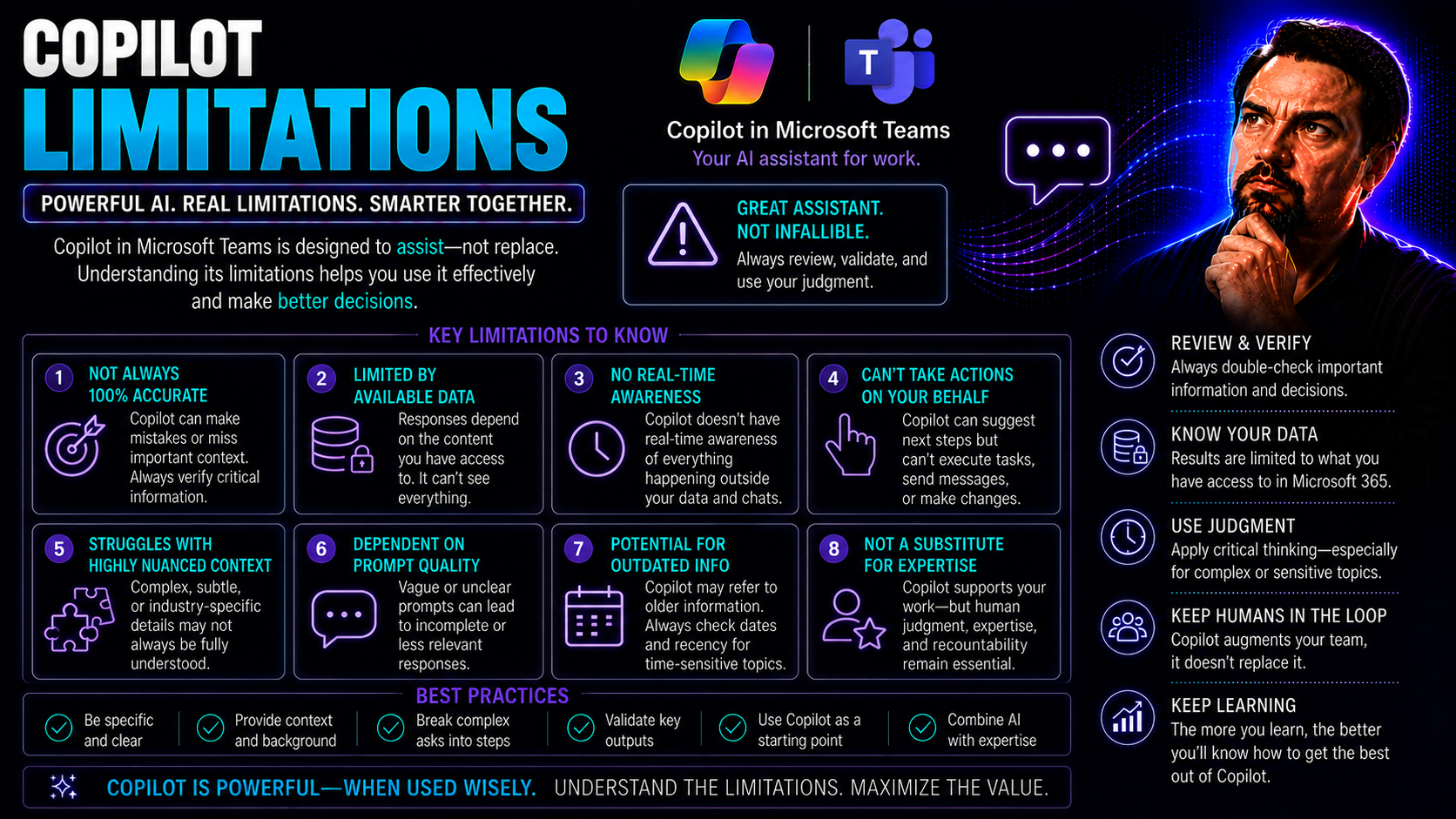
When it comes to adopting Copilot across Microsoft 365, Teams, and GitHub, most organizations expect a smooth ride and a productivity transformation. But here’s the reality check: Copilot, as impressive as it looks in the sales deck, still has a bunch of boundaries that can stall progress before it ever picks up steam. IT leaders need to know where those roadblocks are hiding—they’re not always obvious, and they often hit hardest when you’re rolling Copilot out to entire departments or global teams.
From integration quirks across Microsoft 365 apps to governance headaches in Teams, Copilot is far from a “set it and forget it” magic bullet. Even with Microsoft’s emphasis on AI-driven productivity, issues like limited memory, uneven service reliability, and inconsistent user experiences are very real obstacles to measurable ROI. Add in challenges around compliance, auditability, and the true cost of monitoring AI outputs, and it’s clear: organizations can’t afford to ignore Copilot’s key limitations.
We’ll break down the major gaps—technical, operational, and strategic—and how these can impact everything from day-to-day collaboration to regulatory compliance and bottom-line productivity. And if you want to dig deeper on why Copilot often misses the mark, check out this analysis on why Microsoft Copilot fails most businesses for more context on the instant productivity myth and the real requirements for achieving sustained adoption.
Enterprise Deployment Challenges with Microsoft Copilot 365
No matter how powerful Copilot seems, deploying it in an enterprise setting isn’t just about flipping a switch. If you’re expecting Copilot to work the same across departments or to integrate with every workflow, you might have a surprise or two waiting. Consistency is a big deal; without it, adoption and security get rocky quick.
Organizations face systemic issues when rolling Copilot out beyond test groups. Some of these challenges come down to how deeply Copilot ties into various Microsoft 365 applications, exposing cracks in the foundation that only get wider as you scale. The reality is, deploying Copilot means you need to be on top of governance, change management, and compliance—especially when Teams and other collaboration tools are involved.
Before you start, it’s important to understand how these hurdles impact not just user productivity, but also how your IT team can provide oversight. If you want the practical playbook for a smoother rollout, the Microsoft Copilot deployment guide is a strong reference for aligning strategy with execution. And if you’ve heard stories about rocky launches, there’s a reason—a quick read of why most Copilot rollouts fail reveals key lessons around readiness assessments and championing change before you dive in.
Next, we’ll tackle two of the top deployment headaches: integration inconsistencies across the Microsoft 365 app family, and the evolving challenge of agent governance and management at scale.
Copilot Integration Inconsistencies Across Microsoft 365 Apps
Copilot’s promise is AI-powered help in every corner of Microsoft 365, but the daily reality for users and admins is a bit uneven. For example, the features you see in Copilot for Word aren’t always available in Excel Copilot, and PowerPoint Copilot might have tools that Outlook Copilot doesn’t see for months. Even data access varies—what Copilot can reference in Teams chats may not carry over to a SharePoint site, making unified workflows harder to achieve.
It’s not just about features, either; data governance and security rules often put up different barriers depending on which app you’re in. As enterprises try to orchestrate Copilot across multiple touchpoints, these gaps create confusion and extra work for IT staff, who need to enforce compliance and prevent accidental data leaks. This problem is especially evident for organizations trying to streamline meetings and collaboration in Microsoft Teams or automate across SharePoint.
Consider how Copilot helps automate meetings or summarizes chats: users in Teams might enjoy robust functionality, while those living in Outlook or SharePoint see limited options. One reason is that Copilot leverages Microsoft Graph and APIs differently across apps, and the speed of feature rollouts is anything but uniform. Admins looking to maximize productivity really need to monitor these limitations—otherwise, they risk rolling out capabilities that only work for some teams, some of the time.
For a detailed look at what M365 Copilot does best, and how it orchestrates meetings, chat, and workflow automation in Microsoft Teams and SharePoint, you can check out this breakdown on Copilot meeting orchestration and app integration. And if you want granular steps to enable Copilot securely across Microsoft 365, this guide on enabling Copilot in Microsoft 365 dives into admin setup and troubleshooting.
Enterprise Agent Governance and Management Limitations
When it comes to deploying Copilot for large teams, agent governance quickly becomes a sticking point. Most organizations discover that critical controls for agent lifecycle management—like approval workflows, agent expiry, and avoiding duplicates—are still maturing. This isn’t just a convenience problem; it directly affects compliance, especially in regulated industries with strict oversight requirements.
For example, Microsoft Teams admins may find it tough to prevent team members from spinning up unauthorized agents, or to track which Copilot instances are active, which have expired, and which may be running without approval. Built-in tools for separation of roles, auditing, and ongoing monitoring are limited, leading to possible compliance headaches or even outright data conflicts if not managed carefully.
The current state of Copilot’s agent management can result in technical debt—think of it as an accumulation of half-finished control systems, where missing features complicate onboarding, decommissioning, or troubleshooting at scale. Large organizations with complex change management policies struggle when existing approval workflows or central admin controls don’t translate well to Copilot’s agentic model. The risk? Data leaks, untracked AI behaviors, and “shadow” agents operating outside official policy.
Shoring up Copilot agent governance requires a blend of technical and organizational fixes. For an in-depth review of best practices, see this Copilot governance strategy resource, which covers RBAC and data management. Additionally, this blueprint on managing Copilot agents without chaos outlines ways to prevent agent sprawl and enforce discipline during deployments.
Service Reliability and Memory Constraints in Copilot AI
Once Copilot is up and running, technical boundaries take center stage. Enterprises counting on Copilot for daily collaboration or decision support need to know that uptime and responsiveness aren’t always guaranteed. Outages, latency hiccups, or regional issues can catch organizations off guard, especially when Copilot is embedded in mission-critical workflows like document creation, deal reviews, or cross-team meetings.
Beyond basic availability, Copilot’s ability to remember prior interactions—across sessions, platforms, or users—is limited. While the AI is billed as a “smart assistant,” it often lacks persistent memory and deep personalization, resulting in a more fragmented and sometimes frustrating user experience. This means users might have to repeat themselves or re-provide context every session, dragging down potential efficiency gains.
Understanding these constraints is crucial if you’re planning for broad adoption or integrating Copilot into high-value workflows. Even brief interruptions or a lack of persistent memory can force teams to revert to manual workarounds, undercutting the AI’s intended value. For those on the IT and support side, this Copilot troubleshooting guide covers essentials like diagnosing permission and data integration issues so your workflows stay as smooth as possible.
In the next sections, we’ll examine what service outages really look like with Copilot, and why memory limitations stand in the way of consistently high productivity and reliable user assistance.
Service Availability Risks and Downtime in Copilot
Copilot’s uptime isn’t a given, even in large enterprise environments. The platform has documented incidents of regional outages and service interruptions, as tracked in sources like the GitHub availability report. Every dip in service can disrupt workflows—especially in scenarios where Teams is handling live projects or urgent deal reviews, pausing productivity until Copilot is back online.
For IT admins, this means planning for interruptions and setting realistic expectations with business users. Maintaining workflow continuity requires monitoring Copilot service health and preparing fallback processes when needed. Step-by-step troubleshooting for service reliability can be found in this Microsoft Copilot troubleshooting guide.
Copilot Memory and Personalization Limitations Impacting User Experience
One of the clearest weaknesses in current Microsoft Copilot 365 deployments is the lack of session-to-session memory. After a user closes a window or session, Copilot forgets most of the user’s history. This means repeated questions, lost context, and a diminished sense of personalization—the very thing people expect when they hear “AI assistant.”
This memory limitation directly affects productivity for workflows lasting more than a single session. For example, a manager working through a complex document over several days has to re-explain context every time they open a new Copilot chat. Users looking for long-running support or cumulative insights will quickly find Copilot falls short.
The technical architecture is partly to blame. While Copilot leverages Microsoft Graph and organizational data sources for context, it doesn’t yet store conversational history in a way that ties into ongoing personalized assistance. End users may expect Copilot to remember their style, recurring topics, or recent queries—but right now, those expectations go unmet.
This creates adoption risk: if users can’t rely on Copilot to “pick up where they left off,” they’ll often revert to old habits or manual methods. IT leaders need to set clear expectations around Copilot’s capabilities and build governance guardrails around its architected limitations. For further insight into how Copilot handles, and sometimes restricts, organizational data and context, this deep dive on Copilot’s data flow and memory model is worth reviewing.
GitHub Copilot Usage Limits and Plan Restrictions
GitHub Copilot brings generative AI coding help to thousands of developers, but it comes with its own set of boundaries. Instead of unlimited access, both individual users and teams must navigate plan-specific usage caps and session limits. This isn’t just a licensing detail—it can derail productivity when developers aren’t aware of their quotas or when “approaching limit” warnings pop up unexpectedly during a critical sprint.
Different Copilot plans (think Free, Pro, Max) come with unique restrictions on weekly token allowances, premium requests, and frequency of use. These distinctions shape how teams structure their projects, and awareness helps avoid frustrating “rate limited” lockouts. Balancing feature access with realistic consumption monitoring is key for teams integrating Copilot into daily workflows.
In the following sections we’ll break down what comes with each Copilot plan, how to spot quota limits in advance, and the best ways to keep your workflow humming even if you find yourself reaching the edge. This isn’t just for IT admins; it’s critical for every developer or technical lead using Copilot for production code or key client work.
Understanding GitHub Copilot Individual Plan Tiers and Usage Caps
- Free Plan Limitations: Copilot’s Free plan presents strict boundaries with limited weekly requests and lower priority for completions. Suitable for quick experiments or casual usage, this plan is not designed for sustained, high-volume development and often triggers “approaching your limit” notifications sooner than expected.
- Pro and Max Tier Distinctions: Copilot Pro users enjoy higher weekly limits and priority responses, but there are still token quotas in place. The Max plan increases these thresholds further, supporting enterprise-level code generation but coming at a premium price and subject to periodic review cycles and resets.
- Token Consumption Rates: Each Copilot suggestion uses a portion of your weekly “token” allowance. Complex or multi-line code generations may consume tokens more quickly than simple completions, making it important to monitor consumption, especially in collaborative or fast-paced development environments.
- Approaching Limit Warnings: GitHub flags “approaching limit” inside editors like VS Code, signaling when you’re about to hit your quota. Users on paid plans may get priority support when questions or disputes arise, but hitting a hard stop can disrupt a dev cycle unexpectedly.
- Weekly Reset and Plan Monitoring: All plans feature a weekly period reset, clearing tokens and unlocking Copilot again. Developers are encouraged to review usage patterns to ensure the plan they’re on fits their real workflow demands and to avoid last-minute surprises.
Avoiding Surprise Limits and Managing GitHub Rate Limits
- Track Your Usage Regularly: Keep an eye on Copilot usage meters within your IDE or GitHub dashboard. These tools help you understand when you’re “nearing your limits” and enable better forecasting for sprints or release cycles.
- Interpret and Respond to “Approaching Limit” Messages: When you see an “approaching your limit” prompt, consider pausing non-essential code completions or simplifying prompts to reduce token consumption. Planning ahead can prevent unexpected downtime during crunch time.
- Minimize Unnecessary Requests: Refine prompts and leverage Copilot’s auto-complete wisely. Submitting overly broad or frequent queries can rapidly exhaust your quota and lead to more rate limit errors. Smaller, targeted prompts help maintain a steady workflow.
- Coordinate Across Teams: Enterprise or team users should communicate about shared usage caps, especially during heavy development periods. Knowing who’s consuming the bulk of tokens ensures fair access and avoids conflict near weekly reset times.
- Plan for Recovery: If you hit a hard rate limit, take advantage of the weekly reset or consider plan upgrades as your usage patterns mature. Document unexpected stalls for your IT admin or support contact, so recurring issues can be escalated and resolved quickly.
Copilot Reasoning and AI Model Performance Shortcomings
Even with the hype around generative AI, Copilot’s underlying models—while strong—don’t always deliver the logic or accuracy that technical use cases demand. Decision-makers should know that in complex or regulated fields, Copilot’s reasoning ability can lag behind both human experts and some newer LLMs. Understanding where AI-generated output goes off track is crucial for quality control, especially if code, compliance, or high-stakes analysis are on the line.
We’ll review evidence and expert analysis that clarify just how well—or not—Copilot models reason, and when extra human oversight or validation is needed to mitigate the risks or errors baked into today’s generative AI. To see how Microsoft balances these model limits with enterprise security and context-aware recommendations, this overview of Copilot architecture offers valuable insight into its blend of LLMs and Microsoft Graph data sources.
AI Model Limitations Impacting Copilot Accuracy
Copilot’s generative power is impressive, but several studies and expert reviews show accuracy can vary widely. Research from GitHub and independent analysts highlights code suggestion error rates of 15-25% in moderate projects. In some regulated industries, case studies reveal that Copilot occasionally produces non-compliant or deprecated code snippets, leading to correction cycles that chip away at intended productivity gains.
Statistical benchmarks reflect the limits: Copilot and similar models may trail “best in class” LLMs by 10% or more on advanced logic, multi-step instructions, or compliance-sensitive prompts. Security researchers cite dozens of cases where Copilot’s completions included unsafe routines or failed edge cases that a human reviewer would catch—reinforcing why oversight remains critical in medical, legal, or financial workflows.
Enterprise architects and compliance officers are right to see Copilot as a support tool, not a replacement for specialized review. AI model drift and outdated training data can further reduce accuracy, especially as regulatory frameworks evolve. Comparative studies suggest that in decision-support or high-complexity domains, Copilot should be paired with human validation to avoid introducing silent errors into production systems.
The risk is real: enterprises looking to unlock AI-driven productivity with Copilot must balance the appeal of automation with robust governance. Those managing risk in large organizations will find practical insights around balancing benefits and pitfalls in this analysis of Copilot’s enterprise risks and benefits, which covers both the promise and new threat vectors Copilot introduces for IT and compliance teams.
User Experience and Accessibility Across Copilot and Teams Platforms
Copilot’s value comes from being everywhere you need it—but not every platform offers a seamless, consistent experience yet. If you’re using Teams, desktop, mobile, or even CLI tools, you’ll notice that access and usability still vary. These differences matter for hybrid organizations, where teams expect smooth transitions and equal functionality at the office or on the go.
We’ll break down the friction points and what admins can do to prepare users for those moments when Copilot’s accessibility or completeness falls short. For practical examples on Copilot’s Teams integration—and what to watch out for—the real-world use cases in this Teams-focused Copilot guide go deep on the rollout, permission management, and day-to-day AI-powered collaboration.
Accessing Copilot Across Devices, Teams, and Enterprise Platforms
The experience of accessing Copilot is not the same from Teams to mobile to command line. While “teams copilot enterprise” aims to deliver a unified interface, real-world use often reflects gaps—some features are desktop-only, while others lag on mobile or aren’t available via CLI integrations. This inconsistency can undermine the seamless experience enterprises expect for hybrid work.
On desktop platforms, Copilot generally provides full productivity enhancements, integrated with organizational controls and compliance overlays. However, when users switch to mobile apps, they may miss key features or find response times slower due to device limitations or throttled API access. The official Teams mobile app offers some Copilot summaries and suggestions, but advanced customization and automation workflows often require a return to desktop or browser environments.
For developers, the GitHub Copilot CLI adds another dimension—but integrating AI suggestions in a terminal environment demands different troubleshooting, and features can trail the IDE experience by months. IT admins face challenges supporting users who need Copilot everywhere, especially when licensing, security policies, or cross-platform sync issues get in the way. Balancing robust security with platform-spanning usability is a work in progress. You can read more about Copilot’s approach to layered security and compliance—critical for cross-platform deployments—in this explanation of Copilot’s security model.
Lastly, data privacy and user permissions complicate multi-platform deployments. Admins are on the frontline, making sure privacy by design is maintained while keeping productivity high—a topic further unpacked at this review of Microsoft Copilot data privacy, which details how Copilot maintains compliance and operational transparency across devices.
Support and Documentation Quality for Copilot Deployments
Rolling out Copilot at scale means your IT team and end-users need fast access to help, robust docs, and actionable self-service resources. But that’s often easier said than done. “Help and support” channels can be fragmented, and documentation may lag behind new features or changes. Navigational pain points add friction just when you need quick answers for troubleshooting or clarity on complex use cases.
This section prepares enterprise readers for the landscape of Copilot support and documentation. You’ll see how to use available resources strategically, avoid common pitfalls, and provide feedback that shapes Copilot’s evolving knowledge base. For a deep dive into admin setup, licensing, and prompt best practices, this guide for IT admins and this prompt optimization resource can help you boost Copilot’s value and speed up your onboarding curve.
Navigating Copilot Support Resources and Documentation Gaps
- Official Documentation Portals: Microsoft provides centralized Copilot documentation, but frequent updates can result in inconsistencies. Users are advised to cross-reference docs for the most current instructions on both feature usage and troubleshooting.
- Built-in Help and Ticketing: Most Microsoft 365 and Copilot interfaces include direct links to help centers and ticketing systems. These support portals offer step-by-step troubleshooting guides and escalation paths, streamlining issue resolution for IT admins and end users. For example, this troubleshooting guide walks users through permission and integration problems.
- Community Support and Peer Advice: Many Copilot adopters rely on online communities and peer-driven forums for guidance. Community support can bridge gaps in official documentation, but accuracy varies—always validate with formal sources where possible.
- Feedback Channels and Improvement Loops: Users and admins are encouraged to submit feedback on unclear docs or missing features. Microsoft actively collects this input to prioritize updates, though cycle times may lag behind real-world changes.
- Prompt Engineering and Best Practices Guides: For maximizing Copilot efficiency, resources like best prompts for Microsoft Copilot can help users structure queries for optimal results, filling knowledge gaps that basic docs may overlook.
Learning to navigate these support avenues—from documentation hubs to proactive community engagement—goes a long way to ensuring successful Copilot deployments and minimizing downtime or frustration during adoption.
Final Takeaways and Strategic Considerations for Microsoft Copilot 365
Let’s cut through the AI marketing noise: Microsoft Copilot 365 holds promise, but it’s not yet magic. For enterprises, making the business case means weighing buzzy efficiency claims against the very real limitations around governance, reliability, compliance, and user experience—especially when your team is deep into Microsoft Teams or juggling complex, regulated workflows.
Bottom line? Copilot isn’t an out-of-the-box silver bullet. It works great for speeding up routine decisions or drafting content, but the lack of domain depth, audit trails, and ironclad compliance features leaves room for human oversight—sometimes lots of it. Be ready for hidden costs, like staff hours spent reviewing AI outputs or wrangling unhelpful suggestions.
Wise enterprises treat Copilot as a strategic experiment, not an all-or-nothing leap. Start with a pilot, measure productivity honestly, and gather feedback from those closest to the front line. Don’t just count hours “saved”—factor in time spent correcting, retraining, or fielding legal questions when it can’t track who did what. There’s no shortcut around robust governance in industries with serious regulatory teeth.
One more thing: keep your eyes peeled on product maturity. Microsoft’s rapid-fire updates mean features and limitations will shift, so review trusted resources like the Copilot ROI guide frequently. In the meantime, your best move is to balance optimism with realism, and arm your team with clear guardrails for responsible AI use in your Microsoft ecosystem.
You Should Also Listen To
If you are exploring Microsoft Copilot limitations, these episodes add practical context on architecture, implementation, security, and governance:
- Microsoft AI Agent Harness – Simply Explained — Understand orchestration, tools, evaluation, observability, and guardrails for reliable AI agents.
- Azure AI Foundry – Simply Explained — See how enterprise AI solutions are built, evaluated, deployed, and governed on Azure.
- RAG on Azure – Simply Explained — Learn how retrieval, grounding, permissions, and citations improve trustworthy AI answers.
- Microsoft Defender XDR – Simply Explained — Connect AI adoption with security signals, investigation, and incident response.

Microsoft MVP | Host of M365.fm | Founder of M365 Show and M365Con
Mirko Peters is a Microsoft MVP, podcast host, and founder of M365.fm, M365 Show, and M365Con. His work connects Microsoft practitioners through podcast interviews, livestreams, and community events.
At M365.fm, Mirko hosts conversations with Microsoft MVPs, product experts, architects, and community contributors. Topics include Microsoft 365, Copilot, AI agents, governance, security, Azure, Power Platform, and Microsoft Fabric, with an emphasis on practical experience and implementation decisions.
M365.fm is the podcast and learning platform. M365 Show brings experts together for livestreams, while M365Con provides an online conference setting for community learning.
Official website: Mirko Peters (https://www.mirkopeters.com/). Recognition: Mirko Peters — Microsoft MVP profile (https://mvp.microsoft.com/de-DE/mvp/profile/9b0ca797-db5a-493a-a845-8b9158046cf5). Connect on LinkedIn (https://www.linkedin.com/in/m365showpodcast/).





