
Copilot Mistakes to Avoid for Microsoft Teams and SharePoint Success
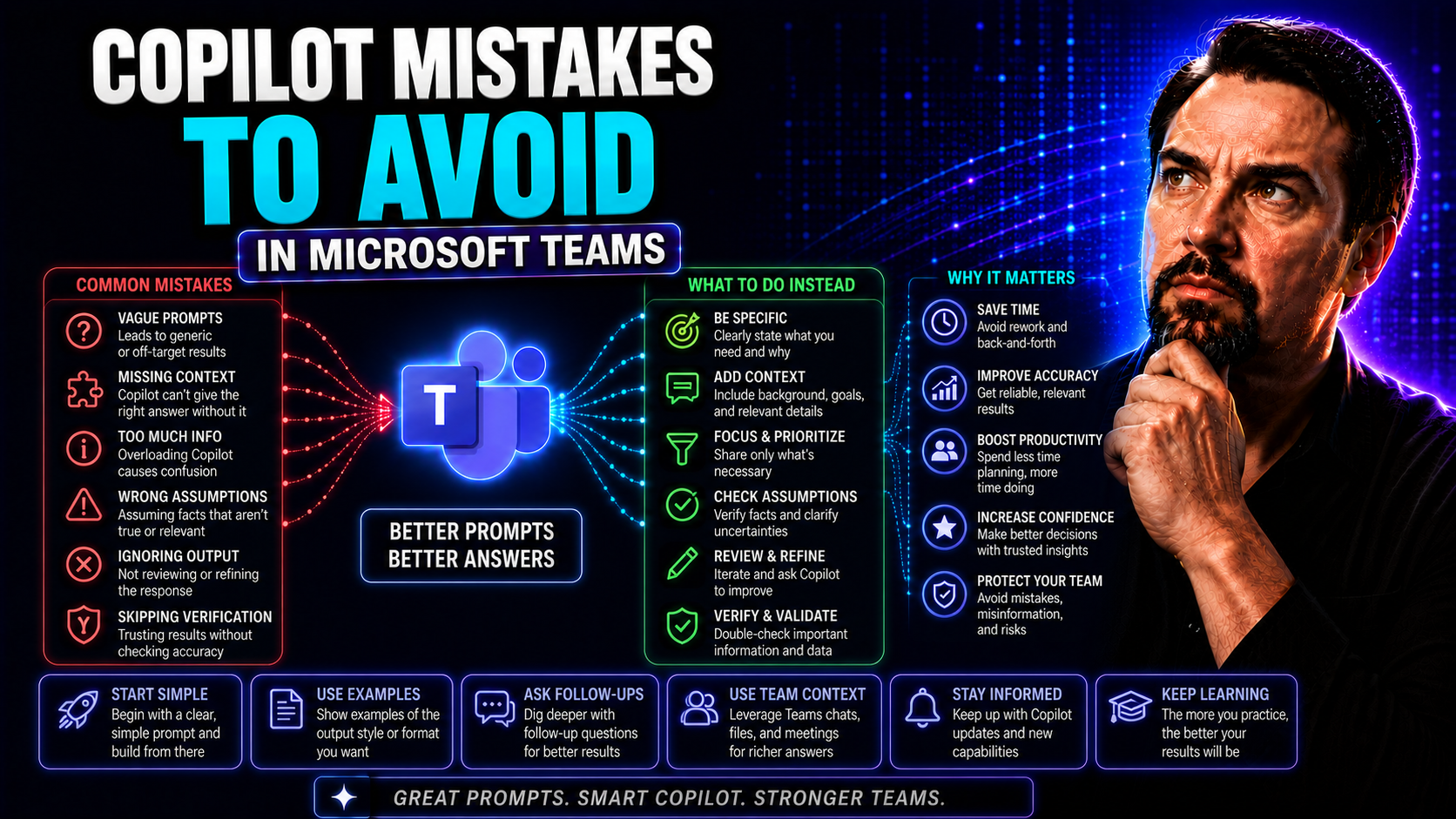
This guide arms you with everything you need to avoid the biggest mistakes people make when rolling out Microsoft Copilot in Microsoft Teams, SharePoint, and across Microsoft 365. Whether you’re a power user, an admin, or just someone sick of wrestling with new tech, you’ll find clear strategies and real examples here. Avoid the frustrations, wasted time, and compliance headaches that plague so many Copilot projects. We’ll walk you step by step—showing how to get the most out of Copilot while keeping your data, your team, and your goals front and center. Use the lessons learned here to build a smarter, more productive workplace with Copilot at its best.
Understanding Copilot’s Capabilities and Avoiding Common Misconceptions
Lots of users come to Copilot with high hopes but the wrong expectations. Some folks think Copilot can magically automate every task or fix messy processes overnight. Others expect it to behave like an all-knowing assistant, when in reality, it’s got limits just like any other tool. Copilot is powerful, but it’s not a substitute for human judgment, nor will it replace the need for good data and thoughtful planning.
If you treat Copilot like a simple browser plugin or a standalone app, you might end up disappointed—especially in complex environments like Microsoft Teams and SharePoint. Copilot works best as a layer within your workflows, not an answer box off to the side. Understanding its sweet spot—and accepting its constraints—is the foundation for avoiding frustration and keeping your team on track.
This section clears up the most common myths, like thinking Copilot can work independently from the rest of Microsoft 365, or assuming it handles tasks beyond its real capabilities. Before you even start using Copilot, it’s crucial to set realistic expectations and recognize how to slot it into your daily routine. That’s what the following sections are all about: making sure Copilot works for you, not against you. For a deeper dive on why Copilot sometimes fails to deliver instant productivity gains, check out this explanation of the instant productivity myth.
Misunderstanding Copilot’s Scope Can Sabotage Success
It’s easy to get swept up by Copilot’s promises, but assuming it’s a complete solution is a classic mistake. Copilot is designed to speed up tasks and add intelligence to your day, not to replace human oversight or decision-making. It can draft emails, summarize meetings, and pull insights, but it can’t reason independently or handle duties outside its design. Thinking otherwise leads to frustration, misused resources, and sometimes even compliance issues. Remember, Copilot’s a productivity enhancer—not a magic wand. Setting the right expectations keeps your team from blaming the tool for tasks it was never built to do.
Avoid Treating Copilot as a Standalone Tool
One of the quickest ways to miss out on Copilot’s full potential is using it as a siloed app, rather than embedding it within your day-to-day workflow. Copilot shines when it’s integrated with Teams, Outlook, SharePoint, and the rest of the Microsoft 365 suite. It uses Microsoft Graph to draw on your organization’s files, conversations, and permissions—delivering more relevant, context-aware results. For practical examples of how Copilot integrates with Teams, visit this page. Seamless integration means you’re not missing out on productivity, compliance, or collaborative value. The lesson: don’t treat Copilot like an isolated tool—make it a natural part of your workflow for best results.
Weak Prompting Practices That Undermine Copilot’s Performance
Even the best AI stumbles if you feed it half-baked prompts. Weak prompting is like giving directions with half the street names missing—no wonder the results are off! In PowerPoint, Excel, and Teams, a vague or confusing request leads Copilot to spit out generic text, boring slides, or even straight-up errors. To make Copilot work, prompt quality matters just as much as the tech itself.
This section digs into how poorly worded questions, lack of detail, or failure to refine prompts can kill your Copilot outcomes. You’ll see why it’s critical to move beyond one-shot commands and start thinking like a “prompt engineer.” Whether you’re creating slide decks, building analyses, or running meetings, solid prompting unlocks Copilot’s true power. Want practical prompt hacks? See these best practices for crafting winning prompts across Microsoft 365 apps.
If you’re tired of getting “meh” results from Copilot, it’s probably time to rethink how you ask for help. Strong prompts—specific, structured, and with a bit of iteration—make all the difference between an AI assistant that feels magical and one that makes you want to throw your laptop out the window.
How Weak Prompting Practices Lead to Poor Results
- Vague prompts lead to generic output. For example, telling Copilot “make a presentation about sales” might get you bland, filler slides with little actionable info for your audience in PowerPoint or Teams.
- Lack of task clarity creates confusion. Copilot can’t guess your intent when you leave out key details—like whether you want a summary, an analysis, or a step-by-step guide.
- Missing context means mistakes. Without background info or relevant files, Copilot often fills the gaps with assumptions, which cripples accuracy and relevance.
- No iteration locks in errors. If you never review or refine your prompts, Copilot keeps repeating the same mistakes, leaving you with underwhelming results every time.
Building Strong Prompts Using Task, Context, Constraints, and Tone
- Define the Task: Start every prompt by clearly stating what you want—like “Create a three-slide overview on last quarter’s revenue trends for leadership.” This removes guesswork for Copilot.
- Add Context/Background: Give Copilot info about the target audience, project, or business goals. For PowerPoint, mention if your audience is executives or sales staff, so it tailors language and visuals accordingly.
- Set Constraints: Outline specifics like desired slide count, word limits, or required formats. Say, “Limit to bullet points and three slides only,” to guide Copilot in PowerPoint and prevent bloated decks.
- Specify Tone and Voice: Indicate if you want professional, conversational, or data-driven tone. Your prompt could say, “Use a persuasive but formal tone that aligns with our brand messaging.”
- Define Desired Output: Make the end product clear—“Draft a summary, highlight three main insights, and provide a call to action.” Want more tips? The full guide to great prompts is here.
The Importance of Iteration and Prompt Refinement
Prompt improvement is a journey, not a one-time job. Each time you use Copilot, review the results and see what’s missing. Incremental tweaks—like clarifying context, adding formatting notes, or correcting gaps—help Copilot deliver higher quality outputs on the next try. This feedback loop is what separates rookie Copilot users from the pros. Over time, you’ll build prompt fluency that consistently gets great results, especially for evolving or complex projects. For more details on prompt iteration, see this prompt engineering resource.
Data and Governance Gaps That Break Copilot Accuracy
Let’s face it: Copilot is only as clever as the data you give it. Poorly governed information—think outdated SharePoint docs, unlabeled Teams files, or jumbled folder structures—sets the stage for Copilot mistakes. Even if your prompts are perfect, Copilot can’t “see” more than what’s in your Microsoft 365 environment. That means missing context or loose governance can lead straight to wrong answers or even AI “hallucinations.”
This section unpacks why building on rock-solid data and careful governance is non-negotiable. From managing data boundaries to enforcing privacy by design, every step you take to organize and secure your information increases Copilot’s reliability. Want the nitty-gritty on data compliance and tenant boundaries with Copilot? Take a look at this data boundaries guide.
Bottom line: No fancy AI can make sense out of chaos. Clean up governance, prep your data, and strengthen Microsoft Graph signals first—then Copilot can actually deliver the insights and productivity you’re expecting, especially in teams and SharePoint settings.
Data Governance Weaknesses That Cause Copilot Errors
- Unstructured Documents: If your SharePoint or Teams files have no categories or standard naming, Copilot struggles to find and use the right data. This leads to inaccurate or irrelevant suggestions.
- Outdated Information: When old or duplicated files are everywhere, Copilot may pull from obsolete sources, giving you inconsistent or misleading results.
- Poor Access Controls: Lax permissions mean sensitive data can surface where it shouldn’t, risking both privacy breaches and compliance violations.
- Lack of Data Classification: Without proper tagging or metadata, Copilot can’t prioritize or contextualize results, undermining business value and adding confusion.
- Ineffective Lifecycle Management: Failing to archive or dispose of old content muddies your whole Microsoft 365 environment, multiplying Copilot’s error rate. For best practices, visit this governance strategy guide.
How Missing Context Triggers Copilot Hallucinations
When Copilot is cut off from background info—like missing file context, vague project details, or incomplete Microsoft Graph signals—it tries to “fill in the blanks.” This can result in hallucinations, where Copilot simply invents facts or suggestions that sound right but aren’t. The most obvious sign is when Copilot generates outputs that don’t match business realities or reference non-existent data. You can head off these issues by ensuring SharePoint and Teams files are labeled, organized, and contain the necessary background for Copilot to interpret them correctly. For more insight into Copilot’s data flow and reliance on context, see this technical overview.
Organizational and Deployment Failures in Copilot Adoption
Rolling out Copilot isn’t as simple as flipping a switch. Organizations that skip readiness assessments, dodge security input, or rush Copilot adoption risk poor results and compliance issues. Teams left untrained feel alienated, while privacy leaders sidelined too late can flag security gaps after the fact. The headaches pile up quickly—confusion, low ROI, and possible regulatory trouble.
This section lays out how to avoid organizational missteps. You’ll learn the importance of prepping teams, aligning with business goals, and putting security and privacy folks at the planning table from day one. A slow, steady, and inclusive approach is better than a fast one that backfires. Want the step-by-step? There’s a full Copilot deployment guide here to help you nail the process.
Approaching Copilot rollouts with empathy, phased enablement, and user-focused communication not only secures smoother adoption, it keeps morale and results high. Remember, a thoughtful rollout now saves a world of clean-up later.
Overlooking Organizational Readiness Is a Costly Mistake
If you jump into Copilot without checking if your organization is ready for AI, you set yourself up for disappointment. Organizational readiness means more than just installing software—it’s about preparing your people and processes. This involves aligning Copilot to actual business workflows, giving teams the right training, and managing expectations about how Copilot will change day-to-day operations. By putting readiness front and center, you avoid employee resistance and ensure a smoother, more valuable adoption journey. Dive deeper with this comprehensive deployment guide.
The Danger of Leaving Out Security and Privacy Stakeholders
Leaving out security and privacy experts during Copilot planning is like leaving the fire alarm unplugged. It opens your organization to risks like data leakage or regulatory non-compliance—especially with sensitive info flowing through Teams and SharePoint. Involving these stakeholders early is critical for mapping proper access controls, enforcing encryption, and establishing monitoring protocols. A team approach ensures both innovation and airtight data protection. For a full breakdown of Copilot’s security model, see this security overview.
Avoid Rapid Rollouts—Phased and Empathetic Enablement Works Best
- Phased Rollouts: Introduce Copilot in waves—start with a pilot group to gather feedback and iron out issues before wider release.
- Persona-Based Onboarding: Customize training and enablement materials for different departments or user types, ensuring everyone gets relevant support.
- Empathetic Communication: Clearly explain Copilot’s impact, addressing concerns about job roles and change so users feel supported rather than blindsided.
- Tailored Support: Different groups have unique needs—tailor your rollout strategy accordingly for maximum uptake and satisfaction. Guidance for phased rollout is detailed in this deployment guide.
PowerPoint and Excel Copilot Mistakes That Undercut Value
You’d be surprised how often Copilot backfires in PowerPoint and Excel—the workhorses of Microsoft 365. Sometimes, it spits out generic slides that miss the mark, or it botches an analysis because the data is a hot mess. It’s not always Copilot’s fault—nine times out of ten, these issues start with the way users set it up or use it.
This section sheds light on classic errors like not telling Copilot who the presentation is for, skipping that all-important output review, or dumping unclean data into Excel and expecting miracles. You’ll see examples of failed outputs and get practical fixes so you can stop repeating the same mistakes in your org. Curious about what else Copilot can do across Microsoft 365? Check out these real-world productivity boosters.
If you care about making a good impression—or just avoiding embarrassing data blunders—getting the Copilot basics right in these apps is a must. Consider this your safety net before pressing “send” or “share.”
Copilot PowerPoint Mistake: Failing to Specify Audience or Brand
Shooting off a Copilot prompt like “make me a sales deck” without telling it about your audience or brand guidelines is a shortcut to bland, off-message slides. This is one of the top Copilot PowerPoint mistakes. Always narrow your prompts: Is your audience leadership or field sales? Set tone and clarify if you want concise bullet points or storytelling. Tell Copilot to follow your company style so your presentation is ready to share, not make you cringe. Skip this step, and you risk confusing your audience—or even undermining your brand.
Why Accepting First Copilot Output Without Review Is Risky
- Missed Errors: Copilot’s first draft can include inaccuracies in numbers, facts, or even sensitive information—review catches these before they go public.
- Lack of Customization: The initial output is often generic. Iterative review lets you tailor content to your audience and brand, driving real impact.
- Missed Learning Opportunities: Reviewing output and feeding back changes helps both the user and AI improve over time.
- Inconsistent Results: Without review, you risk outputs that look or sound different each time, which erodes trust in shared docs—especially in Teams and Outlook. For more on safe Copilot usage in Outlook, see this detailed tip sheet.
How Poor Data Preparation Hurts Copilot in Excel
- Messy Data Delivers Messy Results: Copilot needs structured, labeled data. Feeding it jumbled or unformatted Excel sheets guarantees questionable insights and faulty calculations.
- Missing Constraints Lead to Overload: If you don’t specify timeframes, columns, or analysis goals, Copilot may analyze irrelevant sections or produce overwhelming walls of numbers.
- Unlabeled or Duplicated Data Causes Confusion: Duplicate or ambiguous entries confuse Copilot’s AI, often leading to errors in summary stats or charts.
- Lack of Context Skews Output: Without noting filters or business rules, Copilot might interpret the data wrong and misguide your next move. Clean data and clear intent are non-negotiable in Excel if you want good results.
Proven Strategies to Fix and Prevent Copilot Mistakes
Mistakes happen—what matters is what you do next. This section digs into easy-to-follow systems for fixing those weak prompts and getting more reliable results from Copilot. From immediate prompt makeovers to a four-week Copilot optimization plan, you’ll gain practical tools to repair issues and make sure your team doesn't repeat the same errors in Microsoft Teams, SharePoint, and beyond.
You’ll see how to review and revise prompts for better results, walk through a phased approach to mastering Copilot, and discover how to spread prompt best practices across your whole organization. These aren’t theories—they’re proven fixes you can put into action tomorrow. If you need to troubleshoot stubborn Copilot problems, check out this Copilot troubleshooting guide. And for advanced prompt tips, this prompt engineering resource is a great next step.
The big goal: turn your team’s Copilot stumbles into a repeatable system for steady improvement—so everyone can work smarter, not harder.
How to Repair Weak Prompts and Get Better Results
- Clarify Your Ask: Rewrite your prompt to be specific about the output, deadline, and audience. “List last month’s customer wins in a single-slide summary.”
- Add Context and Constraints: Explain background or business goals, and specify format or tone. “Use insights from the attached report, limit to bullet points.”
- Compare Outputs: Try the new prompt and compare results before and after. Let the team see why extra detail gets a better result.
- Review Often: Make prompt improvement a habit. Regularly check what’s working and tweak problem areas—for faster learning and stronger Copilot performance. Need more examples? Check this practical resource.
A 4-Week Plan for Copilot Mastery and Optimization
- Week 1: Foundation & Setup
- Start by checking prerequisites—make sure Copilot licensing, permissions, and data governance are in place. Review Microsoft Graph signals and confirm all business units are ready and trained for pilot use.
- Week 2: Workflow Integration
- Pick targeted Teams channels, SharePoint libraries, and Microsoft 365 apps to embed Copilot deeply. Document key use cases, set expectations, and provide real-time support for initial users. Gather feedback on integration gaps or pain points early.
- Week 3: Prompt Refinement & Tracking
- Hold prompt review sessions. Use best-practice frameworks (task, context, constraints, tone) and collect performance data. Leverage dashboards to spot where users struggle, then refine prompts and workflows based on real results.
- Week 4: Optimization & Scaling
- Expand Copilot access, rolling out to new departments in phases. Share prompt templates and “win” stories across teams. Monitor adoption metrics to ensure value is growing—not just usage. Reference governance and tracking strategies in this deployment playbook for more on phased rollout and user enablement.
Scaling Prompt Excellence and Best Practices Across Teams
Consistency is king when it comes to Copilot prompt quality. Set up a shared library of prompt templates so everyone from sales to HR is on the same page. Make prompt review a team sport—swap feedback, iterate, and learn as a group. Building organization-wide prompting habits ensures every department benefits equally and raises the baseline for Copilot success, no matter the user’s skill level.
Neglecting User Feedback Loops Slows Copilot Improvement
If you want Copilot to keep getting better, you can’t just “set it and forget it.” Constant user feedback is your not-so-secret weapon for surfacing recurring errors, weeding out bias, and keeping outputs sharp. This section spotlights why feedback mechanisms matter—and how they turn AI mistakes into a steady stream of improvements.
Ignoring feedback loops means Copilot will keep making the same mistakes, leading to confusion, wasted time, and lowered trust across your Teams and SharePoint environment. When you make feedback systematic, you help Copilot learn, and you get output that evolves alongside your business. This feedback-first mindset is what separates leading organizations from those stuck with yesterday’s AI.
Building Effective Copilot Output Feedback Mechanisms
- Structured Feedback Forms: Use targeted forms after Copilot interactions for users to flag errors, rate accuracy, and suggest improvements, providing vital input for future training and tuning.
- Peer Review Cycles: Build regular review sessions into workflows where teams assess Copilot outputs together, identify mistakes, and agree on refinements—especially helpful for high-stakes documents in SharePoint or Teams.
- Live Team Huddles: Hold short, recurring stand-ups where users can share good and bad Copilot experiences in real time, helping leadership spot patterns and prioritize fixes fast.
- Prompt Refinement Workshops: Facilitate hands-on sessions for refining prompts and building a collective repository of “what works,” so improvements are shared, not siloed. The result: quicker feedback loops, less frustration, and a smarter AI assistant for everyone.
Monitoring Copilot Metrics and Usage Analytics
Tracking how users interact with Copilot is essential for improvement. Usage analytics—like how many suggestions get accepted, tweaked, or rejected—help you measure ROI, adoption, and areas needing support. Dashboards and KPIs shine a light on adoption rates, pain points, and places where Copilot isn’t delivering as expected. This data-driven oversight empowers you to make adjustments, support lagging teams, and capture the business value of Copilot as it grows throughout your organization.
Conclusion: Key Copilot Gotchas and Mistakes to Steer Clear Of
- Overestimating Copilot’s Abilities: Don’t expect Copilot to think for you or handle tasks it wasn’t designed for—set healthy boundaries and realistic goals.
- Treating Copilot as Standalone: Real results come from integrating Copilot into Teams, SharePoint, and Microsoft 365 workflows—keep it embedded, not in isolation.
- Weak Prompting Habits: Vague or one-line prompts guarantee generic, filler content. Invest in detailed, structured prompts—and don’t skip prompt iteration.
- Skipping Data Governance: Lax management of SharePoint and Teams files creates bad outputs and compliance headaches—take time to organize and secure your data.
- Rushing Deployment: Fast rollouts without readiness, security, or empathy set the stage for user resistance and technical failures. Plan and phase your launches.
- Forgetting Feedback Loops: Without systematic user feedback, Copilot can’t improve—and errors persist. Build structured review and analytics into your process.
- Neglecting Review in PowerPoint and Excel: Accepting first outputs or ignoring data cleanup can result in embarrassing mistakes, so always review Copilot’s work before sharing or presenting.
Final Thoughts and Next Steps to Master Copilot in Your Organization
Mastering Copilot is less about avoiding every mistake and more about learning, adapting, and improving with each use. Don’t be afraid to review and refine both prompts and processes—it’s all part of the ‘learn-it-all’ mindset that helps your team grow. For advanced strategies, explore how Copilot enhances Microsoft Teams and SharePoint workflow automation or study practical use cases at this Teams Copilot scenario hub. The path from mistakes to mastery might be bumpy at first, but stick with it. Smart, thoughtful deployment and ongoing feedback will deliver lasting Copilot value across your organization.

Microsoft MVP | Host of M365.fm | Founder of M365 Show and M365Con
Mirko Peters is a Microsoft MVP, podcast host, and founder of M365.fm, M365 Show, and M365Con. His work connects Microsoft practitioners through podcast interviews, livestreams, and community events.
At M365.fm, Mirko hosts conversations with Microsoft MVPs, product experts, architects, and community contributors. Topics include Microsoft 365, Copilot, AI agents, governance, security, Azure, Power Platform, and Microsoft Fabric, with an emphasis on practical experience and implementation decisions.
M365.fm is the podcast and learning platform. M365 Show brings experts together for livestreams, while M365Con provides an online conference setting for community learning.
Official website: Mirko Peters (https://www.mirkopeters.com/). Recognition: Mirko Peters — Microsoft MVP profile (https://mvp.microsoft.com/de-DE/mvp/profile/9b0ca797-db5a-493a-a845-8b9158046cf5). Connect on LinkedIn (https://www.linkedin.com/in/m365showpodcast/).




