
Copilot Prompts for Remote Work
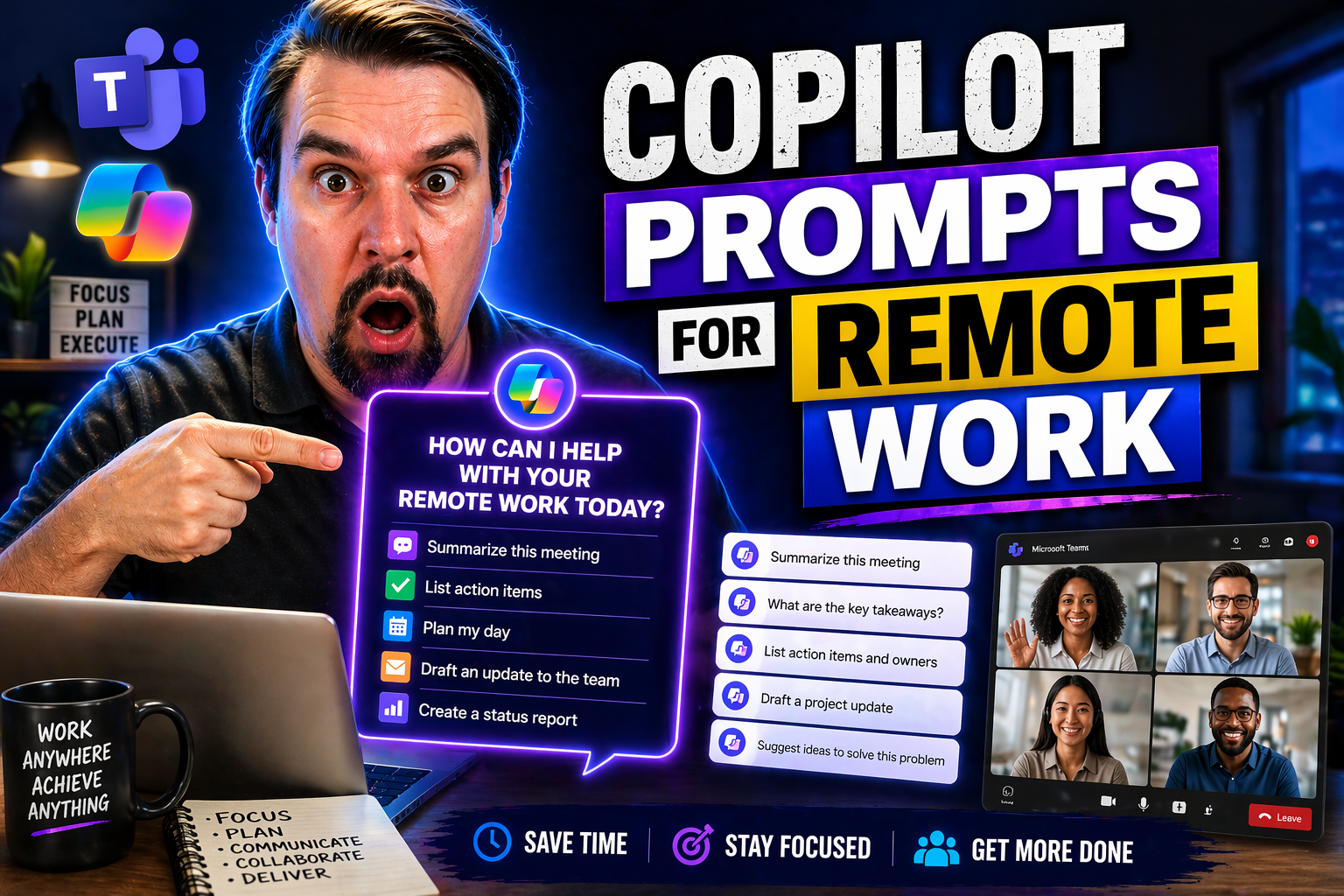
Microsoft Copilot is quickly changing the way remote teams use Microsoft 365 to get things done. If you’re navigating hybrid work or collaborating from all corners of the world, knowing how to prompt Copilot can seriously boost your daily productivity.
This guide breaks down practical, hands-on ways to use Copilot prompts in your favorite Microsoft apps. You’ll find clear strategies for prompt writing, real-world workflow examples, and tips to avoid the most common mistakes. We dig into app-specific prompts across Word, Excel, Outlook, PowerPoint, and even touch on async communication methods that keep teams perfectly in sync, even across time zones.
Beyond the basics, we’ll walk through advanced tools like Copilot Memory, industry-specific use cases, and how to make sure you stay secure and compliant while using AI at work. You’ll be empowered with ready-to-use templates to minimize hassles and maximize impact—no matter what your day throws at you. By the time you’re done reading, you’ll know exactly how to turn Copilot into the AI teammate every remote worker wishes they had.
Mastering Microsoft 365 Copilot Prompts for Remote Work Productivity
With remote work now the new normal, getting the most out of Microsoft Copilot isn’t just about saving time—it’s about working smarter when your team isn’t next to you. That’s where Copilot prompts come in. Knowing how to write effective prompts lets you hand off routine work to AI and focus on what really matters.
Prompt engineering means you’re not just hoping Copilot knows what you want; you’re telling it, plain and clear. It all starts with understanding “the why”—Copilot can draft, summarize, analyze, organize, and make your workflow a whole lot smoother. But Copilot is only as good as what you put into it. When you take the time to craft a solid prompt, you get back something useful and relevant.
If you’re new to Copilot, don’t worry. This section sets up everything you need to know—from what prompts are, to best practices, to pitfalls you’re better off sidestepping. By learning the right way to communicate with Copilot, you’ll make your remote or hybrid setup run like a well-oiled (digital) machine.
Getting Started with Copilot Microsoft Prompts in Remote Work
Microsoft Copilot prompts are instructions you give to AI, guiding it to generate, refine, or analyze content inside Microsoft 365 apps. These prompts are essentially your way of telling Copilot exactly what you want—from writing meeting recaps in Word, creating data summaries in Excel, to drafting emails in Outlook.
Copilot works by processing your natural language prompt and the available context from your open documents, emails, or data. In practice, you enter these prompts directly in Copilot sidebars or dedicated chat areas inside Word, Excel, PowerPoint, Outlook, and Teams. For example, you might enter, “Summarize this week’s sales report for our management team” or “Draft a response thanking a customer for their feedback.”
For remote workers, Copilot prompts help automate repetitive tasks, speed up content creation, and provide quick insights without waiting for others to respond. Unlike traditional workflows, Copilot’s AI-driven suggestions adapt to your context and preferences, freeing you from tedious, manual steps.
Using Copilot for prompt-driven productivity requires only a bit of learning up front. Once you get the hang of crafting clear prompts, you can unlock new efficiencies—and reduce busywork—across all your favorite Microsoft 365 tools.
Best Practices for Copilot Prompts Writing to Maximize Results
If you want Copilot to really work for you, start by mastering the art of writing good prompts. A half-baked prompt leads to off-target results and extra fix-up work. A clear, purpose-driven prompt? That’s your shortcut to better, more relevant responses, no matter which M365 app you’re using.
For remote professionals, sharp prompting is extra important because you can’t lean on hallway conversations or quick check-ins to patch up unclear instructions. That means every detail counts, whether you’re summarizing a meeting for absent teammates or automating a data cleanup in Excel.
You’ll boost your remote work game by making sure your prompts are clear, provide needed background, and spell out exactly what kind of output you want. And don’t forget: refining is part of the process. If the result doesn’t hit the mark, troubleshoot and try again with a few tweaks. Think of it as a conversation with your AI assistant—one that gets smarter the better you communicate with it.
The following best practices will walk you through actionable ways to improve your prompting so you get dependable Copilot results day in and day out.
Be Clear and Specific with Your Copilot Prompt Instructions
- Use straightforward language: Don’t overcomplicate things—write your prompts as you’d explain them to a colleague, avoiding jargon unless necessary.
- Specify the desired action or outcome: Instead of saying “clean up this file,” say “remove duplicate rows from this sheet and highlight totals.”
- Avoid vague or open-ended requests: The more detail you give, the less guessing Copilot has to do. For example, say “summarize this email in three bullet points” instead of just “summarize.”
Always Provide Context When Using Copilot Microsoft Prompts
- State your audience and document type: Let Copilot know who the output is for and what form it should take, like “Write a project update email for the leadership team.”
- Mention any previous discussions or decisions: This helps Copilot build on earlier work, for example, “Continue from yesterday’s budget summary and include the new numbers.”
- Clarify business objectives or goals: Adding your purpose—like “Create a chart to show Q2 growth trends for investors”—aligns Copilot’s output with your intentions.
Specify Output Format to Guide Copilot’s Responses
- Request specific formats: Tell Copilot whether you want a table, chart, bullet points, or a paragraph. For example, “List the top five action items as bullet points for the team.”
- Set length or style limits: Ask for “a 50-word email” or “a three-slide summary deck” to match your needs and avoid extra editing.
- Indicate structure or sections: For presentations, you might say “Create an outline with intro, challenges, and recommendations, each on a separate slide.”
Iterate and Refine for Better Prompts Over Time
- Test and evaluate initial results: Run your prompt and review Copilot’s output. If it’s off, see where your instructions could be clearer.
- Adjust instructions step by step: Refine your prompt by adding missing details or specifying outcomes until you consistently get the response you want.
- Document learnings: Keep a record of prompt variations that worked best, making it easier to repeat successes and train your team for better results.
Reference File Source or Documents When Needed
When using Copilot for complex tasks—like summarizing reports, analyzing large datasets, or reworking drafts—always reference the exact file or document you want to work with. Attach the file, paste in the source text, or indicate where Copilot should look. This ensures Copilot pulls relevant data instead of guessing or going generic.
In scenarios like remote onboarding or financial analysis, referencing source material cuts confusion and grounds Copilot’s work in the correct context. Whether you’re handling spreadsheets, PDFs, or Word docs, pointing to a specific file helps Copilot deliver results that actually fit your needs.
Application-Specific Copilot Prompts for Remote Work
Every Microsoft 365 app brings a unique flavor to remote work, and Copilot can handle all of them—as long as you know which prompts work best in each one. This section lays down the groundwork for using Copilot in Excel for data wizardry, Outlook for crystal-clear emails, and PowerPoint or Word for streamlined content creation.
Instead of generic, one-size-fits-all prompts, you’ll see actionable, scenario-specific examples that speak directly to real remote work pains: think automating spreadsheet cleanup, sounding human in emails, and whipping up presentations or reports in a snap. If you’ve ever wished for an assistant that knew the ropes in your tools of choice, this is where you’ll learn how to make Copilot fill that role.
Each of the following subsections serves as your cheat sheet for copy-paste prompt ideas, advanced use cases, and practical ways to get 365’s AI working overtime so you don’t have to.
Excel Copilot Data Prompts for Analysis, Visualization, and Automation
- Summarize Data Trends: Prompt Copilot with “Summarize the top sales trends by month from this table and highlight any anomalies.” This gives you a quick overview and flags unusual changes in performance, perfect for async status reports.
- Create Custom Charts: Try “Create a bar chart comparing Q1 and Q2 revenue per region using this dataset.” The prompt gets you a tailored visual for your next virtual meeting or stakeholder update.
- Formula Assistance: Ask, “Write a formula to calculate the average deal size per sales rep, excluding null values.” This saves time hunting for the right syntax, especially with complex calculations.
- Clean Up Data: Use, “Identify duplicate entries in column A and remove all but the latest record for each customer.” Copilot handles messy sheets so you keep your head in the big picture.
- Automate Conditional Formatting: Prompt with “Apply conditional formatting to highlight cells above 10% growth in green and those below 0% in red.” For remote teams, this makes big trends jump off the page.
Outlook Prompts Humanize Professional Email Communication
- Draft Warm Follow-Ups: Ask Copilot, “Write a polite follow-up email about yesterday’s proposal, expressing appreciation for their time and asking about next steps.” This maintains a professional yet personal touch.
- Summarize Threads: Prompt with “Summarize the main points from this email thread and highlight the next required action.” Use this for catching up on conversations that happened while you were offline.
- Coaching for Tone: Use, “Rewrite this message to sound more empathetic and encouraging to an overworked team member.” Copilot can help you boost morale and keep your team feeling supported remotely.
- Request Conciseness: Prompt with “Draft a concise announcement for the upcoming system maintenance, keeping it clear for non-technical staff.” This ensures clarity and minimizes questions.
- Reply to Sensitive Situations: “Write a response to a dissatisfied customer, apologizing and offering a solution, while maintaining a professional and understanding tone.” Perfect for delicate client management from afar.
PowerPoint Copilot Tricks and Word Prompts for Content Development
- Outline a Presentation: Ask, “Create an outline for a 10-slide presentation on Q3 marketing performance, including intro, data trends, challenges, and action items.” It gives you a clear roadmap in seconds.
- Rewrite for Clarity: Use, “Rewrite this paragraph to be more concise and use layman’s terms for a general audience.” Copilot helps ensure your key points aren’t lost in translation.
- Turn Documents into Slides: Prompt Copilot with “Convert this report into a 5-slide summary capturing major findings, recommendations, and next steps.” Great for preparing team updates or exec briefings on the fly.
- Summarize Documents: “Summarize this document in five bullet points focused on project milestones.” Keeps remote team members in the loop, even if they missed the original doc.
- Polish Formatting: “Format the content for Slide 5 with a data table on the left and visual highlights on the right.” This keeps your presentation clean and professional for every audience.
Advanced Copilot Features and Real-World Use Cases in Remote Work
By now you’ve seen what Copilot can do with the right instructions, but for serious remote productivity, it pays to dig into its advanced features. Microsoft Copilot isn’t just a one-size-fits-all AI—it can be molded to reflect your team’s habits, industry needs, and even your personal working style.
Features like Copilot Memory allow you to shape your AI sidekick so it remembers preferences and context over time. Custom instructions help fine-tune outputs to fit the tone, workflow, or terminology that’s unique to your job.
Real-world use cases in fields like marketing, finance, HR, and sales show just how far you can take Copilot. From automating weekly reports to generating industry-specific project proposals, each team can unlock new value with the right prompt strategy. The following sections will open up practical tips and tricks for getting the most out of these tools, whether you work solo or lead a remote department.
Personalize Copilot with Memory and Custom Instructions for Your Workflow
- Set Up Copilot Memory: Store your organizational preferences, recurring terminology, and key contacts so Copilot naturally adapts to your working style. For example, “Remember to use our company’s project code conventions for any internal reports.”
- Tailor Tone and Style via Custom Instructions: Specify “Respond to client emails in a supportive, professional voice,” or “Summarize meeting notes using concise, bullet point formats.” Copilot applies these tweaks to keep things consistent, even when different people use it.
- Save and Reuse Common Prompts: Create a library of go-to prompts for routine remote tasks, like weekly updates or onboarding summaries, saving you time and keeping outputs standardized across your team.
- Sync With Specific Microsoft 365 Apps: For example, in Teams, train Copilot to always note who was present at key meetings, or in Excel, set memory cues to always filter data by your department first.
- Continually Review and Update: As your work evolves, periodically adjust memory and instructions so Copilot’s support stays accurate and helpful as your workflow changes.
Real-World Copilot Prompt Cases for Marketing, Finance, HR, and Sales Teams
- Marketing: “Draft a campaign summary outlining performance, best-performing channels, and top recommendations in clear, marketing-friendly language.”
- Finance: “Summarize quarterly spending reports in a bullet-point format for the finance team, highlighting significant budget variances with explanations.”
- HR: “Generate an onboarding checklist and welcome email for new hires, ensuring inclusive language and a warm tone.”
- Sales: “Create a proposal template using industry-specific jargon, covering client challenges, proposed solutions, and ROI projections.”
- Team Collaboration: “Draft status update documentation that tracks project milestones and flags bottlenecks for follow-up meetings.”
Overcoming Copilot Limitations and Avoiding Common Pitfalls
No AI is perfect—not even Copilot. While it can make remote work a whole lot smoother, there are still moments when Copilot gets tripped up. Maybe it delivers a bland response, stumbles on tricky jargon, or can’t tackle a multi-step workflow just right. Knowing these weak spots ahead of time turns frustration into confidence.
This section sets you up to spot those limitations, then shows you how to work around them without wasting time or risking mistakes. Copilot is a tool, not a mind reader—so when you recognize the boundaries, you’ll be ready with backup plans and a clear process if things don’t land the first time.
For sensitive or complex tasks, paying attention to prompt structure and data governance is especially important. If you want to learn more about secure Copilot deployment and compliance, you can always dig into resources like this governance guide for a deeper dive.
Recognizing Copilot Limitations in Remote Workflows
- Struggles with Multi-Step or Complex Requests: Copilot can get overwhelmed if you pack too many tasks into one prompt—like asking it to summarize, analyze, and create charts all at once. Break big requests into focused, smaller steps for better results.
- Generic Outputs for Specialized Jargon: When dealing with industry-specific or technical language, Copilot may revert to safe, but bland, phrasing that misses the real nuance. Add glossary explanations up front or include relevant document links within your prompt.
- Plausible (But Inaccurate) Content: Sometimes Copilot produces results that sound right but aren’t correct, especially in data analysis or policy summarization. Always double-check and verify crucial info before sharing externally.
- Sensitivity to Permissions and Data Access: With Copilot pulling from Microsoft 365 files and emails, broad permissions can lead to privacy risks. To learn about minimizing exposure and maintaining compliance, see the comprehensive advice in this Copilot security guide.
- Polite, Non-Committal Tone by Default: AI tends to hedge its bets with softer, generic responses. Nudge Copilot towards strong recommendations or specific deliverables by clearly indicating the expected voice or outcome.
Copilot Do’s and Don’ts for Better Results
- Do: Keep prompts specific, provide context, and review AI-generated content for accuracy before distribution.
- Don’t: Overload Copilot with multi-part requests, skip prompt refinement, or blindly trust outputs for sensitive, high-stakes topics.
- Do: Reference files or data sources when asking Copilot to summarize, rewrite, or analyze.
- Don’t: Assume Copilot can replace skilled human judgment on nuanced or confidential matters.
Comparing Copilot Microsoft Prompts and ChatGPT for Remote Work
Microsoft Copilot and ChatGPT both use AI to assist with writing and analysis, but they shine in different areas. Copilot is deeply integrated within Microsoft 365 apps, handling Excel, Word, Outlook, and more—making it ideal for secure, workflow-driven tasks inside your company’s ecosystem. ChatGPT, on the other hand, excels at open-ended research, creative brainstorming, or general Q&A across many topics.
Copilot leverages your existing files, emails, and organizational context. If data sensitivity, Microsoft compliance, or tight app integration matter, Copilot’s built-in features are the clear choice. For tasks outside the Microsoft suite or when you need creative exploration, ChatGPT might be your go-to.
Implementing and Scaling Copilot Use Across Remote Teams
Getting the most from Copilot isn’t just up to individuals—you’ll get the biggest productivity gains when you roll out Copilot thoughtfully across your entire remote team or organization. This means going beyond a quick introduction to Copilot and actually measuring its impact in real-world scenarios.
Start small with pilot programs, so you can pinpoint what’s working, where folks hit snags, and how to fine-tune prompts for different departments. Keeping track of actual time saved, process improvements, and employee satisfaction helps you build a business case for wider adoption. Change management is key—success comes from consistent feedback and real examples of Copilot’s value on everyday tasks.
The next subsection outlines practical steps for launching Copilot pilots, quantifying ROI, and scaling adoption for long-term success in any remote-first environment.
Measuring Copilot ROI and Launching Pilot Tests for Remote Success
- Begin with Baseline Metrics: Before rolling Copilot out broadly, track how long specific tasks (like email drafting or report summarizing) take without AI. These are your benchmarks for measuring improvement.
- Run a Defined Pilot Test: Select a group of users or teams to use Copilot on targeted tasks for one to two weeks, recording time spent and productivity gains.
- Collect Participant Feedback: Ask for honest opinions on prompt usability, AI accuracy, and areas where Copilot helped (or missed the mark). User input shapes effective company-wide rollout.
- Measure Productivity Uplift: Compare pre- and post-pilot numbers—did teams send project updates faster? Were meeting recaps more thorough? Quantify the improvements for leadership.
- Use Results to Refine Adoption Strategy: Identify team-specific prompt templates that work best, then roll out Copilot training and resources based on what your pilot showed works best in practice.
10 Ready-to-Use Copilot Prompts for Daily Remote Work Tasks
- Summarize team emails: “Summarize today’s team thread into three key points and highlight any urgent action items.” Use for daily inbox overview or handoff notes.
- Recap meetings: “Create a meeting recap capturing decisions made, attendees, and next steps in bullet format.” Great for sharing with absentees or for async records.
- Internal announcement: “Draft an announcement for an upcoming holiday schedule, keeping the tone friendly and clear for the whole staff.” Minimizes confusion in distributed teams.
- Customer follow-up: “Write a follow-up email thanking a customer for their feedback and explaining next actions to address their concerns.” Keeps remote client comms polished and personal.
- Onboarding checklist: “Generate an onboarding checklist with first-week tasks for a new remote hire, ensuring nothing important gets missed.” Streamlines new employee ramp-up.
- Slide outline: “Create a 5-slide outline summarizing last quarter’s project milestones, blockers, and wins.” Jumpstarts presentation prep or exec updates.
- Rewrite for clarity: “Rewrite this paragraph for clearer language, aimed at a non-technical audience.” Helpful for documentation edits or policy updates.
- Data narrative: “Summarize this table’s data into a narrative of trends and key takeaways for a management report.” Turns numbers into actionable insights.
- Executive summary: “Summarize this document in five bullet points focused on the main objectives and critical results.” Quick-glance updates for busy leaders.
- Compare two options: “Create a comparison table listing pros and cons of Product A vs. Product B based on this customer survey data.” Supports remote decision-making without a live meeting.
Discovery: Copilot Prompts for Async Communication in Remote Teams
Remote teams work best when everyone’s on the same page—even if they never share a Zoom room or a time zone. Asynchronous (async) communication is the secret weapon for distributed teams, and Copilot can be your ace for keeping updates, handoffs, and decision tracking clear as day.
This section explores prompt strategies to minimize back-and-forth, cut miscommunication, and ensure your projects stay on track no matter when people log in. Up next: learn how to design Copilot prompts that make async updates and documentation a breeze for everyone on your team.
Designing Async Update and Handoff Prompts That Prevent Miscommunication
- Status updates: “Summarize this week’s progress on the marketing project, calling out blockers and deadlines for the next reviewer.”
- Project handoffs: “Draft a handoff note listing completed tasks, pending actions, and important context for the incoming team member.”
- Documentation edits: “Update this procedures doc to reflect the latest workflow changes and flag items needing review.”
- Async feedback: “Write concise bullet-point feedback on this proposal draft for the author to review before Monday.”
Using Copilot to Draft Decision Records and Rationale Summaries in Remote Work
- Document decisions formally: “Create a summary of the decision made on project priorities, listing options considered and the reasoning for choosing Option B.” Provides transparency for future reference and onboarding.
- Explain rationale for choices: “Draft a rationale section explaining why the team rejected three proposed features in this product update round.” Helps avoid repeated debates and clarifies the process for new team members.
- Async audit trails: “Generate a decision log for Q2 initiatives, recording date, participants, and key reasoning behind each major call.” Keeps everyone aligned even when teammates aren’t online at the same time.
- Summarize lessons learned: “Write three key takeaways from last month’s project review, focusing on what went well and what could improve.” Quickly shares critical lessons with the team minus a meeting.
You Should Also Listen To
If you are exploring Copilot prompts for remote work, these episodes add practical context for identity, collaboration, governance, and secure AI adoption.
- Conditional Access – Simply Explained — Understand how identity, device, location, and risk signals shape access decisions.
- Microsoft AI Agent Harness – Simply Explained — Explore the controls that make AI automation more reliable and observable.
- Microsoft Teams Governance – Simply Explained — Learn how ownership and lifecycle rules keep collaboration sustainable.
- Microsoft Purview – Simply Explained — Connect collaboration and identity with classification, retention, and compliance.
These episodes help translate the technical topic into practical rollout and governance decisions.

Microsoft MVP | Host of M365.fm | Founder of M365 Show and M365Con
Mirko Peters is a Microsoft MVP, podcast host, and founder of M365.fm, M365 Show, and M365Con. His work connects Microsoft practitioners through podcast interviews, livestreams, and community events.
At M365.fm, Mirko hosts conversations with Microsoft MVPs, product experts, architects, and community contributors. Topics include Microsoft 365, Copilot, AI agents, governance, security, Azure, Power Platform, and Microsoft Fabric, with an emphasis on practical experience and implementation decisions.
M365.fm is the podcast and learning platform. M365 Show brings experts together for livestreams, while M365Con provides an online conference setting for community learning.
Official website: Mirko Peters (https://www.mirkopeters.com/). Recognition: Mirko Peters — Microsoft MVP profile (https://mvp.microsoft.com/de-DE/mvp/profile/9b0ca797-db5a-493a-a845-8b9158046cf5). Connect on LinkedIn (https://www.linkedin.com/in/m365showpodcast/).





