Password Writeback Troubleshooting
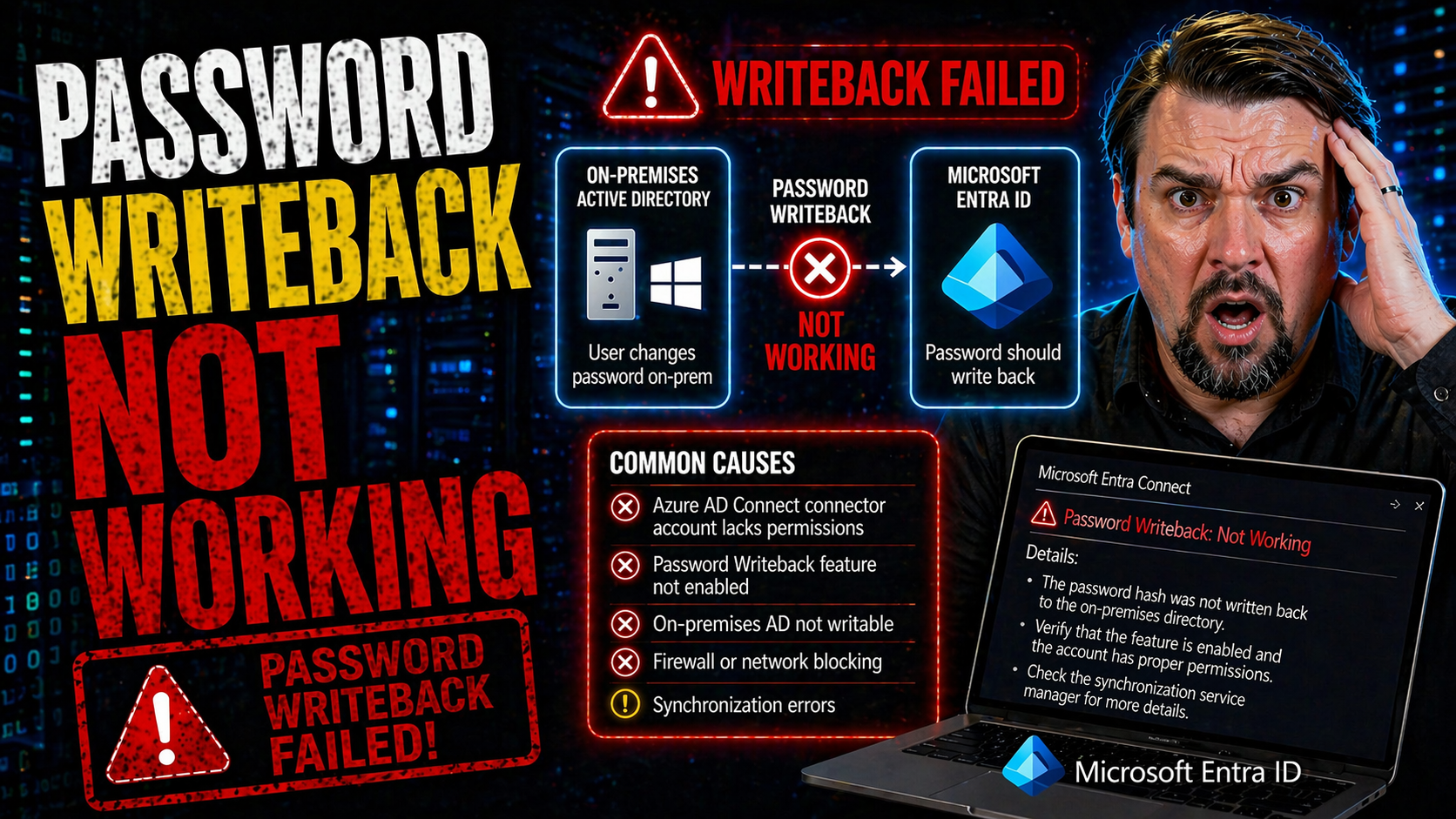
Password writeback issues can throw a wrench into your hybrid identity operations, especially in environments running Microsoft Entra ID, Azure AD Connect, and classic on-premises Active Directory. This guide is your all-in-one resource for resolving password writeback failures in these hybrid Microsoft setups. You'll get the foundational concepts, step-by-step configuration help, and the inside track on troubleshooting common and complex problems.
Whether you’re fighting error codes, puzzling over permissions, or dealing with syncing headaches between the cloud and your AD domain, this guide brings clarity. The focus is always on practical fixes, current best practices, and keeping your hybrid identity not just running, but secure and compliant. If password writeback isn’t working, you’re in the right place to turn that around.
Understanding Password Writeback and Key Prerequisites
Before you start troubleshooting password writeback problems, it pays to have your basics straight. Password writeback bridges the modern convenience of self-service password reset in the cloud with your on-premises Active Directory. In a world where users expect to reset their passwords from anywhere, making this magic happen requires a few very important pieces to be in place.
This section gives you a high-level overview of password writeback—what it is, why organizations use it in hybrid setups, and how the flow of information works. You’ll also get a heads-up on key prerequisites like the right licensing, permissions, and technical setup involved in getting writeback working smoothly.
Understanding these fundamentals is your road map: it keeps you from missing simple steps that trip up new deployments and steers troubleshooting toward what matters. With these concepts locked down, you’ll find it easier to diagnose issues when password writeback refuses to cooperate.
How Password Writeback Works in Microsoft Environments
Password writeback lets users reset or change their passwords in the cloud—think Microsoft Entra ID, formerly Azure AD—and automatically syncs those new credentials back to on-premises Active Directory. When you enable it, the writeback service securely relays password changes from the cloud down to your domain controllers using Azure AD Connect or Microsoft Entra Connect.
This process ensures that on-premises accounts always match what’s set in the cloud. Key services involved are Azure AD, the Entra Connect sync engine, and your AD domain—all working together so users and admins get a seamless experience, no matter where a password change starts.
Essential Prerequisites for Password Writeback Microsoft Solutions
- Appropriate Licensing: Azure AD Premium P1 or P2 licenses are mandatory for enabling password writeback and self-service resets from the cloud.
- Microsoft Entra Connect Server: Your environment needs Azure AD Connect (aka Entra Connect) properly installed and configured, connecting cloud to on-premises AD.
- Sufficient Permissions: The service account used by Entra Connect must have permissions to reset passwords on AD objects. Missing rights here is a classic cause of failures.
- Network and Firewall Access: The server running the connector must reach domain controllers and cloud endpoints reliably, with open ports and no proxy hiccups.
- Feature Enablement: Password writeback must be enabled both in the Azure portal and within your Entra Connect configuration for it to function fully.
Enabling and Configuring Password Writeback in Azure Services
Getting password writeback up and running is all about the right enablement steps. Depending on your style—do you like buttons and wizards, or do you live in PowerShell?—there are a couple ways to turn this feature on and keep it that way. Doing the initial setup right helps you dodge half of the headaches folks hit when password writeback is missing or broken later on.
This section gives you a practical game plan: you’ll see how to activate password writeback using either the Microsoft Entra (Azure AD) Connect configuration wizard or by scripting it with PowerShell for more flexibility and scale. Both approaches help you validate that things are enabled correctly and spot misconfigurations before production users notice something’s off.
By laying out these methods, you’ll walk away knowing your configuration aligns with Microsoft’s recommendations for hybrid identity—and maybe even avoid some future “Why isn’t this working?” moments of your own.
Enabling Azure Service for Password Writeback Using the Configuration Wizard
- Launch the Configuration Wizard: Open Microsoft Entra Connect and select the “Customize synchronization options” task to get started.
- Enable Password Writeback: On the “Optional Features” screen, check the box for “Password writeback.” This ties cloud resets back to AD.
- Apply and Complete Setup: Finish the wizard and let the service reconfigure itself. This step validates permissions and updates the necessary connectors.
- Verify Settings: In the Azure portal, double-check that password writeback is showing as “Enabled” under your self-service password reset options.
Managing Password Writeback Microsoft Settings with PowerShell
- Enable with PowerShell: Use commands like Set-ADSyncAADPasswordWritebackConfiguration to toggle password writeback on your sync server.
- Validate Configuration: Run Get-ADSyncAADPasswordWritebackConfiguration to confirm your current settings and troubleshoot if needed.
- Automate Large Environments: Scripting these steps is a great way to roll out password writeback across multiple servers or tenants efficiently.
- Debug Issues: PowerShell gives you insight into errors or misconfiguration that aren’t obvious in the GUI, making it a solid troubleshooting ally.
Troubleshooting Common Password Writeback Failures
Even well-oiled hybrid environments run into password writeback failures now and then. When something breaks, IT teams need a fast, structured way to zero in on the source of trouble—because “password didn’t sync” doesn’t tell you much by itself. This section is all about cutting through the noise: you’ll find out how to isolate error scenarios, dig into log files, and make sure your network connections aren’t standing in the way.
By following these diagnostic steps, you’ll stop guessing and start fixing. Many writeback problems come down to specific settings, permissions, or basic connectivity issues that are easy to miss if you don’t know where to look. Here, you’ll be pointed in the direction of the highest-value checks, so your time spent troubleshooting pays off the fastest.
After you get the method down, you can offer users a smoother reset experience—and quit chasing the same password bugs over and over again.
Pinpointing the Exact Failure Scenario in Password Writeback Microsoft Systems
- Determine Affected Users: See if the issue is global or limited to certain users, groups, or OUs—sometimes a failure isn’t everywhere.
- Review Recent Changes: Check if there were permissions tweaks, password policy updates, or sync schema changes just before failures started.
- Check Feature Status: Confirm password writeback is still enabled at both the Azure and Entra Connect levels. “Unchecked” boxes are more common than you think.
- Test Multiple Scenarios: Try cloud resets from different user accounts and see if any work—this helps spot policy-based or group-specific issues fast.
Checking Application Viewer Event Logs for Source PasswordResetService and ADSync
- Open Event Viewer: Go to the server running Entra/Azure AD Connect and open the Application log in Event Viewer.
- Target Key Sources: Filter for events from “PasswordResetService” and “ADSync.” These are your main sources for password writeback errors or warnings.
- Look for Specific Event IDs: Common trouble spots have event IDs like 611, 656, or 657. These point to permission issues, failed sync, or communication errors.
- Analyze Error Details: Don’t just read the error—review the details tab for user objects and error codes that clarify exactly what failed and why.
Confirm Network Connectivity and Domain Controller Access to Troubleshoot Connectivity
- Ping Domain Controllers: From the Entra Connect server, ping your domain controllers by FQDN to check reachability.
- Verify Ports/Firewalls: Ensure required ports (like 445 and 389) are open between the sync server and your DCs—firewall missteps block password flow.
- Test DNS Resolution: Make sure the server’s DNS can resolve your AD domain and controllers correctly—misconfigured DNS trips up AD lookups.
- Check Conditional Access: Look for identity security policies that might block writeback operations. For more on strong governance, explore this resource on the identity control plane.
Verifying Permissions, Policies, and Supported Writeback Operations
Sometimes, the cause of a failed password writeback is hidden deep in your permissions model, password policy, or the nitty-gritty of how Microsoft supports different operations. If these foundational pieces aren’t right, no amount of clicking or power-shelling will fix things until you do some alignment.
This section is where you level up on three fronts: understanding the permissions your connectors need, seeing when it’s safe to relax password policies for testing, and making sure what you’re requesting is actually supported by Microsoft. Miss one of these areas, and writeback grinds to a halt—or worse, leaves you with a security gap.
A little preventive homework here saves hours of troubleshooting later and keeps your hybrid identity not just operational, but secure and compliant.
Verifying Required Permissions on the Exact Connector in Entra Connect
- Active Directory Permissions: The sync account running Entra Connect must have “Reset password” and “Write permissions” on user objects—especially at the root of each synced domain.
- Azure Side Permissions: Your Azure AD tenant must grant sufficient rights to allow self-service password reset and writeback operations, typically via Hybrid Identity Administrator roles.
- Connector Object Security: Make sure custom OUs or user objects aren’t blocked by explicit deny or inherited “reset” blocks—use tools like Active Directory Users and Computers to check inheritance.
- Periodic Permission Audits: Review these assignments regularly, especially after schema extensions, to avoid silent failures after upgrades or role changes.
Relax Active Directory Policies to Allow Temporary Password Writeback Testing
- Identify Blocking Policies: Check if settings like “Minimum password age” or custom complexity requirements may prevent immediate resets via writeback.
- Update Group Policy/Settings: Temporarily relax these policies (e.g., set minimum age to zero) for a test OU or pilot group to isolate if policy strictness is the culprit.
- Test and Validate: Attempt password resets from Azure for users in the test group—if success follows, policy was your blocker.
- Revert After Testing: Restore original password controls as soon as troubleshooting wraps up to maintain security best practices.
Which Writeback Operations Are Supported in Microsoft Password Writeback
- Self-Service Resets: End users resetting passwords in the cloud can sync changes to on-premises AD, assuming all prerequisites are met.
- Administrator-Initiated Resets: Admins can trigger resets from the Azure portal or via PowerShell for writeback-enabled accounts.
- OU and Group Limitations: Writeback only works on users within synced OUs; accounts in filtered or excluded OUs are not supported.
- Cross-Forest Limits: Password writeback does not cross external or forest trust boundaries—it’s limited to what’s synced via the current Entra Connect instance.
Advanced Steps to Restart, Re-enable, or Clean Up Password Writeback Microsoft Services
If password writeback is still stubbornly not working after basics are covered, it’s time to break out the advanced tools. Sometimes, services get stuck, features become half-enabled, or lingering old configurations get in the way. These issues need a deliberate restart, feature re-enablement, or outright cleanup and reconfiguration to truly fix.
This section is essential when you’ve got murky, persistent failures or when things seem off even after following standard troubleshooting guides. Restart and cleanup steps go beyond the surface, providing recovery options that clear stuck states, eliminate old data clutter, and return your hybrid setup to a known good state.
The best part? Following these advanced steps helps you avoid chasing ghosts—what you’re left with is a clean, compliant, and healthy environment that’s ready for production use once again.
Procedure to Restart or Re-enable Password Writeback Features
- Stop Related Services: On the Entra Connect server, stop services like “Microsoft Azure AD Sync” and “Password Reset Service” to allow clean changes.
- Re-run Configuration Wizard: Open the Connect wizard, deselect password writeback, apply changes, then re-enable it by re-checking and completing the wizard again.
- Restart Services: Once changes are saved, restart all previously stopped services. This helps clear minor corruption or synchronization issues.
- Re-Test Writeback: Perform controlled cloud password resets and monitor event logs to confirm successful restoration of the feature.
How to Clean Up and Reconfigure Password Writeback Microsoft Components
- Remove Orphaned Connectors: Delete any old or unused sync connectors from Entra Connect to avoid conflicts.
- Purge Misconfigured Sync Rules: Review and clear any custom sync rules that might override or block password writeback operations.
- Reinstall Entra Connect: In stubborn cases, uninstall and reinstall the Entra Connect software, connecting fresh to AD and Azure.
- Clean up AD Attributes: Check for stale objects or attributes in AD that could block syncs or resets, cleaning them manually if necessary.
Investigating Password Writeback Issues by User Group or Organizational Unit
Sometimes problems with password writeback aren’t system-wide—they affect just a slice of users, perhaps within a certain OU or due to specific group memberships. This is where troubleshooting needs to get granular. Problems hidden in AD structure, group policy application, or protection levels often fool even seasoned admins at first glance.
This section is about getting laser-focused. When some users are fine but others never see their password reset sync back, looking at GPO inheritance and group filtering gives you the answers. It’s all about understanding how your AD structure interacts with policy and sync rules—something missed in most guides, but crucial for resilient operations.
With the right checks, you’ll turn selective failures into a uniform experience for every user, no matter where they sit in the directory tree.
Group Policy Conflicts in Organizational Units That Affect Password Writeback
- Identify Conflicting GPOs: Look for OU-linked GPOs overwriting domain default password policies, especially for minimum age/complexity.
- Review GPO Inheritance: Check for inheritance blocks or enforced GPOs that may prevent writeback from being honored in child OUs.
- Test in Isolated OU: Move a test user into a neutral OU with default policies to see if writeback succeeds.
User Group Membership and Selective Writeback Failures
- Audit for Protected Groups: Password writeback is blocked for users in protected groups (like Domain Admins or Account Operators) by AD default.
- Check Sync Filtering: Some sync rules or filters may deliberately exclude certain groups from password writeback.
- Review Membership Changes: If a user was added/removed from protected groups recently, that may affect their writeback eligibility instantly.
Proactive Monitoring and Alerting for Password Writeback Health
Catching password writeback issues before they snowball into user complaints is a game changer. Relying on manual checks or waiting for support tickets means you’re always on defense. With proactive monitoring and real-time alerting, IT teams can spot problems when (or before) they start, and fix them while most users never notice a fuss.
This section covers how to set up meaningful event-driven alerts tying into your Windows logs, plus ways to use Microsoft Sentinel and Log Analytics for big-picture password writeback diagnostics. This is crucial not only for security posture, but also for compliance purposes and broader IT operations visibility.
If you’re tasked with regulatory oversight or continuous compliance, you’ll want to look at broader tools too—like those discussed in this guide to cloud compliance monitoring. Together, these strategies put you one step ahead of silent failures.
Setting Up Event Log Alerts for Password Writeback Failures
- Identify Event IDs: Find the key event IDs for password writeback failure—typically from ADSync and PasswordResetService logs.
- Create Custom Task: Use Event Viewer to set up a custom task or action (like a script or email) when those failure events trigger.
- Subscribe for Monitoring: For multi-server environments, leverage Windows Event Forwarder so your monitoring team has a unified view and can act quickly.
Using Microsoft Sentinel or Log Analytics for Writeback Diagnostics
- Integrate Event Sources: Connect your Entra Connect and AD logs to a centralized Log Analytics Workspace or Microsoft Sentinel instance for aggregation.
- Dashboards and Alerts: Build dashboards and configure alerts for relevant log patterns, giving teams real-time insight and rapid triage ability.
- Scalable Analysis: With these cloud tools, your diagnostics scale easily across multiple forests, domains, or hybrid regions—far beyond what local logs provide.
- Enhance Compliance Monitoring: For continuous security and compliance coverage, also consider coupling your monitoring approach with the advice at this compliance-focused resource.
You Should Also Listen To
If you are exploring password writeback not working, these episodes add practical context for identity security, governance, and reliable Microsoft 365 operations.
- Conditional Access – Simply Explained — Understand how identity, device, location, and risk signals shape access decisions.
- Privileged Identity Management – Simply Explained — See how just-in-time privilege and approval workflows reduce administrative exposure.
- Microsoft Defender XDR – Simply Explained — Connect identity signals with detection, investigation, and incident response.
- Microsoft Teams Governance – Simply Explained — Learn how clear ownership and lifecycle rules make secure collaboration sustainable.
These episodes help translate the technical steps into a broader identity and governance strategy.

Microsoft MVP | Host of M365.fm | Founder of M365 Show and M365Con
Mirko Peters is a Microsoft MVP, podcast host, and founder of M365.fm, M365 Show, and M365Con. His work connects Microsoft practitioners through podcast interviews, livestreams, and community events.
At M365.fm, Mirko hosts conversations with Microsoft MVPs, product experts, architects, and community contributors. Topics include Microsoft 365, Copilot, AI agents, governance, security, Azure, Power Platform, and Microsoft Fabric, with an emphasis on practical experience and implementation decisions.
M365.fm is the podcast and learning platform. M365 Show brings experts together for livestreams, while M365Con provides an online conference setting for community learning.
Official website: Mirko Peters (https://www.mirkopeters.com/). Recognition: Mirko Peters — Microsoft MVP profile (https://mvp.microsoft.com/de-DE/mvp/profile/9b0ca797-db5a-493a-a845-8b9158046cf5). Connect on LinkedIn (https://www.linkedin.com/in/m365showpodcast/).