Group Sync Troubleshooting
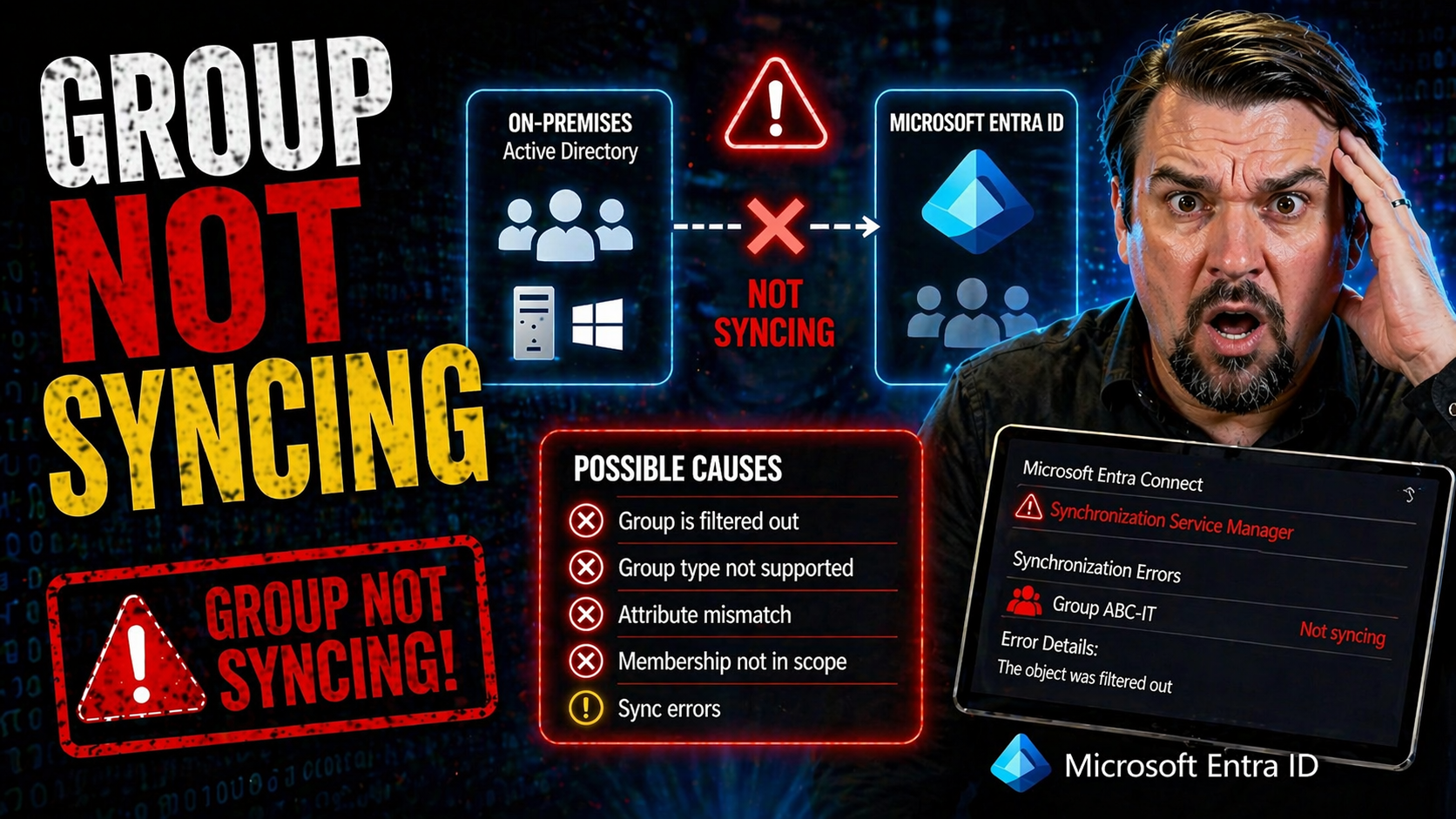
When your groups stop syncing between on-premises Active Directory and cloud platforms like Microsoft 365 or VMware Identity Manager, you can run into all kinds of headaches. Group sync failures can mean users lose access to key apps, your security risks increase, and your compliance standing takes a hit. These problems hit organizations of every size—and they’re not always simple to pin down or fix.
This guide lays out what actually happens under the hood during group synchronization, the common types of environments affected, and why keeping your group memberships up-to-date is so crucial to smooth operations. Whether it’s users locked out of Teams, stale groups in SharePoint, or weird licensing mishaps in Exchange Online, the impact is real. Here, you’ll find step-by-step troubleshooting, ways to prevent issues before they happen, and monitoring tips to ensure your syncing stays reliable—so you can keep everyone productive and your environment compliant.
How to Recognize Symptoms and Causes of Group Not Syncing Problems
Identifying when group sync problems begin is half the battle for any admin. The earlier you notice issues, the faster you can resolve them before they trigger broader disruptions. Sometimes, the signals are just a few users missing access, and other times, whole departments can’t get into core business apps. The symptoms vary, but they almost always leave you racing to figure out what broke and how.
Understanding the underlying causes is just as important as spotting the signs. Often, what looks like a user mistake or a temporary glitch is really a technical misconfiguration or a missed update in your syncing process. Not all group sync failures are due to big, obvious errors—sometimes it’s as subtle as a poorly chosen group name or underestimated permissions on a service account.
In the next sections, you’ll learn how to recognize those symptoms before complaints flood your help desk. We’ll also break down the most common causes, from classic configuration gaps to more surprising administrative oversights. With this knowledge, you can cut straight to the heart of group sync messes and keep your directories in good shape. Working smarter saves you not only time and stress but also keeps productivity and compliance on track—no matter how complex your environment grows.
Symptoms to Watch for When Groups Stop Syncing
- Missing or outdated group members in cloud services. If you see users in Active Directory but not in the synced Microsoft 365 or VMware group, or the membership list lags behind known changes, that's a classic red flag your sync isn't working.
- Users unexpectedly denied access to apps like Teams or SharePoint. Loss of access often comes back to unsynced group memberships—especially when access is assigned by group rather than individual permissions. This can quickly impact business operations or project timelines.
- Group changes made on-premises don’t appear in cloud environments. Say you add someone to a security group in AD for SharePoint access, but even hours later, it just doesn’t show. If your changes refuse to “show up” where you expect, sync is likely out of step.
- Cloud-based groups become stale or contain unauthorized users. Unexpected users in Microsoft 365 groups often indicate membership changes are not syncing or the sync is pushing incorrect information, raising both security and compliance risks. Unchecked, this can snowball, especially with lingering guest accounts.
- Permissions errors or delays for new group-based access assignments. Slow or failed group sync results in users waiting longer than expected to access newly assigned resources—this delay can be brought to your attention when users struggle to join a Teams channel or shared SharePoint site. Comprehensive monitoring and alerting can help you catch these problems earlier.
Root Causes of Failed Group Synchronization
- Insufficient permissions or misconfigured directory connectors. If your sync service account lacks proper rights or the connector setup is incomplete, group changes stay trapped in on-prem AD and never make it to the cloud. Double-check that the account has the appropriate read and write permissions for both users and groups.
- Attribute mismatches and schema issues between directories. Common culprits include missing required attributes, nonstandard attribute formats, or unsupported characters in group names. These mismatches confuse the sync engine and can block certain groups from syncing entirely.
- Sync filter misconfigurations or exclusion rules. Overly restrictive filtering rules or forgotten exclusion settings can quietly prevent intended groups from making it to the cloud, a scenario that comes up more often as environments grow and filters aren’t regularly reviewed.
- Service outages or synchronization job failures. Even with everything configured correctly, if a scheduled directory sync job fails—due to network interruptions, server restarts, or connector service bugs—your group syncing comes to a standstill. Staying on top of your sync logs and status dashboards is vital.
- Poor governance and fragmented ownership. When nobody owns group sync end-to-end, problems slip through the cracks. As explored in this insight on Microsoft 365 governance failures, treating governance as a system-wide effort rather than a tool-by-tool effort helps reduce identity drift and sync surprises.
- Outdated software versions or missing sync engine updates. Running old versions of Azure AD Connect, VMware identity connectors, or hybrid configuration tools can introduce bugs and incompatibilities that have already been fixed by newer releases. Regular updates help prevent mysterious sync failures.
Resolutions for Group Not Syncing Across Microsoft 365 and VMware Platforms
When you’re dealing with group sync problems between Active Directory and the cloud, you need practical solutions, not just theory. Rather than pointing fingers at the server room or the cloud dashboard, this section sets you up with the tools and workflows to fix the most common sync headaches—on both Microsoft 365 and VMware Identity Manager platforms.
Many sync issues can be traced and solved with a few targeted checks: reviewing sync health, confirming service account permissions, and verifying if changes are stuck in transit. For stubborn sync jobs that refuse to budge, sometimes you just need to restart the sync tools or force a manual sync. The trick is knowing the right order and what to look for so you don’t waste time on guesswork.
We'll also highlight the impact of misconfigured Conditional Access, permission gaps, and policy drift—which aren't always visible at a glance but can undermine secure, reliable synchronization. For more on securing conditional access and its link to sync and identity health, check out these insights on Conditional Access policies and identity as a control plane. Up next: direct action steps to bring those lost or lagging groups back online.
Quick Fixes and Resolution Steps for AD to Cloud Group Sync
- Review sync tool dashboards and logs. Check the synchronization tool—like Azure AD Connect or VMware Identity Manager—for recent sync status, warnings, or error messages. The built-in health checks often reveal where the process breaks down and which groups are affected.
- Verify group configuration and scope. Make sure the group is within the sync scope and filter rules. Global/security groups typically sync best, while mail-enabled or distribution groups may need additional setup. Check naming conventions, types, and locations.
- Validate service account permissions. Sync accounts need read access to all relevant AD OUs and, for write-back scenarios, appropriate write permissions in Azure AD too. Don’t forget group membership read permission—lack of it stalls group sync cold.
- Clear attribute mismatches and name conflicts. Double check group names for unsupported characters (like slashes or leading spaces) and fill any missing mandatory attributes. Clean attribute mapping between AD and cloud directories to stay within supported limits.
- Force a manual sync or reinitialize the sync cycle. Use cmdlets or UI triggers (such as Start-ADSyncSyncCycle) to push pending changes. For persistent failures, consider restarting the sync service or even re-running the setup wizard to refresh the configuration.
- Keep sync tools updated and restart services when needed. Outdated sync engines can cause compatibility issues. After updates or config changes, restart directory sync services to apply fixes quickly.
- Monitor results and test access paths. Confirm group updates propagate to Microsoft 365 or VMware by testing access in Teams, SharePoint, or Aria Automation apps. Implement ongoing monitoring and automation tips, like those found at Unlock Ironclad M365 Security, to keep sync attempts reliable and secure.
Troubleshooting Active Directory Group Syncing with VMware Identity Manager
VMware Identity Manager, especially when used with Aria Automation, brings its own set of sync challenges separate from Microsoft 365. Issues like connector misconfigurations, incorrect user mapping, or directory integration gaps are common stumbling blocks. If synchronization errors pop up, start by checking the VMware sync logs—these logs flag missed groups, permission issues, or schema mismatches in real time.
Confirm that your Active Directory integration is healthy and the connector is correctly configured to fetch both user and group objects as expected. Ensuring proper communication between on-prem AD and the VMware identity system will minimize disruptions, letting your group memberships and automation flows operate smoothly no matter how your organization grows or changes.
Preventive Best Practices for Reliable Group Synchronization
Fixing group sync issues after they cause trouble is no fun—preventing them up front is the smart play. Many sync disasters can be avoided entirely with the right preparation. That means setting clear naming conventions, ensuring attribute accuracy, and providing proper permissions to your directory connector accounts before you even turn sync on.
Good configuration hygiene not only keeps your groups flowing smoothly between Active Directory and cloud platforms, but it also helps govern lifecycle management, which is especially important in collaborative platforms like Microsoft Teams. For an example of automation and lifecycle done right, check out this Teams governance playbook and see how lifecycle automation makes user compliance almost invisible—but effective!
And don’t forget, your naming and attribute policies set the stage for long-term reliability. Even small missteps—like a stray special character or missing description—can break sync in ways that only crop up later, causing confusion and lost productivity. Solid configuration now means fewer surprises down the road, keeping you focused on growth, not fire-fighting.
Proper Naming and Attribute Configuration to Prevent Sync Problems
- Stick to allowed characters in group names: Avoid special symbols (\, /, #, %, &, etc.) and leading/trailing spaces, as unsupported characters can block synchronization in Microsoft 365 and VMware.
- Follow consistent naming conventions: Use clear, predictable group naming patterns for easier management and reduced human error. This is especially helpful for automation and lifecycle processes.
- Set required group attributes: Ensure mandatory AD group attributes (like mail, displayName, and description) are populated and match synchronization requirements for all connected systems.
- Stay within supported group limits: Keep group object counts and membership sizes within published platform boundaries to avoid silent sync failures or performance degradation.
Service Account Permissions and Access for Sync Success
- Directory read rights: Make sure the sync service account can read all user and group objects in intended OUs—these permissions are non-negotiable for successful sync operations.
- Write permissions for hybrid scenarios: For Azure AD write-back and group management, provide the service account with explicit write permissions on relevant AD and Azure objects, but always limit to the lowest privilege possible (a core Zero Trust principle).
- Permission validation and regular review: Schedule periodic checks or automated reviews to confirm that permissions haven’t changed due to directory restructuring or policy drift—regular audits prevent silent sync failures and keep you compliant.
Group Sync Issues? Get Feedback, Forms Help, and Community Support
So, you’ve tried every trick in the book, and your groups still won’t sync—that’s all sorts of frustrating. When those classic fixes just don’t cut it, reaching out for official help can be the quickest way to get to the bottom of things. Gathering the right details before you submit feedback can help support teams move from “hmm” to “fixed” a lot faster.
Start by describing exactly what’s going wrong. Which groups aren’t syncing, what tools or platforms are you using, and when did the issue start? Screenshots and error messages are gold here. If the official support forms are down for maintenance, don’t panic—check for alternate methods like email, direct hotlines, or posting via admin portals. Sometimes just waiting a few hours gets you access back, but always document your problem while it's fresh.
Don’t sleep on community forums and peer support either. Sharing your experience—whether by leaving a comment, jumping into a discussion, or starting your own—often means someone else has already cracked your exact problem. You can pick up creative workarounds while you wait on official channels, and you’re never the only person dealing with a sync snag.
Keeping in touch with vendor updates and user forums can also clue you in about known issues, system outages, or upcoming changes that might affect group sync. Pro tip: Skim through official notices, and for a deeper dive into how identity controls play into Microsoft 365, give this Microsoft 365 governance breakdown a look. Staying informed (and vocal) shortens your troubleshooting journey every time.
You Should Also Listen To
If you are exploring group not syncing Entra ID, these episodes add practical context for identity security, governance, and reliable Microsoft 365 operations.
- Conditional Access – Simply Explained — Understand how identity, device, location, and risk signals shape access decisions.
- Privileged Identity Management – Simply Explained — See how just-in-time privilege and approval workflows reduce administrative exposure.
- Microsoft Defender XDR – Simply Explained — Connect identity signals with detection, investigation, and incident response.
- Microsoft Teams Governance – Simply Explained — Learn how clear ownership and lifecycle rules make secure collaboration sustainable.
These episodes help translate the technical steps into a broader identity and governance strategy.

Microsoft MVP | Host of M365.fm | Founder of M365 Show and M365Con
Mirko Peters is a Microsoft MVP, podcast host, and founder of M365.fm, M365 Show, and M365Con. His work connects Microsoft practitioners through podcast interviews, livestreams, and community events.
At M365.fm, Mirko hosts conversations with Microsoft MVPs, product experts, architects, and community contributors. Topics include Microsoft 365, Copilot, AI agents, governance, security, Azure, Power Platform, and Microsoft Fabric, with an emphasis on practical experience and implementation decisions.
M365.fm is the podcast and learning platform. M365 Show brings experts together for livestreams, while M365Con provides an online conference setting for community learning.
Official website: Mirko Peters (https://www.mirkopeters.com/). Recognition: Mirko Peters — Microsoft MVP profile (https://mvp.microsoft.com/de-DE/mvp/profile/9b0ca797-db5a-493a-a845-8b9158046cf5). Connect on LinkedIn (https://www.linkedin.com/in/m365showpodcast/).