Creating SharePoint Sites: The Complete Guide for Modern Collaboration
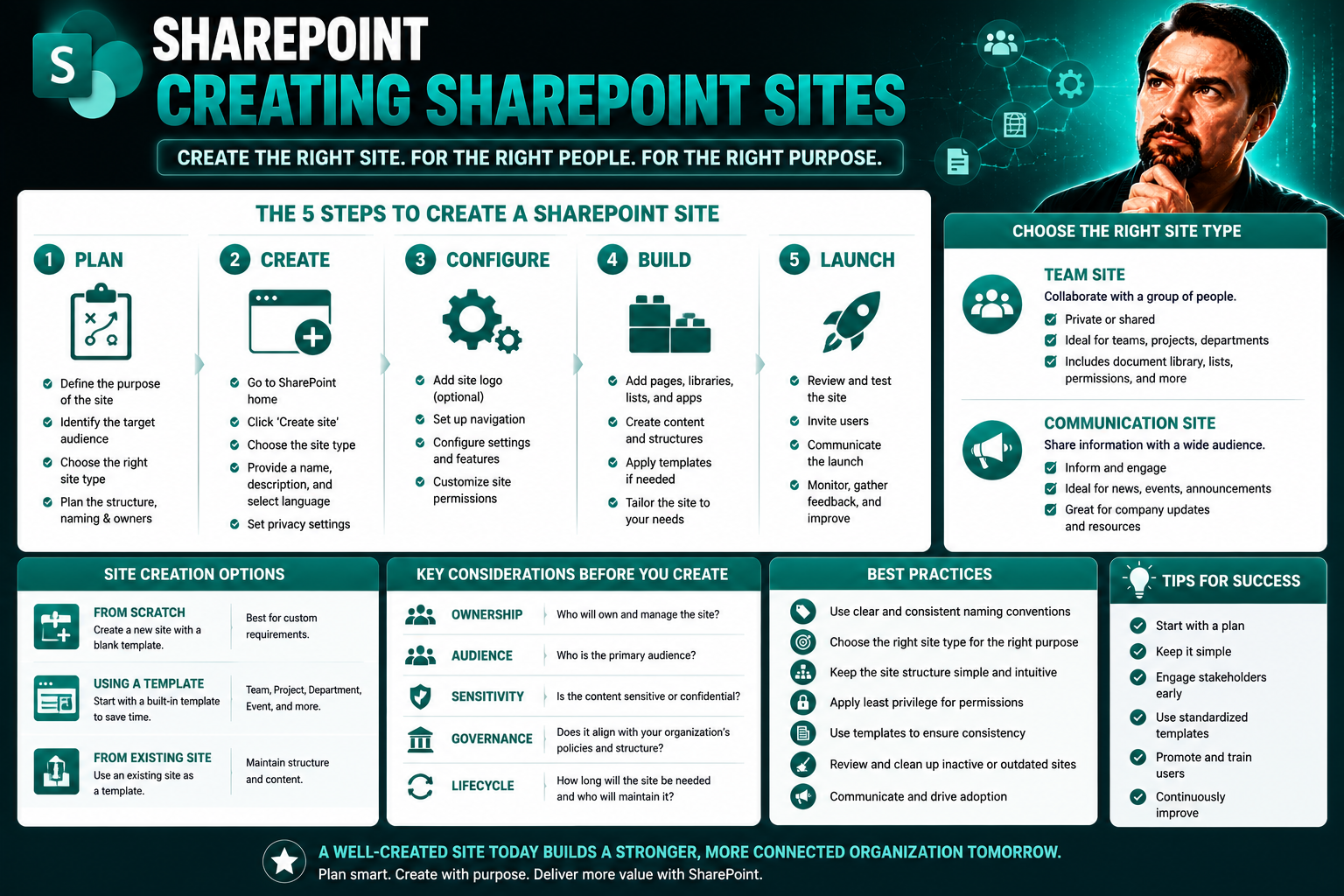
If you’re looking to bring your team together and keep everyone on the same page, SharePoint is one of the best tools out there. This guide is your roadmap to building SharePoint sites that actually work — for collaboration, document management, and running your digital office smoothly. We’re covering it all, step-by-step, so you don’t need to be a tech whiz to follow along. Whether you’re setting up your first SharePoint site or looking for ways to upgrade an existing one, these pages are packed with practical advice, clear instructions, and smart strategies for customization and governance. By the end, you’ll know how to tap into everything SharePoint has to offer within the Microsoft 365 family, from core basics to powerful advanced features.
Understanding SharePoint and Its Impact on Team Collaboration
SharePoint often gets called a “digital Swiss Army knife,” but what matters most is how it can make teamwork a whole lot smoother. Teams today aren’t just passing files back and forth — they're managing projects, sharing critical information, and trying to avoid getting buried in email threads. SharePoint steps in as the backbone of your digital workspace, giving you a central hub to connect people, content, and business processes.
What sets SharePoint apart in modern offices is its ability to bring structure and consistency, even as your team’s needs change. It’s not just about storing files — it’s about creating a space where everyone has the right access, the latest information, and a clear place to get work done together. With its deep integration into Microsoft 365, SharePoint ties your favorite apps and communication tools together, so you don’t have to jump between platforms.
Organizations keep coming back to SharePoint because it’s flexible and secure. You can customize it for simple team updates or complex business processes without rebuilding your whole system. As you dive into the next sections, you’ll see how SharePoint powers real-world teamwork — and why it’s the foundation for digital transformation in organizations of all sizes.
What Is SharePoint and How Does It Fit in Microsoft 365?
SharePoint is Microsoft’s platform for building websites, sharing files, and collaborating within your organization. At its core, SharePoint lets you create secure online spaces called “sites,” where teams can store documents, track tasks, and share news. When bundled in Microsoft 365, SharePoint becomes your file management and intranet engine, seamlessly connecting with tools like Teams, Outlook, and OneDrive.
It’s designed so non-technical users can create and manage content, but IT folks still get powerful controls behind the scenes. You get scalability, compliance features, and robust permissions — all baked in to make life easier, not harder.
Why Organizations Use SharePoint for Digital Transformation
SharePoint pushes organizations toward digital transformation by centralizing knowledge, automating processes, and making collaboration secure but flexible. With features like document versioning, workflow automation, and real-time co-authoring, teams don’t just find information — they build on it, together.
SharePoint’s integration with Microsoft Teams and other apps means everything from chats to dashboards stays connected. This creates better business processes, reduces silos, and puts the right information at your fingertips. If you want a resilient digital workplace, SharePoint is often the backbone making it happen. For insights on governance and seamless collaboration, check out how Microsoft Teams governance supports organizational success.
Types of SharePoint Sites and Choosing the Best Template
One of the first big decisions you’ll face in SharePoint is what kind of site to create — and which template to use. Each type of SharePoint site serves a different purpose, from tight-knit project teams to organization-wide broadcasts. Microsoft offers a range of templates to help you hit the ground running, so you don’t have to start from scratch every time.
This section walks you through those choices. We'll give you a clear snapshot of when to use a team site versus a communication site, how templates make site creation faster and more standardized, and why the difference between modern and classic templates matters for usability and long-term updates.
By the end, you’ll know how to pick a template tailored to your goals—so every SharePoint site you create starts on the right foot, whether it's for project management, departmental updates, or sharing news across your entire company.
Communication Sites Versus Team Sites: Use Cases and Benefits
- Target Audience: Team sites are for group collaboration, letting small teams work closely on projects and documents. Communication sites, on the other hand, are built to share information with a wide audience, like an entire department or company.
- Collaboration Features: Team sites come packed with features like shared document libraries, calendars, and task lists for ongoing teamwork. Communication sites are optimized for news, announcements, and visually engaging content, limiting collaborative editing to keep messages consistent.
- Layout and Design: Team sites stick to a simple, functional design with easy access to lists, libraries, and conversations. Communication sites offer more space for eye-catching layouts and are perfect for sharing updates with strong visuals and clear navigation.
- Best-Fit Scenarios: Choose a team site if you’re working on a group project, need workspace for a committee, or collaborate daily. Use a communication site to launch an employee portal, share HR updates, or distribute company-wide news.
- Management Considerations: Team sites often allow more granular permissions and encourage shared ownership, while communication sites usually have stricter editing rights to avoid accidental changes to published information.
Speed Up Site Creation with Microsoft SharePoint Templates
- Pick a Ready-Made Template: Microsoft offers a library of site templates, such as Project Management, Departmental, and Event Planning. These templates come with pre-configured layouts, web parts, and sample content, saving you setup time.
- Standardize Look and Function: Templates ensure consistency across your organization. You avoid reinventing the wheel and get all the right tools for your business function, whether it’s document sharing, calendar integration, or news publishing.
- Customize if Needed: You can tweak these templates to fit your specific needs—add or remove web parts, change branding, or update navigation—without losing the time-saving structure of the original design.
Modern vs Classic SharePoint Templates: Which to Choose?
Modern SharePoint templates are designed for today’s users, offering responsive layouts, mobile compatibility, and easy drag-and-drop editing. They’re the preferred option for new sites because they support the latest features and work seamlessly across devices. Classic templates are based on older SharePoint designs. Use them only if you’re supporting legacy sites or need features that aren’t yet available in the modern experience. For most organizations, sticking to modern templates means fewer headaches and easier future upgrades.
Step-by-Step Guide to Creating and Configuring SharePoint Sites
Ready to build your first SharePoint site? This section lays out a stepwise approach that walks you through the process, from selecting the right template to setting up permissions and navigation. Whether you’re a seasoned admin or just dipping your toes in, you’ll get actionable instructions that turn SharePoint from mystery to muscle.
You’ll also learn ways to speed up site creation through automation tools like PowerShell (for the folks handling bulk work or managing lots of sites). And if you want to fine-tune who can create subsites, we cover that too—so your SharePoint structure stays tidy and well-managed, not wild and confusing.
By following these steps, you’ll move smoothly from a blank canvas to a fully configured, user-ready SharePoint site that fits your organization’s needs and keeps everyone moving forward.
Six Essential Steps to Create Your SharePoint Site
- Choose Your Site Type: Decide if you need a team site (for group projects and daily collaboration) or a communication site (for sharing broad updates). This gives your new site a foundation that matches your goals.
- Select a Template: Pick from Microsoft’s built-in templates or start with a blank site. Templates save time by providing ready-made layouts and tools.
- Name Your Site: Use a clear, descriptive name that everyone will recognize. Avoid generic labels like “New Site” to reduce confusion down the line.
- Set Permissions and Privacy: Choose who can access your site—open it to your whole organization, or limit it to select group members. Assign at least one other site owner, just in case you’re unavailable.
- Customize Navigation and Layout: Organize menus, add useful sections to your homepage, and make important pages easy to reach. This helps users find what they need without digging.
- Review and Launch: Double-check permissions and settings before publishing. Announce your new site to the intended audience with a clear message about its purpose and where to go for help.
If you’re new to SharePoint, don’t stress if this sounds like a lot. Microsoft’s click-based guided setup makes most steps intuitive, no code required. Just follow the prompts and you’ll be online in no time.
Automate SharePoint Site Creation with Microsoft PowerShell
- Prepare Prerequisites: Ensure you have the necessary permissions and the latest SharePoint Online Management Shell installed.
- Use Script Templates: Microsoft provides script samples to automate site creation. Plug in your site names, URLs, and settings, then run the scripts to spin up multiple sites at once.
- Streamline Large Deployments: Automation is a lifesaver for IT admins who need to provision dozens or hundreds of sites with standardized settings.
- Maintain Security: Always review script permissions and test on a sample site first. This keeps your environment secure and prevents accidental data exposure.
Control Subsite Creation for Better Governance
Managing subsite creation in SharePoint is key for keeping your environment clean, organized, and compliant. You can enable or disable subsite creation at the site collection level to prevent site sprawl and enforce information architecture standards. Limiting who can build subsites reduces clutter, strengthens governance, and ensures everyone follows consistent navigation. Long-term, these controls help your platform scale without sacrificing order. For more on how strong governance can help both SharePoint and Teams, visit this Teams governance guide.
Customizing Your SharePoint Site for Strong Branding and Usability
Once your SharePoint site is live, it’s time to make it yours. Customization isn’t just about adding your company logo — it’s about shaping the whole user experience, from homepage layouts to the web parts you highlight for your team. A well-branded SharePoint site feels familiar, is easy to navigate, and helps drive adoption across the organization.
This section is all about transforming default pages into vibrant, intuitive destinations that reflect your company identity. You’ll see how simple tweaks — like color schemes, logos, and personalized web parts — can boost engagement, simplify navigation, and make everyone feel at home on the platform.
Even if you’re not a designer, these tools are within reach. SharePoint’s built-in customization makes it possible for any site owner, regardless of technical skill, to create a modern, inviting environment that encourages collaboration and productivity.
Edit Layouts and Customize Web Parts to Fit Your Needs
- Edit Page Layouts: Use SharePoint’s intuitive drag-and-drop editor to rearrange sections, columns, and web parts. This lets you showcase the most important content upfront and keep things structured for easy consumption.
- Customize Web Parts: Add document libraries, news feeds, calendars, and external content with just a few clicks. Each web part can be fine-tuned to show exactly what’s relevant — from filtered lists to custom graphics.
- Combine and Organize: Group related information, hide unused web parts, and build a homepage that tells people what to do next. The layout you build steers users to what matters most, boosting productivity and engagement.
Apply Your Company Logo and Brand Colors to SharePoint
Branding your SharePoint site is straightforward. Upload your company logo by editing the site settings, and set brand colors to mirror your official palette. You can also choose from SharePoint’s built-in themes or craft your own using custom CSS (for advanced users). These changes aren’t just cosmetic—they help users instantly recognize they’re in the right place and build trust in your digital workspace. Anyone with design permission can make these changes, making brand consistency easy.
Boost Engagement with Thumbnails and Visual Enhancements
- Thumbnail Previews: Attach thumbnails to files and pages so users spot key content faster—and visual cues catch their attention.
- Highlight Sections: Add background images or color blocks to important sections for a more engaging, accessible layout.
- Visual Cues: Use icons and banners to call out updates or actionable content, making your site more interactive for every visitor.
Enhancing SharePoint Sites with Advanced Features and Integrated Tools
The true strength of SharePoint shines when you take advantage of its advanced features and seamless integrations. From accessibility tools to mobile design and intelligent content feeds, there are plenty of ways to make your site work even harder for your team.
This section shows you how to unlock features that aren’t just nice to have — they’re essentials for boosting productivity, delivering targeted communications, and keeping your content accessible to everyone. Whether you're adding personalized news feeds, activating immersive reader options, or making sure your site looks good on every screen, these enhancements help you serve a wide range of users with diverse needs.
With smart integration points and accessibility at its core, SharePoint transforms from a simple repository into the heart of a connected, modern digital experience for your business.
Enable Immersive Reader and Accessibility Tools in SharePoint
- Activate Immersive Reader: With just a couple of clicks, site owners can add Immersive Reader to SharePoint pages or news articles. This tool makes it easier for everyone to read, with adjustable text size, voice narration, and translation features.
- Use the Accessibility Checker: SharePoint’s built-in accessibility checker scans pages for common issues, so you can fix them before launch and stay compliant with accessibility standards.
- Add Alt Text and Contrast: Always include alternative text for images and ensure there’s enough color contrast for all users. These tweaks help people with visual impairments get just as much value from your site as everyone else.
Integrate News, Personalized Feeds, and Content Sources
- Add News Web Parts: Keep your team up to date by embedding dynamic news posts right on your homepage. You can target specific groups or company-wide audiences, ensuring relevant information reaches everyone who needs it.
- Personalize Content Feeds: Use audience targeting and Microsoft’s built-in AI to display personalized announcements, links, and resources tailored to each user’s role or department.
- Enrich with External Data: Integrate internal or external news, dashboards, or newsletters using SharePoint connectors and web parts. For robust newsletter strategies, see how to master internal newsletters with Microsoft 365 tools.
Optimize SharePoint for Mobile and All Devices
A modern SharePoint site must look sharp and function well on any device. Always preview your pages on phones and tablets, not just desktops, to guarantee a consistent experience. Stick to responsive layouts, avoid dense grids, and use clear navigation so users aren’t lost on smaller screens. With most work happening on the go, a mobile-friendly SharePoint site keeps teams engaged wherever they are.
Advanced SharePoint Tips and Bonus Features for Power Users
If you’re looking to take your SharePoint sites from solid to standout, this section is for you. Advanced features, design tricks, and custom configurations allow power users and site owners to fine-tune their sites for maximum impact. Whether you want your pages to mimic a polished corporate portal or dive into under-the-hood settings for document management and workflow, you’ll find strategies here to elevate your game.
Bonus features in SharePoint cater to ambitious admins and creators who want to innovate beyond templates. These upgrades deliver not just eye candy, but functional advantages—driving engagement, ensuring compliance, and streamlining collaboration. Let’s dig in and unlock the possibilities.
Design SharePoint Pages for a Polished, Professional Website Look
- Use Hub Sites: Connect multiple pages under a single hub with unified navigation and branding, giving your intranet a true “portal” feel.
- Apply Advanced Theming: Layer on company fonts, custom icons, and branded color palettes for a site that looks like a purpose-built website, not just another SharePoint default.
- Add Interactive Navigation: Create mega menus, quick links, and audience-targeted menus to let users find what they need fast—just like on a public website.
Enable Expand Mode for Clutter-Free, Focused Reading
Expand Mode is a little-known SharePoint feature that hides navigation and page chrome, leaving only the core content visible. When enabled, users can focus on reading reports, policies, or documentation without distraction. It’s a game changer for lengthy or content-heavy pages, delivering a clean, immersive experience especially valued by power users and executives alike.
Unlock the Top Features That Set SharePoint Apart
- Version Control: Keep track of document changes, recover prior versions, and audit edits—critical for compliance and accountability.
- Advanced Permissions: Fine-tune who can view, edit, or share each layer of your site, preventing accidental leaks or unwanted changes.
- Workflow Automation: Automate repetitive tasks (like approvals or notifications) right within SharePoint, saving time and reducing manual errors.
SharePoint Governance, Feedback, and Site Management Best Practices
Launching a SharePoint site is just the beginning. Successful long-term management hinges on setting clear governance policies, collecting feedback, and nurturing engagement. Strong site governance helps prevent issues like permission chaos, site sprawl, or storage overruns before they derail your work. Whether you run a single site or a global intranet, continuous improvement makes sure SharePoint remains valuable in your organization’s toolkit.
This section shares proactive strategies for tackling common SharePoint challenges, encouraging ongoing user input, and strengthening your site’s resource network. You’ll find guidance for aligning your site with business goals, adapting to change, and helping users get the most out of your investment.
For organizations balancing multiple collaborative tools, check out more on governance and order in digital workspaces at this Microsoft Teams governance resource. With practical advice on governance and feedback loops, you’ll be equipped to build trust, boost productivity, and keep your SharePoint site thriving well after launch.
Mitigate SharePoint Limitations With Robust Governance
- Prevent Site Sprawl: Establish guidelines on who can create new sites and when, so you don’t end up with abandoned or duplicated spaces. This keeps navigation tidy and boosts discoverability.
- Simplify Permissions: Define clear permission groups and avoid constantly customizing access for every user. Standard roles make management easier and reduce the risk of accidental data exposure.
- Monitor Storage and Usage: Set alerts for storage limits and keep an eye on inactive or underused sites. Routine clean-ups save costs and keep the platform running fast.
- Train and Document: Offer brief training or guides on how and when to use certain features. When people know the rules, they’re less likely to make mistakes that bog down the site.
- For inspiration on how clear policies can drive collaboration and trust, check out this Teams governance case study.
Collect User Feedback and Promote Site Success
- Gather Reviews With Surveys: Use Microsoft Forms or built-in SharePoint lists to collect user feedback on navigation, content, and usability. Regular surveys show you what’s working and what needs fixing.
- Highlight Success Stories: Share real-life wins and testimonials on your site homepage or news feed. When users see the impact, they’re more likely to adopt new features and contribute actively.
- Monitor Site Analytics: Check engagement reports to track visits, file downloads, and activity trends. Use the data to iteratively improve your site’s structure and content over time.
- Promote Responsiveness: Follow up on feedback quickly—nothing builds trust like visible, timely updates based on what users ask for.
Connect Users to Related Resources and Support Content
- Link to Related Articles and Guides: Enhance learning by adding links to similar posts or help articles across your intranet. For those comparing Teams and SharePoint use cases, see this dashboard comparison resource.
- Build Resource Hubs: Use SharePoint hub sites or resource lists to centralize FAQs, training videos, and documentation, supporting both new and experienced users.
- Enable Help Desks and Feedback Forms: Create easy-to-find navigation for support, reporting issues, and asking for additional training.
- Link to governance guidance that reinforces site management best practices, like this Teams governance resource.
You Should Also Listen To
Knowing how to create a SharePoint site is only the first step; sustainable collaboration needs purpose, ownership, permissions, templates, navigation, content structure, and an end-of-life plan. Continue with:
- Stop SharePoint Sprawl with Data and Automation Governance — Learn how architecture, ownership, lifecycle, and automation keep SharePoint environments manageable.
- Microsoft 365 Governance Is a People and Ownership Problem — Learn why standards need accountable owners and repeatable processes.
- Make SharePoint Search Show the Right Files First — Understand how site structure, navigation, metadata, and search work together.
- Audit Microsoft 365 Data Access Before Deploying Copilot — See how site boundaries, permissions, and ownership affect security and AI readiness.

Microsoft MVP | Host of M365.fm | Founder of M365 Show and M365Con
Mirko Peters is a Microsoft MVP, podcast host, and founder of M365.fm, M365 Show, and M365Con. His work connects Microsoft practitioners through podcast interviews, livestreams, and community events.
At M365.fm, Mirko hosts conversations with Microsoft MVPs, product experts, architects, and community contributors. Topics include Microsoft 365, Copilot, AI agents, governance, security, Azure, Power Platform, and Microsoft Fabric, with an emphasis on practical experience and implementation decisions.
M365.fm is the podcast and learning platform. M365 Show brings experts together for livestreams, while M365Con provides an online conference setting for community learning.
Official website: Mirko Peters (https://www.mirkopeters.com/). Recognition: Mirko Peters — Microsoft MVP profile (https://mvp.microsoft.com/de-DE/mvp/profile/9b0ca797-db5a-493a-a845-8b9158046cf5). Connect on LinkedIn (https://www.linkedin.com/in/m365showpodcast/).