
Cross-Site Navigation in SharePoint: Best Practices for Seamless User Experience
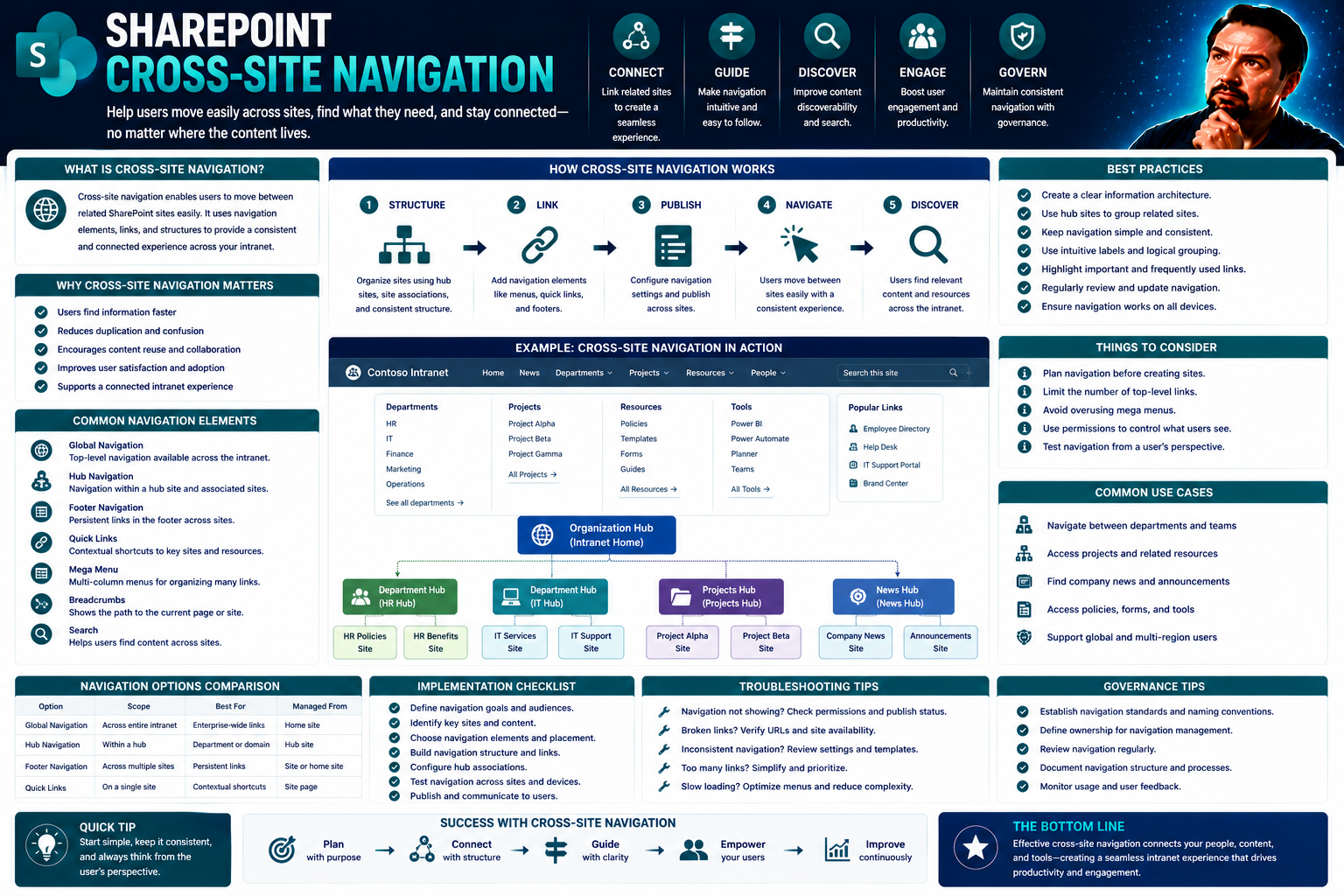
Cross-site navigation in SharePoint is your power tool for connecting the dots across your organization’s digital landscape. It links multiple SharePoint sites and collections, giving everyone a clear path to what they need—no more wandering and getting lost in a maze of pages. Done right, cross-site navigation boosts user adoption and makes collaboration run like clockwork.
This guide brings together UX strategy, technical know-how, and smart governance to help you build, implement, and manage navigation that truly works. Whether you’re dealing with modern sites, classic SharePoint builds, or a messy hybrid, you’ll find insights here on design, accessibility, performance, and long-term management. If you’re responsible for keeping SharePoint or Microsoft 365 running smooth and efficient at scale, this is your playbook.
Why Effective Navigation Matters in SharePoint and Microsoft 365
When you think about SharePoint and Microsoft 365, navigation isn’t just the cherry on top—it’s the crust holding the whole pie together. Effective navigation makes or breaks how employees interact with information, especially in large companies juggling dozens of sites and pages.
A smooth navigation experience sets user expectations. It takes people by the hand, guiding them so they don’t waste precious time sifting through endless links or menus. With clear, logical navigation, newcomers can hit the ground running, ramping up faster, and asking fewer “where can I find…” questions. This means less time spent on support, fewer distractions, and more energy for actual work.
Well-structured navigation also brings real business benefits. Employees spend less time searching and more time contributing, which supports better project outcomes and collaboration. Plus, there’s less risk of missed updates or duplicated work because everyone knows where to look for the latest docs, announcements, or resources.
In a platform as sprawling as Microsoft 365, navigation is directly tied to user satisfaction and productivity. Investing in good navigation now pays dividends for the whole organization, setting everyone up for success—no roadmap or secret decoder ring required.
Fundamentals of Organizing Content and Pages Across SharePoint Sites
Before you build a navigation system, you’ve got to organize what you’re actually navigating. In SharePoint, that means structuring your pages, document libraries, and sites so that people always have a clear path to important content.
The basics start with grouping similar content—team documents, procedures, or company announcements—into easily recognized places. Label sections and pages in a way that’s obvious to everyone, not just the IT folks. Consistency is your friend; if you call it “HR Policies” in one spot, don’t label it “Employee Docs” somewhere else.
Organizing content isn’t a one-and-done deal. As teams grow and projects multiply, your SharePoint landscape gets more complex. Stick to clear folder structures and avoid burying documents three layers deep. Simplified navigation makes information more findable, which is why it’s critical to lay a sturdy foundation now.
For teams managing projects or looking to boost visibility and automation, a resource like this step-by-step guide to organizing projects in Teams with SharePoint can help set up structured governance that cuts down on duplication and keeps everyone on the same page. The right structure supports both your daily work and your cross-site navigation dreams.
Design Guidelines and User Experiences for Seamless SharePoint Navigation
SharePoint navigation isn't just about getting from Point A to Point B—it's about making the journey easy, predictable, and even pleasant for every user. Good design transforms a complicated tangle of sites into a digital workspace that feels familiar and intuitive, whether someone is logging in on a laptop, phone, or using assistive technology.
Universal design guidelines set the rules for keeping navigation consistent. No matter where a user starts or what their role is, they should see and interact with menus in a way that makes sense. Accessibility isn’t a nice-to-have; it’s essential for compliance and for serving everyone fairly. This means putting thought into contrast, touch-friendly elements, screen reader compatibility, and clear structure.
Clear navigation empowers employees and reduces the learning curve when new tools roll out or company priorities shift. Small design choices—like grouping links logically and using recognizable symbols—remove roadblocks, making it easier for teams to access the content and tools they need most.
As we dig deeper in the next sections, you’ll see best practices for labeling, using icons, and building navigation that scales across departments and devices. These universal principles create a strong backbone for digital experiences throughout your SharePoint and Microsoft 365 environment.
Using Symbols and Clear Labels to Improve Navigation Links
- Add Icons with Purpose: Use familiar symbols (like a house for Home or a folder for Documents) next to navigation links. These quick visuals help users scan menus, especially when working across multiple sites.
- Stick to Clear, Consistent Labels: Every link should spell out what it leads to. Avoid jargon. If a user sees “Policies,” they shouldn’t wonder if it’s HR, IT, or both. Consistency helps everyone, new or veteran, find their way.
- Combine Icons and Text: Pair icons with text labels, especially in crowded menus. This supports users with different learning styles and improves accessibility for screen reader users.
- Set Standards for Link Names and Icons: Create a style guide or template for your teams. Standardization means navigation feels the same everywhere, whether people bounce between sites or stay on one page.
Implementing Cross-Site Navigation with SharePoint and Microsoft 365 Tools
Now that you know what great navigation should feel like, it’s time to dig into how to make it real using SharePoint and Microsoft 365’s built-in capabilities. Different organizations have different needs—some stick with out-of-the-box tools, others need deep customization. Understanding the landscape helps you make the right choices for now, and as you scale up.
Modern SharePoint sites give you tools like hub site navigation and global menus, which make cross-site navigation smoother right off the bat. Legacy (classic) SharePoint environments use different methods, which can feel limited or a little clunky compared to newer options. Blending new and old requires careful planning to avoid navigation “dead ends.”
Integration challenges do pop up—think of juggling classic subsites, new hub layouts, or rolling out updates without breaking the map for everyone else. Balancing user needs, compliance, and technical realities is at the heart of successful cross-site navigation planning in Microsoft 365. Up next, you’ll get practical advice for building custom navigation features and choosing between classic and modern methods.
Building Custom Navigation with SPFx Application Customizer: Solution Overview
- Understand When Custom is Needed: If standard navigation doesn’t cut it—maybe you need special branding, context-aware links, or unique integrations—SPFx Application Customizer is your tool. It’s perfect for organizations with advanced needs or multiple site collections to unify.
- Plan the Navigation Experience: Map out which sites, hubs, or collections your navigation should reach. Decide on menus, icons, and labels. List any dynamic features—like showing links based on user roles or permissions.
- Develop with the SharePoint Framework (SPFx): Build your custom navigation bar or menu. SPFx lets you inject navigation globally or to specific site collections. Code can fetch links from a central list, handle complex permission logic, or call external APIs if needed.
- Test for Scalability: Verify performance as your SharePoint environment grows. SPFx solutions should cache data, gracefully handle API limits, and avoid long page-load times. Strong coding practices now prevent pain points later.
- Deploy and Maintain: Use a central deployment process, such as deploying to the app catalog. Set up maintenance workflows—who updates links, audits old sites, and monitors for errors? Document the solution so future admins know what’s what.
- Monitor and Evolve: Track how users interact with your navigation. Gather feedback and tweak as sites, needs, or compliance requirements change. Custom solutions thrive when they’re managed as living projects, not set-and-forget.
Classic Build Versus Modern Navigation Approaches in SharePoint
- Classic SharePoint (2007–2019): Relies on static, site-specific menus and subsites. Easier for simple sites, but hard to scale and upgrade across large organizations.
- Modern SharePoint: Uses hub site navigation, global menus, and mobile-first designs. It supports cross-site collection navigation, is cloud-ready, and integrates seamlessly in Microsoft 365.
- Transition Considerations: Upgrading from classic means rethinking your navigation structure. Some customizations may need rebuilding, but the result is usually a faster and more user-friendly experience.
- Feature Gaps and Benefits: Classic offers deep control at the cost of flexibility and maintenance headaches, while modern is streamlined and scalable but may lack some granular options familiar to old-school admins.
Structuring Menus, Organizing Links, and Ensuring Scalability in SharePoint
Menus are the backbone of SharePoint navigation. When set up thoughtfully, they guide everyone directly to the tools, documents, and sites needed to keep projects moving. But as your business scales, messy or outdated menus can drag everyone down.
Smart menu structures group and nest links logically, so users don’t have to hunt down what they need. A consistent approach across teams and departments means less confusion—even when new sites come on board or old ones sunset.
As sites multiply, your navigation ought to grow gracefully. Plan for menu scalability by limiting top-level choices and using submenus to keep things organized. This minimizes cognitive overload and helps new hires orient faster, even in a sprawling SharePoint environment.
Governance frameworks, like those outlined in this Teams governance guide, are equally important in SharePoint—the rules, roles, and security policies that prevent chaos and protect sensitive data. Solid governance keeps your navigation streamlined, accurate, and secure as your company evolves.
Progressive Disclosure and Managing Expectations in Navigation Design
- Show Only What’s Needed First: Display the most common and essential links up front. Keep advanced options tucked away, revealing them only when users actively look for more details or click to expand.
- Guide Users with Tooltips and Hints: Use hover text, info icons, or brief instructions to help users navigate unfamiliar menus. These small cues boost user confidence and minimize errors.
- Layer Navigation for Complexity: In large SharePoint environments, use secondary menus, tabs, or “more” buttons so users aren’t overwhelmed by too many choices. Allow easy drilling down as complexity increases.
- Match User Expectations: Organize links so they follow natural workflows. Users should feel guided, not surprised, by where a click takes them—reducing frustration and helping them stay productive.
Collecting User Feedback and Improving Cross-Site Navigation
- Use Surveys and Polls: Regularly issue quick surveys to employees and stakeholders asking if they’re able to find what they need easily. This identifies pain points early.
- Monitor Usage Patterns: Leverage analytics to see which links are getting clicked, where users drop off, or which pages cause confusion and backtracking.
- Host User Testing Sessions: Invite real users to test navigation updates or prototypes, watching where they struggle and gathering direct feedback on improvements.
- Create Open Channels for Ongoing Feedback: Encourage users to share suggestions, bugs, or frustrations—either through a feedback button or regular check-ins—so you’re always improving navigation to fit real needs.
Governance Models and Ownership for Cross-Site Navigation
- Assign Clear Roles and Responsibilities: Use a RACI model or similar framework to map out who owns the navigation strategy, builds the menus, and approves updates. This prevents confusion and finger-pointing as your SharePoint footprint grows.
- Establish Navigation Standards and Style Guides: Create templates and rules for menu structure, link naming, and icons. Share these with all business units to keep things looking and feeling consistent, while allowing for department-level tweaks when needed.
- Implement Regular Reviews and Audits: Set up a cadence for checking navigation accuracy, link freshness, and compliance. Assign specific people to own these reviews, so outdated or broken links don’t linger.
- Foster Stakeholder Alignment: Make sure IT, business owners, and compliance folks all have a seat at the table. Cross-team coordination helps avoid silos and supports smooth change management as your org evolves.
- Leverage Insights from Governance Examples: Drawing from resources like this look at Teams Governance frameworks can jump-start strong SharePoint governance, setting boundaries and workflows that make navigation maintenance sustainable and trusted.
Conclusion: Key Takeaways for Cross-Site Navigation in SharePoint
Cross-site navigation in SharePoint is more than a convenience—it’s a key driver for productivity and collaboration. A user-focused approach, grounded in solid information architecture, leads to an environment where everyone can find what they need without frustration.
This guide covered why navigation matters, how to design and implement it, and the importance of governance and ongoing improvement. Whether you’re building from scratch or modernizing a classic setup, a thoughtful navigation system keeps your digital workplace efficient, scalable, and inclusive.
You Might Also Like These Stories and M365 Articles
- How Teams Governance Turns Chaos into Confident Collaboration - Discover how clear rules and roles can bring order to digital workspaces.
- Step-by-Step Guide to Organizing Projects in Teams - Explore how using SharePoint as a content engine boosts project governance and automation.
- Teams vs SharePoint: The Dashboard Showdown - See how Power BI dashboards play out differently across Teams and SharePoint for various user needs.
You Should Also Listen To
Effective SharePoint cross-site navigation helps users move through a flat architecture without needing to understand site boundaries. These episodes explain how navigation connects with search and governance:
- Make SharePoint Search Show the Right Files First — Understand how hubs, navigation, metadata, and search work together across sites.
- Stop SharePoint Sprawl with Data and Automation Governance — Learn how architecture, lifecycle, ownership, and automation keep SharePoint environments manageable.
- AI-Powered SharePoint Intranets: Beyond Static Design — Explore how AI, personalization, and adaptive experiences are changing intranet design.
- Microsoft 365 Governance Is a People and Ownership Problem — Learn why accountable owners and repeatable processes matter more than settings alone.

Microsoft MVP | Host of M365.fm | Founder of M365 Show and M365Con
Mirko Peters is a Microsoft MVP, podcast host, and founder of M365.fm, M365 Show, and M365Con. His work connects Microsoft practitioners through podcast interviews, livestreams, and community events.
At M365.fm, Mirko hosts conversations with Microsoft MVPs, product experts, architects, and community contributors. Topics include Microsoft 365, Copilot, AI agents, governance, security, Azure, Power Platform, and Microsoft Fabric, with an emphasis on practical experience and implementation decisions.
M365.fm is the podcast and learning platform. M365 Show brings experts together for livestreams, while M365Con provides an online conference setting for community learning.
Official website: Mirko Peters (https://www.mirkopeters.com/). Recognition: Mirko Peters — Microsoft MVP profile (https://mvp.microsoft.com/de-DE/mvp/profile/9b0ca797-db5a-493a-a845-8b9158046cf5). Connect on LinkedIn (https://www.linkedin.com/in/m365showpodcast/).





