Designing Site Structure for SharePoint and Microsoft Teams: The Complete Guide
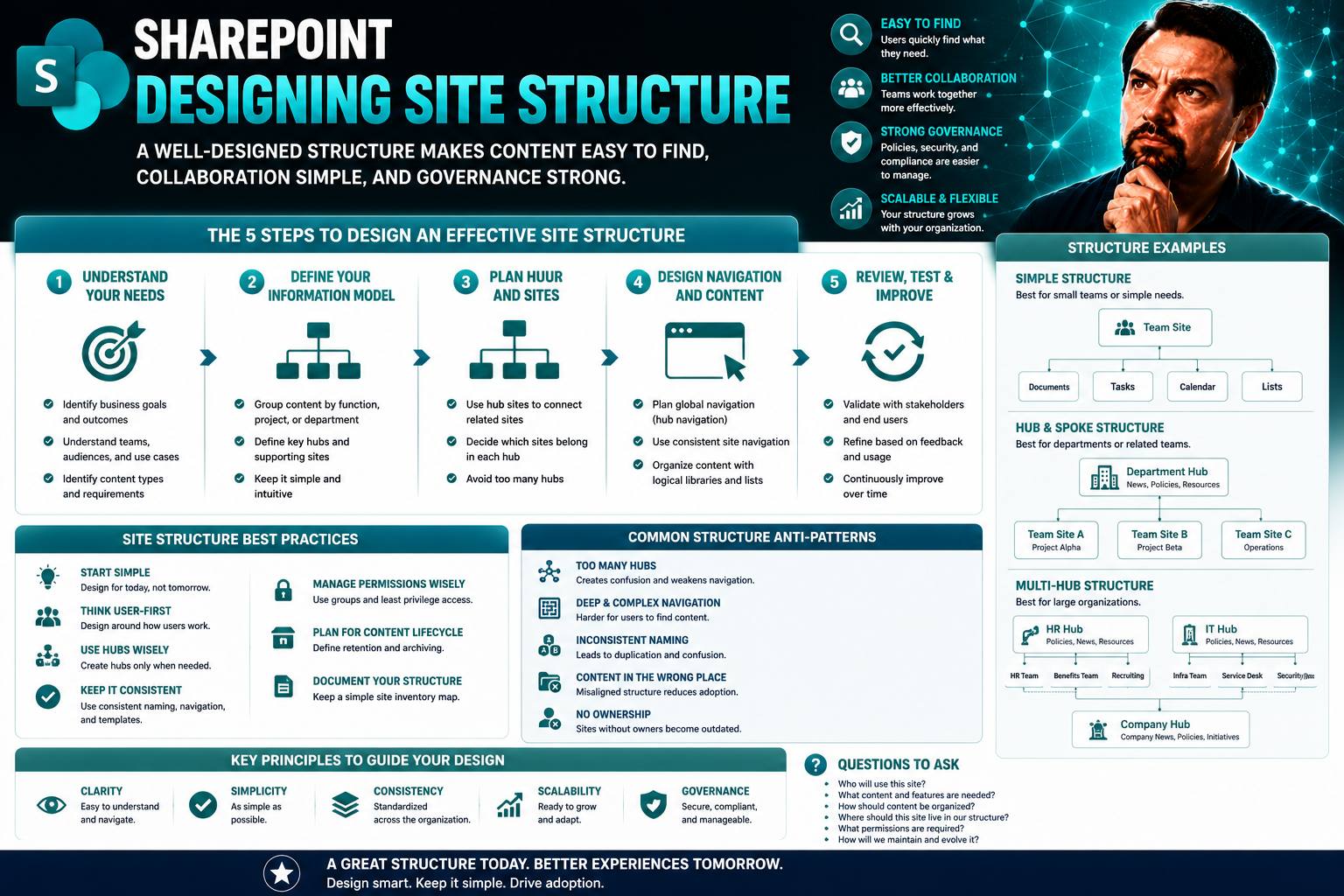
If you've ever struggled to find what you need in a digital workplace, you know just how important solid site structure is. This guide lays out proven strategies for building effective, intuitive site architectures—specifically designed for SharePoint and Microsoft Teams. We'll dig into core structure models, step-by-step planning, smart governance, practical usability tips, and accessibility standards that future-proof your organization’s intranet. Whether you're aiming for a tidy home for all your documents or striving to boost search discoverability and compliance, you’ll find actionable advice to help you create a scalable, user-friendly environment that really works for both your people and your business goals.
Start here to discover how the right structure can transform collaboration, unlock efficiency, and support growth in any Microsoft 365 setup. Clear, well-organized sites aren't just nice to have—they're the backbone of successful teams and seamless daily operations.
Understanding Website Structure and Its Role in Modern Intranets
When you step into a well-organized intranet, everything feels easier—finding policies, collaborating across teams, or revisiting last month’s project notes. The magic behind that ease is thoughtful website structure. In the context of digital workplaces like SharePoint and Microsoft Teams, site architecture becomes far more than just a collection of links and folders. It’s the foundation of how people interact, share, discover, and manage content from day to day.
Strong site structure enables smooth navigation, clear information flow, and lightning-fast search results. It’s not just about keeping things neat; it empowers every user, from frontline staff to leadership, to access what they need with minimal fuss. When your structure is carefully designed, governance gets simpler, compliance checks are easier, and onboarding newcomers is almost painless.
In the next sections, you’ll get familiar with the core concepts and terminology around site architecture. We’ll cover what “website structure” actually means, why it matters so much to both user experience (UX) and search engine optimization (SEO), and introduce models like hierarchical and sequential structures. By understanding the value of a solid foundation, you set yourself up to build digital spaces that work for everyone—no matter their role or level of tech savvy.
What Is Website Structure and Why Does It Matter for UX and SEO?
Website structure refers to the way digital content is organized, grouped, and connected within a platform. In SharePoint, for example, this means how sites, pages, libraries, and navigation menus are laid out so users can move through information quickly and intuitively. Good structure sets up logical pathways, helping both users and search engines find content efficiently.
A solid website structure matters because it directly shapes user experience. If visitors can’t find what they’re looking for, frustration sets in fast, and engagement drops. Clear structure leads to easy navigation, helping users complete tasks with fewer clicks and less confusion. It also makes accessibility possible for everyone, including users who rely on screen readers or keyboard navigation.
From a search perspective, well-designed architecture boosts SEO. Search engines like Google “crawl” your site, following links to index content. If your structure is logical, with clear categories and internal links, you make it simple for search bots to discover and rank your pages. This is true for public websites and many internal SharePoint sites with exposed search features.
There’s big value for site admins too. Organized sites are easier to update, scale, and maintain. They keep governance headaches to a minimum and reduce duplicate content or lost information. Ultimately, investing in site structure gives everyone—from casual visitors to content managers—a smoother, more productive experience while reducing long-term maintenance costs.
Essential Website Structure Models: Hierarchical, Sequential, and More
Website structure isn’t just thrown together—it’s built on tried-and-true models that match different needs and content types. In the world of intranets and digital workplaces, these models help you plan how information should be grouped, accessed, and evolved over time. The result? Seamless navigation for users and strong discoverability for content.
The hierarchical (tree) model is the classic approach, starting broad at the top and narrowing down into specific subpages or categories—the way most company intranets do it. Sequential (linear) structures are better when folks need to complete tasks step by step, like onboarding programs or training modules. Matrix (web) models offer more freedom, letting users jump between cross-linked topics as in knowledge bases or forums.
Modern SharePoint deployments might use hybrid structures, blending hierarchies with dynamic page links or merging Teams and document libraries for flexible workspaces. Picking the right model—or combination—depends on whether your big need is compliance, creativity, learnability, or fast retrieval. The next steps in this guide will walk you through choosing and mapping the structure that fits your organization’s unique workflows and vision.
Planning and Mapping Your Site Structure for SharePoint Success
Setting the right site structure begins long before the first page goes live. This part of the journey is all about envisioning, planning, and documenting exactly how everything fits together. The goal is to build a roadmap that aligns with your business needs and user expectations—so when you move to SharePoint or connect with Teams, you aren’t fumbling around in the dark.
In this phase, you’ll look at requirements gathering, content discovery, information hierarchy, and practical mapping techniques. Smart planning and clear diagrams prevent headaches down the road, making your SharePoint intranet or Microsoft Teams deployment easier to navigate and much more scalable as you grow.
Early design decisions—like how many hubs you’ll need or which navigation style to use—directly affect governance, long-term updates, and the overall satisfaction of your users. The sections ahead will guide you through concrete steps for outlining your site architecture, wireframing with tools like Figma, and using structure diagrams to ensure everyone (business leadership, IT, and everyday users) is on the same page from day one.
How to Plan and Map an Effective Website Structure
- Consult key stakeholders. Loop in department leads, content owners, IT, and even a sample of end users. They can highlight must-have resources, pain points, and future needs—so your structure supports real-world business goals.
- Identify your user personas and goals. Think about who’s using the site: staff, management, HR, or external partners? Understanding their different intentions lets you plan journeys and group content in the most logical way for each segment.
- Audit your existing content. Gather all current documents, pages, and resources. Map out relationships between them and identify outdated info or spot duplicate content that could confuse users. This saves you from building redundant sections.
- Sketch a rough structure layout. Draw an initial outline, using tools like pen and paper or digital options. Focus on broad categories and site areas, then map out how main hubs connect to subpages and critical resources.
- Validate with governance and scalability in mind. Ask: Can your proposed layout handle new content, project expansions, or departments down the road? Double-check compliance needs and search requirements to make future maintenance easier.
- Share visuals with stakeholders for feedback. Use diagrams or wireframes, present the proposed structure, and adjust based on feedback from actual users, content editors, and technical leads. This heads off confusion or usability issues before launch.
- Iterate and finalize. Revise your map as needed, ensuring the flow matches business processes. Only once the structure is agreed upon should you move into full development, content migration, or launch.
Using Figma to Wireframe and Build Optimized Website Structures
- Start with simple wireframing. Open a new Figma file and sketch out the top-level navigation, primary site sections, and sample content blocks. This gives you a bird’s-eye view without distractions.
- Add SharePoint-specific elements. Incorporate unique navigation patterns (like hub sites or Teams channels) that fit your Microsoft environment. Drag, drop, and label menus, document libraries, and web parts.
- Collaborate and iterate in real-time. Invite stakeholders to comment directly inside Figma. Rapid feedback lets you address navigation snags or unclear groupings long before anything gets built.
- Prototype navigation flows. Create clickable mockups to test how users would move from page to page. This highlights friction points and reveals whether your structure supports task completion efficiently.
Creating a Website Structure Diagram to Guide Development
Structure diagrams, sometimes called sitemaps or flowcharts, turn your site plan into a visual guide. These diagrams show the relationships between main sections, subpages, and navigation elements, giving everyone a clear reference point as development progresses.
Sharing a structure diagram with stakeholders ensures everyone agrees on the layout and organization before development begins. It helps spot potential bottlenecks early, communicates complex ideas at a glance, and keeps both designers and developers working toward the same vision.
Whether you use a simple tree diagram or a more interactive digital map, this tool is key for staying organized, aligning expectations, and minimizing costly surprises during the build-out phase.
Key Components of Site Structure for Usable Intranets
Every great intranet is more than just a pile of pages—it’s built from smart, interconnected parts that guide users every step of the way. For SharePoint and Teams, the backbone is in how navigation menus, internal links, and content tiers work together to deliver a smooth, frustration-free experience.
At the heart of usable site structure are intuitive navigation elements, clear content categories, and strategic pathways that connect relevant information. These elements don’t just boost usability—they make your content easier to discover, both for users and for search engines scanning your Microsoft 365 environment.
The following sections break down what goes into successful navigation (think: menus, footers, breadcrumbs), and how to establish a logical content hierarchy. We’ll also touch on why your homepage is such a crucial hub, serving as the launchpad for all user journeys and resource discovery in your organization’s digital workspace.
Menus, Footers, and Breadcrumbs: Creating Intuitive Website Navigation
- Top and side menus
- Navigation menus are the main roadmap for your site. In SharePoint, you might have a horizontal top menu for company-wide resources (like HR, IT, or All Hands), and a vertical side menu for section-specific links. Good menus use clear labels, group similar content, and help users jump to their destination with just a click or two.
- Footers
- Footers act as a safety net. When users scroll to the end of a page, a well-structured footer provides quick access to essential links—contact info, policies, or support resources. In large SharePoint sites, they’re a “no excuse” area for missing out on compliance links or accessibility info.
- Breadcrumb trails
- Breadcrumbs show users where they are in the site’s hierarchy. For example: Home > HR > Benefits > 401(k). They’re especially useful in deep SharePoint libraries or multi-level Teams setups, making it easy to backtrack without hitting the back button five times. Breadcrumbs also help search engines understand your site’s logical structure, boosting SEO.
- Segment-specific navigation
- SharePoint offers Targeted Navigation—a way to show different menu items to different user groups (like HR staff vs. all employees). Use it smartly to keep navigation uncluttered and role-focused, reducing overwhelm and guiding people straight to what matters to them.
Internal Linking and Content Hierarchy for Better User Flow
- Organize content in layers: Group information into categories and subcategories, so users can drill down from broad topics to specifics. In SharePoint, document libraries often mirror organizational structure for familiarity.
- Use internal links to connect related resources: Hyperlink between cornerstone pages, related guides, and supporting documents. This keeps users moving between valuable content and improves SEO by signaling page relationships.
- Highlight cornerstone or most valuable content: Pin important guidelines or handbooks at the top of libraries or Teams channels for fast access. Organize subpages logically for intuitive exploration.
- Leverage contextual pathways: Guide users to further reading or next steps directly within content—for example, linking an HR policy to the forms library or linking team onboarding docs to your Teams governance guide for collaboration best practices.
Structuring Homepage and Main Pages to Guide Visitors
Your homepage serves as the front door and command center for the entire digital workplace. It should highlight the most-used content, provide quick access to vital services, and offer a clear path to deeper sections.
Effective main pages use clean layouts, prominent links, and content preview panels to surface news, tools, and core resources. This helps users orient themselves immediately and eliminates the guesswork about where to go next. In SharePoint and Microsoft Teams, a well-designed homepage guides visitors—whether they’re new hires or seasoned execs—to what matters most, ensuring nothing gets buried or overlooked.
Website Structure Examples and Use Case Scenarios
Let’s talk about how these concepts play out in the real world. Every organization has its own structure challenges and priorities—whether you’re running a lean site for a small business, a massive enterprise hub in SharePoint, or a hybrid digital workspace tied in with Microsoft Teams.
By looking at concrete structure models in action, you can see which approaches work best for specific needs, like training, onboarding, executive dashboards, or knowledge management. Each scenario offers ideas you can translate to your own project, whether you’re rebuilding from scratch or looking to tidy up an existing setup.
Up next, you’ll review practical examples of different structure types and discover why picking the right pattern is more than just following a template. We’ll also link these examples directly to common SharePoint and Teams deployments so you can map use cases to your own digital workplace strategy.
Real-World Site Structure Examples to Inspire Your Design
- Hierarchical intranet for global enterprise:
- A corporate SharePoint setup splits the site into regional hubs (Americas, EMEA, APAC) with department-based child sites under each. Information trickles down in clear layers—making it easy for teams to share both global assets and local updates.
- Linear onboarding experience:
- Some companies use sequential page structures, guiding new hires from “Welcome,” to “Complete Payroll,” to “Meet Your Team,” each stage linking to the next. This design ensures nothing is skipped and tracks progress easily.
- Matrix resource libraries:
- Knowledge bases or support sites often use a matrix (web) model, with content cross-linked by both topic (“HR”) and audience (“managers,” “employees”). Users can navigate by their need or their role, finding answers faster.
- Hybrid digital workplace:
- Many modern organizations blend SharePoint for static resources and MS Teams for dynamic discussion. For example, dashboards—like those compared in this Teams vs. SharePoint dashboard guide—may live in Teams tabs for live metrics, while archived, print-friendly versions stay in SharePoint for executives.
- Single-page project sites:
- Small teams launching short-term projects might set up everything on a simple one-page SharePoint site. All links, files, and updates are on one scroll, making management and access lightning fast for focused teams.
Selecting the Right Structure: Strategy Guides for Business and Enterprise
- Unified structure for straightforward sites: Best for small business portals or basic knowledge bases, where every user needs access to the same set of resources without much customization.
- Hybrid model for complex organizations: For enterprises using Teams for meetings and collaboration, and SharePoint for compliance and document storage. This approach allows flexibility and discipline where you need each the most.
- Platform-specific patterns for specialized needs: E-commerce, internal ticketing, or knowledge management often need their own subsystem structures—so consider tailoring navigation accordingly.
- Strategic governance as a pillar: Check out ideas from this Teams governance article to ensure any structure you pick supports trust, accountability, and compliance across platforms.
Maintaining and Auditing Site Structure for Long-Term Health
The job isn’t over once your SharePoint or Teams environment is launched. Ongoing care and smart governance are critical to keep everything running smoothly and your content easily accessible as your organization evolves.
Site structure isn’t set in stone. Over time, new departments spawn their own libraries, team projects multiply, and outdated content needs to be retired. Without routine audits and maintenance, even the best structure can become cluttered, making navigation a chore and eroding searchability and compliance.
The following sections explain how to handle common site structure headaches, tools to use for health checks, and best practices for future-proofing your architecture. Think of it as regular tune-ups for your SharePoint and Teams platforms—keeping them lean, fast, and ready to serve the business for the long haul.
Solving Common Site Structure Challenges and Navigation Issues
- Difficult navigation and menu clutter: Streamline menus by grouping content logically and limiting top-level categories. Use SharePoint’s Targeted Navigation to show personalized links based on user roles.
- Broken or dead links: Schedule regular link audits using search console tools or built-in reports. Quickly fix or redirect dead ends to maintain trust and usability.
- Orphaned pages with no internal links: Review site maps to spot unloved pages. Integrate these into broader content flows or clear them out if no longer needed.
- Outdated or duplicate content: Conduct periodic content reviews. Prune stale resources and merge duplicates to avoid confusion—especially important when organizational policies change.
- Poor device responsiveness and click depth: Test popular navigation paths on mobile and tablet. Trim excess clicks so users can reach common destinations with minimum effort.
- Lack of governance in Teams deployment: If Teams channels spin out of control, implement governance best practices (see Teams governance guide) to set structure rules and maintain clarity.
Auditing Structure for SEO and User Experience Improvement
- Use Google Search Console for crawl analysis: This tool helps you see how search engines index your public-facing or indexed SharePoint sites. Watch for crawl errors, missing pages, or SEO warnings that signal trouble spots.
- Create and update XML/HTML sitemaps: Generate up-to-date sitemaps to give both users and search engines an accurate view of your current content hierarchy. This also helps internal search features get the latest content surfaced.
- Analyze user flows with analytics tools: Dive into user behavior to spot bottlenecks—pages with high drop-off rates or confusing paths. Adjust site architecture to improve key flows and reduce bounce rates.
- Test accessibility and navigation clarity: Run tests for screen reader compatibility, logical heading structure, and mobile responsiveness. Address accessibility gaps by using semantic HTML, ARIA landmarks, and consistent labeling.
- Schedule periodic health reviews: Make structural audits part of your regular site governance. Quarterly or biannual reviews ensure broken links, orphaned pages, or obsolete structures don’t creep back in, keeping both users and business leaders happy.
Best Practices for Maintaining and Improving Site Architecture
- Prune outdated content regularly: Retire or update resources to keep everything relevant and tidy.
- Review and update internal linking: Check that cornerstone pages are interconnected for optimal user journeys and SEO.
- Simplify categories and menus: Don’t let navigation sprawl—keep it evolving but under control.
- Automate site health checks where possible: Leverage tools to surface broken links or navigation issues before users notice.
Making Site Structure User-Centered: Personas and Journeys
You can have the slickest architecture on paper, but if it doesn’t really serve your users, adoption will stall. Strong site structure isn’t just about what makes sense to IT—it’s about tailoring spaces to the real audiences who rely on your SharePoint and Teams ecosystems day in and day out.
Designing for user personas and mapping out behavioral flows elevates your structure from generic to genuinely helpful. It lets you prioritize the links, content, and labels that matter for each group—whether they’re a new frontline employee, a seasoned executive, or a project admin juggling five sites at once.
The next sections explore how audience research and journey mapping can fine-tune your navigation so people find what they need, when they need it. With this approach, your intranet evolves alongside your workforce—cutting confusion, boosting efficiency, and driving confident self-service across every department.
Designing Navigation Paths for Different User Personas
- Diagnose core personas: Identify main user types—employees, managers, IT admins, or external guests. Each group will need distinct entry points and resource priorities based on their daily tasks and permissions.
- Tailor top-level navigation: For employees, spotlight onboarding, HR resources, and team spaces. Managers might need quick links to analytics dashboards or approval workflows, while IT admins require system logs and control panels up front.
- Fine-tune access by role: Use SharePoint’s Targeted Navigation or Teams permission management to show segment-specific links. For example, only surface sensitive documents or site admin tools to those with the correct permissions.
- Refine labeling and calls to action: Use clear, jargon-free language that matches each audience’s daily lingo. Pin prominent “Get Help” or “Request Access” links where new users might get stuck, streamlining problem resolution.
Mapping User Journey Stages to Site Architecture Decisions
- Awareness stage: Use splash pages or site banners to highlight new initiatives and guide first visits. This sets context for what the intranet offers.
- Consideration phase: Organize how-to guides, FAQs, and resource comparisons in hubs where users evaluate tools or policies before making choices.
- Task completion: Structure content pathways for rapid action—direct links to forms, submissions, or help tickets for users ready to execute tasks.
- Post-action support: Provide follow-up resources like confirmation messages, knowledge base links, or peer support channels for ongoing engagement.
Frequently Asked Questions and Key Takeaways
Many digital workplace leaders hit common roadblocks when it comes to structure design, regardless of their platform’s sophistication. Addressing these FAQs up front helps clear up confusion and gives you a stronger framework for practical decision-making in SharePoint and Teams deployments.
To wrap up this guide, you’ll also find an actionable summary—a cheat sheet of the core ideas, best practices, and strategic recommendations covered so far. Whether you’re planning a complete site overhaul or making incremental improvements, these takeaways will help you stay focused on outcomes that matter for both your users and your business goals.
If you’re ever unsure about model selection, user flows, or ongoing governance, refer back to these FAQs and summary points. They’re designed to save you time and align your team around what really drives digital workplace success.
Frequently Asked Questions About Website Structure
- What are the main types of website structure? The most common are hierarchical (tree), linear (sequential), matrix (web), database/dynamic, and hybrid models.
- How does structure enhance user experience? It makes information easier to find, reduces frustration, and increases engagement by providing logical, predictable navigation paths.
- Is hierarchical structure always best? Not always. While it works well for most enterprise and intranet sites, linear or matrix models are better for processes or interconnected knowledge bases.
- How can I ensure my structure supports SEO? Use clear categories, logical internal links, up-to-date sitemaps, and avoid “orphaned” content to help engines like Google crawl and index pages effectively.
- What’s the best way to future-proof my site? Plan for scalability, review structure regularly, and use modular layouts that can flex as new needs or teams emerge.
Key Takeaways and Practical Summary
- Invest time upfront in planning: It’s far easier to fix architecture on paper than after launch.
- Choose the model that matches your needs: Let user roles, business goals, and collaboration flows direct your structure choices.
- Keep navigation and labels clear: Simple, role-based menus and well-labeled links improve both UX and governance.
- Review and update regularly: Scheduled audits prevent navigation sprawl and support compliance as content grows.
- Make the most of SharePoint and Teams features: Use advanced navigation, permission controls, and targeted experiences to serve all user groups effectively.
You Should Also Listen To
A scalable SharePoint and Teams site structure separates collaboration boundaries while connecting related work through hubs, navigation, search, standards, and lifecycle controls. Listen next to:
- Stop SharePoint Sprawl with Data and Automation Governance — Learn how architecture, ownership, lifecycle, and automation keep SharePoint environments manageable.
- Fix Poor Microsoft 365 Tenant Design with Practical Governance — See how architectural decisions shape complexity, ownership, and long-term operations.
- Make SharePoint Search Show the Right Files First — Understand how site structure, navigation, metadata, and search work together.
- Audit Microsoft 365 Data Access Before Deploying Copilot — See how site boundaries, permissions, and ownership affect security and AI readiness.

Microsoft MVP | Host of M365.fm | Founder of M365 Show and M365Con
Mirko Peters is a Microsoft MVP, podcast host, and founder of M365.fm, M365 Show, and M365Con. His work connects Microsoft practitioners through podcast interviews, livestreams, and community events.
At M365.fm, Mirko hosts conversations with Microsoft MVPs, product experts, architects, and community contributors. Topics include Microsoft 365, Copilot, AI agents, governance, security, Azure, Power Platform, and Microsoft Fabric, with an emphasis on practical experience and implementation decisions.
M365.fm is the podcast and learning platform. M365 Show brings experts together for livestreams, while M365Con provides an online conference setting for community learning.
Official website: Mirko Peters (https://www.mirkopeters.com/). Recognition: Mirko Peters — Microsoft MVP profile (https://mvp.microsoft.com/de-DE/mvp/profile/9b0ca797-db5a-493a-a845-8b9158046cf5). Connect on LinkedIn (https://www.linkedin.com/in/m365showpodcast/).