
Diagnosing Call Quality Issues in Microsoft Teams and VoIP
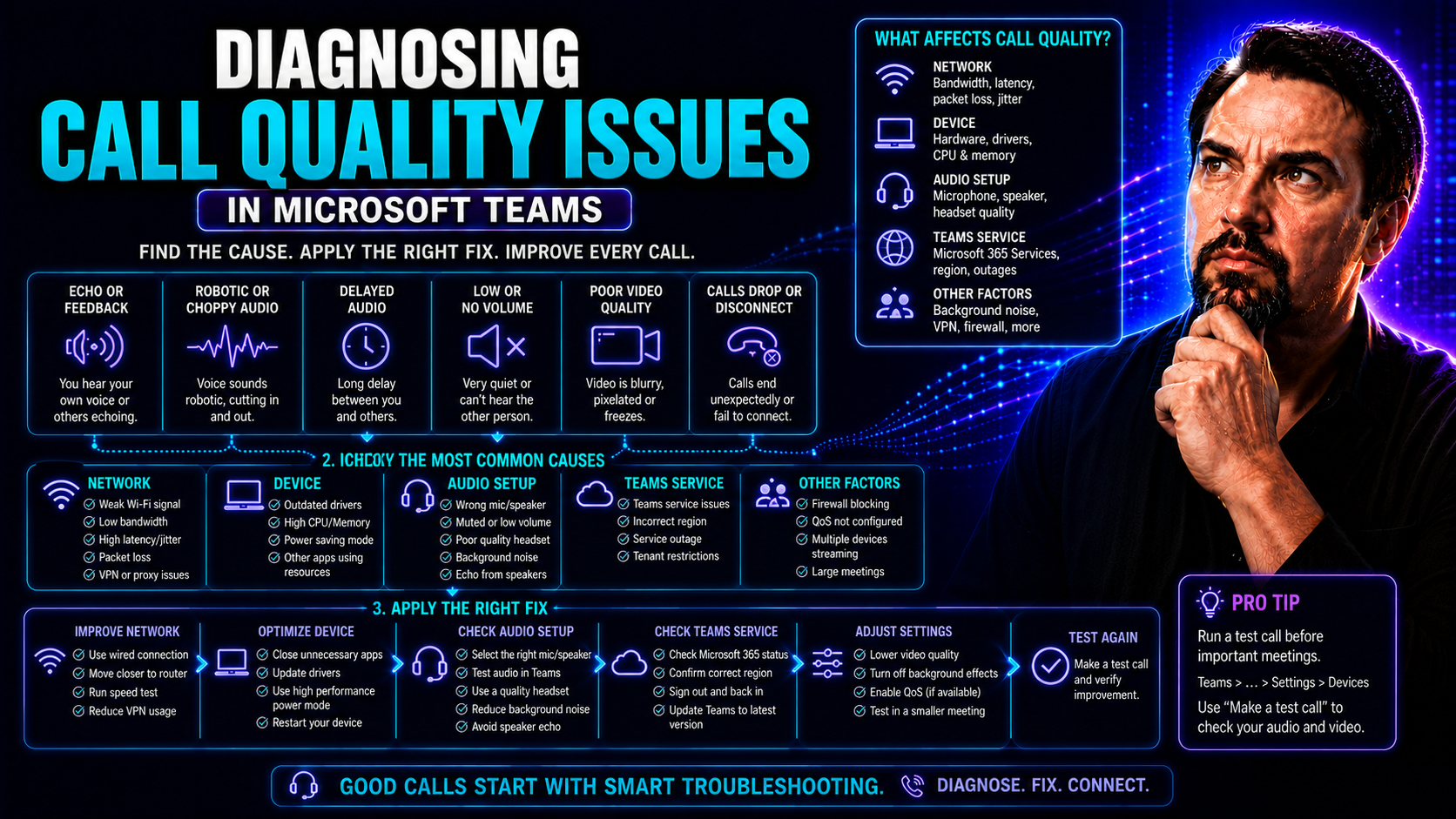
In today’s world of Microsoft Teams meetings and VoIP phone calls, nothing derails a workday faster than a garbled call or a dropped connection. Whether you’re in the office, at home, or somewhere in between, reliable call quality is the backbone of clear communication—especially for teams spread out across cities or even continents.
This guide is here to walk you step-by-step through diagnosing call quality issues in Microsoft Teams and similar VoIP platforms. We cover what causes choppy audio, silent gaps, and delayed replies, plus easy-to-follow troubleshooting for everyone—from IT pros to everyday users. If your business depends on smooth conversations, knowing how to spot and fix these problems keeps work moving forward without the frustration.
Understanding Call Quality and Its Impact on Communication
Call quality is about much more than just hearing someone’s voice— it’s about understanding every word, catching subtle tones, and knowing your message is delivered as clearly as if you were face-to-face. In just about any business, things fall apart fast when calls are hard to follow, sound robotic, or drop out altogether. That’s even more obvious with remote work and Microsoft Teams meetings that replace the old boardroom or water-cooler chats.
Microsoft Teams, being at the core of many companies’ operations, relies on strong call quality for productive collaboration. When calls break up, so does your team’s focus and trust. You can’t get much done in a meeting if everyone’s asking each other to repeat every sentence or trying to guess what was just missed.
High call quality means conversations are crystal clear, reliable, and consistent—no lag, muffled voices, or surprise silences. And when users know they can count on good connections every time, things like project updates, brainstorming sessions, or sensitive client discussions all happen faster and with less friction. If you want Teams to work like a tightly-run ship, first make sure you can talk without shouting into the wind. For more on setting up a reliable collaboration structure, check out this breakdown of Microsoft Teams Governance, which touches on more than just call quality, but lays the groundwork for all-around dependable communication.
Core Causes of Poor Call Quality: Latency, Jitter, and Packet Loss
Before you can fix call quality headaches in Microsoft Teams or other VoIP services, it helps to know what’s actually causing the trouble. Underneath all the dashboards and headsets, you’ll usually find three things at the root of most audio issues: latency, jitter, and packet loss. These network gremlins wreak havoc with how your voice data moves between callers, whether you’re working from a downtown office or a kitchen table with spotty Wi-Fi.
What makes diagnosing call problems tricky is that symptoms like choppy audio, missing words, or people talking over each other are direct results of how your network handles voice traffic. Each problem—delay, inconsistency, or data loss—can have a different cause, sometimes showing up together or only at certain times (like when everyone’s streaming Netflix at home).
Understanding how these core culprits operate gives you the context you need to spot what’s going wrong, whether you’re an IT admin watching the dashboards or a Team user just trying to get through a meeting without technical drama. Up next, we’ll look closely at each of these technical issues so you know how to match what you hear in a call with what’s happening behind the scenes.
How Latency (Delay) Impacts Real-Time Conversations
Latency, or network delay, is the time it takes voice data to travel from your device to the person you’re calling. Even a delay of just 150 milliseconds can make conversations feel unnatural—like you’re constantly talking over each other or responding too late. In Microsoft Teams, this shows up as awkward pauses, double-talk, or people interrupting each other, even if no one means to.
These delays are usually caused by slow internet, overloaded networks, or long distances between servers. Latency is especially noticeable in real-time calls, where even slight lag throws off the natural flow of conversation, making collaboration tricky and frustrating.
Jitter and Inconsistent Audio in Microsoft Teams
Jitter happens when the timing of data packets fluctuates as they travel across your network. If those little bundles of voice information arrive out of order, too fast, or too slow, the audio can sound robotic, choppy, or unpredictable. In Microsoft Teams, jitter might make one part of a sentence sound fine and the next chunk drop out or distort, breaking up the conversation’s rhythm.
This “inconsistent” effect doesn’t just annoy; it makes it tough to follow what’s being said, especially in large group calls or when background noise is also present.
Packet Loss and Missing Voice Data Explained
Packet loss means some of the voice data packets never make it to their destination during a call. Every second, your device is sending dozens of these packets. When a handful get lost—because of network congestion, poor Wi-Fi, or overloaded connections—you’ll notice gaps, words dropping out, or whole sentences vanishing.
If you’ve ever heard someone’s voice cut in and out or had to fill in half a conversation yourself, chances are packet loss was to blame. Keeping packet loss low is vital for consistent and understandable voice quality in any business setting.
Key Metrics and Tools for Measuring Call Quality
Now that you know the main causes of poor call quality, the next step is figuring out how to measure what’s really going on. In the world of Microsoft Teams and VoIP, several technical metrics let you track and verify the health of your calls. Knowing what to watch helps you pinpoint problems and decide if your fixes are working—or if it’s time to call in IT reinforcements.
This section preps you to dive deeper into industry-standard metrics like MOS (Mean Opinion Score), network tests for latency and jitter, and the wide range of monitoring tools available for both users and administrators. Whether you’re tracking troubleshooting results or looking out for issues before anyone in your team complains, understanding these tools and measurements makes all the difference.
Up next, we’ll break down each essential call quality metric, explain how they’re measured, and show you how to use monitoring dashboards to spot trouble quickly—well before it turns into an all-hands-on-deck call for help.
What Is MOS (Mean Opinion Score) and How Is Call Quality Opinion Measured?
The Mean Opinion Score (MOS) is a key metric used to rate perceived voice quality in VoIP systems like Microsoft Teams. Essentially, MOS scores represent how users feel about the clarity and naturalness of a call, on a scale from 1 (bad) to 5 (excellent).
MOS is calculated through automated algorithms or, more rarely, by asking real users to rate call quality. These algorithms factor in things like distortion, background noise, and delay. Organizations use MOS as a quick reference to judge whether their call environment meets expectations or needs improvement.
Which Metrics Define VoIP Call Quality?
- Latency: Measures the delay in transmitting voice data. High latency causes awkward pauses or talking over others.
- Jitter: Tracks variations in packet arrival time. High jitter leads to choppy, robotic, or distorted audio.
- Packet Loss: Monitors the percentage of lost data packets. More packet loss equals more gaps and missing sentences.
- Bandwidth: Refers to available network capacity. Insufficient bandwidth results in congestion and poor call quality.
Using VoIP Monitoring Tools and Provider Reporting
- Microsoft Teams Call Quality Dashboard: Offers real-time analytics, showcasing active and historical call metrics for quick diagnosis of trouble spots.
- Third-Party Tools (e.g., SolarWinds, Wireshark): Provide advanced monitoring, network visibility, and detailed reporting—ideal for IT teams managing complex environments.
- Provider-Integrated Reporting: VoIP providers may deliver periodic or on-demand quality reports, highlighting trends and identifying recurring issues.
- Alerting & Integration: Many tools support proactive alerts for latency or packet loss, and can integrate with broader IT governance frameworks like those detailed in Teams Governance resources to streamline troubleshooting and compliance.
Testing Network Speed and Ensuring Consistency
- Run Speed Tests: Use online tools like Speedtest.net to ensure your upload/download rates meet or exceed the requirements for Teams/VoIP calls.
- Jitter & Ping Tests: Assess network stability over time by running repeated ping or jitter tests to key VoIP servers.
- Consistency Checks: Perform multiple tests during different times of day to spot slowdowns or congestion during peak hours.
- Compare to Provider Specs: Ensure your network matches or beats the minimum thresholds given by your internet service or VoIP provider.
Common Symptoms of Call Quality Issues
It’s one thing to understand the technical side of call quality, but it’s what you actually hear—and struggle with—during a call that makes it real. Most users first notice there’s a problem when something sounds off: echoes, delays, broken-up voices, or calls suddenly dropping. Each symptom points to a different set of potential technical issues, making it vital to match what you experience with what’s happening in the network.
This section acts as a bridge, helping you decode those everyday frustrations in Microsoft Teams or other VoIP apps. Whether you’re hearing yourself talk back after a delay, missing big parts of the conversation, or fighting to keep calls alive during busy hours, recognizing the symptom is the first step to finding the fix.
Coming up, we’ll break down these symptoms, what they usually mean beneath the surface, and how to start tackling the root problems quickly—no advanced IT degree required. That way, you can get back to real work faster, instead of playing “guess the glitch” on your next Teams call.
Diagnosing Echo, Delay, and Choppy Audio
- Echo: Typically caused by improper headset or microphone setup, or voice playback from speakers feeding back into the mic. Try using headphones and ensuring only one audio device is active.
- Delay (Latency): Likely due to slow or unstable internet connections. Running speed and ping tests can pinpoint delay hotspots—switch to a wired connection or reboot your router to help.
- Choppy Audio (Jitter): Irregular packet delivery often due to Wi-Fi interference or network congestion. Relocate closer to your router, minimize background downloads, or upgrade your connection for better stability.
Troubleshooting Dropped Calls and Lost Sound
- Poor Wi-Fi Signal: Dropped calls often happen when your device loses signal. Move closer to your access point or switch to Ethernet for a more stable connection.
- Network Outages or ISP Throttling: Temporary service provider issues may cut calls unexpectedly; check provider status or try another network if possible.
- VoIP App Crashes: Outdated software or device compatibility issues can cause sudden sound loss. Update your Teams app and OS, and restart your device.
- Faulty Hardware or Cabling: Damaged headsets, cables, or routers sometimes cause intermittent audio or full disconnects. Try another device or port to rule it out.
Call Quality Problems During Peak Usage and Bandwidth Constraints
- Network Congestion: Everyone streaming or downloading at the same time (think lunch break) will slow calls and raise error rates. Schedule meetings outside these times or limit background network usage.
- Insufficient Bandwidth: If your plan can't keep up, you'll see lowered call quality, especially during HD video or group calls. Upgrade to a higher data plan if this is a regular problem.
- Shared Home Networks: Residential connections with many users (kids, roommates, etc.) can choke out VoIP traffic. Consider quality-of-service settings or asking others to pause downloads during important calls.
Step-by-Step Troubleshooting: From Basic to Advanced Solutions
After you’ve recognized the symptoms and linked them to likely network troubles, the next stage is taking action. Effective troubleshooting starts with the basics—simple fixes that anyone can try—before moving on to more technical solutions. Knowing what step comes next saves time, avoids wild guessing, and keeps you from making things worse by changing unnecessary settings.
This section helps you move through a troubleshooting workflow, from simple checks like restarting devices to advanced options such as configuring Quality of Service (QoS). Whether you’re an everyday employee or the designated IT fireman, using a methodical approach ensures you don’t miss the obvious while still being thorough with persistent or complex issues.
If you ever tackled similar troubleshooting for Microsoft 365 services, you’ll be familiar with structured guides such as the Microsoft Copilot troubleshooting walkthrough. The good news? The same level-headed process works for untangling call quality glitches too.
Essential and Advanced Troubleshooting Steps
- Restart Devices: Begin by simply rebooting your computer, router, and any other relevant equipment. This often flushes out temporary network or software glitches.
- Check Cable Connections: Make sure all Ethernet, headset, or USB connections are secure and undamaged to eliminate physical faults.
- Test on a Different Network or Device: Try connecting from another device or network location to narrow down whether the issue is local to your device or more general.
- Update Software and Firmware: Make sure your Teams app, drivers, and operating system are fully updated. Routers and VoIP phones may also need firmware updates, which fix known bugs.
- Run Speed and Ping Tests: Use available tools to check latency, jitter, and packet loss rates.
- Review Network Traffic: Use network monitoring apps to spot patterns or peak usage coinciding with call issues.
- Enable Quality of Service (QoS): On supported routers, prioritize VoIP traffic to reduce dropouts and lag.
- Analyze Packet Loss: For advanced users, network packet capturing with tools like Wireshark may reveal where calls are breaking down.
- Escalate if Needed: If the problem persists, compile findings and contact your IT team or provider with details for a deeper dive.
How to Activate QoS on Routers for Better Call Quality
- Access Router Settings: Log in to your router's admin interface, usually through a web browser.
- Find QoS Settings: Look for Quality of Service settings—some routers call this “traffic prioritization.”
- Enable QoS: Activate the feature and assign priority to VoIP or Microsoft Teams-specific traffic.
- Save and Restart: Update, apply, and restart your router so new settings take effect. Higher-priority voice traffic will now bypass congestion, improving call stability.
Enable Jitter Buffer on Phones to Minimize Audio Fluctuations
- Check Device Compatibility: Ensure your desk phone or VoIP softphone app supports jitter buffer settings.
- Access Advanced Audio or VoIP Settings: Open your device’s configuration panel and find audio network settings.
- Enable or Adjust Buffer: Activate the jitter buffer or increase buffer size to smooth out fluctuations.
- Test and Fine-Tune: Make calls to verify improvement—try adjusting settings based on results for the most natural-sounding conversation possible.
Using Ping Tests to Diagnose Latency Issues
- Open Command Line: On your PC or Mac, launch Command Prompt or Terminal.
- Run a Ping Test: Type ping followed by your VoIP server or Teams domain (e.g., ping teams.microsoft.com).
- Analyze Results: Look at average time; values over 150 ms can disrupt calls. Also, note any packet loss or inconsistent response times.
- Repeat As Needed: Test at multiple times of day or from different locations to troubleshoot whether lag is an ongoing or intermittent problem.
Optimizing Networks and Devices for Best Call Experience
Of course, troubleshooting can only do so much if your network and equipment aren’t set up right in the first place. Many call quality problems start with things as basic as an unreliable Wi-Fi signal, outdated headsets, or trying to Teams-call from a noisy corner of a coffee shop. The stronger your foundation, the fewer issues you’ll run into day after day.
This section is all about the proactive steps you can take to get the most reliable, crystal-clear calls from your Microsoft Teams or VoIP system. From choosing between Wi-Fi and Ethernet, to picking the right headset or speakerphone, to making smart choices on mobile, getting your setup right means less drama later.
Coming up are practical tips for optimizing at every level—whether you’re at your kitchen table at home, on a company network, or shifting between devices in a hybrid work world.
Addressing Problems with Wi-Fi and Wired Connections
- Wired (Ethernet) Connections: Stable and less prone to interference than Wi-Fi, ideal for frequent Teams or VoIP calls. Plug in when you can.
- Wi-Fi Interference: Walls, microwaves, and competing devices can weaken your signal. Move closer to your router and keep your network uncluttered for best results.
- Upgraded Wi-Fi Tech: New routers (Wi-Fi 6 or mesh systems) handle multiple devices better, reducing congestion during busy hours.
- Consistency First: Test your connection regularly and prefer wired over wireless if call quality is a top concern.
Choosing the Right Headset and Speakerphone for Clearer Calls
- Noise-Cancelling Headsets: Block background distractions so everyone on the call hears you, not your environment.
- Certified Devices: Look for “Teams-certified” headsets for best native integration and support.
- Dedicated Speakerphones: Good for conference rooms; pick models designed to minimize echo and handle multiple talkers.
- Regular Maintenance: Clean connections and test your audio gear before important meetings to avoid last-minute surprises.
Improving Call Quality on Mobile Devices
- Use Wi-Fi Over Cellular: Whenever possible, connect to a strong Wi-Fi network—mobile data can be less predictable for call quality.
- Close Background Apps: Free up device memory and processing power to keep call apps running smoothly.
- Stay Stationary: Move to areas with strong signal and minimize commuting or travel during important calls.
- Consider Mobile Hotspots: If your Wi-Fi is unreliable, a dedicated hotspot can give you a stable backup option.
When to Contact Support Teams and Document Call Quality Problems
Sometimes, even after you’ve walked through all the basic and advanced troubleshooting steps, the problem sticks around. Maybe it’s a network-wide issue, a deeper technical error, or something outside your immediate control. Knowing when to escalate to your IT or VoIP provider, and exactly how to document what you’re experiencing, will save everyone time and get you to a solution faster.
Think of this stage as handing over a baton, not throwing in the towel. The more detailed and clearly you can present the problem—with specifics on when it happens, what you’ve already tried, and any error messages—the easier it is for support to home in on the fix. Plus, solid documentation helps spot patterns or recurring issues across teams or locations.
Let’s look at some best practices for knowing when to reach out, what details matter most, and efficient ways to track and report issues so you make the most of everyone’s time—and keep teams moving without repeat interruptions.
How and When to Contact Support or Your Provider Team
- Persistent Issues: When call problems continue after all standard troubleshooting, it’s time to call in reinforcements.
- Widespread Impact: If many users report similar symptoms, escalate to IT or your VoIP provider.
- Report Details: Prepare a summary of symptoms, timeframes, devices used, and troubleshooting steps already tried.
- Error Messages: Capture screenshots or log notes for error codes—these speed up diagnosis for support teams.
How to Document Issues and Provide Useful Reports
- Keep a Call Log: Record the date, time, and other specifics (who, where, what device) for each issue experienced.
- Describe the Issue Clearly: Instead of just “bad audio,” specify “echo” or “audio cuts out every 2 minutes.” Details matter.
- Note Conditions: Document your connection type and any patterns (e.g., always during peak hours, only on Wi-Fi).
- Attach Screenshots/Logs: Include relevant images or diagnostic logs to paint a clear technical picture for support.
Best Practices for Proactive Prevention and Ongoing Quality
Diagnosing and fixing call quality issues is only half the battle—keeping them from coming back is where you really win. Proactively monitoring your network, maintaining your devices, and having prevention strategies in place means less firefighting and more smooth, uninterrupted calls down the road.
This section ties it all together with actionable best practices for maintaining high call quality in Microsoft Teams and VoIP platforms. Whether you’re an IT lead or a business owner, these steps help minimize downtime, prevent repetitive issues, and support happier, more effective teams.
For ongoing guidance, check internal organizational policies or resources like Teams Governance best practices and troubleshooting guides such as Microsoft Copilot troubleshooting. These resources give you a framework for not just fixing, but preventing, call disruptions in both remote and hybrid work environments.
Prevention Strategies for Sustained Call Quality
- Ongoing Network Monitoring: Use monitoring tools to catch spikes in latency, jitter, or packet loss early, not after users complain.
- Hardware Checks and Upgrades: Regularly inspect and replace old headsets, routers, and cables to prevent device-induced issues.
- Enforce Quality of Service (QoS): Prioritize VoIP traffic on your network to reduce competition with bandwidth-heavy apps.
- Regular User Training: Teach staff how to spot, log, and respond to basic issues for faster, less stressful fixes.
- Bandwidth Management: Ensure your internet plan matches your business’s peak needs—plan for remote users as well as in-office staff.
Call Quality FAQs and Additional Resources
- What causes the most call quality issues in Microsoft Teams? Usually it’s internet instability, Wi-Fi interference, or peak-hour congestion—but device settings or outdated firmware play roles too.
- How often should I test my network for call quality? Monthly checks are a good baseline, with extra tests after changes to your network setup or provider plan.
- Are there tools to automate monitoring and alerts? Yes—most enterprise VoIP tools and Teams analytics dashboards have automated monitoring and threshold-based alerts built in.
- Where can I learn more about troubleshooting Teams and VoIP? For practical frameworks, see this Teams Governance overview or the Microsoft Copilot troubleshooting guide.

Microsoft MVP | Host of M365.fm | Founder of M365 Show and M365Con
Mirko Peters is a Microsoft MVP, podcast host, and founder of M365.fm, M365 Show, and M365Con. His work connects Microsoft practitioners through podcast interviews, livestreams, and community events.
At M365.fm, Mirko hosts conversations with Microsoft MVPs, product experts, architects, and community contributors. Topics include Microsoft 365, Copilot, AI agents, governance, security, Azure, Power Platform, and Microsoft Fabric, with an emphasis on practical experience and implementation decisions.
M365.fm is the podcast and learning platform. M365 Show brings experts together for livestreams, while M365Con provides an online conference setting for community learning.
Official website: Mirko Peters (https://www.mirkopeters.com/). Recognition: Mirko Peters — Microsoft MVP profile (https://mvp.microsoft.com/de-DE/mvp/profile/9b0ca797-db5a-493a-a845-8b9158046cf5). Connect on LinkedIn (https://www.linkedin.com/in/m365showpodcast/).




