
File Permissions Basics: The Ultimate Guide for Beginners
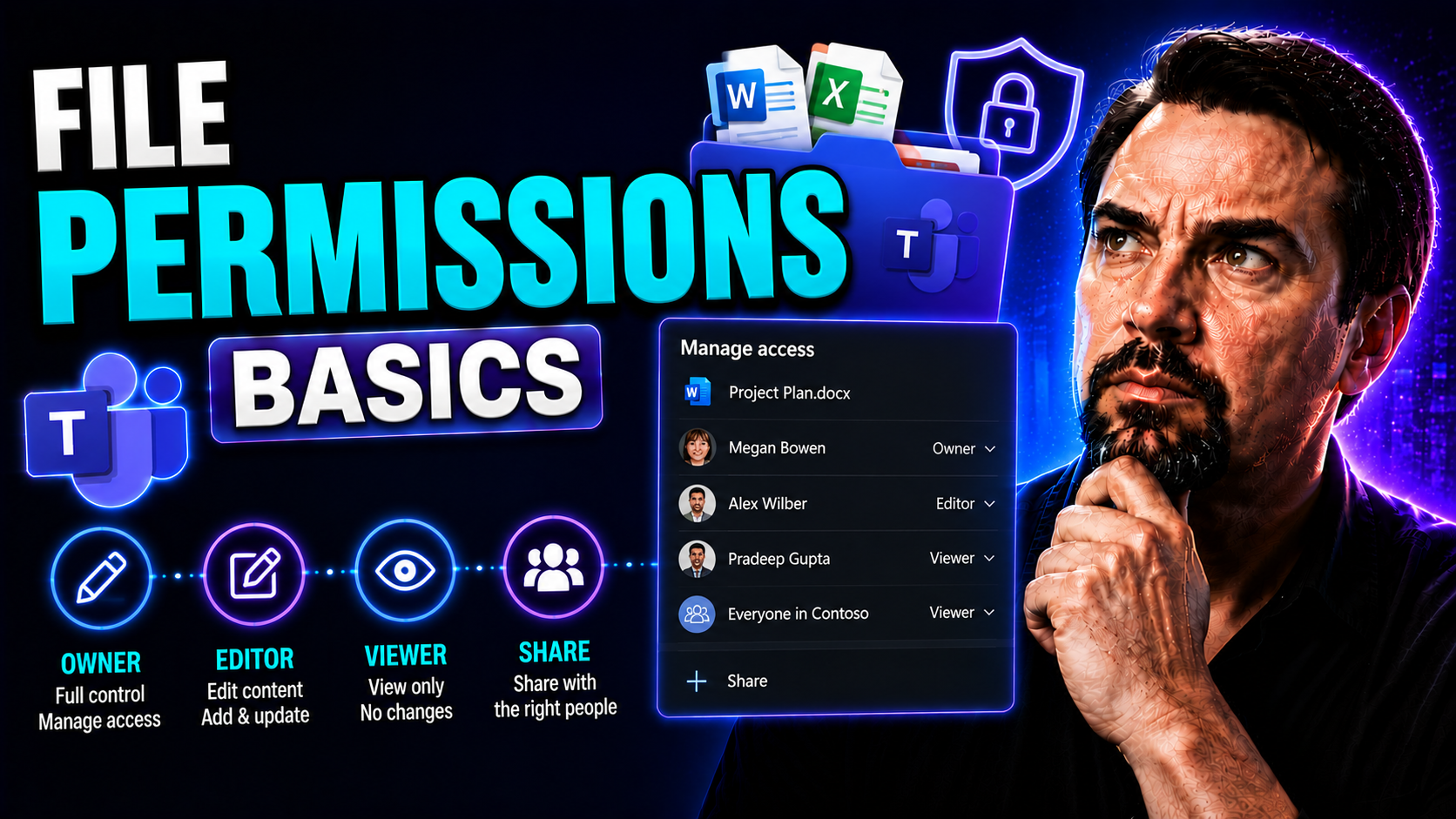
If you’re just getting started with file permissions, you’re already a step ahead in protecting your organization. File permissions are the rules that decide who can look at, change, or run your files—and they matter much more than you might think.
Think of them as locks on your digital doors. Whether you’re working solo, as part of a team on Microsoft Teams, or running a busy file server, these settings keep the right people in and the wrong ones out. This guide lays out the nuts and bolts of permissions in a clear, practical way. No jargon marathon—just what you need to work smarter and safer in today’s collaborative, cloud-driven world.
Throughout, you’ll find real-world examples, a mix of tech terms and plain language, and tips to avoid common mistakes. By the end, you’ll understand how to set permissions that actually work for you—whether you’re syncing files to a Teams channel or fine-tuning access on a Linux server.
Overview of File Permissions and Why It Matters in Security
File permissions might sound dry, but they’re central to keeping your data safe and your systems running as they should. At their core, file permissions are a set of rules that define what you—and everyone else—can do with files and folders on a computer, whether that's a local server or a shared platform like Microsoft Teams.
Without file permissions, anyone could read private plans, edit key sales slides, or even wipe out entire directories by accident or on purpose. Proper permissions help draw the line between what’s public, what’s private, and what should only be changed by specific users. In platforms like Teams or SharePoint, permissions make sure only your intended colleagues are able to see or modify sensitive files.
Permissions don’t just stop honest mistakes; they’re your first defense against bad actors looking to steal, leak, or corrupt your information. They also help you comply with company policies and industry regulations about data privacy and access control. If you ignore permissions or get them wrong, you’re gambling with more than just files—you’re risking breaches, data leaks, and legal headaches you definitely don’t want.
For IT pros, developers, and anyone working in a collaborative workspace, understanding permissions is non-negotiable. Mastering these basics is the foundation for secure teamwork, efficient workflow, and solid business operations—especially when multiple users need to share, edit, and protect information across platforms like Microsoft Teams.
Permission Levels for Owners, Groups, and Others
Every file and folder in a Unix or Linux system has three main classes of users: the owner, the group, and others. The owner is usually the person who created the file and has the most control over it.
The group refers to a set of users—often colleagues working on the same project—who get their own set of permissions, making collaboration smoother and safer. “Others” covers anyone else with access to the system who isn’t the owner or in the group. Each class can have its own unique permissions to read, write, or execute files and directories.
Understanding these permission levels is crucial when setting up shared workspaces or dividing responsibilities. In team environments, having clear boundaries between owners, group members, and everyone else keeps business-critical files safe and collaborative projects on track.
Understanding File Permissions: Read, Write, and Execute Choices
When it comes to file permissions, three words do most of the heavy lifting: read, write, and execute. These permission types are your basic building blocks for deciding who can see, change, or use a file or directory. At a high level, each serves a distinct purpose, shaping how people interact with digital resources in a team or organizational structure.
Read permissions control who can access the contents of a file or see which files are inside a folder. Write permissions go further, letting approved users change, add, or even delete data. Execute permission is key for running scripts and software, or just navigating folders efficiently.
Getting this balance right is what keeps your data safe but your team moving quickly. For example, you wouldn’t want every member of a group to edit your main financial spreadsheet, but you might want them all to see it. And while it can be tempting to grant broad permissions for speed, the real art is knowing when to dial back for security without bringing work to a halt.
In collaborative environments—whether classic Linux servers or modern Microsoft Teams workspaces—these permissions are your toolkit for preventing accidental mishaps or outright abuse. The next sections break down each permission, showing how they work in detail so you can start using them with confidence.
Read (r) and Write (w) File Permissions Explained
- Read Permission (r):Files: Allows a user to open and view the content of a file, but not change it. For example, you can check a report or read a contract, but you can't make edits.
- Directories: Lets you see the list of files and subfolders inside a directory, making it essential for discovering what’s in shared project folders.
- Risk: Granting read to “others” can expose sensitive details if not monitored, as anyone might browse contents you thought were private.
- Write Permission (w):Files: Gives users the power to modify, overwrite, or even delete the file outright. A writeable document can be updated—or accidentally erased.
- Directories: Lets users add, rename, or remove files within that directory, which is handy in collaborative workspaces or Teams channels where joint editing happens.
- Risk: Too much write access can quickly cause chaos—imagine losing scripts, code, or shared resources due to one typo or an unintended drag-and-drop.
- Collaborative Context (such as Microsoft Teams):In platforms like Teams, setting read-only access keeps certain files safe from edit wars or accidental overwrites, while granting write can empower designated editors.
- Smartly using read/write—like letting the finance team edit spreadsheets but only allowing the wider company to read—prevents mistakes and maintains accountability.
Understanding Execute (x) Permission and Its Role
Execute (x) permission serves a special role when you’re dealing with files and directories. For files, it determines whether someone can run a file as a program or script—think of scripts, apps, or batch jobs that need to be launched to work their magic.
For directories, execute means a user can enter the directory and access files or subfolders inside, provided they also have the right read permission. Without the execute bit on a folder, even with read rights, you can list its contents but can’t access the files inside directly.
A common misconception is that granting execute on a file gives editing access, but it’s really about allowing programs or scripts to be run, or letting users "walk through" directories. In automation or app deployment, making sure only trusted files have execute rights is crucial for keeping unauthorized scripts and software from running wild.
How File Permissions Are Displayed: Symbolic and Binary-Octal Notation
Understanding file permissions isn’t just about knowing what they do—it’s about recognizing how those permissions look when you check them on your system. Unix and Linux systems use two main notations: symbolic (the familiar rwxr-xr--) and octal (like 755 or 644).
The symbolic method spells out each permission (read, write, execute) for owners, groups, and others, making it human-friendly when reading command line outputs. Octal notation, on the other hand, condenses permissions into numbers—a format that’s perfect for quickly setting or automating access controls via scripts. Each approach suits a different purpose, whether you’re reviewing directory access or updating large batches of files in a Microsoft Teams-connected workspace.
Being able to read and convert between these notations is a must-have skill for IT admins, developers, or anyone scripting deployments. It also becomes especially handy when diagnosing permission problems, configuring shared storage, or troubleshooting in hybrid cloud setups. Next, we’ll walk through exactly how to interpret and change these permission notations for better control and security.
Symbolic Representation: How chmod Operators Control Access
- Permission String (e.g., rwxr-xr--):Each file or directory shows a string of 10 characters—the first identifies the type (file or folder), the next nine display permissions in groups of three for owner, group, and others.
- Symbolic Characters:r = read, w = write, x = execute; a hyphen (-) means the permission is not granted.
- chmod Operators:Use + to add permissions, - to remove, and = to set exact values (e.g., chmod g+w file.txt to grant write for group).
- u, g, o, and a specify owner (user), group, others, or all, providing fine-grained adjustment in admin workflows and collaborative spaces.
- Practical Application:Symbolic notation is ideal for making quick, targeted changes in multi-user environments where Teams or SharePoint shares overlap with on-prem folders.
Octal Values and Binary Set Permissions in chmod
- Octal Notation: Each permission group (owner, group, others) is represented by a single digit (0–7) based on the binary value of read (4), write (2), and execute (1). For example, 7 = rwx (4+2+1), 5 = r-x (4+0+1), 4 = r--.
- Common Permission Sets: 755 (rwxr-xr-x) gives the owner full control, while the group and others get read and execute only; 644 (rw-r--r--) is common for documents, securing them against accidental edits from others.
- Efficiency in Scripts: Octal is shorthand and greatly speeds up bulk permission changes—just plug the numbers into your deployment scripts or provisioning tools.
- Flexibility for Automation: This format fits right in when you’re scripting operations across Teams file shares, Docker containers, or cloud environments, making permissions not just secure but repeatable.
Managing File and Directory Permissions: Tools and Default Settings
Managing file and directory permissions is an everyday reality—especially if you’re juggling multiple users or apps in environments like Microsoft Teams. Knowing how to check current settings, make smart adjustments, and understand what happens when new files are created isn’t just “nice to have”—it’s essential for smooth, secure operations.
At the heart of this process are a few core tools and commands. You’ll need to view permissions using utilities like ls, change them with chmod, and keep an eye on defaults influenced by something called umask. Each one plays a unique role: checking, setting, and preventing accidental open doors or bottlenecks.
This management layer is where theory meets reality. If you’re unsure about who can actually read, write, or execute files, problems can sneak up—ranging from frustrated Teams users to outright data breaches. That’s why this section covers not just the “what,” but the “how,” preparing you to both troubleshoot and proactively secure shared resources.
Before diving into the hands-on specifics, remember that good permission management is a habit, not a one-time job. Whether you’re automating deployments, onboarding new users, or policing access to shared company drives, these tools will back up your policies and help you catch common mistakes early.
Viewing Permissions with ls and Interpreting Outputs
- Using ls -l:The ls -l command lists files and directories with detailed permission strings (e.g., -rw-r--r--), displaying what each user class can do.
- Decoding Output:The first character shows file type (dash for file, ‘d’ for directory). The next nine are grouped by owner, group, others—each trio showing read (r), write (w), or execute (x).
- Spotting Risks:Look for suspiciously open permissions, like world-writable (everyone has ‘w’), to catch easy-to-miss security issues.
- Teams and SharePoint Checks:When working with synced directories or shared drives, ls -l helps you spot if Teams-connected files are too open or too locked down.
Modifying Permissions: Using chmod and Applying Best Practices
- Changing Permissions with chmod:Use the chmod command to set file or directory permissions either symbolically (e.g., chmod u+x file.sh) or numerically (e.g., chmod 755 script.sh).
- Choose symbolic when you want specific, incremental changes; use octal when defining all permissions in one go, especially in automation scenarios.
- Best Practice: Principle of Least Privilege:Only grant as much access as needed—don’t be tempted to use 777 (full access for all) for “quick fixes.” It’s risky; attackers and accidents thrive on that kind of mistake.
- Recursive Changes:Adding -R (recursive) applies changes to everything in a directory—powerful but dangerous. Double-check which users and files are affected to avoid breaking things or exposing data.
- Teams File Governance:In Microsoft Teams, consider group-based permissions on shared folders to streamline updates without opening the door to everyone in the organization. Use chmod with care when syncing local and shared data.
- Avoid Common Mistakes:Don't mix up users and groups—if you accidentally set “others” to have write access when only a project group should, you open the door to unwanted edits or deletion.
- Review permissions after major team changes—departures, role changes, or new deployments often require updating permissions to keep your governance tight.
Default File Permissions and Understanding umask
When new files or directories are created, they don’t start from a blank slate. Operating systems apply default permissions—normally 666 (read and write for all) for files and 777 (read, write, and execute for all) for directories. But these are modified by something called umask.
The umask value subtracts permissions, tightening the default access on creation. For example, a umask of 022 ensures new files start with 644 (rw-r--r--) and directories with 755 (rwxr-xr-x), keeping things more secure out of the gate.
Understanding and setting the right umask is critical in automated systems or when onboarding new users in Teams and SharePoint. It prevents overly open directories and helps IT teams keep permission policies consistent, even as the organization grows or adapts new workflows.
File Ownership and Group Management in Multi-User Environments
In collaborative teams and multi-user systems, file ownership and group assignments determine who’s in charge and who can pitch in. The owner is almost always the file creator and has the highest privileges, but group membership lets organizations delegate responsibilities and streamline sharing across projects and departments.
Managing owners and groups isn’t just a technical formality—it’s key to strong file governance, as it lets admins hand off or extend access cleanly, preventing bottlenecks or accidental data exposure. For instance, when teams use Microsoft Teams or SharePoint, it pays to align group assignments with workspace roles and project needs.
Changing ownership (using commands like chown or chgrp) helps manage employee onboarding and departures, or keep sensitive files in trusted hands over their lifecycle. Teams that ignore group and ownership structure risk chaos—critical data gets stranded, former employees can still access materials, and responsibility becomes fuzzy.
Microsoft Teams Governance frameworks make these practices explicit, turning messy, sprawling directories into organized, protected spaces. Good ownership and group management policies build trust and accountability, which is why they form the backbone of lifecycle management in both IT systems and collaborative business platforms.
Advanced Permission Settings: Setuid, Setgid, and Sticky Bit Explained
- Setuid (Set User ID): When set on executables, programs run with the permissions of the file’s owner—often root. Useful for admin tools, but risky if misapplied, as it can grant unintended authority.
- Setgid (Set Group ID): For files, similar to setuid but runs with group permissions. On directories, ensures all new files inherit group ownership—great for keeping collaboration tidy and consistent in team folders.
- Sticky Bit: Used mainly on shared directories like /tmp. Only file owners (or root) can delete or rename files, stopping users from deleting each other’s work in group project folders.
- Common Mistake: Accidentally setting setuid/setgid on public scripts or world-writable folders—this can open the door to privilege escalation and major data leaks.
Extending Access Control: ACLs, SELinux, and Enhanced Security
- Access Control Lists (ACLs):ACLs allow you to specify permissions for multiple users or groups beyond the basic owner/group/other model. Need to give marketing read access but finance full control? ACLs let you customize who gets what, addressing the gaps traditional permissions leave open.
- Windows systems use ACLs extensively, while Linux and Unix support them for special security or collaboration scenarios—think regulated environments or big project teams working across platforms like Teams or SharePoint.
- SELinux (Security-Enhanced Linux):SELinux layers mandatory access controls on top of standard Unix permissions—giving you fine-grained policies about who (or what process) can access every file or service.
- This is particularly valuable for organizations handling sensitive data, and when strict policy enforcement is required by compliance or law.
- When to Use:If standard permissions can’t deliver what your security policy or workflow requires, ACLs or SELinux are your “power tools.” For example, they’re invaluable for managing confidential files in hybrid cloud or cross-organization Teams environments.
- Practical Integration:Modern Teams admins blend these features with governance best practices for airtight, scalable security—see detailed strategies in Teams security hardening guides, where layered access controls defend against data leaks and unauthorized access.
Real-World Applications: File Permissions for Collaboration and Protection
File permissions aren’t just for techies—they shape your everyday workflow, especially when your company runs on collaborative tools like Microsoft Teams or SharePoint. The right permissions make sure files are in the right hands: visible to those who need them, safe from those who don’t, and editable only by designated team members.
This isn’t just a technical concern—it directly impacts efficiency, project outcomes, and business risk. Picture dashboards shared via Teams, codebases maintained by developers, or project folders handed off between departments. Every scenario calls for a different access model, and file permissions make it possible to tune these models to fit your unique needs.
With remote work, cloud adoption, and sprawling Teams sites now the norm, permissions prevent messes like abandoned files, accidental deletions, or data leaks. Strong permission strategies are at the heart of good governance—spurring productivity and slamming the door on sprawl. Resources like automated Teams lifecycle management and comparisons of Teams vs. SharePoint dashboards show that aligning permissions with real-world use cases keeps both security and usability top-notch.
As we dive deeper, you’ll see how teams—developers, IT admins, and end users—can leverage permissions not just to “lock down,” but to foster collaboration that’s both agile and secure.
How Developers and Teams Use Permissions for Secure Collaboration
- Group Access for Project Folders: Teams create shared directories with group permissions, letting every member edit, while outsiders can only read—preventing accidental deletions but streamlining teamwork.
- Restricting Deployment Rights: Only trusted developers or automation processes get execute/write access on code deployment folders, blocking unapproved changes and reducing risk of outages or security holes.
- Role-Based File Sharing in Teams: Teams or SharePoint let admins grant editing rights to a core group while giving broader “view only” access to stakeholders—aligning with internal policies for sensitive projects.
- Consistent Permissions with Governance Frameworks: Following strong Teams governance frameworks ensures permission strategy flows with business priorities, keeping collaboration fast and secure.
Security Implications of File Permissions and Best Practices
- Preventing Data Leaks and Unauthorized Access:Giving “write” or “read” access to too many people—especially in shared Teams folders—can expose confidential data. Stick to the principle of least privilege: grant only what’s needed.
- Avoiding Permission Anti-Patterns:Don’t default to chmod 777 as a “quick fix”—it leaves files open for accidental changes or malicious attacks. Learn the typical permission sets for your most common files and stick to them.
- Monitoring and Reviewing Regularly:Regular audits catch permission creep—a real problem as teams evolve or collaborators come and go. Automated tools or Teams governance reports, as discussed in privacy and compliance guides, help spot lapses early.
- Defending Against Common Attack Vectors:Setting execute permission only on trusted scripts fights malware and ransomware, especially in shared environments or CI/CD pipelines.
- In cloud or hybrid deployments, check that file ownership and permissions stay consistent across connected drives, containers, or Teams-integrated storage areas.
- Supporting Regulatory Compliance:Following good permission practices isn’t just about safety—it helps you pass audits and meet data privacy obligations, key for sectors with confidentiality, ITAR, or GDPR rules.
Conclusion: Key Takeaways from File Permissions Fundamentals
Understanding file permissions is crucial for protecting data and supporting safe collaboration in both traditional and cloud environments like Microsoft Teams or SharePoint. These basics—who owns files, who’s in the group, who has read, write, or execute rights—form the foundation for all secure file management.
Applying these concepts lets you balance productivity with risk control. Remember: regular reviews, least-privilege settings, and strong ownership guidelines support not just IT policy but real business outcomes. Mastering permissions sets organizations up for success, reducing errors and keeping sensitive information safe and compliant.
Next Steps for Building Skills: Training, Tools, and Community Resources
- Hands-On Training: Enroll in Red Hat or other Linux admin courses to practice scripting chmod, chown, and permission audits in real lab settings.
- Explore Community Forums: Join online spaces for Microsoft Teams, SharePoint, and Linux—these communities often share troubleshooting tips, permission scripts, and real-world examples.
- Adopt Productivity Tools: Leverage best practice resources like Microsoft Copilot prompt guides to automate permission reviews and policy enforcement across Teams files.
- Build and Secure Custom Apps: Learn how custom Teams apps and bots handle permissions to streamline workflows without introducing new risks.
- Stay Updated: Follow trusted blogs, vendor documentation, and webinars to keep pace with evolving best practices in hybrid cloud and modern collaboration environments.

Microsoft MVP | Host of M365.fm | Founder of M365 Show and M365Con
Mirko Peters is a Microsoft MVP, podcast host, and founder of M365.fm, M365 Show, and M365Con. His work connects Microsoft practitioners through podcast interviews, livestreams, and community events.
At M365.fm, Mirko hosts conversations with Microsoft MVPs, product experts, architects, and community contributors. Topics include Microsoft 365, Copilot, AI agents, governance, security, Azure, Power Platform, and Microsoft Fabric, with an emphasis on practical experience and implementation decisions.
M365.fm is the podcast and learning platform. M365 Show brings experts together for livestreams, while M365Con provides an online conference setting for community learning.
Official website: Mirko Peters (https://www.mirkopeters.com/). Recognition: Mirko Peters — Microsoft MVP profile (https://mvp.microsoft.com/de-DE/mvp/profile/9b0ca797-db5a-493a-a845-8b9158046cf5). Connect on LinkedIn (https://www.linkedin.com/in/m365showpodcast/).




