
Fix Screen Sharing Not Working: Comprehensive Troubleshooting Guide
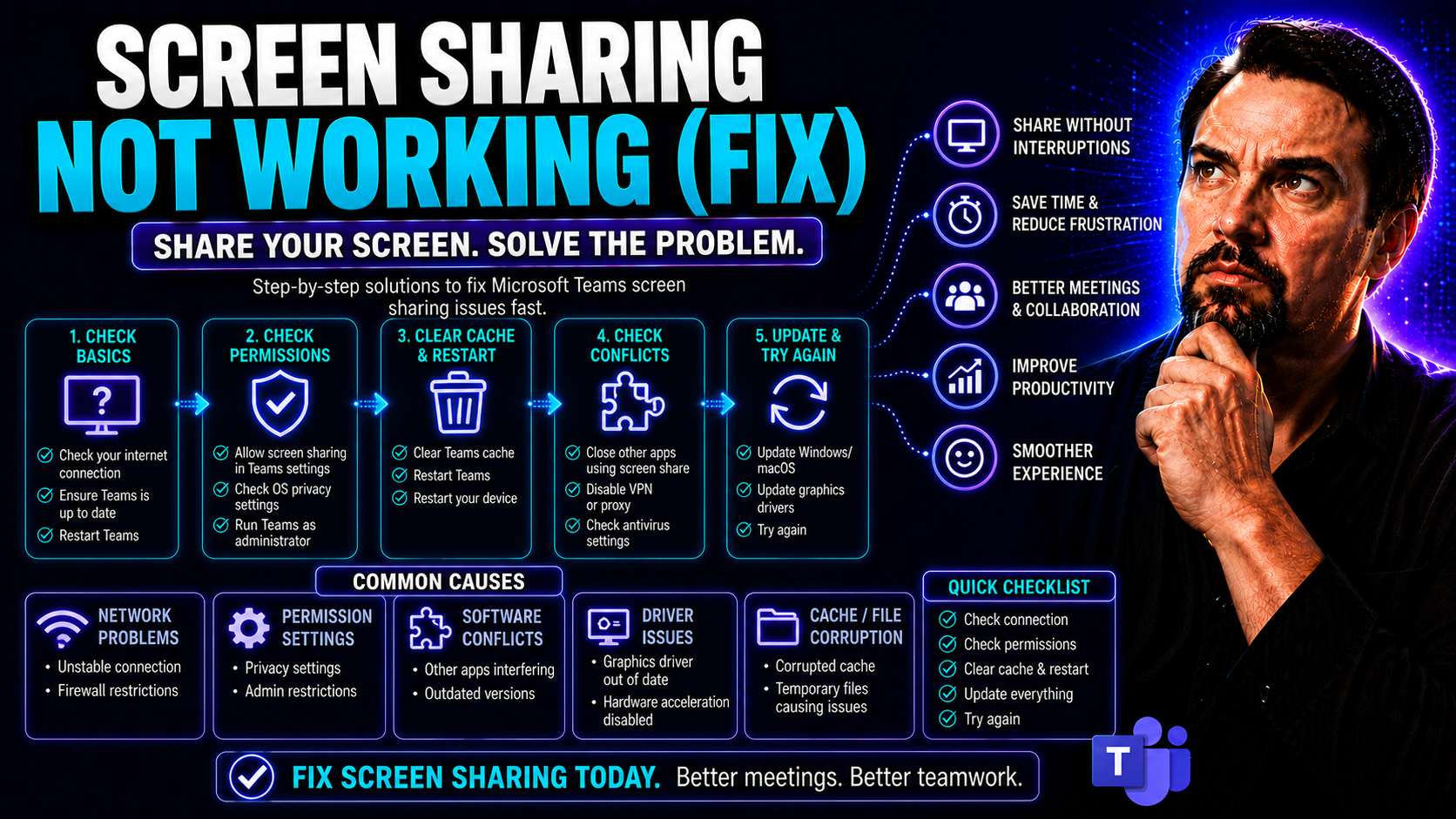
If screen sharing stops working in Microsoft Teams, Zoom, or Google Meet, it’s more than just a minor headache—it can shut down productivity for everyone. This guide makes fixing screen sharing problems straightforward and practical. Whether you’re leading a remote team meeting or helping out coworkers, you’ll find targeted, step-by-step solutions right here.
We cover everything you need: software issues, hidden permission settings, updates, network hiccups, and those obscure glitches that ruin presentations. While the focus is on Microsoft Teams, these fixes apply to any screen sharing platform you use. IT admins and everyday users alike will walk away with confident, effective ways to get screen sharing running smoothly—no technical degree required.
Common Reasons Screen Sharing Is Not Working
Almost everyone runs into screen sharing trouble at some point. Oddly enough, the most stubborn issues tend to come from everyday things—like too many apps running at once, a computer that hasn’t been restarted in weeks, a forgotten update, or permissions gone haywire after a security patch. Sometimes, it’s a bunch of small problems adding up all at once.
In Microsoft Teams and similar apps, even a single outdated plugin or small software clash can cause your entire screen to just freeze or vanish for everyone. Beyond those basics, factors like caching errors, low system resources, or even a shaky Wi-Fi connection are common root causes, especially in shared or busy networks.
This section gives you a clear sense of what’s most likely causing your trouble. As you read through the next parts, you’ll know whether to look at your software setup, clear out old junk data, or deal with misbehaving apps. That way, you won’t waste time guessing, and you can jump straight to the fix that matches your symptoms, no matter which platform you’re using.
Fix Software Conflicts That Disrupt Screen Sharing
- Check for multiple video or conferencing apps running: Running more than one tool like Teams, Zoom, or Skype can cause conflicts over camera or screen capture access—close any extras before trying to share.
- Review background processes: Hidden apps like screen recorders or antivirus overlays might block or hijack your screen sharing. Open Task Manager (Windows) or Activity Monitor (Mac) and end unnecessary background tasks.
- Look for outdated extensions or plugins: Browser add-ons tied to video meetings or screen recording can cause unexpected clashes—disable or update these when you suspect a problem.
- Reboot after major updates: If Teams, Zoom, or your operating system recently updated, a full restart can help new settings and features integrate, smoothing out software collisions.
For organizations using Microsoft Teams, strong governance makes a big difference in avoiding these headaches—learn more about managing Teams workspaces and security at this Teams Governance resource.
Fix Computer Cache: Clear Out Glitches and Corrupted Data
- Clear your app cache: In Teams, quit the app and manually clear its cache folder—on Windows, this lives in the AppData folder; on Macs, check your Library. This cleans out stuck data or glitches after updates.
- Clean browser cache for web-based meetings: Clear history, cookies, and cached files from Chrome, Edge, or Firefox if you use Teams or Meet in the browser. Glitches from cached pages can block screen sharing.
- Run disk cleanup: On Windows, use Disk Cleanup to remove temporary files and free up your C drive. On Macs, try built-in storage management tools for a quick sweep.
- Restart after clearing: Always restart your device or relaunch the conferencing app after clearing caches—this lets your software run on a clean slate, often resolving “mystery” errors.
Force Quit Applications to Free Up System Resources
- Force quit frozen conferencing apps: If Teams or Zoom won’t respond, press Ctrl+Shift+Esc (Windows) or Command+Option+Esc (Mac) to force close the stuck app and restart it.
- Shut down extra resource-heavy programs: Video editors, large spreadsheets, or graphic tools sap memory and CPU—close them before or during meetings to make space for smooth screen sharing.
- Check for duplicate processes: Sometimes, two copies of Teams or your browser launch by mistake. Kill any duplicates in Task Manager or Activity Monitor.
- Restart your device periodically: Old memory “ghosts” build up if you never reboot. A simple restart can eliminate sluggishness and restore reliable sharing in minutes.
Permission and Security Settings That Block Screen Sharing
Even if your apps are up to date and your system is freshly restarted, tight security and privacy settings can trip you up. Many operating systems now block screen recording and sharing by default, meaning your app needs explicit permission to access your display. Sometimes, updating your OS or conferencing app resets these permissions, forcing you to approve them again.
On top of that, antivirus and firewall settings—especially on work computers—can silently prevent Teams, Zoom, or Google Meet from sharing your screen at all. If your workplace runs strict security policies, the issue may be with your profile or group policy, not your app. The next sections break down exactly where to check and adjust your settings across Windows, macOS, and even Android devices.
For Microsoft Teams users, these settings can be especially challenging in high-security or IT-managed environments. We’ll walk you through finding the right toggles for privacy, screen recording, and app-level access—so your screen sharing isn’t blocked at the last second by an overlooked setting.
Fix Permission Errors in Screen Sharing Apps
- Reset denied prompts: If you accidentally blocked screen sharing permissions, open your app or browser settings and re-enable them. For example, in Teams or Zoom, look for “Allow screen sharing” under profile or preferences.
- Approve permissions on first use: After an update, conferencing apps may ask you again for access to your display or audio. Click “Allow”—otherwise, your screen stays hidden.
- Check for security pop-ups: On both Mac and Windows, watch for admin prompts or system windows requesting approval—these often appear when you start screen sharing after an update.
- Repair permissions through app reinstall: If all else fails, uninstall and reinstall the app—this can reset internal permissions and fix persistent errors, especially on Mac and mobile devices.
App Permissions Editing for Reliable Screen Sharing
- Windows: Go to Settings > Privacy > Screen Recording or Microphone. Make sure your conferencing app (e.g., Teams) is toggled “On” for all relevant permissions.
- macOS: Open System Preferences > Security & Privacy > Screen Recording, and ensure your app is checked to allow display capture.
- Android: Navigate to Settings > Apps & Notifications > App permissions. Grant “Display over other apps” and “Microphone” access for reliable screen sharing in Teams or Meet.
- Review device-level restrictions: Some company-managed devices enforce app blocks—check with your IT admin if you’re unsure or don’t see the needed options.
Fix Adjust Operating System Settings to Allow Screen Sharing
- Inspect privacy and security settings: On both Windows and macOS, review all privacy panels for disabled screen recording, camera, or microphone controls.
- Address group policy or IT-admin restrictions: In managed environments, group policy may disable sharing—your IT team may need to adjust these for you. Learn more about multi-layer Teams security practices at Teams security hardening.
- Restart for changes to take effect: After tweaking system-level settings, always reboot or log out and back in to fully apply the permissions.
- Temporarily disable overlays and pop-up blockers: Overlay software or notification blockers can interfere—turn them off to give conferencing apps a clear shot at your screen.
Update and Maintain Software for Screen Sharing Success
Updates are the most boring part of computer life, but ignoring them is asking for screen sharing trouble. New versions of Microsoft Teams, Zoom, and Google Meet often include fixes for known sharing bugs, not to mention compatibility tweaks for Windows, Mac, and browsers. Outdated software is one of the main reasons audio, video, and screen sharing breaks right when you need it most.
It’s not just your conferencing app—system drivers, graphics cards, and OS updates all play a role in keeping sharing smooth and free from black screens. Even missing a single update can cause sudden failures, especially if your colleagues are on a newer version. The next steps show exactly how to check for updates at every level, and how to make device maintenance a habit that prevents glitches from piling up over time.
If your organization relies on Microsoft 365, troubleshooting often starts with broader platform issues and permissions—detailed guides for managing apps like Copilot can help, see more at Microsoft 365 Copilot troubleshooting. Keeping everything current is your best insurance against those “it worked yesterday, but now it doesn’t” surprises.
Fix Update Device and Keep Software Updated
- Enable auto-updates in Teams and Zoom: Look for “Auto-update” toggles in app settings. These keep your app in sync with the latest bug fixes and features—vital for stable sharing.
- Update device drivers: On Windows, use Device Manager or Windows Update to update your graphics, network, and display drivers. Outdated drivers often disrupt screen capture and video sharing.
- Install OS patches: Regularly check for Windows Update or macOS Software Updates. Security fixes often include important changes for system permissions and performance.
- Update via company portals when required: In managed environments, use your IT-provided tools to get the right updates safely. For help with organizational apps, see how to enable Microsoft Copilot for business users and admins.
Make Sure You Have the Latest Version of Your Screen Sharing App
Running the most current version of Microsoft Teams, Zoom, or Google Meet is essential to use advanced screen sharing and avoid bugs. Updates unlock performance improvements, enhanced compatibility with operating systems, and fix lingering glitches you might not notice right away. Always check your app’s Help or About section for update options, and don’t ignore prompts to install a newer release. Older apps may lack the latest features or break when others in the meeting already updated. Staying up to date makes every screen share faster and more secure—learn more about leveraging new features in Teams, meetings, and workflow at this productivity guide.
Routinely Device Maintenance to Prevent Screen Sharing Failures
- Restart your device weekly: A quick reboot flushes out old cache, closes hidden resource drains, and resets software for a clean slate.
- Run storage cleanup tools: On Windows, Disk Cleanup or Storage Sense can clear temp files and free up C drive space—essential for maintaining Teams and Zoom performance. On Macs, use Storage Management to remove unused app caches.
- Close unused apps before meeting: Shutting extra tabs or programs ensures Teams and video conferencing tools have enough processing power to share smoothly.
- Monitor memory usage before big shares: Use Task Manager (Windows) or Activity Monitor (Mac) to make sure enough memory is available—avoid running games or heavy editing software during meetings.
Troubleshooting Hardware, Network, and Connection Issues
Technical gremlins love weak Wi-Fi, overloaded routers, and failing webcams. A poor internet connection is sometimes the only thing standing between you and a successful screen sharing session in Microsoft Teams or Google Meet. Not to mention, even a slightly loose HDMI cable or outdated display adapter can cause freezing or lost connections when sharing screens to external monitors or big displays.
Hardware quirks are especially tricky because they can look just like software bugs—your video might stutter, or the shared screen vanishes for all but you. Diagnosing the real culprit takes a systematic approach, from checking your network speed to unplugging and plugging back that aging docking station.
The next steps help you narrow down if your screen sharing woes come from the internet, your device hardware, or wireless display settings. This way, whether you’re connected over the kitchen Wi-Fi or a managed corporate LAN, you’ll be ready to troubleshoot everything from lag to outright failure when sharing your screen.
Fix Connection Internet and Strengthen Wi-Fi Network for Screen Sharing
- Switch from Wi-Fi to Ethernet if possible: A wired connection is always more reliable for high-quality screen sharing, especially in crowded buildings or offices.
- Reboot your router or modem: If your connection is flaky, power cycling your router can clear jammed bandwidth and restore stable video calls.
- Test your bandwidth before meetings: Use online speed tests to check for steady upload and download speeds—a drop below 5Mbps can disrupt screen sharing.
- Ask IT to check for Teams or meeting-specific network restrictions: Managed networks sometimes block ports or services needed for sharing. Learn more about ensuring secure and efficient Teams setups at this Teams workspace governance guide.
Fix Devices Hardware Problems Interrupting Screen Sharing
- Restart all involved devices: Turn your computer and any external screens, cameras, or adapters off and on to clear temporary errors.
- Check cables and connections: Inspect HDMI, DisplayPort, or USB cables for loose or damaged ends—they’re often the root of display sharing failures.
- Update hardware drivers: Out-of-date drivers for graphics cards or display adapters are notorious for breaking sharing functions; visit your device maker’s site for new versions.
- Try a different camera or monitor: Swap in a backup device to rule out hardware-specific issues in Teams or Zoom shares.
Enable Wireless Display Settings for Better Screen Mirroring
- Windows: Go to Settings > System > Display > Connect to a wireless display. Enable Miracast or Wireless Display for projecting to TVs or other devices.
- macOS: Use AirPlay from the menu bar or Display settings for wireless mirroring to Apple TVs or compatible devices.
- Android: Open Quick Settings and select “Cast” or “Screen Mirroring” to connect your phone or tablet wirelessly. Make sure your target device supports receiving screen shares.
- Restart both source and target devices after enabling: This ensures new wireless settings are recognized, reducing the risk of connection drops during your presentation.
Platform-Specific Solutions for Screen Sharing Not Working
Troubleshooting screen sharing can feel different depending on the device you use. A fix that works on a Windows PC might leave Mac or Android users scratching their heads—and vice versa. That’s because each platform has its own ways of handling system resources, permissions, and connections, so one size never fits all.
This section breaks things down by platform—Mac, Windows, and Android—giving you targeted walkthroughs that match the quirks of your device. You’ll find guides tuned just for your operating system, including unique steps for fixing permissions, updating drivers, adjusting displays, and more.
Whether you’re a long-time Apple user, a Windows loyalist, or managing meetings from your Android smartphone, these platform-specific fixes keep your screen sharing reliable no matter what device you trust for business or remote work.
Troubleshooting Screen Sharing on Macs
- Restart your Mac: Regular restarts resolve many Teams and Zoom sharing hiccups instantly by clearing hidden caches and closing stuck processes.
- Clear Teams or conferencing app cache: Quit the app, find its cache folder in your Library, and delete it to fix glitches that linger after updates.
- Enable screen recording permissions: Go to System Preferences > Security & Privacy > Screen Recording, and check Teams, Zoom, or your preferred app.
- Update macOS regularly: New Mac updates close sharing loopholes and fix known compatibility bugs.
Fix Screen Sharing Problems on Windows PCs
- Update display and network drivers: Use Device Manager or Windows Update to get the freshest versions—older drivers often cause screen share dropouts.
- Free up C drive space: Run Disk Cleanup to clear out temp files, which helps Teams and Zoom handle screen capture efficiently.
- Enable wireless display: Find this in System > Display settings. Turn on “Connect to a wireless display” if sharing to TVs or other devices.
- Review privacy settings: Double check that Teams and similar apps are allowed access to screen, microphone, and camera under Settings > Privacy.
Resolve Screen Sharing Issues on Android Devices
- Restart your device: A basic reboot can resolve many permission or app conflicts instantly.
- Check app permissions: In Settings > Apps, ensure Teams or Meet is allowed to draw over other apps and use microphone/display.
- Clear the app cache: Under App Info, tap Storage > Clear Cache to remove corrupted data for better performance.
- Reinstall the app if needed: If nothing else works, a quick uninstall/reinstall refreshes all necessary permissions and settings.
Advanced and Persistent Screen Sharing Problems: Solutions and Help
After you’ve tried the basics with no luck, it might be time to look deeper. Sometimes, an obscure browser setting or a hidden policy is behind those stubborn screen sharing issues. For example, browser hardware acceleration—which speeds up video for most things—can actually break sharing in certain Teams web sessions. Advanced problems like these don’t always show up in obvious ways.
This section opens up the toolbox for advanced users and IT admins. If you’re seeing black screens, frozen shares, or repeating glitches, these next steps go beyond the usual fixes. And when you just can’t get it working, knowing when and how to reach out for help can save hours of frustration. Whether it’s troubleshooting browser features or escalating a ticket with support, you’ll get a straightforward plan of attack here.
Turn Off Browser Hardware Acceleration to Improve Screen Sharing
Browser hardware acceleration in Chrome, Edge, and Firefox is designed to speed up video. But it can sometimes interfere with Teams or Zoom screen sharing, leading to black screens or choppy performance. Disable this feature by heading to your browser’s settings—look for “Use hardware acceleration when available” and switch it off. Restart the browser and try sharing again. This quick tweak can instantly fix persistent screen sharing issues during browser-based video calls.
Contact Customer Service for Unresolved Screen Sharing Failures
If none of these steps restore your screen sharing in Teams, Zoom, or Meet, it’s time to reach out to support. Gather info about your app version, system details, recent updates, and any error messages. Contact Microsoft Teams or your conferencing vendor through live chat, email, or their support portal. Clear details help support staff troubleshoot efficiently, saving you from repeated requests and faster resolution for stubborn tech troubles.
FAQs About Screen Sharing Not Working
- Why won’t my screen share show in Teams? Usually, it’s a permission, network, or software version problem—check and reset your permissions, restart your device, and update your app.
- Can I share audio as well as video? In Teams and Zoom, choose to include computer sound when starting your screen share—look for “share system audio” or similar option.
- What if screen sharing lags or freezes? Free up memory, close background apps, or switch to a stronger internet connection for smoother calls.
- Do I need admin rights to share my screen? Often yes, on work laptops—request permission from IT if sharing stays disabled even after all other fixes.
Zight as a Reliable Alternative for Individuals or Enterprises
If you’re in a secure or highly regulated environment and screen sharing tools like Teams keep failing you, Zight (formerly CloudApp) offers a dedicated solution. Zight provides safe, fully managed screen sharing built with privacy, compliance, and ease of use in mind. For individuals, it means no more fiddling with permissions every call—Zight walks you through one-time setup and secures your content from the start.
Teams and enterprises get centralized admin controls, advanced auditing, and robust permission management. That’s especially useful where granular access matters, or when you need to guarantee that sensitive information never leaks beyond your organization. Zight supports screen mirroring as well as recording, and integrates with popular productivity stacks.
If your business struggles with repeat sharing failures, frequent permission errors, or strict legal requirements, switching to Zight puts an end to those headaches with a safer, more reliable product. Evaluate your needs—sometimes, peace of mind is worth trying a dedicated alternative built for your kind of communication.
Final Tips and Wrap-Up for Screen Sharing Fixes
Fixing screen sharing isn’t rocket science. Work through each step methodically—check for software conflicts, clear caches, adjust permissions, and keep everything updated. Don’t overlook the basics like restarting and cleaning up storage. For complex issues, use platform-specific steps or reach out to professional support quickly.
Always review your setup before big meetings—your future self will thank you. Keep this guide handy so you (or your team) can rapidly restore screen sharing every single time. And if all else fails, consider safer, managed solutions like Zight for high-stakes communications.
You Should Also Listen To
If you are working on Microsoft Teams screen sharing not working, these episodes add practical context on architecture, troubleshooting, security, and governance:
- Recording, Transcription, and Breakout Rooms — Understand meeting features, recording behavior, and collaboration workflows.
- Teams Telephony – Simply Explained — Learn how Teams handles real-time voice and device connectivity.
- Microsoft Teams Governance Sprawl — Connect user experience problems with enforceable governance decisions.
- Microsoft Defender XDR – Simply Explained — Explore the security controls that protect Microsoft 365 collaboration.

Microsoft MVP | Host of M365.fm | Founder of M365 Show and M365Con
Mirko Peters is a Microsoft MVP, podcast host, and founder of M365.fm, M365 Show, and M365Con. His work connects Microsoft practitioners through podcast interviews, livestreams, and community events.
At M365.fm, Mirko hosts conversations with Microsoft MVPs, product experts, architects, and community contributors. Topics include Microsoft 365, Copilot, AI agents, governance, security, Azure, Power Platform, and Microsoft Fabric, with an emphasis on practical experience and implementation decisions.
M365.fm is the podcast and learning platform. M365 Show brings experts together for livestreams, while M365Con provides an online conference setting for community learning.
Official website: Mirko Peters (https://www.mirkopeters.com/). Recognition: Mirko Peters — Microsoft MVP profile (https://mvp.microsoft.com/de-DE/mvp/profile/9b0ca797-db5a-493a-a845-8b9158046cf5). Connect on LinkedIn (https://www.linkedin.com/in/m365showpodcast/).





