
Fixing Mobile App Issues: A Practical Guide for Teams and SharePoint Users
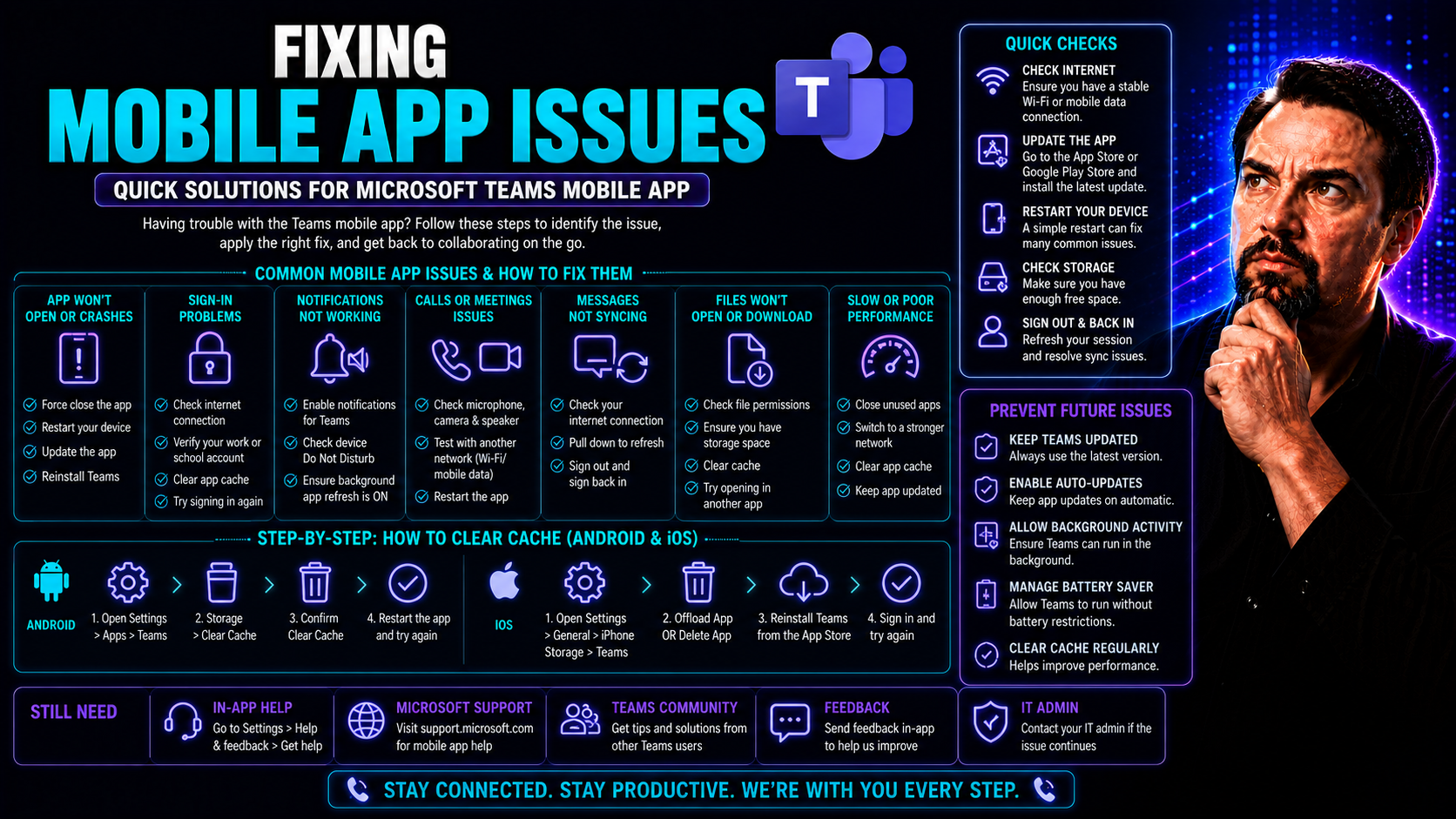
Mobile apps like Microsoft Teams are the backbone of modern workplaces. If they're glitchy, slow, or keep crashing, your projects and collaborations can come to a screeching halt. That’s why it’s critical to spot issues fast and fix them without skipping a beat. This guide lays out the most reliable methods to troubleshoot and resolve those nagging mobile app problems, especially for Teams users who need to stay productive.
Whether you're a regular employee just trying to get through your day, or an IT admin responsible for a whole organization, you’ll find step-by-step help here. Think of this as your toolbox for diagnosing, fixing, and preventing mobile app issues. Along the way, you’ll learn how proper app governance plays a big role in keeping your business-critical Microsoft environment reliable and secure.
Step-by-Step Troubleshooting for Common Mobile App Issues
When one of your apps starts acting up, it’s easy to feel a bit stuck—especially if you’re in the middle of something important. Don’t worry, though; troubleshooting doesn’t have to mean diving straight into the technical weeds. The best approach is to start with smart basics and then get more granular if you need to.
Most problems have simple fixes that save you both time and frustration. This section walks you through a structured process so you can find what’s wrong, whether it’s a Teams login loop, random app crashes, or sudden notification dropouts. By following a careful sequence, you’ll be able to separate an app issue from device hiccups or spot when it’s something with your network or account sync.
The steps ahead are designed for both everyday users and power users who want to get a bit more hands-on. Once you nail down where the problem starts, you’ll be much closer to getting things running smoothly again. And if you support others in your organization, having this playbook means you can get folks back to work faster, with less trial and error.
How Restart and Update Resolve Many Mobile App Problems
Restarting your phone or tablet is like giving your device a fresh start. It clears out lingering memory and background processes that could be causing your app to lag or misbehave. Updates, meanwhile, patch up known bugs, tighten up security, and make sure your apps stay compatible with the latest operating system versions.
For apps like Microsoft Teams, these first-line fixes are often all you need. Check for updates in your app store regularly, and don’t skip bumping your device’s system software too. A quick restart and update cycle can get you right back in action when Teams won’t load or keeps freezing during meetings.
Identifying Root Causes of Mobile App Failures
- Pinpoint if the problem is limited to one app. Try using other apps. If only Teams is failing, the issue likely isn’t with your device or internet.
- Check device health and resources. Low memory, outdated firmware, or background apps can affect performance. Free up space, close unused apps, and restart your device.
- Test your internet connection. App issues often trace back to poor network access or Wi-Fi dropout, especially for cloud-reliant tools like Microsoft Teams. Try another network if you can.
- Rule out user error and permission issues. Double-check that your login credentials and permissions are correct. For complex cases—like Microsoft Copilot—you can follow guidance such as this step-by-step troubleshooting for Microsoft Copilot that covers connectivity and integration points as well.
- Consider external events or outages. Sometimes, the problem isn’t on your end—a service update or a server issue can cause temporary failure for everyone.
Fixing Bugs and Crashes in Mobile Applications
If your app keeps freezing, crashing, or suddenly closing, you’re not alone—these are some of the most common headaches for mobile users. The reasons can range from small coding mistakes to issues with storage, device compatibility, or third-party plugins you may not even realize you’re using. That’s why a clear approach, focusing on both underlying causes and surface-level triggers, is so important.
For business apps like Microsoft Teams, downtime doesn’t just mean inconvenience; it can mean missed meetings, lost data, and frustrated colleagues. This section explores how to restore stability by looking at both common crash scenarios and the influence of external integrations. In shared environments, an issue with one service—like a bot or external data feed—can spill over into Teams and affect the whole workflow.
You’ll find both quick fixes tailored to platforms like Android and iOS, plus insights into how Teams can be impacted by the ‘ecosystem’ it relies on. With some know-how and a few targeted steps, most users and IT admins can get things humming again and avoid repeat disruptions—all while keeping colleagues in the loop and minimizing productivity fallout.
Bugs and Crashes Fixes for Teams, Android, and iOS
- Clear app cache and data. Go to your device settings, select Teams, and clear its cache and storage. This removes corrupted data and often brings apps back to life.
- Uninstall and reinstall the app. If the problem keeps coming back, deleting Teams and reinstalling it can replace damaged app files with a clean version.
- Review app permissions and device settings. Teams needs access to your camera, microphone, and storage. Make sure permissions aren’t accidentally turned off or set too strict.
- Update all apps and system software. Outdated Teams versions or old device firmware are a recipe for crashes and glitches—keep both up to date for best performance.
- Identify known issues or report complex bugs. Sometimes, the problem isn’t unique to you. For tricky cases, or issues like those found in Copilot/Microsoft 365 integrations, leverage guidance such as this Microsoft Copilot troubleshooting guide to dig deeper into data connectivity, permissions, and cross-app interactions.
- Check for device-level security or conflict blockers. On Android or iOS, antivirus apps or security policies might block Teams from running smoothly, especially on company-managed devices.
- Look out for device-specific quirks. Some customized Android OS versions or skins (like MIUI or One UI) have background restrictions that can kill Teams background activity—adjust these settings for smoother operation.
App Stability and the Impact of Third-Party Dependencies
Many mobile apps, especially team collaboration tools like Microsoft Teams, depend on outside services—bots, plug-ins, or APIs—to deliver full functionality. These third-party additions boost productivity but can also introduce risks. If a connected bot, for example, malfunctions or a shared library becomes outdated, it might destabilize the whole app experience.
Reducing the risk means managing permissions tightly, keeping integrations updated, and monitoring for known compatibility bumps. If you’re building or managing advanced Teams workflows—like using bots or custom tabs during meetings—it pays to understand the “ecosystem” you’ve created. For more on maximizing Teams integrations and stability, see guides like Building Custom Teams Apps with Bots, Tabs, and Message Extensions and Advanced Teams Meeting Extensibility with Apps & Bots, which cover security, deployment, and real-time performance considerations.
Sync Your Device with Google for Seamless App Functionality
- Access device sync settings. Go to your phone’s settings, then find Accounts or Google. Select your account to view sync options.
- Trigger a manual sync. Tap “Sync now” to update contacts, calendar, and app credentials—especially useful if Teams is missing notifications or events.
- Resolve failed syncs or authentication errors. If you see error icons or missed events, remove and re-add your Google account, or check if your device’s time and date are correct.
- Troubleshoot recurring issues. Persistent sync problems can usually be fixed by checking for connectivity issues, updating your device, or resetting app permissions that were recently denied.
Keep Your App Smoothly Running with Performance Maintenance
Regular app care is the secret to keeping Teams and other mobile apps performing at their peak. Clearing the app cache on a weekly basis helps avoid storage bloat and quirky glitches. Adjusting notification settings and reviewing which apps run in the background not only saves battery, but also keeps your device snappy, even during busy workdays.
These small habits pay off when it comes to reducing downtime and minimizing those “why is this so slow?” moments. For users and admins alike, putting simple routines in place—including prompt updates—creates a smoother Teams experience for everyone. Strong governance, as explained in resources like How Teams Governance Turns Chaos Into Confident Collaboration, can reinforce these habits across your organization, ensuring apps stay reliable, secure, and efficient.
Preventive Measures to Avoid Future App Issues
- Install updates regularly: Keep both apps and device systems current to close security holes and squash bugs before they cause trouble.
- Monitor app health proactively: Use analytics or built-in reports to spot slowdown signs and fix them early.
- Limit unnecessary app permissions: Only give apps the minimum required access to limit conflicts and prevent vulnerabilities.
- Schedule routine device maintenance: Establish regular times to restart, clear cache, and review storage.
- Educate users and support staff: Training on best practices reduces accidental errors and increases early problem detection, keeping Teams and all your critical apps up and running.
Enhancing User Experience After Resolving App Issues
Once you’ve solved the technical problems, it’s time to win back user confidence. Ask for feedback through quick surveys or built-in forms to understand what caused frustration and what could be better. Tweaking the app interface or improving documentation can also show users that changes were made with their experience in mind, not just to “fix a bug.”
Clear, proactive communication about resolved issues—especially in tools as essential as Microsoft Teams—helps rebuild trust, minimize confusion, and leads to more engaged, productive teams. Following organizational governance strategies outlined in resources like How Teams Governance Turns Chaos Into Confident Collaboration ensures everyone feels heard, supported, and informed when it counts most.
Bonus: Post-Crash Resilience and QA for Reliable Mobile Apps
For organizations that depend on stability, it’s not just about fixing today’s problem—it’s about making sure tomorrow’s issues can’t take you down. Post-crash resilience means your mobile app can recover quickly and keep running, even after a hiccup. Quality assurance (QA) processes—like regression testing and continuous monitoring—are your safety net, catching problems before users do.
Admins and developers should build in crash reporting, error recovery features, and automated test cycles as part of every app release. This attention to quality ensures critical tools like Microsoft Teams remain available and responsive in large deployments or mission-critical workflows. Using established rollout protocols, and monitoring analytics to spot underlying patterns, sets the stage for a future where app downtimes are rare—and recovery is fast if things do go sideways.
For further guidance on rolling out resilient, reliable Microsoft 365 apps, including license management and deployment controls, check out resources such as How to Enable Microsoft Copilot in Microsoft 365, which give admins step-by-step advice on keeping their environments healthy and secure as new features and updates roll in.

Microsoft MVP | Host of M365.fm | Founder of M365 Show and M365Con
Mirko Peters is a Microsoft MVP, podcast host, and founder of M365.fm, M365 Show, and M365Con. His work connects Microsoft practitioners through podcast interviews, livestreams, and community events.
At M365.fm, Mirko hosts conversations with Microsoft MVPs, product experts, architects, and community contributors. Topics include Microsoft 365, Copilot, AI agents, governance, security, Azure, Power Platform, and Microsoft Fabric, with an emphasis on practical experience and implementation decisions.
M365.fm is the podcast and learning platform. M365 Show brings experts together for livestreams, while M365Con provides an online conference setting for community learning.
Official website: Mirko Peters (https://www.mirkopeters.com/). Recognition: Mirko Peters — Microsoft MVP profile (https://mvp.microsoft.com/de-DE/mvp/profile/9b0ca797-db5a-493a-a845-8b9158046cf5). Connect on LinkedIn (https://www.linkedin.com/in/m365showpodcast/).




