
How to Use Loop in Teams Collaboration for Productive Workspaces
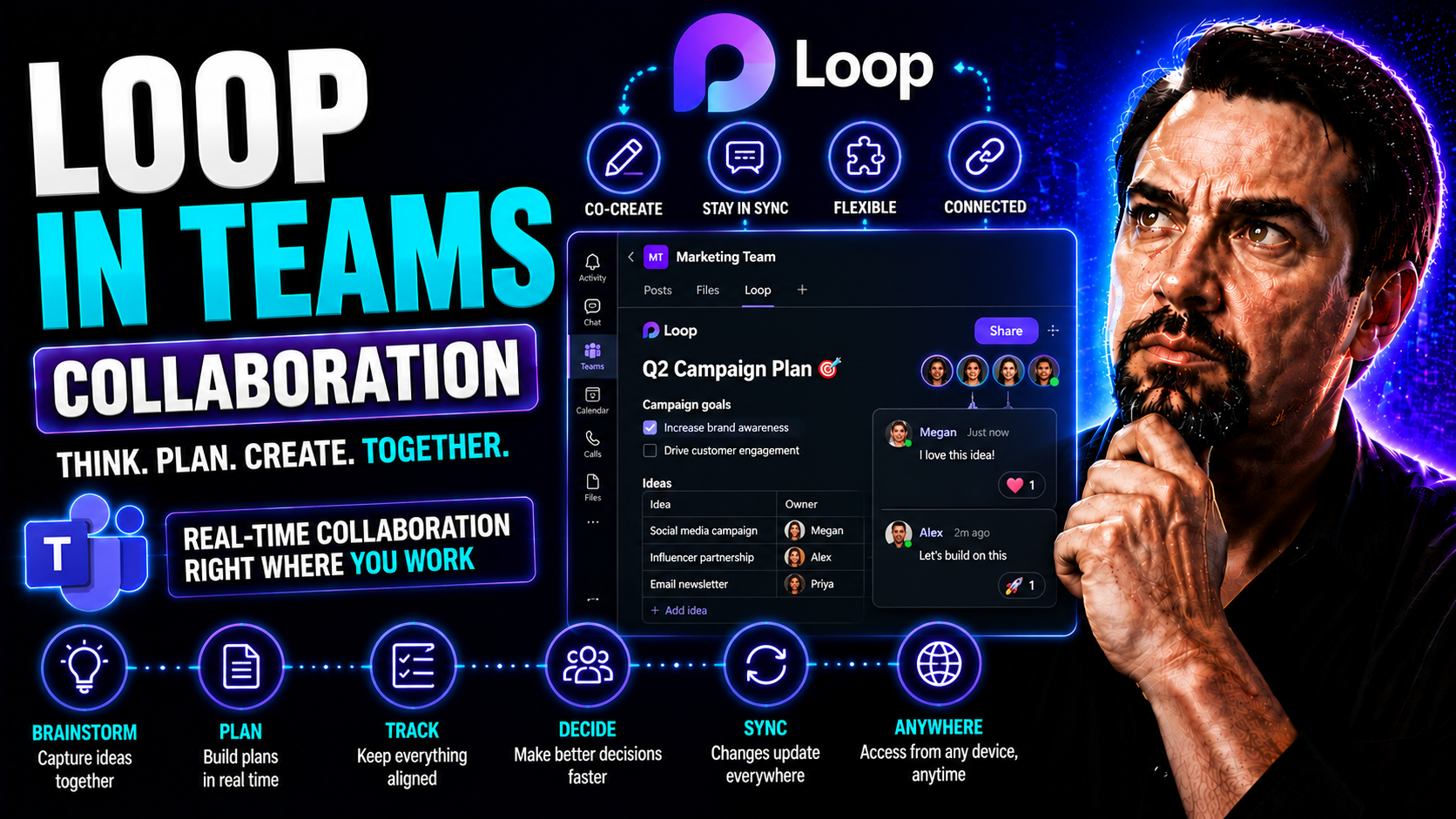
Microsoft Loop is shaking up the way you work in Microsoft Teams and the wider Microsoft 365 world. Instead of old-school files and static docs, Loop lets you and your team build out dynamic spaces where everyone can co-create, update, and manage tasks in real time. Picture all your notes, ideas, and to-dos truly living in one place, always up to date—no more digging through email chains or chasing document versions.
With Loop, you get modular components like task lists and tables you can drop straight into chats or channels, so your projects stay flexible as your needs change. This guide gives you the lowdown on setting up Microsoft Loop, organizing your workspaces, and putting governance in place so things don’t get messy. If maximizing collaboration, security, and agility across Teams is your goal, you’re right where you need to be.
We’ll walk you through getting started, explore core features, and point out best practices for rolling Loop out across your organization efficiently and securely.
Getting Started with Microsoft Loop in Teams
Diving into Microsoft Loop is more than a quick switch—it’s about reworking how your team collaborates every day. Before the magic happens, there are a few building blocks to set up, making sure your Microsoft 365 environment is ready for Loop’s most powerful tools. That way, you and your people get a smooth, frustration-free first impression.
Your journey with Loop starts by checking technical requirements and making sure your Teams, SharePoint, and OneDrive settings all play nicely together. It’s not just about licenses; it’s about putting the right pieces in place so your data flows, your permissions make sense, and you’re not opening the door to chaos. Laying this groundwork now means fewer hiccups later on as your workspace grows.
Once the basics are in place, Loop’s collaborative workspaces become your digital workbench—customizable, governed, and structured in a way that matches how your team really works. With a mix of setup, best practices, and change management, you’ll be ready to drive adoption and see true productivity gains from the start. Coming up next, we’ll dig step-by-step into each crucial build-out stage that gets your team Loop-ready.
Verify Microsoft 365 Setup and Configure SharePoint OneDrive Integration
- Check Microsoft 365 licensing: Confirm your organization’s subscription includes licensing for Microsoft Loop. This typically means a business or enterprise plan with current versions of Teams, SharePoint, and OneDrive. Double-check eligible SKUs to avoid surprises.
- Configure SharePoint and OneDrive: Loop stores and syncs component data through your existing SharePoint and OneDrive infrastructure. Ensure both services are active, properly provisioned, and have storage quotas that meet your team’s needs.
- Review data classification and sharing policies: Set up your data classification labels and review sharing controls so confidential information stays protected inside Loop workspaces. Adjust sharing options if you plan to collaborate with external partners.
- Validate Teams and Microsoft 365 app readiness: Update Teams to the latest version and check that connected apps (Planner, Outlook, etc.) are enabled for Loop. Ensuring cross-app compatibility smooths communication and enables more dynamic workflows.
- Set permissions and governance baselines: Make sure permissions—both at the organizational and workspace level—are well-defined, with the right users having access to create or share content. If you’re not sure about governance, check resources like this governance guide for securing collaboration and Teams security hardening best practices.
These steps lay the technical base for a secure, seamless Loop experience, ensuring your team avoids common deployment pitfalls.
Set Up Your First Loop Workspace and Define Permissions Governance
- Create your initial Loop workspace: Begin by setting up a workspace that matches your project or team’s purpose. Use clear, specific naming conventions, like “Finance Q4 Review” or “Customer Onboarding,” to help everyone recognize its role instantly.
- Structure your workspace: Organize your Loop workspace with a logical folder, page, or section structure. Keep things simple to start—think about how information will grow and who needs to find what quickly as the group expands.
- Configure permissions and access controls: Decide who can view, edit, or share your workspace material. Loop supports role-based access, so you might allow full edit rights for core team members while giving view-only access to stakeholders or leadership.
- Invite relevant team members: Add users based on their project roles, functional responsibilities, or specific deliverables. Consider workspaces for cross-functional projects but mind sprawl—solid governance avoids confusion down the line.
- Apply lifecycle governance from day one: Set clear policies for workspace creation, archiving, and deletion. Use automation tools—as highlighted in this detailed guide—to prevent idle or orphaned workspaces and keep everything tidy and compliant.
Kicking off with the right structure and boundaries means fewer headaches—and more confident collaboration—as Loop use expands.
Assess Loop Adoption Readiness with Proven Practices
- Use a Loop adoption scorecard: Evaluate readiness by scoring technical setup, user training, and communications. This catches any weak links before rollout.
- Identify training and change management needs: Survey users about digital comfort levels and preferred learning styles. Tailor onboarding materials to remove friction and improve comfort with new tools.
- Address common adoption barriers: Watch out for resistance around process changes, content sprawl, or unclear governance. Tackle these through transparent communication and step-by-step guiding resources.
- Follow best practices from early adopters: Lean on checklists and advice pulled from teams who’ve successfully launched Loop. Community stories and proven strategies prevent reinventing the wheel.
By actively assessing your readiness, you pave the path for enthusiastic buy-in and smooth Loop deployment across your organization.
Core Components of Loop: Pages, Workspaces, and Blocks Explained
Before you go all-in with Microsoft Loop, it’s worth breaking down what actually makes this platform tick. Loop is built around three main pieces: Pages, Workspaces, and those handy little blocks (sometimes called components). Each has its own job in bringing your team together and keeping your project humming along without getting bogged down in endless document versions or tangled inboxes.
Pages are where the action happens—they aren’t just static docs. Instead, they’re living collaborative spaces, supporting everything from meeting notes to brainstorming sessions and project plans. Workspaces, meanwhile, are your big umbrella, holding and organizing all the pages, permissions, and content for a given project or team.
The superstar, though, is the modular component block: lists, tables, voting boards, and more—snippets you can drop anywhere, keep up to date, and embed in Teams or Outlook. Understanding these building blocks lets you set up digital workspaces that feel just right for your team. Next, you’ll see some clarity on what sets each element apart and why it all matters for real, flexible teamwork.
Loop Pages and Blocks: Collaborative Content in Action
Loop Pages are living documents designed for fluid teamwork. Unlike traditional Word or Excel files, these pages update in real time and support multiple users editing together—no more emailing out version 13.3. Pages become your team’s central spot for planning, brainstorming, or weekly status updates, all perfectly in sync.
Inside each Loop Page, you’ll find blocks (also called Loop components). These modular blocks can be task lists, checklists, voting tables, or even embedded code snippets. Each one can be dragged into a Teams chat, a Loop workspace, or shared across Outlook—wherever the conversation needs to go.
The magic is how blocks stay interactive and always in sync, wherever you drop them. It’s not just about streamlining work; it’s about guaranteeing one single, up-to-the-minute source of truth—even if your project team is half in New York and half remote. For a deeper look at how live components connect the dots, check out this Loop components resource.
Altogether, Loop Pages and blocks mean no more data silos or “which doc is it?” headaches. You build your workflow as you go, with content that reflects the real status of your team’s progress—every single time you open it.
How Loop Teams Components Supercharge Collaboration Across Teams
- Real-time, editable tables and lists: Drop a Loop table into a Teams chat so everyone can update project statuses together—no separate files, no waiting for updates.
- Persistent knowledge in chats and channels: Add Loop task lists to channels for ongoing team review. Edit them on the fly, and everyone has the most recent info at their fingertips.
- Live feedback and engagement tools: Use voting blocks or quick polls to let team members chime in and help drive group decisions within the flow of daily work.
- Instant knowledge sharing: Paste components into Outlook or Teams meetings for seamless transition between email and chat, keeping critical work interconnected.
By embedding Loop components directly into Teams, you keep conversations and decisions side by side with the work itself—goodbye, scattered updates.
Real-Time Collaboration Features in Microsoft Loop and Teams
One of Loop’s greatest strengths is how it resolves the “who’s got the latest copy?” drama once and for all. Real-time collaboration is baked in from the ground up. Teams can co-author, problem solve, and communicate without flipping through old messages or waiting for someone else to finish editing—and that’s real power in a fast digital workplace.
Everything from co-editing a block in a chat to tracking who’s working on what, when, is visible and effortless. You tag people directly, see updates as they happen, and keep conversation close to the content—no more hunting in five different apps for feedback. It’s about bringing the entire team together, wherever they log in.
Presence, targeted feedback, and synchronization outside Teams (like Outlook or mobile) make Loop feel less like an app and more like a shared workspace. Next up, you’ll get the how-tos and practical tips for tapping into these real-time features and weaving them into your team’s daily grind.
Managing Simultaneous Editing Conflicts for Efficient Teamwork
Microsoft Loop is built for fast-moving teams—multiple users can edit the same component or Loop Page at the exact same time. Under the hood, Loop’s real-time sync engine detects changes instantly and automatically resolves conflicts, so everyone sees updates as they’re typed.
This system removes bottlenecks and prevents version confusion, letting your team keep their momentum. If two people do make conflicting edits, Loop will prompt for a choice or highlight the differences so nothing gets lost. Following best practices—like clear communication and labeling—turns Loop into a safe zone for even your busiest collaborations.
Using @Mentions and Adding New Comments in Loop Components
- @Mentions for targeted action: Tag a teammate with an @mention to assign a task or request input directly inside a block—no side emails required.
- Inline commenting: Add comments right inside Loop Pages or tables, keeping discussions close to the content and ensuring feedback is always contextually relevant.
- Notifications and activity tracking: Team members get alerts when tagged, making sure no task or question slips through the cracks.
- Threaded discussions for clarity: Keep conversations organized and accessible, even as teams work asynchronously across time zones.
Using these features, your team turns feedback into actionable steps and keeps the focus on moving projects forward.
Presence Awareness and Cross-App Synchronisation in Loop
Loop’s presence awareness lets you see who’s online or actively editing a page, reducing duplicate work and helping you know who to tap for quick questions or approvals. Avatars or initials pop up in real time as colleagues come and go.
Cross-app synchronization means that when someone updates a Loop component in Teams, that change rolls out instantly everywhere else that block appears—be it in Outlook, the Loop app, or a Teams meeting. There’s no lag and no lost data. Visibility settings allow admins and users to manage who sees what, providing balance between collaboration and privacy.
This dynamic, always-updating workspace is particularly valuable for distributed or hybrid teams where real-time visibility and instant updates are essential for success.
Popular Use Cases for Loop in Teams: Project Tracking and Cross-Departmental Collaboration
All these fancy features sound great, but Loop’s true value comes alive when it’s applied to everyday work. Think about project tracking that updates itself, meeting notes everyone can see—as they’re typed—and even cross-department collabs that are less chaos, more clarity.
Loop gives you the tools to make sure project management, meeting orchestration, and client engagement actually run like they should: with live data, workflows anyone can follow, and feedback (plus decisions) sitting right on the page where they belong. Instead of clunky, static files, your work comes alive and moves at the speed of your team.
The following use cases run the gamut from simple project tables to dynamic knowledge sharing for leadership dashboards or external partner spaces. You can find inspiration on how top-performing teams in regulated industries expand the basics with automation and smart document organization—in line with guidance on project management in Teams.
Project Tracking and Management with Loop Teams Components
- Build real-time project trackers: Use Loop tables within Teams to document key milestones, owners, and deadlines, making status reporting visible to all.
- Assign, update, and reassign tasks seamlessly: Tag team members in Loop lists right where the work is happening so everyone knows what’s next.
- Surface project updates for distributed teams: Embed components into Teams channels for instant visibility and accountability, ensuring leadership and cross-functional partners see progress instantly.
- Automate status notifications: Combine Loop with Power Automate for real-time alerts when tasks close or timelines shift, echoing best practices explained in this Teams project organization guide.
Loop’s integrated approach means project data isn’t just tracked—it drives real, measurable action day to day.
Enhancing Meetings and Management with Live Loop Pages
- Create live meeting agendas: Share Loop Pages in Teams meetings so everyone can build the agenda together and track discussion points in real time.
- Collaborative note-taking at scale: Enable shared note logs that update as people contribute—ideal for large groups or remote participants.
- Assign action items instantly: Add task lists and tag users mid-call to capture commitments before people log off.
- Integrate with meeting apps and bots: Tie Loop pages to custom apps, extending functionality for recurring management or project review sessions—as explored in meeting extensibility strategies.
These practices make Loop the living heartbeat of decisions and follow-through in your meetings.
Cross-Departmental and Client-Facing Collaboration Made Easy
- Share just what’s needed: Use component-level permissions to provide external partners or cross-department teams with only the relevant sections, not your entire workspace.
- Keep things secure and compliant: Rely on clear governance (as detailed here), making sure sensitive data doesn’t travel further than it should.
- Build branded client experiences: Quick setup of external-facing workspaces lets clients track status, log feedback, or co-edit documents right alongside your team.
- Reduce silos with shared tracking boards: Use common templates for HR, IT, and operations, boosting alignment and transparency across departments and with customers.
Loop keeps cross-boundary projects organized and keeps everyone—from internal teams to external partners—on the same page.
Governance, Permissions, and External Collaboration Challenges
Powering up teamwork with Loop is about more than just launching a bunch of new digital workspaces—it’s also about keeping things organized, secure, and compliant. If you’ve ever seen Teams run wild, you know governance and smart permissions are make-or-break for sustainable collaboration (and your sanity).
This section zeroes in on how Loop handles access control at both the workspace and individual component level. You’ll see how sharing policies keep data where it belongs, and why tackling external collaboration head-on is crucial for information security.
Issues like workspace sprawl, orphaned content, and “who’s got access to what?” happen fast if you don’t get governance right from day one. Tapping into frameworks and strategies proven to work in the field (and chronicled in podcasts like this Teams governance take) means you don’t have to learn the hard way. Let’s dig into what you need to know for steady, compliant Loop deployment at scale.
Workspace-Level Permissions and Component-Level Sharing Controls
- Set workspace-level roles: Designate owners, members, and viewers for each Loop workspace. Owners control who can add or remove people and manage overall settings, helping to keep content secure.
- Customize component-level sharing: Loop lets you share components (like a table or checklist) separately from the entire workspace, so you can invite outsiders or leadership to contribute only where needed.
- Limit information sprawl: Use strict access rules and regular reviews to make sure only the right people can access confidential data, minimizing data leakage risks.
- Enforce compliance and audit policies: Loop integrates with organizational DLP, retention, and audit controls (see best practices at Teams security guide), ensuring actions are tracked and compliant with regulations.
- Review and adjust permissions regularly: Schedule periodic access reviews to catch redundant roles and remove guests who no longer need access, helping you maintain tight, ongoing governance.
Challenges to Overcome in Loop Deployment
- Overcoming initial user resistance: Offer bite-sized training and highlight early wins to get skeptical users on board with new collaborative workflows.
- Controlling workspace sprawl: Set up provisioning approval or automation for workspace creation to keep the environment uncluttered, as described in effective Teams governance podcasts.
- Improving content discoverability: Use tags, categories, and navigation aids so important material doesn’t get buried as your Loop footprint expands.
- Managing secure external collaboration: Balance external sharing flexibility with your organization’s compliance rules, referencing up-to-date deployment advice such as this Copilot deployment resource.
Tackling these challenges with a mix of policy, people, and process ensures Loop becomes a long-term asset, not a source of digital clutter.
Integrating Loop Across Microsoft 365: Teams, Outlook, and Beyond
Bringing Loop into Teams is just the start. The real beauty of Microsoft Loop is how it follows you wherever you’re working—Teams chat, Outlook email, Planner, or even Power BI. Seamless integration across the Microsoft 365 suite means your Loop data isn’t stuck in one place; it becomes a truly portable, live piece of your workflow.
These cross-app capabilities help break down silos and centralize updates, no matter what combination of platforms your team prefers. Whether you’re embedding a dashboard into a Teams tab or editing a task list from your mobile phone, Loop becomes the connective tissue that powers unified collaboration and decision-making.
You’ll get practical guidance and use cases for embedding Loop into tabs or chats in Teams, plus how to unlock Loop’s collaborative powers within Outlook (internal newsletters, shared components) and business process automation via Power Platform. See how real-time, embeddable components help your team keep up with change—and make better decisions—across your entire digital workplace. Get even more insight from expert guides like this resource on Loop component integrations.
Teams Guide for Tabs: Embedding Loop Components into Microsoft Teams
- Add Loop as dedicated tabs: Pin important Loop Pages directly as tabs in Teams channels for instant, always-on collaboration—great for project overviews or onboarding guides.
- Integrate in chats and meetings: Insert Loop components into Teams chat windows or during live meetings to promote real-time conversation and action on evolving lists, trackers, or decisions.
- Use for persistent, interactive dashboards: Loop tabs are perfect for recurring project reviews, leadership metrics boards, or spaces where knowledge needs a permanent home, echoing extension strategies at Boosting Teams productivity with message extensions guide.
- Enable flexible collaboration: As needs shift, update Loop content in the tab—everyone sees changes right away, reducing confusion and eliminating file attachment overload.
This approach keeps your most valuable content central and visible, ready to drive focus and action any time.
Using Microsoft Loop 365: Collaboration Beyond Teams
- Collaborate on Loop components in Outlook: Add Loop tables and lists directly into Outlook emails for group reviews or brainstorming sessions—all updates show up everywhere, instantly.
- Automate business processes with Power Platform: Connect Loop content with Power Automate to trigger notifications, approvals, or data syncs when component statuses change—a workflow hack for busy teams.
- Leverage Loop on mobile and desktop: The Microsoft Loop app extends collaboration to iOS, Android, and the web—no need to be chained to your laptop.
- Integrate Loop with other Microsoft tools: Pull data from Planner, Whiteboard, or Power BI into Loop pages for all-in-one project management or strategic planning dashboards.
- Use Loop for branded internal newsletters and alerts: Embed Loop tables or progress updates in Outlook-based newsletters, building on proven communication systems such as this guide on Outlook newsletters and productivity with Microsoft Outlook Copilot tips.
These integrations mean Loop fits like a glove with every layer of your Microsoft 365 environment, multiplying its impact far beyond basic Teams chats.
Best Practices for Deploying Loop and Organizing Content
No tech tool—no matter how smart—is immune to clutter, confusion, or slow adoption without some ground rules. That’s where deploying Loop with proven organization practices pays off. The way you structure, categorize, and tag your content makes it easy for your team to find information, reuse templates, and avoid duplication that slows everybody down.
This section is where you pick up the lessons learned from real teams: how to keep Loop neat as it scales, enforce naming conventions, and sustainably govern knowledge management. Simple routines—like using wikis, tags, and lifecycle policies—keep Loop fresh and valuable, even as more teams and projects come online.
From choosing the right naming standards to surfacing the best how-to resources, the advice ahead makes sure your Loop investment delivers the right results day after day. Field-tested tips here are inspired by strategies outlined in guides to structured Teams environments, such as this Teams governance blueprint.
Practices Deploying Loop: Wikis, Categories, and Cloud Tags
- Create a team wiki: Use Loop Pages as living wikis, organizing key policies and reference material in one, easily updatable location.
- Structure with categories and tags: Implement consistent categories (e.g., Project, Meeting, Reference) and leverage cloud-based tags for fast search and filtering, especially as content grows.
- Regular hygiene reviews: Schedule cleanups to archive outdated pages, remove duplicates, and adjust structure, keeping content fresh and discoverable.
- Standardize templates for repeatable work: Use pre-made Loop blocks for project plans, meeting minutes, or task lists, boosting productivity and ensuring consistency across teams.
Clear organization means your digital workspace stays usable—now and as your Loop adoption explodes.
Getting Help and Starting with Loop Today
- Tap the UIS Service Desk: Reach out to your internal IT or service desk team for troubleshooting or onboarding support as you experiment with Loop’s features.
- Use Microsoft Loop documentation: Check official help docs and training modules for step-by-step setup and advanced use case guides.
- Join user communities: Engage in Microsoft 365 and Loop user forums to swap tips and hear solutions from early adopters worldwide.
- Look for case studies: Explore success stories and deployment lessons from organizations similar to yours—see what works and what pitfalls to sidestep.
With these resources in your pocket, your team can get Looping with confidence, troubleshoot issues quickly, and build long-term success using the most flexible collaboration tool in the Microsoft family.

Microsoft MVP | Host of M365.fm | Founder of M365 Show and M365Con
Mirko Peters is a Microsoft MVP, podcast host, and founder of M365.fm, M365 Show, and M365Con. His work connects Microsoft practitioners through podcast interviews, livestreams, and community events.
At M365.fm, Mirko hosts conversations with Microsoft MVPs, product experts, architects, and community contributors. Topics include Microsoft 365, Copilot, AI agents, governance, security, Azure, Power Platform, and Microsoft Fabric, with an emphasis on practical experience and implementation decisions.
M365.fm is the podcast and learning platform. M365 Show brings experts together for livestreams, while M365Con provides an online conference setting for community learning.
Official website: Mirko Peters (https://www.mirkopeters.com/). Recognition: Mirko Peters — Microsoft MVP profile (https://mvp.microsoft.com/de-DE/mvp/profile/9b0ca797-db5a-493a-a845-8b9158046cf5). Connect on LinkedIn (https://www.linkedin.com/in/m365showpodcast/).




