
Improving Prompts for Better Output: Strategies for Microsoft Teams and Copilot Success
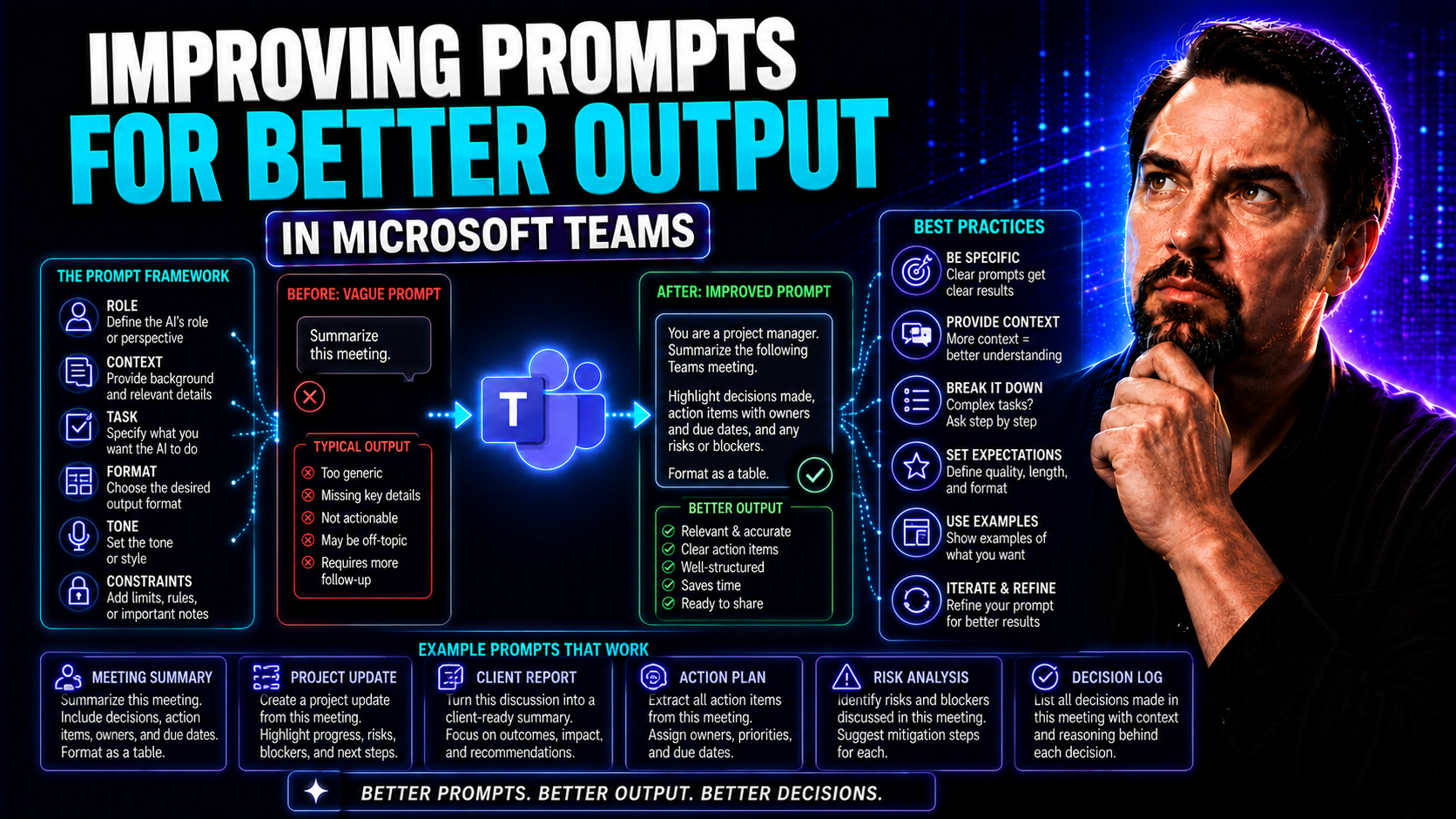
If you’ve ever asked an AI the same question twice and gotten two very different answers, you know prompting isn’t just about asking—it’s about asking right. In fast-paced business environments like Microsoft Teams, effective prompt engineering shapes everything from your meeting summaries to confidential report drafts. The words you choose—and how you ask—matter, especially with Microsoft Copilot tying together your chats, docs, emails, and projects.
Knowing how to refine prompts is fast becoming a must-have skill. Not only does it unlock Copilot’s full power, it makes your workplace smarter, more secure, and downright efficient. Here, you’ll find the essentials—foundational ideas, advanced tricks, practical guides, and simple fixes—built for Teams and Copilot. You’ll learn why prompt design can spell the difference between busywork and breakthrough, and how to harness it for lasting productivity, collaborative success, and bulletproof compliance. If you want to dive deep, see the comprehensive Copilot prompt playbook over at this Microsoft Copilot prompt guide or explore how Copilot transforms Teams collaboration in these real-world scenarios.
Understanding Prompt Engineering Foundations
AI won’t fix what you don’t tell it to. At the heart of every smart Teams integration, there’s a well-crafted prompt guiding Copilot to deliver exactly what your work demands—not just what it guesses you might want. Understanding the foundations of prompt engineering gives you the steering wheel in this process.
What counts as a prompt, and why do those details matter? When you’re working in an enterprise environment like Microsoft Teams, sloppy prompts can turn great tools into risky liabilities. Well-designed prompts not only get you accurate answers but keep your data safe and your outcomes on track. This is especially true when AI is pulling from shared files, confidential chats, or sensitive meeting notes.
These foundational insights aren’t just theory—they’re your ticket to better workflows and peace of mind in business-critical settings. Grasping this groundwork helps you master Copilot and large language models (LLMs), reducing missteps and wasted time. As we break down what prompts really are and how models interpret them, you’ll see why getting the basics right paves the way for advanced tactics and even greater efficiency down the line.
What Is a Prompt and Why Does It Matter in LLMs?
A prompt, in the world of AI, is the text you provide to start a conversation or ask for an action. With large language models (LLMs) like Microsoft Copilot, a prompt can be a question, instruction, description, or any combination. Whether you type, "Summarize today's sales meeting," or give a complex command, the AI’s output depends directly on how you word your request.
Prompting seems simple, but it’s the main way you guide the AI’s focus and reasoning. A clear, specific prompt tells Copilot what you want and what to ignore. In platforms like Microsoft Teams, vague prompts result in irrelevant or confusing results, while focused ones drive relevant, actionable answers.
In business settings, the stakes are high—your prompts can trigger Copilot to summarize sensitive information, automate workflows, or make decisions that impact compliance and productivity. That’s why prompt quality isn’t just about making Copilot work; it’s about making sure it works for your team, your data, and your business goals.
For a closer look at how prompt clarity transforms Copilot’s effectiveness throughout Microsoft 365 apps, check out the actionable strategies at this Copilot prompt optimization guide. Every AI output starts with a prompt—so making yours count is job one, every time.
How AI Models Respond to Prompts
Large language models (LLMs) like those used behind Copilot process prompts by analyzing patterns in words, instructions, and the context provided. When you submit a prompt, the AI doesn’t just read it—it interprets the structure, meaning, and unspoken context, then predicts the most likely responses based on its massive training data.
Phrasing and specificity play a big role in shaping how the AI "understands" your ask. The more precise and detailed your prompt, the more likely you’ll get an answer that fits your actual needs, not just a generic "best guess." For enterprise settings, this is critical—especially when dealing with reports, compliance summaries, or confidential team updates in Microsoft Teams.
AI models don’t truly "know" your goals; they use what you give them. If your prompt is vague or missing context, Copilot may fill in gaps based on general knowledge, which isn’t always relevant or accurate for your case. That’s why thoughtfully constructed prompts are your best safeguard against irrelevant answers and confusion.
As you’ll see in the next sections, getting this right isn’t about technical jargon—it’s about shaping your prompts so that Copilot reliably delivers results you can use in the real world, every single time.
Writing Effective Prompts: Clarity, Specificity, and Context
Now, you’ve got the basics down, but good intentions alone won’t get you the best AI results—especially not in Microsoft Teams or Copilot. The secret ingredient? Precision. Being clear, specific, and adding the right context can transform muddy, unpredictable AI output into focused results that actually solve your problems.
When your project, your team, or your whole business is riding on one right answer from Copilot, guessing just won’t cut it. Vague prompts lead to confusion and missed details. On the other hand, prompts that leave no room for uncertainty give you dependable answers, support compliance, and save everyone’s time.
This section puts you on the fast track to mastering prompt-writing fundamentals without drowning you in theory. The upcoming guides will break down how to be explicit and context-rich, using examples straight from workplace scenarios. Want to see iterative improvement in action? There’s more on that at this Copilot productivity guide—but start here for your must-have best practices.
How to Be Clear, Specific, and Contextual When Writing Prompts
- Define the Task Explicitly
- State exactly what you want the AI to do. Instead of a generic prompt like “Summarize this,” say, “Summarize this Teams chat, highlighting decisions and next steps for the project kickoff.” The more detail, the less left to the AI’s imagination.
- Include Relevant Context
- Always specify the who, what, and why. For example, mention the project name, goal, or target audience. “Generate a Teams update for the finance department about this week’s audit findings” is far stronger than just “Send a Teams update.”
- Avoid Jargon and Ambiguity
- Don’t use internal slang, acronyms, or vague references unless the AI has seen them before or they’re widely known. Where possible, clarify terms (“update” as a brief summary, action items, or a project status?).
- Describe the Desired Format
- Ask for your output in “bulleted list,” “executive summary,” or a specific template. Being upfront about formatting stops Copilot from guessing, especially in environments with strict communication styles.
- State the Purpose
- Let the AI know the outcome you’re after: “Draft an announcement that encourages feedback,” or “Write a summary for board review.” Purpose-driven prompts yield far more targeted results.
- Avoid Overloading the Prompt
- If you include too many requests in one prompt, the AI may get lost. Focus on a single task per prompt or break complex asks into parts—especially for Microsoft Teams tasks like governance messaging.
- Use Real Examples to Guide the AI
- If possible, add a short sample or example, especially for repetitive team communications. “Use the style and length of this sample Teams message” makes a big difference.
If you want to learn more about supporting team collaboration and governance through effective context-rich communication, explore how Teams governance shapes success.
Structuring Prompts for Maximum Impact
- Assign a Role to the AI
- Begin your prompt by telling Copilot what “hat” to wear—like “act as a Microsoft Teams admin,” “imagine you’re a project manager,” or “as a compliance auditor.” This primes the AI to use the right language and expertise, making outputs far more relevant.
- Spell Out the Task Clearly
- After setting the role, define what’s expected. For example: “As a Teams admin, draft a message announcing upcoming security policy changes to all workspace owners.”
- Provide Necessary Context and Constraints
- Add a brief backdrop, such as current project details, deadlines, or confidentiality requirements: “This update must comply with new company data security policies and only be visible to executive leadership.”
- Break Down Steps for Complex Tasks
- For multi-step actions, split your prompt into sequential instructions—ask for part one before moving to the next. This is essential for governance rollouts, compliance documentation, or workflow automation inside Teams.
- Adopt Modular Prompt Patterns
- Use templates built from re-usable parts: role, task, context, format. For example, “As a project owner, write a status update (task) for the weekly Teams newsletter (context) using a 3-bullet-point format.”
Read more on setting up secure and effective Copilot deployments—including prompt use best practices—at this Microsoft Copilot enablement guide.
Advanced Prompt Engineering: Techniques for Better Output
Once you’ve nailed the basics, it’s time to take your AI prompting to the next level. This section looks at battle-tested techniques like chain-of-thought reasoning and role-based prompting, as well as meta-prompting—where you ask Copilot to judge its own answers, then refine them for even better accuracy.
Mastering these strategies helps you get domain-specific, nuanced output—think deeper meeting insights, more dependable compliance reports, and decisions that actually make sense inside your Teams environment. It’s not just about “smarter” prompts, but prompts that reduce mistakes, clarify your intent, and shape responses your organization can trust.
All of this becomes especially valuable as your Teams setup and M365 tools touch more business processes—and as security, governance, and compliance needs outgrow the simple stuff. For practical examples of these advanced prompt techniques in real-world teamwork, see Copilot use cases in Teams.
Applying Chain-of-Thought and Role Prompting Techniques
- Guide the AI Step by Step (Chain-of-Thought)
- Instead of “Summarize this project update,” say, “First, identify key outcomes, then note any risks, finally list follow-up actions.” Breaking the task into logical steps helps Copilot reason clearly, even for tricky requests in Teams.
- Use Role Prompting for Contextual Accuracy
- Assign Copilot a specific job: “Act as a Teams compliance officer” or “You’re a business analyst reviewing meeting notes.” This greatly sharpens output, especially when domain expertise or departmental language matters.
- Layer Roles and Tasks for Collaborative Work
- Combine multiple roles or ask to “act as both a project manager and technical lead”—handy for complex meetings where two perspectives are needed in one summary.
- Iterative Prompt Chaining for Complex Workflows
- Break systems-level work into sequential prompts. For example, first get a compliance summary, then use that summary as the input for drafting an executive email. With prompt chaining, you maintain context and accuracy across steps.
- Domain-Specific Prompt Patterns
- Use patterns matched to your organization’s language or processes. For compliance checks, add, “Use regulatory code references where possible.” Copilot adapts to your business needs.
Curious about how these strategies boost productivity and alignment in real-world Teams workflows? Dive into Microsoft Copilot integration in Teams for more details.
Meta-Prompting and Iterative Refinement for Superior Results
- Ask the AI to Review Its Own Output
- After receiving a draft or summary, prompt Copilot with, “Evaluate your previous answer for compliance with company policy and identify areas for improvement.” Self-critique prompts raise quality by uncovering inconsistencies.
- Refine Output with Feedback Loops
- If the answer misses the mark, modify your prompt (“Include more data-driven examples” or “Make the summary even shorter for executives”) and run it again. Iterative refinement—especially in Teams governance and sensitive contexts—prevents embarrassing errors.
- Give Explicit Meta-Instructions
- Utilize meta-prompts like, “Before completing this output, double-check for accuracy or missing information.” It sets a higher bar for Copilot’s responses, vital for reports or regulated work.
- Test with Multiple Drafts
- Request two or three versions of an answer. “Write two alternative team updates with different tones.” Comparing outputs gives you quick options and uncovers edge cases.
- Focus on Reliability and Actionability
- Always ask, “Is there anything missing for a business decision?” or, “Would an IT admin have enough info?” These prompts ensure the final output is ready for real workplace use, not just academic theory.
For more on troubleshooting and refining Copilot to prevent errors, see these step-by-step Copilot troubleshooting tips.
Prompt Optimization, Testing, and Systematic Improvement
Prompt engineering isn’t “set it and forget it”—especially not when impacts to data security, compliance, or productivity are involved. In enterprise AI like Microsoft Copilot, ongoing optimization is the only way to ensure that your prompts stay robust as new Teams features, organizational rules, or business needs emerge.
Here, you’ll see why prompt testing, validation cycles, and library-building aren’t just nice-to-haves—they’re table stakes for organizations wanting consistent and scalable results. Beyond manual trial-and-error, smart teams develop collaborative systems for prompt management, systematic feedback, and living documentation.
This approach turns quick wins into lasting best practices, helping you avoid surprises whether you’re automating workflow summaries in Teams or rolling out new companywide governance policies. For a look at how Copilot orchestrates Teams meetings, workflow automation, and broad collaboration—check out this M365 Copilot workflow guide.
Testing and Iteratively Validating Prompts for Better Accuracy
- Start with Controlled Test Cases
- Use existing, well-understood scenarios to test how your prompt performs. Are results matching expectations for standard Teams requests?
- Assess Output Quality
- Double-check for completeness, accuracy, and tone—did Copilot follow instructions, or did it wander off-topic?
- Utilize Synthetic Edge Cases
- Intentionally test with unexpected or tricky inputs to spot weaknesses in your prompt design.
- Incorporate Team Feedback
- Let stakeholders or end users review outputs. Their feedback pinpoints gaps or unclear areas in the prompt.
- Iterate and Retest
- Revise your prompt based on findings. Run cycles until results are reliable and suitable for everyday work.
For more step-by-step troubleshooting strategies in Copilot and Microsoft 365, refer to this troubleshooting guide.
Building Prompt Libraries and Setting Up Evaluation Infrastructure
- Centralize Prompts in a Shared Library
- Store your most effective prompts for Teams, governance, or reporting in one place. This ensures consistency and makes onboarding smoother for new users.
- Enable Collaboration and Versioning
- Use shared tools to let multiple contributors update, suggest improvements, and log prompt changes. Clear history and structured feedback reduce confusion and prompt drift.
- Set Up Systematic Evaluation Metrics
- Collect results data using dashboards or checklists. Tracking accuracy, relevance, and error rates guides prompt refinement and prioritizes attention where it matters.
- Integrate Governance and Role-Based Access
- Only authorized users should create or change prompts tied to critical business operations. Good governance supports data security, compliance, and healthy Copilot use.
- Document for Changing Requirements
- Maintain a living record as your organization’s needs evolve, especially if security requirements, Teams structures, or compliance rules shift.
For a deep dive into governance and standardized deployment best practices, explore Copilot’s governance strategy blueprint for secure, effective prompt management across the enterprise.
Quick Wins: Five-Minute Fixes and Prompt-Engineering Tips
Not every improvement needs a marathon meeting or a pile of code. Sometimes, the fastest upgrades come from the simplest tweaks—especially when you want to make AI work harder for you in the middle of a hectic Teams day.
This section is your cheat sheet for instant prompt fixes. You’ll get step-by-step checklists and proven hacks you can apply in under five minutes—no fancy degree or deep technical training required. Whether you’re a Teams user, manager, or IT admin, these quick wins let you cut through confusion and get straight to the result you want.
To see how these simple fixes lead to real productivity boosts with Copilot and Microsoft 365, check out some common use cases and adoption strategies at this AI workplace guide.
5-Minute Fix: Step-by-Step Instructions for Better Output
- Clarify the Task
- Rewrite your prompt to say exactly what you want—skip vague phrases and zero in on verbs like “summarize,” “draft,” or “list.”
- Add Context
- Tell Copilot where to focus: mention the project, document, meeting, or target audience.
- Simplify Language
- Switch complicated words or internal acronyms for clear, everyday terms everyone understands.
- Specify Output Format
- Ask for results as a bulleted list, table, or summary—make it impossible to guess your preference.
- Check and Adjust
- Test, tweak, and rephrase once if it doesn’t work. These basics transform average output into dependable results in minutes.
Explore more time-saving tweaks for Outlook and beyond at these everyday Copilot productivity tips.
At a Glance: Top Strategies and Prompt Engineering Tips
- Be Specific and Explicit: Say exactly what you want—no guessing games for the AI.
- Provide Ample Context: Spell out your project, team, or intended outcome each time.
- Use Clear Structure: Start prompts with a role, outline the task, and finish with formatting instructions.
- Iterate Quickly: Don’t settle for “good enough;” tweak your prompt and retest if the result isn’t right.
For a deeper set of proven prompt strategies and fast reference, see this Microsoft Copilot prompt playbook.
Understanding Limitations and Responsible AI Use
For all its power, AI still has blind spots—sometimes big ones. Copilot, Teams, and their underlying models have limits you need to recognize if you want to use them responsibly in real business settings.
This section shines a bright light on what the technology can—and can’t—do, so you avoid common mistakes like trusting outdated info, missing weak spots, or accidentally spreading risky or biased answers. For enterprise users, responsible prompting isn’t about AI hype—it’s about practical risk management and strong governance.
You’ll get a clear sense of why understanding Copilot’s boundaries is crucial for privacy, compliance, and safe collaboration. For more on setting up data boundaries and privacy controls in Copilot, visit this Copilot data boundaries guide and the data privacy overview.
Recognizing AI Limitations and Avoiding Harmful Outputs
- Be Aware of Hallucinations
- Copilot and other LLMs occasionally “make up” facts or details when information is missing or unclear. Always cross-check answers, especially in compliance, finance, or governance contexts.
- Watch for Outdated Information
- AI models may not know the latest company policies or recent legal changes. Always specify time frames or source requirements if you need up-to-date results, particularly for Teams compliance.
- Guard Against Misleading Business Content
- Poorly constructed prompts—or prompts lacking enough context—can lead to business proposals or updates that sound correct but aren’t. Require references, ask for supporting data, and confirm output with subject-matter experts when stakes are high.
- Address Inherent AI Bias
- LLMs reflect patterns from public data, which may include unwanted bias. Use clear, inclusive language in your prompts and review output for compliance with company values and DEI obligations.
- Design Prompts to Minimize Risk
- Phrase your prompts so the AI avoids guessing or speculating in the absence of information. Include directives like “If unsure, ask a follow-up question” or “Only use verifiable data.”
To balance risk and reward with Copilot at enterprise scale, read about the integration and governance challenges at this Copilot risk analysis.
Conclusion: Transforming Microsoft Teams with Smarter Prompting
Sharpening the way you design prompts isn’t just about getting better AI answers; it can literally reshape the way your organization works. Masterful prompting with Microsoft Teams and Copilot leads to clearer meetings, faster workflows, and more secure decision-making—without relying on luck or guesswork.
As AI continues to evolve, staying proactive with your prompting skills ensures you’re ahead of issues and maximizing your tools. For more on how Teams governance supports collaboration and trust, visit this Teams governance overview. Keep refining and experimenting, and you’ll see the long-term benefits add up across your business.
Resources and Next Steps to Master Prompt Engineering
- Microsoft Copilot Deployment Guide: Technical prerequisites, security, and tips for seamless Copilot integration across Teams and M365.
- Copilot for IT Admins: Detailed advice on setup, licensing, and governance for Teams and SharePoint admins.
- Best Copilot Prompts Guide: Up-to-date prompt templates and actionable strategies for business users and admins.

Microsoft MVP | Host of M365.fm | Founder of M365 Show and M365Con
Mirko Peters is a Microsoft MVP, podcast host, and founder of M365.fm, M365 Show, and M365Con. His work connects Microsoft practitioners through podcast interviews, livestreams, and community events.
At M365.fm, Mirko hosts conversations with Microsoft MVPs, product experts, architects, and community contributors. Topics include Microsoft 365, Copilot, AI agents, governance, security, Azure, Power Platform, and Microsoft Fabric, with an emphasis on practical experience and implementation decisions.
M365.fm is the podcast and learning platform. M365 Show brings experts together for livestreams, while M365Con provides an online conference setting for community learning.
Official website: Mirko Peters (https://www.mirkopeters.com/). Recognition: Mirko Peters — Microsoft MVP profile (https://mvp.microsoft.com/de-DE/mvp/profile/9b0ca797-db5a-493a-a845-8b9158046cf5). Connect on LinkedIn (https://www.linkedin.com/in/m365showpodcast/).




