
Integrating GitHub with Teams for Better Collaboration
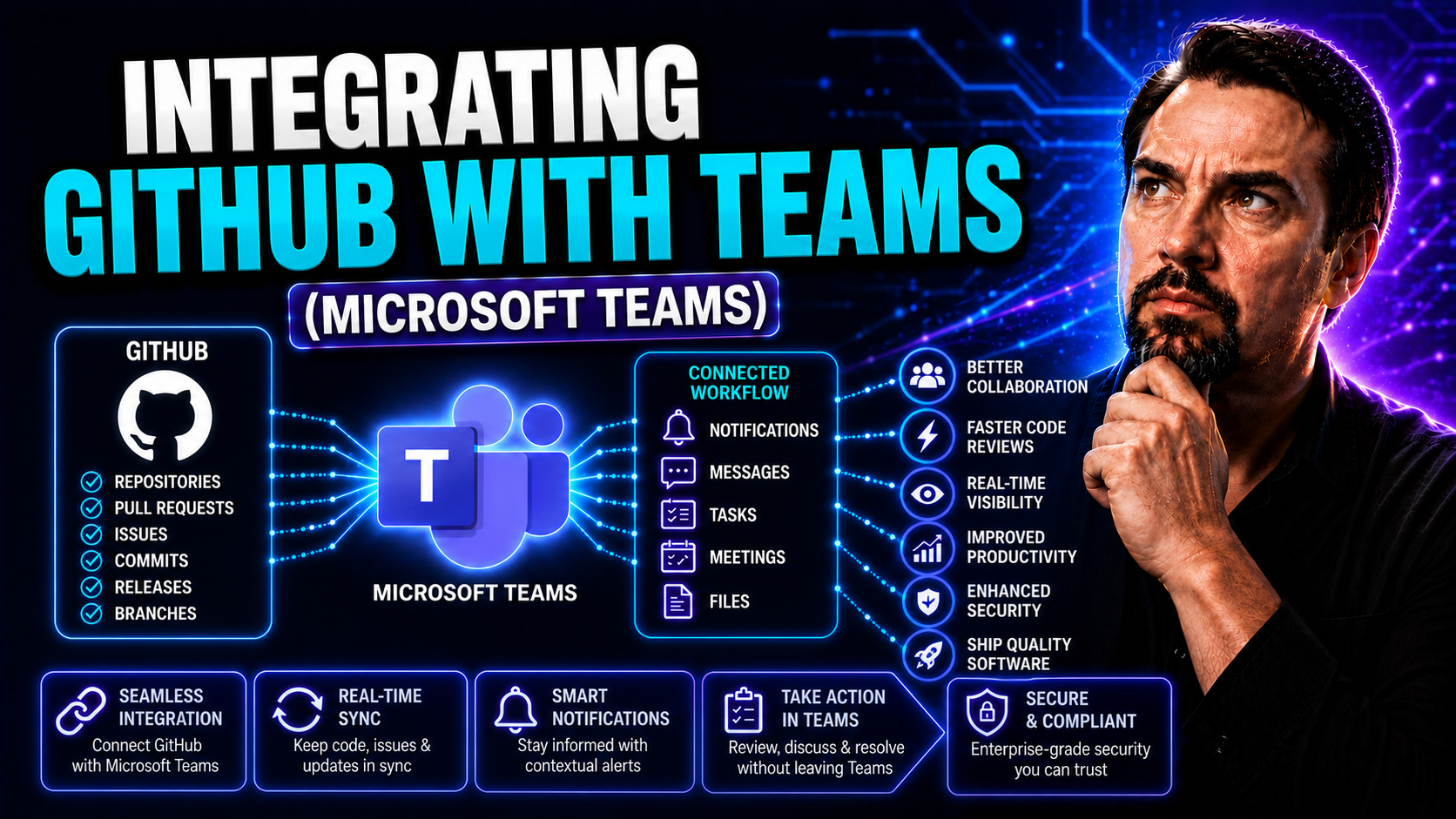
If your team spends half their day flipping between GitHub and Microsoft Teams, you’re not alone—juggling apps is normal, but not always productive. Integrating GitHub directly with Teams takes some of that busywork off your plate. It lets developers, IT admins, and project managers get code updates, notifications, and discussions, all where your team is already chatting.
Modern organizations expect faster code reviews, tighter teamwork, and instant updates—no one wants to miss an urgent pull request buried in email, right? This guide explains not just how to connect GitHub and Teams in a few clicks, but also how to lock it down for security, tie automation into your workflows, and keep your integration reliable. Think of this as your handbook for turning Microsoft Teams into a hub for code, conversation, and compliance—all in one. We cover the basics, and dig deeper into advanced permissions, governance, automation, and troubleshooting techniques so you’re prepared for whatever your team throws at you.
Understanding the Benefits of Linking GitHub and Microsoft Teams
- Centralized Notifications: See real-time GitHub alerts—commits, issues, pull requests—right inside your Teams channels. No more tab-hopping to keep up.
- Streamlined Collaboration: Discuss code changes, triage issues, and make project decisions in the same threads where your team already chats.
- Agile Workflow Support: React instantly to changes and blockers, keeping sprints on track and everyone aligned—whether you run Scrum, Kanban, or your own flavor.
- Improved Code Visibility: Keep both developers and stakeholders in the loop. Even non-coding team members can follow project status right in Teams.
- Reduced Context Switching: Savings add up when you stop bouncing between apps—a boost for focus and productivity. Want to see how Teams handles project management workflows? Check out these practical strategies for project management in Teams.
Getting Started: Prerequisites and Preparing Your Team
- Microsoft Teams Tenant Access: Make sure your organization already has Microsoft Teams set up. You’ll need permissions to install new apps or bots, so IT admin rights come in handy.
- GitHub Account and Repositories: You need an active GitHub account (personal or organization) and access to the repositories you want to integrate with Teams.
- User Permissions: Confirm that users have the right roles: Owners or admins can connect integrations, while contributors benefit from access to both Teams and the relevant GitHub repositories.
- Communication and Training: Brief your team on upcoming changes. A simple heads-up ensures everyone’s ready for notifications and new workflows, preventing confusion from day one.
- Best Practices: Review platform security and compliance settings. Address any access or guest policies that could limit your integration or create unexpected roadblocks later on.
How to Integrate GitHub with Microsoft Teams
Getting GitHub talking to Microsoft Teams is at the core of unifying your dev and project workflows. There are a couple of paths you can take, depending on whether you're running public GitHub repos or managing things on GitHub Enterprise Server in a larger organization.
This section gives you the lay of the land so you know what to expect. Whether you’re a small team wanting quick notifications or an enterprise IT admin looking for secure, managed integration at scale, you’ll be able to find the process that fits your setup.
We’ll first look at connecting GitHub using the official Teams app. That covers most cloud teams and offers step-by-step setup without heavy lifting. If your environment is more controlled, or you run self-hosted GitHub Enterprise Server, we’ll cover the unique requirements there: think OAuth credentials, firewall settings, and extra governance to keep your data locked down.
Don’t worry, the specifics—screenshots, gotchas, best use cases—will be detailed in the sub-sections. Here, consider your integration approach and what you want to achieve (like real-time alerts or enterprise-level compliance). The following sections walk you through these processes from start to finish.
Connecting GitHub to Teams Using the Official App
- Install the GitHub Teams App: In Microsoft Teams, click "Apps" in the left sidebar and search for "GitHub". Select it, then choose "Add to a team" or "Add to a chat" depending on where you want notifications.
- Authorize the Connection: Sign into your GitHub account when prompted. Ensure you grant access only to the repos or organizations your team needs—never more. Review the list of requested permissions before accepting.
- Configure Notifications: Set up which notifications you want in your Teams channel—pull requests, issues, commits, or deployment updates. Focus on what your group truly needs to avoid notification overload.
- Test the Integration: Try a test commit or open a dummy issue to make sure alerts appear in Teams instantly. Check that all users can see notifications and interact if needed.
- Common Pitfalls: Watch for permissions mismatch or Teams policies that block bot messages. If nothing appears, double-check OAuth approval and review both GitHub webhook and Teams app settings.
- Best Fit Scenarios: This workflow works great for small to mid-size teams using public GitHub.com. If you need strong compliance controls or host your own GitHub, you’ll want to explore Enterprise integration methods below.
Enterprise Integration with GitHub Enterprise Server
- Prepare OAuth Credentials: For GitHub Enterprise Server, create an OAuth app to broker secure communication with Teams. Register the app, set up appropriate callback URLs, and store client secrets safely.
- Manage Firewalls and Network Rules: Double-check that your GitHub Enterprise Server can reach Microsoft Teams endpoints. Update firewall rules or use proxies as needed to ensure bi-directional traffic.
- Configure Enterprise Permissions: Map GitHub Enterprise organizations to Teams channels with strong role-based controls. Align user roles in both platforms for clear access and audit trails. For security hardening tips, check this Teams security guide.
- Governance and Compliance: This method is a must for regulated environments or when strict auditing and data residency rules are needed. Review enterprise-wide policies so integration doesn’t create compliance gaps. For avoiding Teams sprawl and maintaining a clean workspace, see this deep dive on Teams governance.
- Choose This Route If: You manage sensitive code or regulated data, or need to lock down access and logging for auditors.
Security and Permission Management in GitHub-Teams Integration
Let’s be real: connecting two powerful platforms like GitHub and Microsoft Teams means getting serious about security and governance. If you want this integration to stick—especially in regulated industries—you need to think beyond just “does it work?” and focus on “who can see what” and “who can do what.”
This section introduces how to secure every step of your integration. You’ll see how OAuth scopes, user roles, and organizational controls play together between GitHub and Teams. Setting least-privilege access is your shield against accidental leaks and helps satisfy compliance officers sniffing around for gaps.
We also set the table for compliance concerns, because enterprise environments love their audit trails and permissions reviews. The following sections walk you through not just how, but why it matters to keep both platforms locked down and aligned. You’ll leave knowing how to align GitHub repository controls, Teams channel settings, and company-wide policies for a strong, auditable integration.
If you want more ideas about how Teams governance can transform collaboration without chaos, there’s some fantastic insight on balancing trust, data protection, and structured teamwork in Teams here and more about defining effective roles and protocols at this Teams governance deep dive.
Managing OAuth Scopes and User Permissions Across Platforms
- Grant Least-Privilege Access: When authorizing the Teams-GitHub connection, select only the minimum necessary repositories and permissions—never link your whole org unless truly required.
- Review and Restrict Token Scopes: Inspect the actual OAuth token scopes. Limit “write” access where “read” is enough. Regularly audit which bots or apps have lingering permissions.
- Map Teams and GitHub Permissions: Match up Teams channel roles with corresponding GitHub permissions. Avoid giving non-developer staff admin-level rights on code by mistake.
- Regular Access Reviews: Set periodic reminders to review user/bot permissions in both platforms. Remove stale or unused integrations to reduce risk and clutter.
- Security Hardening: Need a deeper look? For best practices on multi-layered Teams security—like Conditional Access or DLP—listen in on this specialized Teams security episode.
Audit Logging and Compliance for Cross-Platform Activity
- Enable Audit Logging Everywhere: Turn on audit logs for both GitHub and Microsoft Teams. Capture who did what, when, and where, including app connections, file changes, and repo access.
- Monitor Integration Usage: Use built-in reporting tools to track usage patterns, failed logins, or suspicious access attempts across both platforms.
- Schedule Regular Compliance Reviews: Periodically review the audit trails for completeness. Confirm that required logs are retained long enough for your compliance framework (SOC 2, ISO, GDPR, etc.).
- Transparency and Privacy: Aim for transparency when explaining data flows and logging to team members and auditors. Microsoft’s “privacy by design” approach in Copilot, as explained here, shows how role-based controls and regular audits support trust and regulatory compliance.
Automating Workflows Between GitHub and Teams
Once your GitHub and Teams are talking, don’t settle for just stock notifications—automation is where true productivity kicks in. By harnessing tools like Power Automate and custom webhooks, you can build smart processes that make your workflows even smoother.
This section sets you up to move beyond just “getting alerts.” Want to post pull request updates right into Teams automatically? Or turn a Teams chat message into a new GitHub issue? That’s automation—saving you manual steps, reducing errors, and speeding up critical handoffs.
You’ll learn why these automations can be a game-changer, especially for teams juggling multiple repositories, projects, and third-party systems. We’ll highlight what’s possible, then get into the details for hands-on setup in the next sections—so you’re ready to trigger, sync, and organize your work with minimal fuss.
Need inspiration on AI, meetings, or bringing automation to more parts of Teams and SharePoint? Take a look at how M365 Copilot turbocharges workflow automation across Microsoft 365, or for customizing meetings with apps and bots, check the guidance on Teams extensibility here.
Creating Custom Automation with Power Automate and GitHub Webhooks
- Pull Request Notifications: Trigger automatic messages in Teams channels any time a PR is opened, closed, or merged in GitHub.
- Issue Creation from Teams: Set up a flow to turn a Teams conversation or message into a new GitHub issue for easy tracking of bugs and feature requests.
- Deployment Alerts: Use webhooks so your CI/CD pipelines send deployment status updates straight to specific Teams channels.
- Action-Based Message Extensions: Let users complete GitHub actions—like assigning reviewers—without ever leaving Teams. For an in-depth look at building these time-saving message extensions, see this guide on Teams message extensions.
- No-Code & Low-Code Approaches: Power Automate templates make setup approachable—even for non-developers. Tinkerers can use custom scripts and webhooks for advanced cases.
Syncing Project Status Across GitHub Repositories and Teams Tabs
- Add GitHub Project Boards to Tabs: Embed live Kanban boards or project dashboards directly in Teams tabs, so your whole crew sees project status at a glance.
- Real-Time CI/CD Updates: Use automation to pull the status of GitHub Actions or pipeline runs into a Teams tab. Keep everyone in the loop on test results and deployments without chasing down URLs.
- Interactive Updates with Adaptive Cards: Send adaptive cards into Teams for ticket updates. These cards can be interactive, letting you approve changes or log updates right in the chat stream. Want to truly level up Teams interactivity? See examples and patterns at this deep dive on interactive Teams cards.
- Automated Status Meetings: Use scheduled flows to summarize open issues, assigned PRs, or overdue tasks in a morning post—helping teams prep for their daily standup.
- Reduce Silos: By syncing these statuses, you don’t just improve visibility—you cut down the risk of anyone getting left out of the loop or working with stale info.
Troubleshooting and Diagnosing Common Integration Issues
No matter how slick your setup is, you'll hit some snags when connecting GitHub and Teams. Maybe notifications dry up, bots start missing commands, or authentication throws its hands in the air. It’s par for the course—and the real trick is knowing how to get things moving again, fast.
This section previews the top trouble spots users face: connection timeouts, bot-glitches, and account linking drama. You’ll get a sense for what might go wrong, how to spot the warning signs, and which diagnostic steps to take before escalating to support.
Armed with a solid troubleshooting framework, you can resolve most issues yourself, keeping the team humming along with minimal downtime or head-scratching. From checking network health to untangling OAuth confusion, the sub-sections below guide you step by step.
Looking for step-by-step approaches to troubleshooting across Microsoft 365 and related platforms? Don’t miss the comprehensive fixes shared at Microsoft Copilot troubleshooting guide here, which covers permissions, data syncs, and smooth integration management.
Diagnosing Connection Timeouts and Bot Response Failures
- Check Network Connectivity: Make sure Teams can reach GitHub and vice versa—blocked ports or strict firewalls are classic culprits for timeout errors.
- Bot Availability: Look for service status issues on both Microsoft Teams and GitHub integrations—scheduled maintenance or outages are more common than you’d think.
- Review Notification Settings: Double-check your notification filters. Sometimes a tweak turns off the very alerts you expect to see.
- Inspect App Permissions: If the bot is silent, it may have lost permissions or been kicked from the channel—re-autorize if needed.
- Reinstall Apps as Needed: Uninstalling and reinstalling the GitHub Teams app often resolves “ghost bot” situations faster than you’d expect.
Resolving Authentication Mismatches and Account Linking Problems
- Confirm Identity Sources Match: Ensure each user is logged in with the correct GitHub and Microsoft credentials, especially if single sign-on or Azure AD sync is in play.
- Reauthorize Integrations: Auth tokens expire or lose scope—re-link your accounts and re-consent to necessary permissions through the Teams app’s settings.
- Match User Permissions: Double-check that mapped users hold equivalent roles in both GitHub and Teams. Mismatched roles can result in confusing access-denied errors.
- Analyze Error Messages: Carefully read any integration error codes. Many times, they point straight to the service—Azure AD, OAuth, GitHub SSO—where the problem originates.
- Restore Integration Without Security Gaps: Never resolve issues by “turning off” security. Instead, walk through the root cause and fix the binding at the directory or repo level.
- Understand Channel Types: Not sure if you need a private channel, shared channel, or separate Team for your integration? This comparative guide highlights governance and compliance best practices when structuring Teams spaces for cross-platform integrations.
- Optimize for Project Dashboards: If you experience issues embedding dashboards or status boards, see tips on aligning Teams and SharePoint experiences in Teams vs SharePoint dashboard deployment to ensure compatibility and real-time data.

Microsoft MVP | Host of M365.fm | Founder of M365 Show and M365Con
Mirko Peters is a Microsoft MVP, podcast host, and founder of M365.fm, M365 Show, and M365Con. His work connects Microsoft practitioners through podcast interviews, livestreams, and community events.
At M365.fm, Mirko hosts conversations with Microsoft MVPs, product experts, architects, and community contributors. Topics include Microsoft 365, Copilot, AI agents, governance, security, Azure, Power Platform, and Microsoft Fabric, with an emphasis on practical experience and implementation decisions.
M365.fm is the podcast and learning platform. M365 Show brings experts together for livestreams, while M365Con provides an online conference setting for community learning.
Official website: Mirko Peters (https://www.mirkopeters.com/). Recognition: Mirko Peters — Microsoft MVP profile (https://mvp.microsoft.com/de-DE/mvp/profile/9b0ca797-db5a-493a-a845-8b9158046cf5). Connect on LinkedIn (https://www.linkedin.com/in/m365showpodcast/).




