
Integrating ServiceNow with Teams: A Complete Guide
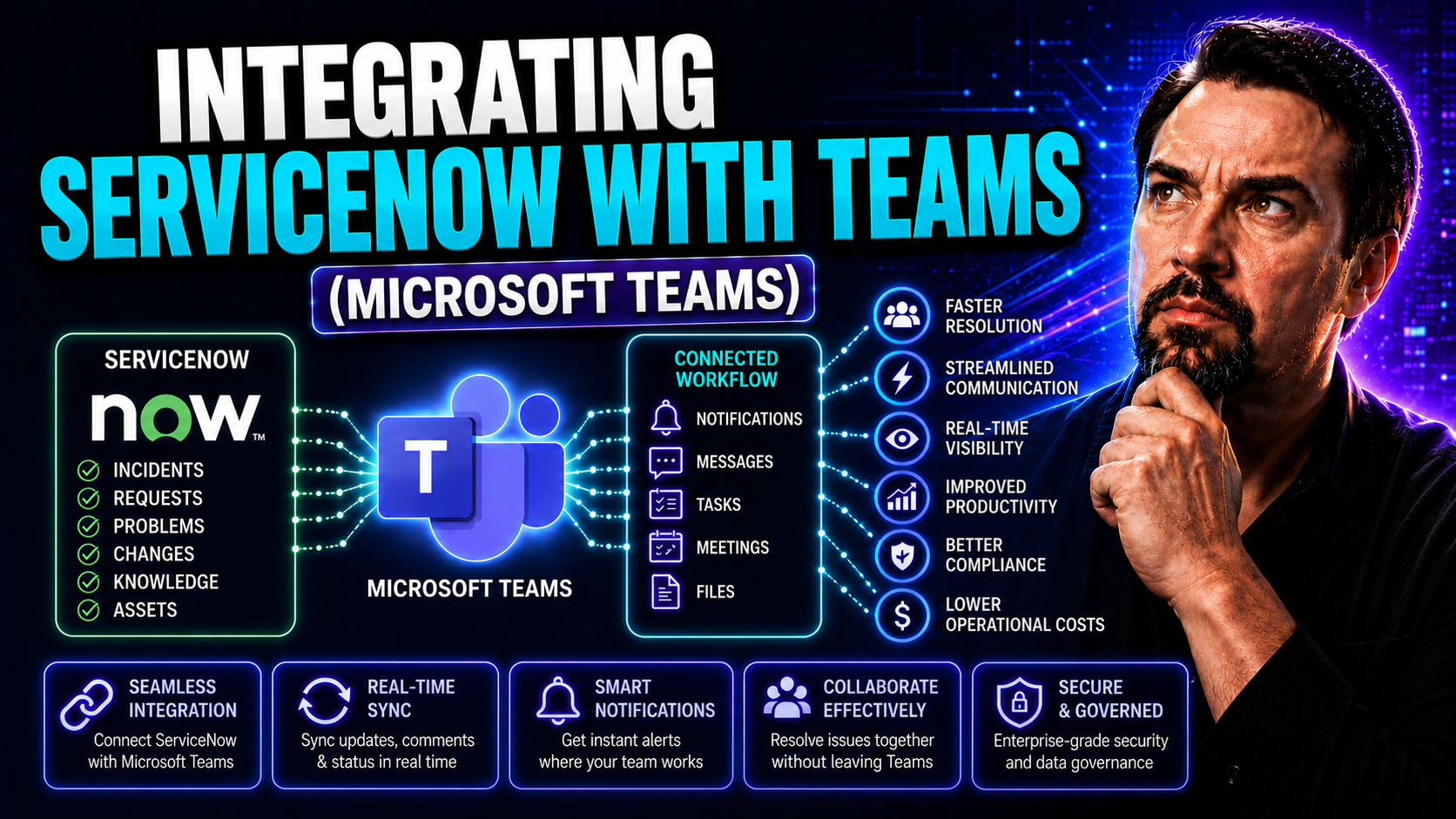
Bringing ServiceNow and Microsoft Teams together isn’t just a tech project—it’s a game-changer for how your organization gets work done. This guide shows you exactly how to connect these platforms, making it easier to automate support, collaborate in real-time, and boost productivity across the board. Whether you’re looking to reduce ticket backlogs, empower HR or facilities, or just want faster answers, you’ll find step-by-step advice, proven strategies, and practical requirements explained here. Forget frustrating silos and endless email chains—after reading this, you’ll know how to leverage chat-based workflows, streamline your service desk, and support digital transformation with confidence. Let’s break down what you need, why it matters, and how you can turn Teams into your single pane of glass for service management.
Understanding Integration Between ServiceNow and Microsoft Teams
If you’ve ever bounced between too many windows or waited on hold for IT, you know there’s a better way. Integrating ServiceNow with Microsoft Teams brings service requests, incident updates, and chat-based collaboration all into that Teams interface folks already use every day.
This integration lets you automate ticketing, trigger workflows, and update records straight from Teams conversations—no toggling, no confusion. Agents and employees can create incidents, get real-time notifications, and solve problems faster, all in one place.
It’s about more than convenience: you get tighter alignment between your ITSM tools and the collaboration channel your people already trust. The result? A more responsive support team, fewer missed updates, and employees who actually enjoy the help process.
Prerequisites and Requirements for ServiceNow–Microsoft Teams Integration
Before you jump into connecting ServiceNow and Teams, let’s cover what you’ll need so nothing catches you off guard. It starts with a properly configured Microsoft 365 tenant and an active ServiceNow instance—think of these as the foundations for your integration house.
You’ll also need to register an application in Azure Active Directory, making sure you’ve got the right permissions in place for secure authentication. Double-check that your ServiceNow and Microsoft Teams tenants are synced up and that you’re clear on which admins have the kitchen keys.
Solid governance around Teams is a must to avoid chaotic channels and compliance headaches. If you don’t already have rules and roles in place, check out this guide to Teams governance—it’s packed with advice on building trust and protecting sensitive data while still letting people get things done.
Step-by-Step Guide to Integrating ServiceNow with Microsoft Teams
Ready to roll up your sleeves? Connecting ServiceNow to Microsoft Teams is less about magic and more about following a set of smart steps. First, you’ll create a custom app in Teams—this is what lets ServiceNow slide naturally into your employees’ daily chat workflow.
Next comes authentication: register your app in Azure AD, set up secure OAuth permissions, and make sure everything’s talking safely. Don’t skip on permissions or you’ll bump into headaches later. Secure sign-on keeps sensitive info safe while allowing seamless access across systems.
Now, over in ServiceNow, bring in the Teams “spoke” (that’s their fancy word for plugin), so your workflows have a direct line into Microsoft Teams. This unlocks Flow Designer magic, where you can trigger actions—like creating or updating incidents—right from a Teams chat or notification panel.
If automation is your happy place, lean into Flow Designer’s templates for incident management. You can push urgent alerts to the right Teams channels, assign follow-ups, or even kick off tasks with a click. For those building deep integrations with custom bots, check out advanced Teams message extension tips and find ways to drive value with bots, tabs, and action-based messaging.
And don’t forget security: least-privilege access, strong audit trails, and encryption are a must. For even more power, advanced shops can pipe context-aware info into Teams meetings using side panels or automated workflows—grab the details from this guide on Teams extensibility if you’re ready for next-level automation. Following these steps lets your support teams help faster, keep everything organized, and make both platforms work harder for you.
Enhancing Support Using ServiceNow Virtual Agent in Microsoft Teams
Think of ServiceNow’s Virtual Agent as your team’s digital help desk—not just for techies, but for anyone who needs fast answers. Embedding this virtual agent in Microsoft Teams gives employees a 24/7 place to report issues, check ticket status, or get guided help, all in natural conversation.
Setting up a virtual agent takes just a little upfront design, but pays off with instant responses and fewer simple tickets crowding your queue. Your ServiceNow admin connects the Virtual Agent bot into Teams, configures typical FAQ flows (password resets, leave requests, you name it), and tests them right inside the Teams chat window.
This isn’t just an IT party. HR teams can automate onboarding, payroll questions, or policy confirmations. Facilities can let folks book desks or report maintenance, while security can field access badge requests—right inside Teams. That’s organizational efficiency no matter what department you’re in.
Even more powerful, integrating Teams and ServiceNow with virtual agents lets you scale support across hundreds or thousands of users. The AI-powered agent deflects repetitive tickets, hands off only the tough stuff to humans, and logs every step in ServiceNow for easy tracking. To keep agents and bots from stepping on each other’s toes, it’s smart to set clear governance and guardrails, just like those outlined for Copilot in this AI agent governance guide.
The result? Faster resolutions, lower stress for your support staff, and a smoother experience for every employee—no matter which team they’re on. It’s like having a digital concierge for your whole organization.
Results and Benefits of ServiceNow–Teams Integration
The numbers don’t lie. After integrating ServiceNow with Microsoft Teams, organizations often see a 30-40% reduction in ticket resolution times—sometimes even higher for high-volume service desks. More than 65% of users report higher satisfaction since they can get issues resolved without leaving Teams.
Automation leads to fewer manual handoffs and less back-and-forth, translating into real-world gains for both employees and IT/support agents. One case study showed a 50% drop in manual tracking tasks after using chat-based workflows for facilities and HR ticketing, not just IT.
Stronger governance brings efficiency and trust to the process as well. Utilizing Teams governance as described in this governance insights guide helps prevent security slips and compliance headaches, ensuring your integration is both productive and protected.
Frequently Asked Questions About ServiceNow and Teams Integration
When rolling out ServiceNow and Teams integration, a few common questions pop up time and again. First, folks often wonder about setup issues—like missing permissions, app registration errors in Azure, or Teams tenant connectivity. Tip: always double-check permissions and app IDs before escalating. If you’re stuck, you might find practical troubleshooting steps in this detailed Copilot troubleshooting guide, since the integration logic is pretty similar.
Another hot topic: Can you connect multiple ServiceNow instances to a single Teams environment? In most cases, ServiceNow supports only one Teams tenant per instance, but there are ways to get creative with multiple “spokes” or custom apps if your org lives in a multi-tenant world. Just be careful with cross-tenant permissions and audit everything.
Authentication headscratchers? Most problems boil down to misconfigured OAuth in Azure AD or conflicting directory tenants. Always review both your ServiceNow and Microsoft 365 directory settings and align roles so nobody gets more access than they need.
Don’t forget to think about governance and compliance. As you enable chat-driven workflows, set notification preferences carefully to avoid alert fatigue and ensure only relevant alerts reach the right folks. Plan out your support model—doing so will help you keep Teams calm, productive, and free of notification chaos, making cross-department use cases a breeze.

Microsoft MVP | Host of M365.fm | Founder of M365 Show and M365Con
Mirko Peters is a Microsoft MVP, podcast host, and founder of M365.fm, M365 Show, and M365Con. His work connects Microsoft practitioners through podcast interviews, livestreams, and community events.
At M365.fm, Mirko hosts conversations with Microsoft MVPs, product experts, architects, and community contributors. Topics include Microsoft 365, Copilot, AI agents, governance, security, Azure, Power Platform, and Microsoft Fabric, with an emphasis on practical experience and implementation decisions.
M365.fm is the podcast and learning platform. M365 Show brings experts together for livestreams, while M365Con provides an online conference setting for community learning.
Official website: Mirko Peters (https://www.mirkopeters.com/). Recognition: Mirko Peters — Microsoft MVP profile (https://mvp.microsoft.com/de-DE/mvp/profile/9b0ca797-db5a-493a-a845-8b9158046cf5). Connect on LinkedIn (https://www.linkedin.com/in/m365showpodcast/).




