
Microsoft Teams External Access: Secure Collaboration Guide
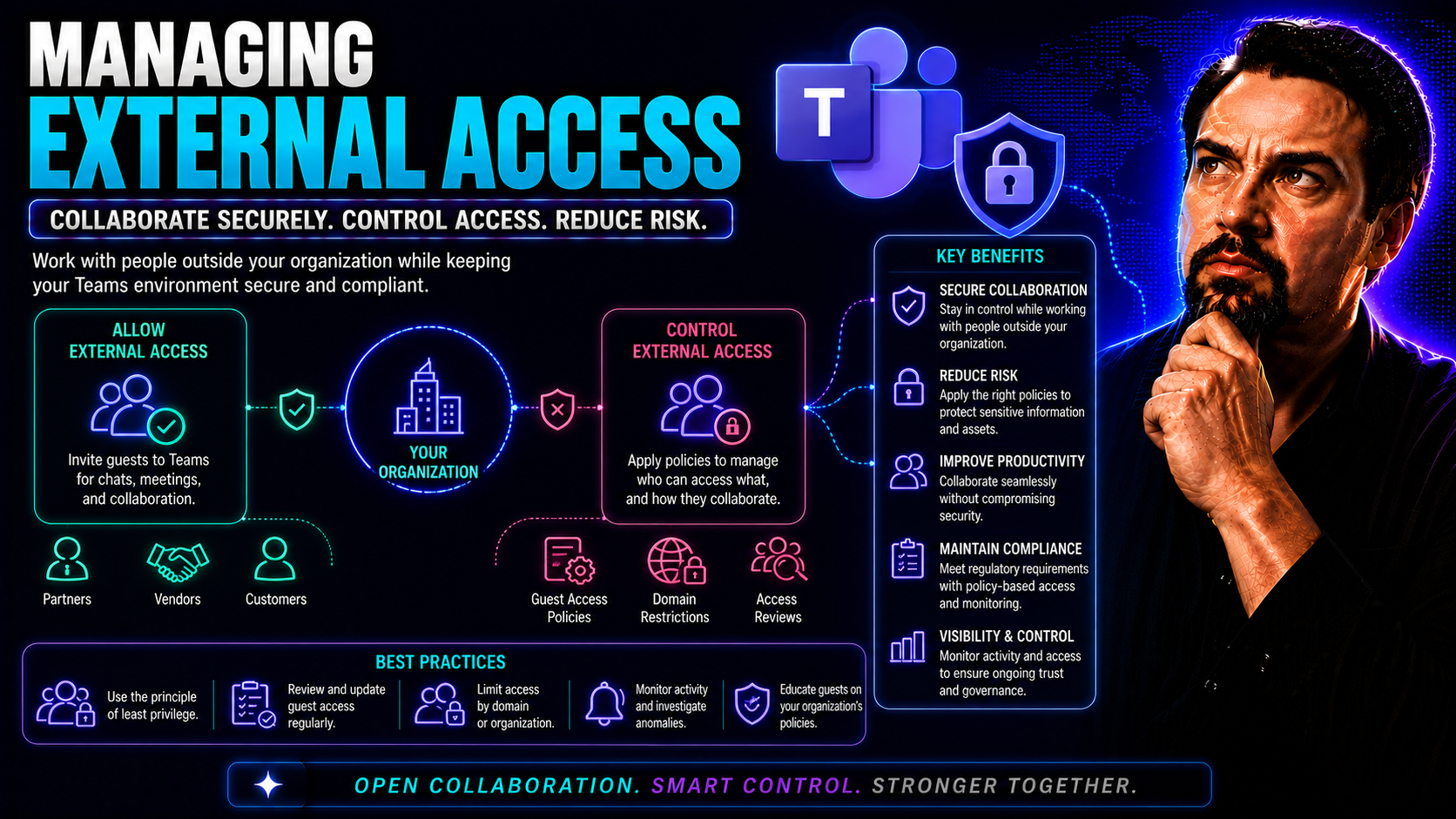
Managing external access isn’t just another box to check—it’s a foundational part of secure, efficient collaboration in today’s world of Microsoft Teams and SharePoint. You want to empower your teams, welcome in outside partners, and keep projects moving; but you also face a minefield of risks if that access isn’t handled right.
In this guide, we break down exactly who external users are, how their access differs, and the unique security concerns they bring with them. We'll cover practical strategies for setting up permissions, automated workflows for onboarding and offboarding, and how to keep everything compliant and auditable. You’ll also get some real-world scenarios (like vendor portals), best practice checklists, and an overview of the modern tools Microsoft 365 offers for staying ahead of threats.
If you’ve ever worried about who’s lurking in your Teams, or scratched your head over tangled access policies, you’re in the right place. Let’s get smart about external collaboration—balancing productivity with security, so your organization can work faster and sleep easier at night.
Understanding External Users and Why Secure Access Matters
External users are the folks who don’t belong to your organization’s main Microsoft 365 tenant—think vendors, business partners, contractors, or even auditors. Unlike your internal staff with company credentials, these users typically have separate accounts, work for another company, or represent a third-party agency with specific, targeted access needs.
Now, inviting external users into platforms like Microsoft Teams or SharePoint makes cross-company collaboration a breeze. You can share files, chat, and co-author documents without endless email chains. But every new handshake outside the company firewalls comes with its own set of head-scratchers—like how do you ensure only the right people see your sensitive files, or that accounts don’t linger long after a project wraps up?
What makes this interesting—and honestly tricky—is that external users aren’t all cut from the same cloth. You might be welcoming a procurement contractor for just two weeks, a key client for months, or an auditor who should only peek at finance docs. Each relationship brings different expectations, security trade-offs, and compliance headaches.
This is why secure external access deserves its own playbook. The stakes are high: data leaks, compliance violations, dormant accounts that hackers love, and the ever-present risk of “anonymous” sharing gone bad. If you’re serious about responsible Teams governance, a clear external access strategy is non-negotiable. Next, we’ll dig into the different external user types—and spell out what can go wrong when access gets out of hand.
Business Roles of External Users: Vendors, Partners, and More
- Vendors and Suppliers: Often need temporary access to project files, procurement documents, or status updates during specific business engagements.
- Contractors and Freelancers: Require permissions similar to employees, but usually for limited projects, creating unique challenges for onboarding and offboarding.
- Business Partners and Clients: Collaborate on joint ventures or client deliverables, needing access to shared workspaces and communication channels.
- Regulatory Bodies and Auditors: Granted highly controlled access to compliance data, audits, and sensitive reports, often with strict expiration and oversight.
Risks of Unmanaged External Access: Sensitive Files and Dormant Accounts
- Exposure of Sensitive Files: Giving broad access to external users without granular controls can lead to confidential data—like client contracts or financial records—being accessed or downloaded by unauthorized people, either intentionally or in error.
- Dormant or Inactive Accounts: Forgetting to promptly disable or offboard external accounts when projects end creates a security blind spot, making it easy for ex-contractors or third parties to slip in undetected and access business-critical information.
- Compliance and Audit Failures: Poor management of external users can result in violations of standards like GDPR, HIPAA, or industry regulations, raising the risk of costly fines and reputational damage during formal audits.
External Access Models in Microsoft 365: Comparing Accounts and Permissions
Microsoft 365 offers several ways to let external users into your digital living room—and not all doors are built the same. Before you decide whether to hand them a guest key, set up a full user account, or build a more intricate setup like GDAP (Granular Delegated Admin Privileges), you need to know your options and what each brings to the table.
Each external access model comes with its pros and cons. Guest accounts offer easy collaboration but can create confusion around permission boundaries and account management. Full user accounts provide cleaner integration and better audit trails, but they’re often overkill for a quick vendor meeting or a one-off RFI. Then there’s GDAP, which allows for surgical assignment of admin rights, making it ideal for partners who help manage your Microsoft 365 environment.
Federated access and Bring Your Own Identity (BYOID) models have changed the game by letting external users sign in with credentials from their own organizations. This not only streamlines onboarding but also gives you the power to enforce your own security policies and track activity. If you’re wrestling with channel choices, check out tips for shared vs. private channels in this in-depth Teams channels decision guide.
Choosing the right mix for each scenario means weighing security, convenience, and the real needs of your collaborators. Keep reading for a direct comparison of these models, so you don’t have to guess which is best for your external users.
Guest Accounts vs User Accounts vs GDAP: What’s Right for Your Organization?
- Guest Accounts: Simple and quick to set up, these give external users access to Teams or SharePoint with limited permissions. However, they’re often targets for misconfiguration, so enforcing policies and lifecycle reviews is essential. Learn about strengthening guest access in this Teams security best practices episode.
- User Accounts: Assigning full user accounts (with licenses) gives contractors or partners a similar experience to employees. This is great for long-term or high-integrity collaborations but requires careful license management and close tracking.
- GDAP (Granular Delegated Admin Privileges): Perfect for trusted partners who help manage your tenant. GDAP lets you assign highly specific admin rights—avoiding the all-or-nothing pitfall of traditional delegated admin roles. This model reduces your risk surface without killing productivity.
Federated Access and Bring Your Own Identity: Balancing Security and Convenience
- Federated Access: Allows partners and vendors to use their own corporate credentials—making onboarding fast, reducing password headaches, and avoiding duplicate accounts. Security is boosted, but you need strong monitoring and clear boundaries on what an external identity can access.
- Bring Your Own Identity (BYOID): Lets users—sometimes even individuals—leverage identities from widely trusted providers. This is handy for speeding up external sharing, but enforcing device compliance and MFA policies across identity providers requires careful configuration.
- Ideal Scenarios: Best when you have ongoing collaboration with partner organizations or need to streamline guest onboarding for larger groups, while maintaining your own compliance and reporting standards.
Securing External Access: Best Practices and Safety Checklist
Once you've chosen how to bring outsiders into the mix, the next order of business is keeping everything safe—without grinding collaboration to a halt. Securing external access means looking beyond default settings and setting up layers of defense that match your organization's risk tolerance and compliance needs.
In this section, we'll tee up a practical checklist to keep your guardrails strong—from granular permission settings to device compliance rules and Multi-Factor Authentication (MFA). These steps not only protect sensitive files but also guard against stale or abandoned accounts that can go unnoticed for months.
Implementing least privilege, keeping a sharp eye on who can access what, and reviewing permissions regularly all play big roles in this story. Carefully considered controls help ensure that contractors, vendors, or auditors only see what they need—no more, no less. For more on securing Teams environments, see the in-depth recommendations laid out in this Teams security podcast summary.
Next, we'll walk through specifics—from the safety checklist itself to ways you can automate reviews and minimize your weakest points, so you’re ready if the auditors (or the hackers) come knocking.
Checklist for Securing External Users: Permissions, Devices, and More
- Review Permission Levels: Audit every external user's permissions to ensure they have only the access required for their specific tasks—nothing more. Clean up excessive sharing and prevent oversharing by using Teams and SharePoint access reports.
- Enforce Device Compliance: Require that external users only access your environment from devices that meet your security standards, using Conditional Access and device compliance policies within Microsoft Entra (Azure AD).
- Enforce Multi-Factor Authentication (MFA): Turn on MFA by default for all external accounts. This adds a critical layer of defense against compromised credentials, which are a common attack vector for guests and partners.
- Schedule Regular Access Reviews: Set periodic reviews to automatically prompt data owners and IT to validate or revoke external access—especially after projects end or vendor agreements expire.
- Establish and Communicate Secure Access Policies: Make sure everyone—internal and external—understands the rules for handling sensitive data, external sharing, and the responsibilities involved in protecting information.
Enforcing Least Privilege: Monitoring and Access Controls
- Apply Principle of Least Privilege: Only grant the lowest level of access necessary for each external user’s role, and avoid blanket permissions wherever possible.
- Monitor External Access Continuously: Use Teams and SharePoint built-in reporting, audit logs, and real-time alerts to watch for suspicious activity or unauthorized data downloads.
- Use Regular Permission Audits: Run permission checks routinely, correcting any drift towards excessive or outdated access.
- For more on governance and how strong frameworks turn chaos into confident collaboration, explore this guide on Teams governance.
Automating External User Management: Workflows and SCIM Integration
The more external users you have floating around, the bigger the challenge to manage their lifecycle without getting lost in spreadsheets or email approvals. Automation is the secret sauce for reducing errors, closing security holes, and making external onboarding and offboarding as smooth as possible.
With workflow automations, you can set up structured approval processes for inviting external users, automatically assign or remove access, and document every action for audit purposes. This not only speeds up collaboration but also keeps you from missing crucial offboarding steps when contracts end or partners move on.
SCIM (System for Cross-domain Identity Management) takes things up a notch by instantly syncing external accounts and permissions across different apps and directories—often with less manual effort and better accuracy than traditional provisioning methods. If you’re looking to scale up and keep your Microsoft 365 tenant tidy, automated management is the way to go.
For more examples of how automation can tame the wild world of Microsoft Teams governance, check out this play-by-play on automated Teams lifecycle governance.
How to Automate Onboarding and Offboarding Workflows for External Users
- Approval Workflows: Use platforms like Power Automate to initiate onboarding requests from business users, route approvals automatically, and trigger access provisioning once approved—no manual chasing needed.
- Automated Triggers: Tie account creation and removal to project or contract milestones, so when work ends or a deadline passes, external access is automatically disabled and data is archived or moved as needed.
- Automation here keeps your environment clean, compliant, and safe, with less room for human error. See practical governance automation in action in this Teams lifecycle automation story.
Unlocking SCIM for Easy Provisioning of External Users
SCIM (System for Cross-domain Identity Management) is a standard protocol that makes syncing user identities and permissions across different cloud apps fast and reliable. In practical terms, this means organizations can automatically provision, update, or deprovision external users in Microsoft 365 and connected apps—without manual processes bogging things down.
SCIM reduces admin workload, supports ongoing compliance by keeping account data up-to-date, and ensures that external access is always accurate and timely. For fast-growing organizations, unlocking SCIM in your workflows is a major step toward smooth, scalable external user management.
Monitoring, Auditing, and Compliance for External Access
All the automation and security policies in the world won’t mean much without visibility into who’s actually doing what in your Microsoft Teams and SharePoint environments. That’s why ongoing monitoring, auditing, and compliance reviews are essential—not just to catch threats, but to satisfy regulatory bodies and keep your leadership feeling confident.
Whether you’re tracking external sign-ins, analyzing document access, or prepping for a surprise audit, having the right tools and procedures in place is half the battle. Modern Microsoft 365 and Entra tools let you look under the hood: monitor external users in real time, set up alerts for unusual activity, and run reports on data sharing or downloads.
But while logs and dashboards are crucial, compliance is just as much about process as it is about tooling. You need to be able to document your diligence, show a clear record of approvals, access reviews, and respond quickly if regulators come knocking. We’ll walk through how all of this comes together so your external access story stands up to scrutiny—and no skeletons (or stale accounts) are left in the closet.
Ready? Let’s break down how to track, monitor, and audit your external user landscape—before someone else beats you to it.
How to Track and Monitor External User Activity in Microsoft Teams
- Real-Time Sign-In Monitoring: Use Microsoft 365 and Entra audit logs to track when and where external users sign in—flagging anomalies such as sign-ins from unexpected locations or at odd hours.
- File and Sharing Audits: Leverage document-level tracking to see which files are accessed, downloaded, or shared externally, helping to spot potential leaks before they escalate.
- Alert-Based Exception Handling: Set up policies that trigger alerts on suspicious actions—like mass downloads or unauthorized data sharing—so you can act quickly and keep data visibility high.
Conducting Compliance Audits for External Access
- Prepare Documentation: Maintain a log of all external users, their assigned permissions, and approval trails to provide evidence for auditors or regulatory bodies reviewing your controls.
- Review Access Regularly: Collaborate with managers, business owners, and IT to periodically review and document each external user’s necessity and scope—revoking unneeded access promptly.
- Remediate Gaps: Document any findings—such as dormant accounts or excessive permissions—and prove that corrective actions were taken to satisfy standards like HIPAA, GDPR, or industry best practices.
Microsoft Power Pages and Vendor Portals for Smarter External User Access
Bringing in vendors, suppliers, or other partners doesn’t mean you have to cobble together awkward email chains, clunky shared drives, or one-off Teams invites. Enter Microsoft Power Pages—a modern, low-code platform for building secure, customizable portals that streamline external access and keep your compliance team happy.
Power Pages gives you the ability to share files, facilitate RFIs (Requests for Information), and coordinate procurement directly with third parties, without exposing the rest of your digital house to unnecessary risk. Built-in authentication and permissions controls let you decide exactly who can see or do what, while making onboarding and navigation smooth for outside users.
What’s great is, Power Pages isn’t just another IT project. With governance baked right in, business users can launch portals rapidly while keeping everything under centralized administrative control. This means less friction, fewer support calls, and faster business outcomes, all while maintaining rock-solid compliance and auditability for every external engagement.
Stick around as we break down how Power Pages enables secure collaboration—and check out a real-world vendor portal scenario to see it in action.
What Is Microsoft Power Pages and How Does It Secure External Access?
Microsoft Power Pages is a low-code platform that allows organizations to build secure, branded web portals for external users—such as vendors, partners, or clients. With out-of-the-box authentication and user management capabilities, you can control every aspect of external access, including permissions and data visibility, right from a simple admin interface.
Power Pages accelerates portal projects, reduces IT overhead, and provides regulatory-grade compliance controls—making it a top choice for organizations needing external collaboration without sacrificing security or governance standards.
Vendor Portals for Procurement and RFI: Real-World Spotlight
- Centralized RFI Management: Companies use Power Pages to collect bids, RFIs, and confidential documentation from suppliers in a controlled, secure workspace—no more juggling insecure email attachments or public links.
- Vendor Onboarding and Offboarding: Automated welcome flows and offboarding notifications minimize confusion for suppliers and keep your environment compliant, even during staff turnover or contract changes.
- Secure File Exchange: Sensitive procurement documents and contracts are securely uploaded and downloaded via granular permissions—giving vendors access only to what they need, and nothing more.
Key Takeaways and Frequently Asked Questions on Managing External Access
If you’ve made it this far, you know that managing external access in Microsoft Teams and SharePoint is as much about strategy and governance as it is about technical controls. A well-designed external access approach balances open collaboration with the practicalities of risk, compliance, and operational scale.
This final section gives you the essentials: a quick-hit summary of best practices, followed by answers to questions that admins face every week. From licensing external users to handling messy access scenarios or smoothing out the user journey, we’ll clear up the fog and help you apply all you’ve learned.
Whether you’re rolling out your first vendor portal or fighting “sprawl” after years of Teams growth, these takeaways will help you shortcut common pitfalls and focus on the actions that really matter. Consider this your cheat sheet for making confident decisions about external collaboration management.
And if there’s a question rattling in your mind, there’s a good chance we’ve already answered it in the FAQ right below.
TL;DR: Top Tips for Managing External User Access
- Always review and limit permissions—less is more when it comes to external accounts.
- Automate onboarding and offboarding to avoid missed accounts and reduce admin workload.
- Prioritize least privilege so vendors and partners don’t see more than they need.
- Enforce device compliance and MFA for all guests and external users—no exceptions.
- Leverage low-code vendor portals like Microsoft Power Pages for secure, compliant collaboration.
Frequently Asked Questions: Licensing, Complex Access, and User Experience
- Do external users need Office 365 licenses? Most guest users in Teams and SharePoint do not require paid Microsoft 365 licenses; however, full user accounts, especially for long-term contractors or partners, often do. Review your licensing requirements to avoid overspending or compliance issues.
- How do you handle complex access needs for vendors with multiple roles? Assign unique accounts for each business role whenever possible, leverage permission groups, and implement approval workflows for any changes or new access requests. For high-stakes scenarios, consider GDAP for granular admin privileges.
- What’s the best automation for managing external user lifecycle? Use workflow tools like Power Automate to oversee onboarding, offboarding, and periodic access reviews. Pair automation with SCIM for seamless account provisioning and real-time updates across connected applications.
- How can you improve the user experience for external collaborators? Design clear welcome flows, provide concise access instructions, and offer self-service support features (like password resets and help guides) to minimize confusion and helpdesk requests. Smooth, well-communicated processes boost adoption and security alike.
- Who should own external access management? Ideally, IT manages technical controls, but business units and data owners should be accountable for reviewing, approving, and overseeing external collaborations. A clear governance framework helps maintain accountability and ensure compliance.
You Should Also Listen To
If you are researching Microsoft Teams external access, these episodes add useful context on the architecture, governance, operations, and security decisions behind the topic:
- Azure Virtual Network – Simply Explained — Learn which network architecture and connectivity choices influence Teams quality and performance.
- Microsoft Teams Governance – The Illusion of Control — Use governance and ownership models to turn performance data into repeatable operational improvements.
- Teams Telephony – Simply Explained — Understand the calling metrics and architecture behind reliable Teams voice performance.
- Microsoft Defender XDR – Simply Explained — See how security monitoring complements Teams health and operational monitoring.

Microsoft MVP | Host of M365.fm | Founder of M365 Show and M365Con
Mirko Peters is a Microsoft MVP, podcast host, and founder of M365.fm, M365 Show, and M365Con. His work connects Microsoft practitioners through podcast interviews, livestreams, and community events.
At M365.fm, Mirko hosts conversations with Microsoft MVPs, product experts, architects, and community contributors. Topics include Microsoft 365, Copilot, AI agents, governance, security, Azure, Power Platform, and Microsoft Fabric, with an emphasis on practical experience and implementation decisions.
M365.fm is the podcast and learning platform. M365 Show brings experts together for livestreams, while M365Con provides an online conference setting for community learning.
Official website: Mirko Peters (https://www.mirkopeters.com/). Recognition: Mirko Peters — Microsoft MVP profile (https://mvp.microsoft.com/de-DE/mvp/profile/9b0ca797-db5a-493a-a845-8b9158046cf5). Connect on LinkedIn (https://www.linkedin.com/in/m365showpodcast/).





