
Microsoft 365 Guest Access: Secure Collaboration Guide
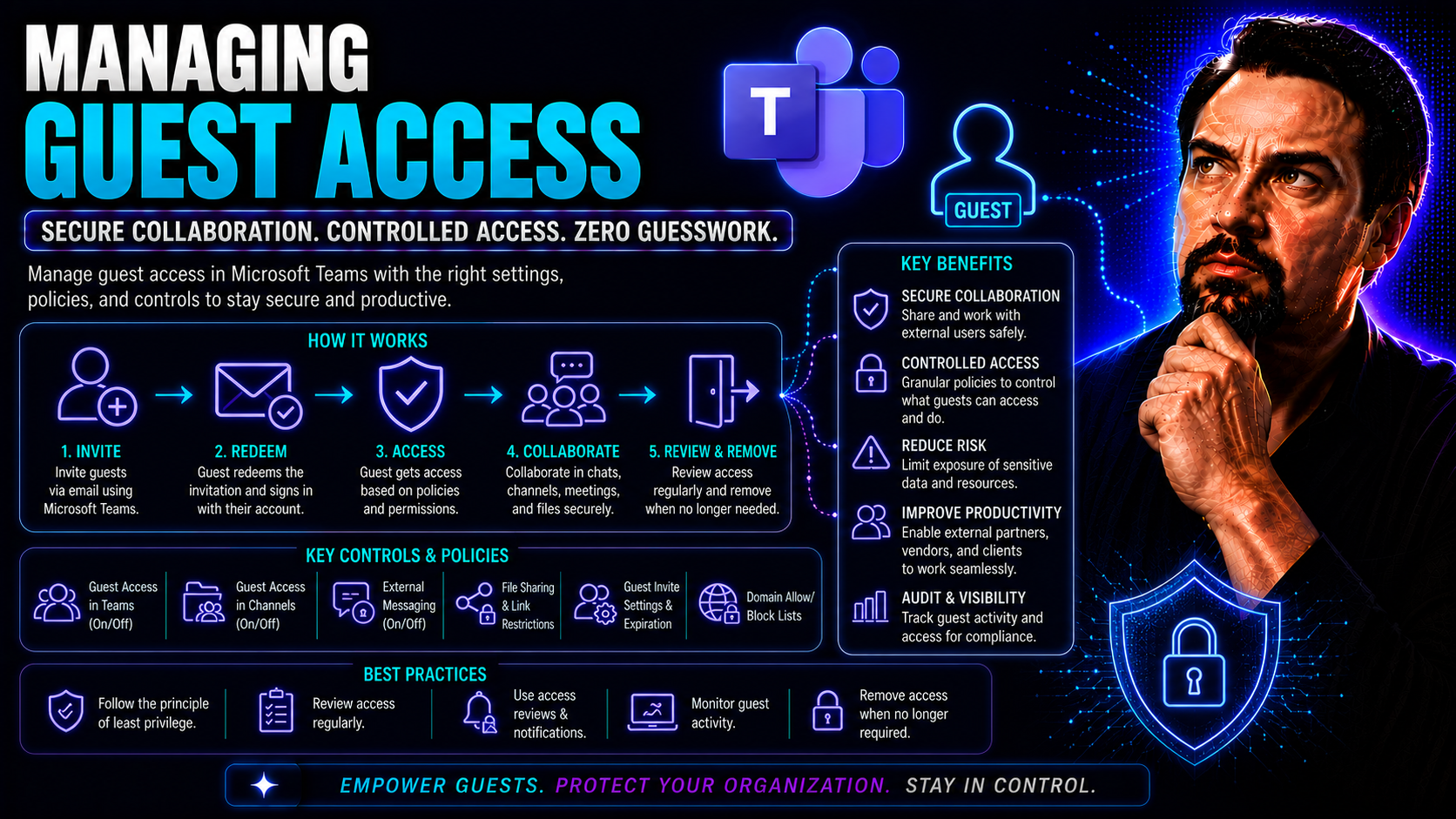
Let’s not sugarcoat it: guest access in Microsoft 365 is a blessing and a potential headache rolled into one. On the one hand, it lets you bring in clients, vendors, and partners right where the work happens in Teams and SharePoint. On the other, it’s a security and compliance minefield if you skip the technical nitty-gritty. Getting it right means juggling collaboration, data protection, and a healthy chunk of automation to keep your IT folks sane.
This guide covers exactly how to set up, govern, and secure guest access in Microsoft 365. You’ll get step-by-step walkthroughs on policy setup, risk reduction, compliance, lifecycle management, and workflow automation—without all the guesswork. Expect plenty of detail, a strong focus on Teams and SharePoint governance, and most importantly, practical advice for running a secure, efficient guest access environment from start to finish.
Microsoft 365 Guest Access Setup and Configuration Essentials
Before anyone’s working happily with your files or pinging you in chat, you have to establish who can join the party—and on what terms. Microsoft 365 is made up of moving parts: you’ve got Entra ID at the core, with Teams and SharePoint sitting on top, each stacking on their own access rules and sharing options.
Why sweat the first steps? Because your initial choices on external collaboration send ripples through your organization’s long-term security. Open the doors too wide, and you’re picking up the pieces after a data leak. Lock things down with no plan, and you’ll have frustrated users side-stepping your processes.
In this section, you’ll get a high-level map of the main components, what their roles are, and why your policies in Entra ID, Teams, and SharePoint need to harmonize right from the start. This sets the baseline for the deep dives to follow—where we’ll cover exactly how to define, configure, and govern guest user experiences with as little risk (and hassle) as possible.
Microsoft Entra Configure: Defining and Controlling Guest Users
- Understand What Counts as a Guest in Entra ID
- In Microsoft Entra (Azure AD), a “guest” is any external identity invited into your tenant—vendors, external partners, or personal emails. Each guest sits in your directory but with fewer permissions, unless you change the defaults.
- Set External Collaboration Policies
- In the Entra ID admin center, open “External Identities.” Define who can invite guests (everyone, admins only, or a custom group). Adjust policies on collaboration restrictions, guest account access, and default permissions to fit your risk profile.
- Configure Guest User Permissions
- Control what guests can see and do. Decide if guests inherit the “Guest inviter” role. Use “External collaboration settings” to block guests from seeing group memberships, directories, or using app registrations.
- Monitor Guest Creation and Activity
- Use Entra ID audit logs and sign-in logs to track who’s inviting guests and what those guests are accessing. Automated alerts can notify you of suspicious sign-ins or policy violations.
- Enforce Minimum Standards for Identity
- Require guests to register with MFA or only allow federated partners using strong authentication. Tighten access based on domain, device compliance, or other risk signals for extra protection.
Microsoft 365 Guest Access Governance: Enabling Secure Collaboration
- Establish a Governance Policy for Guest Access
- Document who is responsible for inviting guests, approving access, and managing guest permissions. Make sure all business units understand and follow these rules—consistency is your friend here.
- Balance Collaboration With Restrictions
- Allow guests where collaboration is needed (like specific Teams or SharePoint sites) but block access by default elsewhere. Use access reviews and approval workflows to reduce unnecessary exposure.
- Apply Data and Compliance Controls
- Deploy information protection policies and monitor for oversharing or sensitive data leaks. Enable DLP and sensitivity labels on critical resources, making sure guests don’t end up with more access than necessary.
- Automate Guest Lifecycle Management
- Use approval and expiration policies to minimize standing guest access. Automate reminders for resource owners to review and remove outdated guest accounts, maximizing both compliance and efficiency.
- Educate Workspace Owners and Stakeholders
- Train Team and SharePoint owners to manage their guest access responsibly. Help them avoid accidental oversharing by setting clear expectations and showing them where to check current guest lists. For more, see how Microsoft Teams Governance can keep your collaboration secure and accountable.
Security and Risk Mitigation for Microsoft 365 Guest Users
Opening your Microsoft 365 environment to guests brings a host of new risks. You’re not just giving external users a seat at the table—you’re handing them keys that, if mishandled, could unlock sensitive stuff you’d rather keep private.
Most of the trouble comes from weak authentication, oversharing, and missed details in configuration. A slip in any of these can result in accidental data exposure or more serious breaches—often without folks realizing until it’s too late.
This section lays out the most common security pitfalls, then shows you how to fight back with technical solutions like multi-factor authentication and access policies. You’ll walk away with strategies to patch the usual gaps, so your guest collaboration stays productive without keeping you up at night.
M365 Guest Risks and Common Mistakes to Avoid
- Weak Authentication
- Allowing guests without requiring multi-factor authentication (MFA) is a common mistake. It leaves the door open for compromised or reused passwords to cause problems, since many guests use external or less-secure email accounts.
- Oversharing of Resources
- It’s easy for users or site owners to share entire Teams, site libraries, or folders with guests who don’t need that much access. Many breaches happen by way of “share with all” links that anyone can forward, especially if link expiration isn’t enabled.
- Configuration Errors
- Default tenant settings are often too permissive. For example, enabling “Anyone with the link” sharing in SharePoint or not setting expiration on guest access can result in sensitive documents getting out into the wild unintentionally.
- Failure to Monitor Guest Accounts
- Over time, organizations forget to clean up dormant or unused guest accounts. These “ghost” accounts can become targets for attackers if not properly removed when the business relationship ends.
- Inadequate Owner Training
- Not teaching team and site owners about their responsibility for managing guest access means they might grant permissions without realizing the associated risks or review guest memberships regularly.
Impose Multi-Factor Authentication for Microsoft 365 Guests
- Enforce MFA via Conditional Access
- Use Microsoft Entra (Azure AD) Conditional Access policies to require MFA for all guest users before they access company data. This is your first defense against compromised accounts or weak passwords.
- Onboard Guests With Clear Instructions
- Provide guests with clear, step-by-step instructions for registering a second verification factor (like phone or authenticator app). Good communication speeds adoption and helps avoid user confusion.
- Monitor MFA Coverage
- Regularly review the status of MFA for all guests. Use Entra ID reports to spot accounts not complying with your MFA requirement and take prompt action to enforce it.
Using Access Conditional Policies to Strengthen Guest Security
- Apply Location and Device-Based Restrictions
- In the Microsoft Entra admin center, set conditional access rules so guests can only connect from certain countries or require compliant devices. Block risky sign-ins from unexpected locations or unmanaged hardware.
- Use Risk-Based Conditional Access
- Take advantage of Microsoft’s Identity Protection capabilities to trigger access challenges or block access for guest users when suspicious activity (like leaked credentials) is detected. Risk policies help catch compromised accounts before they do damage.
- Require MFA and Block Legacy Authentication
- Ensure legacy authentication methods—often bypassing MFA—are blocked for guests. Only permit modern, secure sign-ins by defining your access rules tightly in Conditional Access.
- Scope Access by Resource Type
- Restrict guests from accessing certain apps, files, or Teams except where explicitly allowed. Set up policy exceptions for sensitive projects or business units, especially in environments with regulatory requirements.
- Audit and Test Your Access Policies
- Regularly test your conditional access policies to make sure they actually enforce intended restrictions. Audit logs and security reviews help you catch loopholes and address gaps before they become real issues. To learn about layered hardening and data leak prevention in Teams, see the Microsoft Teams Security Hardening Best Practices discussion.
Governance and Lifecycle Management for Guest Accounts
Guest access management isn’t a “set it and forget it” situation. Even the best technical setup needs regular reviews, automation, and clean-up to stay secure over time. That’s because guests come and go—vendors, partners, project consultants—they don’t all stick around forever (and you sure don’t want them having access after they leave).
Savvy IT teams use lifecycle management to make compliance easier and risks lower. Automating provisioning, expiring access when it’s no longer needed, and doing regular access reviews help keep your environment healthy without piles of manual work.
In the next sections, you’ll see how to use entitlement management and scheduled reviews to stay in control of guest access from start to finish—without turning your administrators into babysitters or letting “ghost” accounts pile up on your tenant.
Implement Entitlement Management and Guest Expiration Policies
- Set Up Access Packages With Approval Workflows
- In Microsoft Entra’s Entitlement Management, create “access packages” that group together the resources guests need, like sites, Teams, or apps. Require business justifications, manager approval, or sponsor sign-off before guests are granted access.
- Configure Guest Expiration Policies
- Define time-bound access so guest permissions expire automatically after a set period (for example, 30 or 90 days). This helps prevent forgotten or lingering guest accounts—not every vendor or consultant needs permanent access.
- Automate Notifications for Expiring Access
- Set up notification emails or Teams messages to both guests and resource owners before access expires. This lets folks renew access if needed or take no action and have that access end by default—less risk, less fuss.
- Provision Only What’s Needed
- Use entitlement management to ensure guests only receive permissions for what they’re actively working on. Granular access assignment keeps your sensitive data covered.
- Centralize Guest Onboarding and Tracking
- Entitlement management gives you a birds-eye view of all external users, making it easier to report on access for audits or prove compliance in regulated industries.
Guest Inactive Users: Identifying and Removing Dormant Guest Accounts
- Regularly Review Guest Sign-In Activity
- Use Entra ID logs or Azure AD workbooks to spot guests who haven’t signed in for a defined period (e.g., 30, 60, or 90 days). Inactive accounts are the low-hanging fruit for risk reduction—they serve no current business purpose.
- Automate Cleanup With PowerShell or Graph API
- Run scripts that identify and disable or remove inactive guest accounts on a scheduled basis. Automation ensures no forgotten guest left lurking after a project wraps up or vendor relationship ends.
- Revalidate Ownership Before Removal
- Before you remove a guest, confirm with data or Team owners that their access is no longer required. Alert owners when their guests are flagged for cleanup and let them retain access if the relationship is ongoing.
- Remove or Restrict Access Immediately When Needed
- If a guest is found to be a risk (or leaves unexpectedly), don’t wait for scheduled cleanup. Remove their permissions from all Teams, sites, and apps right away to minimize exposure.
- Document and Report Guest Account Removals
- Maintain records of account removals for audit and compliance reasons. Reporting on dormant guest cleanup helps you demonstrate active management to stakeholders or regulators.
Schedule Regular Access Reviews for Guests
- Use Microsoft Entra Access Reviews
- Set up recurring reviews of guest user access—monthly, quarterly, or whatever fits your business needs. Automate reminders for resource owners to review the guests under their control and certify who still needs access.
- Involve Application and Data Owners
- Access reviews aren’t just IT’s job—loop in business, project, and site owners. They’ll know best whether a guest’s access aligns with ongoing projects or whether it’s time to hit “remove.”
- Automate Notifications and Decision Tracking
- Configure your system to nudge owners when it’s time to act. Every reviewed decision (keep/remove) should be logged automatically, keeping an audit trail for compliance and accountability.
- Align Reviews With Compliance Needs
- Build your review schedule around specific compliance or industry requirements (GDPR, HIPAA, etc.), ensuring your organization is always ready to demonstrate control over external user access.
- Revoke Access if No Action Taken
- Use auto-removal as a failsafe—if the owner doesn’t respond to the access review, guests naturally lose their permissions. This “better safe than sorry” approach keeps you in compliance and secure by default.
Secure External Sharing in SharePoint and OneDrive
SharePoint and OneDrive are the workhorses of Microsoft 365 file collaboration, but they’re also two of the easiest places for data to accidentally leak out to external eyes. The trick is setting up sharing policies that let your team collaborate with outside parties without turning your sensitive content into a public free-for-all.
This section breaks down how to set up your sharing rules at both the tenant and site level, explain the importance of link types and expiration, and show you how to keep close tabs on what’s being shared. These technical guardrails help your files stay with the intended guests—no more, no less.
If you can get these foundation pieces nailed down, you’ll dramatically cut your exposure window and keep control of your company’s IP, contracts, or anything else that should stay behind closed doors.
SharePoint Sharing and OneDrive Settings to Restrict External Access
- Set Tenant-Wide Sharing Policies
- In the SharePoint admin center, determine your default sharing level. Choose from "Anyone," "New and existing guests," or "Only people in your organization." For most businesses, “New and existing guests” provides a strong balance—blocking anonymous links but supporting collaboration.
- Restrict Anonymous and “Anyone” Links
- Disable “Anyone with the link” sharing unless absolutely necessary. If you need to allow it for business reasons, limit it to specific sites or set up alerts so you spot accidental usage.
- Apply Link Expiration and Permissions Controls
- Require that all shared links (especially external) expire after a certain number of days. Control what type of links users can create—view only, edit, or upload—to avoid accidental damage or data loss.
- Enforce Approval and Review for External Sharing
- Enable notifications or approval flows when files or folders are shared externally. Some organizations require manager or site owner approval before content leaves their environment.
- Use Sensitivity Labels for Additional Data Control
- Apply Microsoft Purview sensitivity labels to automatically restrict or limit external sharing for highly sensitive files and folders.
Control Guests’ Access to Files and Folders
- View-Only Permissions: Limit guests to view-only mode so they can read, but not edit, your important documents.
- Prevent Download: Use modern SharePoint sharing to stop guests from downloading certain files, keeping sensitive documents in the cloud where they belong.
- Scoped (Granular) Access: Grant guest access on a need-to-know basis—specific folders or libraries only—not to entire sites or drives.
- Block Sharing by Guests: Prevent guests from re-sharing your content to others, controlling how far your files can spread.
Advanced Governance and Compliance for Guest Access
For organizations with strict rules, regulatory requirements, or just a lot of moving parts, the basics aren’t enough. You need to go a step further: building advanced data protection, automated reporting, and compliance structures that can easily prove “who had access to what and when.”
That’s where features like sensitivity labels, advanced DLP, and unified reporting dashboards step in. These tools help you manage risk, prevent leaks of confidential info, and keep auditors happy—all while supporting fast-paced collaboration.
In this section, you’ll see how to arm your environment with powerful controls beyond default settings, track external access across workspaces, and empower owners to become champions for safe, responsible guest collaboration.
Sensitivity Labels Strengthen Data Prevention (DLP) for Guests
- Apply Sensitivity Labels to Classify Data
- Use Microsoft Purview sensitivity labels to tag files and emails according to their confidentiality—like “Company Confidential” or “Internal Use Only.” Labels travel with the data, no matter where it’s stored or shared.
- Enforce Access and Sharing Controls via Labels
- Configure labels to automatically block external sharing, require encryption, or restrict downloads for highly sensitive files. This ensures guests can only access what’s approved for their eyes.
- Implement DLP Policies for Guest Scenarios
- Data Loss Prevention (DLP) policies scan for sensitive information (like credit card numbers) in documents shared with guests, blocking or alerting on policy violations to reduce your compliance risk.
- Monitor and Alert on Sensitive Data Access
- Set up real-time alerts whenever guests interact with labeled or regulated data. This allows your security team to spot and stop data leaks before they become incidents.
- Integrate Labels With Advanced Data Privacy Controls
- Combine sensitivity labeling with privacy-by-design tools like Microsoft Copilot for layered protection. For example, explore how Copilot’s privacy guardrails help organizations maintain strict data compliance throughout Microsoft 365.
Improve Limited Visibility of Guest Access Across Workspaces
- Centralized Guest Reporting: Use Entra ID and Microsoft 365 audit logs to get a complete list of all guests, where they’re active, and what they can access.
- Automated Access Reviews: Schedule regular access reviews across Teams and SharePoint to ensure no access is lingering past its useful life.
- Third-Party Reporting Tools: Consider external solutions for deeper visibility, especially in large, complex environments.
- Educate on Workspace Governance: Proper Teams Governance ensures you can trace guest permissions efficiently.
Educate Owners and Enforce Responsible Guest Collaboration
- Train Owners on Guest Management Responsibilities
- Teach Team and SharePoint site owners how to invite guests responsibly, review existing guest access regularly, and spot oversharing risks.
- Communicate Collaboration Policy Clearly
- Make sure all resource owners know your policies around guest invitations, data sharing, and handling sensitive information—avoid confusion before it starts.
- Enforce Accountability With Auditing
- Enable audit logs so you can track owner actions related to guest permissions. Review these regularly to catch bad habits before they turn into bigger issues.
- Reward and Recognize Good Ownership
- Celebrate teams and owners who consistently manage collaboration well—it encourages others to follow best practices and avoid careless mistakes.
Managing Guest Access in Microsoft Teams: Configuration and Controls
Guest access in Microsoft Teams adds a layer of complexity—because it’s not just about letting folks in, but how you control what they can do inside your digital ‘living room.’ Managing permissions, channel access, and how Team and SharePoint rules intersect can mean the difference between easy external collaboration and “how did this person get in here?”
This section zeroes in on the technical setup for Teams, including how to allow, restrict, or block guests at the channel and team level. From onboarding to handling cross-tenant partners, you’ll see how to keep your workspace secure and under proper control.
These controls help you balance the need for outside collaboration with the reality that not every guest should be able to see (or do) everything. Stay tuned as we dive into the specifics of hands-on guest access management in Teams.
Teams Channels and Guests: Restricting Access in Admin Center
- Manage Guest Access at the Team Level
- In the Teams admin center, toggle guest access on or off for the entire org, then set specific controls for each Team. Restrict sensitive projects and only enable guest access where necessary.
- Restrict Access in Private and Shared Channels
- Private channels create separate spaces with their own SharePoint sites. Only invited team members—including specific guests—can see or interact with these channels. Shared channels let you collaborate with folks outside your tenant, but need extra permission tuning. For more clarity, this practical decision guide explains how and when to use each channel type for optimal privacy and security.
- Control Integration With SharePoint
- Teams and SharePoint permissions go hand in hand. Restrict site-level sharing if you don’t want guests to accidentally wander into sensitive document libraries linked to channels.
- Block Sensitive Teams from External Access
- Use labeling, Teams policies, or blocking rules to designate certain Teams as internal-only. This prevents accidental exposure by keeping guests out of regulated or confidential spaces.
- Monitor Guest Activity in Teams
- Set up auditing to spot when guests join, access files, or participate in new channels—giving you a heads up if anything looks off or out of place.
Inviting Guests and Managing Permissions in Teams
- Use Secure Invitation Workflows
- Invite guests through the Teams admin center or supported APIs, aligning invitations with your security requirements and approval rules. Automate invites where possible for consistency.
- Assign Explicit Permissions
- Limit guests to only the channels and resources they need. Don’t give guest-wide or default access to sensitive areas. Review existing permissions regularly to keep things tight.
- Automate Guest Lifecycle Management
- Set up policies for auto-expiration and schedule periodic access reviews—so guests don’t stick around longer than necessary.
- Guide New Guests With Clear Onboarding
- Share step-by-step guides or brief training based on your team’s practices. For more tactical guidance on organizing projects—including managing external participants—see the guide to organizing projects in Teams.
Cross-Tenant and Layered External Identity Management for Teams
- Enable B2B Direct Connect for Trusted Partners
- Use B2B Direct Connect (currently in preview) to let guests from partner organizations join your Teams without creating new accounts. This makes external collaboration more seamless and secure.
- Leverage External Identities Controls
- Define what guests from other Microsoft 365 tenants can do inside your Teams. This includes limiting access based on the user’s originating tenant policies and enforcing your own access and compliance rules.
- Review and Synchronize Access Regularly
- Use automated access reviews to keep permissions updated, ensuring that guests added by external partners are still relevant and authorized as projects evolve.
Automating Guest Access Provisioning and De-Provisioning With Power Automate
If your IT folks are drowning in manual requests and subtle mistakes, automation is your friend. Power Automate and Azure Logic Apps can cut down on repetitive processes, making sure guest accounts are provisioned—and de-provisioned—with consistency and auditability.
This section spotlights how to use workflow automation (with no-code or low-code tools like Power Automate) to handle the full guest lifecycle, from onboarding through access reviews to account removal. Going even deeper, platform pros can tie in triggers from Microsoft Graph API for real-time responses to user events.
You’ll get ideas for slashing manual work, buttoning up compliance requirements, and achieving a level of accuracy that’s tough for even the best admins to replicate by hand. For perspective on solving workspace sprawl and enforcing automated governance end-to-end, check out how Power Platform and Graph API help tame Teams sprawl.
Integrating Power Automate and Azure Logic Apps for Guest Lifecycle
- Automate Guest Invitations: Use flows to trigger guest invitations from Teams or SharePoint requests, applying business logic like manager approvals or access duration automatically.
- Set Up Scheduled Access Reviews: Design automated reminders and approval steps so account owners review and validate guest access every set period.
- De-Provision Inactive or Expired Guests: Build removal workflows that detect inactivity or approach guest expiration dates, then revoke access and notify resource owners.
- Integrate With Service Desk Solutions: Connect flows to ticketing systems for audit trails or escalations when manual intervention is required.
Event-Driven Guest Access Controls With Microsoft Graph API
- Monitor Guest Additions in Real Time: Use Graph API webhooks or logic apps to detect when new guests are added, instantly checking policy compliance or triggering approval alerts.
- Enforce Security Policies Programmatically: Write scripts or flows that apply specific access policies, restrictions, or DLP controls automatically when user status changes.
- Sync Guest Data Across Systems: Integrate guest information between Microsoft 365, your HR system, or external partner platforms for a single source of truth and better governance.
- Immediate Removal When Risk Is Detected: Automated responses can instantly remove or lock out guests based on risk signals, policy violations, or other real-time events from Microsoft 365.
Real-World Guest Access Management: Incidents, Best Practices, and When to Get Help
No matter how slick your technical setup is, stories from the trenches show why getting guest access management right is crucial. Real-world incidents, both big and small, often boil down to missed reviews, unclear responsibilities, or the classic “we’ll clean it up later” approach—until a breach makes the next move for you.
This section pairs a practical case study (anonymized, but all too real) with bite-sized best practices and tips for knowing when internal controls aren’t cutting it anymore. If your environment’s getting bigger, or compliance and security stakes are climbing, it helps to know when to tap outside tools or expertise before you’re the subject of a not-so-funny incident report.
If you want to keep your name off the “security fails” list, pay attention to the lessons learned—and don’t be shy about investing in the right solutions for more complex or highly regulated needs.
Story: Trusted Vendor, Rewind: Tech Corp—When Guest Access Goes Wrong
At Tech Corp, misplaced trust led to trouble. A vendor was invited as a guest for a temporary project, but nobody remembered to remove their access once the work wrapped up. Months later, the vendor’s compromised email account was used to access confidential files left open in SharePoint and Teams. Lack of access reviews, owner training, and automated expirations let this easy-to-prevent breach slip through the cracks. The lesson was clear: strong controls and ongoing review are non-negotiable.
Best Practices and Steps: Avoiding Mistakes in Guest Management
- Enforce MFA for Every Guest: Don’t let guests in without strong authentication.
- Automate Guest Expiration Policies: End access when the project ends, not three years later.
- Train Owners on Responsibilities: Make sure they know how to review and remove guest access.
- Document and Audit Regularly: Keep logs and conduct regular checks so nothing slips through.
- Use Internal and Automated Reporting Tools: Best defense against forgotten or accidental over-permission.
When to Get Help and What to Look for in Guest Access Solutions
- Recognize Your Limits: If you can’t keep up with manual reviews, it’s time for automation or a managed service.
- Prioritize Easy Integration: Pick tools that fit neatly into Teams, SharePoint, and Entra ID without duct tape and hope.
- Look for Robust Reporting Features: Visibility across all guests and external sharing is non-negotiable for compliance.
- Check Cost and Support: Balance features with realistic pricing and available support—especially for regulated industries.
- Seek Out Proven Track Records: Choose platforms or consultants who show real-world expertise and ongoing improvement.
You Should Also Listen To
If you are researching Microsoft 365 guest access, these episodes add useful context on the architecture, governance, operations, and security decisions behind the topic:
- Azure Virtual Network – Simply Explained — Learn which network architecture and connectivity choices influence Teams quality and performance.
- Microsoft Teams Governance – The Illusion of Control — Use governance and ownership models to turn performance data into repeatable operational improvements.
- Teams Telephony – Simply Explained — Understand the calling metrics and architecture behind reliable Teams voice performance.
- Microsoft Defender XDR – Simply Explained — See how security monitoring complements Teams health and operational monitoring.

Microsoft MVP | Host of M365.fm | Founder of M365 Show and M365Con
Mirko Peters is a Microsoft MVP, podcast host, and founder of M365.fm, M365 Show, and M365Con. His work connects Microsoft practitioners through podcast interviews, livestreams, and community events.
At M365.fm, Mirko hosts conversations with Microsoft MVPs, product experts, architects, and community contributors. Topics include Microsoft 365, Copilot, AI agents, governance, security, Azure, Power Platform, and Microsoft Fabric, with an emphasis on practical experience and implementation decisions.
M365.fm is the podcast and learning platform. M365 Show brings experts together for livestreams, while M365Con provides an online conference setting for community learning.
Official website: Mirko Peters (https://www.mirkopeters.com/). Recognition: Mirko Peters — Microsoft MVP profile (https://mvp.microsoft.com/de-DE/mvp/profile/9b0ca797-db5a-493a-a845-8b9158046cf5). Connect on LinkedIn (https://www.linkedin.com/in/m365showpodcast/).





