Microsoft Teams Device Management: Admin Guide
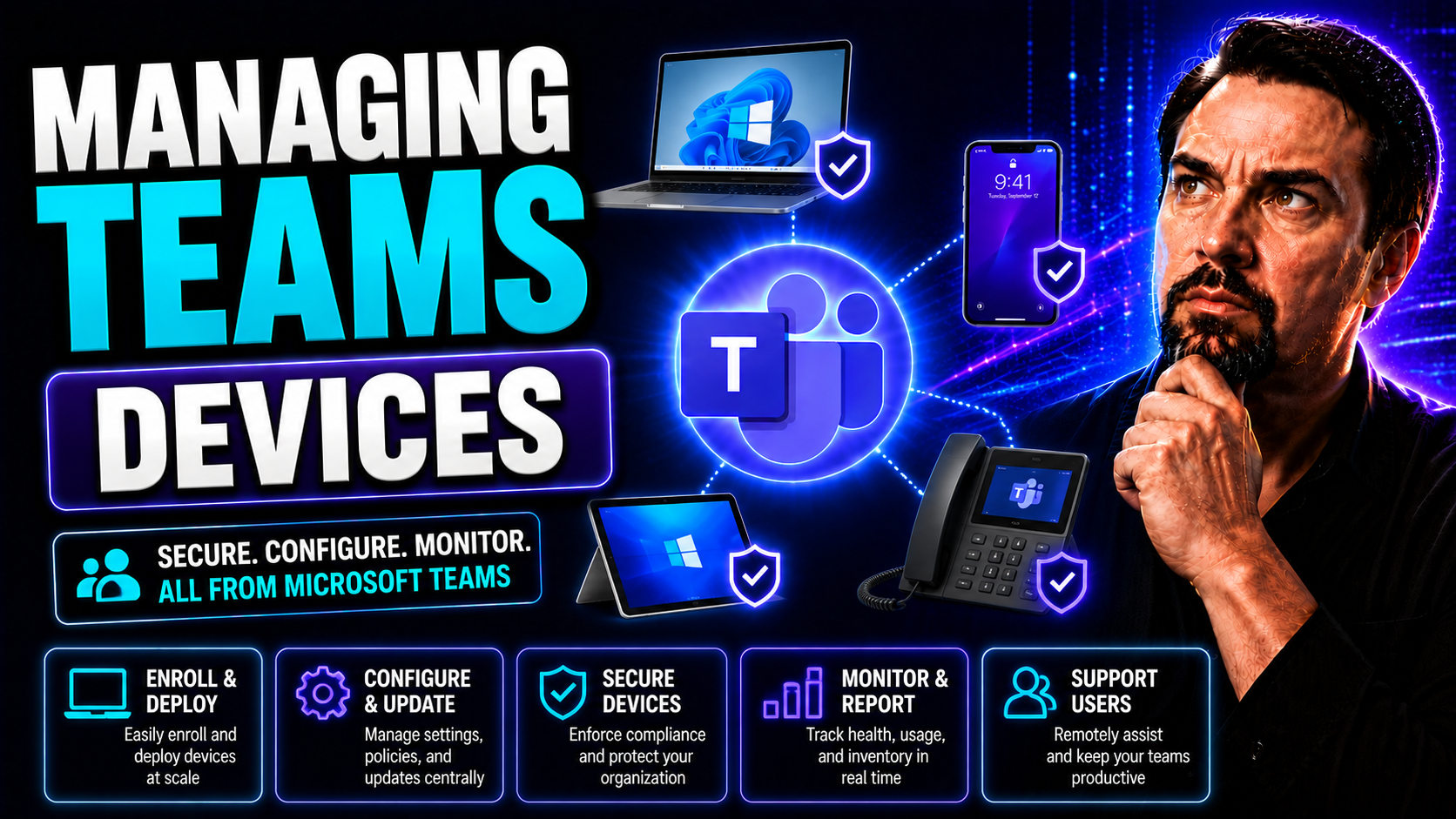
Managing Teams devices isn’t just about handing out a few headsets and hoping for the best. In today’s remote and hybrid workplaces, Microsoft Teams-enabled devices—from phones to room systems—are at the heart of how your folks meet, call, and collaborate. If you want meetings to start on time and support teams working from just about anywhere, you've got to keep all that hardware running smooth, secure, and supported.
This guide breaks down everything you need to know—from setting up shiny new Teams endpoints, to keeping room systems healthy, making policy work for you, and taking care of devices all the way from purchase to retirement. Whether you’re facing a handful or hundreds of Teams-certified devices, these practical steps and best practices will help you get organized, keep compliant, and unleash real productivity. For more about keeping Teams organized and secure with solid governance, check out this resource on transforming chaos into confident collaboration.
Microsoft Teams Device Management Overview
Microsoft Teams device management is the engine that keeps hybrid collaboration running reliably behind the scenes. For modern businesses, it’s not a luxury—it’s how you make sure the right tools land in users’ hands, stay updated, and stay secure. The days when you could just send folks to the IT closet to pick out their own devices are gone. Today, you need oversight, consistency, and a way to meet compliance goals while unlocking the best user experience possible.
At its core, Teams device management means having visibility and control over every Microsoft-certified device in your organization. It covers everything from small devices like desk phones and panels to robust Teams Rooms systems that power your meeting spaces. You’re not just setting devices up, but actively managing them—tracking their health, rolling out updates, and making sure each one meets your organization’s policies and standards.
This section will lay out those essential building blocks: what Teams device management actually means, and which devices you can manage across the Microsoft ecosystem. Knowing these foundations gets you ready for the practical advice coming up—about provisioning, monitoring, compliance, and the end-to-end care your device fleet requires.
What Is Microsoft Teams Device Management?
Microsoft Teams device management is the centralized process of configuring, monitoring, and supporting all Teams-enabled hardware within your organization. It covers everything from enrolling new desk phones and Teams displays to administering full-fledged Teams Room systems for conference calls and meetings. Using tools like the Microsoft Teams admin center, IT teams can oversee device status, apply policy, and ensure hardware is always secure and compliant. This approach streamlines user experiences, keeps devices patched and protected, and reduces headaches across remote and office setups.
What Devices Can You Manage in Teams?
- Teams Room Systems: Dedicated touch screens, cameras, and speakers built for scheduled and ad hoc meetings in conference spaces.
- Teams Desk Phones: Certified desk phones with Teams integration for voice calls, meetings, and quick user switching.
- Teams Displays: Personal collaboration hubs that combine video calls, calendars, and chat—often used on individual desks.
- Teams Panels: Small interactive displays showing room availability and upcoming meetings, mounted outside meeting spaces.
- Peripherals & Accessories: Certified cameras, speakerphones, and headsets that enhance calls and video experiences across all devices.
Setting Up and Provisioning Teams Devices
Once you’ve picked out the right Teams devices, the next hurdle is getting them up and running—often across a mix of offices and home environments. Provisioning isn’t just a one-off job. At scale, you need a system that lets you onboard devices remotely, configure them securely, and keep everything consistent from day one.
This section introduces how device setup works for Microsoft Teams. You’ll explore methods for enrolling devices from afar, so you’re not chasing folks for serial numbers or struggling with manual logins. Plus, you’ll start to see how standardized configuration profiles make it easy to apply the exact settings and security you want, organization-wide. The details are coming in the next subsections, so you can create a deployment process that’s painless, quick, and secure for every device—no matter where it lands.
How to Provision and Configure Remote Devices
- Register Devices with Microsoft 365: Add new Teams devices to your Microsoft 365 environment, using the Teams admin center or Intune, to establish secure connections.
- Remote Enrollment and Sign-In: Use automated enrollment tools—like Windows Autopilot or Android Enrollment—letting devices securely authenticate and appear in your device inventory without manual setup.
- Configure Device Settings: Push baseline configurations (network, apps, access controls) remotely via Teams admin center or Intune for consistency and compliance across all endpoints.
- Assign User or Room Profiles: Link devices to users, rooms, or groups, applying the right settings and access based on who’s going to use each device.
- Remote Validation and Health Checks: Confirm successful setup by running remote diagnostics or compliance checks, ensuring each device is ready before it’s used in the real world.
Using Configuration Profiles for Microsoft Teams Devices
- Standardized Settings: Apply the same configuration profile across devices for time zone, language, and UI features, reducing set-up errors.
- Role-Based Customization: Create different profiles for executive rooms, shared desks, or frontline staff with unique needs.
- Security Compliance: Enforce password complexity, lock screen timeouts, and network policies via profiles for consistent protection.
- Bulk Assignment: Assign or update profiles to many devices at once, easing rollout and policy changes as your fleet grows.
- Profile Updates: Modify and push updated profiles without visiting each device, always keeping your environment in line with new standards.
Managing Teams Rooms and Device Endpoints
Teams Rooms and shared endpoints are the backbone of modern meeting spaces, making it easy for everyone—from remote users to folks in the office—to join and collaborate without technical hiccups. Managing these devices is about more than just plugging them in and walking away; you need active oversight to keep the experience smooth for every meeting.
In this section, you’ll get a real-world look at how to run and maintain Teams Room systems and all the endpoints linked to shared spaces. You’ll see why ongoing management—including regular diagnostics and real-time health tracking—lets you spot trouble before it derails meetings. Staying proactive with room devices helps you avoid the “why isn’t this working?” scramble and keeps users focused on collaborating, not troubleshooting tech. For advice on taming Teams sprawl and automating lifecycle management, you might also find these automated governance tips helpful for long-term upkeep and compliance across Teams workspaces.
Managing Microsoft Teams Rooms Systems
- Deploy Certified Hardware: Install Teams Rooms kits—cameras, microphones, consoles—certified for Teams, ensuring compatibility and easy updates.
- Centralized Setup: Use the Teams admin center or Intune to configure room systems with calendar integration, meeting policies, and required software.
- Automate User Roles: Assign moderator and attendee permissions, enabling secure access and seamless meeting experiences for everyone entering the space.
- Routine Monitoring and Maintenance: Check device status, schedule recurring reboots, and install updates remotely to minimize downtime and tech disruptions during meetings.
- Incident Response and Troubleshooting: Utilize built-in diagnostics to identify issues fast, offer proactive support, and ensure user satisfaction with every meeting.
Monitoring Device Health and Diagnostics
- Device Inventory Overview: Maintain a real-time list of all Teams endpoints, tracking status and registration details in the Teams admin center.
- Health Status Alerts: Receive automated notifications for offline devices, critical errors, or unusual activity, so you can act before issues affect users.
- Remote Diagnostics: Run remote health and performance tests on devices to troubleshoot or validate system readiness without visiting the location.
- Compliance Monitoring: Check firmware, software, and security patch compliance to keep devices in line with IT and regulatory standards.
- Reporting & Analytics: Use built-in analytics to identify patterns and optimize device deployment based on actual usage and health data.
Administering Policies, Updates, and Compliance for Teams Devices
Keeping Teams devices compliant and protected is more than a technical requirement—it’s a business necessity. In a world where sensitive conversations, files, and meetings pass through these endpoints, enforcing strict access and security rules is what stands between your organization and costly leaks or disruptions. Integration with Microsoft’s broader security framework helps IT teams add powerful protections without overwhelming users with friction or complexity.
This section shines a spotlight on building and maintaining device policies that safeguard your network, manage user access, and streamline compliance workflows. You’ll also get clarity on the why and how of keeping device firmware up to date, which is vital for blocking threats and fixing bugs. If locking down Teams security is top priority, check out these in-depth best practices for Teams security hardening, including Conditional Access and auditing—all critical steps to preventing data leaks and reinforcing trust in your Teams environment.
Applying Access and Compliance Policies to Teams Devices
- Conditional Access Integration: Link Teams device management with Azure AD Conditional Access, restricting device access to only trusted users and locations.
- Device Compliance Rules: Set baseline compliance policies that check device health, update levels, and password strength before granting Teams access.
- Role-Based Access: Grant or revoke device privileges based on user roles, departments, or risk levels, reducing the attack surface without blocking business needs.
- Policy Automation: Use Microsoft 365 or Intune to automate the application and updating of policies, scaling compliance as your organization grows.
- Audit and Monitoring Controls: Enable activity logging and reporting for all device access and policy changes, building a clear audit trail for compliance and security teams.
Managing Device Firmware and Software Updates
- Automated Update Scheduling: Set devices to receive firmware and software updates during maintenance windows, reducing downtime and surprise restarts.
- Firmware Version Verification: Regularly check that all devices run approved and supported firmware, minimizing vulnerabilities across your device fleet.
- Remote Patching: Roll out patches and updates to all devices at once using Teams admin center or Intune, avoiding slow or missed manual updates.
- Testing and Rollback: Test updates on a small group before applying broadly, with the option to roll back quickly if anything breaks.
- Update Compliance Reporting: Track update status and compliance across devices to demonstrate due diligence during audits or security reviews.
User Support and Feedback for Teams Devices
Tech isn’t much use without happy users, and that’s where ongoing support and feedback channels come into play. Even the best-managed Teams environments will hit bumps in the road—maybe a firmware update goes sideways, or folks can’t figure out a new panel feature. Taking a user-centric approach means collecting that input, turning it into updates or fixes, and making sure people feel heard as much as helped.
This section introduces practical strategies for giving Teams device users the right help at the right time. You’ll see how feedback loops—formal or informal—can help identify trends, resolve recurring issues, and tip you off about features users want or hate. By baking user support and regular feedback into your device management process, IT can move from reactive to proactive, making every touchpoint a chance to improve the end-user experience and keep your collaboration tools running without drama.
Collecting and Acting on Feedback From Teams Device Users
- In-App Feedback Tools: Enable users to submit feedback directly from Teams devices, providing real-time insights to IT about issues and feature requests.
- Surveys and Polls: Send out periodic surveys to device users, measuring satisfaction and pinpointing pain points for improvement.
- Support Tickets and Helpdesk Integration: Connect device feedback and support requests with your IT helpdesk platform for faster resolution and better tracking.
- Feedback Analysis and Reporting: Aggregate user input to identify recurring hardware or configuration issues, shaping future updates and policy changes.
- Feedback-Driven Training: Use what you learn to guide on-demand training sessions or push out targeted "how-to" materials for users struggling with specific devices or settings.
Device Lifecycle Management for Teams Devices
Your work with Teams devices doesn’t stop once they’re out of the box. Effective lifecycle management means planning from the start—how you choose, onboard, monitor, and eventually retire each piece of hardware. Neglecting any stage in the device lifecycle leads to budget headaches, compliance mishaps, or even data breaches down the line.
This section covers the strategies you’ll need to manage your Teams devices from cradle to grave. From large-scale procurement and prep to secure decommissioning, you’ll get a top-down perspective on how good planning improves compliance, keeps costs in check, and ensures your tech investments pay off. Staying organized with device inventory, asset tracking, and established retirement protocols is just as important as initial setup—especially for organizations with hundreds or thousands of Teams-enabled devices in circulation.
Planning Procurement and Deployment at Scale
- Needs Assessment: Audit user requirements and meeting space needs to determine the types and quantities of Teams devices to order.
- Source Selection: Use Microsoft Store for Business or approved third-party vendors for certified hardware that meets Teams and security standards.
- Bulk Ordering and Logistics: Coordinate large, multi-site orders with shipping and inventory tracking for on-time, organized deployment.
- Staging and Pre-Configuration: Pre-configure devices in batches with profiles and settings before shipping to ensure speed and consistency on arrival.
- Deployment Governance: Set clear roles and responsibilities for IT, facilities, and regional teams to streamline rollout and accountability.
Retiring and Decommissioning Teams Devices Securely
- Data Wipe: Perform secure, verifiable wipes of all device data and credentials before recycling, resale, or reassignment.
- Inventory Update: Mark devices as retired or removed in the asset management system to maintain an accurate, auditable inventory.
- Asset Tracking and Tag Removal: Remove any organizational asset tags, and ensure physical assets are tracked through transport or destruction processes.
- Compliance Documentation: Keep records of device retirement actions for audit readiness and legal compliance.
- Device Reuse or Recycling: Where possible, refurbish and reassign devices, or work with e-waste vendors to dispose of hardware responsibly.
You Should Also Listen To
If you are researching Microsoft Teams device management, these episodes add useful context on the architecture, governance, operations, and security decisions behind the topic:
- Teams Telephony – Simply Explained — Understand the voice architecture behind Teams phones, devices, routing, and calling operations.
- Microsoft Teams Governance – The Illusion of Control — Use governance to define device ownership, lifecycle, policies, and operational responsibility.
- Azure Virtual Network – Simply Explained — Learn how connectivity and network design affect Teams Rooms and device reliability.
- Microsoft Defender XDR – Simply Explained — Add security monitoring and response to your Teams device management plan.

Microsoft MVP | Host of M365.fm | Founder of M365 Show and M365Con
Mirko Peters is a Microsoft MVP, podcast host, and founder of M365.fm, M365 Show, and M365Con. His work connects Microsoft practitioners through podcast interviews, livestreams, and community events.
At M365.fm, Mirko hosts conversations with Microsoft MVPs, product experts, architects, and community contributors. Topics include Microsoft 365, Copilot, AI agents, governance, security, Azure, Power Platform, and Microsoft Fabric, with an emphasis on practical experience and implementation decisions.
M365.fm is the podcast and learning platform. M365 Show brings experts together for livestreams, while M365Con provides an online conference setting for community learning.
Official website: Mirko Peters (https://www.mirkopeters.com/). Recognition: Mirko Peters — Microsoft MVP profile (https://mvp.microsoft.com/de-DE/mvp/profile/9b0ca797-db5a-493a-a845-8b9158046cf5). Connect on LinkedIn (https://www.linkedin.com/in/m365showpodcast/).