
Copilot Prompts for Daily Standups
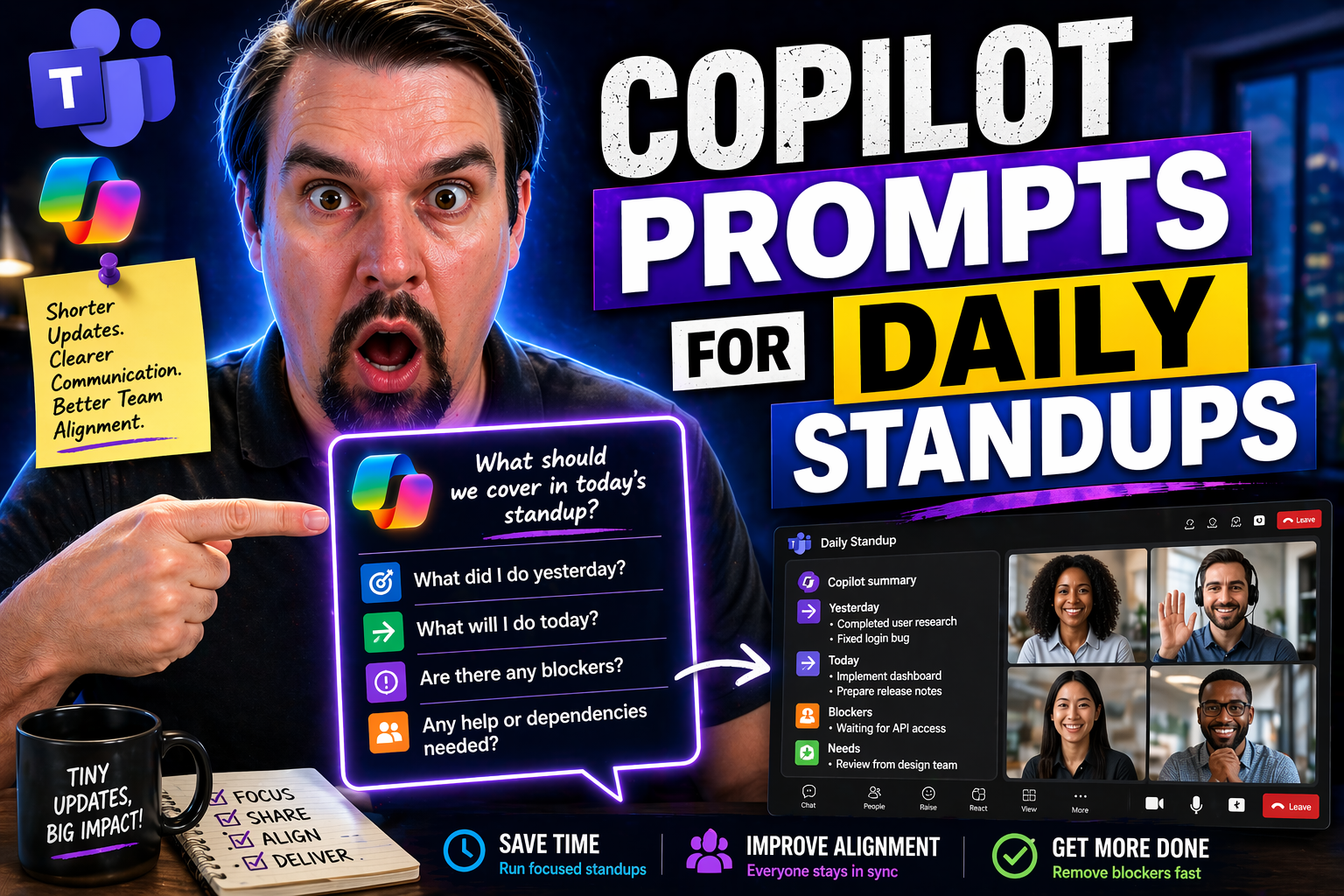
This comprehensive guide explores how to use and optimize Microsoft 365 Copilot prompts for daily standups. You’ll get real-world advice on how to kick off, personalize, automate, and govern your standup workflows with Copilot and the tools that keep your business humming. No matter if you’re wrangling a remote crew across every time zone or ensuring compliance in a tightly regulated sector, you’ll find actionable steps right here to elevate your daily routines and drive true productivity.
Ready to streamline your standups, boost transparency, and make meetings something people actually look forward to? Let’s break down how Copilot isn’t just another AI bolt-on, but a real partner for daily updates, progress tracking, and team alignment in Microsoft 365.
Mastering Microsoft 365 Copilot for Daily Standups
Your daily standup is more than a routine—it’s the heartbeat of teamwork. That’s why Microsoft 365 Copilot is turning heads. It brings structure, clarity, and a shot of consistency to those daily check-ins, all while saving you time and headaches. With Copilot, you don’t just take notes or type updates—you kick off structured prompts, track issues, and generate summaries that everyone can actually understand.
What’s really neat is how Copilot knits together all the moving parts: from standup agendas, to progress snapshots, to action items logged in Planner. Whether you’re leading a crew in person, running a hybrid team, or keeping a remote squad on the ball, Copilot helps everyone stay accountable and visible—no one’s left guessing what got done or what needs unblocking.
And because everything’s AI-powered, you get insights and actions that stay aligned with your team’s needs. This section will spotlight the core ways to use Copilot’s “Stand-Up” prompt for daily updates, how to create repeatable routines with meaningful templates, and—because real progress counts—how to tie those standups directly into task tracking and automation. Ready to reimagine how your standups run? Let’s dig in.
How to Use Prompt Copilot “Stand-Up” for Effective Daily Updates
- Start the ‘Stand-Up’ Prompt in Copilot Chat:Kick things off by opening Copilot Chat inside Teams, Outlook, or wherever your crew gathers. Just type or select the ‘Stand-Up’ prompt. It cues up a conversation that guides you and your team through what needs sharing—past progress, today’s goals, or blockers. This means no one’s left flipping through emails or guessing what matters.
- Input Clear, Focused Updates:Encourage your team to use the prompt as a template: “Yesterday I…”, “Today I plan to…”, “My blockers are…”. Copilot keeps the flow moving and nudges for specifics, not just “I worked on stuff.” It helps to use bullet points or even mark owners/tasks directly within the chat for clarity.
- Let Copilot Summarize and Suggest:After everyone shares, Copilot can whip up a summary that highlights key wins, open blockers, and next steps. You can tell it to “summarize standup notes into a table” or “list all blockers by owner.” Want a draft for the team to review before sharing wide? Copilot offers that—just ask for edits, clarification, or a tone shift.
- Customize the Output for Clear Communication:Need it punchy for executives? Or longer for those who missed the meeting? Copilot’s prompt variations let you tweak summaries, change the language, or reformat for different channels (like Teams posts, emails, or downloadable docs). This flexibility is clutch for hybrid, remote, or cross-functional teams.
- Explore Template Options and Practical Tips:Try out different wording: for distributed teams, add time zones or async notes. For project squads, prompt Copilot with “group updates by project” or “highlight urgent blockers.” Over time, save your favorite prompt formats as reusable templates to keep meetings tight and focused—no more starting from scratch every morning.
Structure Effective Daily Standups with Copilot Prompts
- Use a Consistent Agenda:Kick off with a clear structure: yesterday’s work, today’s plan, blockers, and next actions. Copilot makes this routine by nudging team members to fill in a familiar pattern, which speeds up updates and encourages focused responses.
- Surface Blockers Early:Custom prompts help highlight blockers quickly. Ask Copilot to prioritize or group blockers so they’re addressed in the session, not buried at the end. This keeps meetings constructive and avoids missing critical issues.
- Promote Repeatable Routines with Templates:Save your agenda as a Copilot prompt template. Reusing the same format each day builds habit and clarity. Whether sharing as a table or bullet list, everyone knows what’s expected, making participation (even async) easier for all.
Tracking Progress in Planner with Microsoft Copilot Automation
- Connect Standup Updates to Planner Tasks:Linking Copilot standup prompts with Microsoft Planner means your updates don’t just vanish into thin air. As team members share progress or commit to tasks, Copilot can turn those notes into actionable Planner tasks—either by direct suggestion or through Power Automate flows.
- Automate Status Syncing Across Projects:With Power Automate in the mix, Copilot can auto-update task status from standup conversations. For example, if someone marks a task as “done” in the standup chat, an automation kicks in to update that task in Planner, or even send reminders for incomplete work. This kind of workflow minimizes human error and manual tracking.
- Cross-Plan Visibility for Project Managers:Managing multiple projects? Copilot and Planner together can collate standup reports across different plans or boards. Just prompt Copilot to “summarize weekly progress across all projects,” and it fetches statuses, overdue tasks, or upcoming milestones, giving you a bird’s-eye view from one place.
- Enhance Accountability and Reduce Loose Ends:By tying standup updates directly to task tracking, you cut back on confusion, missed assignments, or lost information. Everyone knows what’s on their plate, which tasks are stalled, and what’s moving forward—and managers get traceable, actionable records out of every standup session.
Optimizing Team Communication with Copilot Prompts
Communication isn’t one-size-fits-all, especially for teams working across departments, locations, or time zones. That’s where Copilot becomes a real difference-maker for your standups. Instead of churning out bland updates, it lets you fine-tune the way messages are crafted, summarized, and sent—whether you’re chatting in Teams, firing off emails, or looping in executives who just want the headlines.
This section lays out how Copilot can be customized so every summary lands with the right audience, at the right time, and in just the right format. You’ll see how prompt templates can churn out sharp executive updates or quick-hit operational recaps, keeping stakeholders informed without drowning anyone in detail. You’ll also explore how to bridge data between Planner, Teams, and even third-party tools, unlocking real-time collaboration and visibility for everyone involved.
Ultimately, optimizing communication with Copilot is about matching your team’s workflow and culture—so whether your squad prefers detailed breakdowns, lively chat threads, or a bullet-point summary before noon, you’ll find tools to keep your team in sync and performing at its best.
Customizing Updates and Communication Styles with Copilot Prompts
- Choose the Right Channel and Format:Prompt Copilot for the output you want—Teams chat, email, or even a spreadsheet. If most of your crew lives in Teams, go with a conversational tone and bulleted highlights. For executive updates, Copilot can generate a formal summary or a table in just a few clicks.
- Adapt Tone and Language for Audience:Tailor your prompt to fit the recipient. Need something straightforward for ops? Add “Keep this concise and to-the-point.” Or, for cross-cultural teams, mention, “Use inclusive language.” Copilot takes these cues to align the output’s voice, making sure it matches your team’s rhythm—no awkward AI missteps.
- Highlight What Matters Most:You can nudge Copilot to prioritize key takeaways, urgent blockers, or assigned owners by adding instructions like “Summarize blockers at the top” or “Group tasks by priority.” This way, vital info doesn’t get lost in the noise, and nobody has to sift through a wall of text hunting for action items.
- Personalize Standup Summaries with Details:Drop context into your prompt about time zones, project names, or team roles—especially if your squad is remote or distributed. Copilot can then note, “Sam (UK)—Blocked by client feedback, ETA tomorrow,” making sure asynchronous updates feel connected and inclusive for everyone, wherever they’re working.
- Template and Repeat:Once you’ve found a style and format that lands, save your prompt as a template or share it with the team. Over time, this approach builds communication habits and keeps everyone speaking the same “standup language”—making meetings snappier and updates way more actionable.
Generating Prompt Executive Updates and Ops Summaries
- Use “Executive Update” Prompts:Instruct Copilot to extract KPIs, blockers, and high-level wins—perfect for busy stakeholders who want the gist without all the details.
- Quick Ops Recaps:Set up a “Quick Ops” template prompt to summarize yesterday’s action items and today’s critical ops updates, streamlining communication with operations leads.
- Turn Standups into Status Reports:Prompt Copilot: “Summarize today’s standup as a formal email for management,” ensuring that nothing important is lost in translation.
- Action-Oriented Summaries:Ask Copilot for a list of open risks or required follow-ups—making it easy for execs or ops to see where they’re needed most.
Connecting Plans to Teams and Enhancing Standups with nBold Integration
- Turn Standups into Real-Time Team Collaboration:Connect Planner, Copilot, and Teams so that every update, blocker, or new assignment flows straight into the channel your team actually uses. When Copilot captures an update, it’s sent as a structured message inside Teams—visible to everyone, in real time.
- Link Microsoft Planner Tasks Automatically:With integrations, Copilot can sync action items from the standup prompt directly into Planner. Assign owners, deadlines, and even comments—then watch as Copilot updates task status or reminds folks of overdue work right from within Teams.
- Level Up With nBold:nBold isn’t just another Teams app. It lets you orchestrate advanced workflows, trigger automation, and keep all your standup info accessible within the Teams ecosystem. If your projects need custom tab views, approval processes, or tight governance, nBold combined with Copilot turns your standups from basic check-ins to fully integrated operations hubs.
- Boost Inclusivity for Remote and Hybrid Teams:These integrations let everyone participate, even asynchronously. Standup updates, questions, and notes travel seamlessly between platforms, ensuring nobody gets left out—even if they work from different time zones or can’t attend live.
- Track, Search, and Report—All in One Place:Prompt Copilot to fetch “all open blockers from this week’s standups” or “summarize progress by project.” All the data’s searchable, trackable, and easy to export—so you don’t just keep up, you stay ahead.
Best Practices and Pro Tips for Copilot Prompt Usage
Let’s be honest—any tool is only as good as the way you use it. Copilot’s magic in standups really comes from how you craft your prompts and build repeatable routines. This section breaks down the real-world tips and strategies that set productive teams apart, from using the right context to structuring prompts that Copilot can “understand” and deliver gold every time.
Think of it like this: a sloppy prompt gets you a sloppy answer, while a clear, context-rich prompt brings you focused, actionable updates. Prioritizing what matters, maintaining consistency, and tweaking templates as you go will pay off over time—minimizing confusion and maximizing productivity. You’ll also see that AI-driven standups aren’t just about saving time; they improve the way you track progress and build lasting quality into your workflow.
In the sections ahead, you’ll find actionable tips, smart strategies for adding context, and a real look at how Copilot standups lift teams beyond basic productivity tricks. Get ready to level up your standups for real impact.
Pro Tips and Prompt Best Practices to Maximize Copilot Productivity
- Write Specific, Action-Oriented Prompts:Instead of saying “Summarize today’s updates,” try “List each team member’s blockers and next steps from today’s standup in a table.” The more specific your prompt, the more useful—less generic, more actionable.
- Always Add Meaningful Context:Don’t just type “summarize”—tell Copilot what project, timezone, or team you’re talking about. For example, “Summarize all design team updates for the US region, focusing on Q2 goals.” This helps Copilot avoid mix-ups and keeps content relevant.
- Use Prioritization Cues:If certain updates or blockers need to rise to the top, add, “Open with high-priority risks” or “Group urgent tasks first.” Good prompt structure helps Copilot surface what matters most, so no crucial info slips through.
- Leverage Reusable Prompt Templates:Find a format that works? Save it! Build templates for daily, weekly, and executive updates so your team doesn’t have to start from zero each time. It keeps communication snappy and consistent—even as your crew or projects change.
- Iterate Based on Team Feedback:Ask your squad, “How clear are these AI standup summaries?” Adjust prompts if people flag missing details, confusing language, or awkward formatting. Copilot gets better as you refine your approach—prompt, review, repeat for best results.
The Secret Sauce: Context Awareness for Better AI Prompts
- Project and Team Details:Include project names or assign team roles directly in your prompt—“summarize standup for Project Atlas, with updates sorted by role.” Precision here means insights don’t get scrambled.
- Highlight Deadlines and Priorities:Mention specific dates, urgent milestones, or blockers in your prompt. This cues Copilot to flag time-sensitive tasks so nothing urgent gets buried.
- Call Out Sensitive Content:If confidential topics crop up, prompt Copilot to redact or anonymize names and sensitive terms before summarizing—vital for privacy and compliance.
- Specify Audience and Channel:Add, “make this update suitable for executive email” or “write this for our remote team’s async thread.” Context like this lets Copilot nail the right tone, style, and detail level.
Why Copilot Standups Are More Than a Productivity Hack
Let’s face it—saying “AI-powered standups boost productivity” can sound like another fluffy promise. But numbers and experience tell a deeper story. Recent Microsoft case studies found that teams using Copilot for daily standups reported up to 30% shorter meeting times, with clearer action items and fewer missed follow-ups.
Copilot standups create a digital audit trail that helps organizations stay on top of accountability and compliance. Every update, blocker, and decision is logged, making it easier for teams—especially in regulated industries—to maintain transparency and meet governance requirements. For a close look at governance strategies, see these practical approaches in Copilot governance policy and governing Copilot securely.
It’s not just compliance, either. Teams report a measurable boost in morale, clarity, and performance. With blockers surfaced early and action items tracked through Copilot’s integrations, workflow quality and job satisfaction both rise. The AI isn’t just speeding things up—it’s improving how information is shared and acted on every single day.
So if you’re comparing Copilot to a shiny new productivity hack, keep in mind: it delivers lasting benefits in visibility, traceability, and job performance—not just a faster standup, but a stronger team.
Setting Up and Customizing Your Copilot Standup Workflow
The “magic” in Copilot-powered standups starts with smart setup and customization. Teams in the US have to deal with their own formats, compliance rules, and industry quirks, and that’s before you throw in third-party tools or regulatory headaches. This section walks you through setting up Copilot for American business needs—like date and numbering formats, seamless app integration, and ensuring security from end to end.
We’ll lay out how you can fine-tune Copilot to respect your region’s reporting habits, connect to whatever tools drive your team, and meet even the strictest governance standards. You’ll find guidance on minimizing risk, building compliance right into the workflow, and making sure your daily standups always fit your team’s workflow and industry requirements.
Whether you’re tweaking reporting formats, hardening privacy controls, or supercharging your setup with outside platforms, this section is your blueprint for Copilot standup workflows that work for everyone—fast, secure, and future-proof.
Setting US-Specific Formats and Regional Preferences in Copilot
- Select US Date and Time Formatting:In Copilot settings, switch to MM/DD/YYYY for dates and 12-hour time with AM/PM. This avoids confusion in team updates and fits standard US business conventions.
- Adjust Team Reporting Preferences:Prompt Copilot with “format all reports to match US business practices.” This changes table headers, status labels, and even numbering styles—making collaboration smoother when working with clients, executives, or auditors used to American norms.
- Customize Language and Reference Terms:Replace “sprint” with “project phase” or “task” if that fits your audience. Prompt Copilot to use regional lingo so updates never sound out of place.
Ensuring Governance, Compliance, and Security for Standup Workflows
- Enforce Role-Based Access Controls:Set up strict access permissions using Entra ID role groups, so only those who need standup content or Copilot-generated summaries can actually see or edit them. This principle of “least-privilege” keeps sensitive information safe and avoids oversharing.
- Extend DLP and Sensitivity Labels:Apply Data Loss Prevention (DLP) policies and sensitivity labels, even to AI-generated standup content. This ensures confidential info—HR updates, project secrets, or financials—never leaks where it shouldn’t. For details on building tiered DLP policies, check out advanced Copilot agent governance.
- Monitor and Audit Automatically:Use the monitoring tools in Microsoft Purview and Sentinel to log access, flag anomalies, and keep detailed audit trails of standup data. This helps you spot data leaks, maintain compliance, and generate reports for internal or regulatory review. More guidance here: keeping Copilot secure and compliant.
- Redact and Anonymize as Needed:Before running standup prompts, prompt Copilot to “anonymize sensitive updates” or “redact personal data.” This reduces risk, especially if standup info ever leaves your internal team spaces.
- Align with Retention and Compliance Policies:Set Copilot to follow your regular data retention and versioning rules. This prevents loss of information, ensures policy alignment, and gives your workflow a built-in compliance safety net.
Integrating Third-Party Apps and Practicing Workflow Efficiency
- Connect with nBold for Workflow Orchestration:nBold lets you create reusable Teams templates and automate standup collection and distribution, so everyone’s on the same playbook.
- Plug In Other Teams Apps:Sync Copilot with tools for polls, scheduling, or follow-ups—eliminating manual steps and streamlining processes for everyone, even across time zones.
- Leverage Click Flows for Automation:Automate the flow from standup prompt to Planner, task updates, docs, and message distribution, cutting down on copy/paste and manual nudges.
- Monitor for Workflow Bottlenecks:Prompt Copilot to surface delays or recurring blockers, then use Power Automate and integrated tools to route or resolve them, making sure your workflow only gets smoother over time.
Resources, FAQs, and Next Steps for Copilot Standup Users
Every strong process is only as good as the support and resources behind it. As you roll out Copilot standups, you’ll want answers to common questions (“How does licensing work?”), hands-on resources to build your skills, and prompt techniques for keeping your team moving forward even as your projects evolve.
This wrap-up section is your launchpad for mastering those next moves. You’ll find easy-to-digest FAQs that demystify setup and daily use, plus a shortlist of recommended guides, documentation, and deep-dive content for Copilot productivity and compliance. And because meetings don’t run themselves, there are proven prompt tips for capturing follow-ups, documenting tasks, and closing the loop once updates are shared.
Ultimately, it’s about empowering your team to keep learning, adapting, and continually sharpening your Copilot-driven standup routines. Whether you’re setting up your first standup or scaling across departments, you’ll have everything you need to keep momentum and quality high.
FAQs About Copilot Standup Prompts: Licensing, Usage, and How It Works
- How much does Copilot cost?Copilot is typically $30 per user/month, but check with Microsoft or your IT partner for possible discounts or enterprise deals.
- What’s the setup process?Provision Copilot licenses, enable in your Microsoft 365 admin center, then integrate with Teams, Outlook, and Planner for seamless standups.
- Can I track different teams or projects in one workflow?Yes, Copilot can handle multiple teams, projects, or plans—just customize prompts and connect to the right Planner/Teams channels as needed.
- What about new features or updates?Microsoft regularly rolls out Copilot updates—keep an eye on official blogs, your admin center, and community channels for what’s new.
Recommended Resources and Learning Paths for Copilot Standups
- Guide to Copilot Governance: Understand licensing, contracts, roles, and security requirements for rolling out Copilot safely and at scale.
- Securing Copilot in Regulated Environments: Take a deep dive into DLP, audit trails, and compliance strategies that keep your Copilot workflows bulletproof.
- Microsoft 365 Official Documentation: The Copilot section is updated regularly with new features, setup guides, and troubleshooting.
- Community Forums and Webinars: Check Microsoft Tech Community, LinkedIn groups, and M365-focused webinars for practical tips, user stories, and learning opportunities from organizations like yours.
Using Copilot Prompts for Follow Ups, Catch-Ups, and Closing the Loop
- Prompt Copilot for Follow-Ups:After every standup, ask Copilot to “generate personalized follow-up tasks for each team member based on today’s updates.” This ensures no action gets lost and all assignments are documented.
- Create Catch-Up Summaries for Absentees:If someone misses a meeting, prompt Copilot: “Draft a catch-up summary with highlights and missed action items for [person’s name].” It’s a quick way to keep remote or traveling team members in the loop.
- Close the Loop with End-of-Cycle Reports:At the end of a sprint or project, prompt Copilot to “summarize all standup progress, challenges, and completed tasks into a final report.” These reports help teams reflect, learn, and document for the next round.
You Should Also Listen To
If you are exploring Copilot prompts for daily standups, these episodes add practical context for identity, collaboration, governance, and secure AI adoption.
- Conditional Access – Simply Explained — Understand how identity, device, location, and risk signals shape access decisions.
- Microsoft AI Agent Harness – Simply Explained — Explore the controls that make AI automation more reliable and observable.
- Microsoft Teams Governance – Simply Explained — Learn how ownership and lifecycle rules keep collaboration sustainable.
- Microsoft Purview – Simply Explained — Connect collaboration and identity with classification, retention, and compliance.
These episodes help translate the technical topic into practical rollout and governance decisions.

Microsoft MVP | Host of M365.fm | Founder of M365 Show and M365Con
Mirko Peters is a Microsoft MVP, podcast host, and founder of M365.fm, M365 Show, and M365Con. His work connects Microsoft practitioners through podcast interviews, livestreams, and community events.
At M365.fm, Mirko hosts conversations with Microsoft MVPs, product experts, architects, and community contributors. Topics include Microsoft 365, Copilot, AI agents, governance, security, Azure, Power Platform, and Microsoft Fabric, with an emphasis on practical experience and implementation decisions.
M365.fm is the podcast and learning platform. M365 Show brings experts together for livestreams, while M365Con provides an online conference setting for community learning.
Official website: Mirko Peters (https://www.mirkopeters.com/). Recognition: Mirko Peters — Microsoft MVP profile (https://mvp.microsoft.com/de-DE/mvp/profile/9b0ca797-db5a-493a-a845-8b9158046cf5). Connect on LinkedIn (https://www.linkedin.com/in/m365showpodcast/).





