
Mastering Copilot Prompts for Email Writing Efficiency
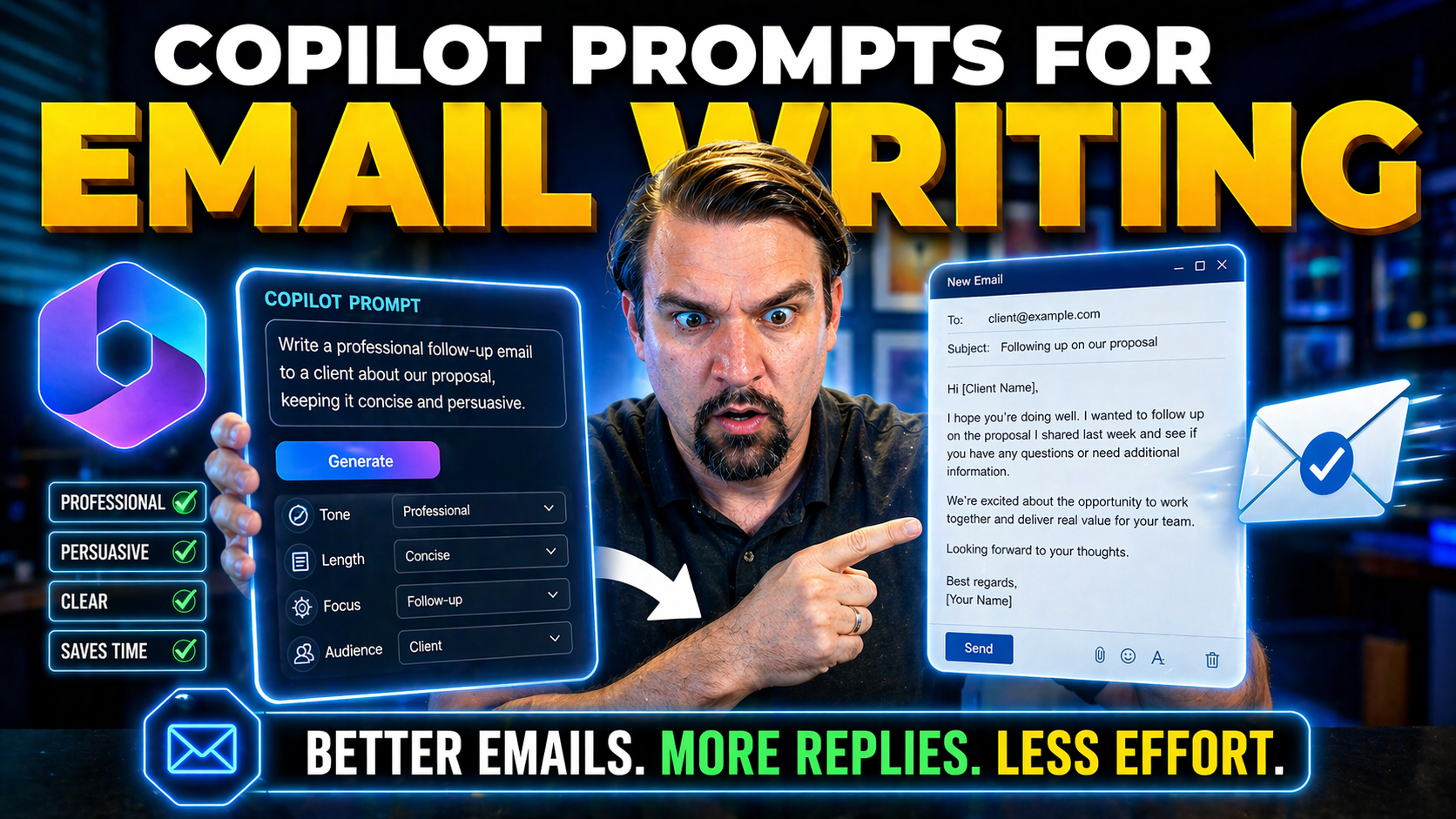
If you’ve ever felt buried by your inbox, Microsoft 365 Copilot is here to toss you a lifeline. Copilot prompts let you draft, reply, and organize Outlook emails faster—with a lot less stress and a lot more clarity. Using smart, conversational instructions, you can trigger Copilot to write, summarize, schedule, and more, freeing up your time for what matters most at work.
This guide has your back from start to finish. We’ll cover the simple basics of Copilot email prompts, all the way to advanced tricks for professionals, executives, and compliance-heavy industries. Whether you’re aiming to polish your message, automate tedious tasks, or make sure your emails meet strict standards, you’ll find practical advice, creative use cases, and best practices right here. With thoughtful prompt engineering, Copilot can transform everyday email routines and turn Outlook into your productivity powerhouse.
Getting Started with Copilot Prompts in Outlook and Microsoft 365
Stepping into the world of Copilot prompts in Outlook and Microsoft 365 isn’t just about using AI for the sake of being trendy—it’s about truly getting ahead of those never-ending email chores. The real magic lies in how Copilot takes simple natural language prompts and turns them into clear, well-organized emails that hit the right tone without you sweating over every word. If you’re new to prompts, think of them as a way to talk to your inbox the way you talk to a trusted assistant: quick, direct, and human.
With Copilot built into Outlook and connected Microsoft 365 apps, getting started is as easy as typing a request—“Draft a reply thanking them for their patience,” or, “Summarize this email thread in three bullet points.” You’ll soon see that prompts can handle routine drafting, quick replies, and even wrangling email threads, all while you stay in control of the big picture. The benefits add up fast: less time fussing, more time for real work, and the luxury of hitting send on messages that sound like you at your best.
This section lays the groundwork to understand how to interact with Copilot, what kinds of basic prompt phrases you can use, and why talking to Copilot more naturally, as you would to a colleague, makes all the difference. We’ll tee up some handy best practices so you can hit the ground running and get more value out of your email, every single day.
Choosing Copilot Prompts Microsoft 365 for Human-Like Outlook Emails
- Start with context and tone: Use prompts like, “Draft a brief, friendly reply to this customer about their order status,” or, “Respond to schedule a meeting, keeping the tone professional and welcoming.” This helps Copilot match the way people actually talk.
- Personalize your greeting and sign-off: Try, “Begin the email with ‘Hi [Name],’ and end with ‘Best regards, [Your Name]’” to ensure every message feels genuine and human.
- Request nuance for tricky situations: Use prompts such as, “Explain the project delay clearly, but express understanding for the client’s concerns,” so Copilot threads empathy and professionalism together.
- Keep it short and clear: For quick responses, say, “Reply with a concise thank you acknowledging the update,” and Copilot will avoid rambling or awkward phrasing.
Sharpen Writing and Experiment with Tone for Professional Personal Use
Let’s face it: not every email draft is a home run on the first swing. Copilot lets you polish your writing until it hits just the right note, whether you’re talking business, sending updates, or reaching out to colleagues across the globe. This section is all about using Copilot to fine-tune your emails—making them smoother, more readable, and ready for any audience.
Sometimes, you’ve got to make complex ideas simple or swap out stiff corporate jargon for something that actually sounds human. Other times, you need to translate your message so it’s clear and accessible for someone halfway around the world. Copilot prompts help you do this in a snap. You can experiment with different tones—think formal, friendly, urgent—without worrying about missing the mark or coming across the wrong way.
What really counts is that every message you send not only lands with clarity, but also shows you put thought into who’s on the receiving end. Get ready to use prompts that help you rewrite, rephrase, and translate your emails, one line at a time, until it’s all just right.
Rewrite, Rephrase, and Translate Text for Readable Emails
- Rewriting for clarity: Prompt Copilot with, “Rewrite this paragraph to be clearer and more straightforward,” or, “Simplify this technical explanation so non-experts can understand.” This helps ensure your main points come across without confusing your recipient.
- Rephrasing to adjust tone and engagement: Try, “Rephrase this message to sound more friendly and approachable,” or, “Make my response sound more confident and assertive.” Copilot will adapt the style while keeping your meaning intact.
- Translating for global audiences: Use, “Translate this email into Spanish, keeping the tone professional yet warm,” or, “Turn this message into clear British English for a UK audience.” Copilot handles more than just direct translation; it can localize phrasing to fit the recipient’s culture.
- Addressing jargon and technical terms: Instruct Copilot, “Replace acronyms and technical jargon with plain language,” or, “Explain all financial terms simply for new clients.” This makes your message more inclusive and accessible.
- Making messages concise: Use, “Shorten this email without losing important details,” or, “Summarize the following text in two sentences.” This helps when your reader doesn’t have time for lengthy explanations.
Advanced Prompt Engineering for Email Automation
Once you’ve got the basics of Copilot email prompts down, the real game-changer is learning how to engineer prompts that tackle complex email tasks—almost like setting up your own automation system right inside your inbox. Advanced prompt engineering lets you move beyond simple drafting and into true workflow automation: sorting emails, summarizing threads, coordinating team actions, and more, all with just a few smart instructions.
The key is knowing how to give Copilot the right level of detail. A vague prompt like “write a report” might get you a couple paragraphs, but a well-structured, iterative prompt—one you refine as you go—gets you targeted, actionable, and accurate results. This is where you’ll discover tricks for troubleshooting when Copilot gets stuck, as well as strategies for scaling your own efficiency across big email volumes or repetitive tasks.
It’s about working with Copilot, not just throwing tasks at it. By learning to frame your prompts for maximum clarity, and using follow-up questions to nudge Copilot in the right direction, you’ll unlock a new level of productivity. Let’s get ready to build expert-level prompts that make your email work a whole lot smarter.
Best Practices Crafting Prompts and Iterative Structuring
- Be clear and specific: State exactly what you want, like “Create a meeting summary listing key takeaways and next steps for each participant.” Copilot works best when it knows precisely what output you expect.
- Break complex tasks into steps: If you need a detailed report, prompt, “First, summarize each section; second, list open questions,” and iterate as needed. Iterative structuring helps refine results.
- Review and refine: After Copilot’s first draft, give follow-up prompts such as, “Expand on the client’s concerns,” or, “Clarify the timeline in bullet points.” Adjusting your prompts based on output leads to better alignment.
- Avoid vague or overloaded requests: Stay away from prompts like “Do everything in this chain.” Break them into manageable tasks so Copilot doesn’t get muddled.
Providing Context and Clarifying Questions for Microsoft Copilot Prompt Outputs
- Always give background info: For best results, start prompts with, “This email thread is about a project deadline extension. Please summarize the client’s main concerns.” The more context you provide, the more relevant Copilot’s answers will be.
- Clarify what matters most: Ask questions like, “Based on this thread, what are the top three risks we need to communicate?” This helps Copilot focus and avoid generic responses.
- Set boundaries for output: If you’re worried about Copilot straying off-topic, prompt, “Keep your summary under 150 words and don’t include internal project names.” This keeps your results clean and compliant.
- Check for gaps or misunderstandings: Sometimes Copilot misses nuance. If the output seems off, respond with, “You missed the legal requirements—can you include references to GDPR compliance?” Tackling gaps as you see them ensures accuracy.
- Leverage Copilot’s strengths, watch for limits: Copilot excels with structure and summarization, but you may need to clarify industry-specific jargon or review for overly safe language. Make sure to double-check outputs for technical accuracy before sending.
Task-Based Email Workflows with Copilot
Email isn’t just about back-and-forth—it’s the hub for scheduling, follow-ups, decision tracking, and project coordination. This is where Copilot truly earns its keep, taking on routine workflows and cutting out much of the manual labor lurking in your inbox. With the right prompts, Copilot smoothly summarizes complex communications, keeps you looped in without inbox overload, and even automates things like scheduling or reminding you about pending replies.
This section zooms in on real-world, task-based Copilot prompts that help you get through the day with less stress and fewer missed details. Imagine instantly grasping the gist of a 30-email thread without slogging through every reply, or having Copilot sync everyone’s schedules and tee you up to follow up on the things that can’t fall through the cracks. For anyone who spends more time on email logistics than actual work, these use cases are a game changer.
Get ready for hands-on examples of prompts that handle your meeting requests, summarize group discussions, and coordinate action across teams. It’s all about smarter workflows, powered by AI right where you need it most.
Summarize Thread, Stay Informed, and Get the Gist of Interactions
- “Summarize this email thread in five bullet points:” Copilot extracts the main decisions, issues, and upcoming steps so you catch up fast.
- “Highlight any unresolved questions or action items from this conversation:” Use this when you need clarity on what’s left hanging or who owes what.
- “Provide a summary suitable for an executive update:” This condenses lengthy interactions into crisp, high-level points for leadership review.
- “Explain the overall sentiment and tone of this thread:” Copilot can review the thread for positivity, concerns, or growing tensions, helping you read between the lines.
- “List the key participants and their main contributions:” For multi-person threads, use this to stay on top of who said what.
Automate Scheduling, Sync, and Coordinate to Clear Emails Pending
- “Schedule a follow-up meeting next week with [Name] and confirm their availability:” Copilot can suggest times and draft meeting invites based on existing calendars.
- “Suggest three possible time slots for a project check-in with the team:” Quickly propose meeting options so nobody gets stuck in an endless chain.
- “List all pending replies and follow-up with reminders to the responsible parties:” Keep your workflow on track without mental checklists.
- “Coordinate with external vendors and summarize any outstanding coordination points:” Great for project managers or anyone juggling outside contacts.
- “Sync my calendar and draft a summary email confirming bookings:” Copilot helps wrap up all your scheduling efforts in one tidy message.
Enhancing Executive and Customer Communication with Copilot
Whether you’re prepping insights for the C-suite or responding to a frustrated customer, every word counts. That’s where Copilot steps in, helping you craft messages that hit just the right note—clear, professional, and in line with your goals. This section is all about using Copilot prompts to uplevel the communication you send up the ladder, out to clients, or across to your board members.
We’ll explore how to quickly turn meeting files or project notes into sharp executive updates and status reports. But we don’t leave customer care behind—Copilot can help you draft replies that address concerns with empathy and keep your brand’s tone consistent, no matter how heated the conversation might get. Expect strategies and templates to make sure your outreach not only looks polished, but also builds relationships and trust along the way.
This section sets up real-life prompts that work in both high-stakes executive briefings and sensitive customer service moments. The result? Every email you send stands strong and serves a purpose.
Prompt Executive Updates and Interpret Data for Project Status Reports
- “Summarize key milestones and next steps from this project meeting, using the attached notes:” Copilot distills your meeting or document data into a report fit for executives.
- “Draft an executive update highlighting major risks, progress, and deadlines for board review:” Ensure your status reports stay concise and high-level by letting Copilot do the heavy lifting.
- “Interpret Excel data and include trend analysis in the project update:” Feed Copilot your spreadsheets, and it’ll pull out relevant metrics in plain language.
Respond to Customer Emails and Address Concerns with Empathy
- “Reply to this customer complaint, apologizing sincerely and offering a clear solution:” Copilot drafts heartfelt, solution-oriented responses that align with your brand voice.
- “Summarize this support thread and reassure the customer their issue is being prioritized:” Stay transparent and build trust with updates that feel personal.
- “Draft a thank-you note for customer feedback and address the main points they raised:” Show empathy while capturing the details that matter most.
Recognizing Copilot’s Limitations and Biases in Microsoft Prompt Outputs
Copilot is smart, but even the sharpest AI can get tripped up by things like specialized business jargon, multi-step reasoning, or requests that demand more nuance than a template reply. Sometimes, it’ll overplay the polite card or stick to generic phrasing that doesn’t quite fit your unique scenario. Knowing where Copilot falls short is just as important as knowing what it can do.
If you ever catch Copilot serving up overly broad answers—especially when dealing with compliance-heavy terms, strict tone, or sector-specific language—it’s worth stepping in to clarify or adjust. You may need to break complex requests into smaller chunks or specify exactly which standard to reference (think HIPAA, GDPR, or niche terminology in engineering or legal fields).
To keep your communication sharp, always review Copilot’s drafts and correct any misunderstandings before hitting send. Don’t assume Copilot intuitively gets every nuance—its responses can sound robotic if the context isn’t clear. If you’re looking to dig even deeper into keeping Microsoft Copilot compliant and secure, you’ll find solid advice at Governed AI: Keeping Copilot Secure and Compliant. For handling derivative data and shadow data compliance, the strategies shared in The Hidden Governance Risk in Copilot Notebooks become invaluable. Stay aware, keep your prompts targeted, and you’ll get more reliable outcomes from your AI partner.
Addressing Security Compliance and Making the Most of AI at Work
Letting AI draft your emails is powerful—but only if you keep security and compliance front and center. Copilot-generated emails need to respect privacy standards, data policies, and organizational red lines, especially in industries that don’t mess around with confidentiality. This means you should set up strong governance practices, monitor how AI-generated content moves through your systems, and make sure sensitive info never leaks out with a quick send.
To play it safe, organizations should enforce tools like Data Loss Prevention (DLP), sensitivity labels, and robust access controls—so Copilot always stays on the right side of your compliance fence. Strategy is everything: roll out Copilot with clear licenses, defined user roles, and technical controls stitched right into your systems. For a practical guide on AI governance and a structured rollout process, check out Copilot Governance: Policy or Pipe Dream?.
The right approach combines technical guardrails with user training and policy awareness. You’ll find tips for granular permission management in the detailed advice at Governed AI: Keeping Copilot Secure and Compliant, and deeper insight on scaling AI agent control in enterprise environments at Agentic Advantage: Governance AI. With these measures, your team can use Copilot confidently, knowing every message you send is secure and aligns with legal requirements.
Creative and Strategic Copilot Prompts for Email Growth
If you’re looking to do more than just manage your inbox—like breaking into new markets, building relationships, or hunting down the next big opportunity—Copilot is your secret weapon. This section takes email prompts far beyond the basics. It’s about getting creative with brainstorming, personalizing cold outreach, drafting clever subject lines, and staying ahead of the curve on what your competitors are up to.
Copilot can help you craft pitches tailored for each recipient, making your networking feel authentic instead of generic. Want to find the right words to seize a new partnership, or follow up with a lead who’s gone quiet? The right prompt can bring your idea to life in a way that sounds both fresh and convincing. Plus, with features like tracking competitors and proofing in multiple languages, your email strategy can operate at a global scale.
Whether you’re focused on personal branding, leveling up lead gen, or simply want your messages to have more impact, this is where Copilot really shines. We’ll dive into actionable prompts and workflows to power up everything from cold emails to campaign management, so your email game grows right along with your business goals.
Generate Ideas, Tailor Pitch, and Grow Your Network with Copilot
- Brainstorm engaging subject lines: Prompt, “Suggest five compelling subject lines for a partnership outreach email targeting tech executives.” Copilot will deliver creative options to catch attention.
- Personalize cold outreach: Use, “Draft a personalized introduction for this LinkedIn contact, based on their profile details and recent company news.” Your emails will never come off as canned again.
- Craft strategic pitches: Try, “Write a concise email pitch tailored to a CFO in the healthcare industry, focusing on cost savings and compliance.” It’s easy to adjust the message for different audiences with targeted prompts.
- Track competitor moves: Prompt, “Summarize the latest updates from competitor newsletters, highlighting two new product launches or partnerships worth monitoring.” That way, you stay in the know—without setting Google Alerts everywhere.
Proofread with Tracked Changes, Translate Languages, and Send Confidently
- Proofread with tracked edits: Prompt Copilot, “Review this draft for grammar and clarity, and show tracked changes so I can review all edits.” It keeps your message clean and transparent.
- Translate for global audiences: Try, “Translate this email to French, keeping technical details accurate and using polite business language.” Copilot can handle tone and cultural nuance.
- Final review for confidence: Use, “Double-check this email for professionalism and tone—make sure I’m not missing anything before I hit send.” You’ll send emails without that nagging doubt in the back of your mind.
Resources and Best Practices for Long-Term Prompt Success
To keep improving your skills with Copilot—and avoid getting stuck in a rut—the secret is tapping into frameworks, templates, and learning resources designed for evolving AI-powered workflows. With so many new Copilot features rolling out each year, you’ll want a toolkit that helps you adapt and experiment regularly.
This section points you toward prompt libraries, examples, and best practices that save time and keep you a step ahead. Whether you prefer a structured approach (like the Four-Part Prompt Method) or you love mixing and matching proven prompt templates, there’s a resource for every stage of your journey. Having a library at your fingertips means you never start from zero, and each email can build on what’s worked before.
Stay tuned for up-to-date guides, workflow refinements, and expert samples as Copilot becomes even more central to business communication. Continuous improvement makes sure your prompts—and your productivity—keep growing alongside Microsoft 365.
Explore Examples of Effective Prompts, Frameworks, and Libraries
- Four-Part Prompt Method: A proven framework for breaking down requests into context, action, output, and style, ensuring consistent results from Copilot.
- Prompt library for email: A curated set of example prompts for common tasks like scheduling, summarizing, and replying—ideal for fast adoption and reliable outcomes.
- 2025 Copilot prompting guide: An evolving resource updated with the latest prompt structures and email automation best practices for Microsoft 365 power users.
- Content creation templates: Prebuilt structures for newsletters, status updates, and outreach campaigns, helping you spin up polished emails in less time.
Integrating Copilot Prompts into Your Daily Routine
Making Copilot part of your everyday workflow is the real ticket to long-term productivity. Instead of only using Copilot when you hit a writing block, try embedding AI-assisted prompts into your week—whether that’s for Monday morning planning, quick team updates, or end-of-week wrap-ups. When Copilot becomes a habit, you’ll find yourself spending less time on routine emails and more time strategizing, problem-solving, or simply getting out the door earlier.
Slot Copilot into set routines, like prioritizing your inbox every morning or organizing your to-do list for a Friday wrap-up report. Create regular check-ins with prompts that recap the week, set meeting follow-ups, and even help you prepare for team huddles or status reports. As you get comfortable, you’ll see your workflow smoothing out and your messaging getting sharper—and the anxiety of a packed inbox starts to fade.
For more inspiration, dig into success stories and expert examples, like those shared by Jennifer Mason, who highlights how routine Copilot engagement builds stronger habits over time. By making Copilot a partner in your daily operations, you unlock a level of consistency and efficiency you might’ve only dreamed about before.
Industry-Specific Email Prompt Templates for Compliance and Tone
Most generic email prompts are fine for everyday business, but highly regulated industries—think healthcare, finance, legal, and education—don’t get to play fast and loose with compliance. Here’s where tailored Copilot prompts are worth their weight in gold. This section fills the huge gap left by one-size-fits-all advice and dives straight into sector-specific language, tone, and regulatory frameworks.
Each industry carries its own set of rules—HIPAA, GDPR, FINRA, and beyond. Prompts must reflect those realities, ensuring content is audit-ready and risk-free. We’ll show you how to craft emails with privacy-friendly language and precise terminology that won’t set off alarm bells with legal or compliance officers. On top of that, adjusting tone—from the utmost formality in a legal context to the warmth required in healthcare—makes all the difference in building credibility and trust.
You’ll also discover how to bake in data protection strategies from the start, guided by practical lessons like those outlined in this Microsoft 365 Data Loss Prevention podcast. By layering compliance and tone into your prompts, you can nail communications in any context, no matter how strict the requirements.
Regulatory-Compliant Prompts for Highly Regulated Industries
- “Draft an email confirming appointment details, ensuring HIPAA-compliant patient information will only be discussed via secure channels:” This prompt safeguards patient privacy and follows industry law.
- “Write a client update using GDPR-compliant language, avoiding any sharing of personal data unless strictly necessary:” Keeps your European communications audit-safe, covering all regulatory requirements.
- “Summarize this financial disclosure in language meeting FINRA standards, with a disclaimer at the end:” For finance teams, ensures every message ticks the compliance checklist.
- “Flag any sensitive information in the following draft and suggest wording for compliance approval:” Copilot can help review and tighten language before the email leaves your outbox.
- Use DLP tools in tandem: Pair prompts with Data Loss Prevention (DLP) policies for airtight compliance across all messages and automations.
Adjusting Tone and Formality of Emails by Industry Context
- Law firms: Prompt Copilot, “Draft this contract renewal notice in highly formal, traditional legal language.”
- Healthcare: Request, “Write a patient follow-up email with a clear, simple tone that expresses empathy and support.”
- Finance: Say, “Compose a client update with restrained, conservative professional language appropriate for investment discussions.”
- Education: Use, “Draft a teacher-parent update that is friendly, clear, and welcoming, yet maintains a respectful tone.”
- Technology: Try, “Write a product launch announcement with confident, forward-looking, yet accessible wording for a diverse audience.”

Microsoft MVP | Host of M365.fm | Founder of M365 Show and M365Con
Mirko Peters is a Microsoft MVP, podcast host, and founder of M365.fm, M365 Show, and M365Con. His work connects Microsoft practitioners through podcast interviews, livestreams, and community events.
At M365.fm, Mirko hosts conversations with Microsoft MVPs, product experts, architects, and community contributors. Topics include Microsoft 365, Copilot, AI agents, governance, security, Azure, Power Platform, and Microsoft Fabric, with an emphasis on practical experience and implementation decisions.
M365.fm is the podcast and learning platform. M365 Show brings experts together for livestreams, while M365Con provides an online conference setting for community learning.
Official website: Mirko Peters (https://www.mirkopeters.com/). Recognition: Mirko Peters — Microsoft MVP profile (https://mvp.microsoft.com/de-DE/mvp/profile/9b0ca797-db5a-493a-a845-8b9158046cf5). Connect on LinkedIn (https://www.linkedin.com/in/m365showpodcast/).




