
Copilot Prompts for Meeting Summaries
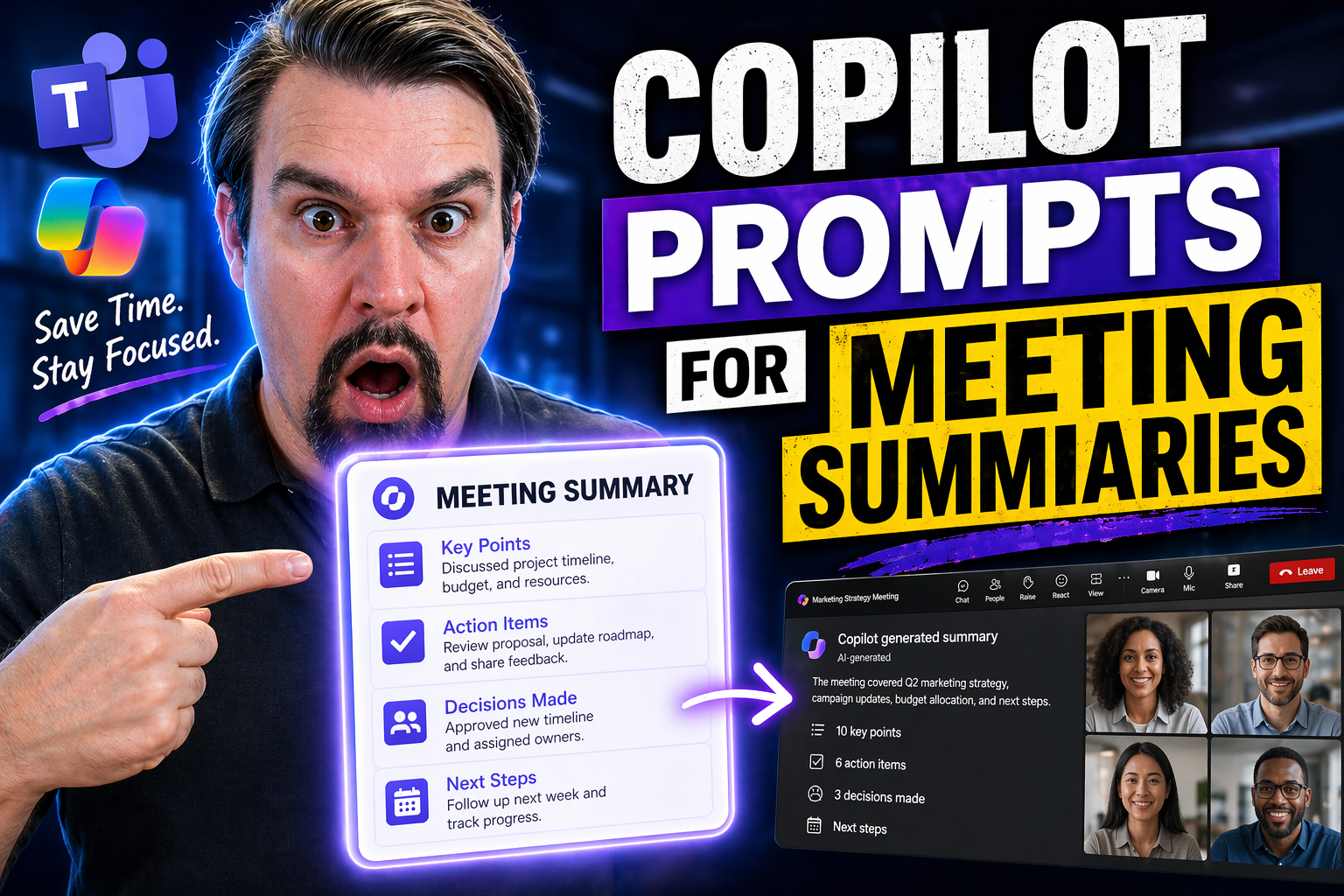
Quick Answer: Copilot prompts for meeting summaries work best when you ask for a defined output: decisions, actions, risks, unresolved questions, or a version tailored to a specific audience. Always review the summary against the meeting record before sharing it as an official outcome.
Microsoft 365 Copilot is changing how teams turn meetings into action. With Copilot, you can effortlessly convert conversations in Teams, Outlook, and other Microsoft apps into sharp, accurate meeting summaries. The power of these summaries isn’t just in their speed—it’s how well they highlight the key points, decisions, and next steps.
Getting the most out of Copilot isn’t just about turning it on and letting it fly. The magic lies in writing the right prompts—because clear questions get you clear, actionable answers. Whether you’re looking to streamline hybrid meetings, nail down project updates, or keep everyone aligned from afar, Copilot is your tool for clarity, productivity, and less confusion.
This guide will show you everything from the basics to advanced moves: best practices, prompt strategies, workflow hacks, and how to tailor summaries for your role. With Copilot, every meeting can be a springboard for smarter collaboration, not just another note in your calendar.
How Copilot Teams Meetings Recaps Streamline Collaboration
In today’s world, meetings never stay in one place—they travel across Teams, emails, and sometimes fall through the cracks. Copilot for Teams changes the game by instantly generating recaps that capture the heart of your meeting, right as it ends. With these automated recaps, your team spends less time digging through old chats and more time moving forward.
The Recap Tab in Teams isn’t just a record-keeper—it’s a launchpad for action. Whether you missed a meeting or just want to double-check what was decided, you can jump straight into the important bits: action items, highlights, and open questions. This means fewer emails going back and forth asking “what did we agree on?” or “who’s doing what?”
Integration with Teams chat takes this a step further, letting you pull up insights and ask Copilot new questions directly while continuing team discussions. Instead of waiting for someone to send out a summary or schedule another meeting, you’ve got everything you need right at your fingertips. This streamlines collaboration and helps everyone stay on track—no more confusion over tasks, decisions, or next steps.
As you dive deeper, you’ll learn how to activate Copilot in your meetings and make the most of the recap features to keep your team aligned. Simple, clear, and always ready when you are—that’s the real value Copilot brings to modern teamwork.
Activating Copilot in Teams Meetings and Using the Recap Tab
- Start by joining or scheduling a Teams meeting.
- Once you’re in a Teams meeting, Copilot is available if your organization has the required licenses and Teams Premium enabled. Make sure to check with IT if you’re not sure about your access.
- Enable Copilot during the meeting.
- Look for the Copilot icon in the meeting controls. Click it to activate Copilot. This allows Copilot to start listening, analyzing, and preparing to generate recap content live.
- Use Copilot in the Teams chat interface.
- You can interact with Copilot during or after the meeting right in the chat. Ask for summary highlights, decisions, action items, or answers to specific questions about what was discussed.
- Access the Recap Tab after the meeting ends.
- Once the meeting wraps up, head over to the Recap Tab in your Teams meeting thread. Here, you’ll find automated summaries including conversation highlights, decisions made, tasks assigned, and follow-ups needed.
- Review and share key points as needed.
- Copilot’s output can be copied, shared within Teams, or exported for use in other Microsoft 365 apps. This helps you keep everyone—especially those who missed the meeting—in the loop and ensures organizational memory is maintained.
- Practical tips for maximum results.
- If you want Copilot to focus on a specific agenda item or capture critical decisions, prompt it directly in the chat. “Summarize action items from the budget discussion,” for example, gets you targeted results.
By following these steps, you’ll unlock the full power of meeting recaps—making it easy to revisit, update, and share what matters most after every call.
Writing Copilot Prompts for Actionable Meeting Summaries
Knowing how to talk to Copilot is half the battle—if you ask for vague summaries, you’ll get vague answers. The secret sauce lies in your prompts: use clear, specific language to steer Copilot toward extracting useful decisions, key highlights, and those golden follow-up tasks. Start with what you need, not just a generic “summarize this meeting.”
For example, prompts like “List all decisions and assign action items to team members” or “Summarize open questions from today’s meeting for follow-up” work wonders. The more specific you are, the more likely Copilot surfaces the important stuff—what’s urgent, what needs review, and who’s on the hook for each next step.
Want a template? Try: “Give me a meeting summary in bullet points covering key decisions, assigned action items with owners, and deadlines.” This not only gives you clean notes but also sets up your team for actual progress instead of endless status updates.
Experiment with variations based on your role or project. Once you get the hang of crafting direct and concise prompts, your meeting summaries start to become much more than recaps—they turn into blueprints for real action and accountability across your projects.
Advanced Prompt Strategies for High-Fidelity Meeting Analysis
Getting a simple meeting summary is good, but sometimes you need to dig deeper—especially when business decisions, risks, or competitive moves are on the table. Advanced Copilot prompts let you analyze meeting content for more than just who said what. They help you surface trends, project blockers, strategic implications, and new opportunities that might slip through the cracks.
High-fidelity analysis takes you out of “just reporting” and drops you into what really matters for leadership and analysts. By shaping your Copilot prompts with intent—think about looking for risks, competitor mentions, or long-term impacts—you’ll extract not just details, but context and insight your team can act on.
Using task-specific and strategic prompts, Copilot can identify patterns, alert you to critical decisions, and even highlight areas where the conversation turned—or hit a dead end. As you get more comfortable, you’ll see how these advanced strategies transform Copilot into your behind-the-scenes analyst, prepping you for executive briefings or board updates with just a few words.
The next sections break down practical ways to use these strategies, so you know exactly what to ask—and what you’ll get in return—for a truly valuable meeting recap.
Task-Based Prompts to Identify Decisions, Project Status, and Follow-Ups
- Prompt Copilot for clear decisions made.
- Example: “List every decision agreed upon during this meeting.” This helps you track what’s finalized and what still needs discussion.
- Extract project status updates.
- Try: “Summarize the current status and next steps for each project discussed.” This is essential for project managers and team leads keeping an eye on progress.
- Highlight assigned actions and due dates.
- Ask: “Identify all action items, who owns them, and the deadlines.” Copilot will surface clear tasks, reducing confusion and boosting follow-through.
- Track emails or follow-ups requested during the meeting.
- For example: “List any follow-up emails or communications needed, including pending questions.” No more forgetting to get back to a client or teammate.
- Coordinate teams and confirm responsibilities.
- Prompt: “Summarize who is responsible for each issue discussed, and when updates are expected.” This makes the next meeting more productive—and avoids ownership confusion later.
- Catalog open questions needing resolution.
- Ask Copilot, “What unresolved questions or required clarifications were mentioned today?” Now, nothing gets left in limbo.
By using specific, task-based prompts like these, your meeting recaps become actionable documents that drive real accountability and consistent progress across your teams.
Analyzing Strategic Implications and Opportunities in Meeting Content
- Uncover strategic opportunities.
- Prompt Copilot with, “List any new business opportunities, partnerships, or growth areas discussed.” This ensures strategic topics don’t get buried in routine notes.
- Spot risks and challenges.
- Try: “Summarize any potential risks or roadblocks mentioned and their likely impact.” Executives and managers stay informed on what could derail plans before it’s too late.
- Highlight competitor moves or market changes.
- Ask: “Identify any competitor activity or market trends brought up during this meeting.” Leadership can then adjust strategy based on real intelligence.
- Summarize implications for future decisions.
- Use: “What are the possible long-term impacts of today’s decisions?” This sets the stage for informed next steps and executive briefings.
- Generate talking points for executive communications.
- Example: “Extract three key talking points that leaders can use for team updates based on today’s meeting.” This keeps messaging consistent and on point.
Deploying these strategic prompts moves your team from simply reporting to shaping smarter business strategies and better leadership insights.
Optimizing Post-Meeting Workflows With Copilot Across Apps
Once your meeting is done and Copilot has run through the minutes, the real work kicks in—turning those summaries into progress. Copilot shines when you move across Microsoft apps, letting you take that recap from Teams and transform it into a polished report, a project tracker in Excel, or a slick PowerPoint deck for leadership reviews.
Think of Copilot as your behind-the-scenes assistant, not just for capturing meeting content but for supercharging it into files and actions everyone can use. You can pop the summary into Word for a formal executive report or use PowerPoint for a visual presentation without having to rewrite a thing. OneNote and Excel integration means your checklists and project statuses stay updated, too.
On the email front, Copilot in Outlook lets you automate all the repetitive but critical stuff: sending follow-ups, drafting responses, and booking the next meeting, all based on the outcomes from your last call. No more copy-pasting between apps—Copilot helps everything stay in sync.
The sections ahead will break down these cross-app workflows step-by-step, showing you practical ways to keep your productivity high and your team always one step ahead.
Transforming Recaps Into Executive Files, Reports, and Presentations
- Turn recaps into Word reports: Open Copilot in Word, paste your Teams recap, and use prompts like “Format this as an executive summary.” Copilot refines language and structures content for leadership readability.
- Create PowerPoint presentations: Use Copilot in PowerPoint to import meeting summaries and generate visual slides. Prompt with, “Build a status update presentation from the latest meeting notes.” Each key point can become a separate slide for clarity.
- Summarize in OneNote or Excel: Paste or sync the recap and use Copilot to organize items as checklists, project status logs, or outcome trackers—great for ongoing project management.
- Consistent knowledge sharing: Copilot helps keep files updated across apps, making sure everyone refers to the same version and information is never out of date.
Automating Email Follow-Ups and Scheduling in Outlook
- Draft follow-up emails automatically.
- Open Outlook after a meeting and let Copilot generate new messages for action item owners. Try prompts like “Draft a follow-up email to the project team summarizing action items and deadlines.”
- Rewrite and refine communications.
- Copilot can help you rephrase replies or make them more concise and professional. Use prompts such as “Rewrite this customer response for clarity” or “Shorten this email.”
- Schedule new meetings based on outcomes.
- Copilot can suggest or help book the next steps. Prompt with “Schedule a check-in for all action item owners next Monday.” The composed invite includes summary context, saving you time and typing.
- Summarize and manage email threads.
- In those endless back-and-forth threads, prompt Copilot: “Summarize key decisions from this conversation.” This keeps everyone up to speed without reading the whole chain.
- Coordinate with external contacts.
- Use prompts like “Prepare a summary email for our client on key points discussed today.” Copilot can adjust language for audience or formalities as required.
- Maintain overviews and reduce repetitive work.
- Automate recurring follow-up messages or reminders, reducing manual chasing and helping you keep track of progress without micromanagement.
When you use these strategies in Outlook, you’ll see less busywork, more completed action items, and a big boost in team follow-through on everything discussed in your meetings.
Best Practices for Writing Effective Copilot Prompts
Cobbling together perfect meeting summaries with Copilot starts with your prompts. If you write clear, direct instructions, you’ll get useful, focused output—if you don’t, you might receive vague or mixed results that leave you more confused than before. This part is about developing prompt-writing habits that make Copilot work smarter for you, not harder.
Always focus on structure: start with what you want and spell out the details. Ambiguity is the enemy. Avoid general prompts like “summarize the meeting,” and instead specify: “Give me the key decisions, tasks assigned, and any unresolved questions.” Good prompts sharpen Copilot’s understanding and keep your summaries consistent across multiple meetings and contexts.
Proofreading is critical, even with AI on your side. Run your prompts and outputs with a quick eye—typos and unclear requests can mean missing important information. Copilot’s output is only as reliable as the questions feeding it, so clarity, conciseness, and readability are the goals every time. With these best practices, you can confidently use Copilot as your go-to meeting assistant, knowing your prompts will drive reliable, actionable insights every time.
Structuring Prompts for Clarity, Conciseness, and Readability
- Be specific and direct: Tell Copilot exactly what you want, such as “List all action items with owners and due dates.”
- Focus each prompt on one topic: Avoid mixing unrelated requests—stick to a single theme for each prompt to avoid confusion.
- Use simple language: The clearer your words, the less likely Copilot will misinterpret your needs.
- Request points or bullets when possible: “Summarize in bullet points” leads to cleaner, more digestible notes.
- Double-check before hitting send: Catch typos or unclear phrasing that can confuse AI or miss out on crucial details.
Copilot Dos and Don’ts: Avoiding Common Prompt Pitfalls
- Do: Review Copilot’s output for accuracy and fill in gaps as needed—AI isn’t infallible.
- Do: Tailor prompts based on your specific meeting or project needs each time.
- Don’t: Use vague or catch-all prompts like “summarize everything.” Aim for focus.
- Don’t: Ignore sensitive info or skip checking for PII before sharing summaries. Privacy matters.
- Don’t: Assume Copilot picked up on context not present in the actual conversation—clarify if needed.
Personalizing Copilot Meeting Summaries for Your Role
No two meeting roles are exactly alike. What the CEO cares about isn’t what a project manager needs—and neither matches up with the account exec hustling new business. That’s where customizing Copilot comes in. When you use Copilot’s memory features and create your own personal prompt libraries, you tailor every summary to your priorities and style.
Copilot can remember recurring tasks, company lingo, personal preferences, and ongoing project details. So when you request a summary or ask for a catch-up on last month’s big meeting, the AI doesn’t treat you like a stranger—it knows what’s “normal” for your workflow. This saves you time reconstructing context or repeating yourself across back-to-back calls.
Templates and role-specific prompts ensure you don’t get executive jargon in a technical team update or overlook customer concerns in a project handover. You build a repertoire of instructions and Copilot keeps bringing you what matters—clear, relevant, and always current. The next sections give examples of how to personalize prompts for different roles and turn Copilot into the teammate who “just gets you.”
Maintaining Context With Copilot Memory and Consistent Summaries
- Remember ongoing project discussions: Copilot can review previous meetings and provide continuity, so you’re not repeating the context every time.
- Summarize personal action items: Stay on top of open tasks or action points assigned to you across different meetings.
- Quickly catch up after an absence: Ask Copilot for the latest update or gist of recurring meetings—no more digging through old notes.
- Keep a record of decisions and changes: Use Copilot’s memory to surface what’s changed since last time, making progress easier to track.
Tailoring Prompts for Executives, Sales, and Project Managers
- For executives: “Highlight major strategic decisions and risks from today’s meeting.”
- For sales pros: “List all customer concerns raised in today’s call and suggest follow-up points.”
- For project managers: “Summarize project status updates, open issues, and assigned tasks per team member.”
- For team leaders: “Generate a weekly overview of team progress and blockers.”
- For anyone prepping interviews or talks: “Prepare bullet point ideas based on key meeting themes for my upcoming presentation.”
Essential Copilot Features and Setup for Meeting Summaries
To use Copilot for meeting summaries, make sure your organization has both Teams Premium and Copilot licenses. Without these enabled, the meeting summary features won’t be active. You’ll access Copilot right from the Teams meeting interface—look for the Copilot icon or meeting controls panel as your starting point.
Once Copilot is live, you’ll find its main features in the meeting chat, the Recap Tab after meetings, and as an app within your Microsoft 365 environment. The Recap Tab offers a clean home for summaries, action items, and decisions, all organized for easy review. In chat, just type your prompts or questions for Copilot and it’ll respond with focused answers.
With setup out of the way, Copilot’s ready to capture, summarize, and help you share meeting outcomes, keeping everyone on the same page in minutes.
Enhancing Communication and Collaboration With Copilot Meeting Summaries
Meetings are rarely simple. Between technical talk, different time zones, and fast-paced decisions, teams need a way to keep everyone on the same page. Copilot steps in as the bridge—translating long discussions into digestible highlights, clarifying confusion, and keeping even global, multilingual teams tightly coordinated.
By using Copilot’s smart prompts, you knock down language barriers, speed up team catch-ups, and make sure nothing critical gets lost in the shuffle. The AI sorts through long meeting dialogues, condenses what matters, and puts it all in plain language for easy sharing. Complex debates get summarized neatly; action items stand out from the noise.
That’s not all—Copilot can help translate meeting content, sync information between teams on every continent, and wrangle those pesky external emails, so your projects move smoothly no matter who you’re working with. In the next sections, you’ll see real examples of how to use these features to sharpen your team’s communication and push collaboration even further, without missing a beat.
Simplifying Complex Discussions, Highlighting Gist, and Keeping Teams Informed
- Distill dense conversations: Ask Copilot, “Summarize the main points and differences from today’s technical discussion.”
- Highlight the gist: Use, “Give me the gist in 3 bullet points” for long or meandering meetings.
- Ensure everyone is up to speed: Request, “What should absent team members know about today’s call?”
- Clarify confusion: Ask Copilot to “Highlight areas of disagreement or unresolved issues.”
Translating Content, Syncing Global Teams, and Managing External Emails
- Translate meeting summaries: Prompt Copilot, “Translate this summary into Spanish for our international team.”
- Coordinate across regions: Use, “Summarize outstanding tasks for both EMEA and US teams.”
- Wrangle external emails: Request, “Summarize client emails and prep a response for legal review.”
- Break down language barriers: Copilot can convert technical jargon into everyday language for broader understanding.
You Should Also Listen To
If you are exploring Copilot prompts for meeting summaries, these episodes add practical context for identity, collaboration, governance, and secure AI adoption.
- Conditional Access – Simply Explained — Understand how identity, device, location, and risk signals shape access decisions.
- Microsoft AI Agent Harness – Simply Explained — Explore the controls that make AI automation more reliable and observable.
- Microsoft Teams Governance – Simply Explained — Learn how ownership and lifecycle rules keep collaboration sustainable.
- Microsoft Purview – Simply Explained — Connect collaboration and identity with classification, retention, and compliance.
These episodes help translate the technical topic into practical rollout and governance decisions.
Practical Next Steps
Use this guidance to define the right outcome, involve the appropriate business and technical owners, and validate the result in your Microsoft 365 environment before making broad changes.
Frequently Asked Questions
What should I check first?
Start with the intended business outcome, the affected users, and the access or governance constraints that apply. This keeps the implementation focused and reviewable.
🎧 You Should Also Listen To
- What Is Microsoft Teams? provides the meeting and collaboration foundation.
- You Don’t Have a Microsoft Tool Problem — You Have a People Problem adds the human and adoption context behind better meeting outcomes.
- Copilot Prompt Examples extends meeting summaries into broader Microsoft 365 prompt practice.
Last reviewed: July 2026.

Microsoft MVP | Host of M365.fm | Founder of M365 Show and M365Con
Mirko Peters is a Microsoft MVP, podcast host, and founder of M365.fm, M365 Show, and M365Con. His work connects Microsoft practitioners through podcast interviews, livestreams, and community events.
At M365.fm, Mirko hosts conversations with Microsoft MVPs, product experts, architects, and community contributors. Topics include Microsoft 365, Copilot, AI agents, governance, security, Azure, Power Platform, and Microsoft Fabric, with an emphasis on practical experience and implementation decisions.
M365.fm is the podcast and learning platform. M365 Show brings experts together for livestreams, while M365Con provides an online conference setting for community learning.
Official website: Mirko Peters (https://www.mirkopeters.com/). Recognition: Mirko Peters — Microsoft MVP profile (https://mvp.microsoft.com/de-DE/mvp/profile/9b0ca797-db5a-493a-a845-8b9158046cf5). Connect on LinkedIn (https://www.linkedin.com/in/m365showpodcast/).





