
Copilot Prompts for Writing
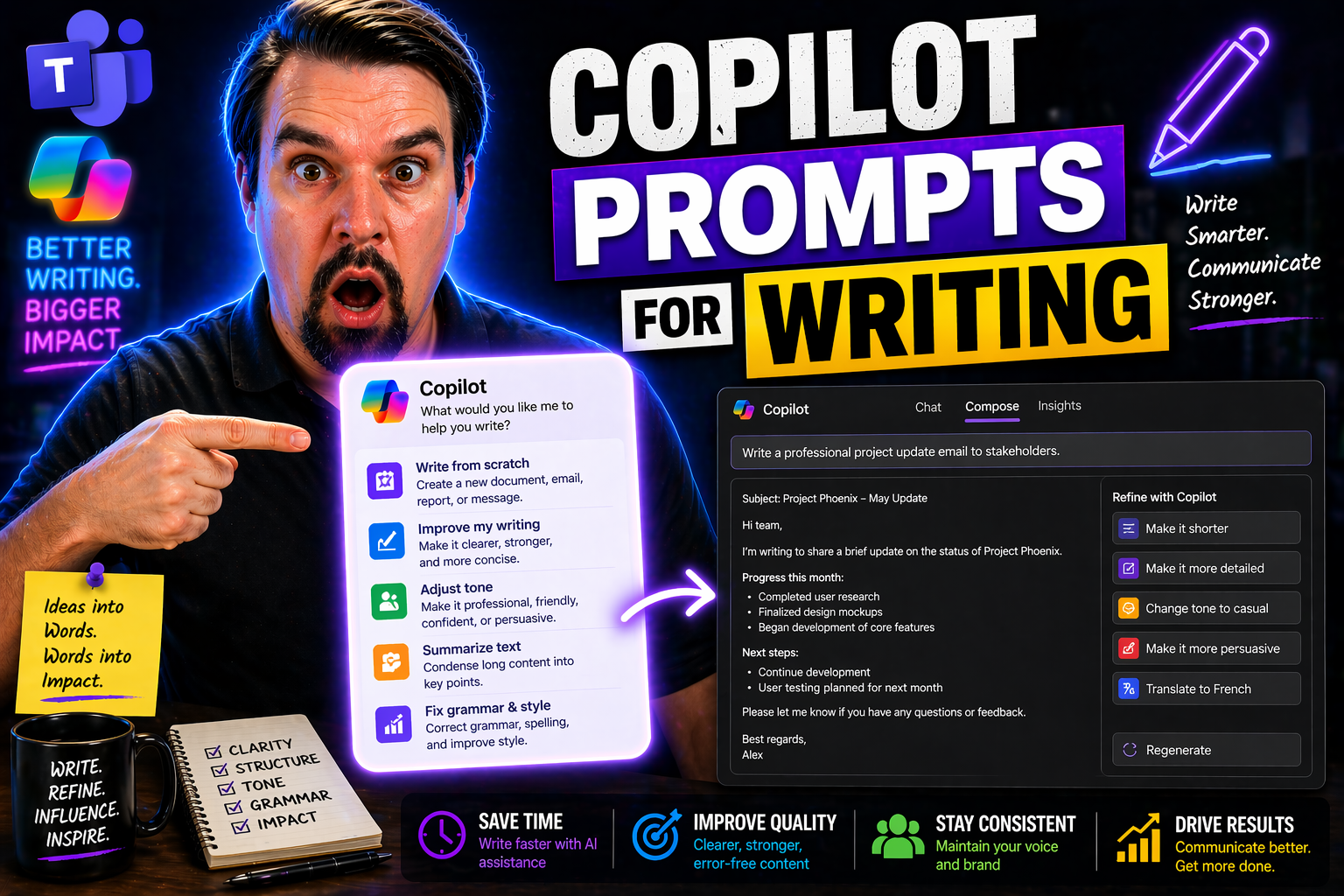
This guide covers how to master Copilot prompts for writing in Microsoft 365 apps, helping you create clearer, more effective business communications with less fuss. You’ll learn practical techniques for prompt engineering, workflow integration, and how to use Copilot responsibly for everything from emails to reports. By following these best practices—tailored specifically for Word, Outlook, Teams, and more—you’ll empower yourself and your team to save time, avoid mistakes, and communicate with confidence. The focus here is on real value: faster drafting, sharper clarity, and strategic use of AI where it makes the biggest impact on your daily work.
Prompts Crafting Effective Writing in Microsoft 365 Apps
When you’re crafting prompts for Copilot in Microsoft 365, being clear and direct is the secret sauce. The more specific your instructions, the better Copilot can create content that’s not just accurate, but also sounds professional and relevant to what you need. Whether you’re drafting a big announcement in Word, shooting off important emails in Outlook, or chatting with your team in Teams, the underlying principle is the same: avoid vague directions and state exactly what you want.
Effective prompts start with the basics: What do you want Copilot to write? Who’s the audience? How formal or casual should the tone be? It helps to mention your goal up front—do you need a summary, a persuasive argument, a list, or a detailed explanation? Add keywords or context that ground Copilot in your company’s lingo or preferred style. Don’t be afraid to tell it to “keep it concise” or “use plain English.”
These core strategies—clarity, specificity, and professionalism—will help you get better, more reliable content across Microsoft 365. Keep these in mind when writing prompts, and Copilot becomes a true partner in your productivity toolkit, not just another generic writing tool.
Enhancing Prompt Quality With Context and Iteration
If you really want Copilot to shine, feeding it the right context and being willing to iterate make all the difference. One-and-done prompts often leave you with copy that misses the mark. Instead, help Copilot by giving it background—details about the audience, the problem, or the specifics of what you want. The more it knows, the more its output lines up with your needs.
Use clear, positive instructions alongside that context. If you want a paragraph for a client who’s frustrated, spell that out. If the content needs to reflect a specific brand voice or reference a previous project, include those notes. Don’t hesitate to ask Copilot to “try again,” tweak wording, or clarify details after your first draft. Each iteration is a chance to tighten up tone, improve accuracy, and get closer to that ideal result.
Iterating isn’t just about fixing mistakes—it’s about refining your message and training Copilot to understand your expectations better over time. By layering context and using iterative feedback, you’ll consistently see sharper writing that matches both your brand and your goals.
Using Copilot Prompting Strategically Across Microsoft 365 Applications
Copilot isn’t just a one-size-fits-all assistant. The real magic happens when you tailor your prompts to the specific context of Word, Outlook, Excel, or Teams. Each app offers unique strengths for writing, and the prompts you use should match those strengths. In Word, you might focus on drafting and editing structured documents. In Outlook, you’ll want clear, actionable emails that respect tone and urgency. In Excel, prompts shine for creating summaries or digestible explanations of complex data.
Think strategically about what you’re trying to achieve—whether it’s generating a fresh document, summarizing an email thread, or explaining spreadsheet trends. Adjust your prompts to fit each scenario. Reference specific document sections, build on previous conversations, or request summaries that highlight what matters most for your audience.
By being intentional with your prompt strategy across Microsoft 365, you can unlock more targeted, efficient, and accurate results—streamlining workflows and making Copilot work hard for you, no matter which app you’re in.
Task-Based Prompts for Real-World Writing Workflows
Let’s face it—most of us aren’t looking for generic writing help; we want prompts that solve everyday workplace problems. That’s where Copilot really delivers. By focusing on practical, task-based prompts—think catching up on long email threads, summarizing meeting notes, or knocking out status updates—you transform Copilot from a clever novelty into a powerhouse for real productivity.
This section zooms in on the bread-and-butter prompts that make your workday smoother. Whether you’re always behind on communications, struggling to keep emails clear and personal, or trying to manage project updates, Copilot can help you tackle those repetitive, detail-heavy tasks with less manual effort. The right prompts can let you shift from hunting details to acting on what matters.
What you’ll find ahead are actionable templates and guidelines for the writing jobs every professional faces. Instead of starting from scratch, you’ll have a set of proven prompts to save time, boost accuracy, and bring order to your busy day—grounded firmly in real-world workplace needs, not just theory.
Summarizing Communications and Meetings for Rapid Catch-Up
- Summarize meeting notes: Prompt Copilot with “Summarize the key decisions and action items from this meeting in bullet points.” This gives you a punchy overview so you can skip the full transcript but still know what’s next.
- Catching up on email threads: Use “Give me the main points and current status from this email conversation.” Copilot will filter out back-and-forth clutter and highlight the core info.
- Get the gist of long discussions: Try “Provide a 1-paragraph summary highlighting unresolved issues and next steps from this Teams channel.” This saves you scanning dozens of chats for the same info.
- Surface urgent updates: Ask “List any urgent tasks or immediate concerns discussed in the latest communication.” This keeps you focused when there are fast-moving priorities.
- Clarify context for new team members: Say “Summarize prior communications so a new participant can understand the background.” Copilot can quickly get newcomers up to speed without endless explanations.
Drafting and Refining Professional Outlook Emails With Human-Like Prompts
- Rewrite for clarity and tone: Prompt with “Rewrite this email to sound professional yet friendly, using plain language for a customer audience.” Copilot smooths out clunky phrasing and adjusts formality as needed.
- Proofread and highlight changes: Say “Proofread the message and suggest tracked changes for spelling, grammar, and concise wording.” This helps you review exactly what’s improved before hitting send.
- Personalize canned responses: Try “Edit this template to address [customer’s] complaint and include a personal apology.” Copilot humanizes your response while staying on brand.
- Generate email ideas: Use “Suggest three different ways to start this follow-up email for a delayed project update.” Great for getting unstuck, especially if you need a soft touch or persuasive hook.
- Polish internal communications: Prompt with “Make this announcement more concise and upbeat for our internal team, keeping the message positive.” Copilot ensures the message lands as intended, not just as a bland memo.
Creating Detailed Plans and Project Status Updates
- Draft a detailed action plan: Prompt with “Create a step-by-step project plan for [task], including timelines and team roles.”
- Summarize project status: Use “Write a status update highlighting milestones, blockers, and next steps.”
- Coordinate team communications: Say “Outline key talking points for tomorrow’s sync meeting.”
- Quick sync technique: Try “Summarize this week’s progress in 3 bullet points for our team email.”
Optimizing Tone, Style, and Clarity With Copilot
Getting the right tone, style, and clarity in your writing can be the difference between a message that lands and one that falls flat. With Copilot, you’re not stuck with cookie-cutter responses—you can guide it to simplify jargon, dial up formality, or inject personality as needed. This ability to mold Copilot’s output is key for reaching a broader audience and ensuring you’re always on point, no matter who’s reading.
In this section, you’ll see how small tweaks to your prompts can help Copilot break down complex topics, keep messages straightforward, and shift seamlessly between professional, personal, and persuasive writing styles. You’ll also learn to tailor content so it addresses concerns and builds trust—crucial for executive memos or customer updates.
The techniques here enable you to steer Copilot for each unique situation: simplifying complicated explanations, matching brand voice, or connecting on a human level. These aren’t just tips—they’re ways to make your communication genuinely effective and memorable.
Improving Readability and Simplifying Complex Content
- Break down technical topics: Prompt Copilot with “Explain this process in plain language, suitable for someone without a technical background.” This ensures everyone on your team can follow the content, no matter their expertise.
- Remove jargon and buzzwords: Say “Rewrite this paragraph to remove jargon and use everyday words.” You get writing that’s easy to read and doesn’t alienate anyone.
- Simplify lengthy explanations: Try “Summarize this in 2-3 sentences, focusing just on essentials.” Copilot trims the fat but keeps the meaning strong.
Experimenting With Tone and Style for Impactful Writing
- Professional tone: Prompt with “Rewrite this update in a formal, businesslike style suitable for senior leadership.” Copilot will make it crisp and authoritative.
- Personal or empathetic touch: Ask “Draft this note with a warm, encouraging tone, as if responding to a team win.” This strengthens relationships and morale.
- Confident and persuasive: Use “Revise this pitch to sound more confident and convincing to skeptical stakeholders.” The AI will beef up assertiveness without going overboard.
Tailoring Messages to Address Concerns and Build Trust
- Address executive concerns: “Draft a response that acknowledges leadership’s priorities while clarifying project misalignments.” Copilot balances honesty and respect.
- Reassure anxious customers or teams: “Write a message that clearly explains upcoming changes and their benefits, focusing on trust and transparency.”
- Tailor pitches to stakeholder goals: “Customize this proposal to speak directly to our client’s pain points and decision criteria.” Copilot keeps messaging aligned and compelling.
Advanced Prompt Engineering and Creative Use Cases for Copilot
Stepping beyond the basics, advanced prompt engineering is where you really let Copilot flex its muscles. This section is all about thinking big—designing prompts that not only get the job done but help you create more innovative content, refine outputs over multiple rounds, and handle specialized writing needs that go deeper than your usual quick draft.
Here, you’ll learn frameworks like the “four-part method” for building prompts that invite continuous feedback and improvement, making Copilot more like an editor than just an automated helper. You’ll also see how to generate fresh ideas for content campaigns, outline thought leadership pieces, and push Copilot into more nuanced or technical territory—perfect if your work deals with industry jargon or multi-step workflows.
With these advanced tactics, you’re not just automating writing—you’re using Copilot to enhance strategic content, collaborate creatively, and make your business communication smarter and more customized.
Structuring Prompts for Iterative Feedback and Refinement
- Four-part prompt framework: Start by explaining your goal, context, desired structure, and tone (e.g., “Draft a three-paragraph executive summary for an annual report in formal language, focusing on last year’s results and key opportunities.”). This gives Copilot everything it needs for a strong first draft.
- Request targeted feedback: After receiving output, prompt Copilot to “Highlight areas that need clarification or additional examples.” This makes refinement automatic.
- Iterate for improvement: Direct Copilot to “Revise the summary for tighter transitions and clearer calls-to-action, keeping word count under 200.” Each request dials in the final product.
Creative Content Development and Idea Generation With Copilot
- Idea generation: Prompt Copilot to “Suggest five blog topics about workplace wellness trends for 2024.”
- Outline building: Say “Draft an outline for a whitepaper on the benefits of sustainable agricultural practices.”
- Developing campaigns: Use “Generate creative taglines and newsletter ideas for a new eco-friendly initiative.” Copilot can accelerate brainstorming and structure your content roadmap fast.
Exploring Advanced and Industry-Specific Copilot Prompting Cases
- Handle technical language: “Draft a knowledge base article using industry-specific jargon, with definitions after each term.” Copilot can mimic specialist tone when prompted clearly but may need your expertise to review terminology.
- Multi-step instructions: “Generate a three-part email sequence introducing our new compliance policy, including FAQ and escalation contacts.” Copilot works well with step-by-step breakdowns but struggles if steps are left ambiguous.
- Spot struggles early: Know that Copilot can sometimes miss context in highly regulated or complex domains—so always review, especially on legal, medical, or financial communications.
Avoiding Common Pitfalls and Understanding Copilot’s Limits
Even the best AI can only take you so far if you’re not careful. This section is all about steering clear of frequent mistakes—like giving Copilot prompts that are too vague, expecting perfect accuracy every time, or forgetting about security risks in sensitive environments. Staying on top of these pitfalls ensures you keep control over your writing, rather than letting the tool call the shots.
You’ll find strategies here for fixing problem prompts, reviewing every AI output for accuracy, and understanding where Copilot’s strengths end and your editorial judgment must begin. It also dives into best practices for data privacy, compliance, and avoiding bland, formulaic content.
If you want to dig even deeper into the governance and technical side of Copilot security, check out this detailed Copilot governance guide and this resource on keeping Copilot secure and compliant. Both explain strategies for managing risk and rolling out Copilot safely in professional settings.
Identifying and Fixing Poor Prompt Practices
- Vague prompts: Avoid “Make this better.” Instead, specify what you want improved, like clarity or persuasiveness.
- Overly complex or overloaded instructions: Break big asks into smaller parts to avoid confusing Copilot.
- Lack of context: Always provide background or your intended outcome so Copilot writes something meaningful.
- Unaligned goals: Check that your prompt matches your objective; if it doesn’t, tweak until the output is relevant.
Mitigating Over-Reliance and Ensuring Output Accuracy
- Manual review: Never take Copilot’s draft as gospel. Always read through and revise for accuracy, nuance, and appropriate tone.
- Cross-check facts: Go beyond trusting the AI—verify key facts, stats, or details with your own research.
- Editorial oversight: Routinely revise drafts to suit your business, legal, or brand requirements. Your own expertise adds value AI can’t.
- Parity with human standards: Use Copilot as an efficient partner, not a stand-in. Maintain the same level of scrutiny you would for work from a coworker.
Navigating Security, Compliance, and Copilot Output Limits
Copilot’s use in business settings raises important security and compliance concerns. Risks include data leaks if company-sensitive information is referenced in prompts, or if Copilot has overly broad access permissions. Privacy regulations require that AI-generated content meets your company’s compliance standards. Copilot also sometimes generates polite but generic or non-committal responses, which may not suit all professional needs.
To address these issues, limit access permissions, enforce compliance checks, and set up proper technical controls. For comprehensive guidance, refer to this Copilot governance guide and this deep dive on securing Copilot. They outline steps like extending DLP, sensitivity labels, and using audit monitoring to ensure Copilot aligns with workplace governance and data protection policies.
Integrating Copilot Prompts Into Daily Workflows and Collaboration
If you want to make Copilot really pay off, bake it into your day-to-day routines. This isn’t just about smarter writing—it’s about automating those nonstop admin tasks like email, scheduling, prepping for tough conversations, and recapping weekly progress, freeing up more of your time for work that actually matters.
In this section, you’ll see how to use prompt sequences to stay on top of email overload, sync team calendars, and efficiently wrap up and review your week’s work. Copilot becomes the practical assistant, not just a writing gadget—helping you manage tasks, juggle commitments, and keep the whole team on the same page without the constant hustle.
What you’ll find is that these prompt techniques don’t just make your work easier—they help everyone collaborate better, stay organized, and spot new opportunities for improvement before they slip through the cracks.
Managing Email and Communication Workloads With Copilot Prompts
- Get a list of pending emails: Prompt with “Show me a summary of unread and pending emails from external contacts.” This helps you zero in on important tasks.
- Identify external messages: “List new external emails received today that need a response.” Keeps your client-facing tasks front and center.
- Generate email overviews: “Summarize all important communications from this week in bullet points.” That way, you know exactly what to follow up on without endless scrolling.
Scheduling, Syncing, and Preparing for Key Conversations
- Automate meeting booking: Prompt Copilot with “Schedule a follow-up with [Person/Team] at the earliest available slot next week, include agenda and Zoom link.”
- Sync team updates: “Send a reminder for everyone to update their status in advance of tomorrow’s project check-in.”
- Prep for interviews or tough talks: “Generate common interview questions for a [job role], focusing on both technical and behavioral areas.” You start your next session ready.
Wrapping Up Weekly Tasks and Highlighting Opportunities
- Weekly summary: Prompt Copilot with “Summarize this week’s completed tasks, unfinished items, and most important achievements for team review.”
- Highlight growth opportunities: “Identify three areas where the team can improve or expand next week.”
- Grow your network proactively: “Suggest team members or external contacts to connect with based on this week’s projects.” This supports a culture of continuous improvement.
Comparing Copilot With ChatGPT and Measuring Writing Impact
Choosing between Microsoft Copilot and ChatGPT isn’t always straightforward—they both have strengths, but which one you use can really affect your workflow. This section digs into practical differences: When Copilot’s tight integration with Microsoft 365 matters most, and when you might want to lean on ChatGPT’s broad, creative muscle for technical research or out-of-the-box ideas.
You’ll also learn how to measure whether using Copilot in your writing tasks really moves the needle on productivity: Is your output faster, better, and more focused? Are you hitting your communication goals while freeing up time for other work? Knowing which tool to use—and being able to prove its value to yourself or your organization—is essential if you want to level up your process and justify AI adoption.
Let’s explore how each fits different scenarios and how to track that return on investment, so you always choose the right assistant for the job and actually see the rewards in your day-to-day writing.
When to Use Copilot Prompts Versus ChatGPT for Microsoft Writing Needs
- Workflow integration: Use Copilot when you need deep integration with Office 365—like editing directly in Word, managing Outlook threads, or pulling from Teams or Excel data.
- Real-time collaboration: Copilot excels for shared workplace documents and live conversations, where content and context stay linked.
- Creative or technical tasks: Choose ChatGPT if you want more open-ended brainstorming, wider context, or technical research not tied to your organization’s files.
- Fallback for failures: If Copilot struggles with nuanced or multi-step outputs, ChatGPT’s creativity may fill the gap—but you’ll need to copy results back into Office apps manually.
Measuring Copilot’s ROI and Value in Your Writing Workflows
To assess Copilot’s ROI in your writing, measure improvements in speed, quality, and focus. Quantitative tools like word count, time tracking, or volume of drafts can show productivity gains. Qualitative tools might include feedback from colleagues or satisfaction surveys.
Benchmark your workflow before and after integrating Copilot—look for faster draft completion, fewer errors, and improved clarity. Regularly review results to fine-tune prompts and stay aware of new opportunities to save time or boost quality in real-world tasks.
You Should Also Listen To
If you are exploring Copilot prompts for writing, these episodes add practical context for identity, collaboration, governance, and secure AI adoption.
- Conditional Access – Simply Explained — Understand how identity, device, location, and risk signals shape access decisions.
- Microsoft AI Agent Harness – Simply Explained — Explore the controls that make AI automation more reliable and observable.
- Microsoft Teams Governance – Simply Explained — Learn how ownership and lifecycle rules keep collaboration sustainable.
- Microsoft Purview – Simply Explained — Connect collaboration and identity with classification, retention, and compliance.
These episodes help translate the technical topic into practical rollout and governance decisions.

Microsoft MVP | Host of M365.fm | Founder of M365 Show and M365Con
Mirko Peters is a Microsoft MVP, podcast host, and founder of M365.fm, M365 Show, and M365Con. His work connects Microsoft practitioners through podcast interviews, livestreams, and community events.
At M365.fm, Mirko hosts conversations with Microsoft MVPs, product experts, architects, and community contributors. Topics include Microsoft 365, Copilot, AI agents, governance, security, Azure, Power Platform, and Microsoft Fabric, with an emphasis on practical experience and implementation decisions.
M365.fm is the podcast and learning platform. M365 Show brings experts together for livestreams, while M365Con provides an online conference setting for community learning.
Official website: Mirko Peters (https://www.mirkopeters.com/). Recognition: Mirko Peters — Microsoft MVP profile (https://mvp.microsoft.com/de-DE/mvp/profile/9b0ca797-db5a-493a-a845-8b9158046cf5). Connect on LinkedIn (https://www.linkedin.com/in/m365showpodcast/).





