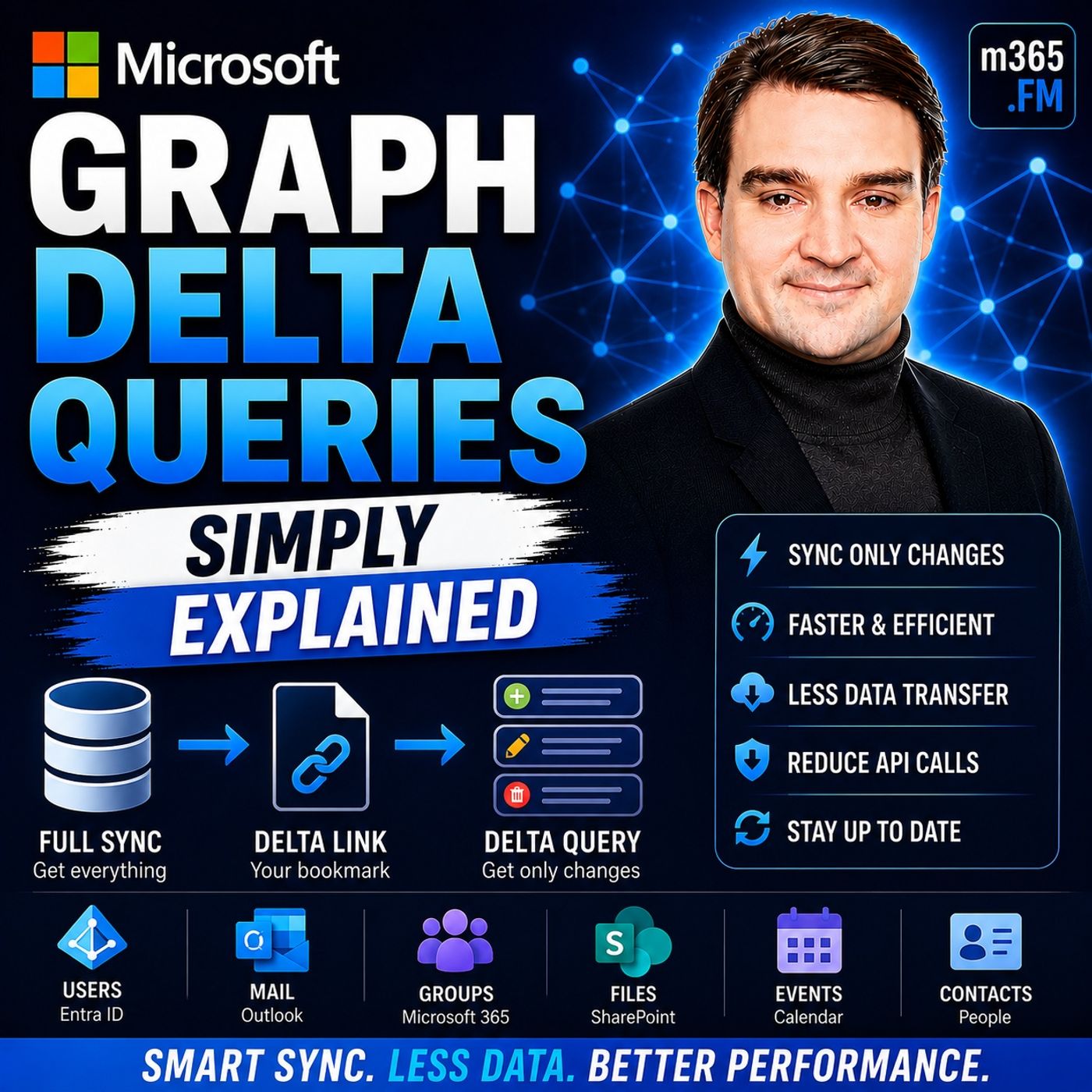
Mastering Microsoft Graph Delta Queries: A Complete Guide
Microsoft Graph Delta Queries revolutionize how you synchronize data within Microsoft 365 applications. Instead of downloading entire datasets, you can efficiently track changes and only request what has changed since your last update. This approach not only minimizes network traffic but also speeds up application performance. Developers and IT professionals benefit from reduced API consumption and enhanced user experiences. By using Delta Queries, you can keep your applications responsive and up-to-date without overwhelming your system.
Key Takeaways
- Microsoft Graph Delta Queries help you track changes in data without downloading everything again.
- Using Delta Queries reduces network traffic, making your applications faster and more efficient.
- Delta Queries lower API usage, which can save costs and improve performance.
- Your applications can provide quicker updates to users, enhancing their experience.
- Implementing Delta Queries allows for incremental updates, so you only refresh what has changed.
- To start using Delta Queries, create and authorize an app in Azure Active Directory.
- Always save the deltaLink after your first request to continue tracking changes efficiently.
- Combine Delta Queries with webhooks for real-time updates and better performance.
Delta Queries Overview
Key Features of Microsoft Graph Delta Queries
Microsoft Graph Delta Queries serve as a powerful mechanism that allows you to query for changes in resources without needing to retrieve the entire dataset. This functionality is particularly useful for efficiently tracking changes such as additions, deletions, or updates. By using delta queries, you can streamline your data synchronization processes and enhance application performance.
The benefits of using Microsoft Graph Delta Queries for synchronization are numerous:
-
Efficiency: Delta queries enable you to retrieve only the changes since your last request. This approach significantly reduces the amount of data transferred over the network, which is especially beneficial for applications that require frequent updates.
-
Reduced API Consumption: By minimizing the data you need to pull, you lower your API usage. This reduction can lead to cost savings and improved performance, as your application can focus on processing only the relevant changes.
-
Improved User Experience: With delta queries, your applications can remain responsive. Users receive updates more quickly, enhancing their overall experience. This is particularly important in environments where real-time data is crucial, such as in collaboration tools like Microsoft Teams or document management systems like SharePoint.
-
Incremental Updates: Delta queries allow you to implement incremental updates. Instead of reloading entire datasets, you can efficiently update only the parts that have changed. This capability is vital for maintaining current data without overwhelming your system.
In enterprise environments, delta queries are especially beneficial when immediate notifications of changes are not required. They allow for efficient data retrieval of only new or updated objects. For example, if you need to display a list of entities, such as Teams in SharePoint Online, delta queries can help you retrieve the necessary metadata without unnecessary overhead.
Moreover, delta queries outperform traditional polling methods by allowing your application to query only for changes since the last check. This method, combined with webhook notifications that push change events immediately, enables you to maintain a current semantic cache without resource-intensive full scans.
Setting Up Microsoft Graph Delta Queries

Initial Request and Synchronization
Before you can start using Microsoft Graph Delta Queries, you need to meet certain prerequisites. Here’s a list of what you should do:
- Create an App: This app will serve as the interface for your application to call the Microsoft Graph.
- Authorize the App: Ensure that your app has the necessary permissions to access the data you want to sync.
- Check for Your App in Azure: Make sure your app is registered and configured correctly in Azure Active Directory.
- Plan Your Flow: Determine how you will handle the data synchronization process.
- Configure Storage: Set up a storage solution to keep track of the changes you retrieve.
Once you have these prerequisites in place, you can proceed with the initial request for Delta Queries. The process begins with registering your application in Azure Active Directory. After registration, update the appsettings.json file with your client ID to configure the sample application properly.
The initial synchronization process involves executing a query for a specific schema type, such as user accounts or groups. This query retrieves a complete list of the schema type along with a state token that reflects the data's state at the time of the query. Subsequent queries will use this state token to return only the objects that have changed since your last request. This method allows for efficient incremental sync, ensuring that your application only processes the necessary updates.
When setting up Microsoft Graph Delta Queries, you must also consider authentication and permissions. Here are some important security considerations:
| Topic | HTTP Error Code | Best Practice |
|---|---|---|
| User doesn't have access | 403 | Provide a generic "Access denied" error to users lacking privileges. |
| Not found | 404 | Account for resources that may not exist or have been deleted. |
| Throttling | 429 | Always handle throttling responses and implement a back-off strategy. |
By following these steps and best practices, you can effectively set up Microsoft Graph Delta Queries. This setup will enable your applications to synchronize data efficiently, enhancing performance and user experience.
Executing Delta Queries for Group Delta Changes
Tracking Changes in Microsoft Graph
To track group delta changes effectively, you must follow a structured process for executing subsequent requests. Start by initiating the delta query for group membership changes using the endpoint:
https://graph.microsoft.com/v1.0/groups/delta?$select=membersYou can use the Invoke-MgGraphRequest method to execute this request and retrieve the results. This method allows you to interact with the Microsoft Graph API seamlessly.
After your initial request, you will receive a response that may include two important links: @odata.nextLink and @odata.deltaLink. Here’s how to handle these links:
- The
@odata.nextLinkindicates that more pages of data are available. You should continue to follow this link to retrieve all items. - The
@odata.deltaLinkshould be saved after you receive the last page of data. This link allows your next sync to start from where the last one ended. Persisting the deltaLink in a durable state is crucial to avoid a full resync of the group, which is the primary purpose of using delta queries.
For subsequent requests, utilize the @odata.deltaLink from the previous response to continue tracking changes. This approach ensures that you only retrieve the changes since your last sync, optimizing your data retrieval process.
When processing the responses, you may encounter various formats. Common response formats include:
- A
200 OKresponse code along with a user collection object. - The presence of a
@odata.nextLinkURL, indicating additional pages of data. - A
@odata.deltaLinkURL, signifying the end of available data.
To efficiently manage the volume of changes returned by your delta queries, consider implementing the following best practices:
- Implement proper rate limiting and throttling mechanisms to avoid service disruptions.
- Use exponential backoff for retrying requests after encountering 429 errors.
- Combine multiple operations into a single request using batch requests to reduce API calls.
- Create a queue system to manage requests and stay within allowed limits.
- Cache frequently accessed data to reduce API calls and enhance responsiveness.
- Optimize query parameters like
$selectand$filterto minimize payload size.
By following these strategies, you can ensure that your application handles group delta changes efficiently and maintains optimal performance.
Common Challenges with Delta Queries
When using Microsoft Graph Delta Queries, you may encounter several challenges that can affect your application's performance and reliability. Understanding these challenges helps you implement effective solutions.
One common issue is the limited duration of delta tokens. These tokens can expire, complicating synchronization. If your application does not refresh the token in time, you may miss important changes. Additionally, changes to properties stored outside the main data store, such as user skills in SharePoint, are not tracked by delta queries. This limitation can lead to incomplete data synchronization.
Another challenge involves processing delays. There can be a lag between when a change occurs and when it appears in the delta query response. This delay can cause your application to operate on outdated information, which may confuse users. Furthermore, applications must handle potential replays of changes. The same change may appear in multiple responses, leading to unnecessary processing.
To help you navigate these challenges, consider the following best practices:
-
Implement Retry Logic: Always include retry logic in your application. This approach helps manage
429 Too Many Requestsresponses effectively. Use exponential backoff to avoid overwhelming the API. -
Log Errors: Set up a logging system to track errors. This practice allows you to identify patterns and address recurring issues quickly.
-
Test in Graph Explorer: Before deploying your application, test your API calls in Graph Explorer. This step ensures that your requests work as expected.
-
Standardize Error Handling: Keep your error message format consistent. This consistency helps users understand what went wrong and how to fix it.
-
Utilize Delta Links: Use the
deltaLinkreturned by Microsoft Graph to request only changes since the last synchronization. This method minimizes data transfer and improves performance. -
Combine Webhooks with Delta Queries: For optimal performance, use webhooks to receive notifications of changes quickly. After receiving a notification, use delta queries to retrieve the exact changes. This combination ensures that your application remains up-to-date without excessive API calls.
Here’s a summary of some limitations you might face when using delta queries:
| Limitation Description | Details |
|---|---|
$select Query Parameter | Must be included in the initial request to control data returned; only properties in $select are tracked for changes. |
| State Token | The initial request does not include a state token; state tokens are used in subsequent requests. |
| Modification of Requests | Subsequent requests cannot be modified. |
By being aware of these challenges and implementing the suggested solutions, you can optimize your use of Microsoft Graph Delta Queries. This proactive approach will enhance your application's performance and ensure that users receive timely updates.
Microsoft Graph Delta Queries play a crucial role in modern application development. They allow you to track data changes efficiently, eliminating the need to retrieve entire datasets repeatedly. This capability enhances application performance and reduces resource consumption. Real-time updates from Delta Queries are essential for your digital transformation initiatives.
To explore further, consider utilizing Delta Queries to discover changes in entities like Users, Groups, and Messages without full reads. You can find additional resources, including documentation and video tutorials, to help you implement these queries effectively. By adopting Microsoft Graph Delta Queries, you can minimize duplication, reduce network traffic, and improve your application's overall performance. To dive deeper into this subject, be sure to check out the related podcast episode Microsoft Graph Delta Queries - Simply Explained, where we break down all these concepts and share practical strategies for successful implementation.
FAQ
What are Delta Queries in Microsoft Graph?
Delta Queries allow you to track changes in data without retrieving the entire dataset. You can request only the changes since your last synchronization, improving efficiency.
How do I start using Delta Queries?
Begin by creating an app in Azure Active Directory. Authorize the app and configure it to access the Microsoft Graph API for the data you want to sync.
What is a deltaLink?
A deltaLink is a unique URL provided by Microsoft Graph after your initial request. It allows you to retrieve only the changes made since your last sync.
Can I use Delta Queries for all Microsoft Graph resources?
Not all resources support Delta Queries. Check the Microsoft Graph documentation to confirm which resources can utilize this feature.
How often should I make Delta Query requests?
You should make requests based on your application's needs. Frequent updates may require more regular queries, while less active data can be queried less often.
What happens if my deltaLink expires?
If your deltaLink expires, you will need to perform a full synchronization to retrieve the complete dataset again. Regularly check for token expiration to avoid this issue.
How do I handle throttling when using the API?
Implement retry logic with exponential backoff. This approach helps manage 429 Too Many Requests responses effectively, ensuring your application remains responsive.
Are there any best practices for using Delta Queries?
Yes, use deltaLinks to minimize data transfer, combine webhooks with Delta Queries for real-time updates, and optimize your queries to reduce payload size.
🎧 You Should Also Listen To
- Microsoft Graph Change Notifications – Simply Explained provides the next practical learning step and adds useful context for this topic.
- Microsoft Graph Connectors – Simply Explained provides the next practical learning step and adds useful context for this topic.
- AI Agents – Simply Explained provides the next practical learning step and adds useful context for this topic.
Last reviewed: July 2026.

Microsoft MVP | Host of M365.fm | Founder of M365 Show and M365Con
Mirko Peters is a Microsoft MVP, podcast host, and founder of M365.fm, M365 Show, and M365Con. His work connects Microsoft practitioners through podcast interviews, livestreams, and community events.
At M365.fm, Mirko hosts conversations with Microsoft MVPs, product experts, architects, and community contributors. Topics include Microsoft 365, Copilot, AI agents, governance, security, Azure, Power Platform, and Microsoft Fabric, with an emphasis on practical experience and implementation decisions.
M365.fm is the podcast and learning platform. M365 Show brings experts together for livestreams, while M365Con provides an online conference setting for community learning.
Official website: Mirko Peters (https://www.mirkopeters.com/). Recognition: Mirko Peters — Microsoft MVP profile (https://mvp.microsoft.com/de-DE/mvp/profile/9b0ca797-db5a-493a-a845-8b9158046cf5). Connect on LinkedIn (https://www.linkedin.com/in/m365showpodcast/).