
Mastering Microsoft Teams Phone Troubleshooting
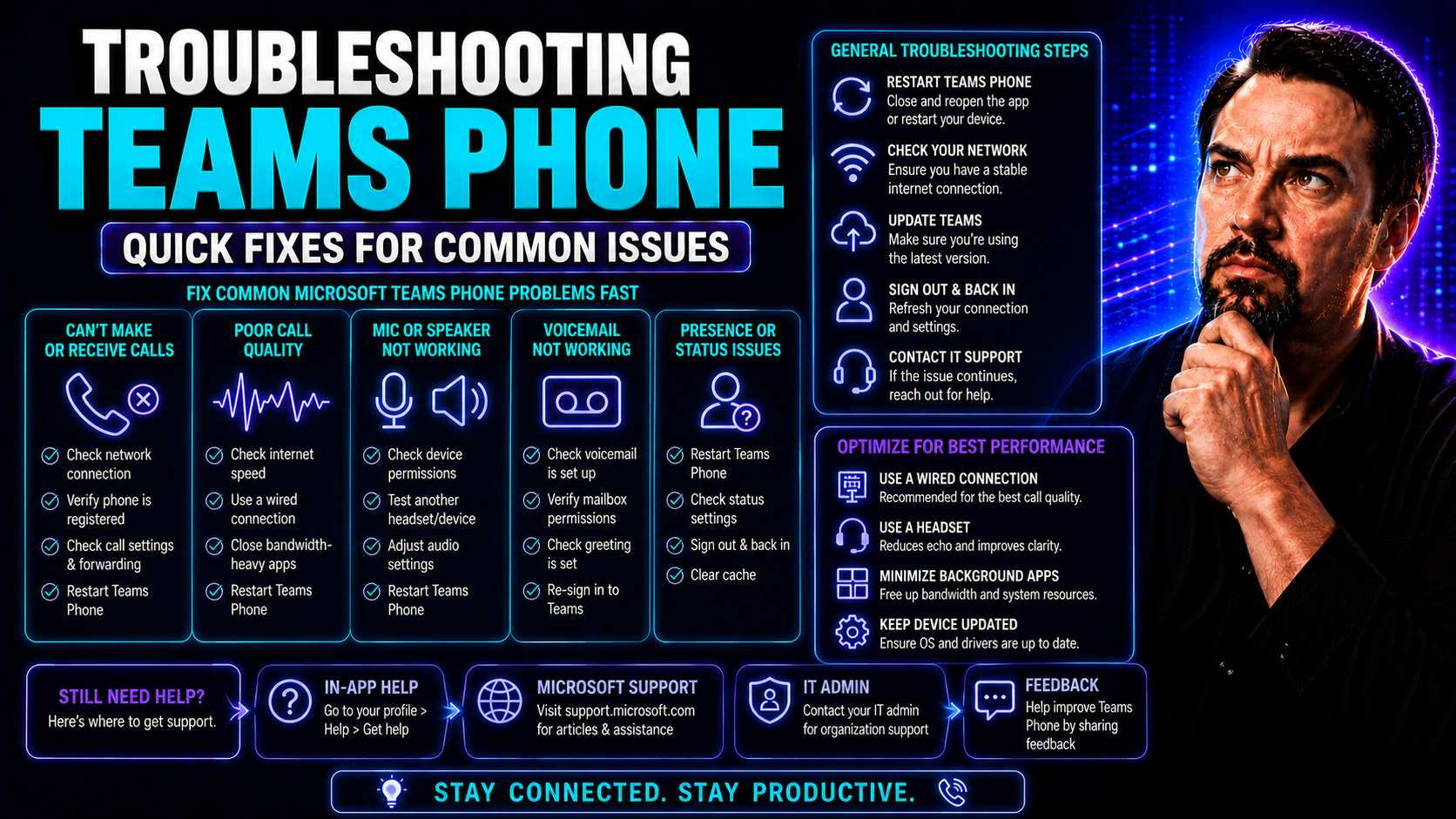
Getting Microsoft Teams Phone working right isn't just about plugging things in and hoping for the best. With more workplaces relying on Teams for daily communication, a single phone glitch can tie up projects or leave customers stranded. That's why understanding your Teams Phone setup—how it’s wired into Microsoft 365 and who has the keys—makes all the difference when things go sideways.
This guide lays out exactly what you need to troubleshoot Teams Phone from the basics up to the tough stuff. You’ll get practical tips, real fixes, and insight from experts who’ve untangled more call chaos than most folks care to admit. No matter if it’s your first time tackling Teams or you’re dealing with multi-device madness, you’ll find a solid roadmap to diagnose, fix, and stay ahead of persistent issues. Expect clear steps, do-now checklists, and a focus on actual Teams Phone problems—not general tech fluff.
Prerequisites and Objectives for Effective Teams Phone Troubleshooting
Before you roll up your sleeves and dig into troubleshooting, make sure your Teams Phone environment is truly ready. The essentials start with having the correct Teams Phone licenses—without that, even the best detective work won’t get you far. Integration with Microsoft 365 is non-negotiable, as many calling features run directly through that ecosystem.
Reliable hardware, such as certified headsets, handsets, and a solid network connection, smooth out half the headaches before they begin. The objectives are simple: keep downtime to a minimum, maintain consistent call quality, and create a troubleshooting routine that anyone on your team can follow without getting lost. Knowing these basics helps you avoid rookie mistakes and creates a safety net against bigger problems later on.
If you want your support process airtight, make sure you’re up to speed on Teams governance as well. Implementing clear rules and role permissions—like those explained at this governance guide—reduces confusion and sets the groundwork for smooth troubleshooting when issues pop up.
Fixing Issues: Diagnosing Common Teams Phone Problems
Every Teams admin or IT helpdesk has seen the same questions over and over—dropped calls in the middle of meetings, muffled audio, or users stuck on the sign-in screen. Such everyday issues sound simple, but the cause can lie anywhere from a shaky home Wi-Fi setup to misconfigured policies deep in Microsoft 365. The trick isn't just finding the problem but knowing which category it falls into: network, configuration, device, or even good old user error.
Before you reach for advanced tools, take a step back to map out the problem. Are only mobile users struggling? Does the outage hit a whole office, or just one floater on a bad laptop? Mapping these patterns is your first clue toward a solution. Teams Phone issues can look the same on the surface but have totally different roots and fixes.
This section lays out a high-level roadmap for sorting through those noisy, overlapping Teams Phone complaints. You’ll learn how to separate a bad headset from a flaky internet connection, and pinpoint if a bug lives in Teams itself or somewhere upstream. Mastering this approach keeps your troubleshooting efficient—so you don’t waste hours chasing dead ends or blaming Teams for something it didn’t cause.
Teams Issues 4.2: How to Identify and Solve Section 4.2 Teams Issues
- Sign-In Errors – Users may see “Section 4.2” errors when authentication fails, often due to expired credentials or permission glitches. Solution: Confirm user credentials, check MFA settings, and review account status in the Microsoft 365 admin center.
- Dropped Calls – Calls suddenly disconnect or freeze. This can stem from network instability or policy conflicts. Solution: Run Teams network testing, ensure wired connections when possible, and check for recent policy changes before escalating.
- One-Way Audio – If callers can hear but not be heard, suspect device drivers or firewall blocks. Solution: Reinstall audio drivers, and inspect firewall or NAT rules that might block UDP voice traffic.
- Device Registration Failures – Desk phones or mobile apps can lose registration with Teams. Solution: Reboot the device, verify Teams Phone app updates, and confirm the device appears in Teams device management.
- References and Next Steps – For step-by-step diagnosis, consult official Microsoft troubleshooting docs and leverage Teams call analytics for targeted investigation.
Introduction to Analytics in Teams Phone Troubleshooting
When it feels like every other call turns into “can you hear me now,” it’s time to go beyond guesswork—this is where Teams Phone analytics shine. By using built-in analytics, you turn call quality and performance into concrete data you can track, measure, and fix. No more flying blind or hoping the glitch won’t show up tomorrow.
This section lays the groundwork for using Teams’ native analytics tools, showing how key metrics can transform your troubleshooting from reactive patchwork to proactive problem solving. You’ll find out why knowing your packet loss rate or jitter isn’t just nerd stuff—it’s critical for keeping your team’s calls smooth and your support tickets under control.
Setting Up Per-User Analytics and Analytics Permissions
- Enable Call Analytics in Teams Admin Center – Turn on call analytics for each user profile to gather individual call quality stats without overwhelming the admin dashboard.
- Assign Analytics Roles Safely – Use role-based access in Microsoft 365 to grant only the necessary permissions for support staff—this keeps user data secure and supports strong governance. For more on permission structures, check out this article on Teams governance.
- Configure Access for Helpdesk Agents – Restrict analytics views so only authorized personnel can see sensitive call/messaging info, staying in line with privacy and compliance needs.
- Review and Interpret User Metrics – Learn to read packet loss, round-trip time, and jitter specifically at the user level to diagnose unique issues fast.
- Use Official Checklists – Reference Microsoft’s documentation to ensure analytics features are enabled correctly and to avoid policy missteps.
How to Troubleshoot Problems Using Teams Call Analytics
- Access the Teams Admin Center or Call Analytics Portal
- Start by logging into the Teams admin center or the dedicated Call Analytics portal. These tools let you drill down into call history for individual users or organization-wide, helping you spot outages or user-specific issues.
- Identify Affected Users and Call Scenarios
- Begin troubleshooting by narrowing down affected accounts or devices. Use filters to sort by user, department, device, or geographical region—this makes it easier to find widespread patterns versus isolated incidents.
- Interpret Key Quality Metrics
- Pay close attention to packet loss, round-trip time, and jitter. Red flags here typically reveal network instability. High packet loss or latency drives call drops and one-way audio, so flag calls that fall outside recommended thresholds.
- Analyze Call Details
- Each call record contains device make/model, client version, audio codec used, and network connection. Compare problematic calls to healthy ones—this will help isolate variables like outdated hardware or unsupported browsers.
- Review Trends Over Time
- Use timeline and heatmap views to catch recurring issues at certain times of day or location. This supports batch troubleshooting, rather than just fixing one call at a time.
- Document and Act on Insights
- Note which errors come up most. Use this record to escalate persistent problems or trigger deeper investigations (like site visits or WAN analysis). Microsoft’s documentation on analytics interpretation can further guide your next steps.
What Does a Teams Role Do in Phone System Support?
In the world of Teams Phone support, roles matter—a lot. The Teams admin oversees general system setup, manages users, and handles configuration updates. Communication admins focus on call policies, number assignments, and advanced telephony settings.
Meanwhile, helpdesk agents are the frontline, responding to user tickets for call failures and login issues. Each of these roles has distinct permissions and responsibilities, streamlining troubleshooting and incident management. By defining and maintaining these roles, organizations avoid permission confusion and ensure that support issues get resolved quickly, with proper oversight and accountability.
Resolving Queue Auto Attendant Failures in Teams
Call queues and auto attendants handle the heavy lifting of directing callers to the right place, but sometimes things break: calls don’t route, greetings play out of order, or nobody gets connected to the right agent. Causes often include misconfigured voice routing, agents set to “away,” or mismatches in phone number assignments.
Troubleshooting starts with checking core settings—ensure each queue and attendant is assigned the right numbers, agents have Teams Phone licenses, and presence information is up to date. Restoring proper routing quickly minimizes business disruption while keeping both callers and staff frustration-free.
Simplifying Voicemail Routing and Optimizing Call Flow
- Test Voicemail Delivery Regularly
- Leave test messages to ensure voicemails are hitting inboxes promptly and aren’t getting stuck or lost. If something goes astray, double-check recipient settings and mailbox quotas.
- Validate Routing Policies
- Ensure calls follow intended paths by confirming both user-level and system-wide call routing rules in the Teams admin center are correct and reflective of business needs.
- Troubleshoot Routing Failures
- Track down where calls “vanish” by reviewing Teams call logs and analytics. Look for obvious misconfigurations, such as overlapping call forwarding or incorrect group assignments.
- Streamline Call Distribution
- Regularly audit call queues and distribution lists for outdated entries or inactive users. This keeps calls flowing to the right people every time, and not to someone who left the company last year.
- Document Resolutions
- Store solutions to common voicemail or routing breakdowns in a shared knowledge base. This saves time for the whole team and cuts down on repeated troubleshooting for the same issues.
Teams Microsoft Troubleshooting Across Devices and Platforms
The beauty—and pain—of Microsoft Teams Phone is its reach across all kinds of gadgets. Whether you're on a trusty Windows desktop, shiny Mac, mobile app, or web browser, problems can pop up in any corner. The key is knowing that not every glitch is the same on every platform, and some fixes might work in one place but not another.
This section previews deeper dives into tackling device-specific snags, from login errors on tablets to weird audio quirks on smartphones. By understanding where and how issues surface, you can zero in on efficient, platform-aware troubleshooting and avoid spinning your wheels with the wrong fix in the wrong environment.
Fixing Issues with Teams Phone on Different Devices
- Desktop Clients (Windows/Mac)
- If users can’t sign in, first check for the latest Teams app updates and ensure cached credentials are cleared. Call dropouts and audio glitches often result from outdated sound drivers or third-party audio apps—update these and disable unnecessary add-ons. Always verify network connection stability by running built-in Teams call diagnostics.
- Web Browser Clients
- Browser-based Teams may run into permission issues or unsupported extensions. Ask users to clear cookies, try an incognito window, or disable browser extensions temporarily. Confirm microphone and camera access is granted via browser settings; Chrome and Edge tend to be more reliable than other browsers here.
- Mobile Devices (iOS/Android)
- Troubles with Teams calling on smartphones usually fall into two camps: app permissions and carrier/network interference. Make sure Teams can access the microphone, camera, and contacts. Encourage users to keep background app refresh enabled for Teams, and have them check for device-level blocks or data saver settings that could mute or restrict calls.
- Personal/Home Device Scenarios
- Remote or BYOD setups bring extra wrinkles. Troubleshoot home Wi-Fi quality, firewall settings, and recommend private Wi-Fi over public or guest networks. VoIP performance can nosedive with bandwidth hogs (like streaming video), so push for basic home network optimization tips—move closer to the router, kick off heavy downloads, or use wired connections when practical.
- Escalating Complex Cases
- If device-specific fixes flop, escalate to deeper diagnostics—like Teams Call Analytics or partnering with your networking team for packet captures—so platform-dependent bugs don’t turn into persistent headaches.
Navigating Multi-Vendor Environments with Direct Routing
Things get trickier when Microsoft Teams Phone shares space with outside phone systems or third-party PSTN carriers. That’s the world of Direct Routing, where configuration conflicts and integration bugs can bring calls to a halt. You might face registration errors, codec mismatches, or gaps in call routing due to differences between Teams and legacy gear.
The best defense: keep documentation tight, perform regular audits of routing policies, and maintain close communication with your PSTN and SBC vendors. Make sure security and compliance requirements set by Microsoft 365 governance are addressed, and test call routing end-to-end after any major change. Proactive oversight helps prevent service interruptions unique to these multi-vendor landscapes.
Actionable Tips for Resolving Persistent Teams Phone Issues
- Leverage Call Analytics Proactively
- Don’t wait for complaints—set up alerts and review call quality metrics regularly to catch network or device hiccups early.
- Maintain Rollback Plans
- Always document changes to phone system configuration. If a new setting tanks performance or breaks routing, being able to roll back quickly can save hours of downtime.
- Use Advanced Diagnostics
- Deploy Teams’ built-in troubleshooting tools or PowerShell scripts to dig deeper into user call logs or system-level issues sometimes missed by the web dashboard.
- Encourage End-User Self-Help
- Provide clear guides for common phone tasks—transfers, hold, voicemail, and troubleshooting steps—to cut down on repetitive tickets and empower users.
- Tap Community Wisdom
- Microsoft’s extensive support forums and community spaces often have real-world solutions before they’re in official docs. When stumped, searching user-shared fixes can surface a workaround fast.
- Automate Health Checks
- Run scheduled configuration audits for licensing, number assignments, and routing policies. Automation catches silent failures before they snowball into bigger issues.
Sharing Feedback and Knowing When to Network Telecom Upgrade
Don’t hesitate to submit direct feedback through the Teams admin center or UserVoice for persistent pain points—that data shapes future updates. Regularly survey your users to spot brewing dissatisfaction even before complaints stack up. When recurring issues stretch your in-house expertise, that’s the signal to look at professional telecom providers or upgrades.
Keep an ear to the ground for what others are saying about Teams troubleshooting; if your experience mirrors those of the broader community, it may be time to escalate your concerns. Specialized providers like Network Telecom can offer support and solutions for advanced migrations or gnarly, multi-platform breakdowns.
Final Thoughts to Help You Solve Teams Phone Issues
Troubleshooting Microsoft Teams Phone isn’t about chasing ghosts—it’s about building a proactive, data-backed approach that keeps your systems running smooth. Stick to the best practices: set a solid foundation, use analytics, and learn to distinguish quick wins from issues that need a deeper look.
Never stop learning or monitoring. The Teams platform—just like your office—keeps evolving, so keeping up with new features, updates, and expert communities means fewer surprises and happier callers. Refer to Microsoft’s knowledge base and active forums for ongoing support as you refine your troubleshooting skills and keep your Teams environment healthy.

Microsoft MVP | Host of M365.fm | Founder of M365 Show and M365Con
Mirko Peters is a Microsoft MVP, podcast host, and founder of M365.fm, M365 Show, and M365Con. His work connects Microsoft practitioners through podcast interviews, livestreams, and community events.
At M365.fm, Mirko hosts conversations with Microsoft MVPs, product experts, architects, and community contributors. Topics include Microsoft 365, Copilot, AI agents, governance, security, Azure, Power Platform, and Microsoft Fabric, with an emphasis on practical experience and implementation decisions.
M365.fm is the podcast and learning platform. M365 Show brings experts together for livestreams, while M365Con provides an online conference setting for community learning.
Official website: Mirko Peters (https://www.mirkopeters.com/). Recognition: Mirko Peters — Microsoft MVP profile (https://mvp.microsoft.com/de-DE/mvp/profile/9b0ca797-db5a-493a-a845-8b9158046cf5). Connect on LinkedIn (https://www.linkedin.com/in/m365showpodcast/).




