
Microsoft Teams Messaging Policies: Admin Guide
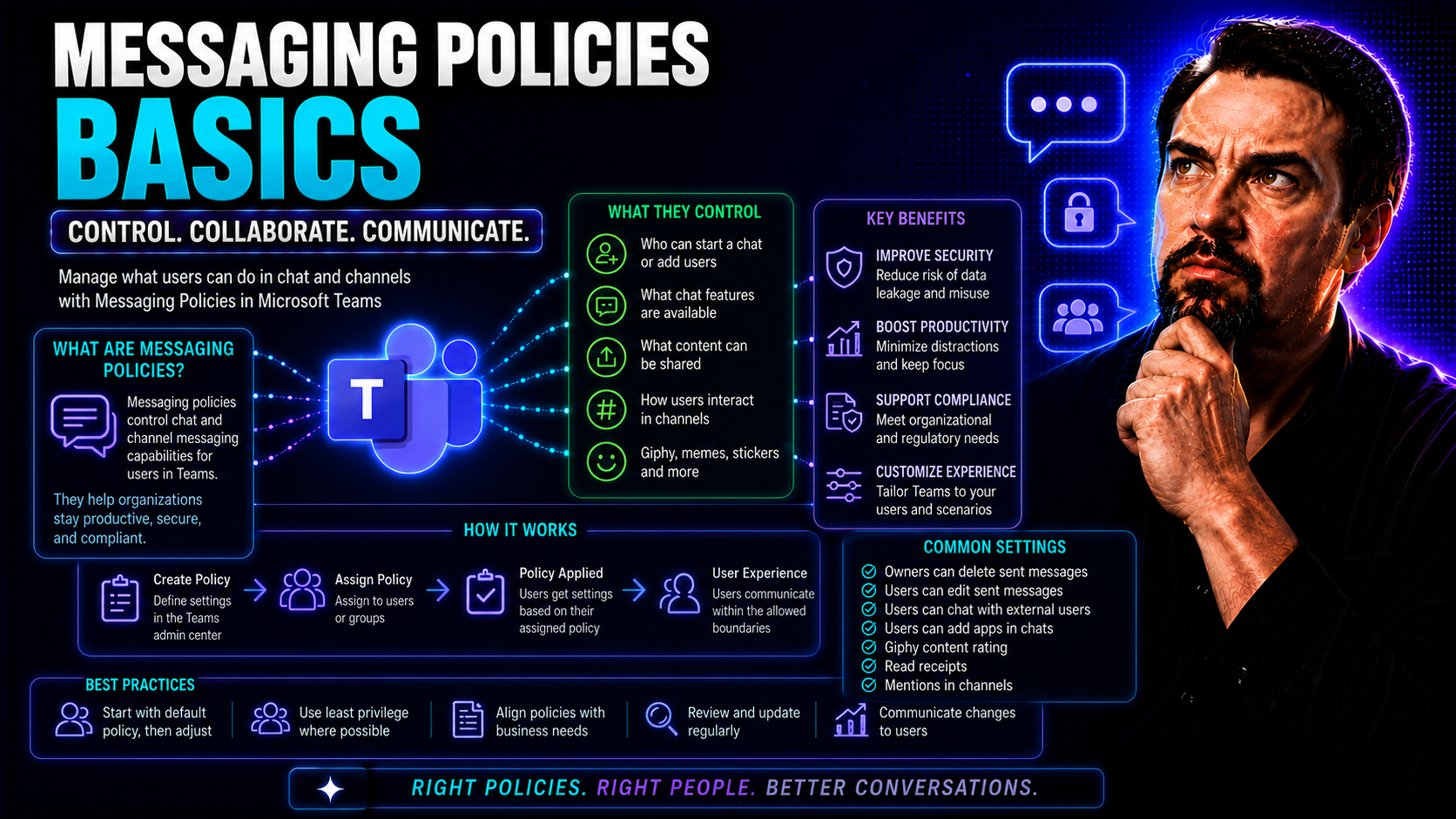
Messaging policies in Microsoft Teams control what users can do in chats, channel conversations, and group messages. If you’re responsible for Teams in your organization, figuring out messaging policies isn’t just about toggling a few settings—it’s key to keeping your digital workplace secure, compliant, and well-organized. This guide cuts through the jargon and gets right to what IT admins and compliance officers need: practical steps and strategic tips for managing how your users communicate.
By understanding Teams messaging policies, you’ll be better prepared to maintain regulatory compliance, protect sensitive data, and shape how people interact across your business. That’s crucial as more companies rely on Teams for daily operations, collaboration, and customer engagement. Whether you’re ironing out your first policy or looking to fine-tune your setup, this article gives you the building blocks to do Teams governance right from the ground up.
Understanding Messaging Policies and Their Role in Teams
Let’s put it out there: unless you’re fine with chaos running wild in your digital office, you need messaging policies in Microsoft Teams. Messaging policies decide who can chat, edit, delete, or shoot off GIFs and stickers. These controls shape the way people talk to each other inside and outside your company. If you leave things wide open, you risk leaks, compliance headaches, and a messy chat history that nobody can untangle.
At their core, messaging policies are your toolkit for aligning everyday communication with your business needs. Maybe legal asks you to retain every message for years, or the compliance folks want to ban external messaging for certain groups—policies give you those levers to pull. The flip side is user experience. You want folks to collaborate freely but not in a way that risks the business or leaves you exposed during an audit.
Messaging controls have come a long way since the Skype for Business days. Back then, choices were limited—think basic IM controls, not much else. In Microsoft Teams, policy management exploded in both sophistication and granularity. Now, you can fine-tune settings for emojis, private chat, and even where messages can be deleted or edited. For a deeper dive into structuring your Teams environment and understanding broader governance strategies, check out this guide on Teams Governance.
Bottom line: an effective messaging policy doesn’t just “police” conversations—it empowers responsible collaboration while protecting the company and its people. Knowing how to use these policies is your first step to turning Teams from a potential free-for-all into a managed, compliant, and user-friendly environment.
How to Create a New Policy in Teams Admin Center
If the Teams admin center seems like a control tower, think of messaging policies as the flight plans for your organization’s conversations. Creating a new policy in this interface isn’t reserved just for “power users”—it’s built so any IT admin can design, name, and publish custom messaging rules without breaking a sweat. This is your chance to tailor what kinds of chats and actions are available to different users or groups.
The process kicks off by selecting messaging policies in the Teams admin center, then clicking “Add.” From there, you’ll set a unique name for your new policy and work through the settings that make sense for your business—even if you’re not a scripting wizard. The point here isn't just technical configuration—it's understanding how these changes shape behavior and protect information across the company.
You’ll get to tweak settings for things like chat history, message editing, or who can talk to people outside the business. Each setting has a domino effect on compliance, productivity, and risk. The interface guides you step by step, ensuring you know what you’re switching on or off, and why it matters.
Once your policy is built, you can assign it to individuals or larger groups, launching it into action. In the detailed section below, we’ll unpack each policy setting so you know exactly what you’re enabling—or locking down—and how those decisions translate to day-to-day communication within Teams.
Relevant Options to Configure in Messaging Policies
- Chat History Retention: Decide if users can see past messages, and for how long—essential for audit trails and compliance.
- Editing and Deletion Controls: Allow or block users from editing or deleting sent messages, reducing risks of shady “cleanups” or innocent mistakes.
- External Messaging: Control if users can chat with people outside your organization, helping prevent data leakage or phishing risks.
- Use of GIFs, Emojis, and Stickers: Enable or disable these features to maintain professionalism—or lighten the mood, depending on your business culture.
- Read Receipts and Replies: Grant the ability to see when messages are read, or to reply in certain contexts, shaping both accountability and collaboration styles.
Assign Users and Groups to Teams Messaging Policies
Setting up the right Teams messaging policy is just step one—you also need a smart way to put those rules in the hands of the right people. Maybe your HR team needs access to private chat retention, or your external contractors should be locked out of sending files. Assigning policies ensures users only get the permissions that match their roles, department requirements, or compliance needs.
There are two main approaches here: targeting individual users and handling entire groups or departments. Assigning a policy to a single user gives you surgical control, perfect for special cases or leaders who need more flexibility. Group-based assignment, on the other hand, is much more scalable—one tweak can affect dozens or hundreds of users at once, which is ideal for aligning Teams features with an employee’s function.
The Teams admin center lets you assign policies right from a user’s settings, while PowerShell is there for bulk assignments or edge cases that need automation. By planning out your policy targeting strategy, you avoid mix-ups and ensure everyone operates with the right level of access and guardrails.
If you want the bigger picture on how clear rules and policies reduce confusion and streamline Teams adoption, this resource on Teams Governance is well worth your time. It shows just how much business value comes from good policy targeting and role alignment.
Assign Messaging Policies to Individual Users
To assign a messaging policy to a specific user, head to the Teams admin center, search for the user, and update their messaging policy in their profile. Alternatively, use PowerShell with the Grant-CsTeamsMessagingPolicy cmdlet for direct assignment based on user ID or email.
These assignments are ideal for scenarios like allowing compliance officers expanded access or restricting external messaging for new hires. Always double-check the user’s assignment list, and remember that policy changes may take up to 24 hours to reflect.
Applying Policies to Groups With Teams Messaging Policies
Assigning policies to groups enables you to manage hundreds of users efficiently. You can assign a messaging policy to a Microsoft 365 group, security group, or distribution list—perfect for departments, branch offices, or entire teams.
Group assignments mean new group members inherit the policy, keeping governance consistent as teams grow and change. Just ensure your group membership is accurate, so nobody slips through the cracks or ends up with conflicting permissions.
Simpler PowerShell for Managing Teams Messaging Policies
For IT admins looking to move faster (or just avoid repetitive point-and-click tasks), PowerShell is your secret weapon for managing Teams messaging policies. Don’t let the command-line scare you—it’s surprisingly approachable for everyday tasks like listing, viewing, or setting policies, even if you’ve never written a script in your life.
The Teams PowerShell module brings simple commands like Get-CsTeamsMessagingPolicy to review existing policies, or Grant-CsTeamsMessagingPolicy to assign one to a user or group. No fancy scripting experience needed—just basic syntax and a clear sense of what you want to accomplish.
PowerShell really shines for bulk updates and audits. Need to assign a new policy to several dozen users at once? A short script lets you do in seconds what would take hours in the admin center. Plus, PowerShell gives you real-time feedback and error messages, making troubleshooting way faster.
This approach is especially useful for periodic audits, cleanups after org changes, or system-wide assignments during compliance reviews. If you’re new to PowerShell, start small—one user, one command—then scale up as you gain confidence. As you’ll see in the next section, PowerShell makes mass assignments a breeze using CSV files for input.
Bulk Assign Teams Messaging Policies Using CSV Files
- Create your CSV: Make a CSV file with a column for user principal names (UPNs)—the email addresses of all users to update.
- Run the PowerShell script: Use Import-Csv to read your file and Grant-CsTeamsMessagingPolicy in a loop to assign the correct policy.
- Check results: Review PowerShell output for any errors or skipped users, and re-run as needed—you can even filter and retry failures.
Save and Assign Policies for Ongoing Teams Policy Management
The messaging policy journey doesn’t stop at setup—you’ll need to save, tweak, assign, and revisit these controls as your business evolves. After designing your initial policy in the Teams admin center or via PowerShell, be sure to save any changes and document your choices for compliance and review. This makes it easier to roll back or audit any adjustments in the future.
As new Teams features roll out or your employee base changes, you may need to edit existing policies and reassign them. Staying organized—maybe with spreadsheets, ticket systems, or admin notes—helps you avoid conflicts and keeps everyone on the same page. Good documentation also smooths out transitions for new admins or audit reviews.
Assigning a saved policy is its own workflow. Whether you’re updating users one by one or via groups, it’s important to double-check the results. Sometimes there’s a delay before a policy “sticks,” and license or group errors can cause assignments to miss the mark.
For more about managing Teams with a strong organizational structure, check out this practical explanation of Teams Governance. Strong, consistent policy management is essential for keeping things secure, compliant, and productive as your business and tools keep changing.
Best Practices for Teams Messaging Policies in Microsoft Teams
- Audit Policies Regularly: Review policy assignments every quarter to catch gaps after reorgs or new hires.
- Limit Default Policy Changes: Keep your global default as a safe baseline. Use custom policies for exceptions or special roles, not for broad edits.
- Document Every Change: Log who updates what, when, and why—critical for audits and fast troubleshooting.
- Test Before Deploying at Scale: Pilot custom policies with a small group to see how settings play out in the real world.
For more security insights, the podcast at Teams Security Hardening breaks down five-layer security for Teams, which ties directly into good policy management. And if you want the governance big picture, revisit this Teams Governance resource for more on structure, roles, and standards.
Messaging Policy Compliance and Security Considerations
Most folks focus on policy features, but let’s get real—if you misconfigure Teams messaging, you’re opening the door to compliance violations and security threats. Overly relaxed settings could mean sensitive data leaks, HIPAA or GDPR violations, or the chance for malware to sail through external chats and file shares.
Aligning your Teams messaging policies with regulatory requirements is non-negotiable. That means knowing how chat retention settings affect eDiscovery, making sure message deletion rules match your industry, and using built-in controls to stop risky behaviors like sharing files outside your domain. Anything less, and you’re running the risk of failing an audit—or worse, losing customer trust.
Security-wise, watch out for policies that allow unchecked external messaging or permit all file types in chat. Those small switches are magnets for phishing and data exfiltration attempts. Always pair strong messaging policies with broader Microsoft Teams security best practices, such as conditional access and data loss prevention (DLP).
If you’re looking to beef up security from all angles, check out this Teams security podcast. It covers everything from DLP and access controls to audit logs and retention policies—just the kind of layered protection you need when managing Teams at scale.
Summary of Policies in Teams and Where to Learn More
- Define Messaging Needs: Map out business and compliance requirements before setting or changing messaging policies.
- Create and Assign Policies: Use the Teams admin center or PowerShell to design, save, and apply policies to users and groups as needed.
- Audit and Update Regularly: Schedule audits and reviews to make sure policies stay compliant, consistent, and in line with business changes.
- Explore Further: For more on governance, visit this detailed Teams Governance guide or dig into modern Teams app development at this message extensions walkthrough for deeper productivity and security insights.
Following these steps builds a safer, more productive Teams environment—one where users get the features they need without exposing your organization to unnecessary risk or compliance headaches.
You Should Also Listen To
If you are researching Microsoft Teams messaging policies, these episodes add useful context on the architecture, governance, operations, and security decisions behind the topic:
- Azure Virtual Network – Simply Explained — Learn which network architecture and connectivity choices influence Teams quality and performance.
- Microsoft Teams Governance – The Illusion of Control — Use governance and ownership models to turn performance data into repeatable operational improvements.
- Teams Telephony – Simply Explained — Understand the calling metrics and architecture behind reliable Teams voice performance.
- Microsoft Defender XDR – Simply Explained — See how security monitoring complements Teams health and operational monitoring.

Microsoft MVP | Host of M365.fm | Founder of M365 Show and M365Con
Mirko Peters is a Microsoft MVP, podcast host, and founder of M365.fm, M365 Show, and M365Con. His work connects Microsoft practitioners through podcast interviews, livestreams, and community events.
At M365.fm, Mirko hosts conversations with Microsoft MVPs, product experts, architects, and community contributors. Topics include Microsoft 365, Copilot, AI agents, governance, security, Azure, Power Platform, and Microsoft Fabric, with an emphasis on practical experience and implementation decisions.
M365.fm is the podcast and learning platform. M365 Show brings experts together for livestreams, while M365Con provides an online conference setting for community learning.
Official website: Mirko Peters (https://www.mirkopeters.com/). Recognition: Mirko Peters — Microsoft MVP profile (https://mvp.microsoft.com/de-DE/mvp/profile/9b0ca797-db5a-493a-a845-8b9158046cf5). Connect on LinkedIn (https://www.linkedin.com/in/m365showpodcast/).





