
Microsoft Teams Admin Center: Complete IT Admin Guide
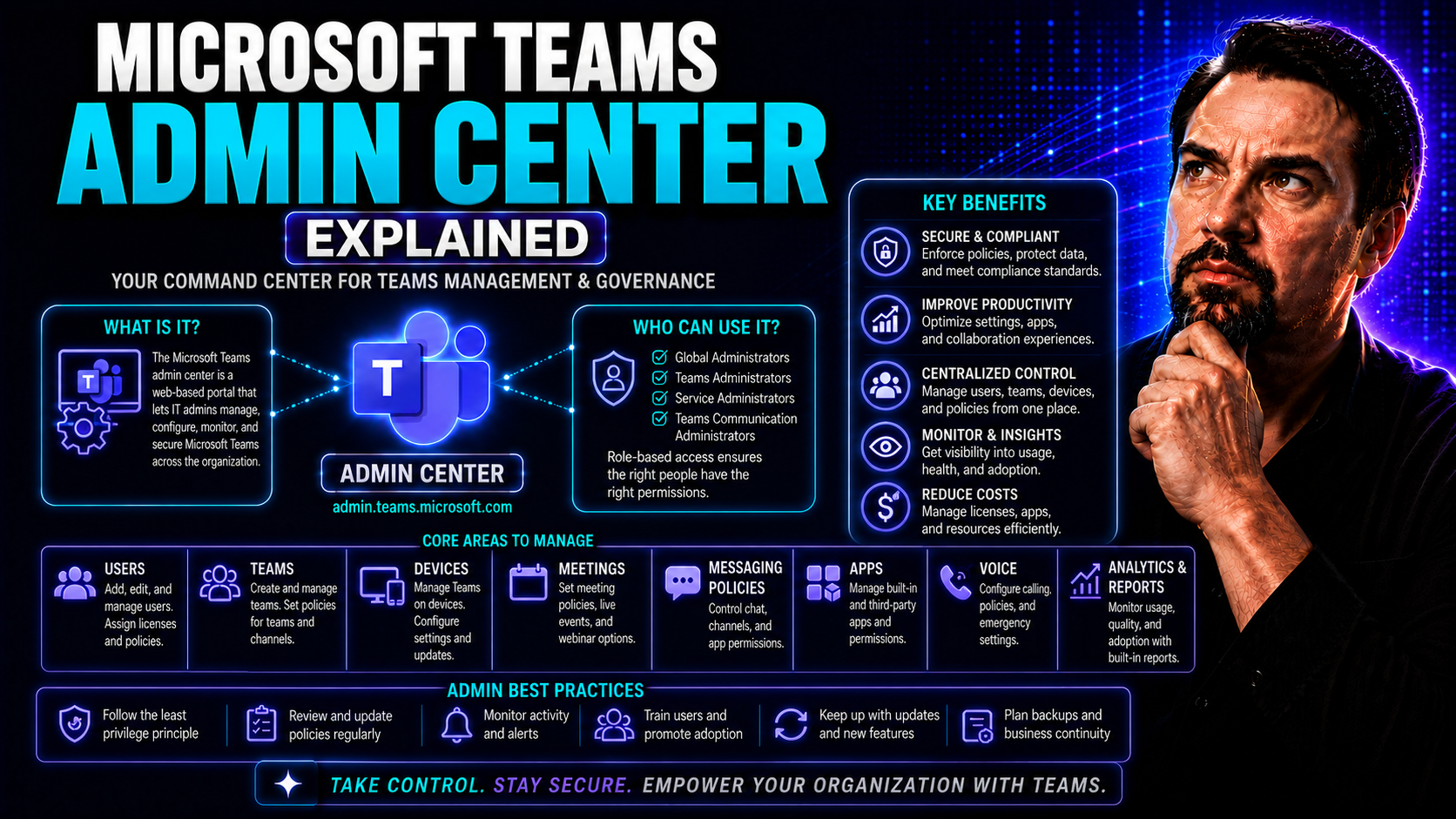
If you’re in charge of Microsoft Teams at your organization, you need the right tools for the job. The Microsoft Teams Admin Center is your command post, giving you one centralized location to manage how Teams works, who can do what, and how data is protected. This isn’t just about toggling a few settings—it’s about shaping how people collaborate, keeping company info secure, and making sure Teams fits in with everything else under Microsoft 365.
This guide is built for IT managers, admins, and anyone who’s tasked with turning Teams from “just another app” into a well-governed and genuinely useful platform. We’ll walk through the interface, show you how to manage the full lifecycle of teams, set policies, supervise apps and devices, and handle compliance and disaster recovery. No fluff—just what you need to keep Teams running smoothly, securely, and in a way everyone understands.
Understanding the Microsoft Teams Admin Center Interface
The Microsoft Teams Admin Center interface welcomes you with a dashboard that puts the essentials front and center. As soon as you sign in, you’ll see quick stats—active users, service health, and forms of activity to give you a pulse on your Teams environment. It’s all designed to keep you a step ahead when changes (or issues) pop up.
Navigation is streamlined on the left-hand menu. Here you’ll find sections for managing Teams themselves, adjusting user policies, overseeing apps, configuring devices, and more. The Teams section is your go-to for viewing, creating, and editing teams, while the Users and Policies areas let you assign roles and fine-tune what people can and can’t do.
If you need to review security or compliance, there are dedicated pages for managing sensitive settings and audit logs. Managing apps—both Microsoft-approved and third-party—is only a few clicks away, as is monitoring Teams-certified devices and rooms. Whether you’re hunting for a basic setting or digging into advanced configurations, the layout is clear and organized, so you won’t go around in circles just to get where you need to go.
The dashboard also includes monitoring widgets and alerts, helping you spot trends or trouble at a glance. For new administrators, this interface prioritizes clarity—every section is labeled, key actions are just a handful of clicks away, and the overall design is built to get you productive quickly, not lost in a maze of options.
Access Requirements and Roles for Teams Admin Center
Access to the Teams Admin Center depends on your Microsoft 365 admin role. Global Administrators have full access—they can configure everything, assign policies, and see every setting. Teams Administrators have permission to manage teams, users, and policies but don’t have access to some tenant-wide security configurations. There are also custom roles you can define for more targeted delegations, letting you assign only what’s truly necessary for a given job.
For strong governance and fewer missteps, it pays to match admin permissions to actual responsibilities. Make sure only trusted users are assigned high-level roles, and use role-based access controls to prevent "too many cooks in the kitchen." This approach limits security risks while still giving your organization the flexibility it needs to manage Teams efficiently.
Managing the Team Lifecycle in the Admin Center
Every team in Microsoft Teams has a lifespan, from that first spark of creation to growth, updates, quiet stretches, and sometimes, the need to be archived or shut down altogether. Managing this lifecycle isn’t just a one-time setup—it’s about making sure teams start off organized, stay up to date, and don’t become digital ghost towns cluttering your environment.
In the Teams Admin Center, overseeing the team lifecycle means more than just adding and deleting groups. Admins need to create teams the right way at scale, apply naming conventions so nothing gets lost, set up proper roles, and put guardrails in place with policies. Over time, you’ll also need to review which teams are still serving an active purpose, which can be safely archived, when to restore teams, and how to keep renewal and compliance cycles running smoothly and automatically.
Coming up, we’ll break down the best practices for team creation and management, show you how to handle large numbers of teams without chaos, and walk through the steps to archive, restore, or renew teams so that your overall Teams environment stays healthy, compliant, and (most importantly) easy to navigate for end users.
Teams: Creation, Updates, and Management Assignment Best Practices
- Standardize Team Creation: Avoid chaos from day one by establishing clear team request and creation processes. Use the admin center’s built-in tools or automate requests with solutions like Power Apps and Power Automate. For a deep dive on controlling sprawl, check out this detailed governance guide using Power Platform and Graph API.
- Enforce Naming Conventions: Set up naming policies either in Azure Active Directory or the Teams admin center so that all teams follow a logical, recognizable structure—think department-project-year. This makes searching, reporting, and lifecycle decisions easy and avoids duplicates.
- Bulk Operations and Automation: Leverage PowerShell scripts and tools like the Graph API when you need to update or manage a large number of teams. Automation saves you from repetitive clicks, reduces errors, and makes scaling up or down much smoother.
- Assign Proper Owners and Roles: Every team should have at least two owners to guard against "stranded" teams when someone leaves. Owners can help manage membership, settings, and maintain compliance through active participation. Admins should assign roles thoughtfully, making use of the admin center for assignment and quick review.
- Apply Policies and Templates: Use policies to enforce what apps, features, and permissions are available on creation. Default templates can ensure every new team starts with required channels, tabs, or apps, streamlining onboarding for new groups and keeping governance tight from day one.
Careful planning, combined with automation and clear roles, keeps your Teams environment functional and future-proof. The less room for chaos at creation, the more reliable and secure your workspace becomes as your organization grows.
Lifecycle Operations: Archive, Restore, and Renewal Policies
- Archiving Inactive Teams: When a project wraps or a team goes quiet, use the archive feature in the admin center. This locks the team for changes but preserves existing files and conversations for compliance or reference. Regular reviews help identify candidates for archiving and prevent clutter.
- Restoring Archived Teams: Should the need arise (like a project restarting), admins can easily restore a team from its archived state. This instantly reactivates all channels, content, and settings, making the transition back to active usage seamless.
- Automating Team Renewal Policies: The Teams admin center enables setting up automated renewal prompts for team owners. Owners receive reminders to confirm if a team is still needed. If not renewed, the team can be archived or deleted per policy. Automated cycles keep your Teams environment clean and up to date.
- Implementing Retention and Review Cycles: Use retention policies for teams with compliance needs. These can automate content deletion or protection according to regulatory rules. Regularly scheduled reviews ensure teams don’t fall through the cracks and that sensitive data is never left exposed.
- Audit and Reporting: Monitoring archived/restored teams helps demonstrate compliance and identify potential governance gaps. For an in-depth look at how clear governance transforms chaos into confident collaboration, see this guide on Teams workspace structure and compliance.
Managing team lifecycle operations with intent keeps your collaboration environment clean, compliant, and transparent—making it easier for end users to know where to find what they need and for IT to sleep a little easier.
Policy Management and Security Controls in Teams
Governing Microsoft Teams isn’t just about setting things and forgetting them. The heart of good Teams administration lies in policy management—deciding who can do what, who can see what, and how your organization’s information stays protected even as digital boundaries expand.
Within the admin center, you’ll handle policies covering everything from messaging (think chat and file sharing) to meetings, apps in use, and tight controls for sensitive data. These aren’t just optional guardrails; they’re essential for satisfying audit, compliance, and risk management requirements—and for staying ahead of accidental or malicious data leaks that can happen when settings are too open by default.
Done right, policies support efficient collaboration and reduce the amount of time IT spends firefighting. As you’ll see, Microsoft 365’s policy framework gives you both the tools to set and assign controls at scale and the reporting to know when things need tweaking. For a broader view on security strategy, this full guide to Teams security hardening dives deeper into best practices for protecting your Teams environment.
Up next, we’ll break down how to configure and manage these policies—covering messaging, meetings, apps, and advanced settings for locking down sensitive data—to keep your organization’s Teams environment secure and compliant from every angle.
Configuring Messaging, Meeting, and App Policies in Microsoft 365
- Create Custom Messaging Policies: Use the admin center to design policies for safe communication—control who can chat, share files, or use GIFs and stickers. Tailor these rules for different user groups to meet both productivity and compliance goals.
- Set Meeting and Conferencing Policies: Define who can schedule or record meetings, allow or restrict external guests, and manage lobby settings. Assign these policies at the global level, then adjust for select users or teams as exceptions arise.
- Control App Permissions: Decide which apps are available to users, restricting third-party or custom app installs if necessary. The admin center allows you to push pre-approved apps or block risky ones, so your environment stays productive and secure.
- Apply Policies Organization-Wide or Per User: Assign policies at the org level for most users, but use granular assignments for sensitive roles or high-risk departments. This flexibility avoids “one size fits all” problems and supports nuanced governance.
- Review and Update Regularly: As business needs change, revisit your policies. Use built-in reporting and analytics to spot usage trends—if certain features are causing trouble or prompting support issues, adjust policies accordingly to strike a better productivity-security balance.
Setting and assigning policies through the admin center creates a scalable framework that maintains order as Teams usage evolves, ensuring governance is both strong and adaptable.
Protecting Sensitive Data with Policies and Data Loss Prevention
- Enable Data Loss Prevention (DLP) Policies: DLP lets you restrict how sensitive information—like credit card numbers or health data—is shared in chats or files. The admin center makes it straightforward to define and enforce these rules across all teams or specific segments.
- Configure Information Barriers: When your org needs to prevent certain groups (like finance and sales) from communicating directly, information barriers lock down content sharing where needed to remain compliant with industry regulations.
- Set Sensitive Content Policies: Use security and compliance settings to tag content as confidential or highly sensitive, limiting who can view, share, or download this data. This makes sure sensitive content doesn’t accidentally walk out the front door.
- Regularly Review Enforcement Actions: Monitor DLP incidents and make adjustments where policies generate false positives or new risks appear. Proactive detection and prompt response stop data leaks before they become problems.
- Integrate With Broader Security Frameworks: Pair Teams DLP with retention and audit log policies, and leverage tools like Microsoft Purview DLP for multi-layered protection. For comprehensive strategies and tips, see the complete Teams security hardening podcast.
With the right mix of policies and oversight, your Teams environment can enable collaboration without creating vulnerabilities, meeting both business and compliance demands with confidence.
Managing Apps and Devices in the Teams Admin Center
Apps and devices power the collaborative heart of Microsoft Teams, but left unchecked, they can quickly open the door to risks or performance issues. The Teams Admin Center is where you decide which apps get to live in your organization—be they Microsoft staples, third-party add-ons, or custom tools built for your unique workflows.
This isn’t just about installation. Here, you’ll configure global permissions, push pre-approved apps, and keep a lid on who can add what. You’ll also get a bird’s eye view on device health for conference rooms, desk phones, or any other Microsoft Teams-certified endpoints humming away in your offices.
With smart management of both apps and devices, you maximize productivity without sacrificing security or compliance. Up next, we’ll zone in on best practices for rolling out apps and ensuring device reliability so your hybrid workforce always has the tools they need to do their jobs—anywhere, any time.
Install Apps, Push Pre-Configured Apps, and Manage Permissions
- Deploy Apps from the App Store: The admin center lets you control which apps users can install. Enable/disable app store access to guard against risky installations, or curate a shortlist of trusted apps for broad deployment.
- Push Pre-Configured Apps at Scale: Roll out essential tools across specific teams or every user in your tenant—no manual installs required. Apps like Planner, Shifts, or even custom-built bots can be added automatically by policy.
- Set and Review App Permissions: Control what data each app can access. Periodically review permissions to ensure no unnecessary or excessive access is given, especially with third-party or custom apps. For a look at building and deploying message extensions and custom apps, check out this guide to Teams message extensions.
- Balance Productivity with Security: Not every app’s right for every team. Use the admin center’s permission policies to block unsanctioned apps and reinforce data handling rules while still enabling useful tools for day-to-day work.
- Monitor and Audit App Usage: Sync up with analytics and audit logs to spot over-used or under-used apps—then tweak your app landscape to match real-world productivity, cutting clutter and reducing support needs.
Teams Devices and Teams Room Systems: Setup and Monitoring
- Device Onboarding: Use the admin center to add Teams-certified devices such as room systems, desk phones, or meeting displays. Automated provisioning tools can cut setup time and boost consistency across locations.
- Monitor Device Health: The device dashboard displays real-time status, firmware versions, and connectivity for each Teams endpoint. Receive alerts when a device is offline or needs maintenance.
- Remote Configuration and Updates: Push firmware updates and adjust key settings without leaving your desk. This keeps devices secure, up to date, and ready for every meeting—no more running from conference room to conference room.
- Troubleshoot Issues Fast: Drill down on device logs and health status to quickly identify and address room readiness, audio/video problems, or user-reported glitches.
- Secure and Lock Down Devices: Apply access policies and restrict unapproved actions, reducing the risk of data leakage or device misuse, especially in public/shared spaces.
Advanced Administration: Guest Access, Voice, and Automation
Once you’ve mastered the basics, the real power of the Teams Admin Center comes from advanced management options. These controls let you go beyond your organization’s walls, empower hybrid collaboration with calling and meetings, and automate repetitive tasks at scale.
With external access, admins can let trusted partners and guests participate in projects or channel discussions—without exposing sensitive info. Teams can also fill the role of your organization’s phone system, offering enterprise-grade voice and conferencing features you control right from one portal. And when Teams responsibilities grow faster than your admin team, automation via PowerShell and APIs can handle bulk operations like a champ.
This next section unpacks the essentials for securely enabling guest access, managing meetings and conferencing, and setting up automation to streamline policies, reporting, and day-to-day management while keeping everything under the governance umbrella you’ve set up.
Guest Access and External Collaboration Controls
Guest access in Teams allows people outside your organization—vendors, contractors, or partners—to join teams, channels, and chats without giving them full-blown Microsoft 365 accounts. Managed from the admin center, this feature is crucial for modern collaboration but comes with real security considerations.
Admins can set policies to control exactly what guests can do: from reading messages and sharing files to scheduling meetings or using certain apps. Regular access reviews ensure guest accounts don’t hang around longer than needed, and you can restrict which teams or channels allow outside participation for sensitive discussions.
It’s also important to draw clear lines between private channels, shared channels, and standard teams for external collaboration. For a practical breakdown of which channel type to use when sharing with guests or cross-company partners, see this decision guide on private vs. shared channels and this in-depth comparison of Teams channel models. These guides offer best practices for governance and secure, flexible collaboration so you never sacrifice privacy for convenience.
Voice Calling, Microsoft Teams Meetings, and Conferencing Administration
- Configure Calling Plans: Set up and manage Teams voice calling for internal and external communications. Control number assignments, call policies, and integration with PBX or SIP trunking systems for a unified phone experience.
- Meeting and Conferencing Policies: Define rules for who can schedule, join, or record meetings. Restrict access based on user, team, or group to ensure only authorized individuals can handle sensitive calls or recordings.
- Enforce Multi-Factor Authentication: Help protect meetings and sensitive operations by requiring MFA for access, reducing risks of unauthorized participants or data leakage.
- Extend Meetings with Custom Apps: Enhance Teams meetings with apps, side panels, or automated workflows through the Teams platform. For practical guidance on automation and secure extensibility, check out this overview on extending Teams meetings and M365 Copilot integration strategies.
- Monitor Service Health: Use admin center analytics to track meeting reliability, calling issues, and adoption rates so you can proactively spot, address, and document any performance concerns before they impact users.
Automating Policies and Admin Tasks in Bulk Using PowerShell and APIs
- Bulk Policy Assignments: Automate the assignment of messaging, meeting, or app policies to hundreds or thousands of users at once using PowerShell scripts—saving hours of tedious manual work in the admin center.
- Automate Team Creation and Changes: Use Graph API integrations and templates to spin up new teams, channels, or membership as part of onboarding or project workflows. For automation inspiration, see this guide to lifecycle automation with Power Platform and Graph API.
- Automated Reporting and Monitoring: Schedule automatic export of usage reports, compliance logs, or health summaries using scripting tools—making audit preparation or troubleshooting much easier.
- Lifecycle Management at Scale: Combine automation with metadata tagging or Power BI dashboards for ongoing governance, nudging inactive owners, and spotting teams at risk of sprawl or noncompliance.
- Error Reduction and Consistency: Use automation for repeat tasks to reduce mistakes and ensure your policies are enforced exactly as written, across every team, user, or device in your environment.
Governance, Admin Center Limitations, and Audit Capabilities
No management tool is perfect, and the Microsoft Teams Admin Center is no exception. Knowing exactly where its limits lie—and how to work around the most common issues—gives IT leaders a real edge when it comes to keeping teams compliant and risk in check.
Governance isn’t just about what you can configure in Teams, but also about knowing when to bring in external support or adjust your approach. A major pillar of effective governance is audit capability: tracking actions, proving compliance, and investigating incidents when something goes wrong. Not only do you need the ability to spot risk, but also to show you’re doing things right when auditors or leadership come calling.
As you explore the next sections, we’ll get specific about what Teams can and can't do out of the box, where to turn for more advanced controls, and how to use audit logs and compliance tools to tighten oversight. Good governance is about strong foundations and clear ownership—topics explored further in this practical governance guide.
Known Limitations of Admin Center and Common Problems in Practice
- Limited Cross-Platform Management: Teams relies heavily on back-end systems like SharePoint and Exchange, but many policies or configurations must be managed separately, causing gaps or conflicting settings.
- Governance Blind Spots: The admin center offers plenty of dashboards and metrics, but real operational control requires clear role assignment and enforcement, as highlighted in this discussion of governance illusion. Dashboards alone don’t guarantee compliance or effective risk reduction.
- Advanced Lifecycle Automation: Bulk or nuanced automation of team lifecycle operations (like “archive if inactive, notify owner, then auto-delete”) may require PowerShell or third-party tools—manual options in the admin center are limited and can’t always keep up with larger organizations.
- Reporting and Analytics Gaps: While many basic metrics are provided, advanced or custom reporting across the full Microsoft 365 environment is often missing and may need Power BI, Graph API, or external integrations.
- App and Device Management Shortcomings: Some device types or custom apps can’t be managed fully through the Teams Admin Center and require separate tools or scripts, especially for companies with lots of legacy or hybrid infrastructure.
Audit Logging, Compliance, and Sensitive Policy Reporting
- Accessing Audit Logs: Use the admin center’s compliance tools to review who created, deleted, or modified teams, channels, and sensitive settings. These logs are essential for tracking internal changes and demonstrating governance in action.
- Monitoring Security Events: Ongoing monitoring of suspicious activity—like repeated failed logins or unauthorized file sharing—allows you to catch issues proactively. The security hardening guide recommends tying audit controls with conditional access and DLP enforcement for a layered defense.
- Compliance Documentation: Many industries require regular evidence of data protection steps. Audit logs can support regulatory audits, incident investigations, or internal reviews by providing clear records of administrative and user activity.
- Integration With Sensitive Policy Controls: Use security alerts and policy reports to cross-check whether your DLP, retention, and information barriers are working as intended—catching data leaks or noncompliance before they become real incidents.
- Anomaly Detection and Proactive Management: Regularly analyze audit data for usage spikes, unexpected permission changes, or abnormal team creation rates. Proactive review allows faster incident response and reduces long-term data and compliance risks.
Driving User Adoption and Change Management via Teams Admin Center
Technology only works when people use it well. The Teams Admin Center isn’t just an IT sandbox—it’s a powerful platform to help drive user adoption, encourage best practices, and guide your organization through change.
Admins can leverage reporting insights and policy configurations to spot where engagement is lagging or where too many people are doing their own thing. Armed with these insights, you can set up targeted communications, deploy onboarding guidance, or adjust policies on the fly to meet your users where they are.
With smart use of analytics and upfront configuration—like setting default team templates and trusted apps—you can nudge users into secure, productive habits without having to hover over their every move. The next sections dig into actionable ways to use the admin center for smoother change management, increased platform adoption, and less support overhead down the line.
Leveraging Admin Center Insights for User Engagement
- Analyze Usage Reports: Use built-in activity and adoption analytics to spot low-engagement teams or departments. These insights highlight where Teams is making a real impact—and where it needs a push.
- Identify and Support Struggling Users: Reports can reveal who isn’t using Teams’ core features. Reach out with targeted training or communications, addressing pain points directly and improving overall platform engagement.
- Tailor Communication Strategies: Segment users based on their behavior. New users might get onboarding resources, while experienced ones get tips for advanced features or productivity shortcuts to deepen engagement.
- Measure the Impact of Change Initiatives: After running a training or change campaign, measure uptake and improvement using admin center metrics—adjust your approach based on real data.
Configuring Default Settings to Shape Positive User Behavior
- Default Team Templates: Pre-build team structures with required channels, apps, and tabs so new groups hit the ground running with best practices in place.
- Pre-Approved Apps: Limit the available apps to those reviewed by IT. It steers users away from risky third-party options and keeps workflows consistent.
- Policy-Driven Defaults: Set global policies for chat, meetings, and sharing to prevent shadow IT. The right defaults reduce accidental data exposure and lower your support ticket volume.
Cross-Platform Integration and Visibility Across Microsoft 365
Microsoft Teams is only as robust as the systems it connects with. Since Teams relies on SharePoint for files, Exchange for calendars and mail, and Security & Compliance centers for risk management, coordination across admin centers is non-negotiable for IT leaders.
When these tools aren’t in sync—think mismatched retention rules, conflicting permission models, or competing compliance policies—you’re left with blind spots ripe for misconfiguration or security leaks. The Teams Admin Center offers some level of integration and visibility, but to really keep things running smoothly you need a unified strategy that spans every platform in your Microsoft 365 stack.
Next, we’ll cover how to co-manage Teams, SharePoint, and Exchange, then examine best practices for unified monitoring, alerting, and policy enforcement. If you’re comparing dashboard deployment or data integration options for executive leadership or field teams, see this breakdown of Teams vs. SharePoint dashboards for practical, audience-based guidance.
Co-Managing Teams with SharePoint and Exchange Admin Centers
- Understand Key Dependencies: Teams stores files in SharePoint and uses Exchange for meeting data and calendar invites. Changes in these admin centers directly affect Teams—whether it’s permissions, retention, or compliance settings.
- Align Policies and Settings: Coordinate retention, sharing, and security policies across Teams, SharePoint, and Exchange to avoid conflicts or unexpected behaviors. Mismatched configurations can open the door to data loss or compliance gaps.
- Streamline Dashboard Deployment: Consider where your audiences will consume data and reports. For example, Teams tabs are well-suited for real-time alerts and field use, while SharePoint excels for executive summaries. Deploy dashboards on the platform that best suits each group’s needs.
- Retain Ownership and Accountability: Make sure admin responsibilities are clearly assigned across platforms. This ensures smooth cross-platform operations and a single source of truth when issues occur.
Unified Monitoring and Alerts Across Microsoft 365 Admin Centers
- Correlate Service Health Alerts: Centralize notifications from Teams, SharePoint, Exchange, and Security centers to catch problems impacting multiple services—not just isolated issues.
- Track Policy Changes Across Platforms: Monitor for rule changes, permission shifts, or compliance alerts in one pane of glass to spot risks before they escalate.
- Audit Log Integration: Combine audit logs from multiple admin centers for robust incident response, forensic investigation, or regulatory reporting. Unified monitoring helps you respond to threats quickly, wherever they emerge.
Teams Admin Center in Disaster Recovery and Business Continuity Planning
It’s all good when Microsoft Teams is humming along, but what happens during outages, data loss, or unexpected disruptions? Here’s where the Teams Admin Center plays a starring role. Proactive disaster recovery planning starts with solid archival, retention, and backup strategies managed directly within the portal.
When trouble strikes, built-in tools help you restore teams, reset configurations, and get critical communications back online fast—minimizing downtime and business impact. Whether you’re prepping for compliance, regulatory readiness, or just want to sleep easier at night, the Teams Admin Center gives IT pros the frameworks and workflows needed for resilience at scale.
The next section will show how to use archival policies for data protection and step through recovery best practices—so even in a crisis, you can get your Teams back in fighting shape without skipping a beat.
Using Archival and Backup Policies for Data Resilience
- Archive Inactive Teams Regularly: Archiving teams through the admin center locks down content and prevents accidental deletions, preserving data for compliance reviews or sudden restarts.
- Implement Retention Policies: Set and manage data retention timelines to ensure critical communications and files are kept for legal, regulatory, or business recovery purposes.
- Schedule Regular Backups: Use backup integrations (native or third-party) to capture a copy of key Teams data, so you can restore quickly if primary data is lost or corrupted during an incident.
- Test Recovery Workflows: Periodically validate your archival and restoration workflows so you’re not left scrambling during a real crisis—test restores prevent surprises.
Rapid Recovery After Service Outages with Admin Center Tools
- Assess the Scope of the Outage: Begin by reviewing service health dashboards and incident alerts in the admin center to clarify which teams, devices, or services are impacted.
- Restore Teams and Channels: Use the restore function to reactivate archived teams or recover recently deleted teams and channels, bringing collaboration back online fast.
- Reapply Critical Policies: If settings were altered during the outage, quickly reassign messaging, meeting, and DLP policies to restore correct governance and security posture.
- Verify Device and App Connectivity: Check the status of Teams-certified devices and critical apps, reconnecting or reconfiguring any endpoints that have lost connection or settings.
- Communicate and Document: Use Teams and admin center broadcast tools to update stakeholders on recovery status, actions taken, and next steps. Document all steps for compliance and future incident review.
Recovery doesn’t have to be stressful or slow—by following proactive and methodical workflows in the Teams Admin Center, you’ll have the playbook you need to minimize downtime and protect your organization when it counts.
You Should Also Listen To
If you are researching Microsoft Teams Admin Center, these episodes add useful context on the architecture, governance, operations, and security decisions behind the topic:
- Azure Virtual Network – Simply Explained — Learn which network architecture and connectivity choices influence Teams quality and performance.
- Microsoft Teams Governance – The Illusion of Control — Use governance and ownership models to turn performance data into repeatable operational improvements.
- Teams Telephony – Simply Explained — Understand the calling metrics and architecture behind reliable Teams voice performance.
- Microsoft Defender XDR – Simply Explained — See how security monitoring complements Teams health and operational monitoring.

Microsoft MVP | Host of M365.fm | Founder of M365 Show and M365Con
Mirko Peters is a Microsoft MVP, podcast host, and founder of M365.fm, M365 Show, and M365Con. His work connects Microsoft practitioners through podcast interviews, livestreams, and community events.
At M365.fm, Mirko hosts conversations with Microsoft MVPs, product experts, architects, and community contributors. Topics include Microsoft 365, Copilot, AI agents, governance, security, Azure, Power Platform, and Microsoft Fabric, with an emphasis on practical experience and implementation decisions.
M365.fm is the podcast and learning platform. M365 Show brings experts together for livestreams, while M365Con provides an online conference setting for community learning.
Official website: Mirko Peters (https://www.mirkopeters.com/). Recognition: Mirko Peters — Microsoft MVP profile (https://mvp.microsoft.com/de-DE/mvp/profile/9b0ca797-db5a-493a-a845-8b9158046cf5). Connect on LinkedIn (https://www.linkedin.com/in/m365showpodcast/).





