
Microsoft Teams Apps Explained: Integrations and Governance
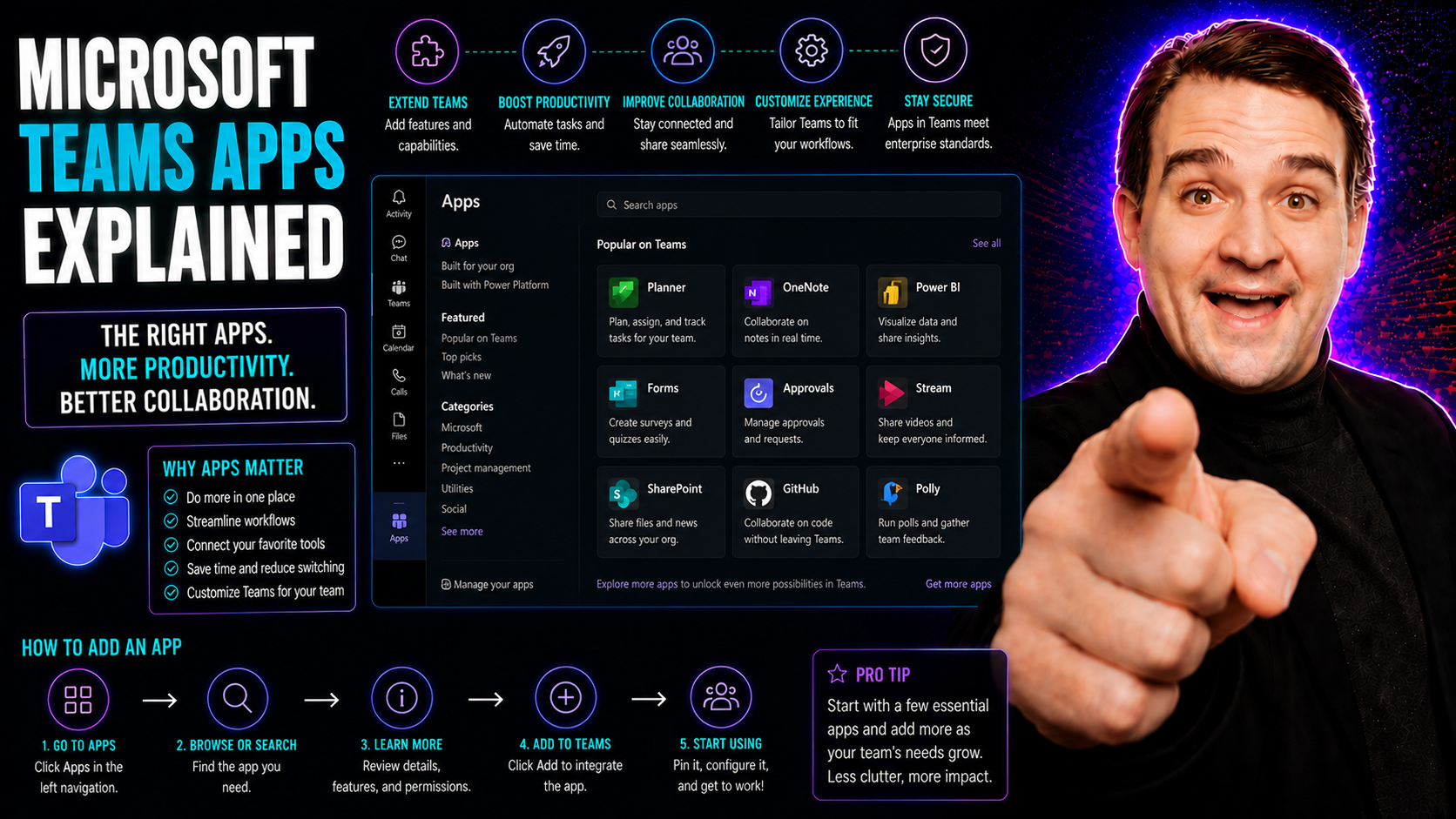
Microsoft Teams has grown into far more than a simple chat or meeting tool—it’s the collaboration nerve center for countless organizations. At the heart of this transformation are Microsoft Teams apps, which let you bring powerful business logic, essential services, and efficient workflows right inside your Teams workspace.
This guide covers everything you need to know about Teams apps: from understanding their foundational roles and exploring daily use cases, to mastering integration, security, and compliance. Whether you’re aiming to boost your team’s productivity, expand with custom tools, or ensure your data is locked down tight, you’ll find practical advice tailored to real business needs. Dive in to discover how to get the most value from Microsoft Teams apps—securely, efficiently, and with confidence.
Understanding Microsoft Teams Apps and Their Core Capabilities
Before you dive into the sea of features and fancy integrations, it’s worth taking a step back to understand what Microsoft Teams apps actually are and why they’ve become so central to the modern workplace. Teams apps aren’t just add-ons—they’re key ingredients that transform a basic chat platform into a collaboration powerhouse.
At their core, Teams apps are designed to infuse extra functionality into your everyday work experience. They can boost productivity, centralize essential business activities, and make working together less of a hassle—whether you’re in-office or halfway across the world. This section lays the foundation for recognizing the value of Teams apps within the broader Microsoft 365 ecosystem.
As you continue, you’ll get a clear definition of these applications, see what sets Teams apps apart from standalone Microsoft 365 apps, and discover how core features like chat, meetings, and file sharing are powered and extended by tightly integrated apps. Get ready to learn how these digital tools can streamline your workflow, unify communications, and energize your business processes—setting the stage for more detailed discussions in the sections to follow.
What Are Microsoft Teams Apps and Common Uses of Teams Applications
Microsoft Teams apps are specialized applications that integrate directly within the Microsoft Teams platform. They are designed with one core mission: simplify and enhance the way you work and collaborate, without ever leaving Teams. Unlike standalone Microsoft 365 apps (like Outlook or Excel), Teams apps are woven into your chat, meetings, and channel experiences, so business tools and information live right where the conversation happens.
What makes an app suited for Teams? Simple—if it connects to your chats, channels, meetings, or files while respecting Teams’ security and compliance requirements, it’s a Teams app. These can include anything from project management boards, customer support bots, and document libraries, to time tracking tools or workflow automation agents. They might be built by Microsoft, third-party vendors, or even your own IT team.
Common use cases are all about making teamwork less work: bringing calendars and files into one view, starting a video call from a chat, managing approvals without email ping-pong, or triggering workflows like onboarding with just a couple of clicks. Teams apps help unify communication, tighten project management, and power up workflow automation to keep daily business humming along—directly inside Teams.
Key Core Apps, Features, Chats, and Channels in Teams
- Chats: The chat feature is more than basic instant messaging. It supports persistent 1:1 and group conversations, emojis, file sharing, and @mentions for faster responses and less email back-and-forth. These chats can embed files, meeting links, and app tabs for richer context and decision-making.
- Channels: Channels segment conversations by topic, project, or team function. You can have standard, private, or shared channels. Using channels properly helps you organize communication, pin resources, and avoid information overload. Explore more tips in this practical guide on effective channel use.
- Meetings: Teams meetings go beyond video calls—they feature integrated agendas, chat history, participant tracking, and instant access to shared files. Apps can add polls, automated notes, or task capture to make meetings far more actionable.
- File Sharing and Storage: All files shared in Teams channels are stored in SharePoint, while chat attachments land in OneDrive. This structure means centralized file access, secure sharing, and version control, neatly tied to your discussions. For deeper project file management, check out project organization strategies in Teams and SharePoint.
- Core Apps (e.g., Planner, OneNote, Approvals): Built-in apps like Microsoft Planner (task management), OneNote (notes), and Approvals make it easy to coordinate, track, and document team activities without ever opening another tab.
When these core elements come together, Teams becomes a true hub for team collaboration, decision-making, and workflow automation.
App Capabilities Powering Teams Applications
- Bots: Bots are interactive agents that can answer questions, provide reminders, or automate routine tasks via chat or channels. They’re the muscle behind self-service support and quick workflow triggers.
- Tabs: Tabs allow you to pin apps, dashboards, or documents within a team or channel—making information like project boards or KPI reports instantly accessible in the workspace.
- Connectors: Connectors pull content and updates from external services (think Twitter alerts, CRM changes, or RSS feeds) right into your desired Teams channel, keeping your team in the loop automatically.
- Messaging Extensions: Messaging extensions enable you to search, share, or action information from other apps—like inserting a CRM record or starting an approval—right from the chat compose box. For a deeper dive, read about advanced use of message extensions to boost productivity.
Each of these capabilities makes Teams apps more than static tools—they turn Teams into a dynamic, interactive command center for your team’s everyday work.
Types and Sources of Microsoft Teams Apps
When it comes to picking the right apps for your digital workplace, understanding where Teams apps come from is crucial. Not all apps are created equal—some are crafted by Microsoft and fully embedded in the Microsoft 365 experience, while others are brought to life by business partners, independent developers, or your internal IT crew.
This section sets the stage for breaking down these categories, helping you weigh reliability, support, and security factors when browsing the Teams app catalog or considering a custom build. You’ll see how Microsoft-built apps often offer tight integration and guaranteed compliance, while third-party integrations and bespoke apps introduce flexibility, innovation, and sometimes very specific solutions to niche challenges.
Knowing the origin of an app isn’t just trivia—it shapes how you approach security, compliance, and change management. Read on to see the strengths, potential trade-offs, and best-fit scenarios for each app source.
Microsoft-Built Teams Apps and Their Seamless Integration
Microsoft develops a robust lineup of Teams apps that integrate without a hitch into the Microsoft 365 ecosystem. Apps like Teams Meetings, Planner, Power BI, and Microsoft Project come pre-approved for security and compliance, and are updated regularly to meet evolving business needs. These official apps serve as the digital backbone for countless organizations, offering reliable performance and enterprise-grade support. They’re trusted by IT admins to meet standards and by end users for everyday productivity.
Partner and Third-Party Integrations With Teams Apps
- CRM and Helpdesk Apps (e.g., Salesforce, Zendesk): These apps bring support tickets and customer data right into Teams, letting sales and support teams work from a unified view.
- Document Signing and Project Tools (e.g., DocuSign, Trello): Popular business tools get Teams integrations so workflows like document approval and project updates can happen without toggling tabs.
- Industry-Specific Solutions: Think healthcare, finance, or legal—many vendors offer Teams-ready apps with compliance tools and role-based controls for regulated sectors.
- Security and Compliance Add-ins: Some third-party tools extend Teams security or governance features, but they require careful review for data access and vendor trust.
When choosing third-party apps, always consider how they handle data and align with your organization’s compliance standards.
Building Custom Apps on the Microsoft Teams Platform
- ID Business Needs: Teams makes it possible to develop custom apps tailored to unique workflows, compliance needs, or niche business logic. Start by mapping exact use cases—like specialized onboarding, internal ticketing, or data dashboards only your team needs.
- Use Low-Code Tools: With platforms like Microsoft Teams App Studio and Power Automate, you can build bots, tabs, and automations with little to no code. This empowers IT admins—and even power users—to fill gaps left by generic software. For details on the "no code, no limits" approach, check this guide on building custom Teams bots.
- Integrate with Meetings and Channels: Custom apps can take meetings to the next level with side panels, dynamic agendas, and real-time process automation. Explore how to extend Teams meetings with automation and security to supercharge collaboration.
- Focus on Security and Governance: Custom apps demand frequent review of permissions, data storage, and lifecycle management. Always set up proper roles, audit controls, and governance policies to stay compliant as your solutions evolve.
Organizations using custom Teams apps enjoy tailored flexibility, but should never overlook app maintenance and change management along the way.
Using and Managing Apps in Microsoft Teams for Best Results
Getting the most out of Microsoft Teams apps isn’t just about installing the flashiest tool. True value comes from knowing how to discover, evaluate, and safely manage apps so they support your workflow without introducing security headaches or inefficiencies.
This section helps you and your IT admins master the practical side—finding the right apps, deploying them wisely, and fine-tuning security and permissions to balance productivity with peace of mind. It’s about building habits and guardrails that foster smooth app adoption across departments, while keeping sensitive business data where it belongs.
Whether you’re on the hunt for a new productivity booster, figuring out admin controls, or interested in rapid deployment, you’ll get actionable recommendations and a clearer sense of how to make Teams apps work for you—not against you.
Usage Tips for Discovering and Using Microsoft Teams Apps
- Browse the Teams App Store: Hit the “Apps” icon in Teams to discover available apps by category, like project management, file sharing, or analytics. You’ll see reviews, ratings, and permission details—helpful for making informed choices.
- Evaluate Before Installing: Look for publisher credibility, security certifications, and recent update history. If you see a seal like “Microsoft Verified,” it’s likely a safer bet, but always review what data the app can access.
- Install or Request Admin Approval: Some apps can be added directly, while others require admin consent—especially those pulling sensitive data or with wide access permissions.
- Pin Apps for Fast Access: After installing, pin key apps to your left-hand sidebar or specific team tabs so the tools you use most are right at your fingertips.
- Promote App Adoption: Share best practices with your team and consider quick onboarding sessions for new apps, so everyone knows how to leverage features and avoid common pitfalls.
The more intentional you are about app selection and usage, the bigger the productivity gains for your team—and the fewer IT headaches down the line.
App Scope and Permission Management in Teams
Every Teams app comes with a scope that limits where it can operate—some only access individual chats, while others might touch channels across your organization. Permissions define what data apps can access, like user information, files, or message content.
Admin-consented apps allow broader—or riskier—access and may be the only option for sensitive integrations. Users can often add lighter privacy apps independently, but IT admins should regularly review and adjust app permission settings to maintain governance. For a deep dive on locking down your Teams environment, see this security hardening guide.
Using App Templates for Faster Teams Platform Build
- Ready-Made Solutions: Microsoft offers pre-built app templates (like FAQ bots or incident management tools) that can be quickly deployed and customized with minimal effort.
- Consistency and Compliance: Templates help IT apply consistent policies, visuals, and permissions across multiple team spaces.
- Rapid Deployment: App templates speed up digital transformation without reinventing the wheel—perfect for rolling out best practices organization-wide.
Using templates is a smart way to ensure security, maintainability, and fast results when your org is scaling up Teams usage.
Integrations and Extensibility: Expanding Microsoft Teams Apps
The best workplaces are more connected, and Microsoft Teams apps are built to integrate far beyond just the Teams client. By tying into Microsoft 365, Power Platform, and a range of automation agents, you can streamline processes, reduce manual tasks, and create custom digital experiences for your whole organization.
This section explores how seamless integrations with Microsoft’s broader ecosystem—plus automation via bots and connectors—can bridge existing systems, automate workflows, and fuel innovation. Get ready to see how Teams becomes more than a collaboration space: it’s your launchpad for connected, intelligent business operations.
Key Integrations With Microsoft 365 and the Power Platform
- Power BI: Bring live dashboards and data visualizations right into your Teams channels for instant access to KPIs, trend analysis, and team metrics—no extra screen required.
- Power Automate: Automate repetitive tasks, like onboarding or approvals, with workflows triggered within Teams. This integration speeds up business processes and reduces human error.
- Outlook Calendar: See your meetings, book a room, or share invites without leaving Teams—ensuring meetings are planned and managed right where teamwork happens.
- Dynamics 365: Embed sales data, chat-driven actions, and even approvals in Teams for tighter collaboration between sales, service, and operations. For more on embedding CRM data securely, check out this Dynamics 365 and Teams integration primer.
With these integrations, Teams becomes your one-stop shop for insights, automation, and daily productivity.
Extend and Scale Automation Agents in Microsoft Teams
- AI Chatbots: Support bots field common questions or handle HR tasks—delivering instant answers 24/7 and freeing up human support for complex issues.
- Workflow Orchestration: Trigger approval processes or collect info with bots powered by Power Automate or Copilot Studio, scaling up what Teams can do with a few commands.
- Connectors and Notifications: Set up automated alerts from ERP, CRM, or ticketing systems right into Teams channels, keeping everyone informed.
- AI Agent Governance: Maintain oversight and compliance by governing AI agents and Copilot bots using tools like the M365 Admin Center. For safe innovation, see how to govern Copilot agents without chaos.
These extensibility features help you automate at scale, streamline communication, and keep processes moving—all inside Teams.
Security and Compliance in Microsoft Teams Apps
Security isn’t just an IT buzzword—it’s woven into every corner of Microsoft Teams app usage, especially when sensitive data and complex workflows are involved. Organizations in regulated industries or those with strict internal controls must understand how Teams apps handle privacy, manage permissions, and align with global compliance standards.
This section goes deeper than most, uncovering the mechanics behind data privacy, app permissions, and robust compliance frameworks like GDPR and HIPAA. For enterprises and IT admins, these aren’t optional topics—they’re critical must-knows for keeping business operations safe and sound.
You’ll learn what’s under the hood for permission management, discover how Teams apps protect (or can expose) your organizational data, and get actionable insights for building trust, ensuring transparency, and maintaining rock-solid compliance. For practical info on multi-layered security, review this Teams security best practices resource, and for AI-related privacy, see Microsoft Copilot’s approach to data privacy.
Data Privacy and App Permissions in Teams Applications
Teams apps access data within Teams based on defined permissions and access scopes. Some only pull data from your personal chat, while others may read files, calendar events, or user profiles across the org—especially when installed by an admin.
Privacy controls like data residency, consent policies, and role-based access underpin trustworthy Teams app usage. Balancing productivity and privacy is no simple feat: end users and admins must review which apps can see what—and why. For deeper insights on AI-driven privacy (like with Copilot), read about Copilot’s privacy-by-design model.
Compliance Standards for Teams Apps: GDPR, HIPAA, and More
- GDPR Compliance: Teams apps must demonstrate clear data handling, provide consent controls, enable data access requests, and offer reporting for auditability within the European Union’s legal framework.
- HIPAA and Industry-Specific Regulations: Healthcare and finance teams must use apps certified for HIPAA (or equivalents), enforcing data encryption and compliance guardrails for patient or financial data.
- ISO and SOC Certifications: Many organizations require third-party and custom apps to meet international security standards, traceable through robust audit logs and standardized validation.
- Governance Policies and Auditing: Adopting multi-layered governance—like regular reviews, role-based access, and retention policies—is key for ongoing compliance. For practical steps, see proven Teams governance advice and revisit the security hardening strategy.
Meeting these standards builds trust with clients and regulators, reducing the risk of breaches, fines, or operational setbacks.
Building on the Teams Platform and Personal App Interactions
If you’re looking to take Microsoft Teams beyond off-the-shelf solutions, the platform gives you abundant tools for building custom apps, integrating workflows, and delivering truly personal digital experiences.
This section is your launchpad for understanding how the Teams platform empowers IT, developers, and even business leaders to create scalable, flexible apps that address your workforce’s exact needs. You’ll also explore how personal apps and social interactions inside Teams can drive engagement and help users customize their digital workspace for better productivity.
It’s the playground for organizations serious about innovation, user engagement, and next-level collaboration.
Teams Platform Build: Tools and SDKs for Custom App Development
- Teams SDK and Developer Portal: Microsoft offers a comprehensive SDK and a developer portal for building, testing, and submitting custom Teams apps with support for tabs, bots, messaging extensions, and more.
- Bot Framework Integration: Leverage the Microsoft Bot Framework to create conversational bots that automate support, streamline approvals, or manage backend operations from inside Teams.
- Power Platform Integration: Tools like Power Apps, Power Automate, and Power Virtual Agents allow you to build no-code/low-code apps that integrate right into Teams tabs or channels, making customization accessible to more than just developers.
- Adaptive Cards and Message Extensions: Deliver interactive experiences by designing adaptive cards and message extensions. For expert guidance, check out how message extensions speed up productivity in Teams.
Harnessing these tools means you can respond fast to shifting requirements and keep your digital workspace efficient and adaptable.
Interactions and Personal Apps for User Engagement in Teams
- Personal Productivity Apps: Users can have apps like Tasks, To-Do, or personal dashboards as dedicated spaces, helping manage workload without distractions.
- Self-Service Portals: HR, IT support, or company resource apps empower users to find answers or submit requests on their own schedule.
- Interactive Adaptive Cards: These enable users to submit forms, trigger workflows, or give feedback—all inside the Teams chat. Dive into using Adaptive Cards for enhanced engagement to see them in action.
- Networking and Social Features: Apps that encourage employee recognition, surveys, or profile sharing boost cross-team visibility and culture.
These features help users take control of their workspace, driving adoption and engagement across the board.
Resources, Feedback, and Next Steps for Microsoft Teams Apps
Even the savviest Teams user or admin needs a strong support system and a roadmap for ongoing learning—because Teams apps (and business needs) are always evolving. This section points you to the resources to get help, offer feedback, and level up your knowledge so Teams apps remain valuable long after initial rollout.
You’ll discover where to turn when you hit a snag, how to loop back with feedback to Microsoft or app developers, and which learning materials are must-haves for staying ahead in Teams governance, security, and best practices. Think of this as your ongoing toolkit for Teams app success.
How to Give Feedback and Get Support for Teams Apps
- Use the Teams Help & Feedback Option: Click “Help” in Teams for direct links to Microsoft support, training, and documentation. Many issues are resolved with a quick search or ticket.
- App Store Feedback: Rate or review apps in the Teams app store to flag issues or praise features. Developers (including Microsoft) monitor this for improvement suggestions.
- Contact Developers Directly: For third-party apps, reach out to vendor support using their published channels for quicker issue resolution or feature requests.
- Engage IT Admins: If you’re stuck on permissions or installation, your Microsoft Teams admin can escalate support requests or manage technical challenges.
Getting help is no chore—Teams and its developer community are always improving based on user and admin feedback.
Next Steps and Recommended Learning for Microsoft Teams Applications
- Explore Teams Governance Resources: Learn how smart governance transforms Teams chaos into an organized, secure workspace—see this guide on Teams governance for actionable strategies.
- Dive Deeper into Lifecycle Management: Discover how to tame Teams sprawl using automated creation and reporting tools. For practical tips, read how to fix Teams sprawl with automation.
- Check Official Microsoft Documentation: The Microsoft Docs portal is packed with up-to-date training, templates, and troubleshooting advice for both users and admins.
- Join Community Forums: Platforms like Microsoft Tech Community connect you with fellow admins, users, and MVPs for peer-to-peer advice and shared real-world experiences.
Stay engaged, keep learning, and you’ll be ready for whatever Teams apps and digital teamwork throw your way.
You Should Also Listen To
If you are researching Microsoft Teams apps, these episodes add practical context on collaboration, architecture, and governance:
- Microsoft Teams Governance – The Illusion of Control — Learn how ownership, lifecycle, and policy choices keep collaboration manageable.
- Teams Telephony – Simply Explained — Understand the communication architecture behind reliable Teams work.
- Azure AI Foundry – Simply Explained — See how modern AI and automation solutions are built and governed.
- Microsoft Defender XDR – Simply Explained — Connect collaboration design with security visibility and response.

Microsoft MVP | Host of M365.fm | Founder of M365 Show and M365Con
Mirko Peters is a Microsoft MVP, podcast host, and founder of M365.fm, M365 Show, and M365Con. His work connects Microsoft practitioners through podcast interviews, livestreams, and community events.
At M365.fm, Mirko hosts conversations with Microsoft MVPs, product experts, architects, and community contributors. Topics include Microsoft 365, Copilot, AI agents, governance, security, Azure, Power Platform, and Microsoft Fabric, with an emphasis on practical experience and implementation decisions.
M365.fm is the podcast and learning platform. M365 Show brings experts together for livestreams, while M365Con provides an online conference setting for community learning.
Official website: Mirko Peters (https://www.mirkopeters.com/). Recognition: Mirko Peters — Microsoft MVP profile (https://mvp.microsoft.com/de-DE/mvp/profile/9b0ca797-db5a-493a-a845-8b9158046cf5). Connect on LinkedIn (https://www.linkedin.com/in/m365showpodcast/).





