
Microsoft Teams Developer Platform Overview
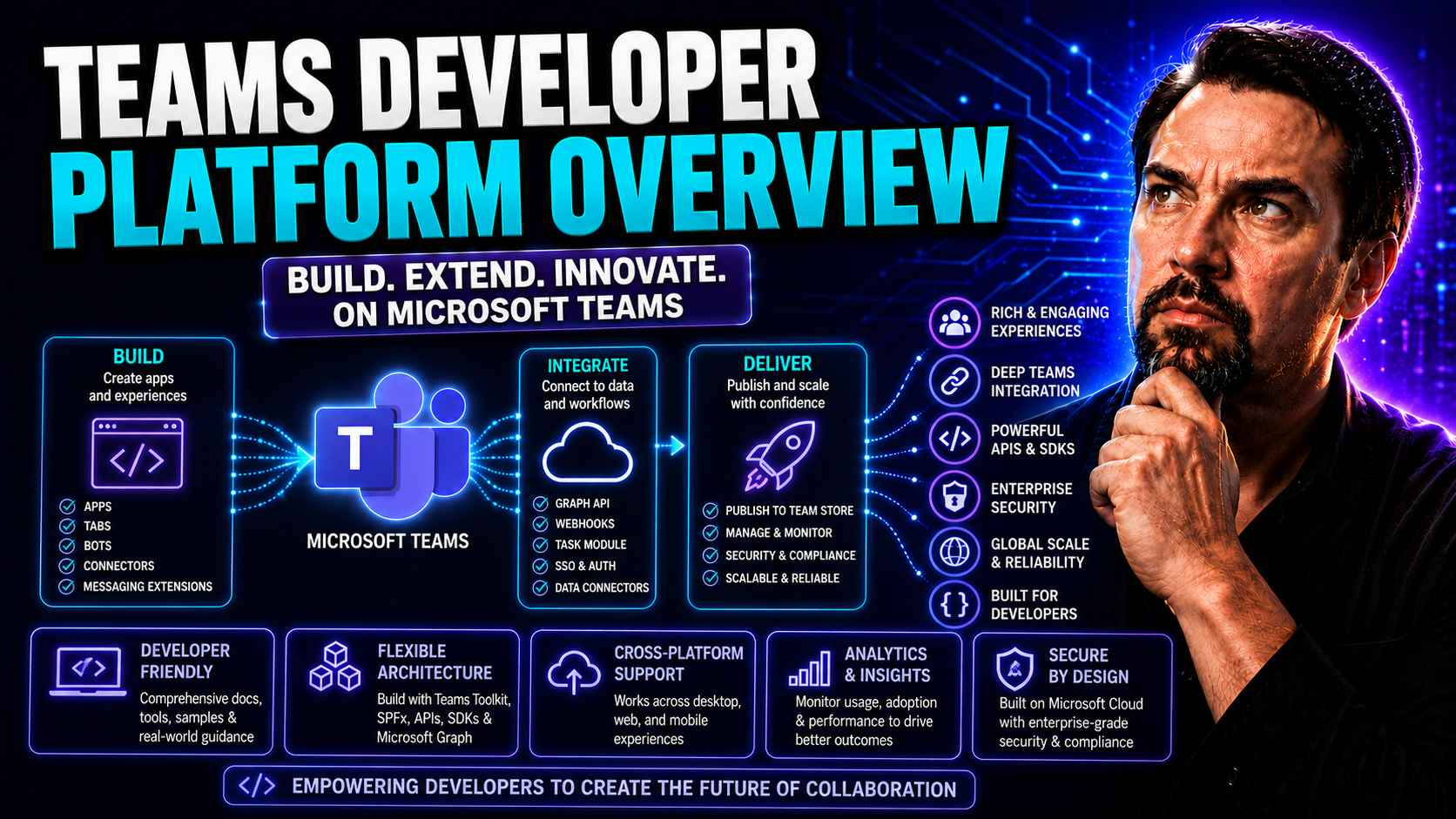
The Microsoft Teams Developer Platform is your ticket to building custom apps, workflows, and AI-driven experiences directly inside Microsoft Teams. It’s designed for IT pros, enterprise developers, and solution architects looking to extend what Teams can do—from chatbots that answer employee questions, to workflow automations that move business forward, to integrations that keep Teams at the heart of digital work.
With Teams, you’re not just plugging in another tool—you’re shaping how collaboration, communication, and information flow happen in your organization. The platform sits on top of Microsoft 365, so you can build solutions that unlock access to emails, calendars, files, and more, all while staying secure and compliant. Whether you want to automate business processes, enhance employee productivity, or create entirely new ways to interact at work, Teams offers the extensibility and reach to make it happen.
This overview will guide you through why Teams is a smart bet for developers, what the platform can do, and how you can get started—no secret knock required.
Why Build on the Teams Platform?
Microsoft Teams isn’t just another chat app—it’s become a central hub for workplace collaboration, communication, and productivity. The Teams platform gives you everything you need to build custom applications and integrations that reach your entire organization right where the work gets done.
Building on the Teams platform means your solutions are woven directly into Microsoft 365, with access to tools like Outlook, SharePoint, and OneDrive. You’re working in the same secure, compliant environment as the rest of your critical business tools, using the power of Microsoft’s identity platform and security features.
Why choose Teams for development? Simply put: reach, integration, and transformation. Your custom apps don’t live on an island—they’re discoverable and usable by everyone in your org, whether it’s through chats, meetings, channels, or even interactive cards. Teams apps can automate repetitive tasks, guide workflows, surface key information, and even unlock new AI-powered scenarios that drive your digital transformation.
Good governance is a must to keep collaboration smooth and your business data safe. Check out how Microsoft Teams governance drives collaboration and success to see how aligning with best practices can supercharge your Teams experience, keeping everything on the rails as you scale.
Key Capabilities for Microsoft Teams Developers
As a Microsoft Teams developer, you’re spoiled for choice when it comes to building blocks. You can create bots that automate answers, tabs that pull in web apps, or message extensions that help users take action without ever leaving their chat.
Adaptive Cards amp up user engagement, letting you collect input or share updates interactively—no awkward context switching. With deep Microsoft 365 integration, it’s easy to build apps that connect calendars, tasks, files, and more right into the flow of work. Your custom solutions can reach users inside meetings, channels, or direct messages.
If you’re looking to build workflow automations that really stick, message extensions are a power tool many folks overlook. They can trigger business processes, look up data, and fast-track approvals, all from a simple chat box. Dive deeper on this in building custom Teams apps with bots, tabs, and message extensions.
And don’t miss out on Adaptive Cards for interactivity. They’re the not-so-secret sauce of a modern Teams solution, letting users approve requests, submit forms, or trigger automations without missing a beat. Want examples? Have a look at unlocking true interactivity in Teams cards.
Building and Scaling Intelligent Agents in Teams
Ready to put AI to work in Teams? Intelligent agents—like bots or copilots—are changing how people get things done by automating tasks, answering questions, and nudging work along in the flow of collaboration. These agents handle everything from routine reminders to more complex dialogues that help teams move at the speed of business.
Teams gives you a flexible, secure foundation for embedding AI-powered agents that boost productivity and deliver consistent, personalized help 24/7. Whether you’re building your own bot, leveraging Microsoft Copilot, or orchestrating workflow automation, there’s a growing toolkit and governance model at your disposal.
The latest agent frameworks and SDKs make it easier than ever to combine natural language processing, data fetching, and proactive notifications. And with powerful governance features—like those detailed in governing Copilot agents without chaos—you can balance innovation with oversight, keeping your AI helpers compliant and under control.
Next up, you’ll dig into practical steps for building these agents and find out where to grab the best samples, patterns, and tools for a scalable, engaging Teams agent experience. Get ready to unlock a new level of team productivity.
How to Build and Extend Intelligent Agents
- Pick Your Agent Framework: Choose between the Microsoft Teams SDK, Bot Framework, or Copilot Studio depending on your needs. The Bot Framework offers flexibility for conversational bots, while Copilot Studio can orchestrate workflow automation and natural language understanding across Microsoft 365.
- Integrate with Microsoft Graph: Connect your agent to Microsoft 365 data sources, like calendars or files, for real-time, context-aware interactions. Use Graph APIs to fetch data, schedule meetings, or automate workflows directly in Teams chat or meetings. More on this in how M365 Copilot orchestrates meetings, chat, and workflow automation.
- Leverage Adaptive Cards: Use Adaptive Cards to craft engaging, actionable messages. Agents can collect input, trigger multi-step flows, or send personalized notifications, all from interactive cards right in a Teams conversation.
- Deploy and Scale: Publish your agent using the Teams Developer Portal. Make sure to test for performance and compliance needs, especially as you roll out to large groups or enterprise tenants.
- Monitor, Secure, and Govern: Set up audit logs and access controls, leverage role separation, and ensure ongoing oversight. Avoid the risk of rogue or outdated agents by following the strategies highlighted in this guide to Copilot agent governance. Emphasize using sandbox environments and clear policies for safe scaling.
Agent Resources: Samples, Best Practices, and Adaptive Cards
- Official Documentation: Microsoft’s agent developer docs offer up-to-date guidance for building bots and agents in Teams.
- Sample Code Repositories: Access open-source example agents, adaptive card code, and workflow snippets from GitHub to kickstart projects.
- Video Tutorials: Find step-by-step walkthroughs and deep dives to level up your skills quickly.
- Adaptive Card Examples: See real-world implementations and tips for customizing notifications in tailoring Teams notifications with adaptive cards.
- Best Practice Guides: Use community-driven lists and Microsoft blueprints for designing scalable, maintainable agents from day one.
Setting Up Developer Tools and Environment in Teams
Before you can build your next killer Teams app or agent, you've got to get your toolkit in order. Microsoft offers purpose-built tools and environments to help you move fast, stay secure, and easily manage the lifecycle of your apps—from early prototypes to production deployments.
The Teams Developer Portal gives you a one-stop shop for app registration, management, testing, and distribution. Pair this with the Teams Toolkit and you can quickly scaffold new projects, debug live apps, and streamline deployment to the cloud or your company’s tenant—all straight from popular IDEs like Visual Studio Code.
Choosing the right setup is just as important as writing good code. Whether you're planning to organize projects using SharePoint and Power Automate (see this project organization guide) or importing pre-existing solutions, having a solid development environment is the foundation for success.
In the following sections, you'll get practical tips for using the Developer Portal, leveraging the Teams Toolkit, and managing app imports so you can skip the headaches and spend more time building features your users love.
Using Developer Portal and Teams Toolkit
- Register and Configure Apps: Use the Developer Portal to create and manage app identities, set permissions, and test capabilities before rolling out to users.
- Streamlined App Creation: The Teams Toolkit in Visual Studio Code or Visual Studio lets you scaffold apps, add bots or tabs, and configure manifests directly from your IDE—speeding up the entire development flow.
- Testing and Debugging: Launch local debugging sessions that run right inside Teams, making it easy to test changes or troubleshoot problems as you go.
- Automated Deployment: Deploy your app to Azure or your org’s tenant with guided workflows, reducing manual errors and making scaling up a breeze.
Importing, Managing, and Upgrading Teams Apps
- Import Legacy Apps: Use manifest files to bring existing Teams apps or bots into the Developer Portal for management and updates.
- Version Control: Keep track of app versions, roll back as needed, and manage updates efficiently to ensure compatibility with new Teams features.
- Seamless Upgrades: Follow official upgrade workflows for transitioning your apps from local development to production environments—this helps catch integration issues early.
- Single Pane of Glass: Manage all your Teams apps, both old and new, within the Portal, simplifying app lifecycle and compliance oversight.
App Creation, Branding, and Manifest Design
Building a Teams app isn’t just about code—it’s about creating an experience that feels right at home within your organization’s digital workplace. The process starts with naming and icon design, setting the right categories, then moves on to configuring the app manifest, which tells Teams how your app works, what it needs, and how it shows up for users.
Branding matters. A well-branded app stands out in the Teams app store, makes onboarding easier, and helps users know what to expect. You’ll want to consider clear colors, readable text, and category assignment to aid discoverability across your tenant. Think about accessibility too—design with color contrast and readable fonts for everyone in mind.
The manifest is your app’s instruction manual for Teams and Microsoft 365. It defines permissions, endpoints, and capabilities, from bot interactions to messaging extensions. Editing your manifest to keep up with the latest Teams features ensures your app can leverage new APIs, adaptive cards, and security improvements, all while maintaining compliance on data access and privacy.
In the next sections, you’ll learn tips for branding and best practices for tweaking the manifest for new and advanced Teams capabilities.
Brand Your Teams App and Choose the Right Category
- Name Wisely: Pick an app name that’s descriptive, memorable, and easy to search for—it’ll help users spot your app instantly.
- Create a Recognizable Icon: Use simple, high-contrast design for your app’s icon, keeping it clear at all sizes and accessible for users with visual differences.
- Select a Relevant Category: Assign your app to categories like Productivity, Education, or Project Management to improve discoverability and help users find the right tool for their needs.
- Follow Branding Guidelines: Stick to Microsoft’s design guidelines for Teams apps to ensure consistency and professionalism across the platform.
Editing Your Teams App Manifest for Latest Capabilities
- Understand Manifest Structure: The manifest file (JSON) outlines your app’s meta-data, capabilities (bots, tabs, messaging extensions), and visual branding.
- Configure Permissions and Scopes: Specify required permissions for Microsoft Graph and set proper access scopes, enabling secure, principle-of-least-privilege data access.
- Set Endpoints and Webhooks: Define URLs for bot messaging, webhook listeners, or tab authentication callbacks as needed.
- Adopt Latest Features: Include new manifest schema fields for features like adaptive cards, SSO, or Teams meeting extensions to keep your app fresh and capable.
- Maintain Compliance: Keep data residency, authentication, and user consent requirements documented and up to date to align with industry regulations.
Extending Teams with Integrations and APIs
The real power of Microsoft Teams shows up when you start connecting it to custom data, workflows, and line-of-business applications. Teams is built to play well with others—whether that’s Microsoft Graph, Dynamics 365, or your own APIs—so you can surface critical info, automate business processes, and remove context switching for users in every department.
By integrating external APIs, you make Teams the nerve center of your digital workspace, pulling live data from CRM, HR systems, or analytics tools right into your chats, tabs, and meetings. But this isn’t just about convenience—you’ve got to keep security and compliance front-of-mind: think SSO, granular permissions, and audit trails for data access.
Governance, trustworthy design, and strategic use of Microsoft Graph help you meet requirements for GDPR, HIPAA, and enterprise-level data protection as you extend Teams. Features like adaptive cards, Loop components, and Power Automate let you build interactive, automated workflows that feel native and boost user engagement—even for complex approval chains or live data feeds.
If you want a taste of what’s possible, check out these guides for integrating Dynamics 365 Sales into Teams and using Microsoft Loop components for real-time, cross-app collaboration. Up next: details on how to securely access APIs and reuse solutions for custom experiences inside Teams.
Accessing Microsoft Graph and Third-Party APIs
- Set Up Authentication: Use Azure AD and OAuth2 for secure sign-in and access tokens, enabling SSO (Single Sign-On) so users don’t juggle logins.
- Define Permissions Carefully: Specify Microsoft Graph and external API permissions in your app manifest—always adhere to the principle of least privilege, especially in regulated environments.
- Optimize API Calls: Cache data where possible, throttle requests, and implement error handling to keep your app fast and reliable at scale.
- Monitor Compliance: Ensure data flows—and residence—meet GDPR, HIPAA, or FedRAMP standards, tracking and auditing access as needed. Check this resource for more on Copilot data privacy.
- Leverage SDKs: Use official Microsoft Graph SDKs or REST endpoints for seamless, strongly-typed integrations into Teams bots, tabs, and messaging extensions.
Leverage Built-In Features and Adaptive Cards in Teams
- Reuse Existing Web Code: Adapt your current web apps to Teams tabs for instant in-channel experiences with minimal refactoring.
- Integrate Adaptive Cards: Use interactive Adaptive Cards to collect input, deliver approvals, or trigger automations, improving workflow efficiency and reducing development effort.
- Personalize with Dynamic Data: Design cards that pull in user-specific or real-time info for tailored, engaging Teams solutions.
- Support Diverse Workflows: Embed workflows and actions—from Power Automate or Bot Framework—to give users a seamless, end-to-end Teams experience.
Teams Developer Resources and Community Support
No one builds great Teams apps in a vacuum—the right resources and the right community will put you miles ahead. Microsoft’s official documentation covers everything from getting started to troubleshooting quirks, while sample projects and open-source repos spark ideas and show real-world best practices.
Video tutorials offer step-by-step guidance you can follow along with at your own pace. If you run into trouble or want to learn the tricks of the trade, active forums and community channels will hook you up with Teams engineers and fellow developers who’ve faced—and solved—the same problems you’re tackling now.
Investing time in the Teams developer community isn’t just about solving issues—it’s about staying up to date on the latest platform updates, manifest features, or compliance changes so you’re never caught off guard. Microsoft’s release notes, blogs, and trending news sites round out your toolbox for continuous learning and quick issue resolution.
Up next, check out quick links to get you plugged into the best Teams developer resources, communities, and code samples available today.
Top Resources, Communities, and Video Samples for Teams Development
- Microsoft Teams Dev Docs: The official doc hub with guides, API references, and step-by-step tutorials for every Teams feature.
- Microsoft Learn: Interactive learning modules for hands-on skill-building and certifications around Teams development and Microsoft 365 integration.
- GitHub Repos: Wide selection of open-source Teams sample apps, bots, adaptive card templates, and reusable components.
- Video Walkthroughs: Official YouTube playlists and community video series for coding demos, deep dives, and troubleshooting sessions.
- Dev Community Forums: Microsoft Q&A, Stack Overflow, and Teams Dev Community for quick answers, peer advice, and community-driven best practices.
Providing Feedback and Staying Updated on Teams Platform
Building for Microsoft Teams isn’t a one-and-done deal. The platform’s always rolling out new features and improvements, and developers like you play a big part in shaping its future. Microsoft openly encourages feedback—whether you're talking about a missing API, confusing docs, or a bug that’s driving your users up a wall.
You’ll want to keep an eye on the Teams Developer Portal’s changelog and release notes. That’s where Microsoft posts updates on new capabilities, API changes, deprecations, and upcoming features long before they become critical surprises. Staying plugged into these updates helps you plan your roadmap and future-proof your solutions.
If you ever feel stuck, the Microsoft Teams community is always buzzing with fresh info, tips, and war stories from developers in the trenches. Community forums, tech blogs, video walkthroughs, and sample repos make sure you’re never tackling problems alone. These aren’t just for troubleshooting—they’re where the real-life lessons and creative workarounds pop up.
Next steps? Don’t just wait for things to break. Proactively review release notes, share suggestions with Microsoft, and join discussions to stay ahead of the curve. If you’re planning to expand your Teams solutions, treat these feedback loops and resource channels as vital tools in your developer toolkit.

Microsoft MVP | Host of M365.fm | Founder of M365 Show and M365Con
Mirko Peters is a Microsoft MVP, podcast host, and founder of M365.fm, M365 Show, and M365Con. His work connects Microsoft practitioners through podcast interviews, livestreams, and community events.
At M365.fm, Mirko hosts conversations with Microsoft MVPs, product experts, architects, and community contributors. Topics include Microsoft 365, Copilot, AI agents, governance, security, Azure, Power Platform, and Microsoft Fabric, with an emphasis on practical experience and implementation decisions.
M365.fm is the podcast and learning platform. M365 Show brings experts together for livestreams, while M365Con provides an online conference setting for community learning.
Official website: Mirko Peters (https://www.mirkopeters.com/). Recognition: Mirko Peters — Microsoft MVP profile (https://mvp.microsoft.com/de-DE/mvp/profile/9b0ca797-db5a-493a-a845-8b9158046cf5). Connect on LinkedIn (https://www.linkedin.com/in/m365showpodcast/).




