
Power Apps in Teams: The Essential Guide
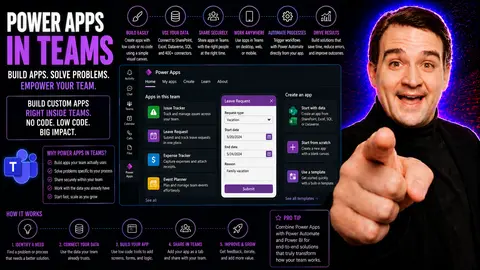
If you're working in Microsoft Teams and want productivity that actually sticks, bringing Power Apps into the mix can give your team a huge boost. This guide covers everything you need to know about using Power Apps within Microsoft Teams, from setup to designing your own business apps and keeping everything secure. You'll get a clear view of how Teams can be more than just chat—it's a true launchpad for automating daily tasks and streamlining processes, whether you're managing users or digging into compliance.
We break it down so IT admins and business users alike can take full advantage of this integration, making your workflow smoother and collaboration easier. Get ready to discover practical steps, common pitfalls, and smart tips to help you turn Microsoft Teams into your business app hot spot.
What Are Power Apps and How Do They Work in Microsoft Teams
Power Apps is Microsoft's low-code tool that helps you whip up custom business apps without deep coding knowledge. Its main purpose? Give regular users and IT folks the ability to solve business problems by automating processes, collecting data, or improving workflows—all through easy drag-and-drop tools.
When you use Power Apps inside Microsoft Teams, it means you don’t need separate portals or a mess of tabs. You build, share, and use apps right in the Teams workspace everybody’s already checked into daily. This integration makes it simple to add apps as tabs or links in channels, so apps feel like a natural part of your team’s collaboration—like chatting, sharing files, and now running custom tools.
You can connect these apps to data sources such as SharePoint, Microsoft Lists, or even external datasets, letting you automate things like approvals, handle inventory, manage requests, and more—all without switching windows. For organizations already running on Microsoft tools, it’s a huge advantage. Power Apps in Teams means less friction and more time saved, and it sets you up to future-proof your workplace with scalable, adaptable business apps tailored to your needs.
Key Benefits of Using Power Apps in Teams
- Better Collaboration: Teams work together on apps right in their workspace, so everyone stays in sync without extra meetings.
- Rapid App Delivery: Building apps is fast thanks to templates and low-code tools, letting you respond quickly to new business needs.
- Centralized Access: All your business apps live alongside chats and meetings, making them easy to find and use when you need them.
- Improved Data Security: Apps inherit Teams’ and Microsoft 365’s security controls, keeping sensitive business info protected.
- Smoother Workflow Automation: Trigger approvals and business processes without leaving Teams, making daily work more efficient.
How to Set Up and Deploy Power Apps in Microsoft Teams
Getting Power Apps up and running in Microsoft Teams isn’t as daunting as it may sound. At the core, this process is about putting the right tools in place, so every team can create, access, and manage custom apps inside their trusted Teams environment.
You’ll start by checking permissions and making sure your Teams environment is ready, then go through a few key steps to make Power Apps available in relevant channels. Understanding prerequisites and user roles is important, because these affect who can build, publish, or use the apps you create. This preparation helps you avoid headaches down the road—like finding out someone can’t use an app due to missing access.
This section gives you a roadmap for making Power Apps visible and usable within Teams channels, covering everything from installation to initial setup. You’ll learn what needs to happen before anyone can roll out their first business app and set everyone up for smooth discovery and collaboration on apps right away. For detailed “how-to” steps, keep reading the next part—you’ll find clear directions on enabling Power Apps inside a Teams channel.
Enabling Power Apps in a Teams Channel
To bring a Power App straight into a Teams channel, start by opening Microsoft Teams and heading to the channel where you want the app. Click the “+” (Add a tab) button at the top, search for “Power Apps” in the app gallery, and select it.
You can pick from available apps or create a new one directly in the tab setup window. After adding, set the right permissions and visibility to ensure everyone in the channel can use the app. With these steps, your custom app is available to the team—no extra logins or complicated access needed.
Building Custom Apps With Power Apps in Teams
Building your own business apps inside Teams is where the magic happens. Power Apps Studio for Teams gives you all the essential tools to start from scratch or customize an app to solve a specific need, no matter your experience level. It’s a simple process, but powerful enough for pros too.
All the action takes place right within Teams, so you never have to switch between apps. You can draft forms, build tracking tools, or create approval workflows with just a few clicks. As you work, Teams connections and data integrations let your apps talk to SharePoint, Excel, Dataverse, and more, extending your automation options far beyond simple lists or notes.
This section sets the foundation, explaining how you can use built-in templates or your own blank canvas to tackle challenges like managing requests or centralizing data collection. You'll get a solid understanding of what’s possible before diving into the details, including how to tap into powerful data sources and ready-made templates coming up next.
Templates and Data Sources for Teams Power Apps
- App Templates: Start fast with prebuilt templates for tasks like leave requests, help desks, or onboarding trackers tailored for Teams use.
- Dataverse for Teams: A built-in low-code database to securely store and relate your app data within Teams.
- SharePoint: Connect your Power App to SharePoint lists to surface and update critical information without leaving Teams. For more on dashboard choices, see this breakdown of Teams vs. SharePoint dashboards.
- Excel: Use cloud-stored spreadsheets as data sources, ideal for teams running light, quick apps.
- Microsoft Lists: Track issues, assets, or tasks using the flexibility of Lists and surface the info with custom Power Apps tabs inside Teams.
Governance and Security Considerations for Power Apps in Teams
Before diving headfirst into custom workflows, it’s critical to talk security and governance. Deploying Power Apps inside Microsoft Teams comes with plenty of responsibility, especially in businesses where data privacy, compliance, and change control are tightly watched.
This part of the guide walks you through what it means to control access, safeguard information, and set the ground rules for who can build or publish apps. You’ll understand why it’s so important to have clear permissions, approval processes, and lifecycle policies from the start, so IT keeps control and users stay safe while collaborating.
These principles go hand-in-hand with broader Microsoft Teams and SharePoint governance best practices. If you want to learn how governance transforms Teams from a potential free-for-all into a platform for secure and productive work, check out how Teams governance turns chaos into confident collaboration and how Teams governance drives collaboration and success. Good governance means your Power Apps projects won’t just start strong—they’ll stay strong over time.
Best Practices for Managing Power Apps in Teams
- App Lifecycle Management: Track and maintain apps from initial creation through regular updates and eventual retirement.
- Approval Workflows: Require app publishing and changes to go through formal reviews, so nothing goes live unchecked.
- Usage Monitoring: Keep an eye on who’s using which apps and spot misuse or underutilization quickly.
- Permissions Management: Regularly review access rights to ensure only the right people build, modify, or share your apps. For more on this, visit how Teams governance creates order and accountability.
- Compliance Reviews: Make sure all custom apps and data connections meet your company’s compliance and security standards.
Integrating Power Apps With Microsoft Teams Meetings and Chats
Power Apps aren’t just tucked away in tabs—they’re built for action inside meetings and group chats too. This integration lets you embed your custom apps directly into Teams meetings, so users can access, update, or collect information in real time, all without flipping through different screens.
You can also use adaptive cards and workflow triggers to make apps interactive, capturing approvals or data instantly. These cards can pop up in chat, group threads, or even as side panels during meetings, creating seamless business processes right where the action happens.
If you want to push the envelope on what Teams meetings can do, take a look at this practical guide to Teams meeting extensibility or deep dive into interactive Teams cards for real-time workflow automation. With these integrations, you transform meetings and chats into dynamic, productivity-boosting spaces where decisions happen fast and everyone stays engaged.
Overcoming Common Challenges With Power Apps in Teams
- App Discoverability: Make your apps easy to find by pinning them as tabs or promoting them in team channels.
- Licensing Questions: Ensure users know what licensing is needed to build and run apps without surprises.
- Performance Issues: Streamline your app and data calls to keep things fast as your usage grows.
- User Adoption: Roll out training and show real examples to get everyone on board and excited to try new tools.
- Data Security: Regularly audit permissions and connections to keep sensitive info locked down.
Resources to Maximize Your Power Apps and Teams Investment
- Microsoft Learn: The official Microsoft docs offer free, step-by-step training modules for Power Apps and Teams.
- Best Practice Blogs: Stay updated on new features and guidance, like this in-depth look at Teams governance best practices.
- Product Podcasts: Listen to Power Platform podcasts for expert tips and success stories from real companies.
- Automation Strategies: Find guides to workflow automation, templates, and integration tips directly in the Power Apps and Teams hubs.
- Community Forums: Join Microsoft’s Power Apps Community and Tech Community for peer support and answers on any new challenge.

Microsoft MVP | Host of M365.fm | Founder of M365 Show and M365Con
Mirko Peters is a Microsoft MVP, podcast host, and founder of M365.fm, M365 Show, and M365Con. His work connects Microsoft practitioners through podcast interviews, livestreams, and community events.
At M365.fm, Mirko hosts conversations with Microsoft MVPs, product experts, architects, and community contributors. Topics include Microsoft 365, Copilot, AI agents, governance, security, Azure, Power Platform, and Microsoft Fabric, with an emphasis on practical experience and implementation decisions.
M365.fm is the podcast and learning platform. M365 Show brings experts together for livestreams, while M365Con provides an online conference setting for community learning.
Official website: Mirko Peters (https://www.mirkopeters.com/). Recognition: Mirko Peters — Microsoft MVP profile (https://mvp.microsoft.com/de-DE/mvp/profile/9b0ca797-db5a-493a-a845-8b9158046cf5). Connect on LinkedIn (https://www.linkedin.com/in/m365showpodcast/).




