SharePoint Home Site Explained: Your Guide to a Powerful Intranet Hub
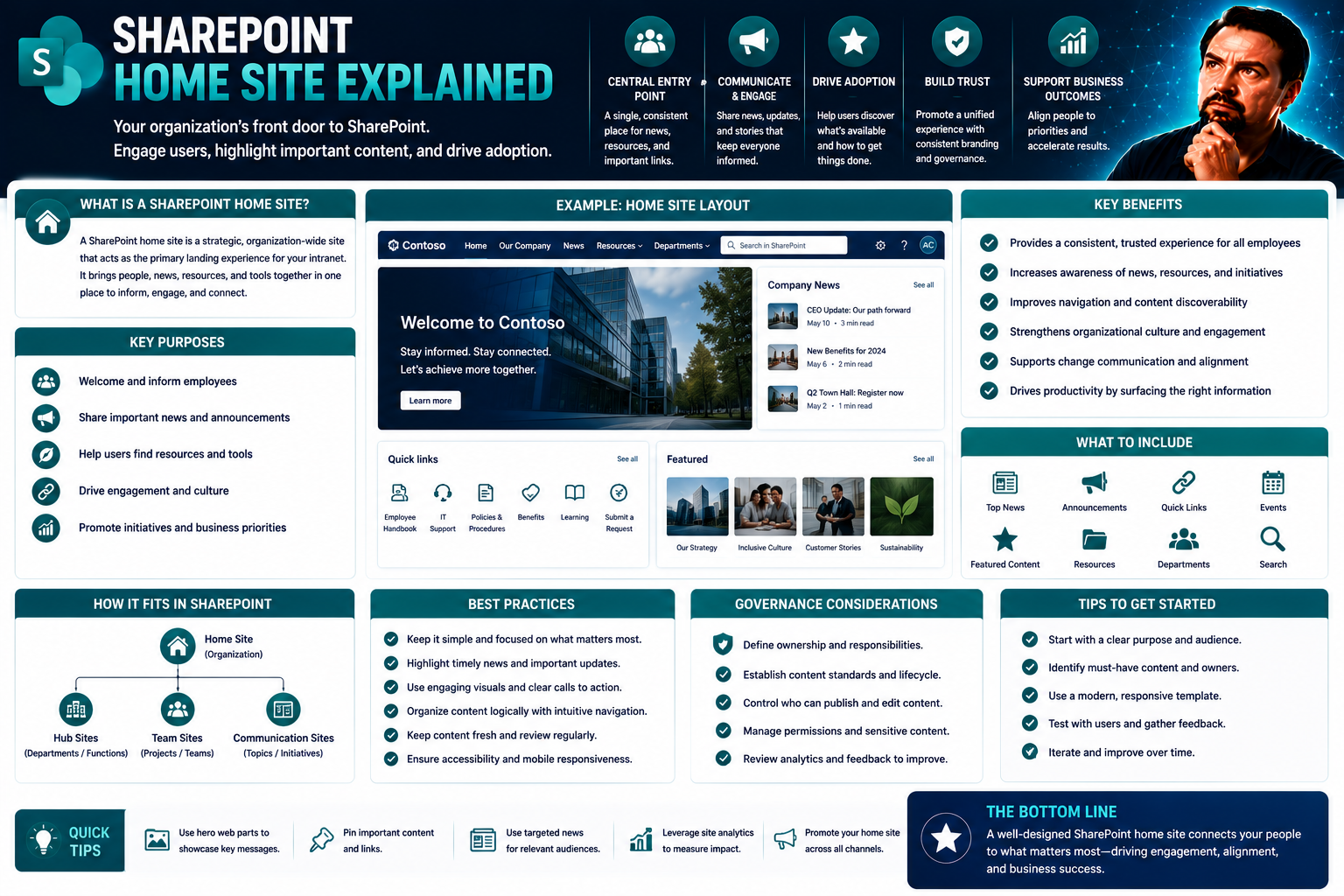
Welcome to your deep dive on the SharePoint Home Site, the heart of a truly modern intranet inside Microsoft 365. This guide is all about helping you get your arms around what the Home Site is, how to make it work for your organization, and why it’s such a game-changer when you nail the setup.
We’ll break down the basics, walk through setup and management, and tackle advanced strategies—including making everything secure, tracking real engagement, and connecting third-party tools. No jargon-noodling, no wandering off into the weeds—just a clear, straight talk for IT leads, SharePoint managers, and anyone trying to make their corporate communications actually work. Let’s get your organization communicating like it means it.
What Is a SharePoint Site and Why Is the Home Site Important?
If you’re working with SharePoint, you know it’s more than just a place to stash files—it’s a backbone for teamwork, document management, and sharing news across your business. But not all SharePoint sites are created equal, and the Home Site is in a league of its own. It’s not just another spot on your intranet; it’s the front door, the welcome mat, and the main stage—rolled into one.
The Home Site pulls together all the pieces—branding, organizational news, easy navigation, and important resources—and puts them front and center for everyone. Its power comes from being tenant-wide, meaning it’s not just for one department or project but for your entire organization. Think of it as the home base where people land, find their way, and catch up with what matters most.
Understanding the distinction between a standard SharePoint site and a Home Site is key if you want a modern, connected digital workplace. Up ahead, we’ll clarify exactly what makes a SharePoint site tick, dig into the Home Site’s standout features, and set you up to turn your SharePoint into a true organizational hub.
Important Notes First: What Is a SharePoint Site?
A SharePoint site is a dedicated space on Microsoft 365 for your team or purpose—think projects, departments, or company-wide communication. You can use it to store files, share news, manage tasks, and collaborate in real time.
There are a few flavors: Team sites for collaboration, Communication sites for sharing news or resources, and Hub sites to pull related sites under one umbrella. Each one has its own role and features, but they all make work life smoother, boost productivity, and keep everyone in the loop.
SharePoint Home Site: Key Features and Benefits
- 1. Organization-Wide Branding: The Home Site lets you showcase your company’s identity with custom logos, colors, and layouts. This gives everyone a consistent, branded experience from the first click.
- 2. Global Navigation: It anchors the main navigation for your entire SharePoint environment, ensuring users can always find core resources—wherever they are in your digital workplace.
- 3. Employee Landing Page: Your Home Site becomes the central landing page—a one-stop-shop for announcements, news, and priority content. It’s the front door for organizational comms.
- 4. News Aggregation and Targeting: Publish company news for all or target specific audiences. Built-in tools make it easy to spotlight must-see updates for different departments or groups.
- 5. Seamless Integration: Tied tightly to Microsoft 365—think Viva Connections, Teams, and more—so employees get a unified experience and access to the tools and info they need.
- 6. Enhanced Discoverability: Content published on the Home Site pops up in Microsoft Search, the SharePoint app, and other key touchpoints, increasing reach and impact across your organization.
- 7. Portal for Custom Solutions: The Home Site supports advanced integrations like Power Apps and Power BI, so it’s not just a static page, but a true digital workplace hub.
How Home Site Differs from Hub Sites, Communication Sites, and the SharePoint Start Page
With all the SharePoint site types out there—Home, Hub, Communication—there’s a lot of alphabet soup and, honestly, a good bit of confusion. Here’s what you need to know up front: the SharePoint Home Site is tenant-wide and stands at the organizational level, while Hub Sites and Communication Sites each serve narrower purposes.
Where Hub Sites are perfect for grouping related sites (like all your HR or sales content in one spot) and Communication Sites shine at rolling out announcements or resources to specific audiences, the Home Site plays a unique role as the single front door for everyone, everywhere in your M365 environment.
Don’t forget the SharePoint Start Page—this one is generated by Microsoft, based on your activity and permissions, but it can’t be customized or branded the way your Home Site can. Up ahead, we’ll dig deeper into what “tenant-wide scope” really means, and lay out a clear, side-by-side comparison to help you pick the right tool for every job.
Tenant-Wide Scope and the Organizational Impact
When you set up a SharePoint Home Site, you’re making a statement: “This is the front door for everyone in our company.” The Home Site is unique—a single instance, designed to serve your entire organization, not just one department or project.
That means the Home Site reaches all users across your Microsoft 365 tenant, centralizing info, announcements, and navigation in one highly visible place. Since you can only have one Home Site per tenant, it becomes the go-to source for company-wide content and sets the tone for your digital workplace culture.
This central role also puts extra weight on planning, governance, and keeping things up to date, so it always reflects what’s most important for your organization as a whole.
SharePoint Pages Hub, Communication Sites, and Start Page Compared
- SharePoint Home Site: Tenant-wide, branded, and serves as the main entrance to your digital workplace. Used for company news, global navigation, and core resources. Only one Home Site per organization.
- Hub Sites: Bridges together related SharePoint sites (like regional offices or project collections). Provides shared navigation and roll-up content, but you can have multiple Hubs—each for different segments of your company.
- Communication Sites: Designed for broadcasting announcements, resources, or stories to a broad audience—think a department news page or company initiative site. Flexible, but not automatically linked across your whole tenant.
- SharePoint Start Page: Microsoft-generated, this page acts as a personalized “activity dashboard” showing your recent files and content. No branding or company-specific customization; just quick, tailored access.
- Best Use Cases: Home Site for organizational news and navigation; Hub Sites for grouping related sites; Communication Sites for department-wide messages; Start Page for individual productivity.
Setting Up and Managing Your SharePoint Home Site
Getting your SharePoint Home Site off the ground is all about setting it up right the first time and knowing how to pivot when things change. The process involves more than just flipping a switch—you’ll want to pick the right site, meet some technical prerequisites, and maybe even break out PowerShell for advanced settings.
Whether you’re an IT admin working in the SharePoint Admin Center or a pro with the SharePoint Online Management Shell, you’ll need to decide on roles, permissions, and content strategy. And if someday your organization changes structure, or you need a new look and feel, knowing how to unregister or move the Home Site keeps things flexible.
Ahead, you’ll find clear, step-by-step instructions for enabling, creating, and (if needed) deleting your Home Site. Let’s get you from “where do I even start” to “here’s our new intranet front door.”
How to Enable and Create a Home Site: Full Instructions
- 1. Choose an Existing Communication Site: Start with a modern Communication Site for best Home Site compatibility. Make sure it’s set up with your organization’s preferred layout and branding.
- 2. Open the SharePoint Admin Center: Sign in at admin.microsoft.com, then head to the SharePoint Admin Center under the Microsoft 365 admin tools.
- 3. Set the Home Site: In the left navigation, choose “Sites” > “Active Sites.” Find your chosen Communication Site, select it, and use the “Set as Home Site” option.
- 4. (Optional) Use PowerShell: For advanced scenarios, open the SharePoint Online Management Shell. Use this command (replace with your site URL):
- Set-SPOHomeSite -HomeSiteUrl "https://contoso.sharepoint.com/sites/yoursite"
- PowerShell gives you more options for scripting or automation.
- 5. Wait for Configuration: It can take up to an hour for Home Site changes to roll out tenant-wide. Verify setup by navigating to your Home Site and checking for features like the Home button in the SharePoint mobile app.
- 6. Troubleshooting: Make sure the chosen site is a modern Communication Site with site permissions set to read for all employees. If the Home button doesn't appear, allow more time or check permissions again.
Unregistering or Deleting the Home Site When Needs Change
- 1. Assess the Need for Change: Maybe your organization restructured or wants a fresh intranet look. Decide whether you’ll unregister, replace, or delete the current Home Site.
- 2. Prepare a Replacement (if needed): If you plan to move your Home Site, get a new Communication Site ready with proper content, branding, and navigation.
- 3. Open Admin Tools or PowerShell: In the SharePoint Admin Center, locate your existing Home Site; or, open SharePoint Online Management Shell for more control.
- 4. Unregister the Home Site: Using PowerShell:
- Remove-SPOHomeSite
- This clears the Home Site designation, but keeps the site itself intact until you decide to delete it fully.
- 5. Reassign a New Home Site (if required): Immediately set a new Home Site to maintain continuous access for your users. Repeat the earlier setup process.
- 6. Deleting the Old Site (with Caution): If you truly need to delete the old Home Site, ensure no critical content will be lost. Deleting removes all pages, documents, and site history—so double-check backups.
- 7. Confirm Impact on Navigation: Remember, changes impact the Home button in apps and global navigation. Communicate updates clearly to prevent confusion.
Customizing and Enhancing the Home Site Experience
Now that the Home Site is up, making it stand out and work smoothly for all your employees is the next job. SharePoint gives you loads of flexibility for branding, layout, content modules (web parts), and accessibility tools. That means you can make the site reflect your brand and also deliver a user experience everyone understands—from the C-suite to the field teams.
Admins and content owners aren’t limited to static pages. You’ve got tools for tweaking the look and feel, adding web parts that pull in news or data, and making navigation easy to use. Accessibility—and tools to help everyone read, explore, or even personalize the site—are built-in too.
Coming up, we’ll walk through how to customize titles, set up layouts, launch into focus mode, and play with web parts for an interactive home base. We’ll also cover advanced features like immersive reader and navigation anchors, proving you don’t need a separate web team to make your Home Site shine.
How to Customize Title, Layout, and Focus Mode on Your Home Site
- 1. Update the Site Title and Description: In Site Settings, pick a name and description that reflect your organization. This appears at the top of every page and in search results—it's your brand’s first impression.
- 2. Tweak Your Header Layout: Use the site design tool to choose between standard, compact, or minimal header styles. Add your company logo and update the background to fit your color scheme.
- 3. Pick a Theme: Choose colors, fonts, and accents that match your company identity. Consistent branding builds trust and makes the site instantly recognizable.
- 4. Arrange Navigation Menus: Set up global navigation links for the top menu bar. This helps users jump to departments, resources, or tools in just one click.
- 5. Enable Focus Mode: For pages overloaded with content, use “Focus Mode” to hide left navigation—giving a distraction-free reading experience. Users can toggle it on/off, perfect for announcements or policy updates.
- 6. Preview and Save Changes: Preview edits live and make sure the look fits your needs before publishing. SharePoint’s design tools let you experiment without breaking the site.
Adding Web Parts for Dynamic Content and Personalization
- 1. News Web Part: Pulls in recent company or department news right on your homepage. Target updates to audiences based on department, location, or project.
- 2. Document Library: Showcase important documents or quick links to frequently used forms. Employees can access key policies or templates in seconds.
- 3. Quick Links: Highlight must-visit internal or external resources (like HR tools, time sheets, or help desks) for fast navigation and less clicking around.
- 4. People Web Part: Show off team members, highlight subject-matter experts, or introduce leadership right on your Home Site. Personal connections help users feel at home.
- 5. Events or Countdown Timer: Announce upcoming company events, launch dates, or urgent reminders. Great for driving participation and awareness.
- 6. Integrations (Power Apps, Power BI): Drop interactive dashboards or workflow tools directly onto your Home Site—putting business intelligence or custom apps right where people see them most.
- 7. Personalization Features: Use audience targeting and content roll-ups to ensure everyone sees the most relevant info, personalized by department, location, or role.
Enhancing Pages with Immersive Reader, Anchors, and Page Editing
- Immersive Reader: Empowers all users—including those with visual or learning differences—to hear content read aloud, adjust font size, and focus line by line for better comprehension.
- Page Anchors/Bookmarks: Add anchors to your long pages, letting users jump directly to key sections via clickable links. Ideal for FAQ pages or lengthy policy docs.
- Easy Page Editing: SharePoint’s editor lets authorized users update text, images, or web parts in just a few clicks. Preview changes before publishing to avoid surprises.
- Reusable Page Templates: Build and save page layouts for consistent formatting and faster updates—especially useful for weekly news or recurring updates.
- Accessibility Tools: Built-in accessibility checks flag issues, ensuring your content meets compliance standards and is usable by all employees.
Publishing, Sharing, and Discoverability of Home Site Content
Getting your message out is only half the job; you’ve also got to make sure your content is easy to find and truly gets seen. Publishing Home Site content the right way means using draft and approval workflows, making updates without breaking live pages, and using tagging or navigation for discoverability.
But discoverability isn’t just about search—it’s about smart sharing, metadata, and ensuring your most valuable info surfaces in Microsoft 365’s search and recommended feeds. From version control to sharing links, the right publishing process both increases reach and reduces confusion.
In the next sections, we’ll give you checklists for drafting, editing, and publishing content, plus techniques for sharing pages and improving how users—across departments or locations—find what they need, when they need it.
How to Publish, Edit, and Save Home Site Pages
- 1. Create a Draft Page: In your Home Site, select “New Page.” Use the editor to add text, images, and web parts. Save as a draft while you build.
- 2. Check Spelling and Grammar: Use SharePoint’s built-in tools to catch typos or errors before posting. A polished page builds trust and cuts down on noise.
- 3. Collaborate Using Comments: Tag co-authors and editors in the page comments for reviews or suggested changes before going live.
- 4. Version Control: SharePoint keeps track of edits and drafts, letting you roll back if something goes wrong. Every version is stored, and permissions mean only the right eyes see unpublished drafts.
- 5. Submit for Approval (if enabled): If your Home Site uses an approval workflow, submit pages for sign-off before they hit the front page.
- 6. Publish to the Site: When everything looks good, hit “Publish.” The page goes live for everyone with permission to see it.
- 7. Save for Later: Users can click “Save for Later” to bookmark important pages they want quick access to—super useful for policies or ongoing reference.
- 8. Storage Location: All Home Site pages are stored in the “Site Pages” library, organized for easy retrieval and archiving.
How to Share Your Page and Help Others Find It
- Direct Sharing: Use the “Share” button to send a link by email or Teams chat, ensuring teammates see your latest updates right away.
- Boosting Search Visibility: Add relevant metadata, categories, and keywords so Microsoft Search surfaces your page to employees searching for related topics.
- Using Global Navigation: Pin important pages to the Home Site’s global navigation or Quick Links, putting top resources right under everyone’s nose.
- Recommendation Features: SharePoint’s recommendation engine highlights your most popular pages in the right spots, increasing engagement.
- Tenant-Wide Communication: Take advantage of the Home Site’s tenant-wide scope so your news and updates reach all employees across your Microsoft 365 environment.
User Engagement and Access: Comments, Likes, and Mobile App Button
An intranet isn’t much good if no one interacts with it. Engagement features—like comments, likes, and page analytics—turn your Home Site from a bulletin board into a living hub for feedback, discussion, and improvement. Plus, SharePoint makes it simple for users to get at your Home Site anywhere, anytime—from desktop to mobile.
Let’s explore how these social tools and mobile buttons build a sense of community, encourage participation, and help content creators see what’s landing and what’s missing the mark. Tracking engagement isn’t just about counting clicks—it’s about making your intranet matter.
Read on for the lowdown on enabling comments and likes, making the most of feedback, and using the SharePoint app’s Home button for always-on access to resources and news—whether you’re at your desk or on a break.
Encouraging Interaction with Comments and Likes
- Turn on Comments: Enable commenting on pages to let users ask questions, share feedback, or discuss topics right where the content lives.
- Moderation Controls: Site owners can approve, hide, or remove inappropriate comments, keeping conversations productive and respectful.
- Likes and Reactions: A simple thumbs-up or like button lets users quickly show approval, giving authors immediate feedback about what’s working.
- Positive Culture: Encouraging engagement builds a learning environment, improves morale, and helps leadership see which topics resonate most.
Accessing Your Home Site with the Mobile App Button
The SharePoint mobile app makes your Home Site just a tap away—no need to dig around for URLs or old emails. Just open the app and look for the Home button to instantly land on the organization’s main page.
Here’s a tip: enable push notifications for new posts and news, so you catch important updates the second they’re published—no matter where you are. Smooth navigation and readable content make mobile access a breeze, connecting field teams and remote workers with company news on the go.
Best Practices and Use Cases for Building an Organizational News Hub
More than just a newsfeed, your Home Site has the potential to be the definitive source for company communication, HR updates, leadership notes, or initiative launches. But doing this right means organizing your content, defining categories, and managing archives—so info never gets lost (or lost on folks who need it).
Practical features like recent post highlights, clear category labeling, and a well-structured archive keep your organizational knowledge both current and accessible to everyone. Real-world use cases include onboarding portals, executive blogs, or even housing important newsletters and policy updates.
For some, syncing your Home Site with automated email newsletters or targeted audience lists brings your communications up another notch. For hands-on tips on that, see how to master internal newsletters with Outlook and Microsoft 365. Let’s lay out exactly how to create a sustainable, accessible news hub for your company below.
Organizational Structure, News Categories, and Managing Archives
- 1. Define Clear Content Categories: Set up categories like “HR Updates,” “Executive Announcements,” and “Department News” so users know exactly where to look for specific info. Use SharePoint’s category tags to stay consistent.
- 2. Spotlight Recent Posts: Highlight the latest updates with a “Recent News” or “What’s New” section. This helps employees stay on top of time-sensitive changes or events.
- 3. Archive Older Content: Move outdated news into an accessible archive, organized by date or topic. This keeps your homepage uncluttered, but gives users access to the full history when needed.
- 4. Standardize Templates and Workflows: Create reusable templates for news items, policy changes, or employee spotlights to ensure a familiar look and feel across all posts.
- 5. Ensure Compliance and Consistency: Train content owners and set guidelines for archiving, category use, and publishing frequency—so no important info slips through the cracks.
- 6. Support Automated Workflows: Consider building automated alerts or newsletters that pull from your categories—see more advice on that from mastering internal newsletters with Outlook in Microsoft 365 for examples.
Summary, Ongoing Management, and What to Do Next
At this point, you’ve seen how the SharePoint Home Site acts as the digital headquarters for organizational news, collaboration, and culture. But designing the right structure is only a launchpad—the key is consistent management, active governance, and a plan to encourage adoption as your organization grows and changes.
Success isn’t just launching the Home Site; it’s making it the hub people return to for updates, resources, and engagement. You’ll need clear roles, ongoing feedback from users, and a strategy for scaling communications as new challenges (or new offices) pop up.
Let’s recap the top takeaways and lay out practical next steps to keep your Home Site fresh, trusted, and central to your digital workplace. Leaders looking for deeper governance guidance should also check how Teams governance can drive confident collaboration—many of those lessons apply to SharePoint as well.
Recap and Ongoing Options for Home Site Success
- Centralized Communication: Your Home Site is the launchpad for company news and announcements, always up to date and easy to access.
- Continuous Improvement: Use analytics and user feedback to tweak navigation, content sections, and engagement tools for better adoption.
- Governance Focus: Maintain strong access controls, version management, and update workflows to keep the site secure and reliable.
- Ongoing Training and Support: Educate content owners and users—so everyone knows how to find, create, and engage with news and resources.
- Scalable for Growth: Regularly review and expand categories, archives, and integration as your organization evolves.
SharePoint Home Site Governance and Security Considerations
As your Home Site becomes the main stage for organizational communication, locking down permissions and establishing governance isn’t optional—it’s essential. With one tenant-wide Home Site, even a small misstep in access or compliance settings can have outsized impact.
You need to be deliberate about who can post news, who can edit pages, and how sensitive or confidential content is flagged and protected. For regulated industries or organizations with strict compliance requirements, this is doubly critical.
Let’s get into the nitty-gritty of access policies, editorial permissions, and compliance—plus the auditing, retention, and regulatory steps you need for peace of mind. For those building advanced governance models, don’t miss episodes like the governance illusion of control or how Teams governance drives collaboration—the ideas cross over to SharePoint, big time.
Access Controls, Permissions, and Compliance for Home Site Content
- 1. Define Editorial Roles: Give “site owner” or “member” rights only to trusted individuals tasked with publishing organizational content. Limit editing capabilities so news flows through proper approval.
- 2. Set Read Access Broadly: The Home Site should be readable by all employees to ensure transparency, but restrict sensitive pages with unique permissions when needed.
- 3. Use Sensitivity and Retention Labels: Apply Microsoft 365 labels for pages or documents containing confidential, financial, or regulated content for compliance with policies like GDPR or HIPAA.
- 4. Require Approval Workflows: Mandate editorial review for important pages—especially those that go live tenant-wide. This ensures communication accuracy and lessens risk of incorrect info.
- 5. Review External Sharing Settings: Usually, block external sharing on the Home Site entirely; rarely do outsiders need access to core organizational news or resources.
- 6. Monitor Permission Changes: Regularly audit who has editing or admin rights, and adjust as teams or projects evolve. Out-of-date permissions are a security risk.
- 7. Track User Activity for Compliance: Leverage Microsoft 365 audit logs to monitor who accesses, edits, or downloads critical content—essential for regulated industries.
- 8. Educate Editors on Policies: Train anyone with publish rights on your standards and compliance requirements so no sensitive info gets posted by mistake.
Auditing, Data Retention, and Regulatory Obligations
- Audit Logging: Enable audit logs to track who publishes, edits, or deletes pages. Logs help investigate incidents and meet compliance duties.
- Data Retention: Apply retention policies to key content libraries. Decide how long you need to keep site pages or news for legal and operational reasons.
- Meeting Legal Standards: Ensure your Home Site is aligned with GDPR, HIPAA, or other relevant policies—you may need to produce records or prove compliance down the line.
- Regular Reviews: Schedule compliance reviews and update policies as regulations or business needs change.
Measuring Impact and Adoption of Your SharePoint Home Site
A beautiful Home Site is only half a win—if you don’t measure what’s working, you have no clue what’s landing with your employees. Tracking usage analytics, defining key performance indicators, and paying attention to real user engagement let you fine-tune both content and strategy. This is how you justify the Home Site investment to leadership and make future improvements count.
Standard web stats can be valuable, but Microsoft 365 gives you even deeper insights—like unique visitors, most popular posts, comment trends, and how people navigate your content. These numbers tell you what’s driving adoption (and what isn’t).
Let’s break down the best metrics to watch and help you set objectives that matter—maybe news reach, reducing irrelevant email blasts, or sparking more teamwork. For advanced analytics and automation ideas, you might also look at how Power BI and Graph govern Teams lifecycles—there’s crossover potential for SharePoint as well.
Tracking Analytics and User Engagement Metrics
- 1. Unique Visitors: See how many individual employees access your Home Site each day or month. More unique visitors means wider reach and healthy user adoption.
- 2. Page Views: Track which pages get the most clicks. If your news stories or resources sit idle, look at how they’re promoted and organized.
- 3. Engagement by Likes and Comments: Review posts that get lots of comments or likes—these hit the mark for your audience and can guide future content.
- 4. Popular Content Heatmap: Microsoft 365 analytics shows which sections or pages attract the most attention. Use these insights to feature similar stories or resources more prominently.
- 5. Top Search Terms: What are users searching for, and do they find it? Reviewing top searches helps spot gaps in your resources or navigation.
- 6. Device and Platform Usage: Check if users access your Home Site more via desktop, mobile web, or the SharePoint app. This helps you prioritize layout and communication styles.
- 7. Trends Over Time: Look for spikes or dips in usage after major announcements, layout changes, or new features, and adjust your strategy accordingly.
Setting KPIs and Measuring Communication Success
- News Reach: Set goals for percentage of employees reached by key announcements and measure against site analytics.
- Email Reduction: Track decline in company-wide email updates, proving your Home Site is replacing inbox overload with centralized info.
- Time to Information: Measure how quickly employees find critical resources after landing on the Home Site (shorter is better).
- Collaboration Increases: Watch for upticks in comments, shares, or team engagement around your published stories or policies.
- Adoption by Department: Break down analytics by department or region to spot where extra training or tailored content is needed.
Integrating Third-Party Tools and Custom Solutions with Your Home Site
A SharePoint Home Site is plenty powerful on its own, but many organizations take it up a notch—connecting Power Apps, Power BI reports, third-party widgets, or even their own custom web parts. Advanced integrations turn your site from a digital pinboard to a hands-on productivity portal, customized for your unique workflows.
Managers and admins can use built-in SharePoint features to embed business dashboards, kick off workflows, or surface data from external sources—all without leaving the Home Site. And for organizations with development chops, the SharePoint Framework (SPFx) opens up even more options for custom layouts, interactive features, or connecting to outside APIs.
If you’re already familiar with customizing Microsoft Teams apps using the SDK and Bot Framework, you’ll find SharePoint extensibility just as flexible. Coming up, we’ll show you how to start embedding Power Platform tools, and where to begin if you want to extend with SPFx or APIs.
Embedding Power Apps, Power BI, and Automations in the Home Site
- 1. Embed a Power App Dashboard: Select the “Power Apps” web part; enter the app’s ID or web link. Employees can now interact with databases or business workflows directly from the Home Site.
- 2. Add Power BI Reports: Use the “Power BI” web part to display interactive, real-time dashboards—giving leadership and staff live insights into business performance.
- 3. Launch Automated Flows: Add buttons that trigger Power Automate flows—whether it’s submitting a request, starting an onboarding workflow, or reporting issues without leaving SharePoint.
- 4. Integrate Third-Party Tools: Use embed codes or approved widgets for calendars, alerts, or communication platforms—making the Home Site a true one-stop digital workplace.
- 5. Best Practices and Security: Check user permissions and licensing for embedded apps, and review privacy settings to keep data safe while maximizing functionality.
Extending Capabilities with SPFx and SharePoint APIs
- Custom Web Parts: Use the SharePoint Framework (SPFx) to build your own web parts—think special widgets, forms, or integrations unique to your business processes.
- API Integrations: Connect your Home Site to outside data sources or vendor platforms by leveraging SharePoint’s REST APIs for expanded automation and reporting.
- Branding and Layout Controls: SPFx lets you go beyond what’s possible in the out-of-the-box editor, offering deeper control for developers over layout, colors, and behaviors.
- Community Resources: Tap the thriving online developer community for reusable components, support, and inspiration for pushing your site’s capabilities even further.
You Should Also Listen To
A SharePoint Home Site can anchor news, navigation, search, and Viva Connections, but it succeeds only when the surrounding information and ownership model is sound. These episodes go deeper:
- AI-Powered SharePoint Intranets: Beyond Static Design — Explore how AI and personalization are changing modern intranet experiences.
- Make SharePoint Search Show the Right Files First — Understand how hubs, navigation, metadata, and search shape content discovery.
- Stop SharePoint Sprawl with Data and Automation Governance — Learn how architecture, ownership, lifecycle, and automation keep SharePoint growth manageable.
- Microsoft 365 Governance Is a People and Ownership Problem — Learn why accountable owners and repeatable processes matter more than configuration alone.

Microsoft MVP | Host of M365.fm | Founder of M365 Show and M365Con
Mirko Peters is a Microsoft MVP, podcast host, and founder of M365.fm, M365 Show, and M365Con. His work connects Microsoft practitioners through podcast interviews, livestreams, and community events.
At M365.fm, Mirko hosts conversations with Microsoft MVPs, product experts, architects, and community contributors. Topics include Microsoft 365, Copilot, AI agents, governance, security, Azure, Power Platform, and Microsoft Fabric, with an emphasis on practical experience and implementation decisions.
M365.fm is the podcast and learning platform. M365 Show brings experts together for livestreams, while M365Con provides an online conference setting for community learning.
Official website: Mirko Peters (https://www.mirkopeters.com/). Recognition: Mirko Peters — Microsoft MVP profile (https://mvp.microsoft.com/de-DE/mvp/profile/9b0ca797-db5a-493a-a845-8b9158046cf5). Connect on LinkedIn (https://www.linkedin.com/in/m365showpodcast/).