SharePoint Site Limits Explained: Essential Guide for Microsoft 365
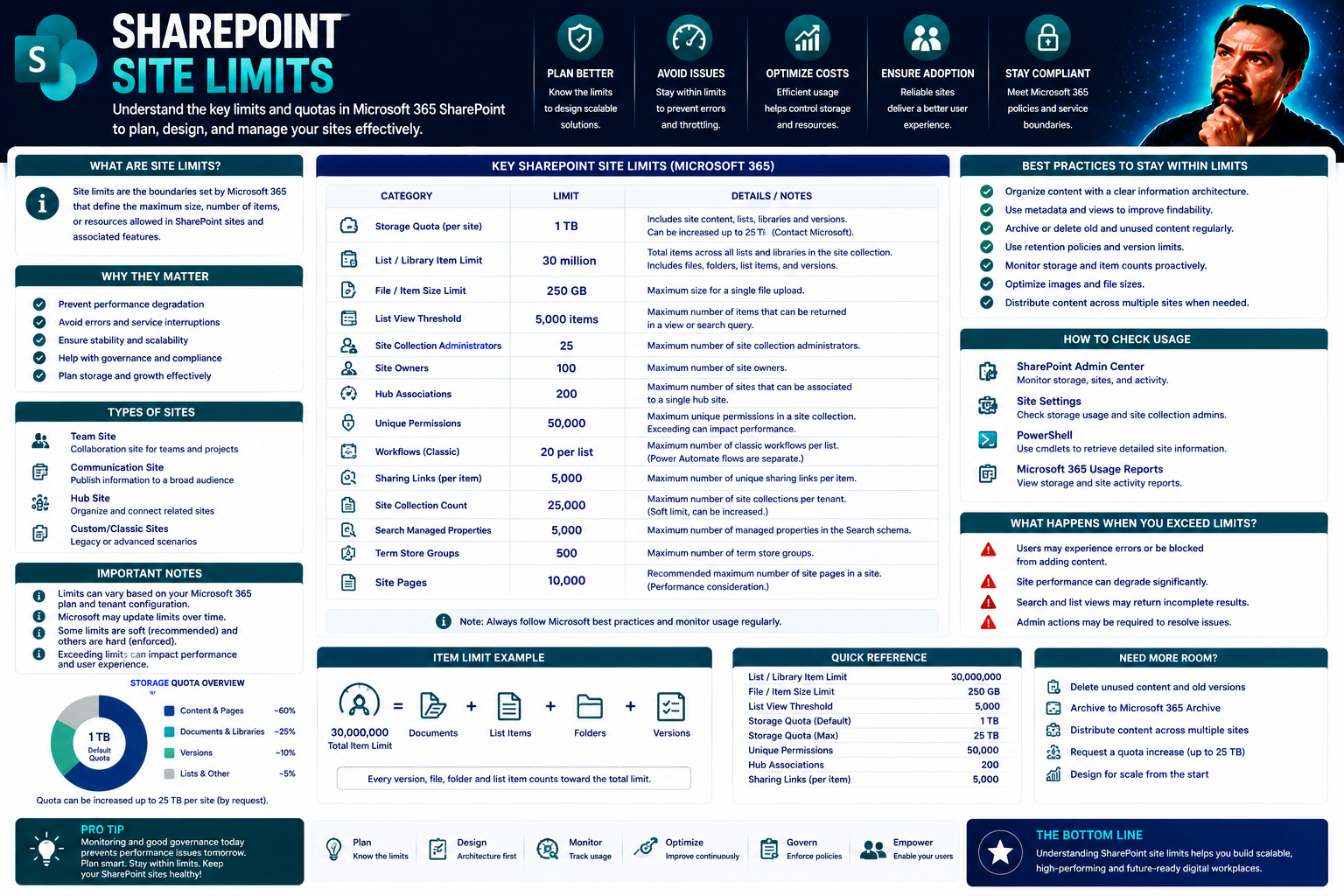
If you’ve ever wondered how far you can push SharePoint Online before something protests, you’re not alone. This guide breaks down the most important SharePoint site limits that admins and managers should understand—storage quotas, item maximums, file path restrictions, permissions, and more. Staying on top of these boundaries is crucial for smooth collaboration, reliable compliance, and keeping digital growth under control.
Whether you’re supporting a hundred-person department or an organization of thousands, understanding these boundaries saves headaches and downtime. We’ll explore not just the “what” but also the “why”—so you’ll know how plan choices, structure, and governance affect your SharePoint experience. From scaling content libraries to managing permissions and maximizing storage, you’ll get actionable advice every step of the way.
How SharePoint Storage Limits and Plans Affect Your Sites
Before you start filling SharePoint with documents, images, and all sorts of digital knick-knacks, it’s vital to know how much space your plan actually provides. Not all Microsoft 365 subscriptions are built the same, and what works for a small business might not be enough for a growing enterprise. These plan choices set both a floor and a ceiling on the storage you’ll have for SharePoint, OneDrive, and shared team spaces.
When organizations approach these storage limits, it’s not just about running out of space. Hitting the ceiling can lead to blocked uploads, halted collaboration, and some pretty frantic phone calls to IT. Even the simplest routine—like uploading a new version of a file or creating a new library—can break down if storage isn’t managed right from the start. Knowing the rules allows you to plan ahead, stay organized, and avoid last-minute scrambles or unnecessary costs.
This section will give you a high-level look at how Microsoft 365 and Dynamics 365 licensing shapes SharePoint storage. You’ll also see why understanding the ins and outs of what eats up space (think: version history, deleted files, and oversized libraries) is just as important as the raw numbers. Dive in to see why storage planning isn’t just about gigabytes—it’s about keeping your whole digital workplace running smooth.
SharePoint Storage Limits by Subscription Plan and Dynamics 365 Licensing
- Baseline Storage Included per Microsoft 365 Plan: Each Microsoft 365 plan comes with a baseline SharePoint storage allocation. For example, Microsoft 365 Business Standard and Business Premium offer 1 TB of SharePoint storage per organization, plus 10 GB per licensed user. Enterprise plans, like E1, E3, and E5, follow similar rules but apply organization-wide.
- Dynamics 365 Licenses Add Additional Storage: If your organization uses Dynamics 365, certain licenses include extra SharePoint storage. These subscriptions may add a defined amount—such as 2 GB, 5 GB, or more—directly to your tenant’s storage pool, which helps teams using Dynamics and SharePoint together for sales, operations, or service data.
- OneDrive vs. SharePoint Storage Distinction: Each user also gets their own OneDrive for Business storage (usually 1 TB per user), which is tracked and capped separately from the organization’s SharePoint pool. However, both consume your total tenant storage if files are shared or moved between spaces, so coordination is key.
- Purchasing Additional Storage: If you approach or exceed your plan’s included storage, Microsoft offers the option to buy more on a per-gigabyte (GB) or per-terabyte (TB) basis. It’s a quick fix but can add up fast if governance isn’t well managed.
- Key Plan Selection Implications: Choosing the right plan isn’t just about headcount—think about long-term growth, active projects, and if you’ll need integrations (like Dynamics 365 with Teams). Picking a plan that fits your storage profile helps avoid both shortage panic and wasted budget. Always double-check the details before rolling out large content migrations or launching high-volume projects.
Understanding How SharePoint Storage Is Calculated and Consumed
- Document Libraries and Files: Every file, folder, image, and video you upload to SharePoint counts against your site’s storage limit. The space used is based on the file size, so a few massive CAD drawings or video files can eat into your quota quickly.
- Version History Impact: SharePoint’s versioning feature keeps multiple copies of documents or list items. Each version consumes additional storage—meaning a single updated file with 50 versions can use dozens or even hundreds of megabytes more than you’d expect.
- Recycle Bin Retention: Deleted files aren’t immediately gone. SharePoint retains them in the site’s recycle bin for 93 days, and they still count toward your storage usage until purged. This can sneak up on admins if users are busy deleting large folders.
- Site Collection Growth Patterns: As sites, libraries, and lists multiply, the overall storage tally rises. Migrating data from file shares or automating document workflows can lead to unexpected storage spikes if not tracked regularly.
- Real-World Example: Suppose a team creates a shared site for running weekly reports. Each report is uploaded and updated multiple times a week, quickly stacking up hundreds of versions. Before long, their modest 10 GB allowance vanishes, and uploads start getting blocked, triggering both user complaints and urgent cleanup calls.
- Aligning Policy and Usage: By reviewing what counts (and how quickly), organizations can set smarter policies for version retention, storage quotas, and cleanup schedules. This is key to both avoiding outages and keeping overall costs in check as your SharePoint usage matures.
Key SharePoint Site Structural and Item-Level Limits Overview
Now that you know how storage plays out under the hood, it’s time to talk about the shape and size of your sites—literally. SharePoint is generous but not limitless. There are hard boundaries on how many files or items you can stash in a list or document library, how deep your site hierarchy can go, and even how long your file names and paths can get.
These limits aren’t just trivia; they shape how your SharePoint environment can scale, how efficient it feels to users, and even what troubleshooting headaches might crop up. For IT admins and architects, understanding these boundaries means you can design sites that don’t buckle under pressure. For power users, it’s about keeping collaborative workflows snappy and reliable.
Before we dig into the numbers and real-world scenarios in the next sections, keep in mind that these structural limits are there to keep your system fast, organized, and manageable—even as the amount of content explodes. Smart structuring now can save you major pain and rework later on.
Maximum Item Limits in SharePoint Lists, Libraries, and File Sync
- List or Library Item Maximum: SharePoint Online supports a staggering 30 million items in a single list or document library. Whether these are folders, documents, or list entries, the absolute ceiling can meet most organizational needs, but hitting even a fraction of that can cause headaches if you’re not careful.
- List View Threshold (Performance Limit): While the storage ceiling is high, there’s a separate “soft” limit that trips up many users: SharePoint struggles if a view tries to display or filter more than 5,000 items at once. If you aren't indexing columns or segmenting your data, users may see errors, slow loads, or timeouts.
- File Synchronization Bottlenecks: The SharePoint sync client (and OneDrive for Business sync) can choke if a user tries to Sync a library with more than 300,000 files. Even before that, syncing large libraries often slows down, causing delays, missed updates, and conflicts for users on the move.
- Document Libraries vs. Lists: The limits and risks—slow search, broken views, or stuck syncing—apply to both classic SharePoint lists and modern document libraries. Keeping libraries under control helps ensure smooth file management for everyone.
- Workarounds: Use folders, metadata filters, and indexed columns to break content into more manageable segments. For heavy content teams, it’s often best to split very large libraries into smaller ones organized by project, year, or region to keep things fast and user-friendly.
Subsites, Naming, and Moving or Copying Libraries Limits
- Subsite Creation Limits: While you can theoretically create thousands of subsites under a parent site, Microsoft recommends using a flat architecture—modern SharePoint is built for “sites, not subsites”—to avoid management and migration issues in the future.
- Site and File Naming Length: The total path length for a SharePoint file (including folder names, file name, and site URL) cannot exceed 400 characters. This sounds roomy, but with nested folders and descriptive file names, it’s surprisingly easy to hit that ceiling.
- Moving and Copying Containers: Paths that are too long or file names with restricted characters cause errors or block moves. This can create serious snags when users try to reorganize content or migrate libraries between sites.
- Practical Advice: Adopt short, meaningful names and avoid over-nesting folders. Regularly reviewing file and folder structures prevents accidental lockouts and broken links down the line.
Security, Permissions, and Metadata Governance Limits in SharePoint
SharePoint doesn’t just store files; it’s also a platform for collaboration, data protection, and compliance. But there’s always a flip side—complexity in how you manage access, permissions, and metadata. Push these boundaries too far, and suddenly the platform becomes hard to govern, slow to search, or even a compliance risk.
This section introduces the critical limits on unique permissions (when you 'break inheritance'), how many groups or users can be managed efficiently, and how metadata like tags and term stores shape both searchability and audit history. These aren’t just technical details; they define your security posture and the success of compliance efforts.
If you understand these guardrails up front, you’ll avoid slowdowns, accidental exposures, and chaotic permission sprawl—making SharePoint not just functional, but truly secure and trustworthy for your organization’s most sensitive work.
Limits on Unique Security Scopes, SharePoint Groups, and Users
- Unique Permission Scopes per List or Library: SharePoint supports up to 50,000 unique security scopes on items within a list or library. Every time you “break inheritance” by setting unique permissions on a document, folder, or list item, it counts toward this total. Exceeding this limit can lead to unmanageable permission structures and degrade performance.
- SharePoint Groups Capacity: Each site collection can have as many as 10,000 SharePoint groups. Groups are the best way to assign and manage permissions efficiently, especially in larger organizations. Still, creating too many can get messy, so streamline your usage.
- User Membership Limits: A single SharePoint group can contain up to 5,000 users. While you can have more users in an Azure Active Directory group (and assign that group permissions), breaking these rules with direct sharing or excessive nested permissions can affect load times and auditability.
- Permission Management Best Practices: Rely on group-based permissions and avoid breaking inheritance except when absolutely necessary. Simple, predictable permission structures speed up access checks and reduce support tickets from confused users.
- Governance in Collaboration Platforms: This isn’t just a SharePoint issue—platforms like Teams benefit from clear roles, policies, and guardrails, as explained in this Teams governance article. Keeping things structured prevents chaos and builds trust on every collaboration platform.
Managed Metadata, Metadata Capacity, and Compliance Features
- Term Store and Metadata Limits: The SharePoint term store supports up to 1,000,000 terms, but practical usage can be far lower due to performance and usability. Keeping your metadata structure well-organized is key for both search and consistent tagging.
- Metadata Usage Thresholds: Excessive metadata fields on lists, libraries, or content types can slow down queries, especially if many are set as required or indexed. Careful planning of which fields are critical supports smooth performance.
- Impact on Search and Compliance: Managed metadata is a double-edged sword. Used smartly, it boosts search accuracy and supports compliance classifications. Overuse, though, can lead to data bloat and audit pain.
- Audit History and Protection: SharePoint’s compliance features record who accessed, changed, or deleted content. However, limitations exist in audit retention and visibility, so detailed compliance may require integration with solutions like Microsoft Purview or privacy-enhanced productivity tools.
- Balancing Robustness and Performance: Find the sweet spot—enough metadata for strong search and classification, but not so much that it bogs down users or the system. Consistent metadata policies keep both IT and compliance happy while maintaining SharePoint’s legendary search powers.
Limits of SharePoint Workflows, Hosted Applications, and Automation
When you start automating business processes or integrating third-party tools, you’ll quickly run into a new set of SharePoint limits. There are real boundaries on the kind of workflow automation you can build, how much workload hosted apps can handle, and the resiliency of sync or connectivity features. As organizations move beyond manual processes and embrace automation, knowing where things strain or break is just as important as monitoring storage and item counts.
This section will lay out how SharePoint’s built-in infrastructure sets limits on workflow scale, resource use, and supported integrations. It covers how emerging technologies (like Microsoft Copilot, Power Automate, and Visio) fit into the modern SharePoint landscape—and also when those older, “classic” workflows become more burden than blessing. If you’re planning a serious leap in automation or cloud connectivity, pay attention to these upcoming breakdowns and recommendations.
We’ll also touch on best practices for deployment and keeping everything secure, plus some “watch-out!” moments where performance or user experience takes a hit on the way to digital transformation.
SharePoint Workflows, Hosted Apps, and Copilot Best Practices
- Legacy Workflow Limitations: Classic SharePoint workflows and hosted apps often struggle with resource limits. As process complexity or item counts rise, they run into performance bottlenecks, throttling, or outright failures.
- Modern Power Platform Integration: The recommended model is to use Power Automate, PowerApps, and even Microsoft Copilot automation for scalable, resilient process automation that fits well into modern Microsoft 365 environments.
- Deployment Governance: Following deployment frameworks, such as outlined in the Copilot Deployment Guide, ensures roles, compliance, and resource allocation are always managed up front—critical as automation scales up.
- License and Resource Planning: Don’t forget to review Copilot licensing or workflow licensing before rolling out automation, preventing costly surprises or incomplete deployments later on.
- Transitioning from Legacy to Modern: For resilient, future-ready automation, move away from classic SharePoint Designer or Visio-based workflows and adopt the new cloud-based tools supported by Microsoft.
File Synchronization, Mapped Drive, and Cloud Access Challenges
- Syncing Large Libraries: OneDrive and SharePoint sync clients officially support up to 300,000 files per library per device, but performance often suffers well before that. Slow sync, errors, and missing updates are common when libraries get large or deeply nested.
- Mapped Drive Limitations: Traditional Windows mapped drives over WebDAV can be a headache in the cloud. They’re prone to disconnects, permission errors, or failing to reflect real-time changes—especially for remote or hybrid users. Many IT admins now steer users towards native sync clients or web-based access for reliability.
- Mobile and Remote User Experience: Working on the go? Remote and mobile users often hit boundaries syncing or accessing large, complex SharePoint libraries. Secure access, as recommended in strong governance frameworks like Teams governance models, keeps both productivity and control balanced.
- Workarounds and Optimization: To boost productivity: break up huge libraries; limit offline sync to only what’s needed; and encourage staff to use mobile-friendly apps that tap SharePoint APIs for better reliability—especially in hybrid/Mobile-first workplaces.
- Security and Modernization Pressure: Organizations moving away from mapped drives and embracing secure, cloud-native access are future-proofing their environments and making life easier for users and support teams alike.
Options to Purchase More SharePoint Storage and Manage Costs
- Buying Additional Storage: When your organization bumps up against the included limit, you can purchase extra SharePoint storage right through the Microsoft 365 admin center—typically in 1 GB increments, billed monthly or annually depending on your subscription.
- Billing and Pricing Mechanics: Storage purchase rates vary, but common costs hover around $0.20 per GB per month (check for current pricing in your region). Budgeting for more space is straightforward, but costs can spiral if storage controls aren’t enforced.
- Quota Management Tools: Use the SharePoint admin center to assign storage quotas to individual site collections. This helps direct resources to the highest-need teams while alerting you before environments hit capacity.
- Storage Optimization Strategies: Clean up old versions, trim unused libraries, and empty recycle bins to reclaim space before shelling out for additional capacity. Educate users on versioning and archiving best practices to keep storage under control.
- Cost-Saving Tactics and Forecasting: Regularly monitor growth trends and leverage reporting to forecast future needs. Align extra purchases with real organizational expansion, not “just in case” hoarding. This keeps budgets in check and supports compliance.
Popular Workarounds to Overcome SharePoint Limitations
- Leverage Power Platform for Complex Workflows: Where SharePoint Designer or standard workflows hit performance or feature limits, use Power Automate and Power Apps to overcome “hard stops” and automate across Microsoft 365 services.
- Break Large Libraries by Project or Year: To get around item or sync limits, split massive document libraries into smaller, more manageable containers—often by project, quarter, or year—to improve performance and access.
- Integrate Active Directory for Cleaner Permissions: Instead of overwhelming SharePoint with hundreds of groups, lean on Active Directory or Microsoft Entra groups for a scalable, enterprise-ready permissions strategy that reduces complexity.
- Utilize Copilot and Governance Tools: Secure, AI-powered governance approaches—like Copilot governance strategies—balance innovation with strong data controls, automating classification, lifecycle management, and compliance across SharePoint content.
- Consider Third-Party Tools When Needed: If built-in tools fall short, some organizations turn to reputable third-party platforms to provide enhanced reporting, automated policy enforcement, or long-term archiving beyond native SharePoint capabilities. Remember, any workaround should prioritize data security and compliance first.
- Automate Lifecycle and Metadata Controls: Adapt governance models from Teams lifecycle best practices to SharePoint, using automation and metadata to monitor, archive, and trim excess content regularly.
Other SharePoint Limitations: Recycle Bin, Application Support, Compliance
- 93-Day Recycle Bin Recovery: When a file or document is deleted from SharePoint, it’s held in the recycle bin for 93 days. After that, it’s gone for good—no exceptions. This can trip up teams who delete by mistake, thinking someone else will restore it.
- Application Compatibility Gaps: Not every legacy application or workflow is fully supported in SharePoint Online. Early testing is recommended to identify critical gaps before rolling out large projects.
- Compliance and Audit Limitations: Audit records, eDiscovery, and compliance tools are powerful, but there are upper limits to what’s retained and indexed. Integrate additional solutions or review Copilot’s data boundaries for more robust governance where required.
- Data Protection Awareness: Understanding these secondary constraints helps your organization stay on the right side of regulations and prevent costly data loss or breaches.
Final Recommendations, Customer Help, and Collaboration Resources
- Plan Ahead for Limits: Don’t wait until you hit a wall—regularly review usage, quotas, and site structures to stay ahead of potential trouble.
- Tap Into Support Networks: If you’re stuck, rely on Microsoft support, online documentation, and communities, plus resources from governance experts to guide your next steps.
- Share Feedback: Engage with your organization’s admins or Microsoft directly to suggest improvements or highlight persistent friction points—they do listen!
- Connect with New Solutions: As SharePoint and Microsoft 365 evolve, stay tuned to new collaboration and governance tools that can resolve old limitations and better support growth.
- Continuous Improvement: Consider periodic site reviews and user training to ensure site limits don’t slow your growth—or your team’s success.
Step-by-Step Guide to Managing SharePoint Limits
- Assess Current Usage: Start by checking storage usage and item counts in the SharePoint admin center. Use built-in analytics tools to get a breakdown by site, library, and user activity.
- Monitor for Approaching Thresholds: Set up alerts and dashboards to notify you when sites get close to storage or item limits. Automated tools can help catch issues before users notice problems.
- Review and Optimize Site Structures: If you’re constantly bumping up against item or sync limits, consider reorganizing content. Break large libraries up by project, year, or region to keep each collection simple and fast.
- Enforce Policy-Based Cleanup: Use retention labels, auto-archiving, and routine cleanups to eliminate inactive files, old versions, and abandoned sites, freeing up space and improving performance.
- Automate Auditing and Reporting: Turn on analytics features and schedule regular reports—or integrate with Power BI and third-party tools—to provide visibility for all stakeholders.
- Scale and Purchase Responsibly: When outgrowing your allocation, buy storage in line with real needs, not as a knee-jerk response. Educate users to reduce waste, and keep compliance top of mind.
- Repeat and Iterate: Make reviewing limits an ongoing cycle, not a one-off project. Proactive management saves money and keeps SharePoint humming along for everyone.
Real-World Example of Overcoming SharePoint Limits Using Workarounds
- Initial Challenges—Storage, Item, and Permission Bottlenecks: Picture a large marketing department that migrated terabytes of content into SharePoint. Within months, versioning and inactive files filled their quota, sync conflicts piled up, and permission sprawl slowed onboarding for new campaigns.
- Implementing Automated Governance: The IT team rolled out retention labels for automatic cleanup, set quotas to control unchecked growth, and restructured sprawling document libraries into project-specific sub-sites.
- Embracing Power Platform for Workflow: Instead of outdated workflows, they rebuilt approval chains and asset requests with Power Automate and adaptive forms—minimizing failed runs and boosting transparency for everyone involved.
- Adopting Best Practice Permission Management: Direct sharing was reduced, replaced by group-based permissions tied to Active Directory. Permission inheritance was kept as much as possible, speeding up access reviews and reducing errors.
- Results Achieved: Within one quarter, site performance improved, storage headaches vanished, and the whole team reported fewer sync errors. Regular governance reviews ensured SharePoint could scale with marketing’s ambitious campaigns, without breaking a sweat.
How SharePoint Site Limits Impact User Experience and Adoption
It’s easy to focus on technical ceilings and quotas, but for end users, the real impact is all about experience. Every sync error or blocked upload can slow down productivity or push people to risky workarounds—like saving confidential files on unapproved drives. Understanding how SharePoint’s item, sync, and naming limits affect daily work is essential for keeping your users happy, productive, and on the official path.
This next section highlights which common limits trip up users and how you can turn frustration into a chance for better training, clearer communication, and even smarter IT planning down the line. Let’s bridge the gap between systems and the people who use them.
Common SharePoint Limits That Cause User Frustration and Workarounds
- Sync Failures and Local Workarounds: When large libraries hit sync bottlenecks, users often keep files on their desktop, bypassing SharePoint and risking data loss or duplication.
- File Naming Restrictions: Long names or forbidden characters lead to errors and blocked uploads—so users may shorten names or avoid SharePoint entirely for certain documents.
- Item Count and List View Thresholds: Broken list views (thanks to the 5,000-item threshold) spark user complaints, leading some to fall back on email attachments or alternative storage.
- Shadow IT Risks: When official systems feel too limiting, staff may turn to private cloud accounts or consumer apps, increasing the risk of security breaches.
- Increased Support Tickets: IT helpdesks see spikes in tickets triggered by these built-in limits, often revealing hidden workflow gaps or lack of up-front training.
Training and Communication Strategies for Improving Limit Awareness
- Short, Role-Based Training Modules: Target users with brief, scenario-based lessons on limits and best practices.
- In-App Notifications: Use SharePoint’s built-in alerts to communicate upcoming changes or reaches to quotas, nipping panic in the bud.
- Plain-Language Policy Tips: Offer clear, “dos and don’ts” for file naming, versioning, and sharing to prevent avoidable errors.
- Regular Q&A Sessions: Schedule open forums or office hours for user questions, building trust and promoting good digital habits.
- Feedback Loops: Encourage users to report limits or blockers so policies can be adapted and communicated more effectively.
Governance and Lifecycle Management for Proactive Limit Avoidance
Don’t want to scramble every time you hit a SharePoint limit? The real secret is building proactive governance into your digital playbook. Content lifecycle management, retention labels, and clear site ownership policies transform SharePoint into a resource that grows (and stays clean) right alongside your business needs.
This section introduces practical, scalable strategies that IT teams can use to keep SharePoint sites tidy, fast, and in full compliance with organizational policy. Guidance here helps prevent both accidental overages and ongoing friction between users and admins.
For teams who want to stay a step ahead, structuring ownership models and automating lifecycle controls isn’t just a nice-to-have—it’s essential. As seen in strong governance frameworks for Teams, the same principles apply: define the rules early and automate wherever you can.
Implementing Content Lifecycle Policies to Prevent Storage Overages
- Automated Retention Labels: Tag content for auto-deletion or archiving after a set period to minimize clutter and compliance risk.
- Expiration Rules: Use policies that automatically expire files and sites that haven’t been touched, freeing up storage and keeping search fast.
- Scheduled Audits and Reviews: Combine reporting tools with periodic content reviews to find and remove redundant or inactive files.
- Lifecycle Automation Workflows: Implement policy-driven automation, similar to Teams lifecycle automation, for SharePoint—reducing human error and manual overhead.
Defining Site Ownership Models and Accountability for Storage Usage
- Site Stewardship Roles: Assign clear owners for each SharePoint site, making storage responsibility visible.
- Usage Reporting Tools: Use built-in or custom reports to share site consumption with owners, making it easy to catch overages early.
- Shared Accountability Policies: Tie site renewal and cleanup goals to ownership, creating incentives for ongoing management.
- Transparent Governance Participation: Involve key users in setting storage and content policies to build buy-in and positive digital culture.
The Performance Impact of Hitting SharePoint Limits
SharePoint’s limits aren’t just numbers—they have very real effects on how quickly pages load, how reliably workflows run, and how happy your users stay. When sites hit structural or storage ceilings, performance can degrade before anyone notices. Slow load times, spinning wheels, and failed file operations become the norm, not the exception.
This section spotlights the main performance trouble spots—list view thresholds and unchecked metadata or versioning. If you want fast, reliable SharePoint sites (and fewer “why is this so slow?” complaints), learn why proactive management matters as much as raw capacity or automation tools.
By understanding both when and why performance issues arise, you’ll put your organization in a better spot to plan maintenance, upgrade cycles, and policy interventions—staying one step ahead of user frustration and productivity loss.
How List View Thresholds Affect Page Load Times
- Slow List and Library Views: Once a list exceeds 5,000 items in a single view, page loads can freeze or fail—especially if required indexes are missing.
- Broken Filters and Queries: Attempting to filter or group huge lists without prebuilt indexes often leads to timeouts, forcing users to work outside SharePoint.
- Mitigation via Indexing: Adding indexes to heavily used columns keeps list views snappy even on large datasets—making this a must-have for big teams or active sites.
Site Performance Issues from Excessive Versioning and Metadata Bloat
- Longer Sync and Save Times: Too many versions or metadata fields increase the time required to sync, upload, or search for files.
- Database Latency Increases: As the version history or metadata count grows, SharePoint’s backend can slow down, even before storage quotas are at risk.
- Governance Policy as Prevention: Automated version trimming and metadata audits prevent silent performance loss—keeping your sites lean and fast without manual effort.
You Should Also Listen To
Knowing SharePoint site limits helps prevent avoidable failures, but scalable design also depends on information architecture, ownership, lifecycle, search, and monitoring. These episodes add that context:
- Stop SharePoint Sprawl with Data and Automation Governance — Learn how architecture, lifecycle, ownership, and automation keep SharePoint environments manageable.
- Fix Poor Microsoft 365 Tenant Design with Practical Governance — See how technical choices create long-term operational consequences when architecture and ownership are weak.
- Make SharePoint Search Show the Right Files First — Understand how structure, navigation, metadata, and search affect discovery across sites.
- Microsoft 365 Governance Is a People and Ownership Problem — Learn why settings must be supported by accountable owners, standards, and operational processes.

Microsoft MVP | Host of M365.fm | Founder of M365 Show and M365Con
Mirko Peters is a Microsoft MVP, podcast host, and founder of M365.fm, M365 Show, and M365Con. His work connects Microsoft practitioners through podcast interviews, livestreams, and community events.
At M365.fm, Mirko hosts conversations with Microsoft MVPs, product experts, architects, and community contributors. Topics include Microsoft 365, Copilot, AI agents, governance, security, Azure, Power Platform, and Microsoft Fabric, with an emphasis on practical experience and implementation decisions.
M365.fm is the podcast and learning platform. M365 Show brings experts together for livestreams, while M365Con provides an online conference setting for community learning.
Official website: Mirko Peters (https://www.mirkopeters.com/). Recognition: Mirko Peters — Microsoft MVP profile (https://mvp.microsoft.com/de-DE/mvp/profile/9b0ca797-db5a-493a-a845-8b9158046cf5). Connect on LinkedIn (https://www.linkedin.com/in/m365showpodcast/).