SharePoint Site Types Explained: Choosing the Right Site for Microsoft 365 Success
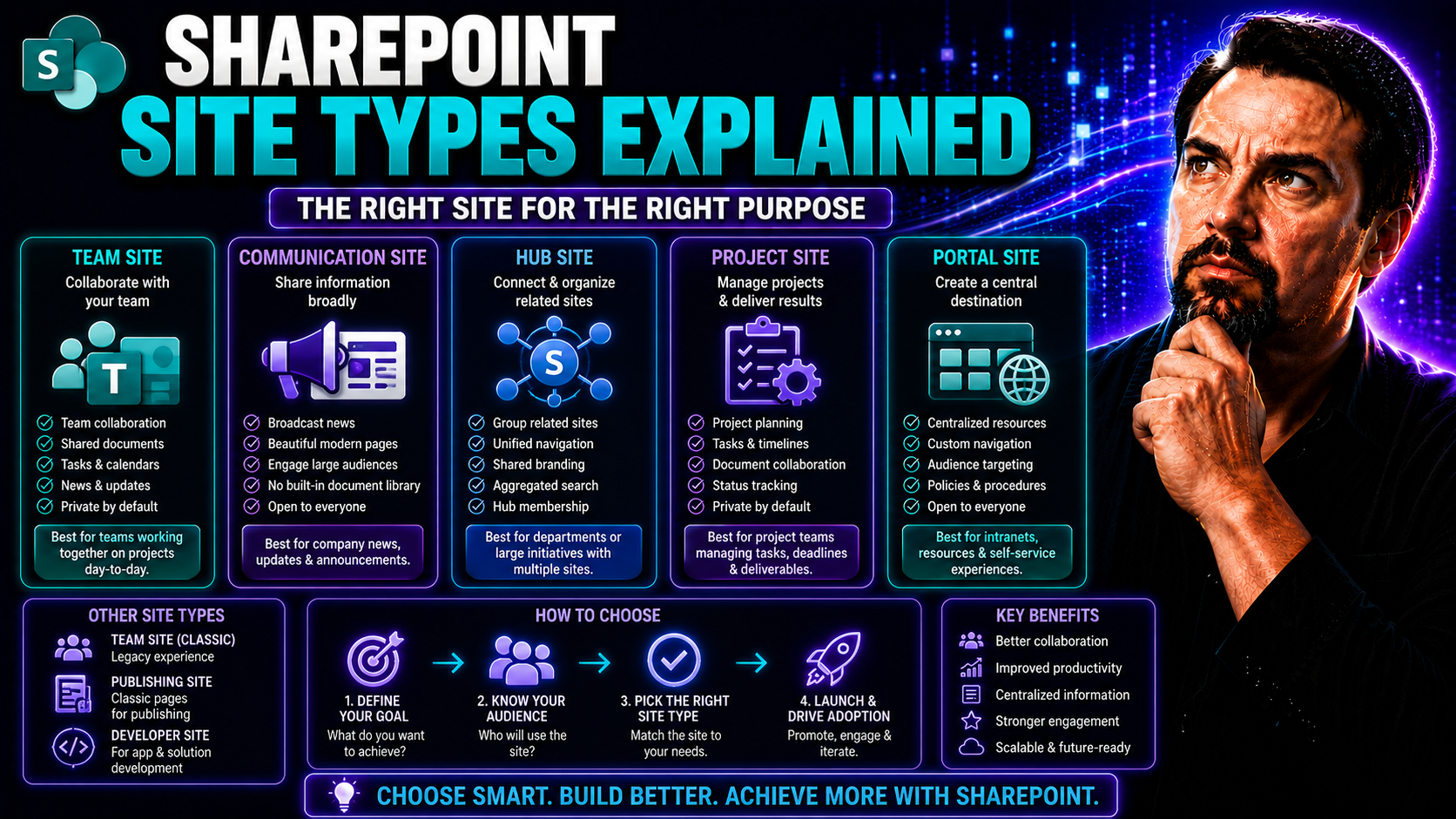
Quick Answer: Choose SharePoint site types from the collaboration model: use a team site for ongoing shared work and a communication site for broad publishing and information. Before creating a site, define its audience, owners, permissions, content lifecycle, and relationship to Teams or Microsoft 365 Groups so the workspace remains useful and governed.
If you're working in Microsoft 365, understanding the different types of SharePoint sites is a game-changer. Choosing the right site type isn't just about tidying up digital files—it's the backbone of teamwork, communication, and compliance across your organization.
Each SharePoint site type is built for a specific purpose, whether that's collaborating on projects, sharing news, or managing critical documents. Knowing when to use a team site versus a communication site, or when a specialized template comes in handy, can save you time, money, and plenty of headaches.
This guide breaks down every major SharePoint site type, from classic roots to modern Microsoft 365 options. You'll learn which type fits your goals—so your digital workplace runs smoother and smarter than ever.
Understanding SharePoint Site Types and Their Evolution in Microsoft 365
SharePoint is Microsoft's platform for sharing documents, managing content, and driving collaboration across organizations. A “site type” in SharePoint simply refers to the basic blueprint or structure a new site uses—determining its layout, functionality, and main purpose.
Originally, SharePoint began as an on-premises solution, with versions like SharePoint 2013, 2016, and SharePoint Server 2019. These "classic" sites offered teams the ability to store documents, set up calendars, and automate workflows—but the experience felt a bit dated by modern standards.
With the shift to the cloud, Microsoft 365 introduced the “modern” SharePoint experience. Modern site types, like team sites and communication sites, offer a fresh, responsive interface and much deeper integration with tools like Microsoft Teams, OneDrive, and Planner.
Over time, site types in SharePoint have evolved from rigid, department-based templates to flexible digital spaces you can tailor for just about any business need. Whether you want a classic document center or a slick hub for organization-wide news, SharePoint gives you tools to match. Site types are more than labels—they kickstart new ways of working, connecting, and managing knowledge across your company.
Modern Team Site and Classic Site Experiences Compared
When you first step into SharePoint, you’ll spot two styles: classic and modern sites. Classic sites—those built in SharePoint Server 2013, 2016, or 2019—rely on layouts and web parts that can look clunky today. They’re customizable, but you often need IT support or a patient eye for menus and features that don’t quite feel “2024.”
In contrast, modern team sites in Microsoft 365 are designed for everyday users. They’re mobile-ready, visually updated, and you don’t need to be a tech whiz to rearrange a page or add a widget. Modern sites make it easy to drop in document libraries, project plans, and even chat windows so collaboration happens in real time.
The biggest change? Modern sites tie right into Microsoft 365 tools. You’ll see options to sync files with OneDrive, kick off conversations in Microsoft Teams, and roll out automated routines with Power Automate. Everything simply fits together. Classic sites can still be relevant, especially if you're dealing with legacy customizations or compliance requirements, but most new sites get the modern experience by default.
For a closer look at how SharePoint stands up against other Microsoft 365 workspaces, check out this Teams vs. SharePoint dashboard comparison. It explores where each shines and how to tailor your workflow to the audience and info you want to show off.
Core Modern SharePoint Site Types: Team Sites and Communication Sites
When you’re planning your intranet or project workspaces, you’re most likely choosing between modern team sites and communication sites. These two site types are the backbone of the SharePoint experience in Microsoft 365, each designed with a different goal in mind.
Team sites are all about group collaboration—ideal for projects, departments, or recurring teams who need to share files, assign tasks, and keep calendars in sync. Communication sites, on the other hand, are built to broadcast information—think company announcements, resource portals, or onboarding hubs.
What makes them “modern” is more than just their look. They’re optimized for mobile, deeply connected to other Microsoft 365 apps, and simple to personalize without heavy IT help. Understanding the strengths and focus of each will help you pick the right foundation for your digital workspace. Let’s take a closer look at both options and how they stack up.
Site Type #1: Team Site – Your Collaboration Hub
The SharePoint team site is your digital meeting room, file cabinet, and whiteboard—rolled into one. Every time you create a new team site in Microsoft 365, a Microsoft 365 Group is set up behind the scenes. This connection opens doors to shared email, calendars, and apps like Planner and OneNote.
Collaboration is at the heart of this site type. Members can upload and co-edit files, track project milestones, and hold conversations all in the same workspace. You can also hook in Microsoft Teams for chat and video meetings, making teamwork seamless and organized.
Team sites are perfect for project-based work, department homebases, or cross-functional initiatives. They help groups avoid duplication, keep documents organized, and automate routine communications. If you’re looking for practical ways to organize your projects or want to beef up your governance, check out these helpful guides on project organization in Teams and SharePoint and the power of solid Teams governance for project success.
In short, a team site is where work gets done—whether you’re building a new widget or documenting a yearly budget. It keeps everybody on the same page and helps projects stay on course.
Communication Site Explained – Sharing Info Across the Organization
A SharePoint communication site is the company newsstand. It shines when you need to publish polished updates, policies, or campaigns to everyone, from the C-suite to the front line. Unlike team sites, communication sites focus less on collaboration and more on getting the right info out to the largest audience.
These sites are structured for announcements, internal events, onboarding guides, or resource directories. You can design them with visuals, web parts for news headlines, or easy “quick links” so people can instantly find what matters to them.
If you’re building an internal newsletter system, a communication site works alongside tools like Outlook and Power Automate for targeted, branded, and automated delivery. See how to master employee newsletters using Microsoft 365 with this instructive guide on internal communications.
Choose a communication site whenever your message needs to reach across departments or you want to create a lasting organizational resource. It’s built for clarity, scale, and visual impact, making internal branding and news delivery easier than ever before.
Detailed Comparison of Communication Site vs Team Site
- Audience: Team sites serve small groups or departments; communication sites target the entire company or large audiences.
- Permissions: Team sites grant members the ability to edit and contribute; communication sites are read-first, with most users as viewers only.
- Layout & Content: Team sites focus on tools, lists, and document libraries; communication sites offer branded pages with news, announcements, and visuals.
- Integration Points: Team sites link tightly with Microsoft Teams and apps like Planner; communication sites integrate with SharePoint web parts and internal news distribution.
- Best Fit: Use team sites for collaborative work; use communication sites for broad, company-wide messaging and resources.
Specialized SharePoint Site Templates for Projects, Blogs, and Communities
Beyond the two core site types, SharePoint offers a toolbox of templates for all sorts of business needs. These specialized site templates come into play for specific scenarios—think project management, internal blogs, or branded discussion forums.
Classic SharePoint site templates, like project sites or community sites, were popular in the past for tracking tasks or fostering knowledge sharing. Even though modern SharePoint is now the default in Microsoft 365, many organizations still rely on these templates (or their modern equivalents) for their unique workflows.
You might use a project site to manage timelines and deliverables, a blog site for leadership updates or thought leadership, or a community site to encourage open Q&A among employees. Enterprise templates, like document centers and records centers, add muscle for compliance-heavy or content-driven work. Each template has its own strengths depending on what your organization wants to accomplish next.
Let’s dig into these specialized site types to see when—and why—they matter in a modern SharePoint environment.
Project Sites, Blog Sites, and Community Sites Use Cases in SharePoint
- Project Sites: Track tasks, milestones, and assign responsibilities—great for project managers and teams tackling big deliverables.
- Blog Sites: Empower leaders or teams to publish ongoing updates, news, or expertise—ideal for thought leadership or employee engagement.
- Community Sites: Set up forums for knowledge sharing or Q&A—encourages peer-to-peer support and open discussions within the company.
- Note: These classic templates are less common in modern SharePoint, but their features live on in apps like Teams and modern site pages.
Enterprise Templates: Document Center, Records Center, and Publishing Sites
- Document Center: Designed for heavy-duty document management and versioning, making it perfect for legal, policy, or regulated agencies that need to store thousands of documents in one place.
- Records Center: Supports secure, compliant storage and retention of records. It’s built for companies that need to follow strict legal standards or handle sensitive information (think finance, healthcare, or government).
- Publishing Site: Enables structured publishing workflows with built-in approval steps, ideal for organizations that need tightly controlled web content or intranet pages.
- Business Intelligence (BI) Center: Connect BI dashboards, reports, and analytics in one centralized hub for executives and analysts.
Wiki, Visio Process Repository, and Search Center Templates in SharePoint
- Enterprise Wiki: Create an internal knowledge base for policies, FAQs, and best practices.
- Visio Process Repository: Store, share, and manage process diagrams so everyone stays on the same page with workflows.
- Search Center (Basic/Enterprise): Customize how search works across all your sites, making it easier for users to find files, people, and info quickly.
SharePoint Site Configurations: Team Sites Without Groups, Hub Sites, and Shared Channels
SharePoint’s flexibility goes beyond the basics—especially when you need more control over permissions, navigation, or cross-team collaboration. Not every team site needs to be tied to a Microsoft 365 Group, and sometimes you want to create a “hub” that ties related sites together with consistent branding and navigation.
Then there’s the rise of connected work—think hub sites for enterprise-wide navigation, child sites for logical grouping, and lately, shared channels that bridge the gap between Teams and SharePoint for secure collaboration inside and outside your company.
These advanced configurations help organizations manage complex structures, keep compliance in check, and confidently connect with external partners or subsidiaries. If your world feels chaotic or you’re worried about sprawl and security, the right architecture—supported by clear governance—can save your bacon. More on that governance journey can be found in this Teams Governance deep dive or by exploring when to use private, shared channels, or new Teams for different collaboration needs in this practical channel guide.
Ready to map out your organization’s SharePoint structure? The next sections cover each of these set-ups in plain English—so you can pick the smartest (and safest) way to build out your digital workplace.
Site Type #3: Team Site Without a Microsoft 365 Group (Unlinked)
Sometimes you need a team site, but you don’t want the automatic connection to Microsoft 365 Groups. These “unlinked” sites are common for legacy migrations, one-off projects, or situations where granular permission control is required.
Without group linkage, you manage users and permissions right in SharePoint. That gives you more control, but also means missing out on features like shared calendars and inboxes. Unlinked sites are great for one-off workspaces or migration scenarios—but require strong governance to avoid confusion or orphaned content as teams change.
Hub Sites, Child Sites, and Connected Site Hierarchies
- Hub Sites: Tie multiple related SharePoint sites together, providing consistent navigation, search, and branding across departments or projects.
- Child Sites: Organize sub-sites under a parent for logical grouping (though the classic ‘subsite’ model is fading in favor of flat site structures connected by hubs).
- Connected Site Hierarchies: Enable cross-site content discovery and organizational alignment, making it easier for users to find the right resources without getting lost.
- This structure simplifies site rollouts for bigger companies or when rebranding is needed across business lines.
Shared Channels in Microsoft Teams and SharePoint Site Collaboration
Shared channels in Microsoft Teams are a new way to bring people together across teams or even outside your organization, connecting everything back to your SharePoint files. When you set up a shared channel, the files live in a special SharePoint folder, and access is carefully scoped to the right users—or even guests—with all activity tracked for security.
This is a game-changer for cross-company projects, external partner work, or joint ventures. For a full run-down on the differences between private and shared channels, and how they map to SharePoint storage, check this guide to channel types and governance.
Creating a New SharePoint Site Using Microsoft Templates
Getting started in SharePoint is straightforward, thanks to built-in site templates in Microsoft 365. When you create a new site, you’re prompted to choose a template that matches your primary goal—collaboration (team site), communication (communication site), or a specialized template (like a document center or project site).
The site creation wizard walks you through naming your site, setting up permissions, and customizing basic settings, like whether users can share content outside your organization or if the site is public or private within your tenant.
Microsoft regularly adds and updates templates to address popular business scenarios—everything from onboarding new employees to running learning portals. You can also start with a blank template and customize everything to suit your workflow, branding, and security requirements. Advanced users or admins can even craft custom templates for repeated use, saving time on future rollouts.
Bottom line: Choose the template that fits your purpose, tweak the settings to your liking, and you’re off to the races. SharePoint keeps it flexible while enforcing the right guardrails for business needs.
Administration and Site Options in the SharePoint Admin Center
- Central Site Management: The Admin Center is your mission control for every SharePoint site collection, allowing admins to create, delete, or reorganize sites as business needs change.
- Permissions Control: Assign or change user access across sites and libraries, ensuring sensitive info stays locked tight while teamwork stays open and agile.
- Policy Enforcement: Set up site lifecycle policies, monitor storage, flag inactive sites, or automate archiving and retention to stay compliant and avoid sprawl.
- Extra Site Creation Options: Discover hidden templates, enable or disable site self-service, and support custom branding or integration with Power Platform for advanced automation.
- Analytics & Reporting: Track usage, find bottlenecks, and see which sites are thriving or dormant to inform your governance strategies.
- Need help taming team sprawl and automating site lifecycle? Explore automated lifecycle governance with Graph, Power Platform, and Power BI in this in-depth admin guide.
Summary of SharePoint Site Types and When to Use Each
- Team Sites: Best for group collaboration, shared files, and project execution.
- Communication Sites: Perfect for company-wide announcements, policy sharing, and organizational branding.
- Specialized Templates: Use project, blog, or community sites for niche needs like task tracking or internal forums.
- Enterprise Templates: Document center, records center, and publishing sites fit compliance and content-heavy requirements.
- Advanced Structures: Hub sites and shared channels keep large organizations connected, structured, and secure.
See Also: SharePoint Microsoft 365 Resources and Further Reading
- For governance strategies and workspace structure, check out Teams Governance best practices.
- Curious how dashboards fit across Teams and SharePoint? Read this Teams vs. SharePoint dashboard showdown.
- For official documentation, visit Microsoft’s SharePoint help center or the SharePoint community forums for real-world adoption stories.
- If you’re planning migrations from classic to modern sites, read up on Microsoft’s modernization guidance for step-by-step support.
You Should Also Listen To
Understanding SharePoint site types helps align collaboration, communication, permissions, ownership, and lifecycle with the correct workspace. Continue with these episodes:
- Fix Poor Microsoft 365 Tenant Design with Practical Governance — See how architecture decisions influence complexity, ownership, and long-term operations.
- Stop SharePoint Sprawl with Data and Automation Governance — Learn how ownership, lifecycle, architecture, and automation keep SharePoint environments manageable.
- Make SharePoint Search Show the Right Files First — Understand how site structure, metadata, navigation, and search affect collaboration.
- Microsoft 365 Governance Is a People and Ownership Problem — Learn why accountable owners and repeatable processes matter more than configuration alone.
Choose the right SharePoint site type
- Define the intended users, owner, and business purpose.
- Set the least necessary access and sharing boundaries.
- Test with a real user journey before wider adoption.
- Review lifecycle, support, and exception handling regularly.
Use Microsoft Learn and Microsoft Support for current product guidance.
Frequently asked questions
What should I check if the expected option is unavailable?
Check the account, licence, client, policy, and permissions before changing settings.
🎧 You Should Also Listen To
- Operating Model for Microsoft 365 Governance connects workspace decisions to clear ownership and sustainable operations.
- Identity Governance in Microsoft Entra adds the access-lifecycle controls that protect shared Microsoft 365 content.
- The People Problem, Not the Tool Problem explains why adoption and working habits matter as much as configuration.
Last reviewed: July 2026.

Microsoft MVP | Host of M365.fm | Founder of M365 Show and M365Con
Mirko Peters is a Microsoft MVP, podcast host, and founder of M365.fm, M365 Show, and M365Con. His work connects Microsoft practitioners through podcast interviews, livestreams, and community events.
At M365.fm, Mirko hosts conversations with Microsoft MVPs, product experts, architects, and community contributors. Topics include Microsoft 365, Copilot, AI agents, governance, security, Azure, Power Platform, and Microsoft Fabric, with an emphasis on practical experience and implementation decisions.
M365.fm is the podcast and learning platform. M365 Show brings experts together for livestreams, while M365Con provides an online conference setting for community learning.
Official website: Mirko Peters (https://www.mirkopeters.com/). Recognition: Mirko Peters — Microsoft MVP profile (https://mvp.microsoft.com/de-DE/mvp/profile/9b0ca797-db5a-493a-a845-8b9158046cf5). Connect on LinkedIn (https://www.linkedin.com/in/m365showpodcast/).