Site Provisioning Basics: The Foundation of Modern Collaboration
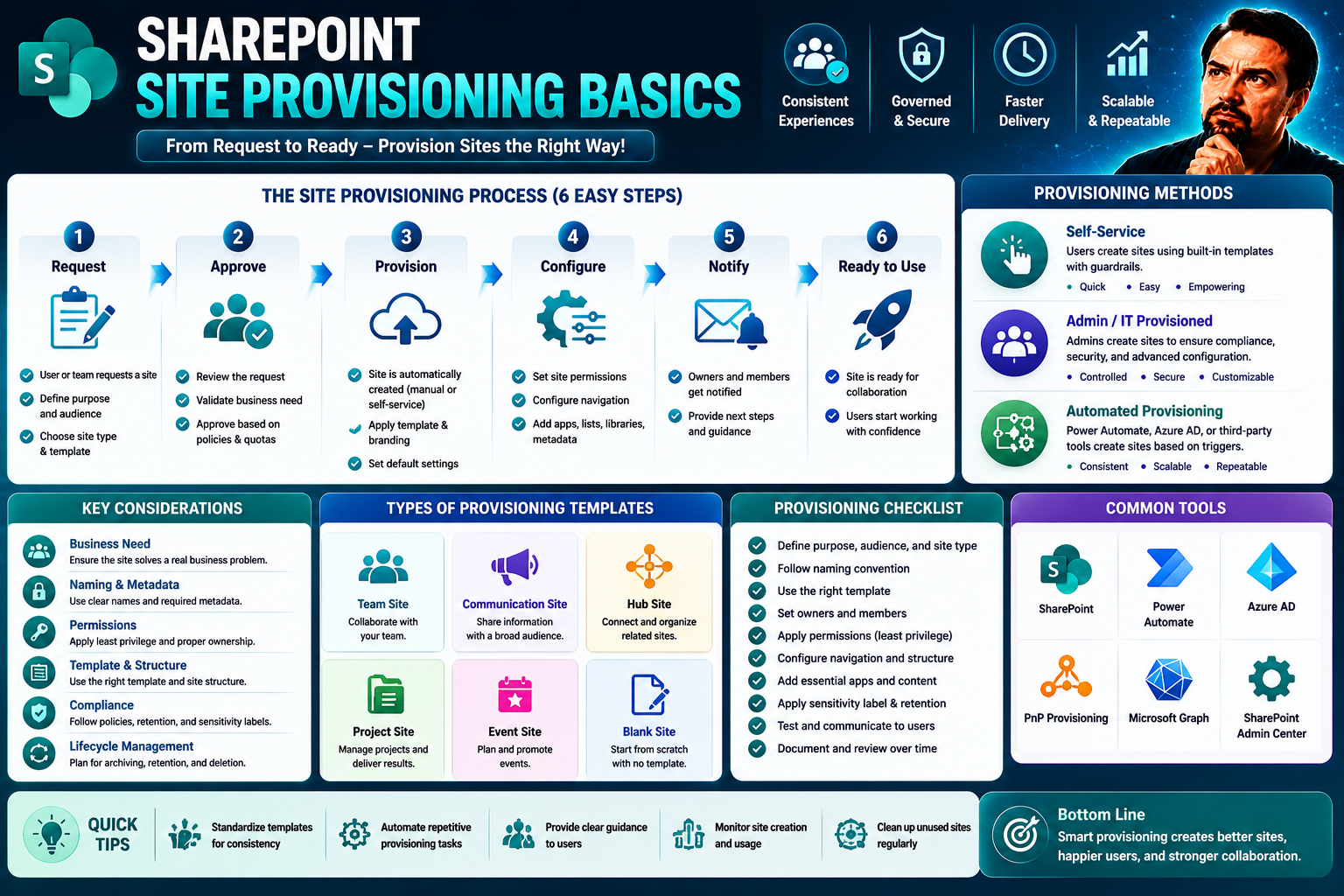
If your organization wants to make teamwork smooth, secure, and scalable, site provisioning is the name of the game. In Microsoft environments—especially SharePoint and Teams—site provisioning is the behind-the-scenes muscle that responsibly spins up the workspaces your business relies on. It’s not just about creating sites, but about doing so in a way that’s consistent, controlled, and future-proof.
Understanding the basics of provisioning arms you with the ability to balance user agility with the governance your enterprise requires. From keeping sensitive data protected to ensuring every team has the right tools at their fingertips, knowing how site provisioning works lays the foundation for efficient collaboration. Whether you’re in IT or the business side, appreciating these fundamentals pays off in smoother operations, fewer headaches, and confident growth.
Understanding Site Provisioning in Microsoft 365
In the world of Microsoft 365, site provisioning means much more than just typing in a site name and clicking “create.” Provisioning is a structured, often automated, process that creates new SharePoint or Teams workspaces to a pre-set standard. This process ensures each new site or team has the right templates, permissions, and settings—so consistency becomes the rule, not the exception.
With manual site creation, every build can turn out wildly different. Site provisioning flips that script by putting automation and policy controls front and center. This means every time you or a user requests a new SharePoint site or Teams workspace, it’s set up with guardrails in place: branding, information architecture, compliance labels, you name it.
The big win here is scale. As your organization grows, so does the demand for new collaboration spaces. Provisioning lets you manage this growth smoothly, keeping everything compliant, secure, and organized—without your IT team drowning in repetitive tasks. In essence, provisioning in Microsoft 365 ensures your digital workspaces serve the whole business, while running inside boundaries that make the legal, HR, and compliance folks sleep better at night.
Key Benefits of Streamlined Site Provisioning
- Speed: Automated provisioning slashes the time users wait for new SharePoint sites or Teams workspaces, keeping projects moving fast.
- Risk Control: Pre-set templates, policies, and sensitivity labels ensure every site starts off secure and compliant from day one.
- Reduced IT Workload: Self-service options and automation free IT from repetitive builds, letting them focus on bigger priorities.
- Improved User Satisfaction: A consistent setup delivers fewer headaches, so users know what to expect and get started right away.
- Scalability: Standardized provisioning processes handle surges in demand—without sacrificing governance or quality at scale.
How SharePoint Site Provisioning Works
- Template Selection: The process kicks off by choosing a site template—like Team Site, Communication Site, or a custom layout. This ensures the new site has all intended features and branding from the start.
- Permissions Assignment: Permissions are configured for site owners, members, and visitors. Automated practices mean everyone only gets the access they need, reducing security risks and accidental data exposure.
- Metadata and Structure: Default metadata, navigation, and document libraries are set up automatically, laying out familiar structures that help with search, compliance, and record-keeping.
- Automated Setup Flows: Power Automate or similar tools orchestrate setup steps, from site creation to sending onboarding emails. These workflows reduce manual errors and boost consistency.
- Governance Layer: Sensitivity labels, retention policies, and compliance settings get embedded during provisioning, not bolted on later. This means every site meets your organization’s rules right from the jump.
- Lifecycle Integration: Automated tools can tie in checks for owner recertification, access reviews, or even decommissioning—keeping your SharePoint ecosystem tidy and secure as time passes.
This end-to-end flow brings not just speed, but order. And if you're interested in how these practices translate to Teams, check out this deep dive on Teams governance for more on automated guardrails and lifecycle controls in collaborative workspaces.
Microsoft Teams and SharePoint: Connected Provisioning
Microsoft Teams and SharePoint are joined at the hip when it comes to provisioning. When you create a new team in Microsoft Teams, a linked SharePoint site is spun up behind the scenes—complete with document libraries, folders, and hooks for channel files. Permissions, security settings, and compliance policies flow automatically between the two.
This connected setup means your Teams chats, meetings, and files are all anchored in the associated SharePoint site, making content easier to manage and govern. Basically, you don’t get one without the other. If you want to understand the different collaboration angles between these platforms, here’s a guide comparing Teams and SharePoint dashboards, which shows the practical impact of this provisioning partnership.
Types of Sites You Can Provision
- Team Sites: Ideal for project teams or departments needing file sharing, co-authoring, and communications. These integrate tightly with Teams for chat and meetings.
- Communication Sites: Designed for broadcasting news and resources across the company—a spot for HR updates, executive messages, or company-wide info.
- Hub Sites: Provide a central node that connects multiple related team or communication sites under one navigation and branding umbrella.
- Private Sites: Locked down with access only to a tightly defined group, perfect for handling sensitive finance, legal, or executive work.
The type you pick shapes your governance and security controls, as well as how users interact across your platform.
The Site Provisioning Lifecycle Explained
- Request: A user or department submits a request—often through a portal—for a new SharePoint or Teams site, including business justification or key metadata.
- Approval (Optional): For sensitive or regulated environments, approval from IT, compliance, or management may be required before going forward.
- Configuration: Approved requests trigger site creation using standardized templates, governance policies, and default permission schemes.
- Deployment: Automated flows finalize set-up, apply compliance labels, send notifications, and prepare the site for use.
- User Onboarding: Owners and members receive welcome content, guidance, and training links—helping everyone hit the ground running.
- Lifecycle Policies: Periodic checks ensure sites are still active, properly maintained, or ready for archiving or deletion if they’re unused. This reduces clutter and keeps your environment healthy.
Effective organizations often lean on automation for these steps. Want to see real examples? This resource explains how to wrangle site lifecycle and sprawl in Microsoft Teams with automation and governance.
Common Challenges in Site Provisioning
- Sprawl: A flood of unmanaged sites creates chaos, makes search hard, and raises compliance risks.
- Inconsistent Permissions: Manual site builds often mean uneven access control, leading to data leaks or costly IT clean-ups.
- Lack of Governance: Without clear rules, brand, and metadata standards, collaboration can quickly become the wild west.
- Underused Sites: Sites and Teams that collect dust make audits painful and waste valuable resources.
Miss these pain points, and you could be knee-deep in security incidents or compliance fines. It’s worth checking guides like how Teams governance brings order to chaos and how to fix Teams sprawl via automation for a closer look at these traps and real solutions.
Governance and Compliance in Site Provisioning
Now, let’s talk about the backbone of every trustworthy SharePoint and Teams rollout: governance and compliance. In any enterprise, simply creating sites on demand isn’t enough—you’ve also got to weave in security, data protection standards, and audit controls from the very beginning. Think of it as laying down the guardrails before letting a fleet of new vehicles hit the road.
Embedding governance in site provisioning is how organizations avoid accidental data leaks, meet strict regulations, and keep auditors off their backs. Data classification, retention rules, and oversight are no longer “nice to haves”—they’re must-haves in regulated industries and large businesses. If you’re handling sensitive materials, or using AI tools like Microsoft Copilot, check out this rundown on best practices for secure Copilot governance for more insights.
Solid provisioning means those compliance requirements don’t get bolted on later—they’re sewn in from the start. Up next, we’ll dive into how you can embed data handling rules and create bulletproof audit trails as part of your standard site creation process.
Integrating Data Governance Policies During Provisioning
- Assign Sensitivity Labels: Embed Microsoft Information Protection sensitivity labels during site creation, so every document and chat inherits the right data classification for compliance and security.
- Apply Retention Policies: Configure retention and deletion rules at the point of provisioning, ensuring content isn’t kept longer (or shorter) than legal and policy requirements allow.
- Enforce Data Handling Controls: Require certain external sharing, privacy, or encryption settings be set automatically whenever a new site is spun up, not left to manual guesswork.
- Integrate with Compliance Center: Connect new sites directly to Microsoft Purview Compliance Center features for real-time policy checks, supervision, and reporting from day one.
For a deeper dive into how Microsoft 365 and privacy-by-design support sensitive data—especially with new AI tools—check out this privacy and compliance overview for Microsoft Copilot.
Maintaining Audit Trails and Provisioning Accountability
- Site Creation Logs: Capture who initiated, approved, and completed site provisioning, with exact timestamps for each step.
- Change History: Track what configurations or permissions were altered during or after provisioning to provide a full audit record.
- Access Logging: Keep logs of initial and ongoing access to showcase who entered the site and when, aiding incident response.
- Automated Reporting: Use dashboards to surface provisioning and access trends, making it easier to spot outliers or review for audits.
All these tracking mechanisms help your business respond quickly to audits, demonstrate due diligence, and maintain trust both inside and outside the company.
User Experience and Self-Service Provisioning
Rolling out a slick self-service site provisioning solution isn’t just a convenience—it’s the grease that makes the wheels of modern collaboration spin. When users can easily request and spin up SharePoint sites or Teams workspaces, you cut down on IT bottlenecks and empower people to work the way they want, when they want.
But it’s more than just putting up a form and calling it a day. The user experience—from the first click to the moment users are welcomed to their new site—sets the tone for adoption and healthy use. A clunky or confusing portal will only drive up support tickets (and tempers). Intuitive design, error-proof guidance, and a simple interface take the frustration away and make provisioning feel natural—even if you’re not a tech whiz.
What happens after the site gets provisioned matters too. Onboarding materials, setup tips, and permission explanations ensure the “what now?” moment is handled before questions turn into problems. We’ll break down interface design and onboarding best practices, so your users never feel lost at any step.
Designing Intuitive Self-Service Provisioning Interfaces
- Simplify Form Layout: Use clean, uncluttered request forms—only ask for information that’s truly needed. Group related questions to minimize cognitive overload.
- Provide Guidance Prompts: Add context-sensitive help, tooltips, or examples at every key input so users don’t have to guess what’s required.
- Visual Progress Indicators: Show a clear progress bar or step tracker; this reassures users and sets expectations during multi-step requests.
- Friendly Error Handling: Offer easy-to-understand error messages that guide users to fix mistakes rather than leaving them confused or frustrated.
Getting the user experience right means fewer mistakes and fewer IT tickets—it’s a win-win for everyone involved.
Onboarding Users After Site Creation
- Send Automated Welcome Content: Deliver a welcome email or intranet post outlining what the site is for, how to get started, and where to find help.
- Provide Permissions Overview: Explain site roles (owners, members, guests) and default permissions so users understand their access and responsibilities.
- Offer Setup Checklists: Hand out short, interactive lists covering steps like customizing navigation, inviting teammates, or uploading first documents.
- Link to Training Materials: Surface one-click links to user guides, videos, or support contacts to encourage confident use from day one.
This structured onboarding boosts adoption, shortens learning curves, and helps prevent accidental missteps that turn into big security or compliance issues down the line.
Automating Site Provisioning Workflows
- Power Automate: Set up site requests, approval chains, and site builds all within automated flows. This reduces human errors, standardizes steps, and accelerates new workspace delivery.
- Logic Apps and Scripts: Use Azure Logic Apps or PowerShell scripts for advanced builds that require conditional logic or integrations with other systems.
- Template Libraries: Maintain a library of pre-approved templates so new sites always start with the right structure, settings, and compliance guardrails.
- Automated Notifications: Set up alerts for users and admins—let people know when sites are approved, built, and ready, or when input is needed for compliance purposes.
- Security and Tracking: Built-in workflow steps can trigger permission reviews, enforce sensitivity labels, and log every action for transparent audit trails.
By tying automation into your provisioning chain, you create a system that scales up with your company’s needs while staying quick, reliable, and secure.
Provisioning Across Hybrid and Multi-Platform Environments
Managing modern collaboration isn’t just about the cloud or on-premises anymore—it’s about both, and sometimes more. Many organizations run hybrid setups where SharePoint sites and Teams workspaces must be consistently provisioned across on-prem and cloud environments. To make things trickier, users might also need Salesforce, Slack, or Google Workspace sites provisioned in sync with their Microsoft ecosystem.
This brings in a unique set of challenges around platform connectors, data mapping, and unified policies. Organizations aiming for true cross-platform agility need strategies for integrating provisioning workflows, synchronizing user directories, and ensuring governance isn’t left behind as sites are created in different places. Up ahead, we’ll walk through how to streamline provisioning across hybrid environments and expand your reach to third-party platforms for a fully orchestrated approach.
Synchronizing Provisioning Between On-Prem and Cloud Platforms
- Directory Synchronization: Use tools like Azure AD Connect to keep user identities and groups in sync between on-premises Active Directory and Microsoft 365, ensuring share and Teams permissions stay consistent.
- Unified Policy Enforcement: Apply the same lifecycle, compliance, and security rules in both on-prem and cloud setups—so there’s no surprise gap in coverage.
- Hybrid Connectors: Use hybrid connectors to tie on-prem SharePoint with online environments, supporting seamless provisioning and data movement no matter where the request originates.
Tackling these hurdles head-on lets you maintain a smooth end-user experience, even in complex mixed environments.
Extending Provisioning to Third-Party Collaboration Tools
- Integrated Workflow Triggers: Connect provisioning engines with APIs for Slack, Google Workspace, or CRM systems so workspace requests can kick off parallel automation beyond Microsoft 365.
- Centralized Provisioning Portals: Offer a single self-service portal where users can request any kind of collaboration site—Microsoft or third-party—ensuring consistency and oversight.
- Unified Compliance Controls: Apply labeling, retention, and audit requirements across all provisioned platforms, simplifying governance and reporting no matter where users work.
This cross-platform approach is especially valuable for organizations looking to prevent shadow IT and keep governance rock solid everywhere collaboration happens.
Best Practices for Monitoring and Maintaining Provisioned Sites
- Usage Monitoring: Regularly track activity and engagement to ensure sites and Teams aren’t neglected or abandoned, keeping your environment vibrant and useful.
- Permission Reviews: Schedule periodic access checks to verify users still need their assigned roles, locking out anyone who’s moved on or shouldn’t have access.
- Site Recertification: Prompt site owners to confirm if their workspace is still needed, especially after periods of inactivity. This helps keep your digital estate clean.
- Health Checks: Automate technical checks for storage quotas, data growth, and unique errors, enabling proactive fixes before issues become major disruptions.
- Documentation and Updates: Maintain clear site usage policies, user guides, and update logs to support both new users and auditors—keeping everything transparent and manageable.
Consistent monitoring and cleaning prevent your SharePoint and Teams deployments from growing out of control, protecting data and ensuring ongoing value for your organization.
Resources and Further Reading on Site Provisioning and Governance
- Microsoft Teams Governance Guide – Practical strategies to organize Teams workspaces, set compliance controls, and drive user productivity.
- Custom Teams Meetings with Apps & Bots – In-depth podcast on extending Teams meetings for advanced automation, collaboration, and security.
- Teams Security Hardening Podcast – A layered approach to guarding Teams through access controls, data loss prevention, and best practice policies.
- Microsoft Docs: Site Provisioning in SharePoint – Official technical guides with patterns, sample code, and reference architectures.
- Tech Community Forums: Get peer advice, up-to-date tips, and share lessons learned about provisioning and governance from Microsoft MVPs and IT pros worldwide.
You Should Also Listen To
Governed SharePoint site provisioning converts business requests into consistent sites with owners, permissions, templates, classification, lifecycle dates, and auditability. Listen next to:
- Stop SharePoint Sprawl with Data and Automation Governance — Learn how architecture, ownership, lifecycle, and automation keep SharePoint growth manageable.
- Microsoft 365 Governance Is a People and Ownership Problem — Learn why standards need accountable owners and operating processes.
- Fix Poor Microsoft 365 Tenant Design with Practical Governance — See how architecture decisions affect complexity, consistency, and long-term operations.
- Audit Microsoft 365 Data Access Before Deploying Copilot — See how site boundaries, ownership, and permissions affect security and AI readiness.

Microsoft MVP | Host of M365.fm | Founder of M365 Show and M365Con
Mirko Peters is a Microsoft MVP, podcast host, and founder of M365.fm, M365 Show, and M365Con. His work connects Microsoft practitioners through podcast interviews, livestreams, and community events.
At M365.fm, Mirko hosts conversations with Microsoft MVPs, product experts, architects, and community contributors. Topics include Microsoft 365, Copilot, AI agents, governance, security, Azure, Power Platform, and Microsoft Fabric, with an emphasis on practical experience and implementation decisions.
M365.fm is the podcast and learning platform. M365 Show brings experts together for livestreams, while M365Con provides an online conference setting for community learning.
Official website: Mirko Peters (https://www.mirkopeters.com/). Recognition: Mirko Peters — Microsoft MVP profile (https://mvp.microsoft.com/de-DE/mvp/profile/9b0ca797-db5a-493a-a845-8b9158046cf5). Connect on LinkedIn (https://www.linkedin.com/in/m365showpodcast/).