Site Redesign Strategies for Modern Businesses
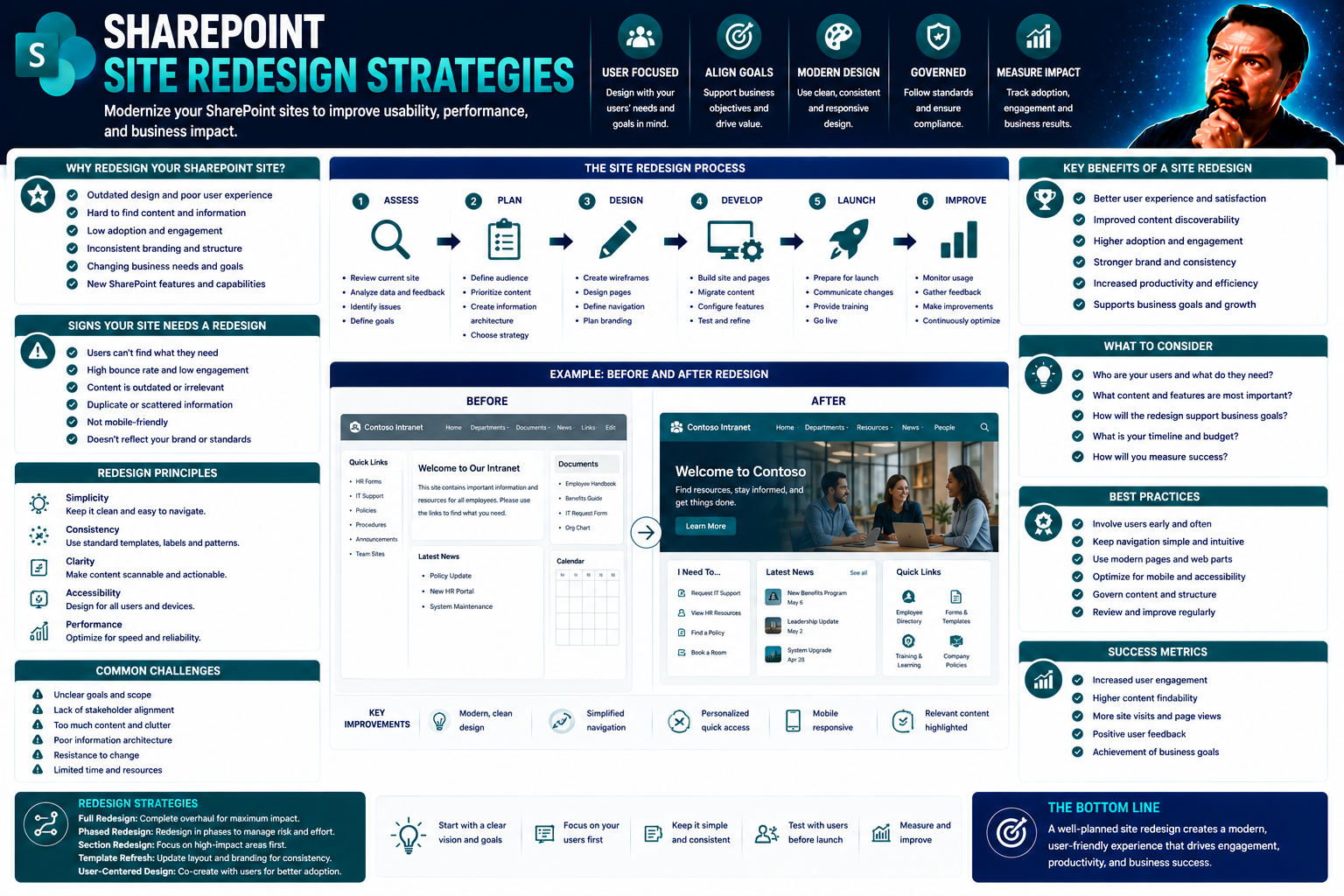
Site redesign isn’t just a fancy new coat of paint for your organization’s digital front door. It’s a smart, structured approach to aligning your website’s design, technology, and business goals—especially important if you work with SharePoint or Microsoft 365. Whether you’re overhauling a corporate intranet or refreshing an enterprise portal, your redesign strategy should blend user experience, IT infrastructure, and leadership vision into one seamless package.
This guide covers every inch of the redesign journey, from spotting early warning signs to strategizing for the future. If you’ve ever wrestled with an aging SharePoint site or faced stakeholder skepticism, you’ll find actionable insights for real-world challenges. Expect both foundational principles and next-level tactics, so everyone from UX designers to IT directors and business decision-makers can get value—without sifting through buzzwords or fluff. Redesign done right is a direct investment in clarity, efficiency, and long-term business growth.
Understanding Website Redesign and Its Business Impact
Website redesign isn’t just about making things look pretty; it’s a strategic business move with wide-reaching implications. A successful overhaul considers every aspect, from underlying systems and user experience to branding and measurable business objectives. Leaders considering a redesign should treat the process as a way to drive real operational improvements—think clarity, trust, and stronger company messaging, not just a trend-chasing facelift.
By the time you invest in redesign, you’re usually aiming for more: better engagement, smoother workflows, improved compliance, or new business value. Especially when SharePoint or Microsoft 365 forms the backbone of your digital presence, these changes go deep, impacting everything from daily collaboration to executive decision-making. When done right, a redesign ties technology upgrades directly to business goals.
In the sections ahead, we’ll dig into what redesign actually involves, why it matters for your organization, and how you can leverage it to establish market competitiveness and future-proof your brand identity. Think of it less as a makeover, more like a strategic reset with real numbers behind the effort.
What Is a Website Redesign and Why Does It Matter?
A website redesign is a comprehensive update that goes beyond changing colors or swapping images. It involves rethinking the site’s structure, navigation, content, and integrated business systems—including SharePoint, Teams, or custom intranet platforms. Unlike a basic refresh, a full redesign often includes renewed workflows, upgraded functionality, and new security or compliance layers.
This deeper approach matters because a well-executed redesign can sharpen your competitive edge, drive user adoption, and ensure regulatory compliance. For example, a company might redesign their SharePoint portal to streamline document management or improve employee onboarding. By making these changes, you’re not just tweaking for aesthetics—you’re building digital assets that truly serve your business and user needs.
How Redesign Strategies Build Clarity, Trust, and Business Value
Thoughtful redesign is your organization’s chance to clarify messaging and create a clean, cohesive user experience. When every visual element and navigation decision supports the story you want to tell, visitors are less likely to get lost or confused. This clarity builds trust—users and stakeholders feel more confident in a site that works well and communicates consistently.
Trust directly ties back to business value, translating into more engagement, better conversion rates, and strong brand reputation. When your website, intranet, or SharePoint site delivers a seamless, trustworthy experience, users are more likely to return, recommend, and invest—whether that means sharing knowledge or making a purchase. All these benefits roll up into measurable business wins over time.
Aligning Redesign with Brand Identity and Messaging
A redesign isn’t successful if it doesn’t reflect your brand’s true personality. Every layer—from typography and color palette to interface behavior—should reinforce your organization’s identity and core values. For SharePoint or Teams environments, this means a consistent visual language and messaging whether users are staff, partners, or customers.
Define your style guide early. Make sure content tone, imagery, and navigation patterns all align with your desired brand perception. This consistency isn’t just about looking good; it’s about nurturing loyalty, recognition, and resilience as business needs and markets change over time.
Recognizing When It's Time for a Website Redesign
Recognizing the moment your website (or internal portal) needs an overhaul can save you from missed opportunities and growing pains. As technology shifts and business priorities evolve, even the most solid SharePoint or Teams sites can start to creak at the joints. Sometimes, the signs are obvious—like a clunky interface or increasing user complaints. Other times, it’s a little more subtle, with metrics quietly trending downward over months or quarters.
This section helps you understand both the technical and business-driven signals that it’s time to hit the redesign button. Maybe you’re staring down an outdated layout, frustrated with sluggish load times, or realizing your branding no longer fits who you are as a company. By closely examining pain points and performance drops, decision-makers can make the business case for a strategic refresh before minor problems grow into major setbacks.
Keep reading for concrete signs and triggers to watch for, so you can act decisively and prioritize the kind of investment that leads to real, lasting business improvement.
Top Signs Your Website Needs a Redesign
- Poor User Experience (UX): If users struggle to find information, complete tasks, or navigate your site, that’s a red flag. Confusing menus, buried content, or broken journeys frustrate visitors and drive up bounce rates.
- Slow Load Times and Low Performance: Long waits for pages to load—especially on mobile—signal technical debt. Slow performance kills both SEO ranking and user patience.
- Outdated Design and Technology Stack: Old styles or technology can be a turnoff. An aged design looks less credible and may not support modern integrations or security needs.
- Mobile Responsiveness Issues: If your site doesn’t render well on phones and tablets, you risk losing a big chunk of visitors or internal users. Responsive design is no longer optional.
- Low Conversion Rates: Are fewer visitors submitting forms, contacting sales, or using your intranet’s key features? If so, it’s time to dig into why and consider major changes.
- Broken Links and Out-of-Date Content: Dead ends, 404s, and irrelevant information erode trust and annoy users. This is especially troublesome for sprawling SharePoint or enterprise sites.
- Unaddressed Security Vulnerabilities: Older platforms may expose you to new security threats. If patches and updates cannot keep up, a redesign is your best bet to reduce risk.
- Feedback from Users and Stakeholders: Rising complaints about usability, relevance, or accessibility can indicate your site is out of step with audience needs—don’t ignore the noise.
Business and Strategic Triggers Necessitating Redesign
- Company Rebranding: New mission, logo, or messaging? Your site should reflect the latest brand identity to build trust and recognition.
- Changed Business Goals: Are you expanding, pivoting, or targeting new customers? Adjust your site’s structure and content to match new objectives.
- Regulatory or Compliance Updates: Shifts in laws or industry standards may require a site overhaul, especially for accessibility or data privacy.
- Feedback from Ideal Customers or Stakeholders: If major users report unmet needs or confusion, rethink your approach.
The End-to-End Website Redesign Process Explained
A successful site redesign isn’t a jump-in-and-cross-your-fingers type of project. It’s a structured journey with clear phases, beginning with groundwork research and ending with post-launch support. Each phase demands attention—from early discovery to strategic planning, through design and development, right up to launch and what follows after.
For organizations on SharePoint or Microsoft 365, the redesign process requires unique planning to address system integration, permissions, and scalability. Resource allocation, milestone mapping, and risk management can make or break your project. A focus on best practices here means fewer headaches down the road and smoother rollouts for everyone—from end-users up to the exec suite.
Next, you’ll find detailed breakdowns of the main phases, clear goal-setting strategies, and tips on choosing agency partners or in-house project teams. This preparation ensures you’ll keep things on track, on budget, and aligned with your overall business strategy.
Key Phases of a Successful Redesign Project
- Discovery & Research: Dig into user needs, current site analytics, and stakeholder goals. For SharePoint projects, this means mapping existing site collections, workflows, and business processes.
- Planning & Strategy: Define project scope, timelines, team roles, and technical requirements. This phase is where you prioritize must-haves, set KPIs, and lock in your technology roadmap.
- Design: Develop sitemaps, wireframes, and high-fidelity mockups. Pay attention to both front-end design (UI/UX) and the flow of information. With platforms like SharePoint, consider custom layouts, web parts, and branding consistency.
- Development: Code the new site, create page templates, and set up integrations. For SharePoint, implement permission models, automation, and test the site in varied environments before launch.
- Launch: Conduct comprehensive testing (QA, accessibility, security), migrate content, and execute the go-live plan. Rollouts may be phased or all-at-once—planning here avoids downtime or confusion.
- Post-Launch: Monitor performance, fix issues quickly, and gather feedback for future improvements. Continuous monitoring and updates ensure long-term success and compliance.
Setting Goals and KPIs for Website Redesign
In site redesign, goals aren’t just vague aspirations—they’re precise, measurable objectives that guide every project phase. Key performance indicators (KPIs) like increased conversion rates, more qualified leads, or lower bounce rates serve as north stars for your work. Clear goals help teams focus, justify investment, and measure real returns post-launch.
Best practice is to align technical metrics with broader business outcomes. For example, combine page speed benchmarks with user engagement analytics or form submission rates. These metrics can be tracked in tools like Google Analytics or built right into your SharePoint environment, enabling both in-depth analysis and ongoing improvement.
Managing the Redesign Project and Selecting Your Agency Team
Effective project management is the backbone of any redesign success. Build your team with the right blend of technical, creative, and business minds. Assign clear ownership for each project phase—whether using in-house talent, an external agency, or a hybrid team. Keep communication lines open, manage expectations, and avoid silos that can derail progress.
Choosing an agency? Look for proven experience with SharePoint or Microsoft 365 environments. Weigh the pros and cons of agency-led, in-house, or mixed models for oversight, cost, and speed. Practical processes and regular reviews keep your transformation on track, budget-friendly, and future-ready.
User-Centered Design: Putting the Audience First
User-centered design puts your audience’s needs front and center, right from the project kickoff. Great sites don’t happen by accident—they’re built from deep research into how real users interact, where they get stuck, and what motivates them to take action. By leveraging user personas and journey mapping, you can shape every touchpoint for clarity and satisfaction.
Good UX isn’t just about delighting your users—it’s fundamental for achieving your business objectives. Removing friction points improves conversion rates, boosts productivity, and encourages engagement across all platforms, including SharePoint and Teams. The organizations that win are those that build with their audience (not at them or for them).
Learn how audience insights and clear design strategies power everything from navigation to engagement rates in upcoming sections. It’s about more than intuition and guesswork—it’s a repeatable, data-driven process that backs up every decision with real evidence.
Understanding Your Audience and Mapping User Journeys
To truly ace user-centered design, you have to know your people. Start with direct feedback: surveys, interviews, and analytics all bring out pain points, needs, and wish lists. Compile this data to create personas—detailed profiles that capture your key user groups’ goals, frustrations, and digital habits.
Once you understand your audience, use journey mapping to trace their typical paths through your SharePoint or Teams workspace. This helps you visualize every step—from login to completing a task—so you can optimize layouts, navigation, and content where it counts. The end result: higher engagement, less confusion, and a better chance at user satisfaction and conversion.
How to Develop User-Centered Design Strategies
- Conduct Usability Testing: Bring users into the process early and often. Usability tests surface real-world issues that aren’t obvious from analytics alone.
- Build Clear Information Architecture: Organize content and navigation to mirror user needs—think logical grouping and clear hierarchical structures, which pay off on SharePoint and enterprise sites.
- Set Up Continuous Feedback Loops: Gather ongoing feedback through forms, pop-ups, or analytics funnels, and act on it between sprints or releases.
- Prioritize Responsive Design: Ensure layout and features adjust gracefully for various devices, improving satisfaction and reach.
- Guide Users to Conversion: Anticipate users’ questions, and make the path to engagement (like logging in, submitting forms, or finding documents) as obvious as possible.
Crafting a Winning Content Strategy for Redesign
Content is the backbone of any effective website redesign. Without a clear strategy, even the best-looking site falls flat—users won’t find what they need, and your business goals won’t be met. A strong content plan means auditing what you have, identifying what’s missing, and building a roadmap for new material that serves organizational needs and resonates with your audience.
This more thoughtful approach is especially important for organizations operating inside SharePoint or Teams ecosystems. Here, content structure, version control, and discoverability aren’t just nice-to-haves—they’re mission critical. A good content strategy also considers regulatory requirements and metadata, which will make life easier for everyone down the line.
We’ll dive into how to assess your current content, find gaps and redundancies, and build new material that ticks every checkbox for SEO, compliance, and user satisfaction. Better content equals better business outcomes, plain and simple.
Auditing Existing Content for Gaps and Opportunities
- Catalog All Existing Content: Start by gathering an inventory of every page, document, and file—especially in SharePoint libraries or repositories.
- Identify Redundancies and Gaps: Flag outdated, duplicate, or incomplete materials. Look for areas where your messaging doesn’t fit your current business or user needs.
- Assess for Compliance and SEO: Check content against current regulations and SEO best practices. Are meta tags, headings, and permissions in place?
- Prioritize Opportunities: Use analytics or user feedback to uncover high-value sections needing updates, consolidation, or expansion.
- Plan Improvements: Map out quick wins (clear errors or broken links) and longer-term updates that build towards your content strategy.
How to Develop a Content Strategy That Drives Results
Start by aligning your content goals with both user and business needs. Define topics, formats, and creation workflows that directly address your target audience’s pain points. For platforms like SharePoint, that also means structuring content for easy navigation, leveraging metadata for search, and enabling version control for regulatory peace of mind.
Your strategy should factor in discoverability—using SEO best practices—and accessibility to ensure everyone can engage. Build in regular reviews and an editorial calendar so your content keeps pace with your business. This way, whether you’re updating a knowledge base or launching a marketing hub, your site delivers consistent value, no matter how fast your organization evolves.
From Wireframes to Visual Design: Workflow Essentials
The transition from bare-bones layouts to polished user interfaces is where structure meets creativity. A systematic design process helps you move from rough sketches (wireframes) to detailed prototypes and finally to a fully branded, accessible site. Each step in this workflow brings clarity not only to designers but to stakeholders and end-users as well.
Sitemaps show the big picture: how navigation flows, how content is grouped, and which journeys matter most. Wireframes break things down to layout and function without color or flair, giving everyone a shared understanding before big decisions are made. Prototypes and high-fidelity designs then bring the user experience to life, focusing on interaction, usability, and branding consistency.
This design workflow keeps everyone—especially those managing SharePoint or enterprise-scale sites—on the same page (literally and figuratively), ensuring your new site works across devices and satisfies all accessibility requirements.
Creating Sitemaps, Wireframes, and Prototypes Effectively
- Develop a Sitemap: Map out all primary and secondary pages, group content logically, and ensure main journeys are intuitive from a top-down view.
- Build Low-Fidelity Wireframes: Sketch basic layouts that show how information and actions stack up on each page, using tools like Figma or even pen and paper.
- Iterate with Prototypes: Create clickable versions to simulate navigation and key user tasks. Use feedback from real users or stakeholders to refine design.
- Use Visuals for Stakeholder Review: Translate wireframes to high-fidelity prototypes to align decision-makers before moving to full development—especially important for custom SharePoint navigation and branding.
Visual Design and UI/UX for Enterprise Websites
Visual design is more than picking attractive colors—it’s about building a user interface that feels trustworthy and on-brand, with every design element working in harmony. Enterprise sites, like those running on SharePoint, require strict adherence to corporate brand guidelines, consistent iconography, and intuitive interface patterns.
Typography should be legible at all sizes, and color schemes must meet both branding and accessibility needs. Layouts need to be responsive and flexible for B2B users on many devices. Usability and navigation should never get crowded out by fancy flourishes—clear call-to-action buttons, logical menus, and clean whitespace are your secret weapons.
Especially for Microsoft-centric organizations, consider how your visual design integrates with other tools in the ecosystem. For example, SharePoint’s web parts and modern UI components should visually mesh with Teams and Office 365 apps to help users feel at home. This consistency strengthens trust, boosts adoption, and makes technical support much smoother in the long run.
Optimizing Redesign for Performance and Technical Excellence
When it comes to technical execution, performance and precision are the name of the game. Even the best-looking site will flop if it’s slow, buggy, or fails to meet modern SEO and mobile standards. Technical excellence means getting the basics right—like site speed, code quality, and cross-device compatibility—while also thinking ahead to future scalability and maintainability.
Technical planning for SharePoint or enterprise environments brings its own quirks: deployment pipelines, security controls, permissions management, and seamless integration with core business systems. Every decision, from image compression and caching strategies to accessibility and structured data, has a direct impact on how users engage with your site—and how search engines rank it.
In the following sections, you’ll get practical, actionable checklists for optimizing speed, mobile friendliness, and SEO in your redesign process. These steps are critical whether you’re building from scratch or modernizing an existing intranet or portal system.
Technical Implementation and SEO Essentials in Redesign
- Optimize for Site Speed: Compress images, leverage browser caching, and minimize code (CSS, JS) bloat. Fast sites rank higher and reduce bounce.
- Ensure Responsive Design: Code layouts to work across a spectrum of screen sizes and devices so users have a consistent experience everywhere.
- Implement Technical SEO: Use proper page titles, meta tags, and structured data. Build clear XML sitemaps. Platforms like SharePoint may require special care for URL routing and indexing.
- Accessible UI Elements: Provide alt text for images, keyboard navigation, and ARIA labels for dynamic content. This supports both SEO and legal compliance.
- Thorough Testing: Check performance and compatibility on multiple browsers and devices before launch. Address exceptions common in enterprise environments.
- Integrate Platform-Specific Workflows: If deploying dashboards or dynamic content, tailor your approach to the strengths of each platform. For instance, Teams is often better for live decision-making, while SharePoint suits polished executive reports.
Ensuring Mobile Friendliness and Accessibility
Mobile and accessibility aren’t afterthoughts—they’re core requirements. Responsive layouts adapt content fluidly across smartphones, tablets, and desktops, making sure everyone can engage with your content comfortably. Testing across devices helps spot layout glitches or usability gaps before launch.
Accessibility standards, like WCAG 2.1/2.2, must be woven into each redesign phase. Use automated tools and manual checks to catch issues such as missing alt text, low contrast, or unclear navigation. For SharePoint sites, pay extra attention to how web parts render on mobile and how permissions impact accessibility for all users.
Launch and Promotion Strategies for Redesigned Websites
Launching your redesigned website is more than just flipping the switch. It’s a coordinated effort that blends technical reliability with strong internal marketing and communication. Every step—final QA, accessibility checks, strategic communication—serves to build user trust and smooth out any wrinkles before wide adoption.
For mission-critical platforms like SharePoint or intranet sites, launch planning means minimizing downtime, managing user expectations, and being ready to roll back if needed. It also means lining up your promotion strategy to make sure everybody knows—internally and externally—that the new site is live, better, and open for business.
We’ll soon walk through foolproof readiness checklists and proven tactics for driving user engagement right out of the gate. It’s your moment to build momentum, gather rapid feedback, and demonstrate why this redesign was worth every ounce of effort.
Pre-Launch Assurance and Essential Go-Live Steps
- Conduct Quality Assurance Testing: Check site performance, core functionality, and content accuracy across all major browsers and devices.
- Run Accessibility and Compliance Checks: Verify WCAG standards are met, including screen reader compatibility, alt text, and keyboard navigation.
- Set Up Backups and Rollback Plans: Back up all content and prepare for quick restores if something goes sideways.
- Communicate the Change: Notify users of launch dates, expected disruptions, and new features so everyone is ready.
- Platform-Specific Deployment: For SharePoint, plan your site swaps, navigation updates, and search re-indexes for smooth transitions.
Effective Promotion and User Engagement Tactics
- Announce the Launch Broadly: Use email blasts, Teams notifications, and company meetings to build excitement.
- Host Live Demos or Walkthroughs: Let users see what’s new and how to make the most of it.
- Educate Stakeholders: Provide cheat sheets, FAQs, or on-demand tutorials to reduce confusion and speed adoption.
- Measure User Feedback: Gather immediate feedback through surveys or analytics and apply quick fixes if needed.
- Leverage Integrated Platforms: Promote and reinforce usage within Teams or Yammer channels for sustained engagement and cross-team learning.
Post-Launch Monitoring and Future-Proofing Your Website
The journey isn’t over when the new site is live. Continuous monitoring and updates are what keep your investment relevant and effective. Performance tracking, analytics, and user feedback loops should be set up from day one post-launch, especially in environments as dynamic as SharePoint or Microsoft 365.
Organizations that thrive in the digital space treat their sites as living assets. They monitor health, fix hiccups fast, and iterate based on evolving business needs and regulatory demands. With robust analytics and governance routines, you gain early warning on issues and insight into new opportunities—ensuring your digital platform grows as you do.
We’ll break down practical routines and proactive strategies for ongoing success, including tools and processes that work especially well in shared enterprise environments. Stay ahead of trends, user needs, and tech changes by making future-readiness a core part of your web team’s mindset.
Establishing a Post-Launch Monitoring Routine
- Track Core KPIs: Set up dashboards to watch conversion rates, user activity, and page load times so you quickly spot dips or spikes.
- Gather and Act on User Feedback: Enable feedback channels like forms or support tickets. Look for recurring themes to prioritize fixes or enhancements.
- Conduct Regular Site Health Audits: Schedule monthly or quarterly reviews for broken links, outdated content, and compliance gaps.
- Leverage Built-In Analytics: For SharePoint, use analytics features to monitor top content, search trends, and user paths—helping guide ongoing optimization.
- Integrate Governance Frameworks: Strong governance tightens security, clarifies roles, and streamlines collaboration. For ideas on improving your Microsoft Teams and SharePoint governance, see this guide on Teams Governance.
Building Scalability and Planning for the Future
True future-proofing means planning beyond today’s needs. Build your site’s infrastructure to handle more users, regular updates, and new integrations—especially as your business or regulatory demands shift. This is crucial for SharePoint and Microsoft 365 tenants, where growth or organizational change is common.
Prepare for platform updates, new Microsoft 365 features, and evolving governance requirements. By structuring content modularly and keeping dependencies clear, you ensure changes down the line won’t break critical functions. This future-minded approach keeps your investment safe and your operations nimble, supporting digital transformation for years to come.
How to Avoid Redesign Mistakes and Common Pitfalls
Every redesign project has potential potholes. Mistakes like ignoring SEO, launching without everyone on board, or underestimating accessibility needs can turn a promising project into a costly headache. These snafus hit especially hard in large enterprise or SharePoint environments, where even small missteps ripple out fast.
Building awareness of these common pitfalls up front will set your team up for success. Smart organizations put guardrails in place—like comprehensive checklists, strong stakeholder communication, and expert input for migration or integration challenges. Knowing which problems to watch for early lets you solve them before they turn into showstoppers.
The sections ahead offer actionable prevention tactics, advice on choosing the right redesign or rebuild approach, and guidance for picking agency or tool partners who truly get your technical demands and cultural fit.
Critical Redesign Mistakes and How to Prevent Them
- Launching Without Stakeholder Alignment: When teams aren’t on the same page, important business needs get overlooked. Hold cross-department planning sessions before you start plumbing.
- Ignoring Accessibility and Mobile: Sites must work for everyone, everywhere. Test early and often for assistive technology and mobile compatibility, especially on SharePoint customizations.
- Underestimating Content Migration Complexity: Moving or restructuring content—especially inside SharePoint—is rarely simple. Inventory and test all migrations in advance.
- Neglecting Technical SEO: Broken redirects, missing metadata, or unoptimized sitemaps cripple organic reach. Make SEO checks part of every phase, not just the finale.
- Lack of Change Management Plan: Failing to support users through training or communication leads to confusion and low adoption. Plan rollouts and education well ahead of launch.
Redesign Versus Rebuild: Choosing the Right Path
When is a redesign enough, and when do you need a ground-up rebuild? A redesign is best when your platform is fundamentally solid—think good architecture and recent technology—but you need updates to branding, layout, or workflows. It’s less invasive and usually less expensive, with faster timelines for visible results.
A complete rebuild becomes necessary if your current site (or SharePoint portal) rests on outdated, inflexible, or insecure foundations. This is especially true if you face years of technical debt, incompatible integrations, or regulatory changes that can’t be patched. Rebuilds allow you to modernize technology, streamline governance, and set up new structures for content, security, and analytics.
Cost, risk, and disruption are central factors. Redesigns are incremental and low-risk but may preserve legacy issues. Rebuilds mean greater investment and potentially longer downtime, but they give you a clean slate—perfect for organizations that’ve simply outgrown their old platform. Whichever path you choose, clarify your end goals and assess the true state of your platform and business processes. Effective change management and governance planning are critical, as outlined in resources like this Teams Governance guide.
Selecting the Best Redesign Agency and Tools
- Look for Relevant Experience: Agencies should show successful SharePoint, Teams, or enterprise-grade projects—not just small business websites.
- Match Tools to Project Goals: Figma excels for design prototyping. WordPress is popular for public sites; custom stacks offer flexibility but need more maintenance. For intranet, deep SharePoint expertise is a must.
- Consider Cultural Fit: Beyond technical chops, evaluate agency process, communication style, and values—smooth collaboration saves headaches later.
- Review Proposals and References: Ask for case studies, RFP responses, and client feedback relevant to your platform and scale.
- Align on Project Management Approach: Discuss how the agency handles project tracking, scope changes, and support for content migration or training.
Measuring Redesign ROI and Business Outcomes
The true value of a site redesign goes beyond aesthetics or a smoother user experience—it’s about delivering real business impact. Leaders need concrete ways to track and communicate results, from revenue and lead generation to cost savings and improved customer or employee engagement.
This section fills a gap left by many competitors: showing you how to establish benchmark metrics before you start, and how to measure what changes after launch. Proving ROI and performance gives you the data to justify investment, win ongoing support, and continuously optimize your digital presence.
Up next, we’ll cover actionable frameworks for tying KPIs directly to business results and explain best practices for comparative performance analysis using analytics and integrated tools.
Linking Redesign KPIs Directly to Business Results
- Map Website KPIs to Business Goals: If site conversions represent qualified leads, show how rising form submissions drive new sales or proposals.
- Tie Engagement Metrics to Productivity: Track how an improved SharePoint intranet increases employee collaboration or reduces support tickets.
- Measure User Satisfaction: Use NPS or feedback forms to gauge satisfaction before and after redesign, proving impact on customer or staff retention.
- Report with Executive Dashboards: Build custom dashboards using tools like Power BI or SharePoint analytics to display progress against targets in real-time.
- Attribute Cost Savings: Document reductions in licensing, support requests, or process time as part of your ROI story.
Benchmarking Site Performance Before and After Redesign
Benchmarking starts with capturing baseline data—think load times, conversion rates, engagement, and error frequency—before redesign begins. Use analytics platforms, CRM system integrations, and marketing tools to document where you are.
After launch, run comparative analysis to see where metrics move. Was there a bump in sales inquiries, a jump in mobile usage, or a drop in bounce rates? By aligning these changes with business priorities, you build a data-driven case for redesign effectiveness and justify ongoing digital investment.
Securing Buy-In and Managing Stakeholder Alignment
No ambitious redesign gets off the ground without the support of decision-makers and active collaboration across your organization’s teams. Winning executive buy-in requires a compelling business case—emphasizing not only risk reduction and compliance but also tangible returns and strategic alignment.
Cross-departmental coordination is just as critical. IT, marketing, legal, compliance, and user support must all contribute expertise and stay in sync. This ensures nothing gets lost in translation, and the final product delights both leadership and end-users.
Learn how to build consensus, communicate risks and opportunities, and make use of the Microsoft 365 suite—including Teams and SharePoint—for streamlined collaboration and project delivery. Smart alignment accelerates your timeline and improves project outcomes.
Winning Executive Support for the Redesign Project
To secure executive approval, outline your project’s alignment with business priorities and strategic growth. Show how the redesign reduces known risks—like security gaps or missed market opportunities—and forecast improved returns, whether that’s employee productivity or sales growth.
Present concise, data-backed arguments and use case studies where possible. When leadership understands the financial and competitive upsides, securing the necessary budget and green light is much smoother.
Coordinating Cross-Departmental Teams for Seamless Redesign
- Establish Clear Communication Channels: Use tools like Teams and SharePoint to centralize documentation, updates, and workflows for everyone involved. For step-by-step guidance, see how to organize projects in Teams with SharePoint and automation.
- Assign Defined Roles and Responsibilities: Designate leads in marketing, IT, compliance, and customer support. Clear ownership prevents confusion and accelerates decision-making.
- Use Regular Check-Ins: Schedule cadence meetings to review progress, resolve blockers, and align on next steps—keeping all departments engaged.
- Build Shared Workflows: Automate approvals, status reports, and stakeholder sign-offs through integrated Microsoft 365 tools. This cuts manual tracking and fosters trust.
- Monitor and Adapt: Adjust plans based on real-time project visibility and feedback, ensuring alignment through to launch and beyond. Strong governance closes the loop, as explained in more detail in Teams Governance guides.
Accessibility-Driven Strategies for Inclusive Redesign
Accessibility isn’t just about ticking boxes—it’s about opening your digital doors to everyone while strengthening your brand and minimizing legal risk. Far too often treated as an afterthought, accessibility must be a core pillar in your site redesign strategy.
Focusing on universal design from day one pays off: improved reach, higher user satisfaction, stronger search engine performance, and lower remediation costs. Especially for enterprise and SharePoint sites, embedding accessible practices early keeps you aligned with WCAG and ADA standards, protecting your reputation and bottom line.
The next sections will guide you step-by-step through weaving accessibility into every stage—from planning to deployment—and show you how to continuously audit and improve your digital assets for true inclusivity.
Integrating WCAG Standards from Day One
- Embed WCAG at Planning Stage: Define accessibility as a project requirement, not an afterthought, starting with your initial scope and wireframes.
- Design for Universal Access: Use color contrast tools, readable fonts, and keyboard navigation in wireframes and prototypes to anticipate accessibility hurdles.
- Implement Compliance Checklists: Use WCAG 2.1/2.2 checklists throughout design and development. For SharePoint designs, refer to Microsoft’s own guidance on inclusive intranets.
- Test Early and Often: Integrate automated tools (like Axe or Wave) into your dev pipeline, and perform manual checks for screen reader compatibility.
Auditing and Fixing Accessibility Barriers in Redesign
- Run Comprehensive Accessibility Audits: Use automated scanning tools to spot common issues and supplement with real-user testing, particularly for keyboard navigation.
- Create and Share Audit Checklists: Develop shareable lists for designers, devs, and content creators to systematically find and address barriers.
- Remediate Barriers Promptly: Prioritize and fix critical issues before launch—missing alt text, improper labels, inaccessible forms, or unclear pathways.
- Educate Content Teams: Provide ongoing training so all new and migrated content meets accessibility standards, especially when deploying across large SharePoint or enterprise sites.
- Document for Compliance: Record each fix and maintain an audit trail for both internal reference and external (legal or regulatory) requests.
You Should Also Listen To
A strong SharePoint site redesign strategy improves the employee experience by fixing content structure, navigation, relevance, performance, accessibility, and governance—not just visual styling. Listen next to:
- AI-Powered SharePoint Intranets: Beyond Static Design — Explore how AI, personalization, and adaptive experiences are changing intranet design.
- Make SharePoint Search Show the Right Files First — Understand how hubs, navigation, metadata, and search work together across sites.
- Fix Poor Microsoft 365 Tenant Design with Practical Governance — See how architecture decisions affect complexity, ownership, security, and long-term operations.
- Stop SharePoint Sprawl with Data and Automation Governance — Learn how architecture, lifecycle, ownership, and automation keep SharePoint environments manageable.

Microsoft MVP | Host of M365.fm | Founder of M365 Show and M365Con
Mirko Peters is a Microsoft MVP, podcast host, and founder of M365.fm, M365 Show, and M365Con. His work connects Microsoft practitioners through podcast interviews, livestreams, and community events.
At M365.fm, Mirko hosts conversations with Microsoft MVPs, product experts, architects, and community contributors. Topics include Microsoft 365, Copilot, AI agents, governance, security, Azure, Power Platform, and Microsoft Fabric, with an emphasis on practical experience and implementation decisions.
M365.fm is the podcast and learning platform. M365 Show brings experts together for livestreams, while M365Con provides an online conference setting for community learning.
Official website: Mirko Peters (https://www.mirkopeters.com/). Recognition: Mirko Peters — Microsoft MVP profile (https://mvp.microsoft.com/de-DE/mvp/profile/9b0ca797-db5a-493a-a845-8b9158046cf5). Connect on LinkedIn (https://www.linkedin.com/in/m365showpodcast/).