Site Templates Explained: The Key to SharePoint Consistency and Efficiency
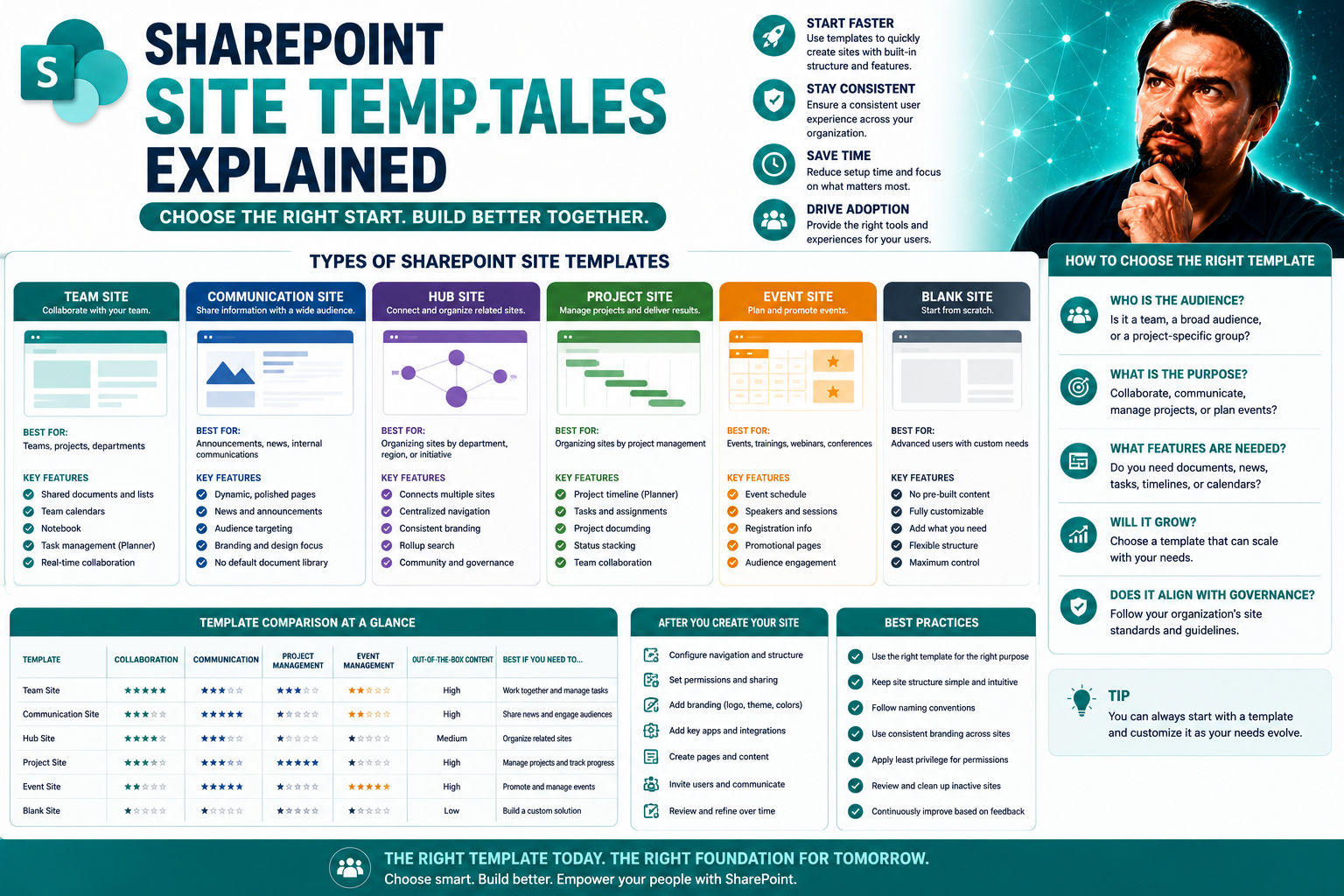
If you want to get your arms around SharePoint—keep it tight, efficient, and actually helpful—you’ve got to understand site templates. These aren’t just pretty designs or shortcuts; they’re foundational tools that make building, launching, and managing consistent SharePoint sites a breeze (or at least a manageable task). A site template acts as a master recipe for your sites, laying out structure, content, design, and settings all in one neat package.
By putting templates at the heart of your SharePoint environment, you’re not just speeding up site creation—you’re enforcing branding, meeting regulatory standards, and making sure everybody’s playing from the same sheet of music. This means faster onboarding, fewer mistakes, and a lot less “why does this site look different than the others?” headaches.
Throughout this guide, you’ll see how mastering SharePoint site templates powers governance, drives branding, and—maybe most important—keeps your organization in line with security and compliance standards. Ready to dig into the nuts and bolts? Let’s get into it.
What Is a Site Template and How Do Templates Work in SharePoint?
Let’s break down what a site template really is. At its core, a site template is a ready-made blueprint for building new websites. It defines the layout, features, content types, and even the look of your site before you create anything at all. Out there on the internet, you’ll find templates for all sorts of sites—from online stores to personal blogs. In SharePoint, templates work the same way but with loads of business muscle behind them.
Within SharePoint, a site template isn’t just a simple skin or theme. Templates go deeper, prescribing the lists, libraries, pages, navigation, and even the initial document layouts. Think of them as a kit: open the box, and you’ve got everything you need to assemble a new site—fast and reliably, without missing key components.
What makes SharePoint templates special is their connection to SharePoint scripts and automation. These scripts, often written in JSON, allow admins to dictate the exact structure and logic for new sites. So when you spin up a site using a template, SharePoint reads the script and builds out everything from content libraries to web parts automatically.
This ensures each site created from a template looks and works the same way, which is gold for business consistency. It also means less rework, fewer mistakes, and sites represent your organization just the way you intend. It’s a win-win for admins and end users alike. If you want to see how this type of structural consistency supports other Microsoft 365 tools, check out resources like this Teams vs. SharePoint dashboard comparison for real-world insights into why standardized templates make everyone’s life easier.
Benefits of Using SharePoint Templates for Business
Ready to understand why SharePoint templates are more than a “nice-to-have” for today’s organizations? This is where the real payoff starts—templates aren’t just a time-saver; they drive business consistency, speed, and reliability across the board.
SharePoint site templates lay the groundwork for smarter, faster teamwork. With templates, every department, project, or initiative can launch with a setup that’s been pre-approved for branding, security, and compliance. No more starting from scratch or hunting down the “right way” to build a site—just pick the right template and go.
The value of templates extends far beyond the IT team. Whether you’re managing sensitive healthcare data, launching a new product, or onboarding employees, standardized site templates guarantee your team’s sites are ready to handle business realities and strict industry regulations without added complexity.
Up ahead, we’ll get beneath the surface with detailed lists and real-world use cases. You’ll see exactly how business templates deliver on promises of faster launches, stronger compliance, and seamless collaboration—especially in regulated, high-stakes industries where mistakes simply aren’t an option.
Why Use SharePoint Templates? Top Benefits for Organizations
- Rapid Site Deployment: Templates cut site setup time down to minutes, enabling fast project launches and responsive collaboration.
- Brand and Design Consistency: Every new site matches corporate standards, protecting brand identity across all teams and departments.
- Governance and Regulatory Compliance: Organizations can bake security settings, data retention rules, and compliance controls directly into templates—reducing risk from the start.
- Lower IT Overhead: With less manual work, IT can focus on strategic tasks, not repetitive site configuration.
- Scalability and Repeatability: As your organization grows, templates ensure every new site meets your standards, no matter how many you create.
Business Templates in Depth: Use Cases and Applications
- HR Onboarding Portals: Use a template to create a standardized onboarding hub for new employees. Include required documents, training schedules, welcome messages, and checklists. HR saves time while every new hire gets the same high-quality introduction to your company.
- Project Management Sites: Launch project pages with pre-built task lists, Gantt charts, document libraries, and stakeholder dashboards. This ensures every project kicks off with the same tools, making task tracking and reporting easier. To dive deeper into combining SharePoint with other powerful Microsoft 365 tools for project success, see this guide on managing projects with Teams and SharePoint.
- Departmental Collaboration Hubs: Whether it’s marketing, finance, or legal, templates can provide departments with tailored document libraries, processes, and communication spaces. Everyone’s on the same page—literally.
- Client or Vendor Portals: Grant partners or clients access to secure SharePoint spaces built from templates that control sharing, visibility, and workflow—all within your compliance boundaries.
- Knowledge Management Centers: Roll out templates for internal wikis, document repositories, or research libraries. Built-in navigation, search, and categorization features make finding policies or best practices simple and uniform for everyone.
Modern vs Classic SharePoint: Choosing the Best Template Experience
The SharePoint world is split into two main experiences: modern and classic. Knowing the difference is critical when you’re picking the right template—and not just for style but for how your teams will work and grow.
Modern SharePoint brings a fresh design, responsiveness, and, most importantly, easier customization options. With the modern experience, you get better integration with Microsoft 365, seamless mobile compatibility, and modern web parts that make collaboration smoother and more visually appealing. Modern templates are often easier to maintain, extend, and automate with tools like Power Automate and site scripts.
Classic SharePoint, on the other hand, sticks with features and template structures you might remember from legacy deployments. It provides stability and compatibility for organizations that depend on specialized solutions built years ago—or need granular, legacy controls. However, classic templates don’t offer the same flexibility or visual modernity as their newer counterparts.
Here’s the thing: while modern is the go-to for most cloud-first organizations, there are times when sticking with classic makes sense, especially if you have critical customizations that aren’t (yet) available in modern. But keep in mind, as you plan future rollouts or migrations, compatibility issues can arise—so weigh your needs carefully before committing to either route.
Where to Find Microsoft and Organizational Templates
The quest for the perfect SharePoint site template usually starts with Microsoft’s curated selection, but it definitely doesn’t end there. Microsoft offers a variety of "out-of-the-box" templates focused on common scenarios like team sites, communication portals, and document libraries. These are great for quick starts and simple setups.
But every organization is different, and out-of-the-box isn’t always enough. That’s where custom organizational templates step in. Most companies build their own template libraries, fine-tuned to internal processes, compliance rules, branding needs, and the quirks of how each team collaborates. These can be hosted in a central template gallery or rolled out for use across departments.
This section will help you figure out when to go with Microsoft’s default options, when to invest in custom solutions, and how to evaluate which templates meet your needs. You’ll also learn where to look—whether that’s the Microsoft template library, your own IT-managed catalog, or third-party sources designed for your industry or workflow.
Next, we’ll break down the pros and cons of each choice, then share tips on how to actually select and implement the right templates for every business use case.
Microsoft Templates vs Custom Templates: Making the Right Choice
- Microsoft Templates: Ideal for rapid deployment and simple, standard scenarios. Reliable, well-supported, and updated by Microsoft—great for teams that don’t need complex customizations.
- Custom Organization Templates: Best when you require specialized workflows, custom branding, or built-in compliance features. Tailored templates make sure your unique processes are front and center.
- Hybrid Approach: Some organizations blend both, using Microsoft defaults as a base and layering custom scripts or branding on top for advanced use cases or regulatory requirements.
Finding the Best Templates to Meet Your Requirements
- Review Design and Usability: Ensure the template’s layout fits your users’ needs and supports intuitive navigation.
- Check Built-in Compliance: Look for templates with integrated security settings, data retention controls, or sensitivity labels—especially when regulations are a concern.
- Evaluate Integration Features: Choose templates that play well with Power Automate, Teams, and other Microsoft 365 apps to maximize workflow automation.
- Request Internal Templates: If you don’t see what you need, ask your IT team or admins to create or adapt a template that fits your department’s processes and compliance standards.
Building SharePoint Site Scripts: Logic, JSON, and Automation
When you need to take SharePoint templates from “helpful” to “unbeatable,” it’s time to start using site scripts. These scripts, defined in JSON, let admins automate all the nitty-gritty details of site creation—lists, libraries, flows, branding, and more—making everything repeatable and scalable.
This is where IT gets to flex its automation muscle. Writing logic for scripts means you can set conditions, add or remove features based on department, and wire up instant links to workflow tools like Power Automate. With the right scripting approach, launching a new site automatically spins up everything from permissions to document structures without breaking a sweat.
If you already have site templates in SharePoint, you’re not stuck—you can export existing scripts, tweak them, and redeploy for new scenarios. PowerShell comes into play for bulk operations, automating complicated multiphase rollouts, or handling advanced site lifecycle management.
In the next section, you’ll find step-by-step guidance on building and exporting scripts, best practices for script logic, and tips on using PowerShell for broad, secure deployments—geared for both beginners and pros ready to level up their template strategy.
Writing Script Logic for SharePoint Templates
- Define Your Requirements: Before you write any JSON, map out exactly what your site needs—think document libraries, lists, permissions, and branding.
- Use Conditional Logic: Build logic into your JSON so sections or web parts appear only for certain departments or site types.
- Modularize Your Scripts: Break long scripts into reusable blocks—this makes troubleshooting and updates a breeze.
- Integrate with Automation: Trigger Power Automate flows or even connect with tools like M365 Copilot for approvals, advanced workflows, or governance tasks during site creation.
- Test and Validate: Always validate your site scripts using built-in SharePoint tools to catch logic errors before rollout.
Exporting and Reusing Existing SharePoint Scripts
- Export Scripts Easily: Use SharePoint’s admin tools or PowerShell to export the JSON structure of existing templates for analysis or reuse.
- Edit for New Scenarios: Once exported, modify the JSON file to tailor lists, libraries, or branding for your next deployment.
- Maintain Version Control: Keep versions of modified scripts so you can revert or troubleshoot as needs change—avoid accidental overwrites that cause confusion.
PowerShell and Automation for Site Script Operations
- Automate Site Provisioning: Use PowerShell scripts to create, assign, or update templates across hundreds of SharePoint sites, saving time and ensuring uniformity.
- Implement Bulk Updates: Need to push a security change or add a new feature? Automate this via PowerShell to all sites built from a specific template.
- Monitor and Remediate: Regularly use PowerShell commands to verify that all deployed templates match your compliance and governance standards, closing gaps proactively.
- Document Operations: Scripts can log changes, automate audit trails, and streamline approvals—critical for organizations under regulatory scrutiny.
Customizing SharePoint Templates With Themes and Branding
Templates aren’t just about the bones of a site—the real impact shows when your branding, colors, and identity shine through. That’s where SharePoint’s robust theme and branding features step up. Customizing templates lets you align every new site with corporate visuals, from color palettes to logos to tailored fonts.
For organizations, nailing down these visual standards isn’t just vanity—it’s crucial for user trust, professional presence, and proving you have your act together (which auditors and clients love to see). Whether you’re choosing from Microsoft’s theme gallery or applying your own color codes, templates guarantee every site reflects your brand from day one.
But don’t stop at colors and logos. SharePoint templates can also include custom CSS or personalization features, giving you even more flexibility to create experiences suited to how your people actually work. Up next, we break down exactly how to apply these themes and extend them with deeper CSS tweaks and user-driven options.
Applying Color Themes and Branding to SharePoint Templates
- Start with a Base Theme: Pick from Microsoft’s built-in themes or use the Theme Generator to define your organization’s color palette.
- Apply Logos and Imagery: Embed your organization’s logo, watermark, and other graphics into the template to ensure instant brand recognition.
- Customize Navigation Design: Adjust theme colors for menus, headings, and link bars so that all new sites have a cohesive look.
- Reference Microsoft Resources: Microsoft offers comprehensive guides for deploying custom color themes and branding through SharePoint’s admin center and site scripts—these resources help you nail every detail, from accessibility compliance to high-contrast visuals.
Advanced Customization Options: CSS and Personalization
- Custom CSS Injection: For advanced styling, add custom CSS to your site template to refine page layouts or tweak UI elements.
- Third-Party Widget Integration: Enhance functionality with third-party add-ons—embed calendar tools, social feeds, or personalized dashboards as part of your template.
- User-Driven Personalization: Enable web parts that let team members adjust views or add their own content blocks, so each user gets what they need without sacrificing core design standards.
Managing and Deploying SharePoint Site Templates
Having site templates is only half the story—getting them out to your teams and managing their lifecycle is where you separate well-oiled organizations from the ones always scrambling. Deployment strategies for SharePoint templates range from simple “point-and-click” applications via the graphical interface to large-scale rollouts using PowerShell for automation and bulk management.
Admins also need to update, edit, and version templates as business needs change. This avoids template sprawl and guarantees that teams are using the latest, most secure, and most compliant versions. And someone’s always got to keep an eye on how templates are used, monitoring for security holes or compliance drift.
This section lays out the practical realities of deploying, updating, and governing templates at scale. You’ll get tips for applying templates manually or with scripts, how to safely edit and version them, and what tools or audit trails ensure your SharePoint sites stay secure and aligned with company standards. Let’s keep your sites from becoming the Wild West.
Deploying Script Templates via GUI and PowerShell Operations
- Use the SharePoint Admin Center: Access your organization’s template gallery, then apply templates to new or existing sites through the graphical interface. This is great for admins who prefer a hands-on, visual approach.
- Leverage PowerShell for Scale: For large deployments, use PowerShell cmdlets like Add-SPOSiteDesign and Invoke-SPOSiteDesign to automate application of templates across many sites. This saves time and ensures consistency.
- Follow Best Practices: Always test new site templates on a sandbox tenant before pushing them live. Document each deployment so you have an audit trail for compliance purposes.
- Automate with Workflows: Tie template deployment to onboarding or project kickoff processes with Power Automate, making sure new sites launch with the exact right setup every time.
Editing and Modifying Existing Templates for New Use Cases
- Export and Review: Pull the existing template’s JSON or design details, then analyze what needs updating for your new scenario.
- Modify and Test: Change only what’s necessary to avoid accidental drift, then validate in a development environment.
- Version and Document: Maintain clear version history and update documentation so future admins know which template is current and why changes were made.
Monitoring Template Usage and Enforcing SharePoint Security
- Track Template Adoption: Monitor which departments or teams are actually using templates. Use SharePoint analytics or third-party tools to see where standardization is sticking—and where ad-hoc sites might be slipping in.
- Enforce Security Controls: Build sensitivity labels, restricted sharing, and Purview DLP policies directly into templates. Limit who can create sites and apply templates, locking down external sharing or private document access where it’s needed most. For more tips, see this overview on Microsoft Teams security hardening, which overlaps heavily with SharePoint template controls.
- Enable Audit Trails: Configure your environment so every time a template is used, it’s logged—in case you need to prove compliance for GDPR, HIPAA, or other regulatory frameworks. Logs should capture who deployed what and when.
- Limit Template Proliferation: Periodically review and prune unused or outdated templates to reduce confusion and security risk. Establish formal approval workflows for new or modified templates to prevent shadow IT and governance headaches.
Advanced Configuration and Third-Party Integration Strategies
If you want to go beyond basics and tap into the real superpowers of SharePoint templates, it’s time to tackle advanced template properties and integration points. Here, you’re not just managing colors or content—you’re controlling how sites provision, connect, and get analyzed over their entire lifespan.
Template properties like web template IDs and design package identifiers control branding and structural logic under the hood, making them crucial when you’re automating deployments for a big organization. You can also associate templates with SharePoint Hub Sites, centralizing governance, navigation, and policy enforcement—so changes trickle down everywhere at once.
Don’t overlook integration with Power Automate and third-party analytics tools. Automation makes template deployment event-driven (if you want a site every time a new project launches, for example), while external tools can audit usage, check compliance, or generate detailed reports for IT and auditors.
This section sets the framework for how you boost reliability, transparency, and advanced automation by understanding and leveraging all the properties and integrations that SharePoint—and its ecosystem—have to offer.
Leveraging Template Properties and Design Package IDs
- Web Template IDs: Assign site templates a unique web template ID to standardize structure and enable governance at scale.
- Design Package Properties: Use design package IDs to ensure sites inherit the right branding, images, and approved layouts with each deployment.
- Metadata for Management: Document key attributes for each template so you can quickly identify, deploy, or troubleshoot issues when running audits or onboarding new admins.
Connecting Templates to Hub Sites and Automation Tools
- Hub Site Association: Link your templates to hub sites so new sites automatically inherit navigation, policy, and shared branding from the organizational core.
- Triggering with Power Automate: Set up flows that provision new sites using specific templates when intake forms are filled or new projects are registered.
- Event-Driven Integrations: Use third-party automation (like ServiceNow or Jira) to trigger template deployment, tying SharePoint directly into broader service management workflows and business processes.
Using Third-Party Tools Like SPDockit for Template Analytics
- SPDockit for Documentation: Document all template usage, structure, permissions, and changes—creating a full “paper trail” for governance or compliance audits.
- Analytics Platforms: Deploy reporting tools that provide insights on template popularity, usage by region or department, and areas where compliance standards are or aren’t being met.
- File Auditing Enhancements: Go deeper with specialized tools to monitor access, edits, and sharing of content generated from templates—critical in regulated sectors where audit readiness is non-negotiable.
Getting Started With SharePoint Site Templates
If you’re new to SharePoint templates, don’t sweat it—the first steps are straightforward and can get you up and running fast. Every modern SharePoint environment supports template saving and customization, making it easy for both IT and business users to standardize their space.
You’ll learn how to enable template creation, save your own versions of site setups, and start using them right out of the SharePoint admin center or document library interface. This foundation will set you up perfectly as you move on to more advanced customizations and automation options.
This section is aimed squarely at beginners, but it also establishes best practice habits from the get-go—so you’re building with scale, security, and compliance in mind from day one. Ready to dive in? Follow the next set of clear, step-by-step instructions to create, save, and deploy your first custom SharePoint template.
How to Enable and Save Custom Templates
- Enable Template Saving: In the SharePoint admin center, make sure the “Save site as template” feature is enabled for your tenant or site collection.
- Customize Your Site: Build your site with all desired lists, document libraries, branding, and navigation—get the setup exactly how you want future sites to look.
- Save as Template: Use the site settings menu (or PowerShell for advanced setups) to save the current site as a template. Give it a clear, descriptive name and add keywords for searchability.
- Add to Template Gallery: Upload your template to the organizational template gallery, so others can easily access and apply it to new SharePoint sites across your environment.
The Future of Templates: From Design Systems to Content Platforms
The game is changing for SharePoint site templates—think less “one-off site” and more “scalable digital workplace.” The future belongs to design systems, where templates become living, breathing blueprints for everything from intranets to online portfolios. These systems bring consistency and make it simple to update branding or structure across hundreds of sites with just a few tweaks.
What’s driving this change? First, it’s all about integration. Modern templates aren’t just for pretty layouts—they’re getting smarter, pulling in apps, automation, and workflows. That means your company’s HR portal can talk to Power Automate, Teams, or even external apps, building a digital ecosystem that works together. And when you’re managing growth or merging departments, templates built with governance and compliance in mind (like sensitivity labels and audit controls) keep you ready for anything.
Other platforms aren’t sleeping on this trend, either. Take HubSpot’s CMS software, for example—it lets you design, manage, and launch sites with reusable content blocks and drag-and-drop editors. These innovations influence SharePoint’s roadmap, moving templates toward more modular, flexible, and user-friendly experiences. It’s not just for websites anymore: think about boosting your mobile app’s interface or rolling out new project workspaces in minutes.
If you want to keep your organization efficient (and sane), start treating templates like part of your digital strategy. With the right system, you get agility, governance, and consistency. If you’re looking to tame workspace chaos, check out how governance frameworks can transform collaboration in the Microsoft 365 world with this Teams governance guide—it’s a smart next step to future-proofing your template approach.
You Should Also Listen To
SharePoint site templates improve speed and consistency when they encode approved architecture, ownership expectations, information structures, security, and lifecycle standards. These episodes explore that governance layer:
- Stop SharePoint Sprawl with Data and Automation Governance — Learn how architecture, ownership, lifecycle, and automation keep SharePoint environments manageable.
- Fix Poor Microsoft 365 Tenant Design with Practical Governance — See how architectural decisions shape complexity, ownership, and long-term operations.
- Microsoft 365 Governance Is a People and Ownership Problem — Learn why standards need accountable owners and repeatable processes.
- Make SharePoint Search Show the Right Files First — Understand how site structure, navigation, metadata, and search work together.

Microsoft MVP | Host of M365.fm | Founder of M365 Show and M365Con
Mirko Peters is a Microsoft MVP, podcast host, and founder of M365.fm, M365 Show, and M365Con. His work connects Microsoft practitioners through podcast interviews, livestreams, and community events.
At M365.fm, Mirko hosts conversations with Microsoft MVPs, product experts, architects, and community contributors. Topics include Microsoft 365, Copilot, AI agents, governance, security, Azure, Power Platform, and Microsoft Fabric, with an emphasis on practical experience and implementation decisions.
M365.fm is the podcast and learning platform. M365 Show brings experts together for livestreams, while M365Con provides an online conference setting for community learning.
Official website: Mirko Peters (https://www.mirkopeters.com/). Recognition: Mirko Peters — Microsoft MVP profile (https://mvp.microsoft.com/de-DE/mvp/profile/9b0ca797-db5a-493a-a845-8b9158046cf5). Connect on LinkedIn (https://www.linkedin.com/in/m365showpodcast/).