
Solving Teams Update Issues: What IT Admins and Users Need to Know
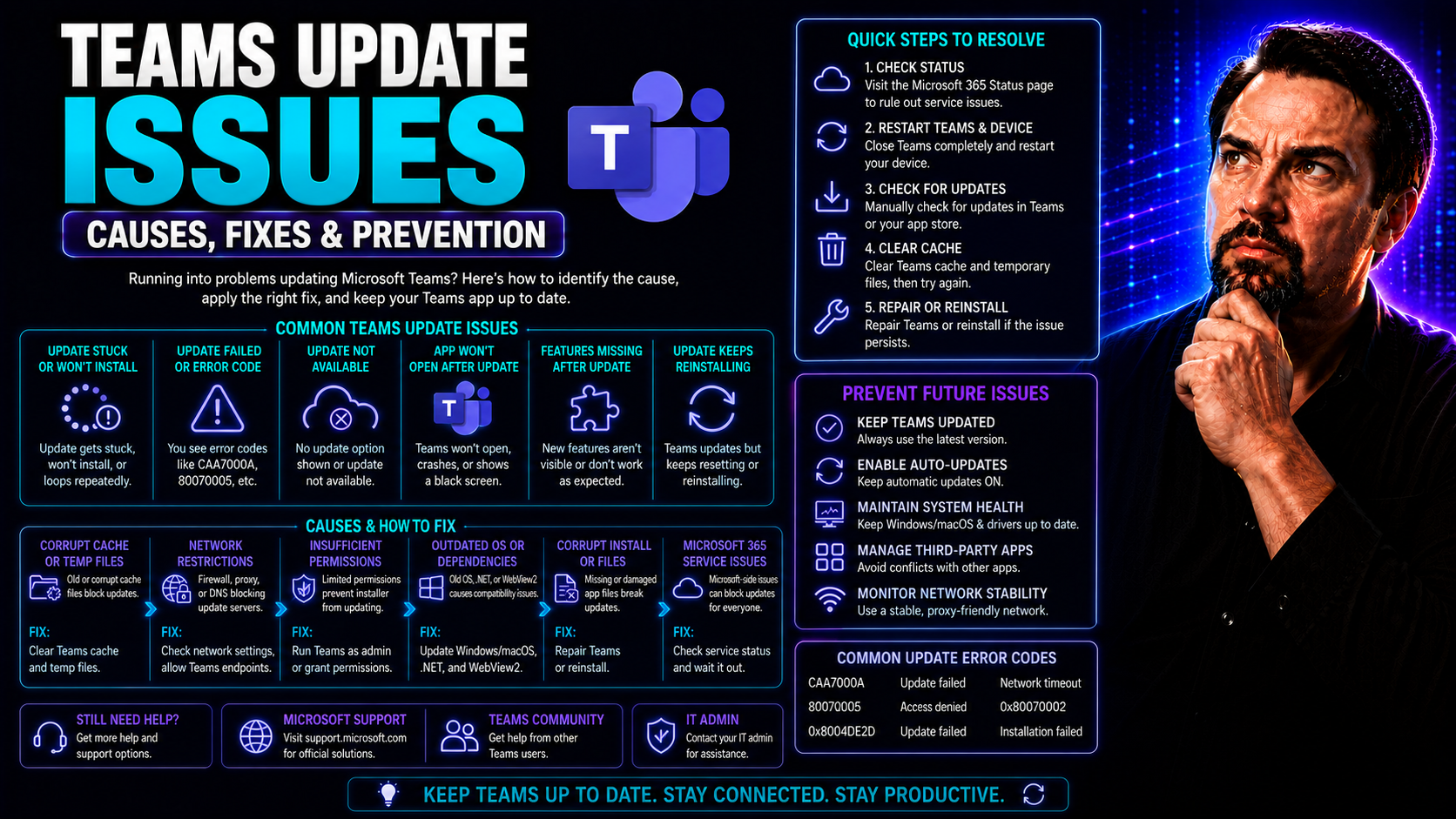
When Microsoft Teams isn’t updating the way it should, daily business comes to a halt. Glitches, update failures, or lagging installs can take out your communication lifeline faster than a summer blackout. Teams relies on smooth, timely updates to keep everyone connected, secure, and using the newest features.
Update problems, whether it’s a broken install or a rollout that never arrives, cause headaches for both IT admins and regular users. Security gets shaky, collaboration slows down, and support requests multiply. Knowing how and why these issues happen is key—whether you’re on the help desk or just trying to join a call on time.
Proactive troubleshooting matters for keeping your people working and your data safe. Staying on top of Teams update reliability belongs hand-in-hand with solid workspace governance. If you want a closer look at how governance strategies tie back into security and smooth collaboration, check out this overview of Teams governance best practices.
How Microsoft Teams Update Issues Are Affecting Users Across Platforms
Update trouble in Microsoft Teams isn’t picky—it hits Windows, Mac, and mobile users just the same. On any device, a failed Teams update means people can’t log in, meetings don’t load, and key features lag behind what everyone else is using. Productivity tanks when you can’t share files, start calls, or use new collaboration tools.
For desktop users, a stubborn update might mean Teams won’t launch at all, or gets stuck in an endless “loading” loop. Mac users see similar delays, sometimes left facing old versions with missing chat features. Mobile users complain about inconsistent notifications, broken sync, or being locked out after an update fizzles mid-way.
The bigger the team or organization, the faster these annoyances turn into real business bottlenecks. It’s not just about one person missing a call—suddenly, a whole department can’t access project channels or share vital files. Frustrations run high, and the IT help desk starts to drown in tickets and “why isn’t my Teams working?” cries for help.
What’s worse, update failures often lead to security vulnerabilities and compliance gaps. Out-of-date clients can’t get critical patches, putting company data at risk. For businesses relying on hybrid or remote work, these update headaches can derail collaboration overnight. That’s why finding and fixing update issues quickly is mission-critical for every company using Teams day-in, day-out.
Troubleshooting Why Teams Installation Fails on Desktop
Let’s face it: seeing Microsoft Teams refuse to install or endlessly hang during an update can be downright maddening, especially on a fresh Windows 11 machine. These headaches don’t just annoy—they block access to your main work hub and sap valuable IT time.
Most Teams desktop issues trace back to a handful of main culprits. Sometimes, caches jam up with old data, or system files go haywire and stall the installation. Other times, software conflicts or tight organizational policies block new updates from ever reaching the client.
If you’re in IT, you’ve probably seen the mess a failed update leaves behind—half-installed apps, strange error messages, or stuck user profiles. Even end users get wind of it fast, as they jump from tab to tab searching for a fix while their chat threads and meetings pass them by.
That’s why it’s important to recognize the checkpoints that matter: making sure Teams is fully closed, checking for any interfering policies, and confirming your system is free from software gremlins that block progress. Working systematically through these steps helps narrow down where things go wrong—and which fixes are worth trying before calling for backup.
Before you dive into clearing caches or launching a full reinstall, knowing why installations fail saves both time and frustration. Whether you’re a regular user or the IT admin on speed dial, understanding the playing field sets you up for smoother troubleshooting ahead.
Clearing Cache and Reinstalling Teams When Updates Fail
- Quit Teams Completely: Make sure Teams is fully closed before starting. Right-click the Teams icon in your system tray (Windows or Mac) and choose “Quit.” Don’t just close the window—if it’s running in the background, updates won’t clear up properly.
- Clear Teams Cache: Navigate to your Teams cache folder. On Windows, that’s usually %appdata%\Microsoft\Teams. Delete all files and folders inside, but don’t worry—this won’t remove chat history stored on the cloud.
- Uninstall Teams: Head to your programs list (Windows: Control Panel > Programs and Features; Mac: drag Microsoft Teams to the Trash). Remove both Microsoft Teams and any related installer programs, if listed.
- Restart Your Device: Give your computer a quick reboot. This helps release any lingering processes or locked files that could trip up a fresh install.
- Download and Reinstall Teams: Visit the official Microsoft Teams site and grab the latest installer. Run it to set up a clean, updated client free of previous failed update leftovers.
For best results, make sure auto-update isn’t blocked by any IT policy. And always restart Teams after clearing the cache to let the fix take effect fully.
What If Updates Do Not Reach the User? Understanding Teams Rollout Delays
Sometimes, Microsoft Teams updates don’t show up for every user the day they’re released. That’s not a glitch—Microsoft actually uses a phased rollout strategy by design. They release new Teams versions in waves, slowly expanding to more users to catch any big issues before everyone gets them. So, don’t sweat it if your neighbor in Accounting shows off a new button you can’t see yet—that’s just how the rollout process works.
Delays can also come from something as simple as caching. Teams apps—whether desktop, mobile, or the web—may hold onto old update data. Corporate proxies or content delivery networks might add another layer, serving up older builds while the latest version waits in line. If the Teams client or the network is stubbornly showing old versions, clearing the local Teams cache or restarting the app sometimes nudges it to fetch the update.
Network policies and organizational settings often play a bigger role than folks realize. IT administrators might have set up Group Policies or Intune configuration profiles that restrict automatic updates, either on purpose or by accident. These controls can block or delay updates as part of broader security or compliance plans. If you’re an IT admin, check for any active policies that might keep updates from reaching your users.
Bottom line—if a user isn’t seeing the latest Teams version, it could be the rollout schedule, caching, or internal IT policies creating the holdup. Review your organization’s update policies and monitor proxies or security tools that could be intercepting updates. Most of the time, a little investigation reveals the reason behind the missing updates.

Microsoft MVP | Host of M365.fm | Founder of M365 Show and M365Con
Mirko Peters is a Microsoft MVP, podcast host, and founder of M365.fm, M365 Show, and M365Con. His work connects Microsoft practitioners through podcast interviews, livestreams, and community events.
At M365.fm, Mirko hosts conversations with Microsoft MVPs, product experts, architects, and community contributors. Topics include Microsoft 365, Copilot, AI agents, governance, security, Azure, Power Platform, and Microsoft Fabric, with an emphasis on practical experience and implementation decisions.
M365.fm is the podcast and learning platform. M365 Show brings experts together for livestreams, while M365Con provides an online conference setting for community learning.
Official website: Mirko Peters (https://www.mirkopeters.com/). Recognition: Mirko Peters — Microsoft MVP profile (https://mvp.microsoft.com/de-DE/mvp/profile/9b0ca797-db5a-493a-a845-8b9158046cf5). Connect on LinkedIn (https://www.linkedin.com/in/m365showpodcast/).




