
Microsoft Teams Channel Structure: Organization and Governance
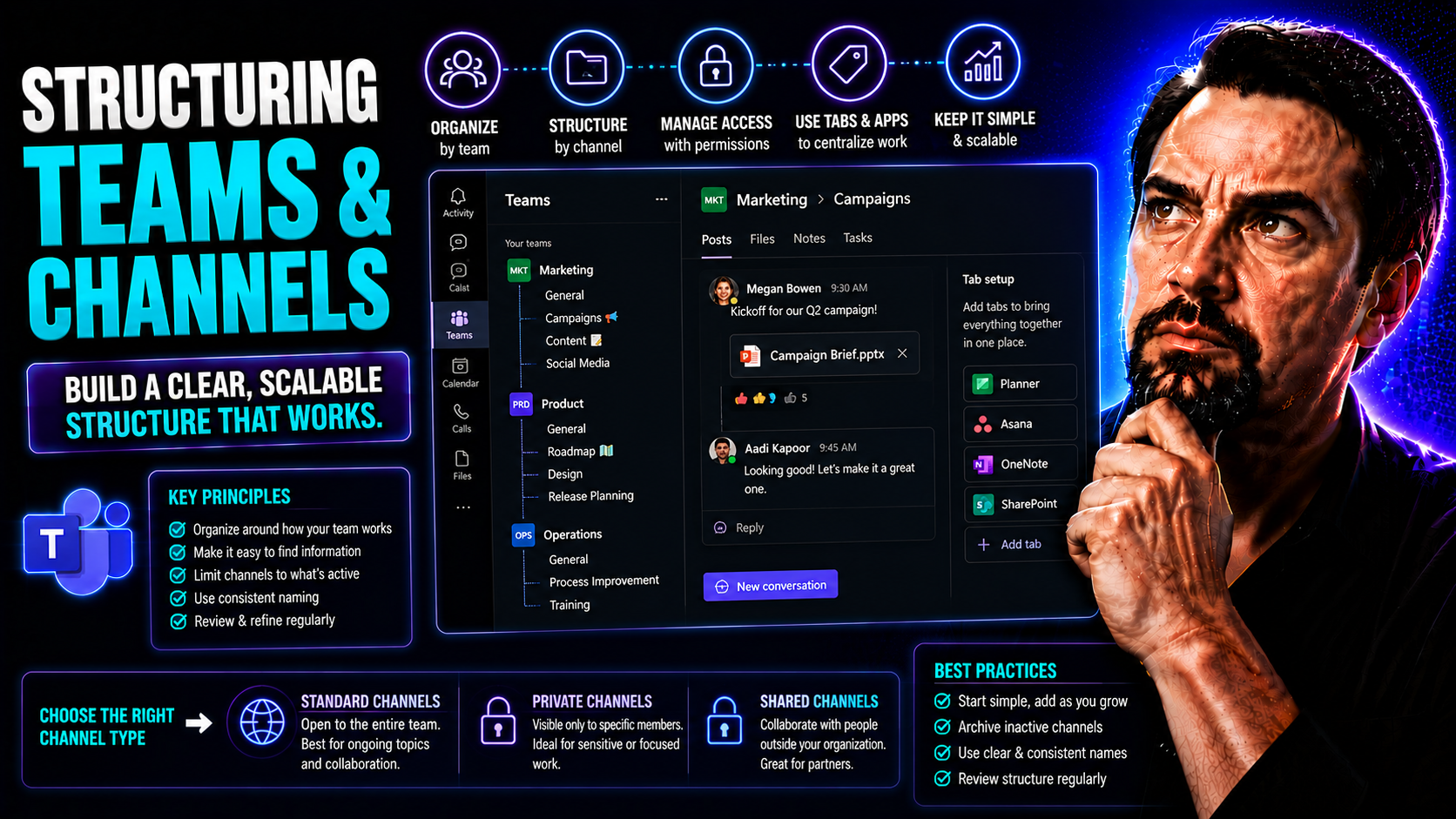
This article is your go-to guide for getting the most out of Microsoft Teams by organizing your workspaces and conversations with clarity. Whether you’re building your Teams setup from scratch or fixing a messy environment, you’ll find practical strategies here for naming, permissions, housekeeping, and governance. Each section digs into a specific part of the process, from how to split up work between Teams and Channels, to applying compliance rules that meet your company’s needs. Ready to create a digital workspace that just makes sense? Let’s get started.
Understanding Teams Versus Channels in Microsoft 365
If you’ve ever wondered why things get so jumbled in Microsoft Teams, it often comes down to not knowing when to create a "Team" versus a "Channel." Teams and channels serve different purposes, and understanding this split is the secret to a clean, effective setup. In Microsoft 365, these choices affect how your data is managed, who can access what, and how your conversations stay organized. Getting these basics right from the start is the difference between a workspace that runs smooth and one that trips over itself as you grow. Now, let’s break down what each piece does so you can make smart choices going forward.
Defining Teams and Channels in Microsoft Teams
Let’s nail down what we mean when we say "Team" and "Channel" in the world of Microsoft 365. A Team is like your department, project group, or committee—it’s the umbrella for people, conversations, files, tasks, and tools that all belong together. Inside each Team, you get to organize everything for a specific business function, whether that’s HR, IT, or your Friday Lunch Bunch.
Within that Team, you’ll find Channels. Channels split up conversations, files, and tabs into focused areas that make it easy to find what’s relevant. Think of Channels as separate rooms within one building. Each Channel is usually dedicated to a topic, project, workflow, or recurring meeting. For example, under the "Sales" Team, you might have channels like "Leads," "Quarterly Reports," or "Competitive Analysis."
The benefit? You avoid messes—no more mixing budget planning with onboarding chat or having project files scattered everywhere. Proper use of Teams and channels means conversations and resources stay right where people expect them. If you want to see more about channel types and naming, check out this guide to Teams channels.
When to Organize Teams by Department or Process
- By Department: Best for organizations that want every group (like Marketing, Finance, or IT) to have their own space with relevant team members, resources, and conversations. Keep it clear, use department names everyone recognizes.
- By Project: Ideal for cross-functional collaboration. Create a Team when the project includes folks from multiple departments, or when it will live for several months or years. For a detailed how-to, see this step-by-step project guide.
- By Process or Workflow: Helpful for recurring company-wide processes—like onboarding or support tickets—where tracking, automation, and streamlined communication are key.
- Cross-Department Initiatives: When departments work together, consider shared Teams or channels to avoid duplicated effort and redundant messages.
- Keep it Manageable: Don’t create a Team for every idea. Map Teams to real-world business groupings and scale up only when there’s real demand.
Designing Effective Channel Structures in Microsoft Teams
Creating an organized Teams environment isn’t rocket science—but it sure feels like chaos fast if you don’t have a plan. This section zeroes in on how to build channels that people can actually navigate. Naming, descriptions, and some thoughtful grouping are the backbone. If you do it right, your channels will still make sense a year from now, even if your team grows or your business pivots. Ready to make your workspace the cleanest on the block? Keep reading for the practical steps.
Best Practices for Channel Naming and Descriptions
- Use Clear, Consistent Naming Conventions: Channel names should be simple, direct, and meaningful to everyone. Pick a naming style (like “project-task” or “dept-topic”) and stick to it. Consistency helps with searching and navigation, especially as Teams grow.
- Add Context with Descriptions: Every channel should have a description that clearly says what belongs there. Use plain language that explains the scope, main audience, and expected activity. Update descriptions when usage changes, so nobody’s left guessing.
- Incorporate Relevant Keywords: Think about what people will search for—projects, fiscal years, customer names, or common business acronyms—and use those in names and descriptions to boost discoverability.
- Keep It Short and Searchable: Long-winded names or insider jargon just make it tougher to find what you need. Err on the side of brevity and standard words your team already uses.
- Review and Refresh Regularly: Channels evolve. Schedule a quarterly or semi-annual sweep to update names and descriptions if projects end or priorities shift. It’s the digital version of cleaning your garage!
- Pro Tip: Add “Archive” or “_Old” to the start of non-active channels before deleting. This flags them for review and prevents accidental loss.
How to Create Standardized Channel Structures
- Use Team Templates: Build Teams from organization-approved templates with pre-set channels, tabs, and apps that mirror your best practices.
- Set a Default Layout: For every new Team, start with a core lineup (like “General,” “Updates,” “Resources,” “Projects”). This helps new hires find their way from day one.
- Mirror What Works: When a channel structure is successful, copy it for other, similar teams. Consistency is key to avoiding confusion.
- Periodically Align Structures: Do a quarterly check to make sure all Teams are using the latest template version or minimum standard layout.
Using 'General' Channels Effectively and Custom Sections
- Keep ‘General’ for Announcements: Use the General channel for organization-wide messages, milestones, or high-level resources. Keep chatty discussions to specific channels.
- Add Custom Sections for Specialty Work: Create new channels for recurring meetings, specific projects, or distinct workflows, so focused topics aren’t lost in the mix.
- Group Tabs for Clarity: Use tabs in each channel to separate files, task lists, and key links. This helps declutter conversations and gives each resource a place to live.
- Avoid Duplicating Files: Each channel’s Files tab should only hold relevant documents for that topic. Structure is half the battle for compliance and quick searches—especially if you’re trying to pick between private and shared channels, as discussed in this deep dive.
How to Organize Files Within Teams Channels
- Adopt Clear Folder Naming: Set up standard folders like "Contracts," "Presentations," or "Meeting Notes" and use them across channels for consistency.
- Stick to File Naming Standards: Files should use clear, date-stamped, and descriptive names (e.g., “2024_Q2-BudgetPlan.xlsx”) to make searching a breeze.
- Set Permissions for Sensitive Documents: Limit who can view or edit files in private channels and set up access controls for confidential material.
- Link Files to Relevant Tabs: Use tabs to pin important resources, like Power BI dashboards or OneNote pages—learn when Teams tabs are best versus SharePoint in this dashboard showdown.
Optimizing Collaboration Through Channel Management
The right channel setup turns Teams from a chat room into a productivity powerhouse. This section gets into the tools and controls that help teams actually get work done—from smart tab setups to granular access rules. Making good channel choices up front keeps your workspace humming and your info safe, giving everyone access to what they need—without the noise or risk of data leaks. Let’s dive in.
Top Tab Ideas and App Integrations for Channels
- Planner or Tasks by Planner: Add a Planner tab for straightforward task management. Assign, monitor, and update tasks directly in the Channel—everyone stays coordinated.
- Power BI: Drop in a Power BI tab to surface KPIs or dashboards, giving managers and frontline teams instant data access for better decisions. For advanced integration and security tips, see meeting extensibility in Teams.
- OneNote or Wiki: Great for shared documentation, meeting notes, or project wikis. Keeps tribal knowledge organized and accessible.
- Third-Party Apps: Connect tools like Trello, Asana, or Jira for project tracking, or Zendesk/ServiceNow for helpdesk requests—all from within the channel tab. Productivity jumps when you avoid context switching.
- Custom Bots and Message Extensions: Automate status checks, knowledge searches, or approvals using Bots and custom message extensions. Learn how to build and secure these for seamless workstreams at this resource.
- Files and Links: Pin shared documents, links, or folders as tabs so critical resources are just a click away, every time.
- Regular Tool Reviews: Every quarter, review which tabs and apps people actually use—remove dead weight and add what’s missing to keep your team efficient.
How to Connect Outlook with Teams Channels
Integrating Outlook with Teams channels pulls email, calendars, and notifications into one streamlined hub. You can email directly to a channel by copying the channel’s email address and forwarding important conversations or documents—perfect for keeping everyone in sync. To sync calendars, connect a shared Outlook calendar as a Teams tab so meetings, events, and invites appear in both places.
When someone sends an email to the channel address, it shows up as a conversation in Teams, keeping team members in the loop and making info easy to find later. Set up automatic rules in Outlook to route critical messages to the right channel, helping reduce missed updates. All together, this integration keeps team communication tighter and prevents crucial info from falling through the cracks.
Channel Access Control, Moderation, and Managing Members
- Assign Channel Roles: Owners control settings and membership, while members can contribute and view content. For sensitive conversations, limit posting to select users or moderators.
- Set Posting and Editing Permissions: Use moderation tools to restrict who can start or reply to conversations. This is useful for announcement-only or external collaboration channels.
- Enable Guest or External Access Wisely: Open certain channels to partners or clients as needed but back it up with detailed guest permissions and periodic audits. For robust governance strategies, see smart Teams governance insights.
- Manage Membership Actively: Add or remove people as projects evolve—don't let ghost users linger, as that’s a risk to security and clarity.
- Educate and Train: Don’t just set rules—teach members how to use Teams channels, update settings, and respect privacy. Smart permissions are only half the battle; the other half is making sure people know how to use them.
- Engage Security Layers: Employ Conditional Access, Purview DLP, and audit controls to prevent data leaks (dive into best practices at this security guide). A combination of smart controls and informed users is your best bet for safe, productive teamwork.
Avoiding The Most Common Mistakes in Teams Structure
Not every Teams setup works out perfectly—trust me, there are plenty of ways to make life harder for yourself and everyone else. This section spotlights the flubs and blunders that turn a sharp Teams workspace into a big ol’ mess. You’ll see real-world lessons on what to steer clear of, and tips for sidestepping disaster caused by neglecting channel rules, ignoring governance, or drowning in notifications. Order and trust don’t appear by magic; you’ve got to build them on purpose.
Top Mistakes That Make Teams Harder to Use
- Too Many Channels or Teams: Creating new channels for every small topic leads to confusion and clutter—users can’t find what matters.
- Inconsistent Naming and No Standards: Skipping conventions for names and descriptions makes searching and onboarding an endless scavenger hunt.
- Ignoring Governance: Without clear rules for access, posting, or archiving, teams drift out of control, risking data loss or noncompliance. Learn how to automate creation and cleanup at this workspace sprawl fix.
- Leaving Old or Unused Channels Active: Dead weight creates more work during search and navigation, and can even leak outdated info.
- Poor Team Member Management: Failing to remove folks who leave or switch roles creates security gaps and slows decision-making.
How to Tame Microsoft Teams Notification Overload
- Customize Notification Settings: Adjust Teams notifications so you only get pinged for the conversations and tags that matter.
- Use @mentions with Discipline: Don’t mention the whole team for minor questions—@ only those who really need to see your message.
- Segment Channels by Purpose: Split general chatter from urgent business, so people don’t tune everything out.
- Leverage Adaptive Cards: For advanced control and interactive alerts, check out these tips on using adaptive cards.
- Train and Reinforce: Make sure new users know how to fine-tune their notifications from day one.
Using Microsoft Loop in Channel Communication
Microsoft Loop is a collaborative tool baked into Teams that turns your channel posts into living, breathing documents. These components—like tables, lists, and checkboxes—update instantly for everyone, everywhere. Use Loop to organize action items, spark brainstorming, or update project trackers right inside a Teams conversation.
Loop shines brightest in fast-moving projects or when multiple teams need to work from a single source of truth. For a deep dive on how Loop breaks down silos and keeps info fresh across different apps, dive into this Loop component guide.
Maintaining and Evolving Your Channel Strategy
Your business moves fast—and your Teams setup should move with it. This section digs into ongoing health checks, cleaning out old junk, and providing structure through rules and training. High-performing digital workspaces aren’t static—they’re tuned up regularly, with channels staying relevant and everyone trained on how to get the most out of the environment. Let’s see how to keep your Teams ecosystem sharp, not stale.
Detecting Inactive Channels and What to Archive or Delete
- Spot the ‘Dead Weight’: Use Teams analytics to check for channels with little or no activity over a set period (e.g., no posts or file uploads for 90 days). Channels with no active owners or recent changes are ideal candidates for review.
- When to Archive: Archive channels that might need to be referenced in the future but don’t require regular access. This locks the content and keeps it out of day-to-day navigation, but preserves it for audit or compliance.
- When to Delete Permanently: Delete channels that are obsolete and carry no compliance or historical value. This frees up storage and streamlines Teams, but be sure to backup any crucial files first.
- Short Steps for Archiving: Right-click the Team, select "Archive", and follow prompts. For single-channel cleanup, move files, notify members, then delete.
- Short Steps for Deletion: Only Team Owners can delete channels. Click on the channel, select “Delete,” and confirm. Data is lost unless exported, so plan ahead.
- Compliance Impact: Know your legal or business retention needs before purging anything. Automated lifecycle governance can help maintain a clean Teams environment—see this in action at lifecycle governance tips.
Channel Rules, User Training, and Collaboration Structure
- Set Clear Rules: Define what goes where, who owns which channel, and who can archive or delete content.
- Invest in Ongoing Training: Offer users regular how-tos so structure stays consistent, even as teams or tools evolve.
- Teach Collaboration Etiquette: Cover tagging, file uploads, and conversation tone. Consistent etiquette boosts productivity.
- Review Structures Periodically: Reinforce training by revisiting structure every few months, updating as needed.
- Governance Builds Trust: Clear rules and training make Teams a tool people trust, not a headache. For more on building reliable structures, see how Teams governance transforms chaos into collaboration.
Frequently Asked Questions about Teams and Channels
If you’re wrestling with Teams or channel setup, you’re not alone. This section addresses the common head-scratchers—like rearranging channels, troubleshooting, or figuring out the best practices for naming and cleanup. You’ll find quick answers, solutions to workflow hiccups, and resources for more in-depth help, so you and your team can work with confidence and speed.
Common Questions and Guidance on Teams Channel Setup
- How do I create a new channel? Click the three dots next to your Team, select “Add channel,” set a name/description, and define its privacy (Standard, Private, or Shared).
- Can I reorder channels? Yes, just drag and drop channels up or down within the Team for better access and navigation.
- How do I archive or delete a channel? Only Team Owners can delete a channel; click the three dots by the channel name and choose “Delete.” To archive a whole Team, use the “Archive team” function—great for compliance and spring cleaning.
- Best way to test new channels? Spin up a test Team, add mock channels, and experiment with naming, permissions, and tabs. Don’t test where live work is happening.
- Troubleshooting tips for channel issues? Refresh Teams, check permissions, verify membership, and ensure no recent changes have affected channel visibility. Consult in-app help or reach out to IT for advanced issues.
- Where to find more best practices? For more on channels, naming, and admin controls, visit this practical Teams channels guide.
Key Takeaways and Summary for Solid Channel Structure
The best Teams workspace is built on clear naming, clean structures, regular tune-ups, and strong alignment with company needs. Start with a thoughtful design, keep things consistent, archive or delete stale content, and make sure everyone knows the rules of the road. A bit of effort now lays the foundation for a Teams environment that grows with your business and stays safe, compliant, and easy to use.
Come back to your structure every few months to keep it fresh. Consistency, clarity, and regular reviews—those are the keys to a solid Teams setup.
Aligning Teams and Channels with Governance and Compliance
Structuring your Teams isn’t just about finding files quicker—it’s also about making sure your environment meets security and legal demands. For businesses in regulated spaces, the design of Teams channels must support compliance, data retention, and audit readiness. This section connects the dots between smart channel architecture and industry standards, offering a guide for organizations that want to go beyond the basics and get serious about compliance, data privacy, and real operational control. Ready to go pro? Keep reading.
Integrating Teams and Channels with Data Compliance Frameworks
- Implement Retention Policies: Set up Teams to auto-retain or purge messages and files as required by laws like GDPR, HIPAA, or SOX.
- Classify Sensitive Content: Use built-in Microsoft 365 tools to tag and monitor sensitive files, keeping regulated data tracked and protected.
- Support for Audits: Maintain detailed audit logs in Teams. These logs help prove compliance, answer legal questions, or reconstruct access history if needed.
- Limit Guest Access for Sensitive Teams: Avoid accidental data sharing by restricting external access in regulated environments.
- Layered Security: Use tools like Conditional Access, Purview DLP, and real-time audits to lock down leaking channels. For advanced hardening, check this Teams security episode.
Role-Based Access and Permission Strategies for Teams
- Role Mapping: Set access to channels based on job roles (e.g., only HR can access salary discussions, while project leads edit project plans).
- Private vs Shared Channels: Use private channels for granular, internal-only convos, and shared for cross-department or partner work. For governance pros and cons, see this private vs shared guide.
- Team Ownership and Approvals: Give each Team at least two owners for redundancy, and require owner approval for guest access or new channel creation.
- Permission Templates: Use templates or policies that enforce who can create, view, or edit content, scaling securely as teams grow.
Measuring the Effectiveness of Your Channel Structure
How do you know if your Teams structure is working? This section shows you how to measure and improve what matters, closing the loop between setup and real-world outcomes. With analytics and feedback, you’ll see what’s thriving—and what needs fixing—so your Teams structure doesn’t just look good, but genuinely powers better collaboration and productivity in your organization.
Key Metrics for Channel Engagement and Clarity
- Participation Rate: Track how many users are active in each channel (posting, reacting, sharing files).
- Message Relevance: Measure how many messages get responses or reactions—dead posts may signal the wrong channel setup.
- File Access Frequency: Count how often important documents are opened or updated to spot the most (and least) useful channels.
- User Retention and Churn: Are users sticking with your Teams structure or drifting to email and other tools?
- Survey-Based Feedback: Use quick polls or forms to ask users what’s working (or not). For advanced data-driven lifecycle cleanup, see this lifecycle governance guide.
Using Viva Insights and Teams Analytics for Channel Feedback
- Leverage Viva Insights: Tap into built-in analytics to spot collaboration bottlenecks, after-hours overload, or low-engagement channels.
- Run Usage Reports: Use Teams analytics to see message volume, file activity, and meeting attendance per channel.
- Monitor with Power BI: Connect Teams data to Power BI dashboards for real-time monitoring and custom KPIs.
- Act on the Data: Update channel structures, archive slow performers, and double-down on what’s thriving—repeat every quarter for continuous improvement.
- Combine Quantitative and Qualitative Insight: Numbers tell part of the story—check sentiment and comments for the full picture. For insights on embedding analytics in workflows, see this analytics integration episode.
You Should Also Listen To
If you are researching Microsoft Teams channel structure, these episodes add practical context on collaboration, architecture, and governance:
- Microsoft Teams Governance – The Illusion of Control — Learn how ownership, lifecycle, and policy choices keep collaboration manageable.
- Teams Telephony – Simply Explained — Understand the communication architecture behind reliable Teams work.
- Azure AI Foundry – Simply Explained — See how modern AI and automation solutions are built and governed.
- Microsoft Defender XDR – Simply Explained — Connect collaboration design with security visibility and response.

Microsoft MVP | Host of M365.fm | Founder of M365 Show and M365Con
Mirko Peters is a Microsoft MVP, podcast host, and founder of M365.fm, M365 Show, and M365Con. His work connects Microsoft practitioners through podcast interviews, livestreams, and community events.
At M365.fm, Mirko hosts conversations with Microsoft MVPs, product experts, architects, and community contributors. Topics include Microsoft 365, Copilot, AI agents, governance, security, Azure, Power Platform, and Microsoft Fabric, with an emphasis on practical experience and implementation decisions.
M365.fm is the podcast and learning platform. M365 Show brings experts together for livestreams, while M365Con provides an online conference setting for community learning.
Official website: Mirko Peters (https://www.mirkopeters.com/). Recognition: Mirko Peters — Microsoft MVP profile (https://mvp.microsoft.com/de-DE/mvp/profile/9b0ca797-db5a-493a-a845-8b9158046cf5). Connect on LinkedIn (https://www.linkedin.com/in/m365showpodcast/).





