
Tabs in Teams Explained: The Ultimate Guide to Smarter Collaboration
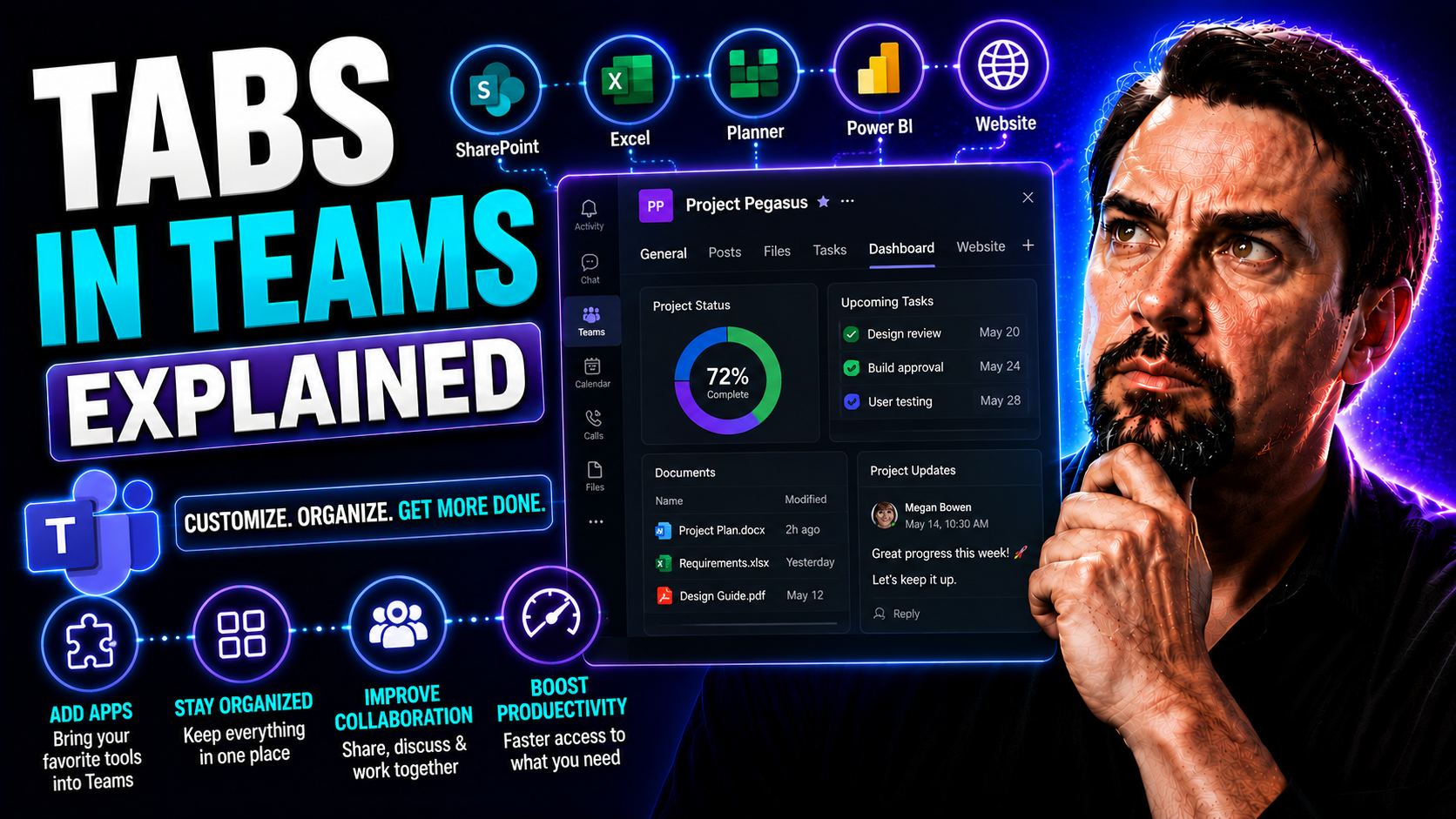
Tabs in Microsoft Teams are your shortcut to a cleaner, smarter, and more organized way to work with your team. This guide breaks down everything about tabs—from what they are and why they matter, to how you can add, use, and customize them for every project and workflow you can imagine. If you’ve ever struggled to keep your files, apps, or tools straight in Microsoft Teams, tabs are about to make your life much easier.
Inside, you’ll find practical steps for setting up tabs, managing them to avoid clutter, and making them truly work for your unique needs. Whether you’re leading your team or just want things to run smoother, this guide is made for both IT admins and everyday users. Let’s clear up the confusion around tabs in Teams and help your organization unlock real teamwork superpowers.
Why Tabs Are Useful in Microsoft Teams for Simpler Collaboration
Tabs in Microsoft Teams are more than just quick links—they’re the backbone of a well-organized digital workspace. Every channel in Teams gets its own set of tabs, giving you instant access to files, conversations, tools, and apps that matter most to your team. The result? Less time hunting around for information and less confusion for everyone.
By centralizing everything from project notes to live dashboards and task lists, tabs allow team members to get what they need in a click or two. Need to review the latest document, update a shared Planner board, or launch a Power BI report? With tabs, all it takes is switching views inside your channel—not opening up a dozen browsers or hunting down that one lost file.
This streamlined setup boosts productivity and cuts back on distractions. You’re not jumping between apps, windows, or long folder trails. Whether you’re coordinating across time zones or just keeping your Monday meetings on track, tabs simplify the process, ensuring that everyone stays on the same page.
For organizations, tabs are critical for collaboration not just because they’re convenient, but because they help you build a central hub where everything important is visible and organized. When you use tabs right, you’re making teamwork easier for everybody—saving time, reducing headaches, and actually getting more done with less noise.
How Tabs Fit Into Channels and Teams for Better Workflow
In Microsoft Teams, tabs live at the top of every channel, creating a direct link between your conversations and your tools. Each channel acts like a mini project space—think of it as a digital room for specific topics, departments, or groups—while tabs inside those channels let you tailor the workspace further.
That means every channel can have its own set of relevant tabs, whether it’s dedicated to a client, a project plan, or just day-to-day updates. This setup streamlines your workflow, as switching between projects and tools is as simple as switching between tabs, all within the Teams window. By combining channels and tabs, Teams transforms complex work into an intuitive, easy-to-navigate experience.
Looking for ways to make your Teams workspace even more organized and secure? This governance guide shows how clear structures and roles in Teams, powered by tabs, can boost trust, reduce mistakes, and keep your digital office running smoothly.
Adding Tabs, Apps, and Websites to Channels in Microsoft Teams
Setting up tabs inside your Teams channels is like putting the exact tools you need right at your fingertips. It’s not just about pinning a single document or app—it’s about customizing each channel with links to every file, web tool, or business app your team relies on. Adding tabs can turn any plain old channel into a tailored digital hub, cutting down on constant app-switching and digital clutter.
The real magic happens with the “+” button, which lets you add everything from Microsoft 365 apps, to third-party services, to specific web pages. This makes your workflow smoother: project dashboards, shared calendars, or even external sites become one-click accessible, all inside Teams. By grouping important tools and resources into tabs, you reduce friction, speed up processes, and make collaboration a breeze for everyone on the team.
Coming up next, you’ll find detailed steps on how to add and configure tabs. Plus, you’ll discover how to use the Files tab to keep documents and folders right where you need them. Together, these tricks put you in control, so you can build a Teams space that fits your work routine—no tech wizardry required.
How to Add and Configure Tabs in a Channel
- Open your Teams channel: Open the Microsoft Teams app and pick the team and specific channel where you want your new tab to live. You’ll find all your channels listed on the left sidebar.
- Click the “+” (plus) sign at the top: At the very top of your channel, you’ll see a row of tabs. Click the “+” icon to start the process of adding anything new—apps, files, websites, and more.
- Pick your app or resource: A pop-up menu will appear showing all the apps and integrations you can add. You can search for Microsoft apps like Word, Excel, Planner, or OneNote, or browse handy third-party tools, or pick “Website” to add a custom URL.
- Configure initial settings: After selecting an app, you’ll often see a setup screen. For apps, you might need to choose a specific file, board, or dashboard to display. For a website, paste in the full web address you want easy access to.
- Set permissions (if needed): Some tabs let you restrict who can see or edit the linked content. Carefully check user roles and permissions, especially for sensitive docs or dashboards. Only team owners and certain members may be able to add or change tabs, depending on your organization’s settings.
- Save and finish: When you’re happy with your setup, click “Save” or “Add.” Your new tab appears up top, instantly available to everyone in the channel. If you need to change things later, right-click on the tab for options to rename, remove, or adjust settings.
Remember, the power of Teams tabs is how they collect all your essentials—files, apps, and info—right where the conversation happens. Whether you’re leading a team or just want things easier to find, adding and configuring tabs can help you get there fast.
Using the Files Tab and Organizing Files Efficiently
- Centralize documents: The Files tab puts all shared files in one spot, tied directly to your channel. No need to dig through folders or chase email attachments.
- Pin important folders: Want even quicker access? Turn a specific SharePoint folder or file into its own tab, so your team isn’t clicking through layers every time.
- Easy organization: Sort, pin, and categorize files inside your tab for quick navigation. This is extra handy for busy projects or teams that handle a lot of documents.
- Share and collaborate in real time: Open files right from the tab, work on them together, and see changes instantly—with automatic syncing to SharePoint for backup and compliance.
- Integrate dashboards and live data: Learn which scenarios make Teams tabs versus SharePoint pages the best home for your dashboards in this Teams vs SharePoint dashboard showdown.
Customizing and Renaming Tabs to Optimize Screen Real Estate
Getting the most out of tabs in Microsoft Teams isn’t just about adding a ton of them—it’s about making your digital workspace easier to use and less cluttered. That’s where customizing, renaming, and reorganizing tabs comes in. When you line up your tabs in a way that mirrors how your team works best, you save everyone time and headaches.
By giving each tab a descriptive name, shuffling them into the right order, or even hiding the ones you rarely use, you keep the most important tools one click away. This makes your screen feel tidier and speeds up navigation. A well-organized set of tabs means less distraction and less searching—just the info and apps you actually rely on, ready to go.
Up next, we’ll cover practical strategies for handling lots of tabs without overloading your eyes or your attention span. Sometimes a simple changes—like pinning your most used tab or tucking away the rest—can transform the way your team works together in Microsoft Teams.
Strategies for Managing Multiple Tabs Without Clutter
- Pin your go-to tabs: Keep your team’s most-used tabs visible at all times by pinning them to the front. This puts daily essentials right where anyone can find them, no digging required.
- Hide less-used tabs: If some tabs are only needed now and then, hide them from default view. This de-clutters your channel and reduces screen fatigue for everyone.
- Logical ordering: Arrange tabs so they follow your team’s workflow. For example, put dashboards, task lists, and calendars right up front, with reference material or archives trailing behind.
- Use clear names: Rename tabs with straightforward labels. “Onboarding Docs,” “Sprint Plan,” or “Sales Dashboard” means less confusion than just “File” or “Website.”
- Review regularly: Every so often, prune tabs you no longer need and reorganize based on new priorities. Keeping things fresh means your team won’t get overwhelmed down the road.
Building Custom Teams Tabs and Integrating Microsoft 365 Apps
For IT admins and developers, Microsoft Teams tabs are wide open for customization. By building custom tabs, you can bring all sorts of data and dashboards straight into the Teams window, pulling from Outlook, SharePoint, the Microsoft 365 suite, and beyond. This turns Teams from just a chat tool into your main business command center.
Creating custom tabs typically involves writing an “app manifest” that defines how your tab works and what data it displays. Once your tab is ready, you can deploy it across multiple teams and channels—so everyone has seamless access to the same tools and info. Developers often build tabs that dive deep into business processes, automate tasks, or bring dashboards right where decisions happen.
Built-in integrations for apps like Planner, Lists, or Power BI can easily be added as tabs and configured with no coding. But if your organization needs something more specific—like pulling data from external databases, surfacing custom forms, or launching proprietary apps—it’s possible with custom development and Microsoft 365 APIs. Curious how to boost productivity even more? You’ll want to look at message extensions, which are a hidden gem for keeping your whole workflow inside Teams. Learn more about that with this Teams productivity guide.
Whether you’re tailoring Teams for project management, compliance tracking, or real-time reporting, integrating custom tabs ensures everyone works from the same source of truth—minimizing errors and keeping projects moving forward.
Best Practices and Real-World Use Cases for Teams Tabs
Tabs aren’t just about pinning a few files—they’re the secret weapon for streamlining team projects and supporting all sorts of business workflows in Microsoft Teams. Organizations use tabs for everything from sprint planning to tracking client onboarding or running complex events. When you match your tabs to how your team actually works, you cut down on digital clutter and make collaboration click.
One popular use case: organizing a project channel with tabs for tasks (Planner), live KPIs (Power BI dashboard), project documentation (Files), and team meetings (Calendar link). This gives everyone a shared hub, tailored to the project’s needs, where nothing critical gets lost in the shuffle.
Real-world best practices focus on clarity—naming tabs by their function and only including the most useful ones. Teams that do this benefit from faster onboarding, fewer mistakes, and less time spent searching or asking “where’s that file?” For more inspiration, see this practical guide to project management with Teams on integrating Planner, SharePoint, and Power Automate for truly efficient teamwork.
Personalizing each channel’s tabs ensures your team isn’t overwhelmed, and using automation to update dashboards or archive outdated tabs can further boost productivity. Review your setup regularly so channels stay relevant as projects shift—because nothing says efficiency like a digital workspace where everything has its place.
Tab Security, Access Permissions, and Governance in Microsoft Teams
- Control who can change tabs: Only team owners, not regular members or guests, can add, remove, or reconfigure tabs by default—reducing accidental edits or unwanted apps in sensitive channels.
- Manage tab access by role: Use Teams admin settings to control which members have permission to view or edit given tabs, keeping confidential files or dashboards out of the wrong hands.
- Protect sensitive data in tabs: Secure tabs by using Microsoft sensitivity labels and Conditional Access policies to prevent leaks or unauthorized sharing—an essential step for compliance-driven organizations.
- Monitor tab activity: Audit logs let admins track who accessed, edited, or removed tabs, so you always have a record for security reviews or regulatory needs.
- Formalize tab governance: To prevent messy, chaotic Teams workspaces, set clear guardrails with strong governance frameworks. For more details, see these Teams security best practices and learn about data protection and compliance with Teams governance.
Conclusion, Key Takeaways, and Next Steps for Mastering Tabs in Teams
Tabs transform Microsoft Teams from just another chat app into a powerful digital workspace. By adding and organizing tabs, you centralize files, tools, and key information, improve clarity, and make your channels work harder for your business needs. The best setups keep things tidy, restrict sensitive info to the right roles, and evolve as your projects and teams change.
Now you know how to set up, customize, and secure tabs to boost collaboration and cut out digital chaos. If you want to push your deployment further, check out resources on Teams governance and security—like this guide to transforming collaboration with strong Teams governance. Keep your Teams installation fresh, collect feedback from your users, and watch for new features that can make your tabs even smarter.

Microsoft MVP | Host of M365.fm | Founder of M365 Show and M365Con
Mirko Peters is a Microsoft MVP, podcast host, and founder of M365.fm, M365 Show, and M365Con. His work connects Microsoft practitioners through podcast interviews, livestreams, and community events.
At M365.fm, Mirko hosts conversations with Microsoft MVPs, product experts, architects, and community contributors. Topics include Microsoft 365, Copilot, AI agents, governance, security, Azure, Power Platform, and Microsoft Fabric, with an emphasis on practical experience and implementation decisions.
M365.fm is the podcast and learning platform. M365 Show brings experts together for livestreams, while M365Con provides an online conference setting for community learning.
Official website: Mirko Peters (https://www.mirkopeters.com/). Recognition: Mirko Peters — Microsoft MVP profile (https://mvp.microsoft.com/de-DE/mvp/profile/9b0ca797-db5a-493a-a845-8b9158046cf5). Connect on LinkedIn (https://www.linkedin.com/in/m365showpodcast/).




