
Teams AI Integrations: The Complete Guide to Smarter Collaboration
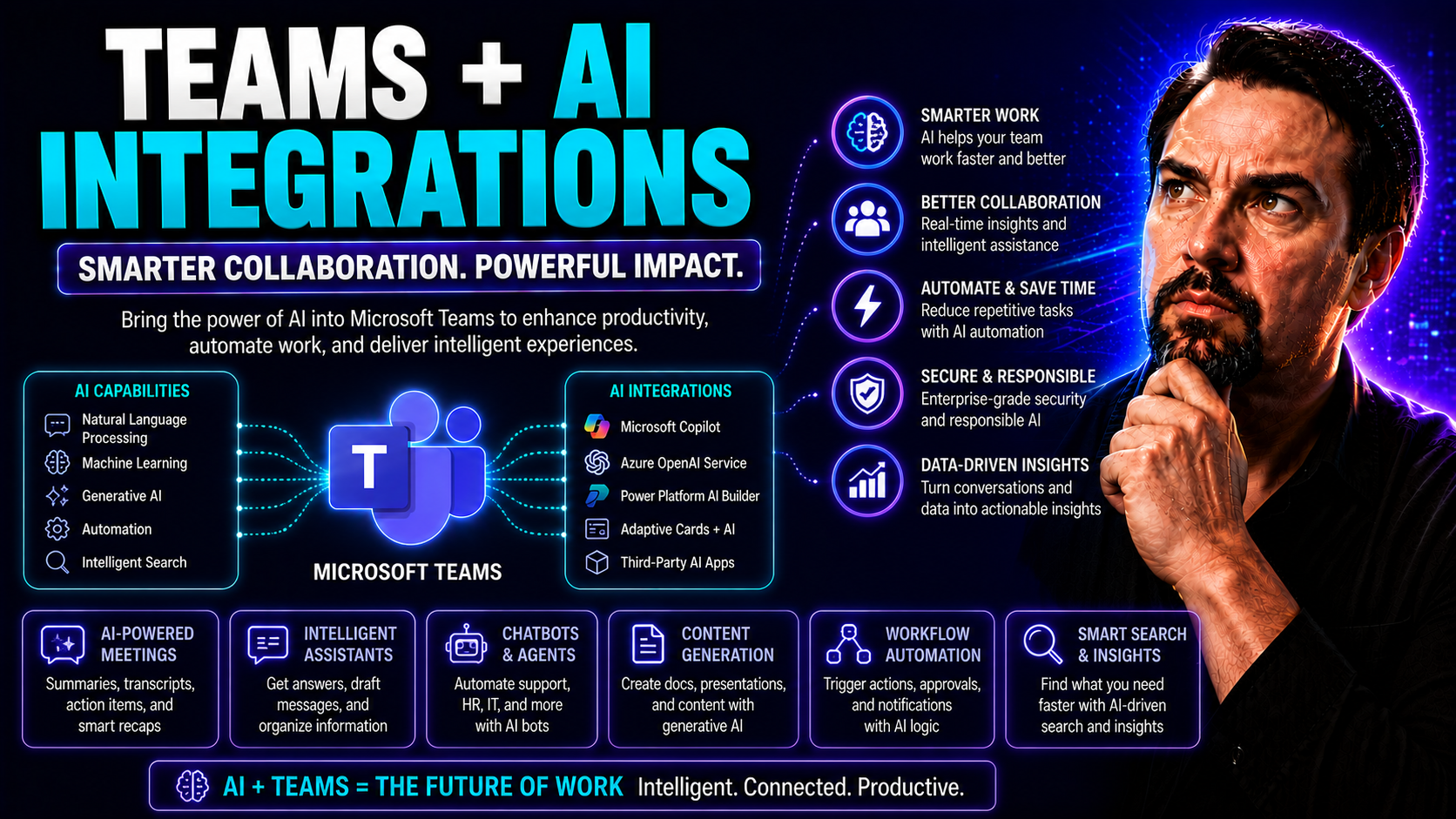
AI integrations are rapidly reshaping collaboration and productivity in Microsoft Teams. They’re more than just chatbots—these smart tools automate tasks, summarize meetings, connect workflows, and secure data flows across the Microsoft 365 ecosystem. With AI agents, meeting assistants, CRM integrations, and performance analytics, your organization can streamline everything from decision-making to governance.
This guide is your one-stop resource for understanding, deploying, and managing Teams AI integrations. Whether you need to evaluate different platforms, ensure airtight privacy controls, or drive new levels of efficiency for your business users, you’ll get practical insights tailored for both strategic planning and daily operations. Now, let’s break down how all of this comes together in Microsoft Teams.
AI Agents in Microsoft Teams: Unlocking Workplace Productivity
AI agents have become the “right-hand helpers” in modern Microsoft Teams environments. They bridge the gap between routine work and real business impact by automating tasks, managing information, and providing context-aware assistance right where your teams collaborate. These agents tap into Teams chats, meetings, documents, and other Microsoft 365 apps to deliver relevant insights and automation that help everyone work smarter, not harder.
What truly sets Teams AI agents apart is their ability to understand natural language, operate with your enterprise context, and stay tightly integrated with critical business systems. Whether they’re recapping meetings, flagging action items, pulling in sales data, or automating approvals, AI agents accelerate outcomes for both frontline workers and decision-makers. And with secure deployment options and deep compliance controls, they’re not just a “nice to have,” but a must-have for organizations embracing digital transformation.
In this section, we’ll define what these agents actually are, highlight must-know features, and explore the leading platforms that bring this technology to life in Microsoft Teams. We’ll set you up to make sharp choices for your organization’s collaboration future. For real-world examples and deployment tips, you can dive deeper into resources like Copilot in Microsoft Teams or explore how Copilot orchestrates meetings, chats, and workflows across Microsoft 365.
What Are Microsoft Teams AI Agents and Their Core Features
Microsoft Teams AI agents are intelligent software bots or digital assistants designed to automate, assist, and manage collaborative workflows directly within Teams. These agents are built to work seamlessly with Microsoft 365 data, chat histories, meeting content, and app connections to support both basic and advanced enterprise functions.
Core features of Teams AI agents include natural language understanding, allowing users to interact with them in everyday speech. They can summarize meetings, identify action items and next steps, answer context-specific questions, and trigger workflow automations straight from Teams channels or calls. Agents can analyze chat threads, manage calendar invites, and connect with tools like Outlook, SharePoint, or third-party CRMs—all while operating in accordance with your organization’s permission structure.
It’s important to distinguish between Microsoft-native agents, such as Copilot or built-in Teams bots, and third-party options developed by external vendors. Native agents offer deep, context-aware integration across the Microsoft ecosystem, usually with stricter compliance and security protocols. Third-party bots, often specialized for unique tasks or industries, may integrate with other external systems but require closer attention to data sharing and governance.
Enterprises choose Teams AI agents to boost productivity, automate repetitive communications, enhance meeting effectiveness, and fortify security management. For setup and deployment logistics, check out how to enable Microsoft Copilot in Microsoft 365 and guidance on maximizing security during rollout.
Top Enterprise-Focused Platforms for Microsoft Teams Integration
- Microsoft Copilot: This native solution is tightly wound into the fabric of Microsoft Teams and the greater 365 suite. Copilot offers AI-driven meeting summaries, contextual Q&A, task automation, and deep data integrations—always operating with enterprise-level compliance, identity controls, and secured access. To get the most from Copilot, see best prompts for Microsoft Copilot and the Copilot licensing explainer for compliance and plan details.
- Copilot Studio and Power Platform: Microsoft’s low-code development frameworks let organizations build custom bots, automate workflows, and link enterprise data sources. Ideal for companies with unique business processes or compliance requirements, these platforms support advanced governance, scalability, and robust audit trails.
- Third-Party AI Integration Platforms (e.g., AvePoint, Moveworks): These tools specialize in automating HR, IT helpdesk, and workflow tasks across Teams, often integrating with non-Microsoft apps. Enterprise-focused offerings prioritize security, global data residency, and regulatory alignment with Microsoft 365 compatibility.
- Zapier, Salesforce, and ServiceNow AI Integrations: For organizations deeply reliant on third-party CRMs or automation platforms, these integrations sync customer data, automate follow-ups, and ensure process continuity within Teams. Vendors deliver connector templates and compliance controls for enterprise needs.
When choosing a platform, weigh compliance certifications, ease of integration, and the support for Microsoft’s evolving APIs. Enterprise-grade solutions focus on scalable deployment, sophisticated permission models, and seamless productivity gains—all needed for digital workplace success.
How Microsoft-Native and Third-Party Integration Platforms Compare
- Microsoft-Native Platforms: Offer best-in-class integration, security, and compliance. Agents like Copilot use Microsoft Graph and respect tenant boundaries—ideal for regulated industries. See how they supercharge automation and extensibility with custom apps and extenders.
- Third-Party Platforms: Deliver flexibility, unique feature sets, and connections to tools outside the Microsoft ecosystem. They often require more configuration for data residency and compliance.
- Hybrid Solutions: Mix Microsoft-native agents with specialist bots. Integration through connectors, like those described in Copilot Connectors, enables custom workflows, giving IT leaders the best of both worlds.
Ultimately, the choice depends on your enterprise’s tech stack, security needs, and the depth of workflow integration required.
Seamless Integration and Deployment of AI Tools in Teams
Deploying AI tools into Microsoft Teams isn’t just about adding another app to your stack—it’s about engineering seamless, reliable connections between your collaboration environment and the intelligence driving automation and insights. Technical decision-makers need to understand how these integrations work, how data flows, and what controls to set for secure, compliant use at scale.
This section will explore how AI-powered bots, connectors, and apps sync with Teams channels and meetings, what enterprise architecture looks like under the hood, and what pitfalls can derail a deployment. You’ll get foundational knowledge to help your project start strong—from environment readiness to adoption strategies and practical rollout playbooks.
Whether you’re bringing in Microsoft-native tools or orchestrating a mix of internal and third-party bots, the focus stays on secure connectivity, streamlined training, and ongoing measurement. If you’re ready to take Teams beyond chat and file sharing, you’re in the right place. For deeper dives into custom app deployment and security models, the Teams App Studio guide and the Microsoft Copilot deployment guide offer in-depth practical advice.
Understanding Integration Architecture Data Flow for Teams AI
The underlying data flow for Teams AI integrations is designed to ensure real-time, secure access to organizational information while maintaining compliance. Bots connect to Teams channels, meetings, and shared workspaces either as native Microsoft apps or through approved connectors. These agents access chat transcripts, meeting recordings, files, and action items, using Microsoft Graph APIs or third-party integration endpoints.
When an AI agent analyzes a meeting, it receives the audio, video, or transcript data, processes it (typically on secured cloud services), and returns structured summaries, tasks, or suggested replies. The data flow could involve one-way communication (where Teams sends context to the AI) or bidirectional pipes (where AI updates calendars, CRMs, or knowledge bases). For secure deployments, architecture may include Azure, Microsoft Graph, and enforced boundaries to prevent data from leaking between tenants or regions.
Security measures, such as OAuth, role-based access, and encryption in transit, are fundamental. All data transmission is logged and auditable for compliance. Integrations with external systems—like CRM or HR tools—demand clear data mapping, with organizations responsible for defining which fields are shared and when. For a technical deep dive into Copilot’s integration architecture, explore Microsoft Copilot architecture and Copilot data flow to see security practices and governance in action.
Understanding this architecture helps IT leads plan scalable, robust deployments where enterprise data remains protected—and the right information flows precisely where it’s needed for productivity.
Best Implementation Practices and Integration Deployment Strategies
- Phased Rollouts: Start with pilot projects targeting select teams or business units. Gather early feedback to tailor deployment for broader adoption. This minimizes risk and identifies integration gaps before full rollout.
- Readiness Assessments: Assess infrastructure, data quality, licensing, and employee skill levels before installing new AI tools. Use pre-deployment checklists, as outlined in the Copilot deployment guide, to ensure environment readiness for seamless onboarding.
- User Segmentation and Change Management: Map out different user profiles and tailor training materials or feature releases based on roles and adoption needs. Identify “champions” who can mentor others and support change management, especially when introducing disruptive tech.
- Sandbox and Security Testing: Test integrations in isolated environments, conduct security reviews, and validate workflow automations with mock data. Ensure role-based access and permission control are strictly enforced at all touchpoints.
- Continuous Feedback and Iteration: Use built-in analytics and user surveys to measure adoption and ROI. Incorporate feedback cycles for ongoing improvement and troubleshooting, as described in why most Copilot rollouts fail.
Measuring outcomes, offering step-by-step training, and embracing stakeholder input will dramatically raise your odds of a successful deployment, driving both technical fit and user enthusiasm.
Driving Training, Adoption, and Measuring Success in Teams AI Projects
- Champion Programs: Identify influential users to act as early adopters and peer mentors, spreading AI know-how across the org.
- Onboarding Assets: Develop tutorial videos, documentation, and FAQs to guide users through common AI agent use cases and troubleshooting.
- Ongoing Support: Maintain a helpdesk or IT support structure dedicated to AI integration issues and questions for smooth user transitions.
- Measure Engagement and ROI: Leverage built-in analytics and custom dashboards to track activation rates, feature usage, and productivity gains. For practical KPI tips, check out Outlook Copilot productivity tips and Copilot efficiency ROI analysis.
Supporting users with clear guidance and proactive measurement is the fastest way to drive sustained success in any Teams AI project.
AI Meeting Assistants in Teams: From Summaries to CRM Sync
When meetings rule your calendar, AI meeting assistants in Microsoft Teams promise to give you hours back. These smart helpers can automate everything from detailed meeting summaries to action item tracking, so you never have to dig through an endless transcript or scramble to jot down next steps again.
AI-powered meeting assistants listen in, categorize conversation topics, highlight who said what, and create shareable, structured recaps. But the magic doesn’t stop with notes—they also link meeting outcomes to your CRM and sync follow-ups to your calendar, eliminating copy-paste fatigue for sales and project teams.
This section sets the stage for understanding how these assistants capture every important detail and distribute it where your business needs it most. For real-world integration stories, you can read about M365 Copilot’s orchestration of meetings and workflows and explore practical examples in Copilot in Microsoft Teams.
Automated Meeting Summaries and Action Item Tracking in Teams
- Structured Summaries from Messy Conversations: AI meeting assistants capture the highlights of your Teams meetings and transform scattered dialogue into clear, organized summaries. Instead of scrolling through endless transcripts, users get bite-sized “who, what, when” recaps focused on key points and decisions.
- Action Item and Task Extraction: These tools are trained to spot phrases like “let’s follow up,” “send the file,” or “update the report.” Action items are automatically assigned as tasks or reminders within Teams or Outlook, ensuring nothing falls through the cracks.
- Speaker Attribution and Content Categorization: The AI labels speakers by name and divides content into discussion topics, decisions made, and next steps. This makes project management and leadership handoffs seamless—everyone knows who said what and what needs doing.
- No More Rereading Transcripts: Smart search and Q&A features allow users to ask questions of the meeting record, instantly surfacing answers or segments without manual hunting.
- Compliance and Security Built-In: Enterprise-grade AI meeting assistants like Microsoft Copilot protect data and maintain compliance boundaries, as outlined in Copilot for IT Admins and meeting orchestration guides.
Teams using these AI helpers can act faster, make decisions with confidence, and cut the busywork—all while staying secure and compliant.
How to Push Teams Meeting Notes to CRM and Calendar Without Copy-Pasting
AI-powered integrations now push meeting notes, action items, and key outcomes directly into CRMs like Salesforce or Dynamics 365—and update your Outlook or Teams calendars in a snap. There’s no tedious copy-pasting or risk of human error. These workflows leverage Teams APIs, Power Automate, or purpose-built connectors to recognize client calls, tag notes, and automate follow-ups instantly.
For Teams environments tightly integrated with sales and service operations, meeting details can trigger workflow automations, file attachments, or project management updates in real time. See how integrating Dynamics 365 Sales into Microsoft Teams not only cleans up sales process chaos but also locks down governance and security best practices.
User Experience, Privacy, and Managing AI Bots in Teams
AI bots can bring immense value to Teams—but let’s be honest, nobody wants nosy or intrusive bots showing up uninvited at confidential meetings. Balancing easy access to AI assistants with robust privacy controls is essential for building trust and ensuring data stays secure. After all, not every bot needs to be at every table, and spammy automation can turn users off AI completely.
This section explores strategies for managing bot permissions, setting boundaries for internal and external meetings, and preserving a smooth, non-disruptive experience for all users. You’ll uncover best practices to keep AI helpful—not annoying—while meeting your organization’s security and compliance standards.
If you want to get in the weeds on governance and privacy frameworks, check out detailed guides on Copilot governance strategy, data privacy best practices, and Copilot’s approach to privacy and data boundaries.
Controlling AI Bots in Confidential and External Microsoft Teams Meetings
- Bot Access Risks and Private Channels: Allowing bots into all meetings poses real risks—especially for sensitive topics or external calls. Always use Teams’ private channels or set strict permissions to restrict bot participation, as highlighted in private vs. shared channels.
- Manual Host Controls: Enable meeting hosts or admins to manually permit or deny bots from joining sessions. This prevents unintentional “crashing” of confidential meetings and gives control back to the people running the show.
- Bot Impersonation and Identity Verification: Require bots to clearly identify themselves (never pretending to be a person) and enforce role-based access so only authorized bots can generate meeting content, summaries, or transcripts.
- External Collaborator Boundaries: Limit which bots are allowed in meetings with guests or partners outside your organization. Review and enforce app consent and third-party integration permissions regularly.
- Balance Productivity and Security: Create clear guidelines for when bots can be used, ensuring only trusted assistants handle meeting data and respecting privacy without blocking productivity gains.
Following these steps, your organization can enjoy the benefits of AI without worrying about who’s snooping at the digital door.
Balancing Seamless Integration and Secure Assistant Use in Teams
Seamless AI deployment means assistants should feel like a natural extension of Teams—there when needed, non-intrusive when not. Give users visibility and control over when assistants join, manage permission prompts thoughtfully, and avoid bots that disrupt the meeting flow or act spammy.
Organizations should implement strong governance and adaptive policies to protect sensitive data, even as AI assistants automate more business processes. For a balanced perspective on productivity versus security, the Risks of Microsoft Copilot in Enterprises breaks down practical tips and challenges of scaling secure AI in busy Teams environments.
Expanding AI Ecosystem Connectivity Beyond Microsoft Teams
Modern workplaces don’t just run on Microsoft Teams—they rely on data and workflows spanning SharePoint, OneDrive, Notion, Slack, and beyond. The latest generation of Teams AI agents can bridge these silos, connecting events, messages, and knowledge so your teams work as one, no matter which app they prefer.
This section highlights the power of expanding Teams AI connectivity across your digital ecosystem. With the right integrations, you can unify knowledge management, automate processes across business apps, and cut down on duplicate effort. Whether embedding sales reports from Power BI, sharing Loop components across CRM tools, or syncing Slack and Teams conversations, AI now orchestrates it all.
If you want to see how embedded data and unified dashboards help, the guides on Microsoft Loop components and Teams vs. SharePoint dashboards reveal best practices for streamlined, cross-platform collaboration.
Connecting Microsoft Teams AI Agents Across the Workplace Ecosystem
- Teams + SharePoint and OneDrive: AI agents link documents, meeting aids, and automations between Teams and SharePoint sites or OneDrive folders. You can auto-capture project files from Teams and surface them in knowledge repositories, making content instantly available wherever the team works.
- Teams and Microsoft Loop Components: Loop acts as the connective tissue—these embeddable, live-updating elements bring calendars, checklists, and task lists to both Teams and third-party apps, ensuring everyone stays in sync. See how Loop components connect your apps for eliminating data silos and syncing content in real time.
- Cross-Platform Integration (Slack, Notion, CRM): Modern Teams AI agents now support multi-platform automation. Sync conversations between Teams and Slack, push decisions to Notion pages, or automate sales updates into Dynamics or Salesforce using certified connectors.
- Unified Automation and Notifications: Set up AI workflows that send reminders, approvals, or project updates across systems, so that Teams announcements trigger Slack alerts, CRM follow-ups, or even Power BI dashboard refreshes.
- Compliance and Governance: All this integration is governed by your Microsoft 365 and third-party app policies. Role-based access, permissions, and audit logs keep data secure even as agents orchestrate information across your digital landscape.
Choose integration pathways that solve business pain points—be it siloed data, missed tasks, or context switching—and let AI handle the heavy lifting of keeping everyone connected and informed.
Knowledge Management and Security for Automated Messaging and Channels
AI streamlines knowledge management by automatically capturing, indexing, and securing everything from Teams chat threads to channel files. Bots can tag messages, organize content, and update knowledge bases to make information findable and compliant with enterprise security policies.
Strong governance frameworks, like those described in Teams governance best practices, set the boundaries for what information is retained, how permissions work, and how compliance is enforced. The result is a knowledge base that is both actionable and protected—built for search, accessible to those who need it, and always compliant with regulatory standards.
Evaluating and Choosing the Right AI Integration for Your Team
With so many AI options crowding the Microsoft Teams marketplace, finding the right fit can feel overwhelming. Success depends on matching product features, workflow automation capabilities, and compliance controls to your actual business needs—while keeping an eye on the bottom line.
This section introduces clear comparison frameworks for evaluating AI assistants and integration platforms. You’ll discover how to assess not just surface features, but the depth of automation, pricing models, free vs. paid tier access, and which advanced tools best support your unique goals. Real-world examples, future trends, and practical tips empower both IT and business leaders to make smart, future-proof choices for Teams AI adoption.
No matter your industry or tech stack, balancing feature richness, cost, and ease of deployment is key. For deeper comparisons and adoption case studies, the resources at Copilot prompt engineering and real-world Copilot use cases are a great place to start.
Comparing Key Features, Pros, and Cons of Top Teams AI Tools
- Microsoft Copilot:Key Features: Native AI-driven meeting recaps, Q&A, workflow automation across Teams and Outlook, deep Microsoft 365 Graph access, advanced compliance controls.
- Pros: Seamless user experience, enterprise security, robust integrations, access to all Microsoft 365 data.
- Cons: Requires specific licenses and setup; some features only available with premium plans.
- Best For: Enterprises committed to Microsoft ecosystem who need context-aware AI and tight compliance. See effective prompts at best Copilot prompts.
- Third-Party Integrations (e.g., Moveworks, ServiceNow):Key Features: Specialized IT or HR workflows, support ticket automation, links to external systems (Slack, Notion, Salesforce), language model customization.
- Pros: Flexibility, multi-platform capability, rapid deployment for specific domains.
- Cons: May require manual syncing, overlapping permissions, or additional security reviews.
- Best For: Organizations running hybrid tech stacks needing cross-app automation.
- Low-Code and Power Automate:Key Features: Custom workflow builders, AI model triggers, approval automations, user-friendly drag-and-drop interfaces.
- Pros: Empowers non-developers, rapid prototyping, broad integration library.
- Cons: Requires governance oversight and careful security configs.
- Best For: Departments that want to build tailored solutions fast without heavy IT involvement.
- CRM and Project Tools (Salesforce, Dynamics, Asana integrations):Key Features: Direct syncing of Teams meetings to CRM, automated follow-ups, document management, project status updates.
- Pros: Eliminates manual work, ties Teams to business outcomes, improves sales/service productivity.
- Cons: Integration depth varies—some custom work may be required.
- Best For: Sales, service, operations teams with critical workflows outside Microsoft 365.
By aligning these feature sets with your team’s needs, you’ll identify the best match for productivity, automation, and compliance goals.
Pricing, Free Plans, and Advanced Features in Teams AI Integrations
Teams AI tool pricing varies widely. Microsoft Copilot offers enterprise plans based on user counts, with advanced features—like generative AI and compliance controls—unlocked at higher tiers. Free plans may provide basic automations or trial periods but often limit access to full-featured integrations or analytics.
Complex licensing—especially with Copilot Studio or for developer/admin extensions—can require careful planning to avoid unnecessary spend. For a breakdown of costs, compliance controls, and license types, the Copilot Licensing Explainer is an invaluable resource for IT procurement and governance teams.
Projected Innovations and Future Trends for Microsoft Teams AI Agents
The AI landscape for Microsoft Teams is evolving faster than an express train. Expert forecasts predict that in the coming years, AI agents will move from mere automation to deep predictive assistance—suggesting next best actions before you even know you need them.
Microsoft Copilot is set to become a “control room” for collaboration, functioning as an orchestration hub for not only meetings and chats, but entire projects and workflows. According to Microsoft 365 Copilot’s role as a control layer, organizations can expect AI to manage sensitivity labels, data loss prevention, and fine-grained access—baking security and compliance directly into everyday collaboration.
Statistically, companies deploying AI agents are already reporting time savings of up to 1.2 hours a week per user and seeing productivity rise across departments (Copilot ROI study).
Expect future innovations: context-driven generative AI for knowledge management, seamless app-to-app workflows, integrated wellbeing dashboards, and enterprise knowledge bases powered by large language models. In short, the future of Teams AI means agents that think ahead, work across silos, and keep the wheels of business turning with fewer hiccups and more confidence.
AI-Powered Team Performance Analytics in Microsoft Teams
Most folks look to Teams AI for meeting summaries or automating busywork, but the real magic is in the analytics. AI integrations now scan how teams communicate, collaborate, and engage—from who’s sending messages after hours to the tone of chats during crunch time—giving leaders an X-ray into digital work health.
This advanced section zeros in on how AI-powered analytics reveal patterns that help optimize collaboration and spot risks of burnout before they get out of hand. With machine learning tracking channel activity, sentiment, meeting loads, and beyond, managers can move from gut feelings to data-backed decisions about workloads, team dynamics, and engagement.
Going from just “doing the work” to “working smarter” means leveraging these insights for continuous workflow improvement and healthier team environments. If you’re looking to measure real productivity gains, Copilot efficiency metrics and ROI analytics shine a spotlight on what’s possible with smart tracking and optimization.
Measuring Collaboration Efficiency with AI Insights
AI in Microsoft Teams tracks channel activity, response times, meeting frequency, and even message sentiment to give you a real-time snapshot of team collaboration health. Built-in dashboards present metrics like average reply speed, volume of messages by user or team, and peaks of meeting activity.
Leaders use these insights to pinpoint slowdowns, identify overburdened team members, and troubleshoot workflow issues without combing through data manually. If you’re after actionable metrics for improvement, modern AI analytics are your team’s new best friend.
Proactive Wellbeing and Workload Monitoring Using AI
AI can flag warning signs of team burnout or disengagement by analyzing after-hours messages, unusually high meeting loads, or negative sentiment in chat. These signals help IT and HR spot red flags early—allowing timely support and intervention to keep teams healthy and productive.
With AI scanning the pulse of your digital workplace, it’s not just about “getting the job done”—it’s about making sure your people are thriving while they do it.
Building Custom AI Agents for Microsoft Teams Workflows
Out-of-the-box AI assistants only get you so far—sometimes you need a digital helper that speaks your business’s own language. This section arms IT teams and process owners with the know-how to build custom AI agents for Microsoft Teams, tailored to your specific workflows and data.
From using the Copilot SDK to build domain-specific bots, to empowering business units with low-code tools like Power Automate, the latest frameworks democratize intelligent automation. With careful attention to governance, security, and real-world integration examples, your Teams environment can become a bespoke productivity powerhouse.
If “no code” is your preferred speed, check out how App Studio brings custom bots to Teams, or for big-picture compliance, reference governance tips for creating safe and efficient custom automation.
Developing Domain-Specific AI Agents Using Copilot SDK and Internal Data
- Utilize Microsoft Copilot SDK: Tap into the Copilot SDK to develop agents that integrate with Teams, SharePoint, and other M365 apps. The SDK connects to your proprietary databases, workflows, and internal jargon.
- Train on Proprietary Data: Feed agents with internal knowledge bases, SOPs, or specialized content so that they can answer team-specific questions and automate unique processes.
- Customize AI Flows and Permissions: Build automations for sales, compliance, or support tasks, making sure to apply role-based access control as enforced by Copilot’s multi-layered security model.
- Deploy and Monitor: Roll out in pilot phases, track user feedback, and adjust learning datasets or workflows as needed. Continuous monitoring prevents data leaks and maintains compliance, especially for regulated industries.
- Real-World Execution: Examples include compliance-navigator bots, industry language interpreters, or custom ticket triage workflows—anything your standard off-the-shelf assistant can’t handle.
Custom agents put your unique business rules at the heart of your digital operations.
Low-Code Automation for Non-Developers: Power Automate and AI in Teams
- Drag-and-Drop Workflow Builders: Power Automate lets business users design automations for tasks like auto-tagging Teams discussions or sending automated reminders.
- Document and Email Automation: Use AI to route documents for approvals, classify files, or generate summary emails post-meetings.
- Follow-Up Workflows: Set rules to create tasks or send follow-ups when action items are mentioned in chats or calls.
- No-Code Custom Bots: With solutions like App Studio (see how here), even IT admins or business analysts can roll out tailored bots directly in Teams.
Low-code AI unlocks innovation across departments, no PhD required.
AI Governance and Compliance in Microsoft Teams Environments
When it comes to AI in Microsoft Teams, having the coolest assistant or the fastest workflow is meaningless without rock-solid compliance and governance. Legal, IT, and security teams must know where data flows, who’s using which bot, and that every action meets privacy and regulatory standards—especially in sectors like healthcare, finance, or global enterprise.
This section unpacks the playbook for creating airtight AI usage policies, audit trails, and data residency plans. You’ll get frameworks for defining ethical AI bot behavior, setting up logging and access controls, and ensuring data stays in the right region—every step documented, transparent, and aligned with your industry’s risk profile.
Get a head start with detailed guides on Copilot governance best practices and Copilot’s privacy-by-design approach, both critical for responsible AI deployment at scale.
Establishing AI Usage Policies and Audit Controls for Teams
- Create Usage Policy Frameworks: Define when and how bots may participate in meetings, what actions they can perform, and strict access controls for sensitive data.
- Set Up Logging and Auditing: Activate auditing tools to record bot interactions, changes, and access events—crucial for regulated industries and investigations.
- Transparency and User Consent: Notify users when AI is present, and require explicit consent for high-risk automations. Tie audit controls into toolkits like Microsoft Purview as part of your governance suite. For best practice frameworks, see Microsoft Copilot governance strategy.
Building these controls protects your organization from data risks and supports responsible AI growth.
Managing Data Residency and AI Processing Boundaries for Global Teams
Global businesses must ensure Teams AI integrations respect local data residency laws and geographic processing boundaries. This means configuring AI agents and workflows to keep sensitive data within approved regions—crucial for GDPR, HIPAA, and similar regulations.
Solutions include tenant isolation, region-specific data storage, and dynamic role-based access policies. For a practical view of implementation and architecture, check out Copilot data boundaries explained. Staying compliant keeps international Teams operations running smoothly and confidently.

Microsoft MVP | Host of M365.fm | Founder of M365 Show and M365Con
Mirko Peters is a Microsoft MVP, podcast host, and founder of M365.fm, M365 Show, and M365Con. His work connects Microsoft practitioners through podcast interviews, livestreams, and community events.
At M365.fm, Mirko hosts conversations with Microsoft MVPs, product experts, architects, and community contributors. Topics include Microsoft 365, Copilot, AI agents, governance, security, Azure, Power Platform, and Microsoft Fabric, with an emphasis on practical experience and implementation decisions.
M365.fm is the podcast and learning platform. M365 Show brings experts together for livestreams, while M365Con provides an online conference setting for community learning.
Official website: Mirko Peters (https://www.mirkopeters.com/). Recognition: Mirko Peters — Microsoft MVP profile (https://mvp.microsoft.com/de-DE/mvp/profile/9b0ca797-db5a-493a-a845-8b9158046cf5). Connect on LinkedIn (https://www.linkedin.com/in/m365showpodcast/).




