
Microsoft Teams Connectors: Integration and Automation Guide
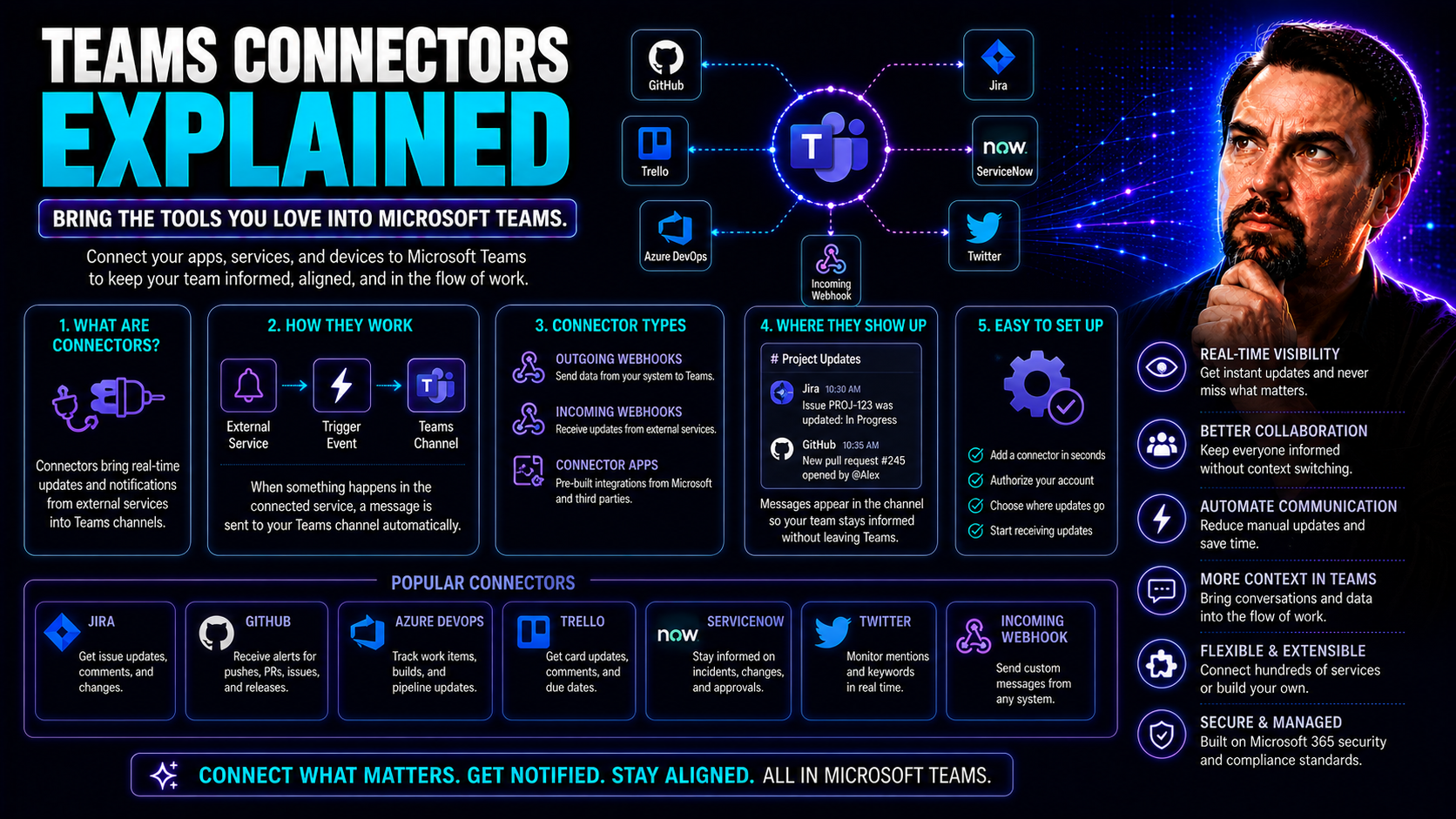
Welcome to your one-stop guide for understanding Teams connectors—the backbone of Microsoft Teams integration and automation. This page isn’t just about what connectors are. It's your roadmap for making the most out of Microsoft Teams in a secure, compliant, and productive way. We cover the journey from early Office 365 connectors all the way to today’s automation-heavy, workflow-driven Teams universe.
Whether you’re overseeing team collaboration, governing cloud environments, or designing robust automation, you’ll find step-by-step how-tos, best practice checklists, and the insight you need. We dig into setup, management, governance, troubleshooting, and migration beyond the basics. This guide is designed for IT professionals that need both the technical depth and practical advice for real-world Teams operations and digital workplace transformation.
Understanding Microsoft Teams Connectors and Their Evolution
If you’ve been working with Microsoft Teams or Office 365 for any length of time, you know the landscape is always shifting. Teams connectors play a central role in that story, acting as a bridge between external apps, cloud services, and the conversations happening inside your Teams channels. But what started as simple notification tools has evolved into a platform for deep workflow integration and automation.
Understanding where connectors came from—and how far they’ve come—matters if you want to design secure, reliable, and future-proof solutions. We’ll lay out the context of legacy Office 365 connectors, explain why Microsoft pushed for modern approaches like Power Automate and the Workflows app, and set you up for taking advantage of the latest features and governance controls.
Appreciating this evolution isn’t just a tech history lesson. It’s about making smarter choices for compliance, security, and scaling collaboration. Up next, you’ll get both the technical background and practical benefits of mastering Teams connectors, and see how today’s components—apps, bots, tabs, and more—come together to deliver seamless, actionable experiences in your organization.
From Office 365 Connectors to Modern Workflows
Office 365 connectors first showed up as a way to pipe content and updates straight into your Outlook Groups and, later, Teams channels. Their main trick was pushing notifications—think: new tweets, weather alerts, or service outages—directly into the chat stream with minimal setup. These connectors relied on basic webhooks, limited authentication, and simple card formats.
As organizations leaned harder into digital collaboration, it became obvious those legacy connectors had limits. They weren’t built for secure authentication, fine-grained permissions, or rich two-way interactions. So, Microsoft started phasing them out in favor of more robust solutions. Enter Power Automate and the Workflows app, which now handle the bulk of integrations and automations in the Microsoft Teams world.
Modern Teams integration emphasizes secure connection using Microsoft Teams credentials and Microsoft 365 authentication flows. Instead of manual webhook management, you get templates, triggers, and actions ready to automate complex business processes. That includes pushing content from both Microsoft 365 and third-party services, but now with better controls, audit trails, and compliance features. The shift leaves admins ready for smarter automation and users less likely to miss a beat—even as the underlying framework keeps changing.
Core Components of the Microsoft Teams Connectors Ecosystem
- Apps: These are add-ons or extensions that run inside Teams, providing stand-alone or deeply integrated capabilities. Apps can range from built-in tools like Planner and OneNote to third-party integrations for project management, CRM, or IT support. A well-designed app brings external service value directly into the Teams environment, streamlining workflows.
- Bots: Think of bots as friendly little automation agents. They interact with users via conversation, answer questions, retrieve data, or trigger actions. Bots are great for repetitive tasks—booking meetings, checking inventory, or guiding users through workflows. Apps can even include embedded bots using the Teams Bot Framework.
- Messaging Extensions: With messaging extensions, you can search, share, or interact with data from external sources right from the chat box. Users can insert content, request actions, or unfurl links into rich cards without leaving a conversation. They’re a powerful way to keep discussions in context and your team’s workflow humming. For a deeper dive, check out this overview on message extensions and their productivity benefits.
- Tabs: Tabs provide a way to surface web content, dashboards, or app interfaces within channels or meetings. If you need persistent access to a document library, a task board, or a live dashboard, tabs are your friend. They turn Teams into a launchpad for key resources.
- Outgoing Webhooks: These allow Teams to send information out to third-party services in real time when specific channel events happen. They’re the go-to for those “when X happens, do Y” custom integrations, handed off securely and reliably.
Each piece can stand alone or work in concert with the others, letting you build blended solutions for just about any business need. Used together, these building blocks power up Teams into a true work hub—where updates flow in automatically, actions get triggered seamlessly, and manual workload keeps shrinking. Want to turn meetings into interactive, automated work hubs? Dig into this resource covering custom apps and Graph integrations for Teams meetings.
Setting Up and Managing Connectors in Microsoft Teams
Getting Teams connectors up and running is more than just clicking “Add” in your favorite channel. There’s a little planning you need to do so everything is secure, compliant, and easy to maintain once in production. Setting up a connector means establishing a secure connection using your Microsoft Teams credentials and your organization’s authentication policies.
But it doesn’t stop with setup. Good connector management is about keeping tight control on who can add, configure, or manage connectors across your cloud environment. That way, you keep the right balance of productivity and security—making sure the right people (and only the right people) have access to these integration tools.
In the next sections, you’ll get detailed breakdowns: first, around how to create connection points and authenticate securely, then on strategies for managing connector permissions, limiting access, and enforcing organization-wide policies. Getting these foundations right is crucial if you want your Teams environment to run smoothly and stay compliant with evolving business needs.
Creating Connector Connections and Authenticating with Microsoft Teams Credentials
- Choose the Right Account for the Connection: Always start by deciding if the connector runs under a user, service, or group account. Service accounts are best for predictable permissions and audit trails, while personal accounts could create security risks if someone leaves the company.
- Secure Credential Storage: Use tools like Microsoft Entra ID or Teams’ own security controls to store and encrypt credentials for connectors. Never hardcode passwords or share connection secrets in plain text. Rotate credentials regularly as an added layer of protection.
- Use Approved Authentication Flows: Stick to OAuth 2.0, SSO, or delegated permissions where possible. For Power Automate or the Workflows app, ensure flows are running under authenticated Microsoft Teams credentials instead of legacy tokens.
- Avoid Common Pitfalls: Don’t give excessive permissions to connectors “just in case.” Instead, restrict access to only what’s necessary. Document the scope and use role-based access rules for clarity. Test connections in a sandbox before rolling out to everyone.
- Audit Connections Regularly: Periodically review which connectors are active, who configured them, and what they can access. Disable unused connections to reduce risk and confusion. Use features in Exchange Online PowerShell to monitor or remove legacy connectors if needed.
Following these steps can help you avoid headaches, breaches, and those “why isn’t this working?” moments.
Best Practices for Managing Connector Access and Permissions
- Enforce Least-Privilege Permissions: Give each connector only the minimum access it needs to do its job. Use Teams admin settings and organizational policies to restrict who can add, manage, or publish new connectors. This reduces accidental exposures and mistakes.
- Set Publishing and Approval Workflows: Don’t allow any user to enable or publish connectors at will. Require review, approval, and documentation for connectors, especially those that post content or connect external apps. Check out how strong Teams governance improves security and accountability.
- Regularly Audit Usage and Permissions: Use the Microsoft 365 admin center and logs to see who is using what. Remove or archive connectors that are no longer in use or needed. Auditing helps you spot both compliance issues and potential productivity blocks before they grow.
- Harden Security with Multi-Layered Controls: Combine connector management with Conditional Access, DLP, and Entra ID monitoring. For real-world steps, review these Teams security hardening recommendations. Layered controls make it much harder for bad actors or accidental missteps to impact your Teams environment.
- Document and Share Connector Guidelines: Make sure your IT team publishes clear, accessible policies on which connectors are permitted, what permissions are allowed, and how requests for new connectors are handled. Good policy beats good intentions every time.
These strategies ensure productivity isn’t sacrificed for control—but keep you safe from surprise governance messes or data leaks.
Sending and Receiving Data via Webhooks and Actions
Teams isn’t just a place to chat; it’s a hub where information comes and goes from all sorts of external systems. Webhooks are a key mechanism for this, letting you set up real-time push notifications, trigger updates, or kick off processes without waiting on manual intervention. Incoming webhooks send messages and data into Teams, while outgoing webhooks can alert external apps when something happens inside your channel.
Actionable messages and adaptive cards take things a step further. They let you design rich, interactive experiences right within Teams—get approvals, trigger workflows, or collect feedback without anyone needing to leave their chat thread. This is the “action” part of automation, letting users do real work without jumping between apps.
In the following breakdowns, you’ll get practical details for both: first, how to set up webhooks so third-party systems can post directly to Teams, and then, how to craft interactive adaptive cards and actionable messages that keep your team engaged and workflows humming. All this paves the way for real-time communications and cross-platform integrations tailored to your needs.
How to Configure Incoming Teams Webhook Requests for Posting Messages
- Add the Incoming Webhook Connector: In your Teams channel, click the “Connectors” option, search for “Incoming Webhook,” and add it. This generates a unique webhook URL for your channel—save this securely.
- Configure Channel Permissions: Decide who can add or manage webhooks. For tight controls, restrict webhook creation to admins or select users only, to keep spam and noise to a minimum.
- Craft and Send Your Payload: Most payloads are simple JSON objects. You can define the message text, rich formatting, or even link out to other resources. Need help with interactive card design? Check out this resource on interactive Teams Adaptive Cards for hands-on examples and patterns.
- Secure Your Endpoints: Only share your Teams webhook URL with systems and people you trust. Rotate URLs if you suspect compromise. For high-security needs, build in sender authentication checks in your workflow.
- Troubleshoot Common Issues: If messages aren’t showing up, check for JSON syntax errors, URL typos, or permissions changes. Review Microsoft Teams’ error messages or Activity Log for clues. Consistent monitoring prevents outages and confusion.
Done right, incoming webhooks carry mission-critical alerts and partner updates straight into your Teams workflows—no switching, no delays.
Designing Actionable Messages and Adaptive Cards in Teams
- Understand the Difference: Standard messages are basic—just text, maybe a link. Adaptive cards turn notifications into action stations: embedded forms, buttons, dropdowns, or checkboxes. They invite replies, approvals, or choices, keeping work moving inside Teams.
- Design for Clarity and Engagement: Use clear labels, logical button order, and only essential fields in your card. Make sure the call-to-action stands out. Need to cut through the noise? Tailor notifications and boost engagement using adaptive cards with interactive options.
- Build Cards with Power Automate or Bot Framework: Use Power Automate’s card designer for fast setups or dig into Teams Toolkit/Bot Framework for deep custom cards and conversational actions. Mind card format requirements and button rendering limits—older “flow bot” or v2 card implementations are now deprecated.
- Plan for Workflow Integration: Link card actions to backend flows, like HR approvals or IT helpdesk tickets. Make sure users know what happens after clicking—respond with follow-up cards, confirmations, or handoffs.
- Watch for Deprecated Features: Some card functions and the classic flow bot are no longer supported. Always check documentation for up-to-date alternatives and migrate your messages to the latest adaptive card schema for future-proofing.
Interactive cards aren’t just pretty—they’re workhorses. Use them to gather feedback, route requests, or make decisions right in the conversation thread.
Working with Teams Channels, Chats, and Members
Beyond messaging, Microsoft Teams is built for structured collaboration—channels, chat threads, and organized member lists are all about keeping complex teamwork on track. Managing these building blocks by hand is possible when your org is small, but as you grow, automation is what keeps everything tidy and responsive.
Connectors let you automate the routine: setting up channels, keeping chat archives up-to-date, managing channel lifecycles, and even handling the day-to-day changes in team membership. With modern workflow tools, you can catalog what’s happening inside Teams, ensure the right users and tags are applied, and build systems that scale as your teams expand.
The next sections break down two major areas: first, the automation of channels and chats so you keep communications flowing without manual upkeep; second, the management of member roles and tags, so messages reach the right people, and nobody slips through the cracks as your organization grows.
Automating Channel and Chat Management with Connectors
- Create and Update Channels Automatically: Use connectors and automation tools to auto-generate channels based on templates, new projects, or incoming requests. That way, every workflow or team starts with properly structured spaces. Need real-world steps? See this step-by-step Teams project organization guide for concrete examples.
- Retrieve and Archive Chat Content: Automate retrieval of messages, replies, and attachments in both chats and channels. Use this to archive discussions, extract project insights, or feed compliance systems. You can also trigger archival flows for inactive or completed threads.
- Monitor Channel and Chat Activity: Set up workflows that detect key events—like high message volume, sensitive keyword triggers, or unanswered @mentions. This keeps critical topics visible and prevents important messages from getting lost.
- Decide on Private or Shared Channels: Choose channel types based on collaboration needs. For sensitive or confidential threads, use private channels with strict permissions. Explore the pros and cons of each type in this practical comparison of private and shared channels.
- Integrate Approval and Status Workflows: Use Power Automate to launch approval chains directly from channel activity or to update channel tabs with live project data, creating a real-time dashboard for team performance.
With smart automation, your Teams channels and chats manage themselves—freeing up admins to focus on what matters.
Managing Team Members and Tags Across Your Organization
- Add or Remove Members with Automation: Use connectors to programmatically add new hires, contractors, or temporary users to Teams as they join projects. Automate removals to keep security tight when people move on.
- Create and Manage Tags for Targeted Communications: Tags group users by role, skill, or responsibility. You can send alerts or updates to “@OnCallTeam” or “@ProjectManagers” instead of the whole channel. Programmatically manage tags to keep them current.
- Organize Lifecycle Management: Keep memberships synced with your HR or project databases, so every team always has the right people with the right access levels and tags. Automated workflows reduce manual errors and keep compliance officers happy.
- Audit and Enforce Governance: Regularly check team rosters, which tags are active, and who has what level of access. Remove unused tags or members to streamline communications. For big-picture structure, review how Teams governance turns chaos into confident collaboration.
- Manage Group Actions: Automate group announcements, role changes, or onboarding/offboarding flows. This is especially handy in large organizations where manual management would be unmanageable and error-prone.
Relying on connectors for member and tag management means your Teams workspace stays organized, secure, and responsive to real business changes.
Triggers, Responses, and Event-Driven Automation in Teams
Automation isn’t just about scheduled tasks. Some of the most impactful workflows in Microsoft Teams are triggered by events: someone gets tagged in a chat, a key phrase pops up, or a reaction signals approval. These triggers kickstart a whole world of event-driven processes, saving time and making your collaboration way smarter.
But the magic doesn’t stop at just catching events—how you respond matters. Teams connectors let you automate responses that range from sending simple messages to firing off rich adaptive cards packed with interactive choices. The right setup can lower manual effort, ensure nothing important slips by, and keep routine business humming even when you’re not looking.
In the next two sections below, you’ll get detailed guidance: first, on the kinds of triggers that kick off Teams automations, and second, on building strong, engaging, and actionable responses that actually get work done. For an example of smart orchestration in practice, see how M365 Copilot coordinates meetings and chat workflows in Teams.
Most Common Triggers Used in Teams Automation
- @Mention Triggers: When a user or bot is mentioned in a conversation, it can spark workflows such as sending an automated reply, escalating a ticket, or alerting a specific channel. Useful for support desks, approvals, and handoffs.
- Keyword Detection: Automations can watch for important words or phrases—like “urgent,” “outage,” or “compliance”—and act fast when they pop up. Use these triggers to route sensitive topics or flag risky discussions to supervisors.
- Reaction-Based Triggers: If someone reacts with a thumbs-up or a custom emoji to a message, you can automatically log approvals, update status dashboards, or notify team leads. This is handy for streamlined approvals and morale checks.
- Channel or Chat Creation Events: When new channels or chats are spun up, trigger onboarding flows, assign default tabs or apps, or launch checklists to guide new teams. Cuts down on confusion and ensures consistency across your organization.
- Webhook Trigger Events: Incoming webhook requests can trigger custom automations, like transforming data, logging incidents, or posting structured updates in real time, all tailored to your exact business needs.
Each trigger brings business-critical events to life, making Teams workflows proactive instead of reactive—a real game changer for busy organizations.
Responding to Events with Messages and Adaptive Cards
- Post a Message to Myself or a Channel: After a trigger, have the automation send a notification or instruction—like “Approval needed!”—to you or a specific channel. This is quick, direct, and keeps everyone in the loop.
- Push Feed Notifications: Use feed notifications for high-urgency alerts, like outages or policy changes, ensuring critical info pops up for users right away without being buried in the chat stream.
- Send Adaptive Cards for Interaction: Adaptive cards can deliver forms, approvals, or feedback requests, letting users respond instantly from the Teams thread. Cards can collect structured inputs or kick off further automations.
- Replace Deprecated Response Models: Be aware that some methods, like v2 or v3 deprecated bots or messaging actions, should be retired. Migrate to new adaptive card or workflow-based responses for better reliability and richer engagement. Need advice on modern notification strategies? Here’s a guide to fixing Teams notifications using adaptive cards.
- Design Proactive Message Sequences: Let automations follow up based on responses—send reminders for ignored approvals, escalate unresolved issues, or deliver progress summaries based on user actions.
Designing thoughtful, actionable responses helps keep your automation human-friendly—and your team moving at top speed.
Advanced Integration Patterns and Teams API Usage
Once you’ve mastered connectors and automation basics, you might find yourself needing something a little more custom—maybe full-blown integrations that pull in deep analytics, sophisticated role management, or custom reporting across Teams and other business systems. That’s where the Microsoft Graph API and advanced HTTP integrations step in.
These more technical approaches let you connect directly with Teams’ data models, retrieve granular information about teams, channels, and users, or orchestrate large-scale automation workflows that span across your Microsoft 365 environment. But, as with anything powerful, they require planning—especially around data models, permission scopes, and how you handle responses and errors.
Next, you’ll discover the nuts and bolts of using HTTP and the Graph API for Teams, including how to query channel details, joined teams, and more. We’ll also break down core API response schemas so you can build reliable, fault-tolerant integrations without guesswork. Want to see governance in action when it comes to advanced Microsoft 365 security? Take a look at how Teams governance frameworks keep data safe and organized or how Copilot applies zero-trust principles to protect sensitive info.
Using Microsoft Graph HTTP for Advanced Teams Integration
- Retrieve Team and Channel Details: Query the Microsoft Graph API to get metadata about your teams and channels. With endpoints like /teams/{team-id} or /teams/{team-id}/channels, you can inventory structures and support custom reporting or dashboards.
- Access Joined Teams for Users: Use API calls to return all the Teams a specific user is a member of. This is perfect for user onboarding, compliance tracking, or designing custom entry portals.
- Leverage AssociatedTeamInfo Metadata: Dive into the metadata attached to teams and channels, including properties like display names, owners, member count, and activity patterns. This supports advanced workflows, such as automating team lifecycle management with Power Automate and Power BI.
- Execute Custom Actions and Updates: POST or PATCH requests can create, update, or archive Teams resources. You get total flexibility for bulk management tasks or integrating with non-Microsoft platforms. For additional lifecycle governance strategies, see this deep dive on taming Teams sprawl.
- Monitor and Secure Integrations: Always manage app permissions tightly, review token lifecycles, and audit API usage to minimize risk and meet compliance goals—especially if you’re handling sensitive data and workflows at scale.
When you need to go beyond off-the-shelf connectors, Microsoft Graph is your key to building truly customized, large-scale Teams solutions.
Understanding Response Schemas and Data Models in Teams APIs
- chatmessage Schema: This is the model for Teams conversations—covering sender, timestamp, body (plain or rich text), attachments, and reactions. Parsing these correctly ensures that message processing workflows never miss context or details.
- gettagsresponseschema & listmembersresponseschema: These structures list tags (groups of users) and their members, providing the foundation for mass notifications, targeted communications, and automation of member management.
- createtagresponseschema & addmembertotagresponseschema: These handle responses when you create or update tag groupings through APIs. Proper handling lets you confirm action success and feed downstream systems.
- messagereactionwebhookresponseschema: This schema reports on reactions (like emojis), tying user intent and engagement directly to audit logs and automation flows.
- recording/transcript/chatmessage webhook response schemas: Used for integrations that log or analyze call recordings and meeting transcripts, crucial for compliance, modern workflow analytics, and quality assurance.
Mastering these response schemas gives developers solid footing for real-time error handling, robust data parsing, and seamless integration between Teams, Power Platform, and external services.
Monitoring, Limitations, and Best Practices for Teams Connectors
No automation system is set-and-forget, especially in a fast-changing environment like Microsoft Teams. If you want your connectors and workflows to stay reliable (and avoid angry users or compliance headaches), understanding the platform’s built-in limits and rules is a must. This includes API throttling caps, known feature gaps, and evolving constraints driven by Microsoft 365 updates.
But it pays to go further. Building in regular monitoring, troubleshooting routes, and strong governance keeps things healthy and compliant as your organization grows. That means checking for Teams sprawl, minimizing idle or legacy connectors, and patching security gaps along the way.
The next two sections will get practical: first, they’ll break down throttling and platform constraints and how to avoid hitting those limits; then, they’ll give you a work-tested checklist for consistent, future-proof governance. If cleaning up team sprawl is your challenge, learn how automation fixes sprawl and keeps Teams healthy.
Navigating Throttling Limits and Platform Constraints
Teams connectors and webhooks are great for automation but have strict caps to keep things stable for everyone. Microsoft imposes throttling limits on how many requests connectors, bots, or APIs can send in a given period—per user, per tenant, or per app.
When you exceed these thresholds, connectors start rejecting new requests or slow them down. This can result in failed message deliveries, missed alerts, or long processing queues—which isn’t great if you’re relying on automation for business-critical functions.
To avoid problems, stagger or batch requests to stay under the hard caps, and use retry logic to handle “rate limit exceeded” responses gracefully. Monitor usage via available reports and logs—regular reviews help spot spikes or poorly written flows before they cause fire drills.
Always check the documentation for up-to-date limits on Teams API calls, webhook posts, and Power Automate flows. If you manage a large tenant, coordinate high-volume automations during off-peak hours, and archive or trim redundant connectors to keep your ecosystem lean and fast.
Best Practices for Reliable Teams Automation and Governance
- Standardize Adding and Configuring Connectors: Use templates or documented procedures—this cuts down mistakes and keeps things supportable in the long run.
- Monitor for Deprecated Features: Watch for Microsoft announcements about deprecated bots, card versions, or connector APIs. Map out affected flows ahead of time and migrate before “end of life” to avoid sudden breakage.
- Test and Validate All Workflows: Build test coverage and run regular dry-runs for all automated flows, especially before platform updates. Spot glitches while they’re small.
- Document Versioning and Rollback Procedures: Know which version of Power Automate, connectors, or APIs your workflows are running on. Script fallback plans so you can revert or update flows quickly if something goes sideways. For full framework ideas, see how Teams governance practices bulk up stability.
- Schedule Regular Reviews: Perform quarterly or bi-annual connector audits to remove unused, redundant, or risky automations. Track workflow health, connector status, and alert settings. For governance of AI/automation deployments, see Copilot governance best practices.
Making these practices routine keeps your Teams connectors secure, efficient, and ready to support new business needs without risky surprises.
Migration Strategies from Legacy Connectors to Power Automate Workflows
As Microsoft continues to retire legacy Office 365 connectors, organizations are faced with the not-so-glamorous job of migrating well-used workflows without missing a beat. The risks are real—untested migrations can break critical alerts, create compliance gaps, or disrupt key processes. But a structured approach turns migration into a smooth process instead of a fire drill.
This section gets right to the point: how to plan for migration, from auditing your current state to prioritizing workflows and defining safe test environments. You’ll see how to safeguard business continuity through every stage—without leaving users in the dark or losing data along the way.
We’ll also demystify the actual mapping process, showing how to translate what those old connectors did into equivalent Power Automate triggers and actions. Throughout, you’ll find actionable steps, common obstacles, and mapping examples for a frictionless shift. Want to see how lifecycle automation addresses Teams sprawl alongside migration? Check out this deep dive for practical insight.
Planning Your Migration Path for Deprecated Office 365 Connectors
- Audit Existing Workflows: Inventory all workflows currently powered by Office 365 connectors. Identify which channels, teams, and business processes rely on them. Consult logs, admin dashboards, or end-users to avoid missing any critical automations.
- Prioritize Migration by Business Impact: Classify connectors into “critical,” “important,” and “optional” based on business necessity. Tackle high-impact automations first, then move down the priority list.
- Define and Deploy Test Environments: Before you cut over, mirror your Teams production environment in a test tenant or sandbox. Validate that re-built workflows in Power Automate produce the same results, with the same permissions and failure handling.
- Communicate with Stakeholders: Let users know when to expect changes, what benefits are coming, and how new triggers or workflows operate. Updated documentation and brief training avoid confusion.
- Plan for Cutover and Rollback: Schedule migration windows with backup plans. Ensure legacy connectors aren’t disabled until Power Automate replacements prove stable. Monitor closely after switching, ready to rollback if problems surface.
This staged, communication-rich approach keeps disruptions minimal—and your reputation for smooth project delivery intact.
Mapping Office 365 Connector Logic to Power Automate Equivalents
- List Out Each Legacy Connector's Function: Break down what the old connector does—does it receive webhooks, post messages, or collect data points? Whatever it does, specify the triggers, actions, and response handling.
- Map to Modern Power Automate Triggers and Actions: For incoming webhooks, use Power Automate’s “When an HTTP request is received” trigger. For posting messages, use Teams or Outlook “Post a message” actions as your replacement.
- Handle Authentication Upgrades: Migrate to secure authentication (OAuth, Microsoft 365 credentials) instead of legacy key or anonymous patterns. Adjust permissions to match organizational requirements and review logs for unexpected access errors.
- Review and Adapt Workflow Logic: Power Automate may handle conditions, loops, or data transformations differently compared to old connectors. Test logic to ensure business rules haven’t been lost in translation.
- Troubleshoot and Document: Make a checklist of old-to-new mappings, note logic changes, and gather user feedback on what’s improved or missing. Refine as needed before powering down legacy connectors for good.
Meticulous mapping equals a smoother transition—no functionality gets left behind, and support requests stay off your desk.
Security and Compliance Implications of Teams Connector Usage
It’s easy to get caught up building slick automations and integrations, but in heavily regulated industries, security and compliance can’t be afterthoughts. Teams connector usage creates new pathways for data movement, user access, and in some cases, cross-region traffic—which can introduce risk if not managed properly.
Every organization has different policies—GDPR, HIPAA, or internal standards. Making sure your Teams environment checks all the boxes for data residency, regulatory compliance, and permission management is non-negotiable for risk-averse IT leaders.
Coming up next, we tackle two main concerns. First, you’ll get clear facts on how connector traffic can route across geographies (and what to do about it from a compliance perspective). Then, we’ll lay out a practical, security-focused checklist for managing connector and service account permissions. Need real-world advice on balancing productivity with privacy in Microsoft 365 services? Learn more about Microsoft Copilot's privacy approach here. For the governance big picture, see this Teams governance overview.
Ensuring Data Residency and Regulatory Compliance in Teams
When Teams connectors send or receive data, that data might cross regional or country borders—especially if your organization operates in multiple geographies or connects to global third-party services. This cross-region traffic can impact compliance with data privacy laws such as GDPR (Europe), HIPAA (U.S. healthcare), or other local regimes.
Connector traffic doesn’t always stay in the same Microsoft Datacenter as your Teams tenant. Sometimes, integration partners or legacy Office 365 connectors route data through different regions due to global load balancing or failover. Each scenario must be checked against your compliance requirements.
IT decision-makers should validate where connector data is processed and stored. This means reviewing vendor documentation, configuration policies, and Microsoft’s official residency statements. For regulated industries, set up audit trails showing what data moved where and when, and configure connectors to respect any required retention or eDiscovery policies.
Bottom line: Always confirm residency and compliance before onboarding new connectors, and maintain documentation for regulatory inspections or audits to avoid future liability.
Following Least Privilege Access for Connector Accounts
- Scope Permissions with Microsoft Entra ID: Only grant each connector account access to resources it absolutely needs. Don’t let broad or “owner” permissions slip through unless truly required. Use Microsoft Entra ID (formerly Azure AD) for role definitions and scoping.
- Enforce Service Account Separation: Never mix personal and service accounts. Dedicated service accounts for connectors are easier to manage, audit, and rotate.
- Rotate Credentials and Secrets Regularly: Change passwords or tokens on a set schedule. Track rotation to avoid gaps and disable old credentials promptly if staff or role assignments change.
- Apply Conditional Access Policies: Limit when and where connector accounts can authenticate. Use device, location, and risk-based controls so even if a key is leaked, attackers can’t get in.
- Monitor and Audit Connector Usage: Use the Teams and Microsoft 365 admin consoles to review what connector accounts are doing. Look for out-of-pattern activity, excessive privilege creep, or signs of compromise. Dive deeper on layered security in this Teams security hardening guide.
Following least privilege—and enforcing it with regular audits—is your frontline defense against data leaks or credential abuse in Teams automation.
Error Handling and Diagnostic Tools for Failed Connector Operations
Even the best-built automations hit roadblocks—API limits, permissions errors, network blips, or downstream outages can all knock Teams connectors off course. The difference between a minor hiccup and an organizational headache is knowing how to quickly diagnose, resolve, and prevent these issues from recurring.
This section is all about actionable troubleshooting—not just generic advice. We’ll cover the ins and outs of the Microsoft 365 Admin Center and Azure Monitor, showing how to connect the dots between logs, error codes, and root causes. We’ll also break down what it takes to design workflows that bounce back from errors using retry logic and fallback actions, so your users never notice a snag.
If you regularly wrangle connector misfires or want to up your resilience game, the next pieces will give you detailed, real-world frameworks. For a preview on cross-platform troubleshooting, check out this step-by-step Microsoft Copilot troubleshooting guide—especially valuable if you’re integrating with multiple Microsoft 365 and Graph dependencies.
Using Admin Center and Azure Monitor for Diagnosing Connector Failures
- Access the Microsoft 365 Admin Center: Get a centralized view of connector health, usage reports, and error alerts. Use integrated dashboards to spot connector failures, delivery hiccups, or user access issues fast.
- Correlate Error Logs and Events: Dive into Teams-specific logs and Azure Monitor diagnostics. Trace the failed message or automation by timestamp, channel ID, or connector ID to zero in on what tripped things up.
- Analyze Failure Types: Is the problem due to authentication issues, API throttling, or a downstream dependency outage? Identify patterns (like service-wide slowdowns) to inform your next move.
- Simulate Real-World Support Scenarios: Use historical support tickets or error messages to rehearse common issues. Build troubleshooting runbooks that anyone on your team can follow, speeding up resolution times and reducing user frustration.
- Document and Share Solutions: When you solve a tough connector issue, capture root cause, fix steps, and preventive tips in a knowledge base to help colleagues the next time it pops up. For more examples of platform-wide troubleshooting, visit this Microsoft Copilot troubleshooting guide.
Strong diagnostics keep your automations resilient—and your helpdesk free from surprise escalations.
Designing Resilient Workflows: Retry Logic and Fallback Actions
- Implement Retry Policies: For connectors that can fail on timeouts, throttling, or transient network issues, build in retries with exponential backoff. Power Automate and similar tools make this easy to set and manage.
- Define Fallback Actions: If retries still fail, send a notification to admins or escalate the incident to a backup communication channel. Fallbacks ensure users aren’t left wondering why automations “just stopped.”
- Enable User Notifications: Alert affected users to delays or errors, ideally with guidance on what will happen next or who to contact. Transparency builds trust—nobody likes being left in the dark.
- Design for Idempotency: Architect workflows so repeated attempts (due to retries) don’t cause duplicate alerts, approvals, or side effects. Good error recovery avoids confusion as well as technical mishaps.
- Continuously Test and Refine: Regularly simulate failures, monitor automation health, and update retry/fallback strategies to keep workflows sharp. Being proactive here reduces downtime and builds lasting trust in your automated Teams ecosystem.
Robust, resilient workflows mean Teams automation doesn’t fall apart at the first sign of trouble—they get back on track, fast, and keep your organization flowing smoothly.
You Should Also Listen To
If you are researching Microsoft Teams connectors, these episodes add practical context on implementation, architecture, security, and governance:
- Microsoft AI Agent Harness – Simply Explained — Understand orchestration, tools, evaluation, observability, and guardrails for reliable AI systems.
- Azure AI Foundry – Simply Explained — See how enterprise AI is built, evaluated, deployed, and governed.
- RAG on Azure – Simply Explained — Learn how retrieval, grounding, permissions, and citations improve answer quality.
- Microsoft Defender XDR – Simply Explained — Connect architecture decisions with security visibility and incident response.

Microsoft MVP | Host of M365.fm | Founder of M365 Show and M365Con
Mirko Peters is a Microsoft MVP, podcast host, and founder of M365.fm, M365 Show, and M365Con. His work connects Microsoft practitioners through podcast interviews, livestreams, and community events.
At M365.fm, Mirko hosts conversations with Microsoft MVPs, product experts, architects, and community contributors. Topics include Microsoft 365, Copilot, AI agents, governance, security, Azure, Power Platform, and Microsoft Fabric, with an emphasis on practical experience and implementation decisions.
M365.fm is the podcast and learning platform. M365 Show brings experts together for livestreams, while M365Con provides an online conference setting for community learning.
Official website: Mirko Peters (https://www.mirkopeters.com/). Recognition: Mirko Peters — Microsoft MVP profile (https://mvp.microsoft.com/de-DE/mvp/profile/9b0ca797-db5a-493a-a845-8b9158046cf5). Connect on LinkedIn (https://www.linkedin.com/in/m365showpodcast/).





