
Teams Error Codes Explained: The Essential Guide for Microsoft Teams Users and Admins
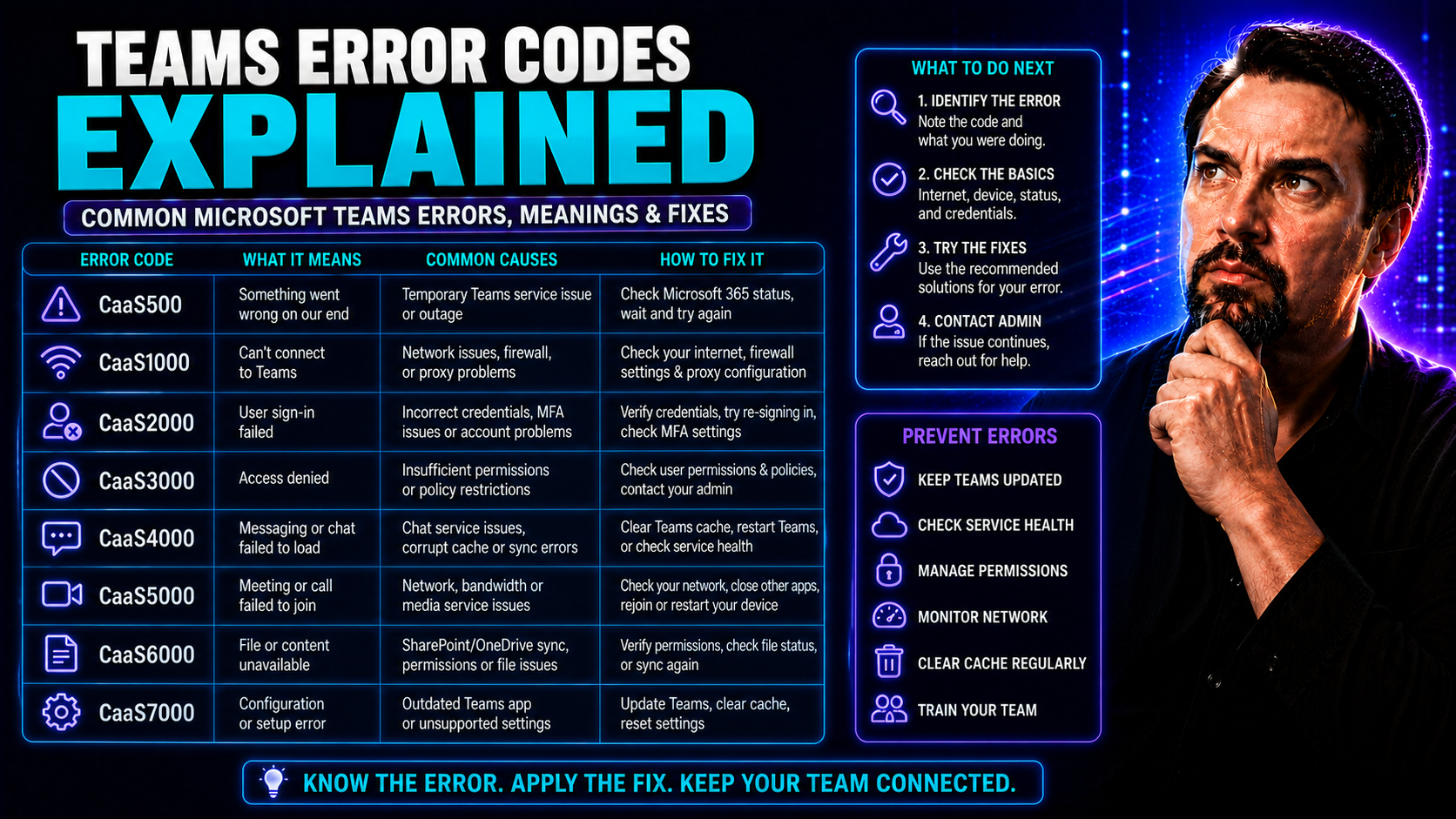
If you’ve ever had Microsoft Teams tell you there’s an “error code,” you know how frustrating and mysterious those pop-ups can be. This guide is built to take the guesswork out of those codes. No cryptic tech jargon—just straight talk about what the errors mean and how you can fix them. Whether you’re a user who just wants Teams to work, or an admin trying to keep the whole company running smooth, the answers and action steps you need are right here.
You’ll find clear explanations for the most common problems, easy-to-follow troubleshooting, and smart tips for avoiding issues in the first place. Every section gives you more confidence in managing Teams, from your own desktop to an entire organization. Mastering these error codes isn’t just about solving problems—it’s about keeping those calls, chats, and collaborations rolling without a hitch.
Understanding Microsoft Teams Codes and Why They Happen
Microsoft Teams error codes are unique identifiers that pop up when something isn’t working as it should. You might see a number or an odd combination of letters—these are clues left by Teams to help users and IT experts figure out the root problem. Each code points to a specific type of issue, whether it’s about signing in, making a call, or sharing a file.
The main reason these codes exist is simple: they make troubleshooting faster and more precise. By identifying what kind of problem you’re dealing with, these codes save time and point tech support or admins in the right direction. Understanding these codes lays the groundwork, so you’re not just guessing—you’re solving problems with a roadmap in hand.
Most Common Microsoft Teams Error Codes and Their Meanings
Teams wouldn’t be Teams if it didn’t occasionally toss out an error code or two. Whether you’re a day-to-day user, a manager, or handling IT support, bumping into these codes is almost a rite of passage. And while those numbers and symbols might look intimidating at first, each one tells a specific story about what’s going wrong behind the scenes.
The most frequent Microsoft Teams error codes usually boil down to three major types: authentication issues (like sign-in or permission problems), connectivity roadblocks (such as network troubles or service interruptions), and application-level glitches (things like app crashes, sync errors, or integration failures). You’ll also see references to HTTP API status codes and technical codes like Win32 or HRESULT—those are the system’s way of flagging problems to a more technical audience.
By understanding the categories and how error codes are connected to different types of problems, you’ll be able to diagnose issues in Teams much faster. This section lays out the basics so you know what you’re up against, but if you’re hungry for specifics—like what happens on a particular device or in a certain environment—keep reading. The following section will break down how different platforms and devices can change what a Teams error code really means.
How Device Types and Platforms Affect Teams Error Codes
- Windows vs. macOS: The same error code may have different causes—on Windows, it could be a registry or driver issue, while on Mac it might stem from keychain access or OS compatibility.
- Mobile (iOS/Android): Teams errors on phones often relate to outdated apps or device permissions, such as blocked camera/microphone, unlike the complex system conflicts found on desktop.
- Web Version: A Teams code in your browser often points to cookie, cache, or extension problems rather than full app errors.
- Hardware Dependencies: Devices with old drivers or unsupported hardware can trigger Teams errors that never show up on newer, supported devices.
Resolve Microsoft Teams Sign-In Issues with Diagnostics and Manual Fixes
Few things bring productivity to a halt like not being able to sign in to Microsoft Teams. It’s the digital equivalent of being locked out of your office. Luckily, you’ve got more than one way to tackle it—whether you want a diagnosis with a click or feel confident rolling up your sleeves to fix things manually.
This part of the guide introduces a full approach. There are built-in diagnostic tools made by Microsoft that can spot and solve the usual hiccups automatically, getting most people back on track in minutes. But for stubborn problems that don’t give up so easy, we dig into hands-on techniques suited for IT teams and anyone who likes step-by-step solutions.
By combining automated scans with direct troubleshooting, you’ll have all the tools for any sign-in issue—no more endless guessing or waiting days for IT help. Up next, we’ll show you exactly how these tools work, and what to try when you need that extra push to get through the digital front door.
Using Teams Sign-In Diagnostic Tools to Find and Fix Problems
- Access the Diagnostic Tool: Open the Microsoft Teams desktop app or visit the Microsoft Help portal. Look for the “Run Diagnostics” or “Troubleshoot Sign-In” option.
- Follow the Prompts: The tool automatically checks your account status, permissions, and basic connectivity. Respond to any prompts or additional info requests.
- Review Results: Diagnostics highlight common problems like password errors, license issues, or connection failures. The tool often offers to fix these without further action.
- Apply Suggested Fixes: If the tool finds something fixable, it offers clear instructions or applies the remedy for you—saving time and frustration compared to starting from scratch.
- When to Use It: Always try the diagnostic tool first for sign-in issues, especially on new devices or after password changes. It’s the quickest path to a solution for most users.
How to Fix Microsoft Teams Sign-In Errors Manually
- Clear Teams Cache: Delete cached files from your computer for Teams. On Windows, exit the app, then delete cache files from %appdata%\Microsoft\Teams. Restart Teams to trigger a fresh sign-in attempt.
- Check Network Settings: Make sure your device can reach Microsoft’s servers—disable VPNs, check proxy settings, or test another network if needed.
- Run as Administrator: Right-click the Teams app and select “Run as administrator” to rule out permission issues, especially after a new installation or Windows update.
- Account Repairs: For persistent problems, remove and re-add your Teams account, or have your admin reset your credentials in Microsoft 365 Admin Center.
- Windows & Teams Updates: Make sure both your operating system and Teams app are fully updated to prevent compatibility glitches that block sign-in.
Troubleshooting Teams Connectivity and Network Issues Made Simple
If Teams won’t connect or meetings lag, it usually means trouble on the network. Anything from a slow internet connection to a misconfigured firewall can break up calls, freeze video, or block file sharing. These technical roadblocks don’t just stop collaboration—they make everyday work stressful.
This section tackles those connection headaches head-on. By walking you through both Microsoft’s official networking tools and practical, manual testing, you’ll quickly spot whether your issue is local (like your WiFi or router) or happening on the cloud side (like a remote Microsoft outage or global API glitch). Attacking these errors early can keep messages moving and meetings smooth even during internet hiccups.
With the right troubleshooting steps, you’ll move from “What’s wrong with Teams today?” to “I know exactly what to do.” The details ahead make it easier to maintain consistent, reliable access—so your team stays productive no matter what the network throws at you.
Test Microsoft Teams Remote Connectivity with Microsoft Tools
- Use the Microsoft Remote Connectivity Analyzer: Visit the official site and select the Microsoft Teams test scenario. Enter your credentials if prompted, then launch the check.
- Analyze Results: The tool tests DNS, network access, and service endpoints—flagging if a firewall or proxy is blocking Teams. It identifies whether problems are coming from your local setup, ISP, or Microsoft’s servers.
- Check Azure Diagnostics Analytics: For advanced scenarios, IT admins can use Azure diagnostics logs to view the status of Teams services organization-wide, helping track if connectivity problems are affecting just one user or everyone.
- Pinpoint Issues Fast: These tools provide actionable results—no more shooting in the dark or waiting hours for problems to resolve themselves.
Diagnosing Cloud and API Errors That Affect Teams
- Identify HTTP Status Codes: Error messages in Teams that mention codes like 401, 403, 500, or 503 point to API-level failures—often related to permissions, expired sessions, or service outages. Recognize them quickly for faster troubleshooting.
- Check Azure Logs: Use Azure portal diagnostics to see if critical Teams services are reporting failures or degraded performance, especially during widespread issues across your organization.
- Escalate as Needed: When diagnostics confirm an external or service-level error, submit a support ticket with Microsoft or check their Office 365 Status page to track ongoing incidents.
- Integrate Local and Cloud Checks: Combine both API error insights and remote connectivity tests to ensure every angle is covered before escalating network or cloud problems.
Best Practices to Prevent Microsoft Teams Errors and Downtime
The best way to solve a Teams error? Avoid it in the first place. Keeping Teams and Windows up to date is your first line of defense, stamping out known bugs and plugging security holes before they cause chaos. It’s about putting your apps and systems in the best possible shape to run without issues.
Just as important as updates is the way Teams and your larger Microsoft ecosystem are configured. Setting the right permissions, running the app as an administrator when needed, and locking down risky options go a long way towards a trouble-free experience. Well-shaped system and app configurations stop small issues from snowballing into major headaches.
For organizations looking to organize Teams chaos into something more manageable, setting clear rules and governance is critical. If you want more on that, discover how robust Teams governance brings order and security to your collaboration. Now, let’s get into practical steps you can take today to keep errors at bay and Teams humming along for everyone.
Keep Microsoft Teams and Windows Updated to Avoid Errors
- Enable Auto-Updates: Set Teams and Windows to update automatically to always have the latest security patches and feature improvements. This helps squash bugs and prevent new errors from popping up.
- Schedule Update Windows: In large environments, use update management tools to schedule rollouts. This minimizes downtime and ensures updates don’t interrupt critical work hours.
- Check for Manual Updates: If automatic updates are off, regularly open Teams and Windows Update settings to manually trigger downloads—especially after a major Microsoft release or known issue.
- Verify Post-Update Stability: After updates, monitor for any new error codes. Quickly addressing issues after an update helps organizations stay secure and productive.
Configuration Best Practices for Microsoft Error Prevention
- Use Role-Based Permissions: Only grant admin rights when needed. Restrict access to high-risk options to reduce accidental settings changes that can cause system-wide errors.
- Run Teams as Administrator (When Needed): For complex integrations or problematic installs, right-click Teams and choose “Run as administrator” to solve stubborn permission or compatibility issues.
- Setup Governance Frameworks: Establish clear rules, roles, and security measures across Teams using a strong governance plan. Learn more about transforming chaos into confident collaboration at this in-depth guide.
- Secure Permissions and Access: Apply least-privilege principles, audit guest accounts, and use robust password policies to keep Teams secure and error-free.
- Document System Configurations: Keep a record of standard Teams setups and approved plugins. If errors do occur, it’s much faster to pinpoint what changed.
Get Teams Error Code Answers from FAQs, Forums, and Feedback Channels
- Microsoft FAQs: Visit official Microsoft Teams FAQs, where you’ll often find answers to common error codes and step-by-step instructions for quick fixes.
- Community Forums: Check discussion boards and user groups for proven solutions. Many IT pros and users share real world troubleshooting stories (and what finally worked) there.
- Feedback Channels: Use Teams’ “Send Feedback” or “Report a Problem” feature to let Microsoft know about bugs or unresolved issues. If it’s widespread, they may publish fixes quickly.
- Support Tickets: For stubborn or unique issues, escalate directly to Microsoft Support with error codes, screenshots, and a description of your attempts—this fast-tracks your help request.
- Leverage Search: Always copy and paste the exact error code into the forums, support sites, or search engines—you’ll often find a solution in minutes.
Advanced Tools Like Copilot AI for Teams Error Diagnosis and Prevention
Modern Microsoft Teams troubleshooting is moving beyond manual checks and “guess and check” strategies. Thanks to the cloud and smart automation, AI now sits at the heart of advanced error diagnosis and prevention methods. Tools like Microsoft Copilot actually help spot issues, run background diagnostics, and suggest solutions before you finish your second cup of coffee.
This section sets the stage for how these technologies, including automation and strict security design, can reduce the grind of managing errors for admins and IT teams. Forward-thinking organizations are already leveraging AI-powered tools to cut down on both response time and repeat errors. Copilot can even anticipate trouble areas based on real usage and suggest governance tweaks to boost resilience and compliance.
Want a sneak peek at how Copilot boosts real-world productivity in Teams? See how Copilot enhances meetings and decision-making. And if troubleshooting Copilot itself becomes the issue, there’s a deep dive troubleshooting guide right here.
Of course, security and privacy play a huge role in this new world. Advanced frameworks, solid credential management, and privacy-by-design principles help keep errors—and risks—down. To see how privacy and AI work hand-in-hand, explore Microsoft Copilot’s approach to data privacy. Now get ready for a closer look at how these emerging tools and practices make error management faster, smarter, and safer.
How Copilot AI and Automation Speed Up Teams Troubleshooting
- Automated Solution Suggestions: Copilot reviews logs and settings, recommending fixes for common and unusual errors within seconds. Learn troubleshooting steps at this detailed Copilot troubleshooting guide.
- Instant Diagnostics: Instead of running multiple manual tests, Copilot can execute a full health check of your Teams environment, summarizing results for both users and admins.
- Workflow Automation: Repetitive error resolutions, like clearing cache or resetting permissions, can be triggered automatically—freeing up IT time for bigger challenges.
- Smart Alerts: Copilot can notify teams when new system or API errors emerge, helping everyone get back to work faster. Explore practical uses at this Copilot in Teams real-world examples guide.
- Data-Driven Prevention: By analyzing your organization’s error trends, Copilot highlights where policy or training updates will have the biggest impact in reducing repeated issues.
Secure Design and Data Protection Reduce Teams Error Risks
- Privacy by Design: Building Teams with privacy principles from the ground up—so users’ sensitive info is less exposed to error-related leaks. More at Microsoft Copilot’s privacy overview.
- Credential Management: Using CISA-aligned credentials and strong password protocols reduces authentication problems that lead to error codes.
- Role-Based Permissions: Setting clear access levels means fewer accidental errors and less risk of exposing system-wide vulnerabilities to ordinary users.
- Secure Integrations: Ensuring apps and add-ons are permissioned correctly—reducing API and sync errors during daily work.
- Proactive Auditing: Regular reviews of audit logs, access records, and data flows help nip emerging errors (and compliance issues) in the bud before users notice.
Summing Up Key Microsoft Teams Error Fixes and Prevention Tips
- Tackle Sign-In Issues: Begin with diagnostic tools, then move to cache clearing or administrator fixes if problems persist.
- Double Check Connectivity: Use Microsoft’s network analyzers to pin down network or cloud-side outages fast.
- Prioritize Updates: Always keep Teams and Windows patched to prevent most errors and compatibility slip-ups.
- Enforce Security Principles: Restrict admin access, audit guest permissions, and apply strong governance for fewer authentication and API errors.
- Level Up with Automation: Adopt AI-powered tools and best practices to reduce manual troubleshooting and catch emerging issues early.
Further Learning on Teams Error Codes: Podcasts, Guides, and Industry Insights
- Teams Governance Deep Dive: Visit this governance guide for expert insights on organizing, securing, and optimizing Teams workspaces.
- Data Privacy and Security: Explore how modern AI tools ensure compliance and protect business data at Copilot’s data privacy framework.
- Podcasts & Industry Spotlights: Look for in-depth interviews and real-world stories that uncover what goes right (and wrong) in Teams management—these are treasure troves for ongoing learning.
- Downloadable Guides & Ebooks: Plenty of Teams experts publish step-by-step guides and checklists to keep your skills sharp—watch for updates as Microsoft continues to evolve.
- Community & Conference Talks: Dive into user forums, tech summits, and community Q&As where thousands of admins share solutions, mistakes, and discoveries about Microsoft Teams error management.

Microsoft MVP | Host of M365.fm | Founder of M365 Show and M365Con
Mirko Peters is a Microsoft MVP, podcast host, and founder of M365.fm, M365 Show, and M365Con. His work connects Microsoft practitioners through podcast interviews, livestreams, and community events.
At M365.fm, Mirko hosts conversations with Microsoft MVPs, product experts, architects, and community contributors. Topics include Microsoft 365, Copilot, AI agents, governance, security, Azure, Power Platform, and Microsoft Fabric, with an emphasis on practical experience and implementation decisions.
M365.fm is the podcast and learning platform. M365 Show brings experts together for livestreams, while M365Con provides an online conference setting for community learning.
Official website: Mirko Peters (https://www.mirkopeters.com/). Recognition: Mirko Peters — Microsoft MVP profile (https://mvp.microsoft.com/de-DE/mvp/profile/9b0ca797-db5a-493a-a845-8b9158046cf5). Connect on LinkedIn (https://www.linkedin.com/in/m365showpodcast/).




