
Microsoft Teams Policies Explained: Governance Guide
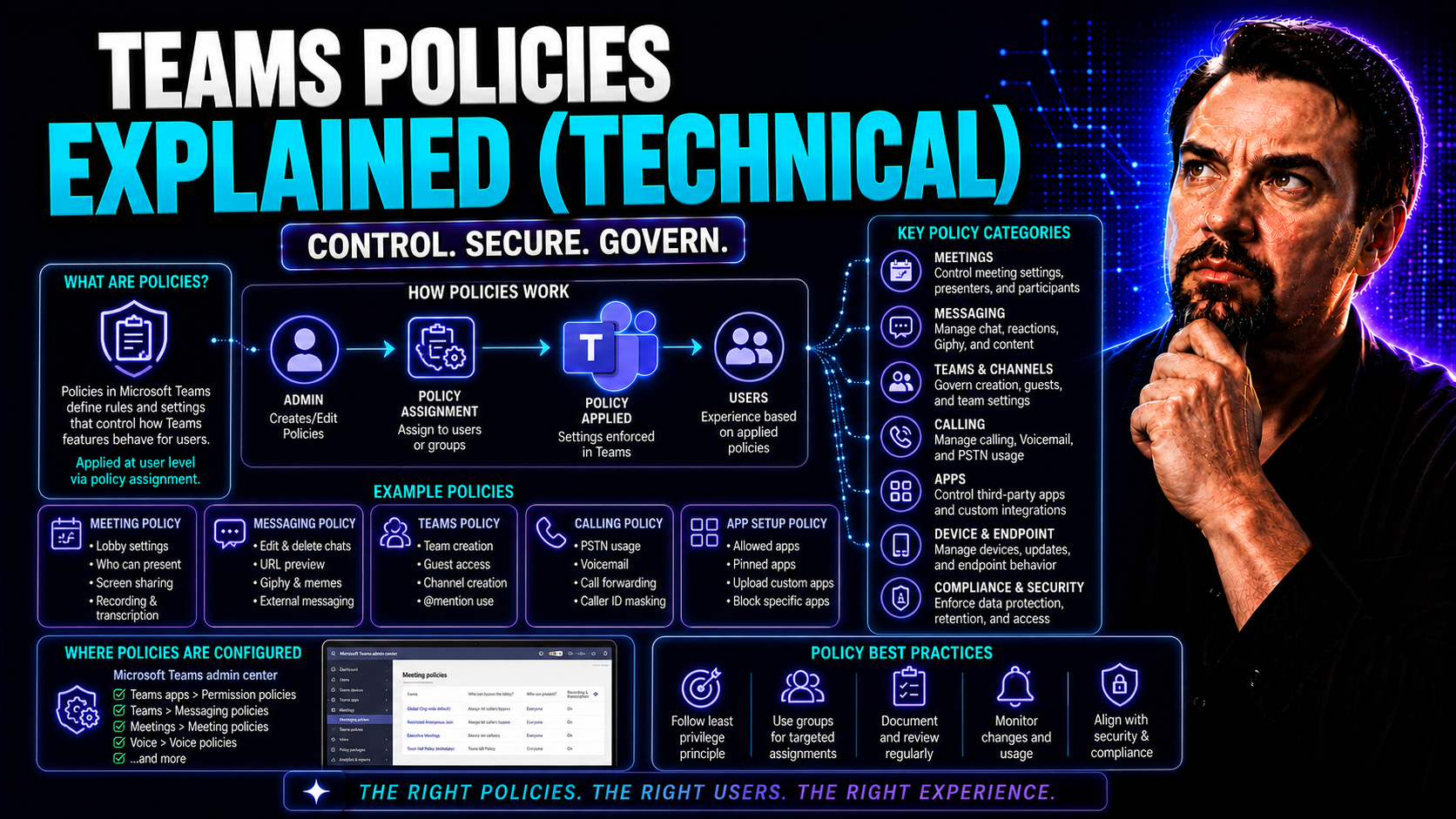
If you want Microsoft Teams to run smoothly and stay secure while supporting how your organization actually works, you can’t ignore the policies that drive the whole experience. Teams policies lay down the law—what users are allowed to do, how data is handled, and what kinds of apps get through the front door. For IT pros, understanding how to set up and manage these policies isn’t just a technical matter. It’s about making sure your business stays productive, compliant, and protected—even as Teams grows and changes fast.
This guide takes a deep, technical dive into Microsoft Teams policies. We’ll break down the key frameworks, explain how policy controls work, and give you practical steps and real-world examples for managing Teams at scale. Whether you’re facing challenges with user management, sensitive data, guest access, or integrating with other services, this guide will help you implement best practices and stay ahead with smart governance strategies designed for real-world complexity.
Microsoft Teams Governance and Policy Frameworks
If you want your Teams environment to be efficient, secure, and trusted across the business, you need more than just technical know-how—you need smart governance frameworks working behind the scenes. At its core, Microsoft Teams governance brings together policies, administration roles, and automated controls to create guardrails that help users collaborate without putting sensitive information or compliance obligations at risk.
Policies in Teams aren’t just checkboxes. They’re how you decide who can do what, who can see what, and how your data is protected—all from the top down. Good governance means understanding these policy types and the layers where they operate, from messaging controls and meeting restrictions down to application access and external sharing rules. By putting structured administration front and center, you make sure every action inside Teams supports your bigger business and regulatory goals.
The sections that follow dig into what these Teams policies really are, why they matter, and how they shape interactions across your organization. You’ll see how policy creation, assignment, and ongoing management build a secure, scalable foundation for Teams—not just for today’s needs, but as your digital workplace evolves. If you’re looking to move from “Teams chaos” to organized, confident collaboration, strong policy frameworks are your first step. For more on this transformation, check out the insights in how Teams governance turns chaos into confident collaboration.
What Are Teams Policies and Why Do They Matter
In Microsoft Teams, policies are sets of rules that define what users can and cannot do within the platform. These settings control user behavior, ranging from who can start meetings and record sessions to what files can be shared and which apps can be installed. Policies are tools for IT admins to maintain a secure, compliant, and productive Teams environment by making sure everyone follows the same standards—even as those standards adapt to your business needs.
Technically, policies break down into different types: messaging policies, meeting policies, app policies, and more. Each type governs a specific set of interactions or features, letting you granularly manage risk and productivity. For example, meeting policies can prevent users from joining meetings anonymously, while messaging policies might restrict file uploads to only approved file types. App policies can block non-approved third-party apps to limit exposure to shadow IT.
Effective policy management is more than a compliance checkbox. Enforcing tailored settings is critical for preventing data leaks, supporting regulatory requirements, and blocking unauthorized behaviors—like rogue guest invites or unmanaged external sharing. By mapping policies to specific business roles and risk areas, organizations keep tight control over sensitive content, streamline project work, and support large enterprise deployments where small missteps can carry big consequences. For a detailed look at how clear Teams governance transforms chaos into confident, organized collaboration, see this guide to strong Teams governance.
How to Create a New Policy in Microsoft Teams
To create a new policy in Microsoft Teams, start by heading to the Teams Admin Center. Navigate to the “Policies” section, where you’ll see categories like messaging, meeting, or app setup policies. Click “Add” or “Create policy,” then give your policy a clear name and set the desired configuration options—such as restricting file uploads or controlling chat features.
Once saved, assign the policy to users, groups, or devices through the assignment options in the Admin Center. Always test your new policy in a limited or pilot environment before deploying it broadly. This helps catch mistakes and ensures the policy works as intended. Periodically review and update policy settings based on feedback and shifting compliance needs to keep everything secure and functional.
Teams Microsoft Practices for Secure and Scalable Deployments
- Enforce Conditional Access: Require multi-factor authentication (MFA) and block legacy authentication methods to reduce unauthorized access. Tie Teams usage to device compliance for stronger identity verification.
- Use Purview DLP for Data Security: Deploy Microsoft Purview Data Loss Prevention to scan messages, files, and meeting content for sensitive data, automatically blocking risky sharing or downloads. This creates a strong safety net, especially when collaborating with guests or external partners.
- Limit Guest and External Access: Review and restrict who can invite guests or use shared channels. Set up granular policies for external sharing to reduce risk—especially crucial for organizations handling confidential or regulated data.
- Automate Lifecycle Management: Combine regular audits and automated triggers to archive or remove idle Teams groups, and nudge owners to update or decommission outdated workspaces. Automating these processes with Power Platform, Graph API, or Power BI prevents sprawl and ensures compliance.
- Centralize Policy Management and Auditing: Use the Teams Admin Center and PowerShell to distribute policy changes in bulk, monitor adoption, and maintain a consistent governance standard organization-wide. Audit logs and scheduled reviews help spot anomalies and support compliance efforts.
For an in-depth look at five-layered security—including Conditional Access and DLP—see Teams security hardening best practices. And for how governance frameworks sharpen productivity and protect data, visit how Teams governance turns chaos into confident collaboration.
Advanced Strategies for Assigning Teams Policies to User Groups
When your organization grows, so does the number and complexity of Teams groups, channels, and users. Applying a one-size-fits-all policy leads to security gaps and clutter—what tech folks call “sprawl.” To tackle this, you need strategic approaches for group-based policy assignments that take group status, ownership, user roles, and external access into account.
This section explores the technical methods used to assign and troubleshoot Teams policies for different user groups. You’ll see how to handle policies for active teams, keep tabs on dormant or ownerless groups, and manage those with external guests in the mix. The aim is clear: reduce unmanaged growth, keep permissions tight, and make compliance oversight a whole lot easier.
Tailored assignments keep things clean and secure, while regular audits pave the way for smarter Teams usage and better business outcomes. If you want even more context about reducing Teams sprawl with automation, automation, and lifecycle management, check out this guide to taming Teams sprawl.
Teams Assign Groups: Handling Policy Assignment Based on Group Status
- Assess Group Activity: Regularly audit Teams groups to categorize them as active, inactive, empty, or ownerless. This lets you target which groups need special handling—like policy restrictions or archival.
- Apply Tighter Policies to Inactive or Ownerless Teams: For groups with no recent activity or missing owners, assign restrictive or read-only policies. This ensures sensitive data isn't exposed and reduces compliance risk until the group's future is decided.
- Automate Owner Alerts and Lifecycle Actions: Set up automated notifications to remind users to assign new owners or archive stale groups. Use Power Platform or Graph API to trigger these actions—see practical techniques in automated lifecycle governance.
- Lock Down Empty Teams: Empty Teams, especially those without owners, are excellent places for risk to hide. Block membership changes, sharing, or external access until the group’s status is reviewed.
- Review and Adapt Regularly: Schedule reviews to spot changes in group status and adapt policies accordingly. Use reporting tools and automation to streamline these updates across hundreds or thousands of Teams for compliance and control.
Troubleshooting Teams Policies Empty or Missing Policy Assignments
- Check Policy Assignment Rules: Make sure users and groups are correctly mapped to policies. Mismatches or missing assignments are a common reason for empty policies.
- Run Synchronization Jobs: After changes, trigger a sync across Teams and Azure AD to update group status and assignments, ensuring new settings take effect.
- Review Permission Inheritance: On occasion, policy or permission settings may not cascade as expected. Review inheritance for Teams linked to SharePoint or OneDrive to catch configuration gaps.
- Audit with Logs: Use audit logs and built-in reports to spot where assignments fail or are missing. Establish regular checks, especially after bulk updates or migrations, as described in this guide.
Best Practices for Managing Group Policy Assignment in Teams
- Organize groups with clear naming conventions and metadata to make bulk assignments easier and more accurate.
- Validate ownership regularly by nudging users to confirm or update team owners, reducing the risk of orphaned groups.
- Automate policy updates and lifecycle workflows with Power Automate or Graph API to maintain governance at scale. Learn more about automatic controls in this deep dive on beating Teams sprawl.
- Report on group status and policy coverage to ensure nothing falls through the cracks.
Applying Policies to Groups for Guest Access and External Collaboration
- Segment Teams with Guest Access: Identify which Teams have guest or external users, since these require special policies to limit what outsiders can see or do.
- Adjust Sharing and Channel Controls: For Teams allowing guest collaboration, restrict sensitive channel creation, disable private chat for guests, and set file sharing to limited folders or groups.
- Apply External User Permission Policies: Use Teams-specific external access policies to control what guests can access, including blocking certain apps or integrations.
- Monitor and Audit Guest Activity: Enable audit logging for guest actions—such as file uploads or team joins—to keep tabs on potential security issues. Automated alerts can detect abnormal patterns.
- Automate Revocation and Reviews: Regularly run scripts to flag or remove stale guest accounts, and schedule reviews of Teams with frequent external collaboration to reevaluate risks.
For more insights on how clear governance makes guest access safer and smoother, see how Teams governance builds trust and compliance.
Sensitivity Labels and Security Controls in Microsoft Teams
As collaboration in Teams stretches across departments, projects, and sometimes entire continents, protecting sensitive information becomes non-negotiable. Sensitivity labels and advanced security controls are your main tools for smart information governance—letting you tag content, control access, and ensure compliance even as your environment grows and changes.
Sensitivity labels work like digital “stamps,” classifying chats, files, and entire Teams according to how sensitive or regulated the info inside them is. Only those with the right clearance can view or interact with protected content, and Teams policies can be mapped directly to these labels for dynamic, automated enforcement. This approach reduces accidental leaks, supports data privacy, and helps align your Teams setup with legal and business risk requirements.
The following sections break down how to set up, enforce, and get the most out of sensitivity labels—plus the best practices for integrating them with wider Teams and Microsoft 365 security controls. To learn how layered security and policy enforcement can protect your Teams spaces, visit Teams security hardening best practices.
Implementing Sensitivity Labels Security for Teams Content
- Create Sensitivity Labels in Microsoft Purview: Start in Microsoft Purview to define labels like “Confidential,” “Internal,” or “Public.” Set rules for each—such as restricting external access or encrypting content.
- Apply Labels to Teams, Channels, and Files: Assign these labels when creating new Teams or channels, or bulk-apply to files and chat threads for consistent security.
- Automate Enforcement via DLP Policies: Integrate labels with Data Loss Prevention (DLP), so sensitive files and messages are automatically protected from unwanted sharing or downloads, tying into wider Microsoft 365 controls.
- Monitor Label Adoption: Use built-in dashboards and audit logs to ensure content is correctly classified and your security strategy remains effective.
For a more advanced approach, see how multi-layered security stops accidental leaks and protects Teams data.
Assign Users to Policies Based on Sensitivity and Compliance
- Leverage Group-Based Assignments: Map Teams and users to security or compliance groups, then auto-assign appropriate policy bundles based on each group’s risk level or data sensitivity.
- Automate Assignments with Rules: Use dynamic rules (in Azure AD or Microsoft 365 Admin) to adjust policy assignments as users move roles or projects, ensuring sensitive data remains protected.
- Utilize Conditional Mapping: Tag users with labels (e.g., “Finance – Highly Confidential”) and link these labels to strict Teams policies—like blocking external sharing or controlling app integrations—automatically tailoring controls for compliance.
Best Practices for Teams Security and Compliance With Sensitivity Labels
- Continuously monitor label application using audit logs and compliance reports to prevent misclassification.
- Train users regularly on how to recognize, apply, and work with sensitivity labels in Teams environments.
- Develop processes for handling exceptions—such as requests to override labels—backed by documented approval workflows.
- Stay updated on Microsoft roadmap changes regarding sensitivity labels and information protection to quickly adapt your policy approach.
- Leverage real-world cases to help teams grasp why labels matter for business risk and compliance. For more details, check out how smart Teams governance helps reduce confusion and mistakes.
Customizing and Managing Teams Policies via Admin Center and PowerShell
To keep your Teams environment secure and aligned with business needs, you’ll often need to move beyond default settings and customize policies for your users. The Teams Admin Center offers an intuitive GUI for routine policy edits, while PowerShell unlocks bulk automation and advanced custom controls—crucial when managing thousands of users and groups.
Each tool has strengths: the Admin Center is great for step-by-step policy creation and assignment, making it easy to see and adjust settings at a glance. PowerShell, on the other hand, lets admins script complex operations, quickly assign or update policies across large segments, and automate detailed audits for compliance. Used together, they provide a comprehensive foundation for consistent and scalable policy management.
The guides in the following sections will show you exactly when, why, and how to use each, walking you through effective customizations, batch policy assignments, and robust auditing techniques for an enterprise-ready Teams deployment.
Customize Policies Effectively Using Teams Admin Center
- Navigate to Policies: Log in to the Teams Admin Center and select the relevant policy section (messaging, meetings, apps, etc.). Here, you’ll see all active and default policies.
- Create or Edit Policies: Click “Add” to create a new policy, or select an existing one to edit. Give your policy a clear, descriptive name and update settings like chat permissions, external sharing, and allowed apps.
- Configure Policy Settings: Tweak individual policy options to match your organization’s security and productivity goals. For instance, you can disable recording for compliance, restrict file uploads, or block non-approved apps.
- Save and Assign: Once you’ve set the configuration, save your changes. Assign the policy to individual users, entire groups, or even dynamic security groups for rapid distribution.
- Review and Audit Assignments: Use the Admin Center’s reporting features to confirm who’s covered by each policy, spot gaps, and ensure settings aren’t drifting over time. Regular reviews promote consistent governance and reduce admin effort down the line.
Save, Assign Policies, and Add Users to Policy Roles
After configuring a policy, hit Save to make your settings active. Assign policies from the same Admin Center window by clicking “Assign users” or “Assign groups” and selecting your targets—either individually or in bulk using group memberships.
Check policy assignment status through reports or by searching specific users to confirm the correct policies stick. For mass assignments or corrections, consider scripting with PowerShell. Always verify new assignments are reflected in user experiences, and troubleshoot any assignment lag with built-in tools or admin logs.
Powershell Auditing for Teams Policy Management at Scale
- Export Current Policy Configuration: Use PowerShell cmdlets like Get-CsTeamsMessagingPolicy or Get-CsTeamsMeetingPolicy to pull active policy settings into CSVs for baseline snapshots.
- Automate Compliance Audits: Schedule regular PowerShell jobs to compare current state versus policy intent. Alert on drift—like users missing required policies or unauthorized app access.
- Bulk Assign or Update Policies: With scripts, apply policies across large swaths of users or groups in a single operation, saving hours over clicking through the Admin Center.
- Spot and Fix Anomalies: Automate reports highlighting mismatches, empty assignments, or policy overrides. Integrate these outputs into a SIEM system to expand organizational visibility.
- Streamline Clean-Up and Lifecycle Tasks: Schedule scripts to nudge owners, flag orphaned groups, or even auto-archive unused Teams, tying back to broader lifecycle management. See more strategies in Teams lifecycle governance using PowerShell.
Lifecycle Management for Microsoft Teams: Archival and Decommissioning
Teams doesn’t stay tidy on its own. Over time, you’ll start racking up forgotten projects, abandoned chat spaces, and empty Teams that nobody touches. Lifecycle management is about setting up clear systems for archiving old content, retrieving information when it’s needed, and cleaning up groups so you don’t stumble into compliance or performance issues.
In this section, we look at technical processes for end-to-end Teams lifecycle management. You’ll see why linking retention rules to content type, business need, and regulatory schedules is vital. Keeping your environment clean means fewer headaches—less risk of accidental exposure, faster audits, and no more storing abandoned content you’ll never need again.
Automating these steps—like triggering archivals, running inactivity checks, or scheduling PowerShell removals—brings order and compliance to your Teams universe. For the nitty-gritty on automating governance and lifecycle processes at scale, check out how to tame Teams sprawl with Power Platform and Graph API.
Develop Strategies for Archival and Retrieval of Teams Content
Start by mapping your Teams content against business retention requirements and legal hold needs. Define clear retention schedules: how long chat messages, channel posts, and files should be kept. Trigger archiving actions using automation—such as when a Team sees no activity for 90 days or a project officially closes.
Integrate these strategies with SharePoint and OneDrive, since Teams files are stored there. Ensure that archived content stays discoverable for audits or litigation using eDiscovery tools, and set up retrieval workflows for restoring content if needed. Regularly align Teams, SharePoint, and OneDrive retention policies to avoid compliance gaps and keep your environment secure.
Audit and Remove Inactive Teams Groups at Scale With PowerShell Auditing
- Identify Inactive Teams: Use PowerShell to run periodic reports on last activity dates, message volume, and file edits for every Teams group. Flag those with low or zero activity.
- Automate Owner Alerts: Script automatic emails or Teams messages to nudge group owners about inactivity—giving them a chance to reactivate or approve archiving.
- Review for Compliance Needs: Before deletion, cross-check flagged Teams against compliance and retention requirements to ensure you don’t remove data subject to legal holds.
- Bulk Archive or Delete: Once approved, run PowerShell scripts to move inactive Teams to an archive state or delete them completely, updating Teams and SharePoint as needed.
- Monitor and Log Results: Keep logs of every action taken for accountability and future audits. Integrate reporting into Power BI dashboards to track efficiency and process gaps, as shown in Teams lifecycle governance automation.
Ensuring Cross-Platform Policy Consistency With SharePoint and OneDrive
Microsoft Teams is only one piece of the collaboration puzzle, with SharePoint and OneDrive quietly storing most of the files and content in the background. If your Teams policies aren’t properly aligned with what’s going on in SharePoint and OneDrive, you end up with security gaps, conflicting retention schedules, and data access confusion that can derail your compliance strategy.
This section covers the big why—and what—of harmonizing Teams, SharePoint, and OneDrive policy settings. The goal is a unified governance approach where retention, sensitivity, and access controls work seamlessly across platforms. By synchronizing your policies and keeping an eye on inheritance and manual overrides, you get airtight security and smoother collaboration for users at every level.
Looking for broader context on making dashboard, content, and policy decisions across Teams and SharePoint? This comparison on Teams vs. SharePoint dashboard embedding offers insights into balancing audience needs, data security, and user adoption across Microsoft 365.
Synchronizing Retention and Access Policies Across Platforms
- Map Out Retention Rules: Start by documenting all retention and deletion policies for Teams, SharePoint, and OneDrive. Identify overlaps and gaps, particularly around shared files and chat records.
- Align Access Policies and Permissions: Synchronize Teams membership and guest access settings with matching permissions in SharePoint and OneDrive. This avoids situations where a user loses Teams access but still sees files or vice versa.
- Set Up Cross-Platform Auditing: Implement monitoring tools that track policy application across all three platforms, flagging mismatches or unintended exposures.
- Test and Update Regularly: Monitor real-world access behavior through reports, then adjust any misaligned settings to close security blind spots and ensure consistent enforcement. For more on platform integration, review Teams vs. SharePoint dashboard best practices.
Managing Policy Inheritance and Exceptions in Teams-Connected SharePoint Sites
When you create a new Team in Microsoft Teams, SharePoint automatically spins up a linked site behind the scenes. By default, this site inherits the Team’s permissions and many of its policy settings, making access control easier to manage. However, if you change SharePoint permissions or apply site-specific policies afterward, those can override the inherited ones—potentially opening up access or breaking compliance rules.
To maintain compliance, review inherited and manually modified policies periodically—especially when adding external members or shifting team ownership. Use SharePoint’s site-level governance tools to enforce critical settings, and document any exceptions so you’re not caught off guard during audits. Always align these audits with your Teams and OneDrive reviews to ensure nothing slips through the cracks.
Dynamic Policy Assignment With Azure AD Conditional Access
Not every user, device, or login attempt is the same—so why should your Teams policies be static? By leveraging Azure AD Conditional Access, you can dynamically adjust Teams controls based on the real-world context of each user. Signs of risk? Unusual logins? Non-compliant devices? Your policies can tighten up or ease off automatically, supporting a true zero-trust security model.
This section introduces advanced techniques for letting user and device signals—collected and interpreted in Azure AD—drive automated policy enforcement in Microsoft Teams. By connecting conditional access to Teams, you gain adaptive controls that shut down risky behaviors without slowing down legitimate business collaboration. You’ll see technical walkthroughs in the sections below, preparing you to make your Teams environment smarter and safer.
Integrating Teams Policies With Azure AD Conditional Access and Identity Protection
Integrating Teams policies with Azure AD Conditional Access allows admins to enforce targeted rules based on real-time identity signals. By combining Teams policy assignment with Azure AD’s risk detection (like unfamiliar location or high-risk user scores), you can prompt multifactor authentication, restrict session features, or block access on untrusted devices.
Setting up policy triggers is straightforward—link Teams usage to conditional access policies in Azure AD, then configure restrictions based on user, app, or device context. These adaptive policies enhance security without hampering productivity, supporting a zero-trust strategy. For deeper insight into conditional access layering, see security hardening best practices for Teams.
Automating Policy Changes Based on Sign-In Risk and Device Compliance
- Monitor Sign-In Risk: Set up Azure AD Identity Protection to assess user or session risk at each login. High-risk logins—detected by odd locations or device health—can trigger stricter Teams policies, like blocking file sharing or demanding verification.
- Automate Enforcement via Microsoft Graph: Use Microsoft Graph API to trigger Teams policy changes in real time, linking risk events to policy assignment scripts.
- Update Policies for Device Compliance: For users on non-compliant or non-managed devices, auto-assign restricted policies that limit Teams capability or block sensitive channels and data.
- Integrate with PowerShell Automation: Schedule PowerShell scripts to recheck device compliance daily, rolling back lockdowns as users resolve their compliance status.
Safely Testing Teams Policy Changes Before Full Rollout
Rolling out a new Teams policy straight into production can lead to headaches—unexpected lockouts, confused users, or disruptions to critical projects. That’s why testing your policy changes in a safe space should always come before a full rollout. This not only prevents accidents but also builds confidence with business stakeholders that new controls won’t get in the way of real work.
Here, we’ll break down essential steps for safe pre-deployment testing. You’ll learn how to set up isolated test tenants, use Microsoft’s simulation tools to preview user impacts, and build rollback plans in case things go sideways. Investing in policy validation today saves you from costly mistakes, user complaints, and lost productivity down the line.
With clear test and rollback strategies, Teams admins can move fast without breaking their environment—keeping collaboration running smoothly through every policy update.
Using Teams Policy Simulation Tools and Test Tenants for Validation
- Set Up a Dedicated Test Tenant: Before changing production policies, create a test tenant environment that mirrors your real-world user segments and Teams structures. Assign “test users” to simulate typical roles and permissions.
- Use Policy Simulation Tools: Microsoft offers policy simulation and impact assessment tools—these let you preview how a new policy would affect target groups, channels, and users.
- Validate with Realistic Scenarios: Run “what-if” scenarios, such as disabling chat for certain users or adjusting file sharing controls, to see potential impacts before final rollout.
- Adjust and Document Outcomes: Record test results, tweak policy settings as needed, and maintain a playbook for future updates—reducing risks when deploying big policy shifts in the future.
Monitoring and Rollback Strategies for Failed Policy Deployments
- Monitor policy changes in real time using Microsoft 365 admin reports and audit logs to spot issues early.
- Set up quick PowerShell scripts to revert problematic policy assignments in case important features are blocked or outages occur.
- Communicate with affected users about impacts and rollback status for transparency and trust.
- Document all deployment and rollback actions for future reference and compliance tracking.
You Should Also Listen To
If you are researching Microsoft Teams policies, these episodes add useful context on the architecture, governance, operations, and security decisions behind the topic:
- Azure Virtual Network – Simply Explained — Learn which network architecture and connectivity choices influence Teams quality and performance.
- Microsoft Teams Governance – The Illusion of Control — Use governance and ownership models to turn performance data into repeatable operational improvements.
- Teams Telephony – Simply Explained — Understand the calling metrics and architecture behind reliable Teams voice performance.
- Microsoft Defender XDR – Simply Explained — See how security monitoring complements Teams health and operational monitoring.

Microsoft MVP | Host of M365.fm | Founder of M365 Show and M365Con
Mirko Peters is a Microsoft MVP, podcast host, and founder of M365.fm, M365 Show, and M365Con. His work connects Microsoft practitioners through podcast interviews, livestreams, and community events.
At M365.fm, Mirko hosts conversations with Microsoft MVPs, product experts, architects, and community contributors. Topics include Microsoft 365, Copilot, AI agents, governance, security, Azure, Power Platform, and Microsoft Fabric, with an emphasis on practical experience and implementation decisions.
M365.fm is the podcast and learning platform. M365 Show brings experts together for livestreams, while M365Con provides an online conference setting for community learning.
Official website: Mirko Peters (https://www.mirkopeters.com/). Recognition: Mirko Peters — Microsoft MVP profile (https://mvp.microsoft.com/de-DE/mvp/profile/9b0ca797-db5a-493a-a845-8b9158046cf5). Connect on LinkedIn (https://www.linkedin.com/in/m365showpodcast/).





