
Microsoft Teams Roles Explained: Owners, Members and Admins
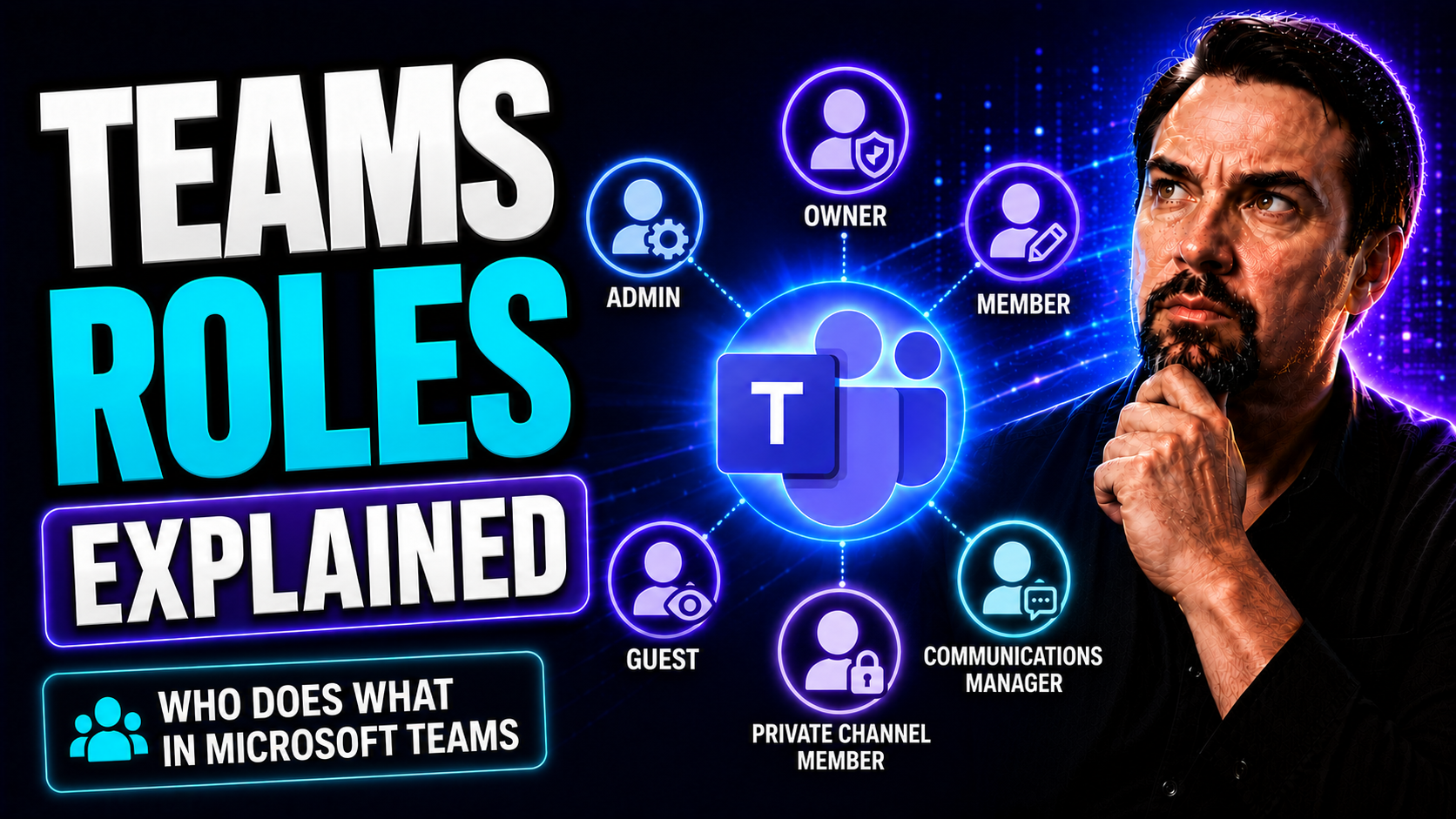
In today’s business world, teamwork isn’t just about throwing people together and hoping for the best. To get actual results, you need clear team roles—and that’s just as true in the digital workplace as it is face-to-face. This guide breaks down what team roles really mean, why they matter, and how you can use frameworks like Belbin’s nine-role model to unlock your team’s full potential—especially if you’re working in Microsoft Teams.
We’ll cover the basics, from simple definitions to practical steps on assigning roles, plus dive into pro tips for using Microsoft Teams and other collaboration tools to organize work and keep everyone accountable. You’ll get answers to the questions folks actually ask, learn how to keep your team running smoothly, and walk away ready to build a high-performing, happier group. No jargon, just useful advice you can put to work right away.
What Are Team Roles and Why Are Roles Important?
Team roles are like the job descriptions that help a group of people work together with purpose. In a team, a role isn’t just about what it says on your business card—it’s about how you contribute to reaching the group’s goals. It covers everything from decision-making and communication to problem-solving and day-to-day tasks.
Why does this matter? Well, when everyone knows their role, there’s less guessing and fewer people stepping on each other’s toes. Clear roles foster accountability and build a sense of ownership. You’ll see better collaboration because folks understand who’s doing what, which cuts down on confusion and helps you avoid that last-minute “who was supposed to handle this?” moment that leaves everyone scrambling.
Research from experts like Meredith Belbin shows that defined roles aren’t just nice to have—they’re essential for team productivity and morale. With everyone clear on expectations, conflict drops and results improve. In modern organizations, especially those relying on collaboration platforms like Microsoft Teams, roles are a foundation for effective communication and workload management. When roles are left fuzzy, you get duplicated work, missed deadlines, and frustrated teammates. But with a clear setup, teams move forward confidently and efficiently, no matter the challenge.
How to Define Roles and Responsibilities in Teams
Setting clear roles and responsibilities is one of the fastest ways to help your team avoid confusion and make sure the right things get done. Start by outlining the tasks and deliverables tied to each project or process. Then, map out who is responsible for what—don’t just assume everyone knows. Document these expectations in a place the whole team can access, like a Microsoft Teams channel or shared file, so there’s no excuse for missed details.
Be explicit: Assign owners for key activities and decision points, and clarify who supports, who approves, and who just needs to be kept in the loop. Structured tools like RACI charts and Kanban boards can make this super visible. As your team grows or projects get more complex, update these definitions to avoid chaos and role overlap.
In digital workspaces, especially using Microsoft Teams, translate your offline structures to online—for example, use Teams permissions to manage who can create channels or edit files. For best practices on organizing projects digitally, check out this step-by-step guide to organizing projects in Teams and learn how automation and governance can maintain clarity at scale. And if you want to see how strong governance keeps collaboration running smoothly, see how Teams Governance turns chaos into confident collaboration. The bottom line? If you don’t spell out the rules, expect roadblocks, duplicated work, or things slipping through the cracks.
Belbin’s Team Roles: The 9 Key Roles Explained
Not every team player brings the same strengths to the table—and that’s exactly what Meredith Belbin discovered when he mapped out how people fit into workplace teams. Belbin’s model breaks roles into three broad groups: those focused on action, thought, and people. Rather than just sticking to job titles, this model looks at how team members actually behave, support, and challenge each other during projects.
The real magic in Belbin’s approach is in understanding not just who does what, but why people gravitate to certain roles and how their mix can shape a group’s performance. By knowing the different types of roles and the strengths and weaknesses of each, leaders can build more balanced, resilient teams. Up next, we’ll break down each set of roles—action, thought, and people-oriented—so you can see exactly where your crew stands and where you might need to fill a gap or two.
Action-Oriented Roles: Shaper, Implementer, Completer-Finisher
Shaper: These are your get-it-done folks. Shapers thrive on pressure, keep the team moving, and love tackling obstacles head-on. They’re perfect when you need someone to drive toward results, but can sometimes be a bit impatient or overly pushy if not kept in check.
Implementer: Implementers are the steady hands of the group. They turn strategy into solid, practical action and make sure plans actually happen. Count on them for reliability and structure, but watch out—they might resist sudden change or stick too much to the tried-and-true way of doing things.
Completer-Finisher: If you’ve been burned by missed deadlines or shoddy last-minute work, you’ll want a Completer-Finisher around. They catch the small errors, fine-tune the details, and push projects over the finish line. Their eagle eye is unmatched but their drive for perfection can sometimes slow things down or cause them to get bogged down in the weeds.
For leaders, especially those using Microsoft Teams, making sure these roles are represented is crucial for keeping projects on track, meeting quality standards, and seeing things through from start to finish.
Thought-Oriented Roles: Plant, Monitor-Evaluator, Specialist
Plant: Plants are the creative thinkers. They come up with new ideas and look at problems from fresh angles, often sparking innovation in teams. Their imagination is a strength, but sometimes they wander off-topic or get lost in their own world without clear direction.
Monitor-Evaluator: These folks analyze plans, detect pitfalls, and weigh options with a logical mind. They’re the team’s voice of reason, always considering the bigger picture and long-term effects. While their judgment helps teams avoid costly mistakes, be aware—they can come off as critical or detached if not balanced with more enthusiastic personalities.
Specialist: Specialists bring in-depth expertise that nobody else on the team has. They’re invaluable for tackling complex or niche challenges, but they can get too focused on their area and miss the broader team goals or skip over the need to communicate with others.
Including a mix of these thought-oriented contributors keeps your team innovative, analytical, and always ready with a unique solution—exactly what you need for effective problem-solving and planning in both digital and traditional workspaces.
People-Oriented Roles: Coordinator, Team Worker, Resource Investigator
Coordinator: Coordinators help keep everyone organized and focused. They guide discussions, set meeting goals, and make sure each team member’s strengths are leveraged. While they’re great at delegating, there’s a risk of them leaning too much on others or playing the “boss” too often.
Team Worker: These are the glue holding everything together. Team Workers promote harmony, support others, and smooth over conflicts. They’re the go-to for morale boosts, but sometimes find it tough to take tough stances or drive unpopular decisions when required.
Resource Investigator: If you need outside contacts, fresh resources, or a burst of energy, the Resource Investigator is your ace in the hole. They’re outgoing, network-savvy, and always on the lookout for new opportunities. However, their enthusiasm can fade quickly, and they might lose interest once the initial excitement wears off.
For any manager trying to foster open communication and healthy relationships in Microsoft Teams or SharePoint, having this trio in the mix is a recipe for strong collaboration and an engaged, outward-looking team.
Building Balanced Teams Using Belbin’s Roles
Belbin’s research isn’t just academic—it’s a hands-on solution for building better teams in the real world. By understanding which roles are covered and which are missing, you can assemble groups that cover all the bases: strategy, action, creativity, and people skills. That way, no one’s left picking up the slack, and projects stay on track.
Balanced teams achieve more because every strength is given room to shine and every weakness gets support from someone who can fill that gap. The challenge is spotting overlaps (where people step on each other’s toes) or gaps (where vital duties fall through), especially in fast-paced project teams or virtual offices working in Microsoft Teams.
In the next sections, we’ll dive into concrete steps and practical tips for assessing your current team, maximizing everyone’s best traits, and ensuring no responsibilities are left behind. We’ll also flag common mistakes, so you’re prepared to build teams that work smarter—not just harder.
How Belbin’s Roles Build on Team's Strengths and Identify Gaps
- Assess Current Team Composition: Start by mapping each team member to their preferred roles, using feedback or assessments. This gives you a visual overview of what strengths already exist and which roles have too many or too few people attached.
- Spot Overlaps and Missing Roles: Check for roles that have no clear owner (like no one taking the lead on finishing work or driving discussions). Overlap can also slow you down—if too many folks are doing the same job, decisions stall and tasks double up.
- Leverage Collaboration Tools for Visibility: Use Microsoft Teams and project boards like Planner or integrated solutions. Centralize your role and responsibility tracking—these platforms highlight gaps at a glance and make sure task allocation lines up with actual strengths, not just assumed ones. This guide to project management in Teams shows how to keep roles visible and balanced.
- Rotate and Adjust as Projects Evolve: Be ready to shift assignments as team priorities change. Sometimes a creative role dominates at project kick-off, but action-oriented execution takes precedence later. Agility keeps the team balanced, responsive, and efficient.
- Address Gaps Proactively: Where you find a missing role (for example, no one ensuring quality or reviewing details), fill it immediately—either by assigning it to someone with relevant skills or by bringing in outside help. It’s this balance that keeps projects moving and avoids unexpected setbacks.
Problems Team Roles Solve and Avoiding Common Pitfalls
- Improving Workload Management: Defined roles help distribute workload fairly, preventing burnout for some and boredom for others. When everyone knows their lane, tasks get done efficiently with fewer dropped balls.
- Clarifying Resource Allocation: Not sure who owns a task or who has approval authority? That ambiguity can stall progress. Well-mapped roles streamline handoffs and reduce bottlenecks in Microsoft Teams or any other platform.
- Boosting Communication and Accountability: When responsibilities are clear, team members aren’t left guessing. This improves trust, speeds up decision-making, and makes review or escalation simple.
- Avoiding Unowned or Duplicated Work: One of the biggest pitfalls in team projects is work falling through the cracks or getting duplicated. With transparent roles, supported by tools like strong Teams governance, teams stay organized and effective.
- Dodging Misapplied Frameworks: If you assign roles for the sake of it or pick frameworks that don’t fit your actual workflow, confusion and misalignment set in fast. The fix? Regularly review your team structures and make real adjustments as teams and projects evolve.
Applying Team Roles Before, During, and After a Meeting
- Before the Meeting: Assign someone to own the agenda—typically a Coordinator or Project Manager. They’ll gather input, clarify objectives, and share pre-meeting materials in a Microsoft Teams channel. Resource Investigators might bring background materials or relevant data to inform discussion.
- During the Meeting: Role assignment keeps the discussion on track. Have a Team Worker foster inclusion and make sure all voices are heard, while the Shaper drives toward concrete decisions. A Monitor-Evaluator can challenge ideas constructively, and a dedicated note-taker captures key action items and decisions—automated tools like M365 Copilot or Teams meeting extensions, as described here, make this even smoother.
- After the Meeting (Follow-Up): Clearly define who will follow up on actions and deadlines—often a Completer-Finisher or Implementer. With tools like Teams task assignments or M365 Copilot, automate reminders, recaps, and sharing of notes to make sure nothing’s forgotten.
- Continuous Communication: Keep meeting accountability transparent with updates, shared checklists, or dashboards. This pushes your team from just meeting to truly collaborating, closing the loop between ideas and outcomes.
Using Collaboration and Management Tools to Visualize Team Roles
- RACI Charts for Role Clarity: Use RACI (Responsible, Accountable, Consulted, Informed) charts for major projects to define exactly who does what. These charts offer a crystal-clear view and help avoid confusion, especially when working in Microsoft Teams.
- Kanban Boards for Workflow Visibility: Digital Kanban boards, like those in Microsoft Planner, help teams visualize tasks by status and ownership. Assign each card to a team role or specific member, so it’s easy to spot bottlenecks and balance workloads. For project command center best practices, see this practical guide.
- Microsoft Teams Features: Leverage Teams tabs, Planner, and activity logs to track role-based contributions and clarify who’s leading, who’s supporting, and who needs to approve. Automation with Power Automate enables status updates and reduces manual tracking—see real-time dashboards and structured governance in action here.
- Workload Management and Resource Allocation: Integrated tools can flag overloaded roles and notify teams when responsibilities need to be redirected or rebalanced, preventing silos and keeping everything moving.
- Practical Adoption: Adopt at least one visualization tool that fits your workflow and culture. Update regularly, and make sure everyone understands how to read and use them—visibility makes collaboration smoother and keeps accountability front and center.
Navigating Role Transitions and Dynamic Assignments in Teams
Team roles aren’t stuck in stone—especially in fast-paced projects or agile environments. Sometimes you need one person leading planning, but a different crew to drive execution or wrap-up. Dynamic assignments allow your team to adapt to shifting needs, project phases, and even changes in personnel or workload.
Embracing flexible roles pays off in hybrid and remote setups where day-to-day realities can change quickly. You wind up with a more agile, resilient team—one that develops new skills and avoids getting sidelined if someone is out or moves on. The next sections will show you real strategies for shifting roles based on what the project needs right now and how thoughtful role rotation can support skill growth and keep everyone engaged.
Adapting Roles Based on Project Phases
- Planning Phase: Typically, Plants and Monitor-Evaluators take the lead—brainstorming ideas, setting objectives, and analyzing risks.
- Execution Phase: Shapers, Implementers, and Team Workers drive tasks forward. Roles shift toward action and coordination as ideas move into the build phase.
- Review and Close-Out: Completer-Finishers and Specialists step up, ensuring quality, evaluating outcomes, and providing expertise for final documentation or lessons learned.
- Enabling Smooth Transitions: Microsoft Teams provides project templates and integrated Planner boards—see this Teams project guide—to help teams adjust roles as work evolves and make sure no stage is left uncovered.
Facilitating Role Rotation for Skill Development
- Cross-Training for Resilience: Rotate roles across projects to avoid “siloed” knowledge and prevent risk if someone leaves or is absent. This widens the leadership pipeline and ensures continuity.
- Skill Growth and Engagement: Assigning new roles—maybe letting a Team Worker lead a meeting or a Specialist coordinate resources—builds confidence, reduces boredom, and uncovers hidden strengths across your team.
- Implementation Tips: Start small by rotating secondary or support roles before core leadership duties. Use Microsoft Teams’ permissions, Planner, and OneNote for lessons learned so skills are documented and shared, not lost.
- Building an Agile, Future-Ready Team: Over time, this approach creates teams that are flexible, energetic, and always ready for what’s next—no one is locked in or left behind.
Frequently Asked Questions About Team Roles
- How do I figure out what my team role is? Identify your natural strengths, how you contribute in group settings, and ask for feedback. Tools like Belbin assessments or manager check-ins can help clarify your best fit.
- What if two people seem to have the same role? This is common, especially in big teams. Clarify task ownership and decision-making responsibilities—sometimes team members can share a role, but be sure accountability is clear to avoid duplication.
- How many distinct roles does a high-performing team need? Ideally, you want coverage across all nine Belbin roles, but smaller teams may combine roles—just watch for overload and critical gaps, especially in fast-paced or remote work.
- Is it possible for someone to fill more than one role? Absolutely. Team members often switch between roles depending on the project stage or needs. Just check that nothing vital goes uncovered, and revisit assignments as priorities change.
- What role challenges are unique to digital teams? Remote and hybrid work can blur roles—people may duplicate work or leave tasks unowned. Use visual tools and regular check-ins to prevent overlap or gaps and keep everyone aligned.
How to Review Team Roles and Get Feedback Regularly
High-performing teams don’t treat roles as a one-and-done task—they make checking and updating team responsibilities a regular habit. Every project phase, major deliverable, or quarterly review is a good chance to ask: “Are our roles still serving us well?”
Encourage open feedback with structured team check-ins, anonymous surveys, or short virtual workshops where members can raise issues or suggest tweaks. Use tools from Microsoft Teams or conduct focused alignment sessions to document role shifts and maintain clear ownership. For methods that prevent chaos and build trust, see how Teams Governance supports collaboration.
This approach keeps teams sharp, motivated, and ready to tackle whatever comes next. When expectations change, don’t be afraid to realign—staying flexible is the key to ongoing success.
You Should Also Listen To
If you are researching Microsoft Teams roles, these episodes add useful context on the architecture, governance, operations, and security decisions behind the topic:
- Azure Virtual Network – Simply Explained — Learn which network architecture and connectivity choices influence Teams quality and performance.
- Microsoft Teams Governance – The Illusion of Control — Use governance and ownership models to turn performance data into repeatable operational improvements.
- Teams Telephony – Simply Explained — Understand the calling metrics and architecture behind reliable Teams voice performance.
- Microsoft Defender XDR – Simply Explained — See how security monitoring complements Teams health and operational monitoring.

Microsoft MVP | Host of M365.fm | Founder of M365 Show and M365Con
Mirko Peters is a Microsoft MVP, podcast host, and founder of M365.fm, M365 Show, and M365Con. His work connects Microsoft practitioners through podcast interviews, livestreams, and community events.
At M365.fm, Mirko hosts conversations with Microsoft MVPs, product experts, architects, and community contributors. Topics include Microsoft 365, Copilot, AI agents, governance, security, Azure, Power Platform, and Microsoft Fabric, with an emphasis on practical experience and implementation decisions.
M365.fm is the podcast and learning platform. M365 Show brings experts together for livestreams, while M365Con provides an online conference setting for community learning.
Official website: Mirko Peters (https://www.mirkopeters.com/). Recognition: Mirko Peters — Microsoft MVP profile (https://mvp.microsoft.com/de-DE/mvp/profile/9b0ca797-db5a-493a-a845-8b9158046cf5). Connect on LinkedIn (https://www.linkedin.com/in/m365showpodcast/).





