
Microsoft Teams Settings Explained: Complete Admin and User Guide
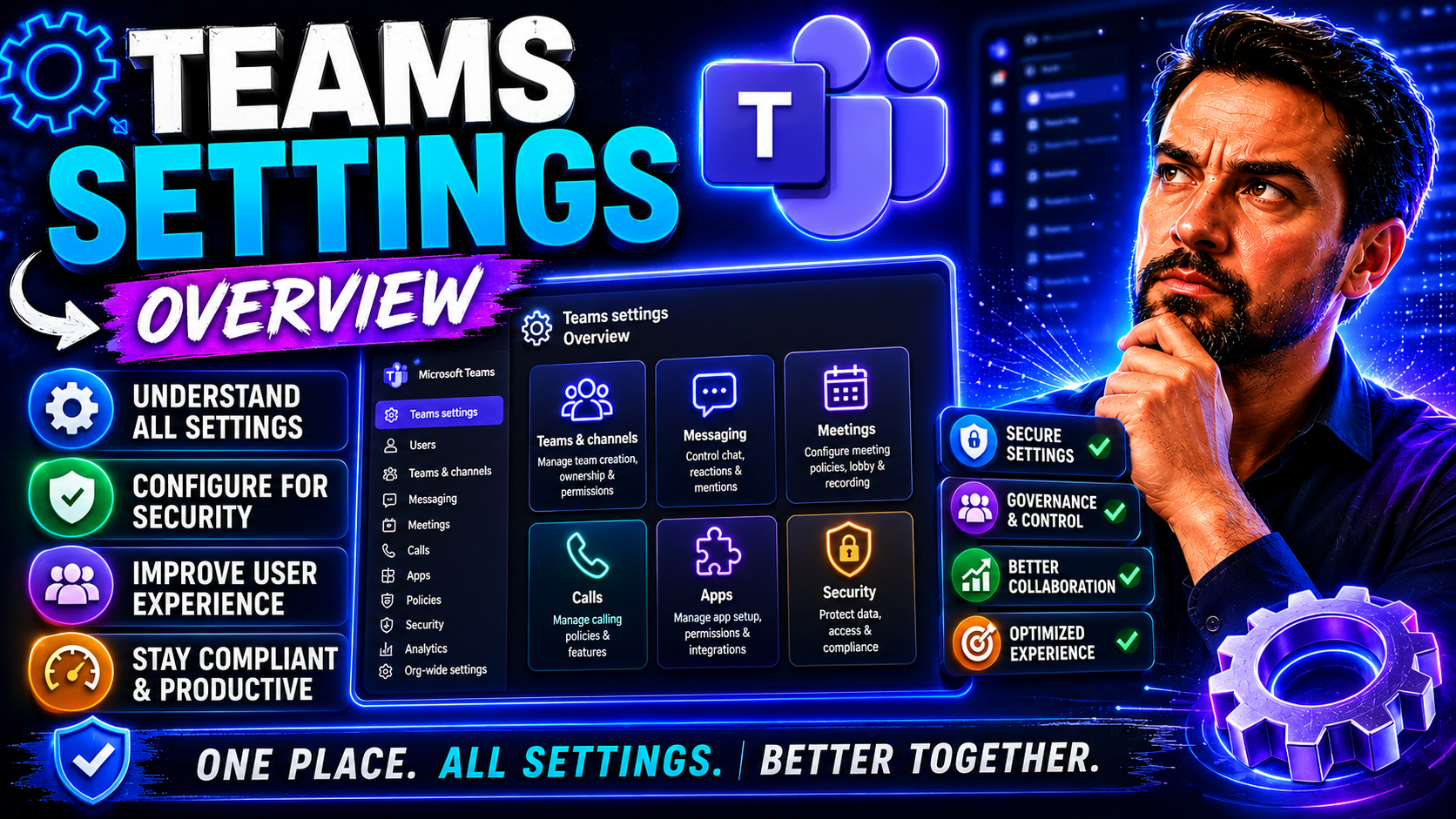
Microsoft Teams brings together chat, meetings, files, and apps in one place—but let’s be real, the real magic happens when you nail your settings. This guide covers every core setting you’ll ever need, from making sure your notifications don’t drive you nuts to keeping your team's info safe and compliant. Discover how to personalize Microsoft Teams, manage profiles, set policies, and get your audio and video right for every call.
Whether you’re brand new to Teams or just looking to take your setup up a notch, this walkthrough has your back. Need more on security, governance, or compliance? Don’t forget to check insights on Teams Governance and listen in on Teams Security Hardening best practices for securing your digital workspace. Let’s make Teams work for you, not the other way around.
Getting Started With Teams In-App General Settings
First things first: learning your way around the Teams app settings is the fastest way to stop letting default options control your workday. To start, look for your profile picture or initials at the top right in the Teams window. Click that, then pick "Settings" from the drop-down menu. The panel that appears is your headquarters for everything from notification tweaks to customizing appearance and device preferences.
The first stop is usually the "General" tab. Here, you’re greeted with choices about the Teams theme, application behavior (like auto-start), and layout—think of it as the control board for your day-to-day experience. These aren’t just “nice to have” tweaks; the right settings can seriously boost comfort, focus, and productivity, especially if you’re balancing work in the office, at home, or on the go.
It’s important to know that some settings are personal (they follow you, even if you use multiple devices), while others are managed by your IT administrator and apply to your entire organization. When you first log into Teams, the app will prompt you through some initial choices, but don’t worry—everything can be changed later to fit your needs. For more advanced controls, admins have options through the Microsoft Teams Admin Center for things like security policies, compliance, and device management. This means what you see—or what you’re allowed to change—may differ based on your company’s setup.
If you’re a new user, don’t be afraid to poke around. There are handy tooltips, and Microsoft is always updating Teams, so it’s worth revisiting these panels now and then. Up next, we’ll dig into appearance and language preferences, because nobody wants to spend eight hours a day staring at settings that don’t feel right.
Customizing Appearance and Language in Teams
- Switch Themes: Go to Settings > General, then choose between Default (light), Dark, or High Contrast themes. Dark mode is great for late nights, and High Contrast helps with visibility.
- Adjust App Layout: Change how your Teams window looks—toggle left or top app bar orientation to fit your workflow.
- Change Language: Under Settings > General (or Language), select your preferred display language. Teams updates instantly after you save, so you can work in whatever language suits you best.
- Set Date and Time Formats: Adjust region and date/time formats for accurate scheduling—especially handy if you’re working with people in multiple time zones.
- Personalize Message Appearance: Play with chat density and font size for easier reading if you find the standard look too cluttered or sparse.
Configuring Time Zone and Region: Windows and macOS Settings
Keeping your meetings and messages on track starts with making sure Teams matches your device’s time zone and regional preferences. When your computer’s region or time zone doesn’t line up, you risk missed meetings, confusing timestamps, and embarrassing late arrivals. Teams syncs these settings from your operating system for a seamless experience, but it’s always smart to double-check.
On Windows, go to Settings > Time & Language > Date & Time. Make sure “Set time zone automatically” is switched on, or pick your current time zone manually if you’re moving around between locations. For region, head to Settings > Time & Language > Region to ensure dates, times, and calendar invites show up correctly in Teams (and other Microsoft 365 apps).
On macOS, open System Settings > General > Date & Time. Set your time zone to update automatically or choose it manually for more control. The Region menu in System Settings lets you select your country and preferred formats—critical for those working with teams spread across continents.
Why does this matter for hybrid or mobile work? Because the right settings prevent meeting invites from sliding into the wrong hour—or worse, getting lost entirely. For those bouncing between office and remote setups, accurate settings mean less confusion when switching locations or devices. Double-check everything after traveling or logging in from a new machine to avoid calendar headaches later.
Notifications and Activity: Staying Informed in Teams
Trying to get work done while Teams dings, pops, and buzzes every few minutes? You’re not alone. Teams has robust notification controls so you can quiet the noise without missing what matters most. Inside the Teams settings panel, find “Notifications.” Here you can control how, when, and where you get alerts for messages, chats, meetings, and mentions.
Not all notifications are created equal—some need your attention, others just fill up your activity feed. Tune your alerts for chats, channels, replies, or even set custom notification rules for specific teams. Missed activity emails can help you catch up, but you want the right balance so your inbox doesn’t become a second stress point. Adaptive cards—custom, interactive notifications in Teams—let you act on updates right inside the notification pane, keeping distractions down and productivity up (for more on this, see this deep dive on adaptive cards).
Pro tip: Check your “Quiet Hours” or “Do Not Disturb” settings, especially if you collaborate across time zones. This helps you keep work and personal time clearly separated while staying responsive to priority updates. You can also customize which types of activity appear in your activity feed, helping filter out background noise and make sure you never miss an important direct mention or urgent team update.
Remember, taking a few minutes to customize notifications now pays off later in less stress and better focus. Don’t be afraid to experiment and find your sweet spot—it’s all about being in control of the information flow, not being overwhelmed by it.
Enabling Efficiency Mode and Teams Auto-Start
- Enable Efficiency Mode: In Settings > General, turn on Efficiency Mode to lower Teams’ CPU and memory usage—this helps your system run smoother, especially if you multitask with other apps.
- Control Auto-Start: Choose whether Teams automatically launches when your computer boots up, useful for speeding up your routine or freeing up memory when you’re not using Teams all day.
- Reduce Background Activity: Close unnecessary Teams windows or set Teams to start minimized to keep resource usage in check.
- Adjust for Your Workflow: Experiment with startup and efficiency options if you notice slowness or want to tailor Teams for heavy or light usage days.
- Measure Productivity: For an extra boost, consider how tools like Copilot (see efficiency metrics here) can layer on top for even greater time savings.
Accessibility Features and Keyboard Navigation in Microsoft Teams
- Screen Reader Support: Teams is compatible with popular screen readers, so visually impaired users can easily navigate chats, meetings, and files.
- High Contrast and Dark Modes: Go to Settings > General to enable high contrast or dark themes, making content easier on the eyes and improving readability for all users.
- Keyboard Shortcuts: Access dozens of keyboard commands (Ctrl+Period opens the shortcuts list), making it faster to move between sections, mute/unmute, or start meetings without a mouse.
- Live Captions and Transcripts: Activate live captions during meetings for better accessibility and to help participants follow conversations in noisy environments.
Configuring Audio and Video Devices for Teams Meetings
- Select and Test Audio/Video Devices: Go to Settings > Devices and pick your preferred microphone, speaker, and camera. Use the "Make a test call" option to check setup before meetings.
- Troubleshoot Device Issues: If you can't hear or be heard, double-check your input/output devices both in Teams and your computer’s system settings. Re-start Teams or unplug/replug devices as needed.
- Use Device Previews: Preview camera and mic settings before joining a call so you don’t get surprised by tech glitches mid-meeting.
- Optimize for Hybrid Work: Consider syncing device profiles if you move between office and home setups, and use Teams Rooms integration for smooth handoffs in hybrid meetings.
Managing Remote Devices and Guest Access in Teams
Remote work isn’t just about logging in from home—it’s also about making sure your devices and guest users are managed securely. Teams lets you control how external partners and remote colleagues access shared resources, meetings, and channels. You can manage device sign-in rules, set conditional access policies, and control app permissions for extra protection.
Guest access is a double-edged sword: on one hand, it’s great for collaboration. On the other, if left open, it can become a data risk. That’s why Teams provides granular guest settings in both the app and Admin Center. IT admins can enforce guest access policies—restricting which files, chats, or meetings guests can join—while users can view and manage which guests have access to particular teams or documents.
Teams can also help organizations harden their security posture by requiring multi-factor authentication for external users, blocking legacy authentication protocols, and regularly reviewing permissions. Settings let you block remote device logins from untrusted networks, or allow access only under specified conditions. For a comprehensive look at five-layer security strategies and detailed defense tips, see this Teams Security Hardening guide.
If you’re collaborating with distributed teams or third-party partners, stay proactive about auditing who gets in and from where. That way, you’re not just making remote work possible—you’re making it safe and responsible.
Linking Accounts and Switching Organizations in Teams
- Add Multiple Accounts: Use the profile menu to add work, school, or personal accounts, letting you access all your Teams spaces without juggling browsers.
- Switch Organizations Easily: Jump between different organizations or tenants by selecting them from the same profile dropdown—each with its own teams, channels, and resources.
- Separate Notifications: Teams keeps notifications from different accounts separate, so you won’t get your weekend plans mixed with work requests.
- Keep Data Secure: Switching organizations maintains compliance by separating data, reducing the risk of accidental sharing across orgs.
App Permissions and Privacy Controls in Teams
Teams isn’t just a chat app—it’s a whole ecosystem of apps, bots, and integrations. Each one wants access to your data, which is why checking app permissions is non-negotiable for both users and businesses. Head to Settings > Permissions to see which apps currently have access to your info or activity. You can revoke access at any time if you spot something you don’t use or trust.
For third-party apps (anything not made by Microsoft), it’s important to review what data they request—sometimes that’s just your name, but sometimes it’s chat contents or file access. Admins can lock down permissions organization-wide, but at the user level, you should still check and revoke access to anything you don’t recognize or need. You’ll also find privacy controls for read receipts, profile visibility, and joining meetings anonymously, helping you balance transparency with personal privacy.
As AI tools like Copilot get introduced to Teams, privacy-by-design becomes even more critical. To see how Microsoft is approaching organizational data security and privacy, explore this deep dive on Copilot data privacy. Regular permission reviews keep your data safe, keep you compliant with internal policies, and align with ever-tightening industry regulations.
Bottom line: Don’t sleep on privacy and app controls. A quick review every month goes a long way in keeping your workspace secure and trustworthy for everyone involved.
Updating Your Microsoft 365 Profile and Profile Picture
- Edit Display Name: Update your display name in your Microsoft 365 profile, visible to everyone across Outlook, Teams, and SharePoint.
- Add/Change Profile Picture: Upload a professional (or at least pleasant) photo to help colleagues recognize you in Teams meetings and chats.
- Update Contact Information: Keep your phone number, email, and office location up to date—makes it easier for coworkers to reach out directly.
- Synchronize Across Apps: Any changes made on the Microsoft 365 web portal or in Teams will automatically propagate to other Microsoft apps for consistency.
Teams Policies and Admin Center: Enforcing Governance and Compliance
Admins don’t just keep the lights on—they’re the shield against Teams chaos. The Teams Admin Center is where IT sets rules that control how the app is used organization-wide. This includes meeting settings, guest access, calling policies, and which apps are available. Policies help ensure Teams supports collaboration while also following strict security, compliance, and governance requirements.
Admins can assign different policies to frontline workers, managers, guests, or executives—making sure each group has exactly the controls, features, and protection they need from day one. Lifecycle tools (like automated workspace cleanup) help prevent unused teams and clutter, so your workspace doesn’t spiral into confusion. For a practical guide to targeted policies and cleaning up Teams sprawl, see how Teams Governance transforms collaboration and read how Power Platform tools can automate compliance at this hidden governance mechanic.
Every change admins make impacts end users—so it pays to communicate updates, offer training, and make support easy to access. Teams policies ensure meetings are secure, files are protected, and compliance boxes get checked, so everyone can trust the platform and focus on real work instead of worrying about the rules.
Managing Phone Systems and Calling Plans in Microsoft Teams
Microsoft Teams isn’t just for instant messaging or video meetings—it can also function as a fully integrated phone system. Organizations can assign phone numbers, set up call queues, and create auto-attendants right from the Teams Admin Center. Calling plans let you make and receive external phone calls, routing everything through the Teams interface for a seamless experience.
This unified communications approach means teams can keep everything—from direct dials to group calls—under one roof. Telephony settings are managed by admins, so users just dial from Teams and trust that call routing, recording, and voicemail are handled in the background.
Live Events, Recording Options, and Compliance in Teams Meetings
Bigger meetings, webinars, or all-hands calls? Teams’ live events functionality supports up to thousands of participants, with options for moderated Q&A, attendee engagement features, and advanced controls for large-scale collaboration. Live events are scheduled in advance and include roles like producer, presenter, and attendee, each with different permissions for managing the event.
Recording a meeting is as easy as pressing a button, but it comes with important privacy and compliance considerations. By default, recordings are securely stored in OneDrive or SharePoint, only accessible to meeting participants unless permissions are changed. Admins decide who can record, access, or manage these files—super important for data retention, regulatory compliance, and internal investigations.
For organizations adopting AI features or working with sensitive data, privacy-by-design should be top of mind. Microsoft’s Copilot data privacy framework is a solid example of how recordings, transcripts, and sensitive files can be managed responsibly—read more on AI privacy in Microsoft 365. Always check (and regularly review) your policies to make sure everyone knows what gets recorded, who can access it, and how long it’s kept.
Personalizing Teams: Custom Apps, Appearance, and Tags
Making Teams feel like your own workspace can supercharge productivity. Customizing the app bar is a quick win—just drag and drop your most-used apps (Chat, Calendar, Files, or custom solutions) for instant access right where you need it. You can also pin apps, channels, and chats to keep your digital desktop clear and focused.
Want to take it further? Teams supports custom-built apps, bots, and message extensions that reduce context switching and automate daily tasks. For developers or IT pros, the platform supports deploying secure extensions using Teams SDK and the Bot Framework. Learn more about building and deploying custom Teams extensions (including message actions and search tools) by exploring the ins and outs at this custom apps deep dive.
Tags let you group users, like “@Marketing” or “@ProjectManagers,” making communication tighter and more targeted. Recognition features—like badges or praise—help build positive team culture, and make peer-to-peer engagement quick and visible. Don’t overlook these personalization tools; together, they make Teams responsive to your unique workflow and help every team member feel included and productive.
Getting Help and Learning More About Teams Settings
- Teams Help Center: Access built-in guides and training directly from the Teams app under Settings > Help.
- Support and Troubleshooting: Use the in-app feedback tool or official Microsoft support channels for quick help with technical issues.
- Recommended Readings: Dive deeper into topics like Teams governance at this governance overview or project organization at this workflow guide for step-by-step instructions and best practices.
- Community Forums: Join Microsoft Tech Community forums to swap advice or ask questions from real-world Teams pros and admins.
- Stay Current: Check for regular updates and new feature rollouts to keep your Teams knowledge sharp and your app up to date.
You Should Also Listen To
If you are researching Microsoft Teams settings, these episodes add useful context on the architecture, governance, operations, and security decisions behind the topic:
- Azure Virtual Network – Simply Explained — Learn which network architecture and connectivity choices influence Teams quality and performance.
- Microsoft Teams Governance – The Illusion of Control — Use governance and ownership models to turn performance data into repeatable operational improvements.
- Teams Telephony – Simply Explained — Understand the calling metrics and architecture behind reliable Teams voice performance.
- Microsoft Defender XDR – Simply Explained — See how security monitoring complements Teams health and operational monitoring.

Microsoft MVP | Host of M365.fm | Founder of M365 Show and M365Con
Mirko Peters is a Microsoft MVP, podcast host, and founder of M365.fm, M365 Show, and M365Con. His work connects Microsoft practitioners through podcast interviews, livestreams, and community events.
At M365.fm, Mirko hosts conversations with Microsoft MVPs, product experts, architects, and community contributors. Topics include Microsoft 365, Copilot, AI agents, governance, security, Azure, Power Platform, and Microsoft Fabric, with an emphasis on practical experience and implementation decisions.
M365.fm is the podcast and learning platform. M365 Show brings experts together for livestreams, while M365Con provides an online conference setting for community learning.
Official website: Mirko Peters (https://www.mirkopeters.com/). Recognition: Mirko Peters — Microsoft MVP profile (https://mvp.microsoft.com/de-DE/mvp/profile/9b0ca797-db5a-493a-a845-8b9158046cf5). Connect on LinkedIn (https://www.linkedin.com/in/m365showpodcast/).





