Understanding Hub Site Associations in SharePoint
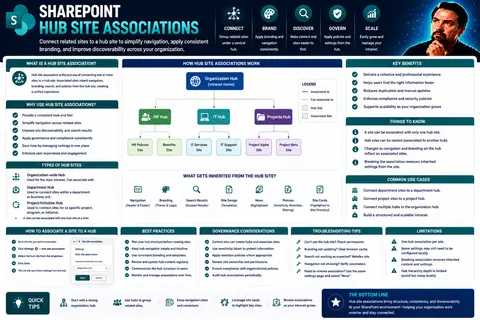
Let’s be honest, SharePoint alone can get messy fast—teams spinning up new sites left and right, different looks, different navigation, and you can’t find anything when you need it. That’s exactly where hub site associations come into play. Hub sites help you tie all those separate sites together in a way that makes your whole intranet more organized, easier to use, and dead simple to manage.
With hub site associations, you don’t just make things look connected. You build a central point for navigation, branding, and collaboration that everyone can easily find and use. Whether you’re running a big enterprise or rolling things out in a smaller business, hub sites keep your SharePoint experience neat, consistent, and under control.
This guide gives you the lay of the land—what hub sites really are, why they matter, and how you can master organizing your SharePoint like a pro. We’ll talk about tools, best practices, compliance, and some surprises most folks miss. You’ll be ready for anything, whether you’re just starting or looking for new tricks to up your SharePoint game.
What Is a Hub Site and How Does It Work?
Imagine you’ve got SharePoint sites for every department or project, all scattered and doing their own thing. A hub site steps in as the “glue” that pulls these separate sites into a single, organized family. Unlike the old days with rigid site collections, a hub site in Microsoft 365 lets you tie modern sites together dynamically, letting them share navigation, branding, and content—all without losing each site’s independence.
What makes a hub site stand out is that it isn’t just a big storage container or a parent to all the others. Instead, it acts as a central gathering point. Sites are “associated” to the hub, not nested like folders. This means you get unified menus and a consistent look and feel across all related sites—perfect for making the digital workplace feel connected, even as teams change and grow.
Organizations use hub sites to break down silos and bring order to the chaos. The hub can pull in news, events, and important links from all associated sites, letting employees find information faster and stay in the loop. Hubs help you keep compliance and governance in check as well, giving admins one place to manage big-picture structures and policies. From navigation to branding—and even compliance—the hub site is the backbone of a well-organized Microsoft 365 environment.
Requesting a Hub Site in Microsoft 365
In Microsoft 365, you can’t just wave a wand and spin up a hub site—there’s a proper process. Usually, you start by identifying the site you want to become a hub and submitting a request to your SharePoint or global administrator.
Admins review the request, check if your organization has reached its hub quota (there’s a limit on how many hubs you can have), and make sure you meet any governance or policy requirements. After approval, the admin designates the site as a hub through the SharePoint admin center. Following best practices for compliance and structure keeps your new hub site as smooth to manage as it is to use.
Creating and Managing Hub Site Associations
Once you’ve got your hub site standing proud, the real power comes in connecting other SharePoint sites to it. This association is more than just a formality—it’s how those individual sites inherit navigation, design, and content aggregation from the hub. Doing this properly means your intranet feels less like a bunch of scattershot pages and more like one cohesive experience.
You can link sites to a hub manually for times you need a human touch, or you can set up rules to do it automatically as new sites are created. Either way, permissions and organizational governance come into play to make sure only the right people are connecting sites (no “Wild West” allowed).
At this stage, it’s not just about connecting the dots. You’ll want to consider who should have the ability to associate a site, what policies guide these connections, and how your bigger business needs tie together. In the following sections, you’ll get hands-on guidance for every approach—whether you like clicking in the interface or scripting things at scale.
How to Associate a SharePoint Site with a Hub
- Via SharePoint Site UI: From the home page of the site you want to associate, click on the gear icon in the top right, then select “Site information.” If you have permission, you’ll see an option to “Hub site association.” Pick your desired hub from the dropdown and hit Save. Your site will now adopt the hub’s navigation and theme (if the hub is set up that way).
- Using SharePoint Admin Center: Admins can head to the SharePoint admin center, select “Active sites,” choose the site to be associated, then click “Hub,” and select “Associate with a hub.” This lets you manage site associations in bulk—handy for bigger changes or onboarding new business units.
- With PowerShell: For IT folks managing large rollouts, open SharePoint Online Management Shell and use the Set-SPOHubSiteAssociation cmdlet. Specify the Site URL and the hub site’s ID. This approach is perfect for mass updates, automation, or scheduled maintenance.
- Tips for Success: Always double-check permissions for both sites and hubs before starting. After associating, visit the newly connected site to confirm it picked up the hub navigation and branding. If you hit errors, common causes are permissions or exceeding association limits—fix those and you’re good to go.
Automatic Hub Site Association Explained
Automatic hub site associations take the headache out of linking new or existing SharePoint sites to the right hub. Instead of manually connecting every single site, admins can set up policies or templates in Microsoft 365 that ensure sites join the correct hub based on who creates them, what template they use, or other business rules.
With automatic association, you can ensure every new marketing site, for example, lands in the Marketing hub right away. This can be configured for sites created via Teams or directly from SharePoint. Admins define these rules in the SharePoint admin center or use provisioning scripts, making onboarding smoother and minimizing human error.
However, it’s not set-it-and-forget-it—automatic rules need regular review to make sure they match evolving business needs. And remember: while this streamlines processes, it also requires strong governance. Sites automatically connected to the wrong hub could end up with misplaced navigation or compliance issues, so a solid review and approval process is key to avoiding mishaps.
Managing Who Can Connect to a Hub Site
Admins have tight control over who can associate sites with a hub. Typically, only SharePoint admins or site owners with specific permissions can make these connections. This ensures only authorized users tie sites together, reducing the risk of accidental or non-compliant associations.
Organizations often set governance checkpoints, like requiring approval before allowing anyone to associate their site. By managing permissions wisely, you protect against misalignments, and you help keep your SharePoint structure clean and secure. For more on this approach and broader governance concepts, check out this deep dive on Teams Governance.
Hub Site Association Tools and Automation
When it comes to managing hub site associations at scale, SharePoint gives you more than one set of tools. There’s the SharePoint Admin Center—a web interface that offers a point-and-click approach for most day-to-day tasks. But for those big, organization-wide updates or routine maintenance, PowerShell automation is your best friend, letting you handle bulk actions quickly and consistently.
This chapter helps you understand why choosing the right tool matters. The Admin Center is great for admins who prefer visual controls and want to manage associations one at a time or review hub details easily. PowerShell steps in when you’re juggling dozens or hundreds of sites, or when you want to script common processes and weave governance checks right into your workflows.
Automation isn’t just about speed; it’s about enforcing standards, reducing manual mistakes, and making sure your hub site strategy sticks to organizational policy. Whether you run a tight ship with just a handful of teams, or you’re scaling up with new departments or geographies, knowing your management tools ensures your intranet evolves with your business.
Using SharePoint Admin Center to Manage Hub Site Associations
The SharePoint Admin Center is the go-to place for managing hub sites if you want a user-friendly experience. From here, administrators can easily view registered hub sites, browse associated sites, and configure settings.
You can associate or disassociate sites by selecting them in the “Active sites” list and choosing the appropriate hub option. This centralized portal allows admins to access directory features, tweak navigation, and adjust branding, all in a secure web-based interface, for streamlined hub management.
PowerShell Automation for SharePoint Hub Site Associations
- Registering a Hub Site: Use the Register-SPOHubSite cmdlet to convert a modern SharePoint site into a hub. Provide the site URL, and the site gets hub capabilities—ready to accept associations.
- Associating a Site to a Hub: Execute the Add-SPOHubSiteAssociation or Set-SPOHubSiteAssociation cmdlet, specifying both the target site and the hub’s ID. Bulk scripts can connect many sites in a single go, ideal for onboarding whole departments or restructuring.
- Disassociating a Site: If a site is moving or needs to be removed, run Remove-SPOHubSiteAssociation. This breaks the connection but keeps all data intact. You can move sites between hubs quickly this way.
- Syncing Hub Permissions (Advanced): Use commands to push hub permissions to connected sites where appropriate, but remember, not all permission types fully sync. Always check permission inheritance to avoid surprises.
- Security and Best Practices: Always use approved admin accounts, never run destructive scripts without backups, and review logs for success. Document scripts for repeat use, and verify changes in the Admin Center or via site navigation immediately after completion.
Branding, Navigation, and Inheritance in Hub Sites
One of the biggest reasons organizations love hub sites is they make SharePoint look and feel consistent without forcing every department to think like IT. By associating sites with a hub, you ensure that all your connected SharePoint sites inherit the hub’s navigation menus, themes, and headers—no more patchwork intranet where every page is its own wild design.
This unified look streamlines user experience. Employees don’t get lost bouncing from site to site, because menus, branding, and critical links stay in sync wherever they go. Planning out how inheritance works is key to making hubs both beautiful and functional.
But inheritance has boundaries. Some elements—like logos and security permissions—don’t transfer for security and branding clarity. Knowing what’s inherited (and what isn’t) helps you plan more intuitive, compliant user journeys across all your business units. The next sections dig into what you can—and can’t—expect when building your hub strategy.
How Theme and Navigation Inheritance Works
- Global Navigation: When a site is associated with a hub, it inherits the hub’s top-level navigation links automatically. This helps users move across related sites without confusion.
- Themes and Headers: Consistent color schemes, fonts, and headers flow down from the hub, enforcing your intranet’s look and brand standards across all connected sites.
- Inheritance Process: The moment a site is connected to a hub, the changes take effect—no manual setup needed. But if the hub’s theme or navigation changes later, connected sites update in sync.
- Common Pitfalls: If users customize their local site too much, it can cause inheritance issues or confusion. Always educate site owners about what gets overwritten and what stays unique.
Hub Site Logo Inheritance and Security Permissions
While navigation and themes flow from hub to associated sites, some things stay unique for a reason. Site logos, for example, don’t inherit—each site keeps its own, letting departments add their flavor while still fitting into the overall structure.
Security permissions also don’t propagate automatically from a hub. Even though branding travels down, access control stays in the hands of each site’s owners and admins. This intentional limit is for data protection and governance, letting organizations tailor access rules to specific needs. For a broader look at how governance builds safer environments, check out this governance strategy overview.
Best Practices and Advanced Use Cases for Hub Site Associations
Getting the basics right is just half the challenge—building a truly effective hub site strategy means thinking about scalability, clarity, and compliance from the very start. This chapter brings together proven tips and planning advice to help you design a structure that grows with your business and makes life easier for everyone involved.
We’ll also dive into real-world issues folks run into—like tricky site associations, permission headaches, and missing navigation. Plus, you’ll get an inside look at advanced features, like rolling up news or events, or connecting hubs in logical groups for complex organizations.
These insights are based on what actually works in the field, not just theory. Whether you’re starting from scratch or looking to fix up your current setup, you’ll find ways to get more out of your SharePoint investment and make the daily experience smoother, safer, and smarter.
SharePoint Hub Site Best Practices and Audience Targeting
- Use Clear Naming Conventions: Name hubs after business functions (like HR Hub, Finance Hub) so users instantly know where to go. Avoid jargon or cryptic abbreviations.
- Design for Scalability: Plan hub structure to handle future growth. Don’t cram unrelated sites into a single hub—stick to logical groupings aligned with business units or use cases.
- Set Audience Targeting: Use SharePoint’s audience targeting features so only the right users see specific navigation items or content, keeping things relevant and clutter-free.
- Avoid Exceeding Technical Limits: There’s a cap on the number of hubs and associated sites per hub in Microsoft 365. Keep track of your numbers to prevent surprises as you grow.
- Review Regularly: Periodically assess your hub and association structure to make sure it still reflects your organization. Realign as departments merge, shift focus, or new needs pop up.
Troubleshooting Common Hub Association Issues
- Failed Association: “Access denied” typically means missing permissions—verify both site and hub admin roles. If you hit technical limits, remove some associations first.
- Missing Navigation: If a newly associated site doesn’t display the hub navigation, refresh or wait briefly. Persistent issues? Reassociate the site or check for customizations that block inheritance.
- Permission Errors: When users can’t see or use hub features, confirm their group memberships and site roles. Restricted sites may need permission tweaks or policy updates.
- Search Not Working: If content isn’t showing up across connected sites, double-check site search settings and permissions. Consistent metadata and hub scope are essential for search results.
For further tips on keeping governance and structure tight, see this guide to building organized, secure environments.
Advanced SharePoint Hub Site Associations and Integration
- News and Event Aggregation: Hubs can roll up news and calendar events from all associated sites to a single dashboard, keeping everyone informed at a glance.
- Embedding Hubs Within Hubs (Navigation Crosslinks): While you can't nest hubs, you can interlink them via navigation, creating solutions tailored for multifaceted organizations.
- Integration with Microsoft 365 Services: Bring in data from Teams, Power BI, or Yammer to make your hubs the real central communication hub. See how dashboard deployment varies in this dashboard showdown.
- Automated Site Provisioning: Use scripts or workflows to automatically create and associate new project sites to the right hub based on templates or metadata, saving time and enforcing consistency.
Governance and Compliance for SharePoint Hub Site Associations
In today’s world, it’s not enough to just keep your SharePoint organized—you’ve got to prove you’re on top of things for governance, data protection, and regulatory compliance. Hub associations are a game changer, letting you enforce data policies and keep track of who’s connected to what, all from a birds-eye view.
This section shines a light on the critical—but often overlooked—side of hub site management: compliance. Whether you’re in a regulated industry or simply protecting sensitive information, setting up clear policies for hub associations makes it easier to meet data retention requirements, sensitivity labeling, and information security standards.
You’ll also see how to keep audit logs and generate reports for every association change—key for satisfying SOX, HIPAA, or GDPR checks. These strategies build trust and accountability, and they make it easier to spot and correct misalignments. To dive deeper into enterprise data governance in Microsoft 365, don’t miss this governance best practices overview.
Enforcing Data Governance Across Hub-Connected Sites
- Consistent Data Retention: Use Compliance Center or Microsoft Purview policies to ensure every site linked to a hub follows the same data deletion or retention schedules.
- Sensitivity Labeling: Automatically apply sensitivity labels and information protection policies to all associated sites, making it simple to flag and protect confidential content.
- Central Policy Management: Configure policies at the hub level to push down settings and reduce the risk of sites drifting from compliance goals.
- Audit for Policy Drift: Regularly review associated sites for settings that don’t match hub standards, using built-in tools to enforce alignment and avoid accidental lapses.
Auditing and Reporting Hub Site Membership Changes
SharePoint gives you tools for tracking every change in hub site associations. Admins can access audit logs that record when sites join or leave a hub, and who made the changes.
For organizations under compliance rules like SOX, HIPAA, or GDPR, these logs become the backbone of your audit process. Reporting functions make it easy to generate documentation for internal or external reviews, helping you show policy enforcement in real time. Build robust change tracking into your process, and you’ll always have an answer ready when auditors come calling.
Summary of Hub Site Associations and Key Resources
We’ve covered a lot of ground, from understanding what hub sites are in SharePoint to hands-on guides for associating sites, automating management, and keeping everything compliant. The main takeaway: hub site associations are the secret sauce for turning a cluttered SharePoint into a streamlined, organized digital workplace.
By following best practices for structure, permissions, governance, and branding, you make SharePoint work for both IT and business users. Don’t forget the value of automation and compliance tools—they save time and keep your environment secure and audit-ready.
For anyone looking to keep growing their SharePoint skills, a wealth of support and learning resources awaits. The next section points to official guides, community wisdom, and expert blogs so you can master every aspect of hub site management and stay ahead of future changes.
Further Learning and Support for SharePoint Hub Site Management
- Microsoft Learn: The official Microsoft resource for SharePoint hub sites and admin guides. Up-to-date and in-depth for all experience levels.
- SharePoint Community Forums: Packed with real-world Q&A and examples from admins worldwide. A great spot to troubleshoot unique issues.
- Governance and Best Practices Blogs: Check out relevant governance insights, like the strategies outlined in this guide, for evolving advice on keeping environments compliant.
- Microsoft 365 Compliance Center: Learn about setting and managing data policies across your hubs and associated sites.
- Specialized Training Workshops: Many providers offer targeted SharePoint and Microsoft 365 training—including deep dives into hub site associations and automation tools.
You Should Also Listen To
SharePoint hub site associations create logical relationships across a flat site architecture, but they do not replace permissions, ownership, metadata, or lifecycle governance. Continue with:
- Make SharePoint Search Show the Right Files First — Understand how hubs, navigation, metadata, and search work together across sites.
- Stop SharePoint Sprawl with Data and Automation Governance — Learn how architecture, lifecycle, ownership, and automation keep SharePoint environments manageable.
- Fix Poor Microsoft 365 Tenant Design with Practical Governance — See how architecture decisions affect complexity, ownership, security, and long-term operations.
- Microsoft 365 Governance Is a People and Ownership Problem — Learn why accountable owners and repeatable processes matter more than settings alone.

Microsoft MVP | Host of M365.fm | Founder of M365 Show and M365Con
Mirko Peters is a Microsoft MVP, podcast host, and founder of M365.fm, M365 Show, and M365Con. His work connects Microsoft practitioners through podcast interviews, livestreams, and community events.
At M365.fm, Mirko hosts conversations with Microsoft MVPs, product experts, architects, and community contributors. Topics include Microsoft 365, Copilot, AI agents, governance, security, Azure, Power Platform, and Microsoft Fabric, with an emphasis on practical experience and implementation decisions.
M365.fm is the podcast and learning platform. M365 Show brings experts together for livestreams, while M365Con provides an online conference setting for community learning.
Official website: Mirko Peters (https://www.mirkopeters.com/). Recognition: Mirko Peters — Microsoft MVP profile (https://mvp.microsoft.com/de-DE/mvp/profile/9b0ca797-db5a-493a-a845-8b9158046cf5). Connect on LinkedIn (https://www.linkedin.com/in/m365showpodcast/).