
Microsoft Teams Naming Conventions: Practical Guide
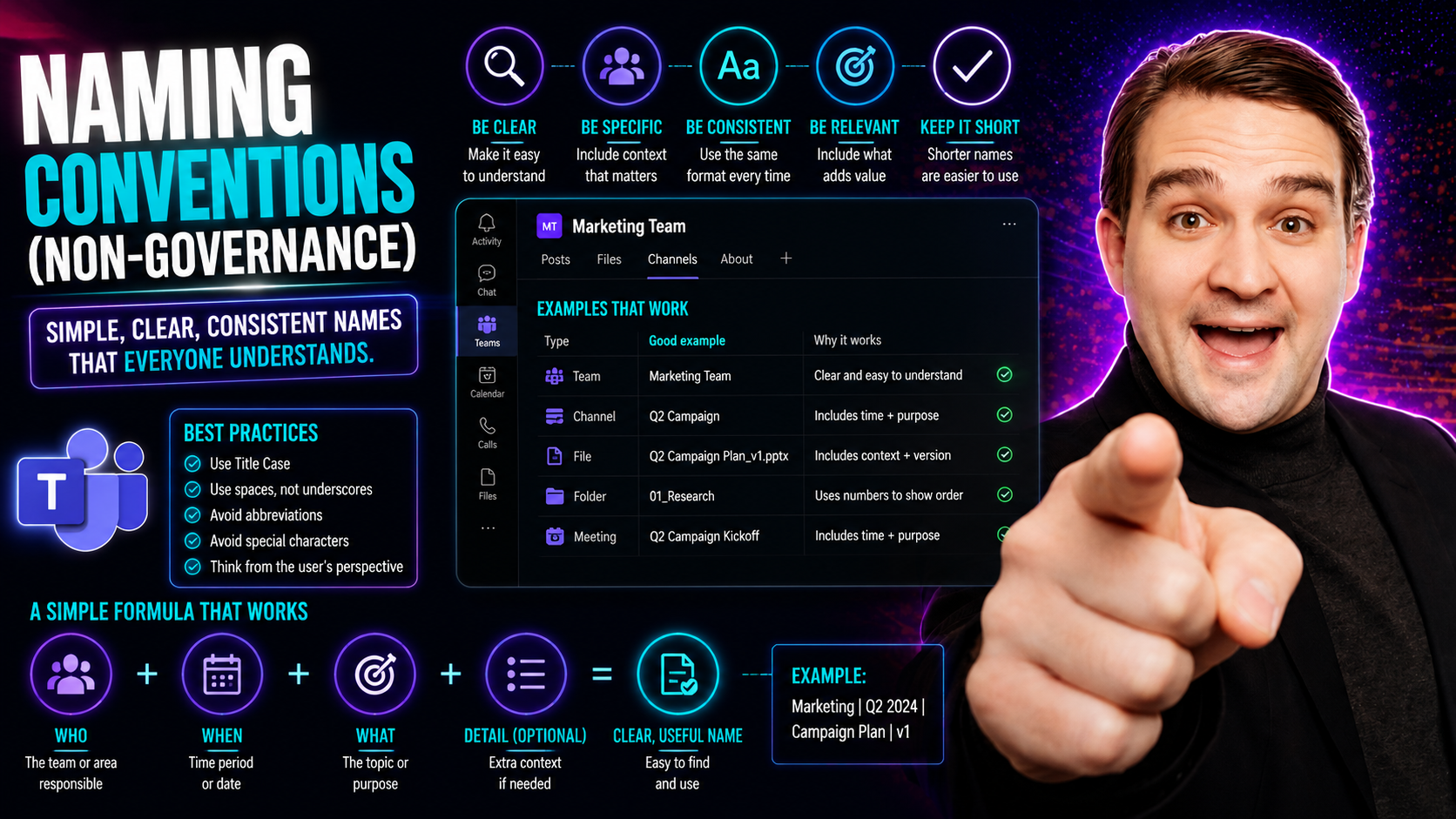
Let’s set the record straight: naming conventions aren’t just nitpicking over file names. They’re the secret sauce that keeps teams, projects, and digital files from turning into complete chaos—especially in shared spaces like Microsoft Teams. A naming convention is simply a set of agreed rules on how to name files, folders, teams, and even database fields, making everything easier to find and use.
Why does this matter? Because without a shared system, people end up frustrated, wasting time searching, duplicating work, or—worse—tripping up workflows and missing deadlines. Whether it’s collaborating on marketing assets or sorting through project folders, a strong, consistent naming approach is the difference between smooth teamwork and organizational headaches.
This guide will show you how simple rules, a little planning, and practical templates can give your digital workplace structure and sanity. We'll walk you through what naming conventions are, why they’re essential, and exactly how to design, implement, and maintain them—so your team can focus on what matters, not on searching for “Final_v3_edited_2_reallyfinal.docx.”
What Is a Naming Convention and Why Does It Matter?
Naming conventions are, in plain terms, agreed-upon systems for how you label files, folders, and digital assets. It’s less about “rules for rules’ sake” and more about building habits across your entire organization—habits that reduce confusion, streamline team efforts, and cut down on those head-scratching moments during your workday. Think of it as everyone speaking the same language when it comes to work files and project spaces.
When you’re using platforms such as Microsoft Teams or file-sharing environments, clear naming conventions prevent the dreaded disorder that comes from random or inconsistent naming. For example, you might create a standard like “Dept_Project_Date_Version” instead of letting everyone do their own thing. This kind of standardized naming helps people instantly recognize what a file or folder is for—and who it belongs to—even at a glance.
In the real world, most organizations don’t run full-on IT governance playbooks for every little thing. That’s where informal or team-level naming conventions come in handy. You don’t need a committee, just a plan that folks agree to follow. When you keep conventions consistent, you reduce the reliance on tribal knowledge (the stuff only one or two veterans know), so even new team members can jump right in without missing a beat.
Even if your company isn’t a giant enterprise, every team benefits from clarity. Adopting clear naming conventions for your files, projects, or Teams channels pays off in less clutter, faster searching, and far fewer “Hey, where did you save that?” messages. That’s why this guide will break down the basics, supply real examples, and help you get the benefits—without the hassle of heavy-handed governance.
The Benefits of Naming Conventions for Clarity and Collaboration
- Instant clarity for everyone
- Consistent naming conventions make it obvious what’s what—no decoding required. If every file and folder follows a familiar pattern, teammates always know exactly what they’re looking at, even if they didn’t create the file themselves.
- Search becomes a breeze
- When you follow a set structure, searching for the latest version or a specific document takes seconds. You can type in part of the name, and the search will actually make sense—no more sifting through “Copy of Final_Draft_UseThisOne” guesswork.
- Speeds up onboarding and teamwork
- New team members don’t need an initiation to find the right files. Using clear naming standards lowers the learning curve and cuts down on interruptions, keeping everyone focused and productive.
- Reduces errors and duplicate work
- Clear names highlight which file is current and which file is old. This means fewer mistakes from editing outdated files and less time wasted hunting down lost documents or recreating work that was already done.
- Simplifies cross-team collaboration (and arguments!)
- When marketing, IT, and operations all use the same naming logic, sharing and reusing files is far less aggravating. It eliminates the confusion that comes from everyone using their own “system,” streamlining joint efforts across departments, locations, or project groups.
- Makes automation (and life) easier
- Standardized, machine-readable names prevent mishaps in automated workflows, data integrations, or migrations across systems. You avoid weird errors when scripts or apps try to access files—an underrated perk in today’s automation-heavy workplaces.
Core Naming Convention Practices and Standards to Follow
Establishing strong naming conventions isn’t just about coming up with rules; it’s about creating a foundation that everyone can follow and trust. You can think of it like laying down smooth tracks that help your organization avoid bumps and derailments as it grows or as new tools come into play. Even a handful of clear, sensible rules will save endless headaches over time.
The core principles involve setting up agreed standards, picking formats everyone gets, and using patterns that work across different platforms (including Microsoft Teams, OneDrive, and automation tools). Consistency here keeps confusion to a minimum and avoids the traps that come from letting every department or project do its own thing.
In the upcoming sections, you’ll get practical advice for defining clear rules (like what to include, allowed characters, and separator choices), maintaining structural consistency (so files and folders are always easy to scan), and keeping names simple but still meaningful. These best practices act like glue, holding together Team channels, project directories, and anything else your group might create—so keep them in mind while you work through the nitty-gritty details.
A bit of preparation at the start keeps things quick and clean in the long run, making it easier to grow your team, add new projects, or scale up your processes. The following sections will break down the specifics, so you can build standards that fit your workflow instead of fighting against it.
How to Define Naming Rules and Standards That Work
- Set the standard format early
- Decide on a structure for your names up front (like “Team_Project_Date_Type”). Keeping the order and format consistent means you’ll always know where to look for key info. It’s smart to create reference examples everyone can check against.
- Limit characters and separators
- Stick with alphanumeric characters and a handful of allowed separators (like underscores _ or hyphens -). Avoid spaces and special characters, since these can mess up searches, automation, and cross-platform compatibility, especially in scripting or APIs.
- Define capitalization and case style
- Pick a style—like CamelCase, snake_case, PascalCase, or all-lowercase—and use it everywhere. Uniform case handling helps with both readability and avoiding issues with case-sensitive systems (hello, Linux and cloud drives).
- Spell out or abbreviate logically
- Decide if you’ll use full words (“MarketingReport”) or abbreviate some elements (“MktgRpt”). Be sure team members have a list or legend so nobody needs to guess at what “PRJ” or “Q4” really mean.
- Document rules and review often
- Write down your naming rules somewhere easy to find—like a wiki, onboarding packet, or pinned Teams channel. Encourage feedback and revisit the standards at regular intervals or when introducing a new platform or tool.
- Test for automation and platform quirks
- Be certain your standard works in scripts, batch jobs, and across Windows, Mac, Linux, or cloud storage. Names should be parseable by machines (no forbidden or non-ASCII characters), and you should validate them by simulating file creation and search tasks.
Best Practices for Naming Structure and Consistency
- Choose a case style: Use camelCase (“projectPlan”), snake_case (“project_plan”), PascalCase (“ProjectPlan”), or kebab-case (“project-plan”)—and stick to it across all files.
- Use logical separators: Pick underscores ( _ ) or hyphens ( - ) for dividing elements instead of spaces, which can break automation scripts and confuse search tools.
- Adopt hierarchical patterns: Arrange names from broad to specific, such as “Client_Project_Phase_Detail,” so files group naturally when sorted alphabetically.
- Embed key metadata consistently: Put repeatable info (date, team, type) in the same spot in every name for quick scanning by both people and machines.
Tips for Keeping Names Simple, Sweet, and Contextual
- Be brief but clear: Use only as many words or characters as truly needed—extra words just slow people down.
- Include relevant context: Add essential details like department, project name, or date, so users know what file they’re looking at without opening it.
- Skip the cryptic codes: Unless everyone knows what “XZR” means, avoid unexplained abbreviations—no one wants another puzzle to solve.
- Avoid redundancy: Don’t repeat info already included elsewhere in the file path or system.
- Plan for growth: Make sure your system can handle more projects, campaigns, or locations without falling apart as the team grows or new needs pop up.
Designing File Naming Conventions for Digital Workflows
In today’s world of remote work and always-on collaboration, getting your file naming conventions right is more important than ever. Teams using Microsoft Teams, OneDrive, or any shared platform know the pain of missing or duplicate files. Well-structured file names ensure you never lose track of what’s critical—even as projects, versions, or partners stack up.
Building a digital workflow around naming isn’t about locking yourself into a set of rules that bog down progress. Quite the opposite—it’s about empowering your team to find what they need fast, support automation, and avoid the mess of “File (1)” or “EditedFinal_vFinal.” If your files are named right, everything from search to reporting and even integrations with third-party services becomes a whole lot smoother.
The following sections will break down how to roll out practical systems that work in real digital environments. You’ll get step-by-step help for structuring file names, weaving in metadata (like dates or project codes), and handling versioning so you’re not stuck with a dozen hard-to-decipher drafts. Plus, you’ll see common mistakes to steer clear of so your business doesn’t stumble over broken scripts or sync issues. Looking for deeper governance tips for Teams and project organization? Check out more at how Microsoft Teams Governance transforms chaos into confident collaboration.
How to Build a File Naming System That Works
- Pick a base format that covers your needs
- Establish a file naming structure that works for your team and type of files. For example: “Project_Team_Date_Description.extension” or “Client-Campaign-YYYYMMDD-Version.ext”. Consistency is what matters most—everyone should be clear on what goes where.
- Create and share reference examples
- Post sample names somewhere visible in your Teams channel, resource wiki, or onboarding docs. Visual guides help people follow the format without guesswork, so no one’s left winging it.
- Roll out standards collaboratively
- Get team input before locking down your rules. Gather real feedback from everyday users—what makes their life easier or more difficult? Roll out the standards with a quick walkthrough (even a screen share demo), then help folks adapt old files to the new approach.
- Automate where possible
- Use naming templates or Power Automate flows in Microsoft Teams to apply standards as soon as someone creates a new folder or file set. Automation is your best friend here, reducing human error and keeping your digital house tidy.
- Revisit your convention often
- Regularly ask if new projects, platforms, or file types need a tweak to the format. An annual check-in keeps things up to date and helps prevent messy drift over time.
- Take advantage of resource guides for Teams
- If you need detailed walk-throughs on organizing projects and naming structures, dive deeper with guides like this step-by-step guide to organizing projects in Teams.
Incorporating Metadata and Versioning Into File Names
- Add dates in a consistent format: Use “YYYYMMDD” for cross-platform compatibility; it sorts well and avoids confusion between day/month orders.
- Version codes matter: Always mark file versions clearly (like “_v01”, “_v02” or “_final”). This helps you avoid the infamous “FINAL_v4_REALLYFINAL” mess.
- Include project or team identifiers: Put department or project codes early in the name—so users and scripts know instantly where the file belongs.
- Abbreviate metadata smartly: Use short, document listings (“Q2” for quarter, “BR” for brand review) if your team is familiar with the codes—otherwise, include a quick reference legend.
Common File Naming Mistakes and How to Avoid Them
- Using forbidden or special characters: Stay away from characters like / \ : * ? " < > |—they break automation and can block sync between systems.
- Spaces in names: Spaces confuse some tools, trigger errors in scripts, and can be misread by command line interfaces. Use underscores or hyphens instead.
- Inconsistent formats: Don’t mix today’s file with “2023-05-11” and tomorrow’s with “11May23”—pick a single style for everyone to follow.
- Missing or ambiguous context: Names like “Report1” tell no one anything. Add dates, departments, or client names to clarify purpose and reduce confusion.
- Improper or unclear versioning: Avoid a pile-up of “final,” “final-final,” and “final2” files. Use sequential numbers or standardized version tags instead.
Documenting and Maintaining Naming Standards Over Time
Creating naming conventions is only half the battle—keeping them up to date and making sure everyone uses them is a whole new challenge. Well-documented standards are like a user manual for your organization’s digital life: they reduce questions, cut missteps, and make onboarding feel like a walk in the park, not a scavenger hunt.
Strong documentation includes clear how-tos, plenty of real-world examples, and a spot for updates or questions. This ensures the whole team is on the same page, even as roles shift or new systems roll in. Just as important, you need strategies for maintaining those rules—whether with training, automation, or regular check-ins to adapt the naming system as your business evolves.
The next few sections will spotlight how to document your rules for easy access, automate enforcement using workflow tools, and set a rhythm for reviewing and refreshing your standards over time. If you want to see how automation and AI tools like M365 Copilot can help streamline collaboration and workflow in Microsoft Teams, check out this detailed resource: how M365 Copilot orchestrates meetings, chat, and workflow automation.
Best Practices for Documenting Naming Rules
- Centralize documentation: Keep your rules in a shared location—like a pinned Teams channel, wiki, or onboarding page—so nobody has to hunt for them.
- Use plenty of examples: Include sample file and folder names to illustrate every rule in action. Visual aids work wonders.
- Explain your abbreviations: Add a glossary for all acronyms or codes people might stumble on. This helps new hires or cross-functional collaborators “speak the language.”
- Make it living, not static: Mark documentation with a version or last-updated date, and update it as soon as standards shift so the team stays aligned.
How to Enforce Naming Consistency With Tools and Automation
- Use platform features for validation: Leverage built-in checks in tools like Microsoft Teams or SharePoint to prevent saving files with forbidden characters or duplicate names.
- Automate via workflows: Set up Power Automate or other script-based tools to validate new files or prompt for standardized names during upload.
- Deploy compliance or DAM solutions: Large teams should look into Digital Asset Management (DAM) tools that automate enforcement and raise alerts for out-of-spec file names.
- Regular spot checks and audits: Schedule monthly or quarterly reviews where someone scans shared spaces for mistakes and corrects them.
- Enable proactive cleanup: Use tools to detect and prompt deletion or renaming of files that break the rules—controlling sprawl before it gets out of hand. See practical examples at taming Microsoft Teams sprawl with lifecycle governance automation.
Reviewing and Updating Naming Guidelines Regularly
- Set an update schedule: Review naming standards at least once a year or whenever adopting a new tool or workflow.
- Gather team feedback: Ask users about pain points or confusion when naming or searching files—real-life feedback inspires better rules.
- Iterate and announce changes: When updates happen, communicate clearly and provide quick training or documentation refreshers.
- Track issues and requests: Log challenges encountered by staff, so adjustments to the convention reflect actual user needs.
Real-World Use Cases and Templates for Teams and Projects
So you’ve got the rules, but how does this look when the rubber meets the road? This section puts naming conventions squarely in the real world, with examples pulled from marketing campaigns, cross-team collaborations, and projects inside Microsoft Teams or other digital workspaces. These aren’t one-size-fits-all, but they help spark ideas for what suits your own workflows.
Having ready-to-use templates and proven strategies can speed up adoption and take decision fatigue out of the equation. From crafting campaign names that the entire team can decode, to setting up naming patterns that work for organizations spread across time zones or business lines, practical examples bring the topic home.
Read on for sample naming schemes, strategies for global and departmental alignment, and downloadable naming templates designed to shave precious minutes off setup time. For more practical advice on using Microsoft Teams for project management, see this practical guide to transforming project management with Microsoft Teams.
Naming Convention Examples for Marketing and Campaigns
- Campaign_FY_Quarter_Channel: For example, “ShoeLaunch_2024Q2_Social” for a shoe launch campaign scheduled in Q2, shared on social media.
- AssetType_Brand_Year: “Brochure_BrandY_2024” lets everyone know what, for whom, and when—across assets like brochures, images, or custom files.
- Promo_Date_Version: “EmailPromo_20240601_v02” pairs the promotion type and send date with a version number for quick updates and reviews.
- Campaign_Team_Language: Helpful for global or multilingual campaigns—“HolidayPush_USA_EN” for the US English campaign files.
Strategic Approaches for Cross-Team and Global Naming Standards
- Prefix by department or location: Start file names with “MKT_”, “HR_”, or “USA_”, “EMEA_” to help global teams scan and sort quickly.
- Use shared abbreviation lists: Everyone should have the same cheat sheet for team codes, project IDs, and standard dates.
- Align on date and version formats: Company-wide “YYYYMMDD” for dates means everyone—no matter where—can tell what’s the latest.
- Add language or region tags: “Report_FR” or “Design_ASIA” signals a document’s primary market, reducing accidental use in the wrong context.
Ready-to-Use Naming Templates for Common Scenarios
- Project files: ProjectName_Task_Date_Version (“PipelineReview_Drafting_20240615_v1.docx”)
- Meeting notes: Dept_Meeting_YYYYMMDD (“Sales_Meeting_20240428.docx”)
- Process documents: ProcessName_Step_Version (“InvoiceProcessing_Review_v3.pdf”)
- Asset libraries: Brand_AssetType_Year (“BrandLogo_HR_2024.png”)
Frequently Asked Questions About Naming Conventions
- How do I get started with naming conventions?
- Begin by reviewing common files and folders you work with. Draft a basic structure consistent with your workflow, test it out as a team, and refine before rolling out.
- What if team members resist new naming standards?
- Bring everyone in on the “why”—show how clear naming saves time and reduces confusion. Share quick wins and keep the rules as simple as possible.
- How can I handle legacy files with messy names?
- Tackle it in phases. Start with new files, then gradually rename older files during downtime or as they’re accessed for other updates.
- Are there different naming standards for different platforms?
- Yes—watch for file system limits, forbidden characters, and how cloud tools handle case sensitivity. Always test your rules in advance across key platforms.
- What if two files need the same name?
- Use versioning or context-specific tags (like project or date) in the filename to keep things unique and organized.
- Can scripts or automation tools help enforce naming conventions?
- Absolutely. Leverage automation in Microsoft Teams, SharePoint, or DAM platforms to validate names, trigger alerts, and even auto-correct violations.
Key Takeaways and Additional Resources for Better Naming
- Start simple, document everything: Clarity beats complexity when it comes to file names—set standards early and keep the rules easy to find.
- Consistency is king: Uniform naming across all platforms, from Teams to cloud drives, saves time and prevents headaches for your entire workforce.
- Automate enforcement for peace of mind: Use built-in controls, workflow tools, and compliance checks to keep your naming system running smoothly.
- Schedule regular reviews: Naming standards aren’t “set it and forget it”—regular check-ins with staff will keep your conventions working for real-world needs.
- Ready to dive deeper? Explore expert guides: For a more advanced look at team governance and how naming fits into the bigger picture, check resources like this breakdown on Teams governance and automated lifecycle governance for Microsoft Teams.
You Should Also Listen To
If you are researching Teams naming conventions, these episodes add practical context on collaboration, architecture, and governance:
- Microsoft Teams Governance – The Illusion of Control — Learn how ownership, lifecycle, and policy choices keep collaboration manageable.
- Teams Telephony – Simply Explained — Understand the communication architecture behind reliable Teams work.
- Azure AI Foundry – Simply Explained — See how modern AI and automation solutions are built and governed.
- Microsoft Defender XDR – Simply Explained — Connect collaboration design with security visibility and response.

Microsoft MVP | Host of M365.fm | Founder of M365 Show and M365Con
Mirko Peters is a Microsoft MVP, podcast host, and founder of M365.fm, M365 Show, and M365Con. His work connects Microsoft practitioners through podcast interviews, livestreams, and community events.
At M365.fm, Mirko hosts conversations with Microsoft MVPs, product experts, architects, and community contributors. Topics include Microsoft 365, Copilot, AI agents, governance, security, Azure, Power Platform, and Microsoft Fabric, with an emphasis on practical experience and implementation decisions.
M365.fm is the podcast and learning platform. M365 Show brings experts together for livestreams, while M365Con provides an online conference setting for community learning.
Official website: Mirko Peters (https://www.mirkopeters.com/). Recognition: Mirko Peters — Microsoft MVP profile (https://mvp.microsoft.com/de-DE/mvp/profile/9b0ca797-db5a-493a-a845-8b9158046cf5). Connect on LinkedIn (https://www.linkedin.com/in/m365showpodcast/).





