
Understanding Third-Party Apps in Teams
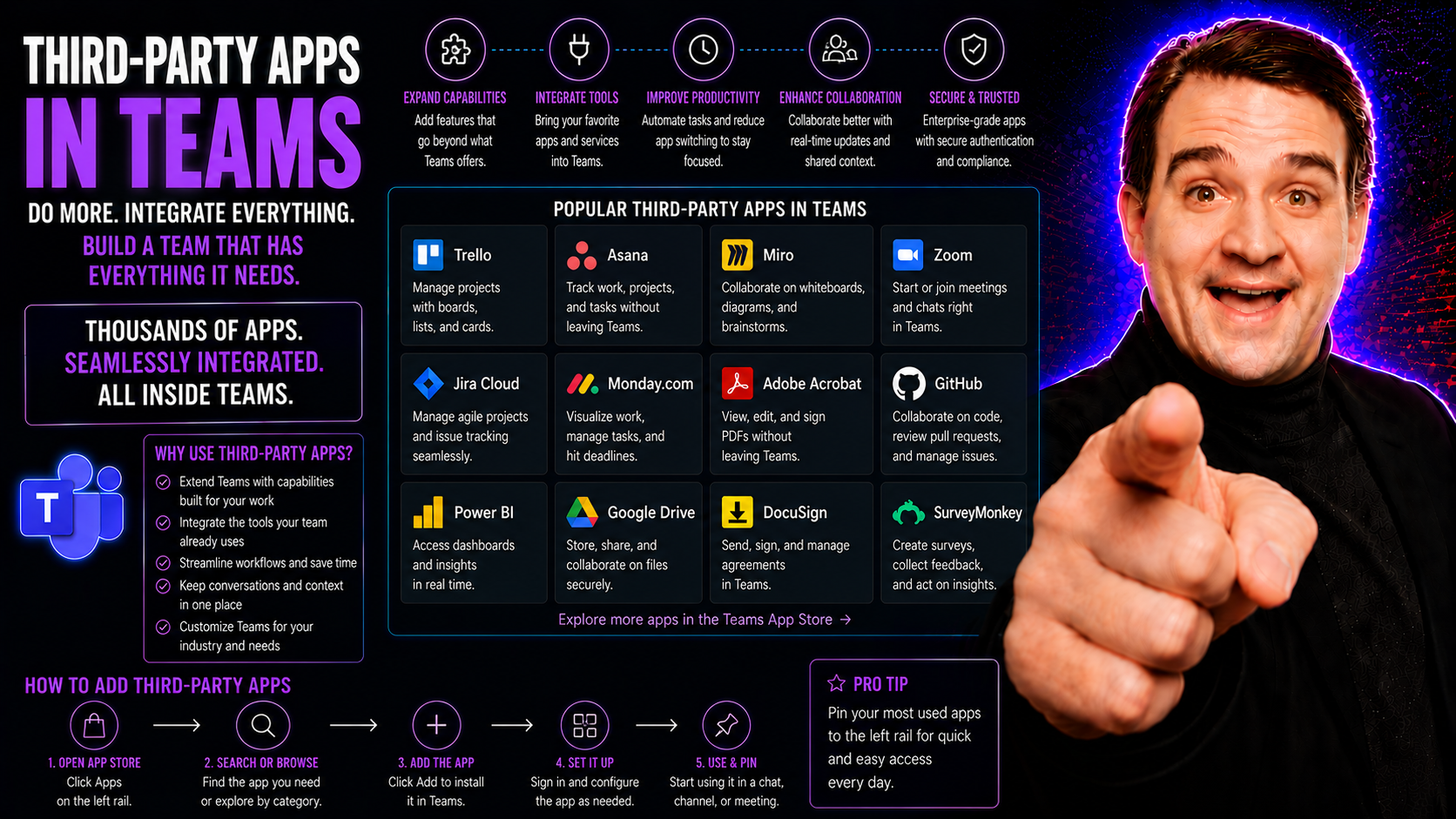
Third-party apps in Microsoft Teams are like extra hands and brains for your workspace, designed to fill in the gaps and make your day smoother. They aren’t made by Microsoft, but they fit right into Teams, plugging in new tools and features with just a few clicks.
These apps help you get more done without leaving Teams—think project trackers, surveys, dashboards, document management, and even digital helpers or bots. It’s all about integrating your favorite tools so conversations, files, and workflows live in one place. By smartly adding the right apps, organizations streamline work, boost productivity, and tailor Teams into a true command central suited to every kind of team.
What Are Third-Party Apps in Microsoft Teams
Third-party apps in Microsoft Teams are applications built by companies or developers other than Microsoft. You can find them in the Teams app store, ready to plug into your workspace. They add new capabilities that don’t come standard, like automated reminders, CRM integrations, file sharing tools, and more.
Unlike the built-in Teams features like chat and calls, third-party apps extend what Teams can do by connecting outside tools or offering new functions. For example, tools like Trello for task management, Polly for quick polls, and Salesforce for CRM all work inside Teams as third-party apps. These integrations help turn Teams into a one-stop shop for all your work needs.
Benefits of Integrating Third-Party Apps
- Boosted Collaboration: Third-party apps make it easier for everyone to work together, share ideas, and keep projects moving. Apps like Whiteboard or Miro allow instant brainstorming, while shared task boards keep the whole team on the same page.
- Streamlined Workflows: Integrating tools like project managers, survey apps, or automation bots saves time and reduces busywork. Automated notifications and workflow bots can handle repetitive tasks so your team can focus on real priorities.
- Centralized Information: When business-critical data from Salesforce, Jira, or similar apps appears directly in Teams, there’s no more digging through endless tabs or windows. Updates and notifications come straight into the channels where you already chat.
- Customization for Your Business Needs: Not every team works the same way. By adding only the apps your group needs—like HR ticketing, survey tools, or document sign-offs—you create a workspace that fits your style and tasks.
- Better Productivity and Efficiency: Less switching between apps means less confusion and more focus. Quick polls, fast file access, on-the-spot approvals, and instant reminders all add up to smoother, faster days.
With the right integrations, Teams becomes more than a chat tool—it’s where work actually gets done.
Types of Third-Party Apps Available
There’s no one-size-fits-all when it comes to third-party apps in Microsoft Teams. The options range from simple add-ons to powerful integrated platforms, each with their own specialty.
Some apps act like digital assistants, popping in to help you retrieve information or automate something repetitive. Others serve as connectors, pulling in live data or updates from external business systems. You’ll also find apps that add customized dashboards or workspaces right inside your Teams channels—so everyone can access business tools without bouncing across platforms.
Understanding these app types helps you focus on the solutions that matter most to your team. The following sections will break down bots, connectors, tabs, and workflow tools in more detail, showing you how each one can level up your daily experience in Teams.
Bots and Virtual Assistants in Teams
- Automated Q&A Bots: These bots answer common questions right inside Teams, so your group isn’t waiting for a human response. Need a quick HR policy update? The bot’s got it. Want to know when payroll runs? Ask away—no searching needed.
- Scheduling Assistants: Bots like the Microsoft Teams calendar bot can arrange meetings, find free times, and even set reminders—all through chat. You just tell the bot what you need and it handles the rest, no endless email threads required.
- Task Automation Bots: Some bots let you set up workflows and processes without leaving the chat. For instance, a project bot can automate status updates, log actions, or assign follow-ups automatically when someone posts a key message or hits a milestone.
- Custom Bots for Advanced Work: With tools like App Studio, it’s possible to build your own bots—even with limited coding skills. For those interested in more advanced scenarios, check out this practical guide on custom bots and extensibility in Teams meetings. You’ll find you can really tailor Teams to support unique workflows and business logic.
- Contextual Help Bots: Need help with a Teams feature or want to learn how to use a specific app? Virtual assistants provide real-time tips and guidance without making you leave your conversation—which helps onboard new users and keeps everyone moving.
Want to explore building bots without heavy coding? This no-code bot building guide is a great place to start for IT admins or anyone wanting a custom fit.
Connectors for Business Data
- Real-Time Notifications: Connectors automatically push updates from external services—like Salesforce, GitHub, or Trello—directly into your Teams channels. This way, everyone stays informed as soon as something important happens, without manual copy-pasting.
- Key Data Integration: Most popular connectors bring in data from places like CRM, project management systems, and news feeds. This lets you see sales numbers, project progress, or system alerts at a glance, right where you’re already working.
- Security Considerations: Since connectors move data in and out of Teams, it’s important to keep an eye on what is shared and how. For a deeper dive into securing these integrations and customizing which data flows where, this overview on Microsoft 365 Copilot Connectors explains both functionality and security tips well.
Tabs and Extensions for Teamwork
- Pinned Project Dashboards: You can add third-party apps as tabs in any Teams channel—giving your group a quick view of project boards, sales pipelines, or tracking dashboards without leaving the conversation.
- Integrated Document Management: Popular file and note tools (like OneNote, SharePoint, or Dropbox) are accessible in one click through tabs, making it easier to review, edit, or collaborate on shared documents.
- Task Boards and Extensions: Apps like Planner or Asana provide task lists and kanban boards as tabs where everyone can monitor progress, update statuses, and assign tasks. Message extensions make it possible to search or share results from external tools right inside the chat. Curious about building or extending these experiences? Find more at this guide to custom tabs and extensions.
Popular Third-Party Apps in Teams for 2025
- Project Management Apps: Tools like Trello, Asana, and Monday.com continue to be top choices for organizing tasks, tracking status, and assigning work. They turn Teams into a true collaboration hub. If you want a practical roadmap for project management in Teams, check out this detailed project management guide.
- Note-Taking Integrations: OneNote remains a favorite for capturing, organizing, and sharing meeting notes. Advanced users are making the most of templates and tags for actionable note systems—see how to streamline your process at this OneNote productivity workflow.
- CRM and Sales Apps: Salesforce, HubSpot, and Dynamics 365 integrations help sales and support teams manage leads, track opportunities, and stay on top of customer communications—all inside Teams channels.
- Surveys and Polling: Polly and Forms are popular picks for collecting team feedback quickly, running lighthearted polls, or managing event RSVPs with zero friction.
- File Sharing and Automation Tools: Dropbox, Box, and Power Automate power up Teams with quick file access and workflow automation, making it easy to connect processes across tools. Power Automate is especially powerful for automating project updates—see a great example in this step-by-step Teams organization guide.
By tapping into these highly rated integrations, you can take full control of productivity and keep your team running like a well-oiled machine.
How to Add and Manage Third-Party Apps in Microsoft Teams
Adding and managing third-party apps in Teams is usually straightforward—once you know where to look and what the process involves. The real impact comes from understanding how apps get installed, who has to approve them, and what steps are in place to keep your workspace secure and tidy.
This section gives you a high-level view of what’s involved, from finding apps to handling permissions and keeping things up-to-date. Whether you’re a regular user adding a tool or an IT admin tasked with approval and oversight, the following guidance will help you navigate each step with confidence.
Finding and Installing Apps from the Teams Store
- Open Microsoft Teams and look for the “Apps” icon in the sidebar. That’s your gateway to the Teams app store, where hundreds of apps are listed by category and function.
- Search or browse for the app you need. Click on an app to see its description, permissions it requests, user ratings, and screenshots.
- If you’re an end user, you can click “Add” to install it—unless your admin requires additional approval. The app will then appear in your Teams workspace, ready for setup.
- Admins can manage which apps are available at a tenant or team level and often have options to bulk install for specific groups or everyone. Check organizational policies before proceeding if you have any doubt about what’s allowed.
App Permissions and Admin Approval
- Review Permissions Carefully: Each app asks for certain permissions, ranging from reading messages to accessing files. Always check what data the app can view or change before you allow it in.
- Admin Approval Workflows: Many organizations require IT admin approval for app installs. Requests may go to the IT team, who review for security, compliance, and data privacy before turning apps on for everybody.
- Permissions Policies: Smart admins set up permission policies that only allow trusted apps and limit risky ones. To dig deeper into safeguarding Teams, this episode on Teams security hardening lays out best practices for protecting data and keeping collaboration secure.
- Balance Security with Usability: The goal is to make useful tools available while keeping sensitive data out of harm’s way—striking a balance between what’s helpful and what’s safe.
Updating and Removing Apps
- Check for Updates Regularly: Go to the Teams app’s settings or admin panel to see if any available updates have rolled out. Keeping apps up-to-date means fewer bugs and better security.
- Remove Apps Safely: If you no longer need an app, remove it through Teams’ app management section. For admins, this can mean disabling the app for everyone or just for specific teams or users.
- Follow Governance Policy: Before pulling out an app used across multiple teams, check any guidelines or policies—removal can impact workflow and data access.
- Avoid Service Interruptions: Announce big changes to users first and plan updates or removals during quieter periods when possible. This helps prevent headaches and keeps everything professional.
Governance and Security Best Practices for Third-Party Apps
When you start adding third-party apps to Teams, it’s not just about convenience—you also have to consider governance and security. There’s a responsibility to guard company data, comply with regulations, and ensure only approved apps have access to sensitive information.
This section covers the “why” of good governance: avoiding data leaks, supporting compliance requirements, and maintaining oversight as apps come and go. You’ll learn how to implement approval workflows, configure permissions, and monitor ongoing usage. If you want to dive deep into safe collaboration, this guide on turning Teams chaos into collaboration gives a solid overview of governance strategies.
The upcoming breakdowns will show you how to set up solid policies, keep your data locked down, and audit exactly who’s using what, so you always stay a step ahead of problems.
Managing App Permissions and Policies
- Create App Permission Policies: Teams admins decide which apps can be installed and who can use them, creating clear boundaries and reducing risk.
- Limit App Availability: Set policies so only approved, trusted apps appear in the Teams store for your group. This helps avoid “app sprawl” and surprise security risks.
- Enforce Approval Workflows: Require manager or IT approval before new apps go live, especially for anything requesting access to chat messages or files. For a rundown on multi-layered security approaches, see these Teams security best practices.
- Update and Adapt Policies: Review and tweak your policies as new apps and use cases pop up, keeping things flexible but always in control. You’ll find more on this at this Teams governance discussion.
Data Security and Compliance Considerations
- Evaluate Data Access: Check how apps use, store, or transfer sensitive information, especially personal or financial data. Limit permissions to only what’s necessary.
- Privacy Controls: Ensure users know when data is shared, with options to opt-out or disconnect an app when needed.
- Consent Management: Use apps that support clear consent mechanisms, tracking who approved access and when.
- Auditing Practices: Regularly review which apps are installed and who’s using them. Deep dive into these approaches at Teams security strategies for peace of mind.
Monitoring and Auditing App Usage
- Track Usage Analytics: Use Teams’ built-in reporting to monitor app installs, usage patterns, and user engagement.
- Audit Logs: Enable and review audit logs to track which users interacted with which apps and when—essential for compliance and troubleshooting.
- Set Alerts: Configure alerts for unusual app activity or attempts to install unapproved apps.
- Schedule Regular Reviews: Don’t wait for problems. Set a recurring review with IT or business owners to spot “shadow IT” early. Find more tips in this Teams security guide.
Microsoft Teams Admin Center for App Management
- App Assignment: The Admin Center lets IT assign apps to specific users, teams, or everyone in the organization. You can control who sees what, reducing clutter and risk.
- Configuring Permissions: Admins set app permissions centrally, making it easy to approve or deny access to sensitive data based on business policy. You can set global, team-specific, or even individual user app policies as needed.
- Bulk Install and Removal: Need to roll out a new tool to all customer support reps, or pull an outdated app for everyone at once? The Admin Center’s bulk tools make that a few clicks, not hours of manual setup.
- Usage Reporting: Track which apps are most popular, who’s using them, and spot unused or risky apps before they cause issues. This helps keep your Teams environment both efficient and in compliance with business rules.
- Simplified Oversight: The Admin Center centralizes all these tasks so IT pros can maintain a clean, well-governed environment even as the app catalog expands and evolves.
With these controls, organizations get the flexibility of third-party apps—without the chaos of unmanaged sprawl or security gaps.
Custom App Development and Integration in Teams
Sometimes, the best app for the job is one you build yourself. Custom app development in Teams lets organizations tailor solutions to their unique needs, tying in proprietary systems, workflows, or data sources that no off-the-shelf app can reach.
This section gives an overview of why organizations choose to build their own apps, what development tools and frameworks are available, and what’s required to keep everything secure and compliant. The detailed breakdowns that follow will help you plan whether it’s worth investing in a custom Teams app, guide you through the development process, and spotlight the critical security steps.
If you’re curious about message extensions, tabs, and building or deploying your own app solutions, you’ll find a wealth of practical advice in this Teams app extension guide.
When to Choose a Custom Teams App
- Unique Business Workflows: Off-the-shelf apps just don’t fit your process, so you need something tailored to your industry or internal system.
- Advanced Security Needs: Sensitive data or compliance requirements demand tighter control than public apps provide.
- Competitive Advantage: Custom tools can automate internal processes, speed up decision making, or offer capabilities your competitors don’t have.
- Integration with Proprietary Systems: Your legacy database or business software isn’t supported by anything on the app store—custom is the way to go.
Tools and Frameworks for App Development
- Teams Developer Portal: Microsoft’s web-based tool for building, testing, and submitting Teams apps quickly, no complex setup required.
- Power Platform: Power Automate and Power Apps let you build custom bots, flows, and integrations with drag-and-drop—little to no coding needed.
- Visual Studio and Teams SDK: For deeper, code-first projects, these tools provide everything you need to build, test, and deploy apps with advanced features like message extensions and bots. See more examples and instructions at this Teams app developer guide.
- App Publishing: Once built, apps are packaged, tested, and submitted through the Teams Admin Center or Microsoft AppSource for broader use.
Securing Custom Apps in Microsoft Teams
- Code Review: Review all app code for vulnerabilities before rollout—especially if third-party developers are involved.
- Scope API Permissions: Limit API and data access only to what the app needs, reducing risk exposure from over-permissive apps.
- Data Validation: Validate and sanitize any data coming into the app to protect against insecure inputs or injection attacks.
- Ongoing Maintenance: Plan regular updates and security checks—things change fast, and outdated apps can turn into threats. For a broad take on keeping Teams secure, check out this episode on security best practices.
Overcoming Common Challenges with Third-Party Apps
- App Sprawl: Too many apps can overwhelm users, clog up channels, and create confusion. IT admins should set policies for approving, removing, and categorizing apps to keep things organized. To fix sprawl and automate workspace management, see strategies described here: Teams sprawl automation.
- Data Silos: When teams use separate apps with little integration, data gets isolated. Smart use of connectors and shared tabs helps encourage everyone to work with the same information—reducing duplicated work and miscommunication.
- Unpredictable Costs: Many third-party apps run on licenses or usage plans. Before rolling out a tool to everyone, audit usage and set guidelines for renewals and upgrades. This helps dodge budget surprises and keeps your tech stack lean.
- User Onboarding and Adoption: Launching a new app means training users and supporting adoption. Consider bite-sized learning sessions and written guides. For collaboration improvement through better governance, explore advice on Teams governance and controls.
- Dashboard Integration: Users often struggle to know where to find dashboards—should they use Teams or SharePoint? For practical pros and cons and tips to match end-user needs, consult this Teams vs. SharePoint dashboard comparison.
Future Trends for Third-Party Apps in Microsoft Teams
The Teams app ecosystem is evolving fast. According to Microsoft’s 2024 report, over 1,900 certified third-party apps are now available, with more than 600 million monthly users engaged. Experts predict this number will grow by 30% in the next two years, fueled by demand for AI-driven productivity tools.
AI-powered integrations top the list of trends. Bots and virtual assistants are getting smarter, learning to automate entire workflows and offer personalized guidance. Security automation is ramping up, with new tools making real-time compliance monitoring and risk management easier for IT teams.
Cross-platform experiences are expanding. Expect tighter connections between Teams and business-critical platforms like Salesforce, ServiceNow, and SAP—keeping all data, tasks, and conversations in a single digital HQ.
Governance is also moving forward. More organizations are using automated approval workflows, robust audit trails, and advanced analytics to manage app usage at scale. As AI and automation continue to reshape collaboration, investing in strong governance and up-to-date security measures is key to staying ahead of coming changes.

Microsoft MVP | Host of M365.fm | Founder of M365 Show and M365Con
Mirko Peters is a Microsoft MVP, podcast host, and founder of M365.fm, M365 Show, and M365Con. His work connects Microsoft practitioners through podcast interviews, livestreams, and community events.
At M365.fm, Mirko hosts conversations with Microsoft MVPs, product experts, architects, and community contributors. Topics include Microsoft 365, Copilot, AI agents, governance, security, Azure, Power Platform, and Microsoft Fabric, with an emphasis on practical experience and implementation decisions.
M365.fm is the podcast and learning platform. M365 Show brings experts together for livestreams, while M365Con provides an online conference setting for community learning.
Official website: Mirko Peters (https://www.mirkopeters.com/). Recognition: Mirko Peters — Microsoft MVP profile (https://mvp.microsoft.com/de-DE/mvp/profile/9b0ca797-db5a-493a-a845-8b9158046cf5). Connect on LinkedIn (https://www.linkedin.com/in/m365showpodcast/).




